To add another language to your keyboard in Windows 11, open Settings > Time & language > Language & region, select Add a language, pick the language and select Install with Set as my Windows display language left clear.
This guide also covers adding a single layout under a language you already have, the common layouts for Spanish, French, Japanese, Chinese and Arabic, setting a default, removing a layout and fixing the usual problems.
How to add another keyboard language in Windows 11 using Settings
This installs the language and its default keyboard layout. Leaving the display language option clear keeps the Windows interface exactly as it is.
- Connect the PC to the internet, save your work and close open apps. Language files download during the install.
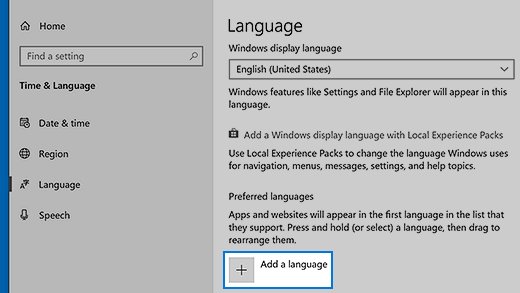
- Select Start > Settings > Time & language > Language & region.
- Select Add a language next to Preferred languages.
- In the Choose a language to install window, type the language in the Type a language name box, select it and select Next.
- In the Install language features window, clear Set as my Windows display language if you only want to type in the language. The optional features are not needed for typing.
- Select Install and wait while Windows shows Please wait while the language finishes installing.
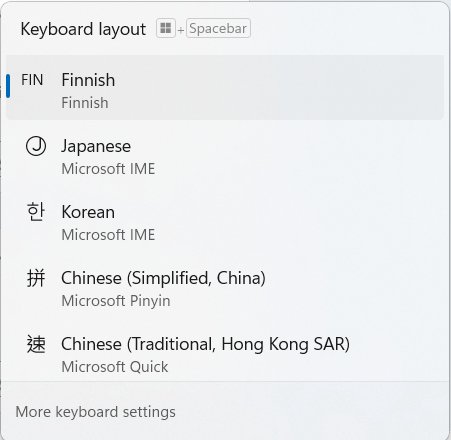
- Press Windows logo key + Spacebar and pick the new keyboard from the list to start typing in it.
If Windows shows Only one language pack allowed or Your Windows license supports only one display language, the PC runs a single language edition. Add the layout on its own instead, using the next section but one.
What happens when you add another keyboard language in Windows 11?
Windows keeps the display language, the preferred language list and the keyboard layout as separate settings. Adding a keyboard language touches only the ones you choose in the install window.
| What changes | When you add a language for typing | When you also set it as display language |
|---|---|---|
| Keyboard layouts available | The language's keyboard is added to the switcher list | Same, and Windows may also switch the active layout to match |
| Windows interface (Settings, File Explorer) | Unchanged | Changes to the new language after you sign out and back in |
| Microsoft Store apps and websites | Unchanged unless you drag the language to the top of Preferred languages | The language moves to the top of Preferred languages, so apps and sites follow it |
| Input language icon in the taskbar | Shows an abbreviation such as ENG, and lets you pick the new keyboard | Same |
| Sign out needed | No | Yes, Windows prompts you to sign out |
Some languages are not fully localized. In those, parts of Windows keep showing the next fully localized language in your list.
How to add a keyboard layout without changing your Windows display language
Every installed language carries layouts for other languages too. If the layout you need sits under English or your current display language, you can skip the language pack entirely.
- Select Start > Settings > Time & language > Language & region.
- Select the ellipses (…) next to your current Windows display language, then select Language options.
- Under Keyboards, check Installed keyboards to confirm the layout is not already there.
- Select Add a keyboard next to Installed keyboards.
- Scroll the pop-up list and select the layout. The list shows that language's own layouts first, then every other layout alphabetically.
- If the layout is missing, go back and repeat these steps under the language that matches it, installing that language first if needed.
The new layout appears under Keyboards straight away. No restart or sign out is required.
How to add common languages and layouts
The language name you search for in Add a language and the layout name you pick under Add a keyboard often differ. Use the names below exactly as Windows lists them.
| You want to type in | Add this language | Then pick or use this keyboard | Good to know |
|---|---|---|---|
| Spanish | Spanish (choose the regional variant you need, such as Spanish (Spain)) | Spanish, Spanish Variation or Latin American | Pick the layout printed on your physical keyboard |
| French | French (choose your region) | French, Canadian French, Swiss French or Belgian French | Pick the layout printed on your physical keyboard |
| Japanese | Japanese | Japanese Microsoft IME | Press Alt + ` (back quote) to toggle between Japanese and English input |
| Chinese (Simplified) | Chinese (Simplified, China) | Microsoft Pinyin (installed by default) or Microsoft Wubi | Press Shift to toggle between Chinese and English input |
| Chinese (Traditional) | Chinese (Traditional, Taiwan) | Microsoft Bopomofo, Microsoft Changjie or Microsoft Quick | Pick the input method you learned to type with |
| Arabic, Hebrew or another right-to-left language | Arabic or Hebrew | Arabic (101), Arabic (102), Hebrew or Hebrew (Standard) | Both language packs install on top of any base language |
| Accented Latin letters on a US keyboard | None, use English (United States) | United States-International | Microsoft publishes an interactive map of where each accent sits |
| Dvorak | None, use English (United States) | United States-Dvorak | Left-hand and right-hand Dvorak variants are in the same list |
Japanese and Chinese need no optional language features for typing, so you can keep your current display language. If Arabic is the language you need, choose between the Arabic keyboard layouts in Windows 11 before you start typing, and practise on a Dvorak keyboard in Windows 11 with a second layout kept as a fallback.
How to switch between keyboard languages in Windows 11
Once a second layout is installed, Windows gives you several ways to move between them. These are the two quickest.
- Click into the document or box where you want to type.
- Hold the Windows logo key and tap Spacebar to cycle forward through the installed layouts.
- Add Shift (Windows logo key + Shift + Spacebar) to cycle backward if you overshoot.
- Release the keys when the layout you want is highlighted.
- Or select the input language icon at the right end of the taskbar and pick the layout with the mouse.
Alt + Shift and Ctrl + Shift are the older layout-switching key sequences. You can also switch the keyboard language from the sign-in screen or reverse through the list with a single shortcut.
How to see which keyboard layout is currently active
- Look at the input language icon in the system tray, next to the clock. It shows the active layout, such as ENG, ESP or FRA.
- If one language has more than one layout installed, the icon and its pop-up list show the language and the layout together.
- For Japanese or Chinese, check the second icon beside it: A or あ for the Japanese IME, 中 or 英 for Microsoft Pinyin and Wubi.
- Open Notepad and type a character that only exists on the new layout, such as an accented letter, to confirm the switch.
- Open Settings > Time & language > Language & region, select the ellipses (…) next to a language and select Language options to see every layout under Installed keyboards.
Add another keyboard language in Windows 10 vs Windows 11
| Task | Windows 11 | Windows 10 |
|---|---|---|
| See installed languages | Settings > Time & language > Language & region | Settings > Time & language > Language |
| Add a language | Language & region > Add a language | Language > Add a language |
| Add a keyboard layout | Ellipses (…) next to the language > Language options > Add a keyboard | Select the language > Options > Add a keyboard |
| Switch layouts | Windows logo key + Spacebar | Windows logo key + Spacebar |
| Legacy language bar settings | Settings > Time & language > Typing > Advanced keyboard settings | Control Panel > Clock, Language, and Region > Change input methods > Advanced settings |
How to set a default keyboard language in Windows 11
Without an override, Windows picks the default input method from your language list. An override fixes one layout as the default regardless of the list order.
- Select Start > Settings > Time & language > Language & region.
- Drag the language you type in most to the top of Preferred languages. This also sets the language Microsoft Store apps and websites use.
- To pin one exact layout instead, select Start, type
PowerShelland open Windows PowerShell. - Run
Set-WinDefaultInputMethodOverride -InputTip "0409:00000409"to make US the default for your account. - For a different layout, replace the part after the colon with that layout's keyboard identifier, for example
0409:00020409for United States-International. - Sign out and back in, then check the input language icon shows the layout you set.
The first four characters are the language ID and the eight after the colon are the keyboard identifier. Microsoft publishes the identifier for every layout in its keyboard identifiers list.
How to change the Windows display language separately
Change the display language only when you want menus, Settings and File Explorer in another language. It is independent of the keyboard you type with.
- Install the language first with Add a language, if it is not already in the list.
- Save your work and close open apps.
- Select Start > Settings > Time & language > Language & region.
- Choose the language from the drop-down menu next to Windows display language.
- Select Sign out when Windows says it needs to sign you out to apply the new display language.
- At the sign-in screen, check the input language icon before typing your password, because the layout may have changed to match.
If there is no Sign out button, right-click Start and select Shut down or sign out > Sign out.
How to type accents and special characters
Adding a full language just to type the odd accent is overkill. Pick the lightest option that covers what you type.
| What you need | Use this | How |
|---|---|---|
| Regular accented letters in several European languages | United States-International layout | Add it under English (United States) with Add a keyboard, then switch to it with Windows logo key + Spacebar |
| An occasional accent, symbol or emoji | The emoji panel | Press Windows logo key + . (period), select Symbols, and scroll to the accented letters |
| A known character on a full-size keyboard | Alt codes | Turn on Num Lock, hold Alt, type the four-digit code on the numeric keypad, then release Alt. Alt + 0233 types é |
| Accents while writing in Word or Outlook | Office accent shortcuts | Ctrl + ' then a vowel types an acute accent (é); Ctrl + ` then a vowel types a grave accent (è); Ctrl + Shift + ~ then n types ñ |
Alt codes only work with the numeric keypad, not the number row above the letters. Microsoft's interactive United States-International keyboard map shows which key produces each accent in every Shift and AltGr state.
How to show or hide the language bar and input indicator
The input language icon in the taskbar is on by default. Turning on the older desktop language bar replaces it, so only one of the two shows at a time.
- Select Start > Settings > Time & language > Typing.
- Select Advanced keyboard settings.
- Under Switching input methods, select Use the desktop language bar when it's available to show the floating language bar.
- Clear the same option to hide the language bar and bring back the input language icon in the taskbar.
- Select Language bar options on the same page for the legacy bar's own settings, such as where it docks.
How to stop Windows 11 from switching keyboard languages automatically
Layouts that change by themselves usually come from a stray Alt + Shift or Ctrl + Shift press, or from a layout you never meant to keep.
- Press Windows logo key + Spacebar and note every layout in the list.
- Remove each layout you do not type in, using the removal steps below. With one layout left, no hot key can switch it.
- If you need to keep two layouts, open Settings > Time & language > Typing > Advanced keyboard settings.
- Select Language bar options to open the Text Services and Input Languages dialog, where the legacy layout key sequences are set.
- Avoid changing the Windows display language unless you mean to, because that can also switch the active layout.
- Type a few lines in Notepad while watching the input language icon to confirm it stays on the layout you chose.
How to remove a keyboard language or layout
You can remove a single layout and keep its language, or remove the whole language with every layout inside it.
- Select Start > Settings > Time & language > Language & region.
- To remove only a layout, select the ellipses (…) next to the language that contains it and select Language options.
- Under Keyboards, select the ellipses (…) next to the layout and select Remove.
- To remove an entire language, go back to Language & region, select the ellipses (…) next to the language and select Remove.
- Select Yes to confirm.
- Press Windows logo key + Spacebar to confirm the removed layout no longer appears in the list.
Remove is greyed out for the current display language and for a language's only layout. Switch the display language, or add another layout to that language first.
Troubleshooting: keyboard language problems in Windows 11
The language button does not appear on the taskbar
The desktop language bar is turned on, which hides the input language icon.
- Select Start > Settings > Time & language > Typing > Advanced keyboard settings.
- Under Switching input methods, clear Use the desktop language bar when it's available.
- Check the right end of the taskbar for the input language icon.
The keyboard types the wrong symbols
A different layout is active than the one printed on your keys.
- Check the input language icon in the taskbar for the active layout.
- Press Windows logo key + Spacebar and pick the layout that matches your physical keyboard.
- Open Language options under each language and remove any layout you did not add on purpose.
- Type the affected characters again in Notepad to confirm.
A language keeps coming back after removal
Layouts are not always stored under their own language. A layout removed from one language can still sit under the display language.
- Open Language options under the current Windows display language and check Installed keyboards.
- Open Language options under the language that matches the layout and check there too.
- Remove the layout from each place it appears.
- If Remove is greyed out, add a second layout to that language first, then remove the unwanted one.
Language installation is stuck or fails
The download needs an internet connection, and single language editions refuse extra language packs.
- Confirm the PC is online, then save work and close open apps.
- Wait for the Please wait while the language finishes installing message to clear. This can take a few minutes.
- Read any error. Only one language pack allowed or Your Windows license supports only one display language means a single language edition.
- On that edition, add the layout under an installed language with Add a keyboard instead of installing a language pack.
The wrong keyboard appears on the sign-in screen
Changing the display language can also change the keyboard layout used at sign-in.
- Select the input language icon on the sign-in screen.
- Pick the layout you normally use for your password.
- Select the password reveal icon in the password box to check the characters before signing in.
Tips for using multiple keyboard languages smoothly
| Tip | Why it helps |
|---|---|
| Keep only the layouts you actually type in | Every extra layout is one more stop on Windows logo key + Spacebar and one more chance of a mistaken switch |
| Switch before you start typing, not mid-word | The layout applies from the moment you pick it, so a mid-word switch leaves mixed characters |
| Glance at the input language icon before typing a password | A password typed in the wrong layout fails even when it is correct |
| Use the system tray icon when you have three or more layouts | Picking from a list is faster than cycling with the shortcut |
| Add layouts under an existing language when you can | It avoids a language pack download and leaves the Windows interface untouched |
| Use the emoji panel's Symbols tab for rare characters | It saves adding a whole layout for one or two accented letters |
Add keyboard language in Windows 11 FAQ
How do I add another language to my keyboard?
In Windows 11, open Settings > Time & language > Language & region and select Add a language. Pick the language, clear Set as my Windows display language if you only want to type in it, and select Install. Switch to it with Windows logo key + Spacebar.
How do I add another language keyboard in Windows 10?
Open Settings > Time & language > Language and select Add a language. To add only a layout, select an installed language, choose Options, then Add a keyboard. Switching works the same as on Windows 11, with Windows logo key + Spacebar.
How do I add another language to my laptop keyboard?
Keyboard languages are a Windows setting, so the steps are the same on any laptop brand. Add the language or layout in Settings > Time & language > Language & region, then use Windows logo key + Spacebar or the taskbar icon to switch.
Can I add another language to Windows 11 without changing the display language?
Yes. Clear Set as my Windows display language in the Install language features window. The language's keyboard is added to the switcher, while Settings, File Explorer and the rest of Windows stay in your current language.
Do I need a language pack to add a keyboard layout?
Not always. Every installed language includes layouts for other languages, so the layout you want may already be available under Add a keyboard. A full language pack is only needed for the Windows interface or speech features.
How do I change Windows to a different language?
Install the language, then choose it from the Windows display language drop-down menu in Settings > Time & language > Language & region. Windows asks you to sign out, and the interface changes when you sign back in.
Why can't I add a different language on Windows?
The messages Only one language pack allowed or Your Windows license supports only one display language mean the PC runs a single language edition. You can still add keyboard layouts under the installed language and type in other languages.
How do I type accents without adding another keyboard language?
Press Windows logo key + period to open the emoji panel and use its Symbols tab, or hold Alt and type a four-digit code on the numeric keypad, such as Alt + 0233 for é. Alt codes need Num Lock on.
Bottom line: which keyboard language option to use in Windows 11
Add a layout under a language you already have when the layout exists there, and install a full language only when the layout is missing or you want its interface. A layout alone needs no download or sign out and leaves the display language untouched, while a language pack is the only route to IMEs like Japanese and Chinese and to a translated Windows.