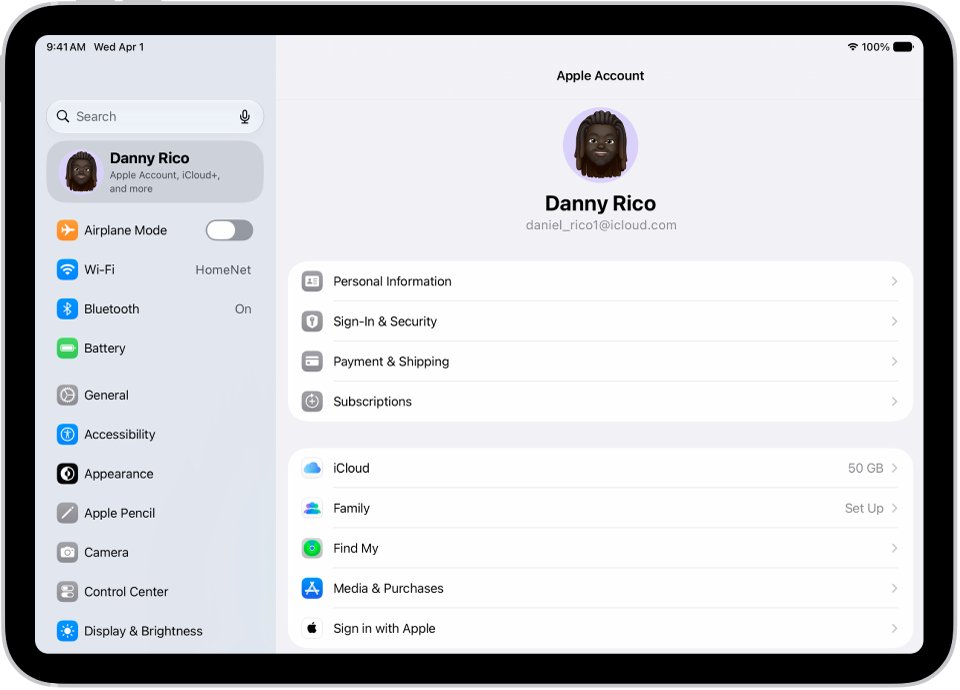
To log out of a child's iPad, open Settings, tap your child's name, tap Sign Out, and enter the Apple Account password; if the button is faded, a Screen Time restriction set by the parent is blocking it.
This guide covers the sign-out steps, how to lift the restriction from the parent's device, what happens to a child under 13 in Family Sharing, and how to lock the iPad again afterwards.
How to log child out of iPad
Signing out of the Apple Account also signs the iPad out of iCloud, the App Store, iMessage and FaceTime. Data already in iCloud stays in iCloud.
- On the child's iPad, open the Settings app.
- Tap your child's name at the top of the sidebar.
- Scroll to the bottom and tap Sign Out.
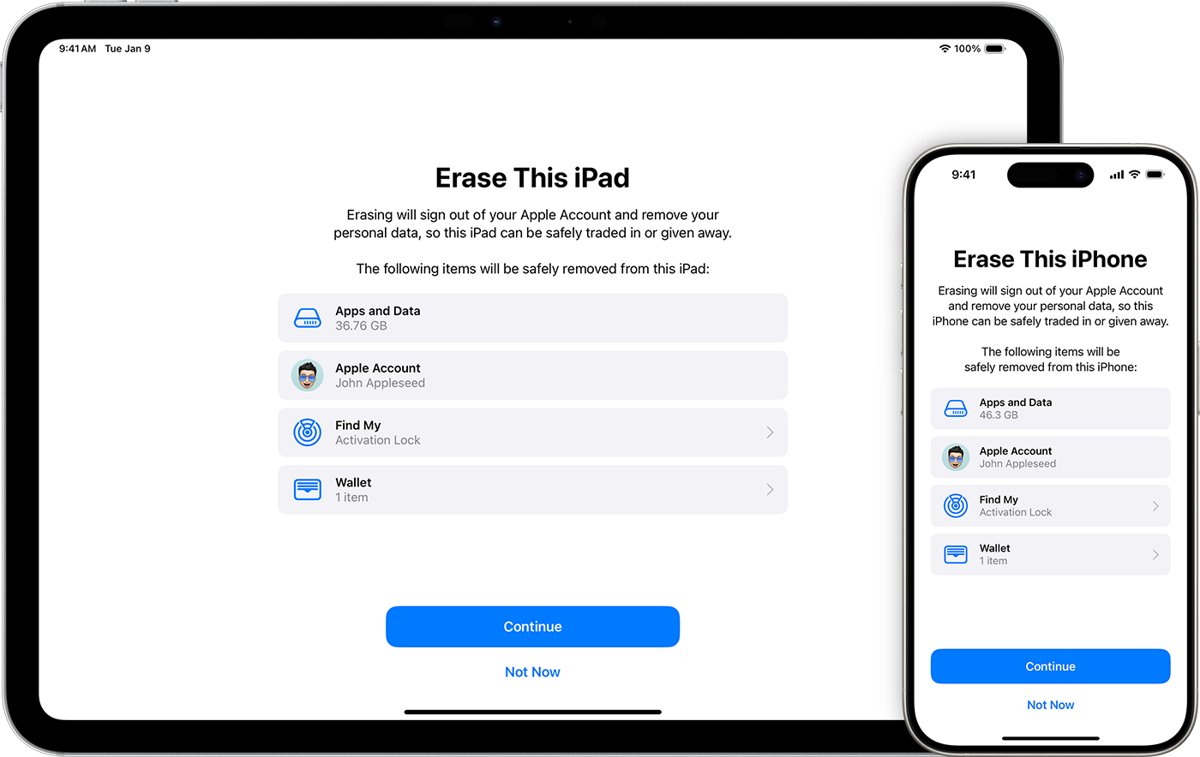
- Choose Erase this iPad or Sign Out But Don't Erase.
- Enter the iPad passcode or the child's Apple Account password.
- For Sign Out But Don't Erase, tap Confirm and Sign Out; for Erase this iPad, tap Sign Out, then Sign Out again.
On iPadOS 18 or earlier, the last step is entering the Apple Account password and tapping Turn Off. If Sign Out is faded or the name is grayed out, lift the restriction in the next sections first.
Why is sign out greyed out on a child's iPad?
A faded Sign Out button on a child's iPad almost always comes from Screen Time. Turning Screen Time off on the child's iPad alone does not help when a parent manages it through Family Sharing, because the settings live on the parent's account.
| What you see | Cause | Fix |
|---|---|---|
| "Sign out is not available due to restrictions" | A Screen Time passcode is set | Turn off the Screen Time passcode |
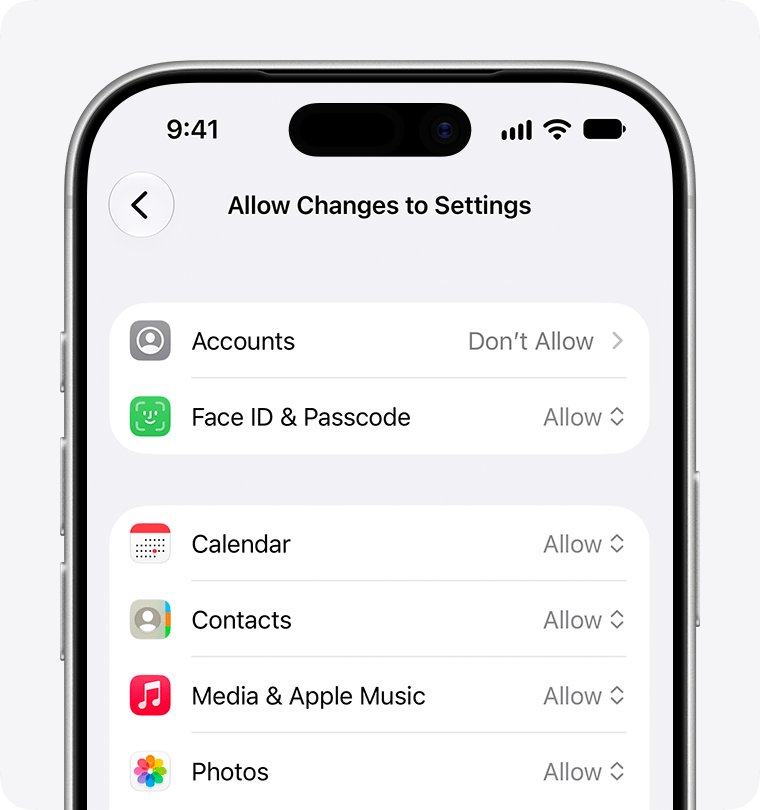
| Child's name is grayed out in Settings | Content & Privacy Restrictions block account changes | Set Accounts to Allow |
| Screen Time turned off on the iPad, button still faded | The parent's device controls the child's settings | Change the setting from the parent's iPhone or iPad |
| Child is under 13 and you want them out of the family | Children under 13 must stay in a Family Sharing group | Transfer the child to another family group |
Sign out of child iCloud account when restrictions block it
Apple says changes to a child's Screen Time settings must be made on the family organizer's or a parent's device. Make the change there, then sign out on the child's iPad.
- On the parent's iPhone or iPad with iPadOS 27 or iOS 27, open Settings and tap Family.
- Tap your child's name, then tap Content & Privacy Restrictions, entering the Screen Time passcode if asked.
- Tap Allow Changes to Settings; on some versions the list sits under Privacy Restrictions.
- Tap Accounts and choose Allow.
- Check the other entries on that screen and set any that block what you need to Allow.
- On the child's iPad, open Settings, tap the child's name and tap Sign Out.
On iPadOS 26 and earlier, the child's settings sit under Settings > Screen Time > your child's name on the parent's device. Open Content & Privacy Restrictions there and allow account changes.
How to turn off Screen Time passcode on child's iPad
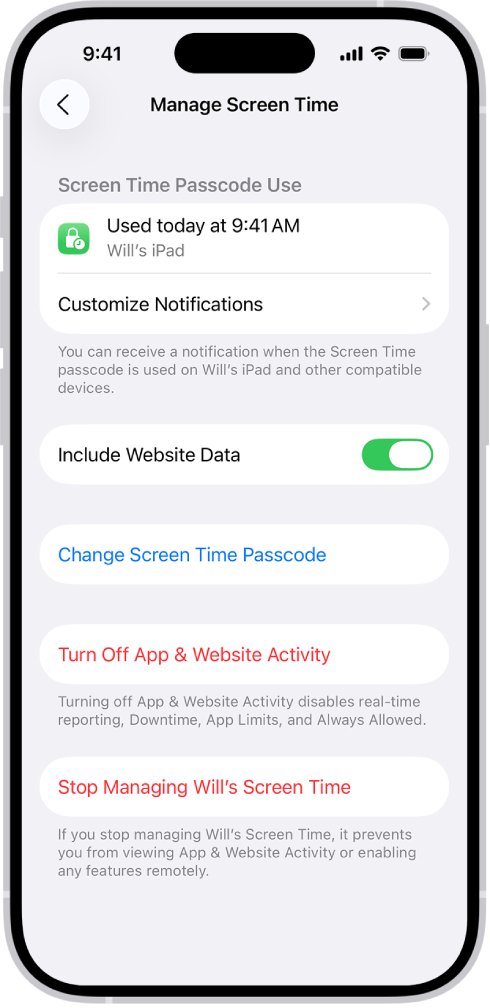
When the iPad shows "Sign out is not available due to restrictions", Apple's fix is to turn off the Screen Time passcode. You can turn it back on once the sign-out is done. If nobody remembers the code, reset the forgotten Screen Time passcode first.
- On the parent's device with iOS 27 or iPadOS 27, open Settings, tap Family, then tap your child's name.
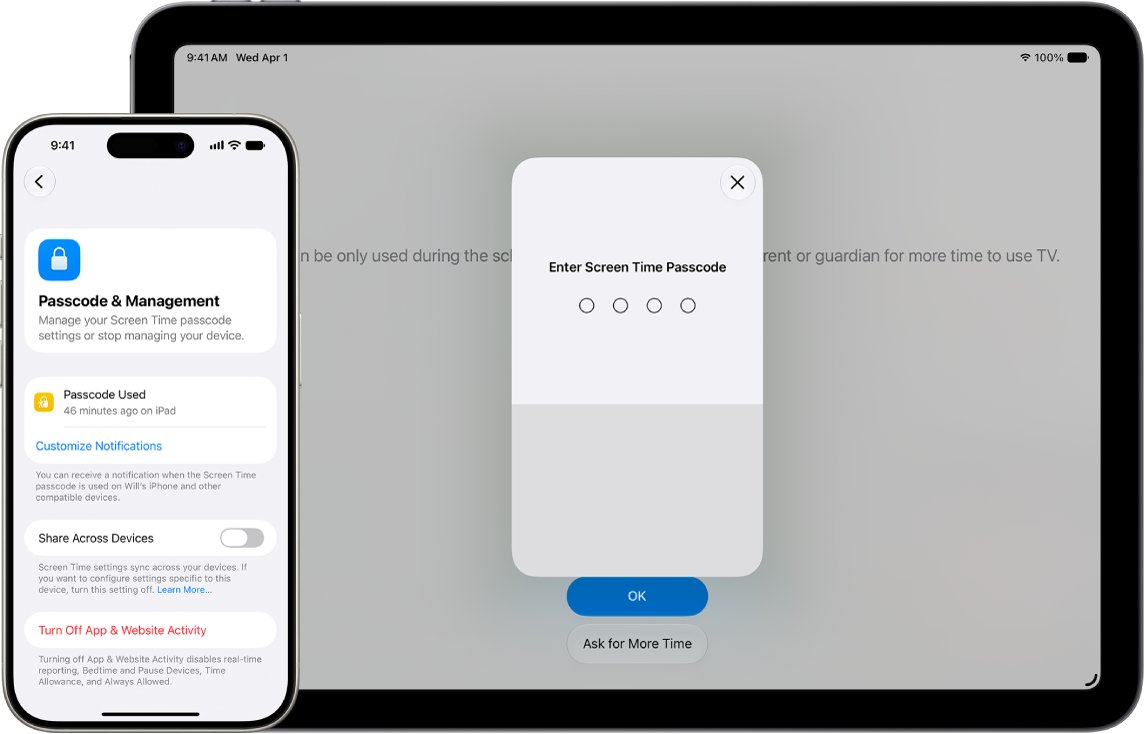
- Tap Passcode & Management, then tap Change Screen Time Passcode.
- Tap Turn Off Screen Time Passcode and enter the current passcode.
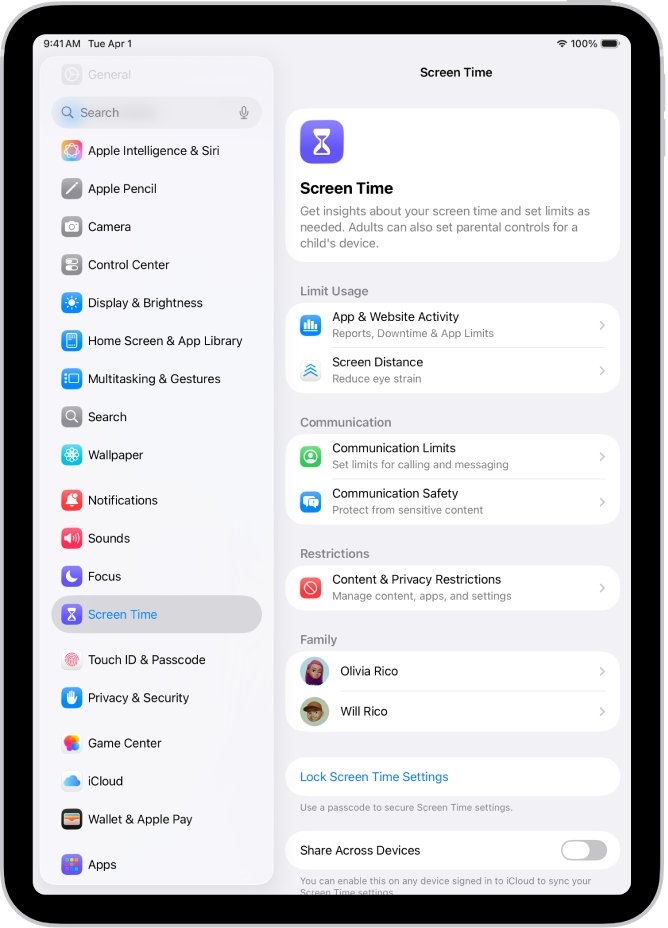
- On iOS 26 or iPadOS 26 and earlier, open Settings > Screen Time, select your child, tap Manage Screen Time, then Change Screen Time Passcode > Turn Off Screen Time Passcode.
- If the iPad is not managed through Family Sharing, open Settings > Screen Time on the iPad itself, tap Manage Screen Time, then Change Screen Time Passcode > Turn Off Screen Time Passcode.
- Return to the child's iPad and sign out from Settings > the child's name > Sign Out.
How to remove child settings on iPad
Signing out removes the account from one iPad. Removing a child from Family Sharing, which drops the parental controls, follows age rules Apple sets by state, country or region.
| Child's situation | What you can do | What happens to parental controls |
|---|---|---|
| Under 13 | Transfer the child to another Family Sharing group, or request deletion of the Apple Account | Transferring affects the parental controls you set |
| 13 to 17, Screen Time set | Turn off Screen Time and parental controls first, then remove the child from Settings > Family | Removing a teen removes your parental controls |
| 13 to 17, Screen Time off | Remove the child, or the teen can leave the group, where local law allows | Nothing remains to remove |
| Any age, iPad changing hands | Sign out with Erase this iPad | The iPad starts fresh for the next user |
To remove a member, the organizer opens Settings > Family, taps the member's name, then taps Remove [member's name] from Sharing Group. Where the law requires it, a child's Apple Account must stay in a Family Sharing group until 18.
Sign in to iPad with child account
After signing out, you can put the iPad back on the child's own Apple Account, or a different child's account. Apple recommends each child have their own account rather than sharing one.
- On the iPad, open the Settings app.
- Tap Apple Account at the top of the sidebar.
- Tap Sign in Manually, or Use Another Apple Device if a parent's iPhone or iPad with iPadOS 17 or later is nearby.
- Enter the child's email address or phone number, then the password.
- Enter the six-digit verification code if two-factor authentication asks for one.
If the child's password is forgotten, reset the Apple Account password before signing in. A reset password also restarts any Family Sharing transfer already in progress.
How to put child lock on iPad again
Once the sign-out or account switch is done, lock the child's Screen Time settings again so the restrictions you lifted come back.
- On the parent's device, open Settings, tap Family, then tap your child's name.
- Tap Content & Privacy Restrictions and set Accounts back to Don't Allow if you changed it.
- Go back, tap Passcode & Management, then Lock Screen Time Settings.
- Enter a four-digit passcode your child will not guess, then enter it again.
- Check Last used under Passcode & Management later to see if the passcode has been entered.
Apple advises against birthdays, phone numbers or patterns like 1234 for a Screen Time passcode. To delete specific apps the child no longer needs, remove apps on a child account from the same settings.
How to tell the child is logged out of iPad
- Open Settings on the iPad.
- Look at the top of the sidebar: it shows Apple Account with a sign-in prompt instead of the child's name.
- Open FaceTime or Messages and check that they ask for an Apple Account instead of opening the child's conversations.
If you chose Sign Out But Don't Erase, the child's photos and documents saved on the iPad stay there. Pick Erase this iPad when the device goes to someone else.
iPad won't let me log out of child account
"Sign out is not available due to restrictions"
A Screen Time passcode is turned on for the iPad or the child's account.
- Turn off the Screen Time passcode from the parent's device under Family > the child's name > Passcode & Management.
- On the child's iPad, tap the child's name in Settings.
- Tap Sign Out and finish the prompts.
Child's Apple Account is grayed out in Settings
Content & Privacy Restrictions block changes to accounts.
- On the iPad, open Settings > Screen Time > Content & Privacy Restrictions.
- If All Restrictions is on, scroll to Privacy Restrictions.
- Tap Allow Changes to Settings, tap Accounts and set it to Allow.
- If the iPad asks for a Screen Time passcode the child does not have, make the change from the parent's device instead.
Turned off Screen Time on the iPad but Sign Out is still faded
The child is in a Family Sharing group, so the parent's account controls these settings.
- Update the parent's device and the iPad to the latest software so Screen Time settings sync.
- On the parent's device, open Settings > Family > the child's name.
- Allow account changes and turn off the Screen Time passcode there.
- Restart the child's iPad and try Sign Out again.
Forgot the Screen Time passcode on the child's iPad
Only the family organizer or a parent can reset a child's Screen Time passcode.
- On the parent's device, open Settings > Family and tap the child's name.
- Tap Passcode & Management > Change Screen Time Passcode, then Change Screen Time Passcode again.
- Enter a new four-digit passcode twice.
- If the child's name is missing under Family, check that both devices use their own Apple Accounts and the child is in the group.
Child iPad sign-out FAQ
How do I log my child out of their iPad?
Open Settings on the iPad, tap the child's name, tap Sign Out, choose Erase this iPad or Sign Out But Don't Erase, and enter the password. If Sign Out is faded, lift the Screen Time restriction from the parent's device first.
How do I log out of a child account on iPad that has restrictions?
On the parent's iPhone or iPad, open Settings > Family > the child's name > Content & Privacy Restrictions, allow account changes, and turn off the Screen Time passcode. Then tap Sign Out on the child's iPad.
How do I log my child out of iCloud on iPad?
Signing out of the Apple Account on the iPad also signs it out of iCloud. Tap the child's name in Settings, then Sign Out. Data already stored in iCloud remains in iCloud and on the child's other devices.
Why can't I sign my child out of their iPad after turning off Screen Time?
When a parent manages the child through Family Sharing, the Screen Time settings belong to the parent's account. Change them from the parent's device under Settings > Family, not on the child's iPad.
How do I remove child settings on iPad?
Turn off the restrictions from the parent's device, or remove the child from Family Sharing. A child under 13 can't be removed; you can only transfer them to another family group or delete their Apple Account.
How do I child lock an iPad?
Set up Screen Time for the child from the parent's device, then open Settings > Family > the child's name > Passcode & Management and tap Lock Screen Time Settings. Enter a four-digit passcode the child does not know.
How do I put child restrictions on an iPad?
Open Settings > Family > the child's name on the parent's device and use Content & Privacy Restrictions, Apps & Websites, Time Allowances and Screen Time Schedules. Ask to Buy and Ask to Browse are on by default for children under 13.
Does signing out of a child's iPad delete their data?
Not with Sign Out But Don't Erase, which keeps information on the iPad. Erase this iPad removes it from the device. Either way, data synced to iCloud stays available in iCloud.