To fix a black desktop screen on Windows 10, open Settings > Ease of Access > Display, turn on Show desktop background image, then choose your picture again under Settings > Personalization > Background.
This guide covers each cause of a black desktop background, from the accessibility toggle and a damaged wallpaper cache to themes, power plans, policies and a desktop that goes fully black after sign-in.
How to fix a black desktop screen on Windows 10
Most black desktops on Windows 10 come from one switch that hides the wallpaper. Turn it back on, then set the picture again so Windows redraws it.
- Select Start, then select Settings.
- Select Ease of Access, then select Display.
- Turn on the Show desktop background image toggle.
- Go back to the Settings home page and select Personalization > Background.
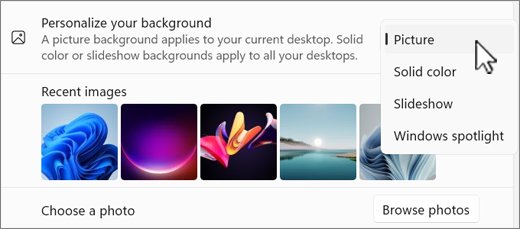
- Select Picture as the background type, then select Browse and pick an image.
- Minimise your windows and check that the picture now fills the desktop.
If the whole screen is black, including the taskbar, the wallpaper is not the problem. Jump to the section on a black screen with a cursor after sign-in.
Causes of black desktop screen problems in Windows 10
Match what you see to a row, then use the section named in the last column.
| What you see | Likely cause | Where to fix it |
|---|---|---|
| Black wallpaper, taskbar and icons look normal | Show desktop background image is off | Check Ease of Access settings |
| Picture never sticks, black returns after a restart | Damaged cached copy of the wallpaper | Corrupt TranscodedWallpaper.jpg file |
| Background is set to Solid color and the colour is black | Background type was changed | Change your wallpaper |
| Slideshow shows black instead of photos | The slideshow folder moved, was renamed or is empty | Windows 10 desktop background keeps turning black |
| Black background plus black windows and bright text | A high contrast theme is on | Windows 10 desktop background keeps turning black |
| Background options are greyed out | A Desktop Wallpaper policy sets the image | Windows 10 desktop background keeps turning black |
| Everything is black except the mouse pointer | Windows Explorer or the display driver stalled | Windows 10 black screen with cursor after sign in |
Change your wallpaper
Setting a new picture forces Windows to write a fresh copy of the wallpaper. It also clears a black Solid color background that was picked by mistake.
- Right-click an empty area of the desktop and select Personalize.
- Select Background if it is not already open.
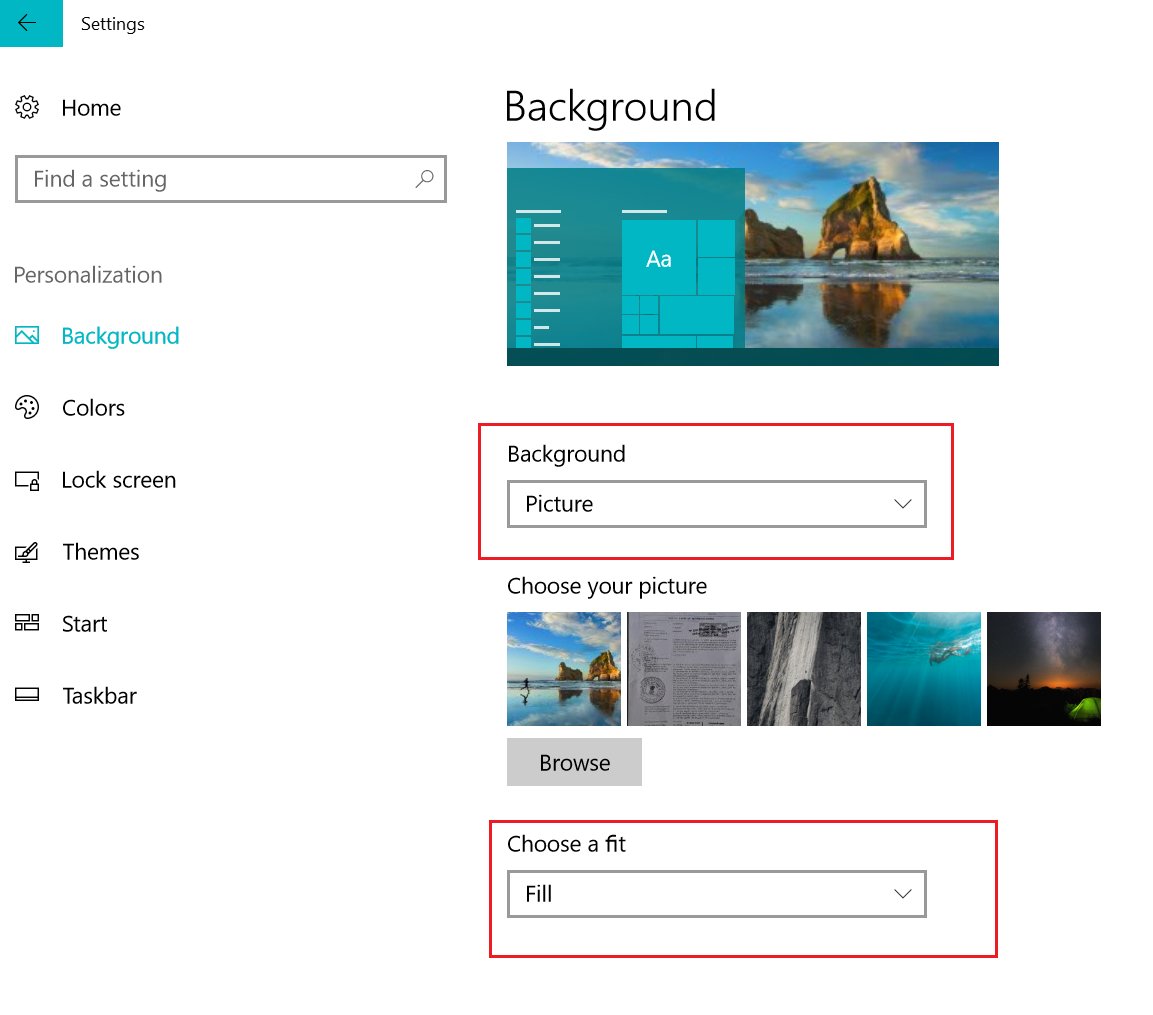
- Open the background type list and select Picture.
- Select a picture from the recent images, or select Browse and choose a file.
- Under Choose a fit, select Fill so the image covers the whole screen.
- Close Settings and check the desktop.
The other background types work the same way: Solid color sets one colour, Slideshow cycles a folder of images, and Windows spotlight shows a new image every day. You can also change your desktop background per monitor or per virtual desktop from the same page.
Set desktop background from the context menu
When the Settings page itself misbehaves, set the wallpaper straight from File Explorer or the Photos app.
- Open File Explorer and go to the folder that holds your picture.
- Right-click the image file.
- Select Set as desktop background.
- To use the Photos app instead, open the picture in Photos.
- Select the … menu, then select Set as > Background.
If the desktop stays black after this, the picture is applied but hidden. That points to the Ease of Access toggle in the next section.
Check Ease of Access settings
Windows 10 has an accessibility switch that removes the desktop picture to cut visual clutter. When it is off, any wallpaper you set is replaced with black.
- Select Start > Settings > Ease of Access.
- Select Display in the left pane.
- Turn on Show desktop background image.
- Leave Show animations in Windows and Show transparency in Windows as you prefer, since they do not affect the wallpaper.
On Windows 11, where Ease of Access became Accessibility, the matching animation and transparency switches moved to Settings > Accessibility > Visual effects.
Corrupt TranscodedWallpaper.jpg file
Windows does not show your original file on the desktop. It keeps a converted copy, and when that copy is damaged the desktop can stay black whatever picture you choose.
Replacing the background type forces Windows to drop the old copy and build a new one.
- Open Settings > Personalization > Background.
- Select Solid color as the background type and pick any colour except black.
- Restart the PC so the old wallpaper copy is no longer in use.
- Open Settings > Personalization > Background again.
- Select Picture, then select Browse and choose a different image file from the one that failed.
- If the new picture shows, switch back to the image you wanted.
If a single image always turns black, the file itself may be damaged. Open it in Photos; if Photos cannot display it, use a different copy of the picture.
Check power plan settings
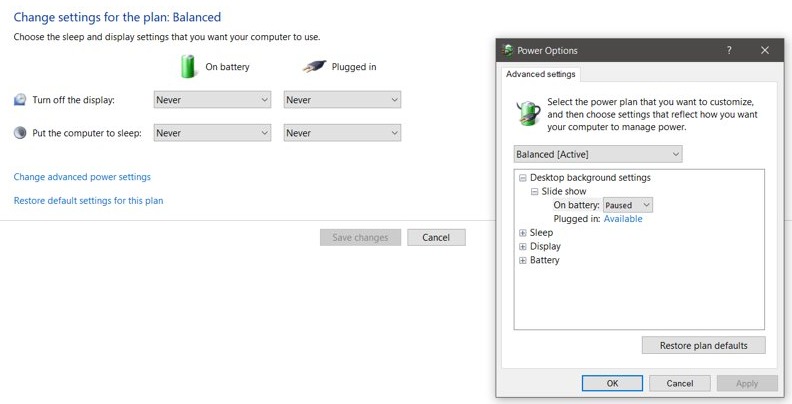
A custom power plan can carry settings that differ from the Windows defaults, which is worth ruling out when a slideshow or picture keeps dropping to black. Switching back to the built-in Balanced plan is quick and reversible.
- Open Control Panel and select System and Security.
- Select Power Options.
- Select the Balanced plan.
- On a laptop, select the Battery icon on the taskbar and drag the power mode slider away from the battery-saving end while you test.
- Restart the PC and check whether the wallpaper stays.
To see which plan is active from a command line, open Command Prompt and run powercfg /getactivescheme. Run powercfg /list to list every plan on the PC.
Apply a Windows 10 theme to reset the desktop background
A theme sets the wallpaper, colours and sounds in one go, so it replaces a broken background setting with a known-good one.
- Select Start > Settings > Personalization.
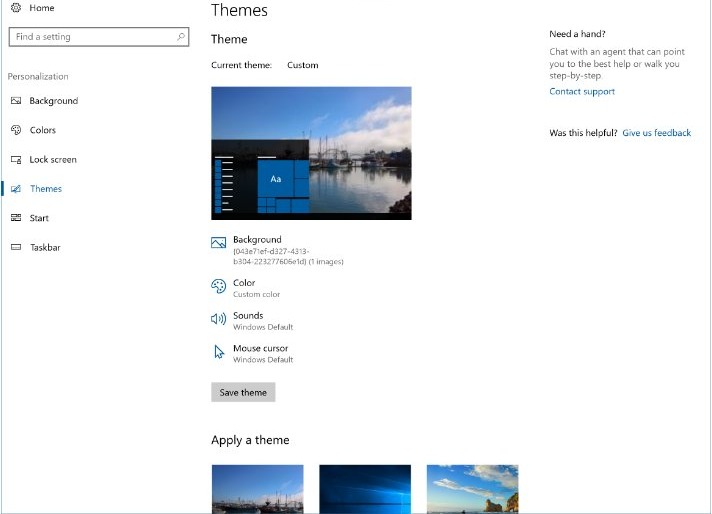
- Select Themes.
- Select one of the default Windows themes to apply it.
- Check that the desktop now shows the theme's picture.
- Go to Background and set your own picture again if you want it back.
The default themes cannot be deleted, so one is always available. Browse themes opens more in the Microsoft Store.
Windows 10 black screen with cursor after sign in
When the taskbar, icons and wallpaper are all missing and only the pointer shows, the desktop shell or the display driver has stalled. These steps restart both without a reboot.
- Press Windows + Ctrl + Shift + B to reset the graphics driver. The screen may flicker and you may hear a beep.
- If nothing changes, press Windows + P, press P again and press Enter to cycle the display mode.
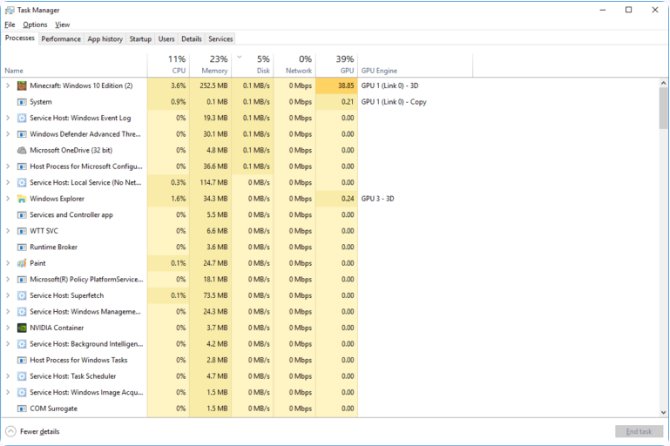
- Press Ctrl + Shift + Esc to open Task Manager.
- Find Windows Explorer in the list, right-click it and select Restart.
- If the screen is still black, check that the HDMI, DisplayPort or VGA cable is firmly connected at both ends.
A black screen before the sign-in screen appears is a startup fault, not a wallpaper one. On Windows 11, the steps to fix a Windows 11 black screen cover Safe Mode, driver rollback and Startup Repair.
Where desktop background settings are in Windows 10 and Windows 11
The black desktop background fix uses slightly different pages on each version.
| Setting | Windows 10 | Windows 11 |
|---|---|---|
| Wallpaper picture, colour, slideshow | Settings > Personalization > Background | Settings > Personalization > Background |
| Show desktop background image | Settings > Ease of Access > Display | Not on the Visual effects page |
| Animations and transparency | Settings > Ease of Access > Display | Settings > Accessibility > Visual effects |
| Themes | Settings > Personalization > Themes | Settings > Personalization > Themes |
| High contrast | Settings > Ease of Access > High contrast | Settings > Accessibility > Contrast themes |
| Power plan | Control Panel > System and Security > Power Options | Control Panel > System and Security > Power Options |
Type ms-settings:personalization into the Run box (Windows + R) to jump straight to the Personalization page on either version.
How to tell if the Windows 10 desktop background is set
- Press Windows + D to show the desktop.
- Check that your picture fills the screen behind the icons.
- Open Settings > Personalization > Background and check that the preview shows the same picture.
- Restart the PC and sign in again.
- Check that the picture is still there after the restart. If it is, the fix held.
Windows 10 desktop background keeps turning black
Desktop background options are greyed out
A Desktop Wallpaper policy, set by an organisation or in Local Group Policy, controls the image and overrides your choice.
- On a work or school PC, ask your IT administrator, because the policy is managed for you.
- On your own Windows 10 Pro PC, press Windows + R, type
gpedit.mscand press Enter. - Go to User Configuration > Administrative Templates > Desktop > Desktop.
- Open Desktop Wallpaper and check the image path. If the file at that path is missing, the desktop shows black.
- Set the policy to Not Configured, select OK, then restart the PC.
Slideshow shows a black screen instead of photos
The folder chosen for the slideshow moved, was renamed, or no longer holds pictures.
- Open Settings > Personalization > Background.
- Select Slideshow as the background type.
- Select Browse and choose the folder that holds your pictures now.
- Right-click the desktop and select Next desktop background to test it.
Background, windows and menus all turned black with bright text
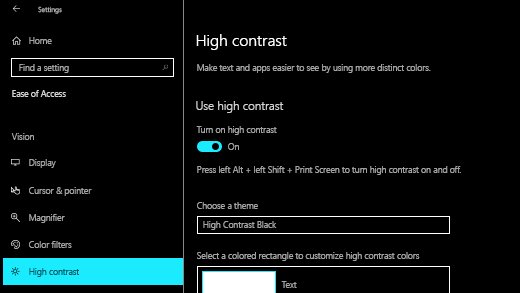
A high contrast theme is on, often switched on by accident with a keyboard shortcut.
- Press left Alt + left Shift + Print Screen to turn high contrast off.
- If that does not work, open Settings > Ease of Access > High contrast.
- Turn off Turn on high contrast.
- Set your wallpaper again under Settings > Personalization > Background if it does not return.
Wallpaper goes black again after every restart
The wallpaper copy Windows keeps is being rebuilt from a damaged file, or the picture lives on a drive that is not connected at sign-in.
- Copy the picture to your Pictures folder on the C: drive.
- Set it again from Settings > Personalization > Background > Browse.
- If it still turns black, follow the steps in the TranscodedWallpaper section above to switch to Solid color, restart and set the picture again.
Black desktop screen on Windows 10 FAQ
Why is my desktop background black on Windows 10?
The most common reason is that Show desktop background image is turned off under Settings > Ease of Access > Display. Other causes are a black Solid color background, a damaged wallpaper copy, a missing slideshow folder, a high contrast theme or a policy that sets the wallpaper.
How do I get my desktop picture back on Windows 10?
Open Settings > Ease of Access > Display and turn on Show desktop background image. Then go to Settings > Personalization > Background, select Picture, select Browse and choose your image. The picture should appear as soon as you select it.
How do I fix a black screen with a cursor on Windows 10?
Press Windows + Ctrl + Shift + B to reset the graphics driver. If the screen stays black, press Ctrl + Shift + Esc, find Windows Explorer in Task Manager, right-click it and select Restart. That reloads the taskbar, icons and wallpaper without restarting the PC.
Why does my Windows 10 wallpaper turn black after a restart?
Windows is usually rebuilding the wallpaper from a damaged copy, or the image sits on a drive that is not connected at sign-in. Copy the picture to your Pictures folder, switch the background to Solid color, restart, then set the picture again from Browse.
Can I change the desktop background without Settings?
Yes. Right-click an image file in File Explorer and select Set as desktop background. In the Photos app, open the picture, select the … menu and choose Set as > Background. Both routes apply the picture instantly.
Why can't I change the desktop background on Windows 10?
Greyed-out background options usually mean a Desktop Wallpaper policy controls the image. On a work PC, ask your administrator. On your own Windows 10 Pro PC, set the policy under User Configuration > Administrative Templates > Desktop > Desktop to Not Configured in gpedit.msc.
Does a power plan affect the desktop background?
A custom power plan is worth ruling out when a wallpaper or slideshow keeps dropping to black. Open Control Panel > System and Security > Power Options, select Balanced, restart and check whether the picture now stays.