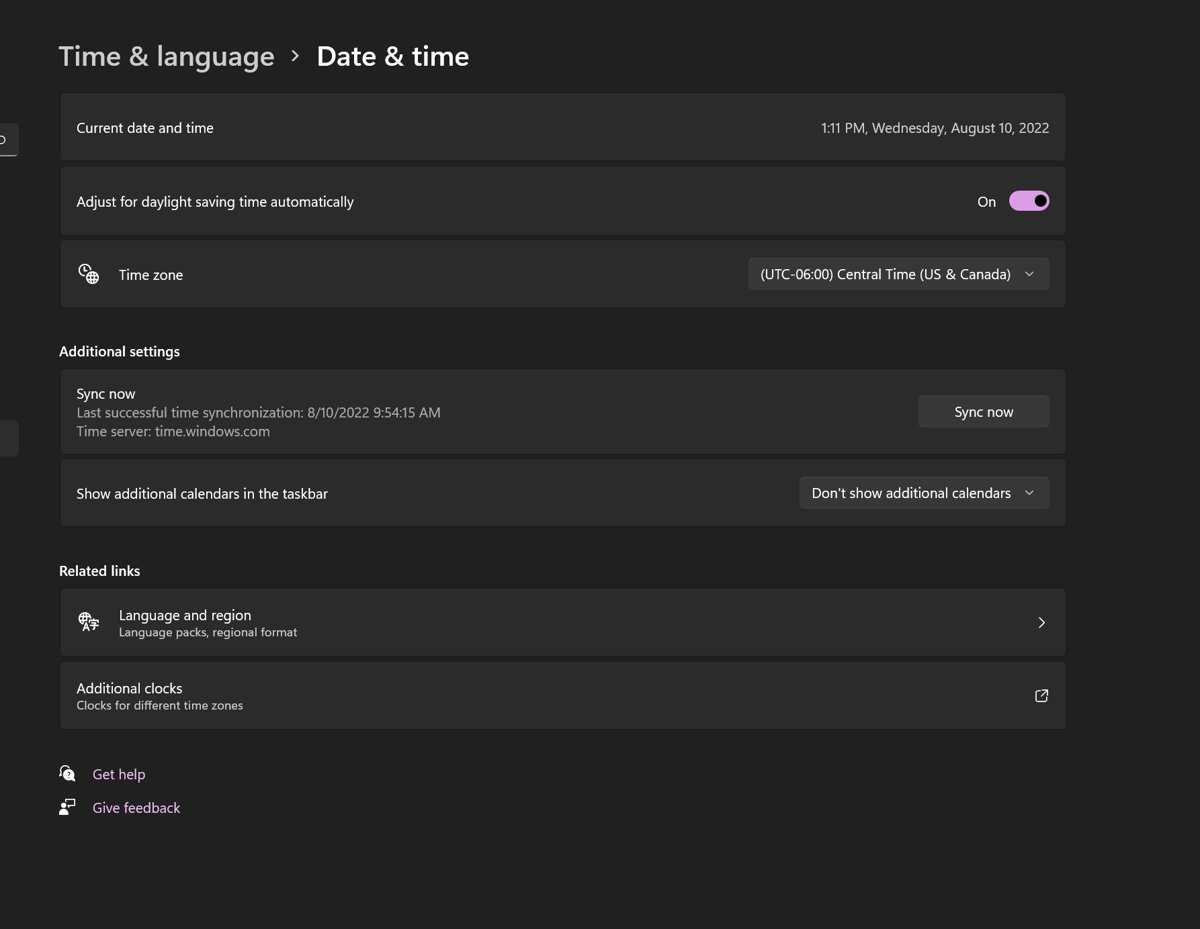
Turn off Set time automatically in Settings > Time & language > Date & time, then select Change next to Set the date and time to enter the clock by hand; turn off Set time zone automatically and pick your zone from the Time zone drop-down menu.
The steps below cover Windows 11 and Windows 10, the classic Control Panel window, the tzutil, date and time commands, PowerShell, and what to do when the change does not stick.
The fastest way to set the time and time zone by hand
Two toggles control everything. While either one is On, Windows overwrites whatever you type.
- Select Start > Settings > Time & language > Date & time.
- Turn the Set time automatically toggle Off.
- Select the Change button next to Set the date and time.
- Set the Date and Time in the Change date and time window, then select Change.
- Turn the Set time zone automatically toggle Off.
- Open the Time zone drop-down menu and select your zone.
Microsoft documents this exact path for both Windows 11 and Windows 10.
Which route should you use?
| Your situation | Use this | Why |
|---|---|---|
| One PC, both date and zone wrong | Settings > Time & language > Date & time | The only place that carries both toggles and the manual date picker |
| Only the time zone is wrong | tzutil /s "<time zone ID>" |
Changes the zone without touching the clock reading |
| Scripting several machines | PowerShell Set-TimeZone and Set-Date |
Both cmdlets take a value directly, so no dialog is involved |
| You want to read the current values first | control timedate.cpl |
The classic Date and Time window reports date, time and zone in one place |
| The clock is right but the offset is wrong | Time zone drop-down menu | The zone offset, not the clock, is what shifts the displayed time |
| Changes keep reverting | Turn off Set time automatically first | The Windows Time service re-synchronises and overwrites manual values |
Check Whether Automatic Time Settings Are Enabled
Do this before anything else. A manual value entered while automatic sync is On lasts until the next sync.
- Select Start > Settings > Time & language > Date & time. The path is identical in Windows 11 and Windows 10.
- Look at Set time automatically. If it reads On, Windows is taking the clock from a time server.
- Look at Set time zone automatically. If it reads On, Windows is taking the zone from the location service.
- Look at Adjust for daylight saving time automatically. This option only applies while Set time zone automatically is Off.
- Turn Off whichever of the two toggles covers the value you want to enter by hand.
- Leave the other toggle On if you only want to override one of the two.
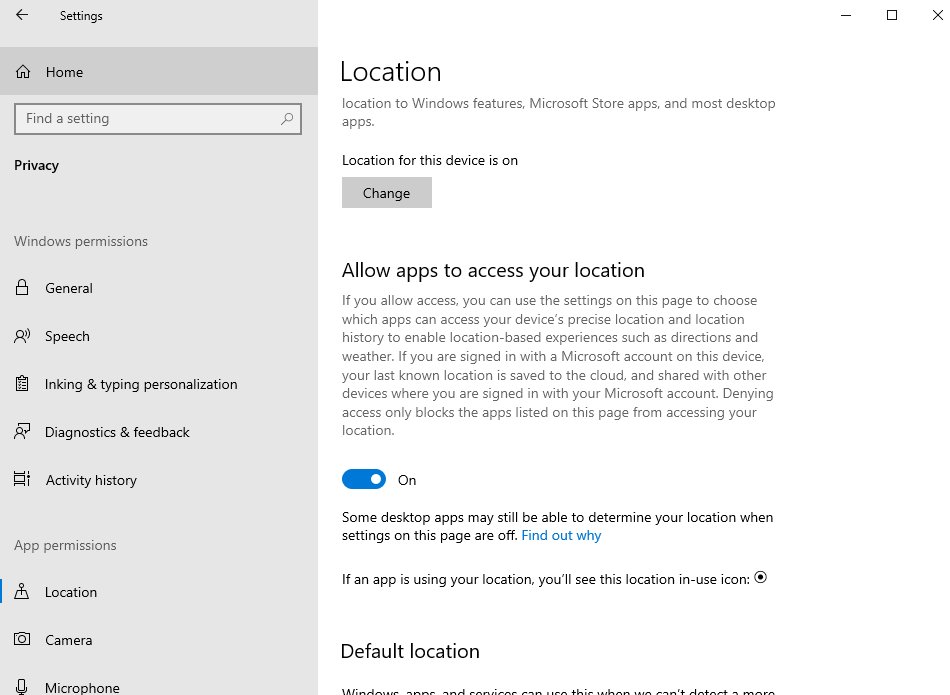
Set time zone automatically depends on the location service, so it is unavailable when location is turned off.
Manually Set the Time and Time Zone in Windows 11
- Right-click the clock in the system tray and select Adjust date and time, or open Settings > Time & language > Date & time.
- Turn Set time automatically Off.
- Select Change next to Set the date and time.
- Enter the Date and Time in the Change date and time window and select Change.
- Turn Set time zone automatically Off.
- Select your zone from the Time zone drop-down menu.
- Turn Adjust for daylight saving time automatically On if your zone observes daylight saving and you want Windows to shift the clock for you.
The system tray clock updates immediately. Turn on Show seconds in system tray clock (uses more power) if you need to watch the seconds change.
Manually Set the Time and Time Zone in Windows 10
Windows 10 uses the same page and the same control names, reached through the Windows 10 Settings layout.
- Select Start > Settings > Time & language > Date & time.
- Turn Set time automatically Off.
- Select the Change button under Set the date and time.
- Set the Date and Time, then select Change.
- Turn Set time zone automatically Off.
- Pick your zone in the Time zone list.
- Set Adjust for daylight saving time automatically to On or Off to match how you want the seasonal shift handled.
Windows 10 manual time settings at a glance: two toggles Off, one Change button for the clock, one drop-down for the zone.
Change Date and Time Using Control Panel
The classic Date and Time window still ships in Windows 11 and Windows 10. It is the quickest way to read the current date, clock and zone together.
- Press Win + R to open the Run box.
- Type
control timedate.cpland press Enter. - Read the date, time and time zone that the Date and Time window reports.
- Turn Set time automatically Off in Settings > Time & language > Date & time before editing anything, or the next synchronisation overwrites it.
- Enter the new values, approving the administrator prompt if one appears.
- Close and reopen the window to confirm the new date, time and zone are the ones showing.
Changing the system clock needs the Change the system time user right, which by default belongs to the Administrators and Local Service groups. Changing only the zone needs the separate Change the time zone right.
Set Time and Time Zone with Command Prompt or PowerShell
Open an elevated window first: right-click Start, select Terminal (Admin) or Command Prompt (Admin), and approve the prompt.
- Run
date /tandtime /tto print the current date and clock without changing them. - Run
date 08.03.2027to set the date. Month, day and year are separated by periods, hyphens or slashes, sodate 8/3/27works too. - Run
time 17:30:00to set the clock to 5:30 PM. Withoutamorpm, thetimecommand reads the value as 24-hour. - Run
tzutil /gto print the current time zone ID. - Run
tzutil /lto list every valid time zone ID with its display name. - Run
tzutil /s "Pacific Standard Time"to set the zone. The value must be in quotes. - Run
tzutil /s "Pacific Standard Time_dstoff"instead if you want that zone with daylight saving adjustments disabled.
tzutil returns an exit code of 0 when the command completed successfully.
Set the date, time, and time zone with PowerShell
Set-Date and Set-TimeZone are Windows-only cmdlets and both need an elevated session.
Set-TimeZone -Id "India Standard Time"Sets the system time zone by its Windows time zone ID. Set-TimeZone -Name "<display name>" accepts the friendly name instead, and -PassThru prints the resulting zone object. For the clock itself, Set-Date -Date (Get-Date).AddDays(3) shifts the date without touching the time, and Set-Date also accepts a full date-and-time string.
You should see: Get-TimeZone reports the new Id, DisplayName and BaseUtcOffset, for example Id : India Standard Time and BaseUtcOffset : 05:30:00.
Common IDs: Pacific Standard Time (UTC-08:00), Mountain Standard Time (UTC-07:00), Eastern Standard Time (UTC-05:00), GMT Standard Time (UTC) and India Standard Time (UTC+05:30).
Where each clock control lives in Windows 11 and Windows 10
| Control | Where it lives | What it governs |
|---|---|---|
| Set time automatically | Settings > Time & language > Date & time | Whether the Windows Time service sets the clock for you |
| Set the date and time (Change) | Settings > Time & language > Date & time | The manual date and clock entry window |
| Set time zone automatically | Settings > Time & language > Date & time | Whether the location service picks the zone |
| Time zone drop-down menu | Settings > Time & language > Date & time | The UTC offset applied to the clock |
| Adjust for daylight saving time automatically | Settings > Time & language > Date & time | The seasonal shift, available only while the zone is set by hand |
| Show time and date in the System tray | Settings > Time & language > Date & time | Whether the clock appears in the taskbar at all |
| Location services | Settings > Privacy & security > Location | Supplies the automatic time zone feature |
| Classic Date and Time window | control timedate.cpl |
Read-out of the current date, clock and zone |
How to check the change actually took
Read the values back from a source other than the page you just edited.
- Look at the system tray clock. It should show the time you entered, with no delay.
- Open an elevated Command Prompt and run
tzutil /g. The ID printed must match the zone you selected. - Run
date /tandtime /t. Both should echo what you set. - Run
w32tm /query /statusto see the Windows Time service state and its last synchronisation. - Restart the PC and check the clock again. A value that survives a restart is a value that stuck.
What the automatic settings actually do
| Setting | What runs behind it | Effect on a manual value |
|---|---|---|
| Set time automatically | The Windows Time service (W32Time), which follows the Network Time Protocol over UDP port 123 | Overwrites a hand-entered clock at the next synchronisation |
| Set time zone automatically | The Windows location service, using GPS, nearby wireless access points, cell towers or the IP address | Replaces a hand-picked zone when the device location changes |
| Adjust for daylight saving time automatically | The daylight saving rules of the selected time zone | Shifts the clock seasonally; set automatically whenever the zone is set automatically |
tzutil /s "<ID>_dstoff" |
Same zone, daylight saving adjustments disabled | Freezes the offset so no seasonal shift is applied |
| Domain membership | W32Time synchronising up the Active Directory domain hierarchy | A work or school PC takes its time from the domain, not from you |
This is why the order matters: turn the relevant toggle Off, then enter the value, never the other way round.
How to hand the clock back to Windows
- Select Start > Settings > Time & language > Date & time.
- Turn Set time automatically On.
- Turn Set time zone automatically On. Daylight saving time is then handled automatically as well.
- If the zone toggle stays unavailable, go to Settings > Privacy & security > Location and turn Location services On.
- Open an elevated Command Prompt and run
w32tm /resyncto force an immediate synchronisation rather than waiting for the next poll.
Troubleshoot Time or Time Zone Changes Not Saving
Why does my Windows time keep changing back after I set it manually?
Set time automatically is still On, so the Windows Time service re-synchronises and discards the manual value.
- Select Start > Settings > Time & language > Date & time.
- Turn Set time automatically Off.
- Turn Set time zone automatically Off as well, because a zone change moves the displayed clock.
- Re-enter the date and time with the Change button.
- Restart the PC and confirm the value survived.
The **Change** button for date and time is greyed out
The button stays unavailable while Set time automatically is On, and the change itself needs the Change the system time user right.
- Turn Set time automatically Off; the Change button becomes available.
- If it is still unavailable, sign in with an account in the Administrators group, which holds the Change the system time right by default.
- Run Settings or your command window as an administrator before retrying.
- On a work or school PC, expect the setting to be managed centrally and ask the administrator instead.
The time is wrong again after every shutdown
Windows is reading a hardware clock that is not holding its value between power cycles, which is a firmware or board-level fault rather than a Windows setting.
- Set the clock by hand, shut down, wait a few minutes, then power on and read the clock again.
- If the value has drifted again, the fault is below Windows; contact the PC or motherboard manufacturer about the system clock.
- As a stop-gap, turn Set time automatically On so the Windows Time service corrects the clock at every start-up.
- Run
w32tm /resyncafter each start-up to force the correction immediately.
The Windows Time service is not synchronising
W32Time is stopped, or it cannot reach a time source over UDP port 123.
- Open an elevated Command Prompt.
- Run
w32tm /query /statusand read the reported state. - Run
net stop w32timeand thennet start w32timeto restart the service. - Run
w32tm /resync /rediscoverto redetect the network configuration and synchronise again. - Run
w32tm /query /configurationto see which time source the PC is configured to use.
Fix the automatic toggles when they are greyed out
Why is Set time zone automatically greyed out or disabled?
Automatic time zone is a feature of the location service, so it is unavailable whenever location is off.
- Select Start > Settings > Privacy & security > Location.
- Turn Location services On.
- If the Location services switch is missing entirely, you are not an administrator on the device; sign in with an administrator account.
- Return to Settings > Time & language > Date & time and set Set time zone automatically to On.
- Leave it Off and use the Time zone drop-down menu instead if you would rather not turn location on.
Why is Set time automatically greyed out?
The clock is managed for you, usually by a domain or a workplace policy, or the signed-in account lacks the right to change the system time.
- Sign in with an account in the Administrators group and open the page again.
- Open an elevated Command Prompt and run
w32tm /query /configurationto see whether a time source is being enforced. - On a domain-joined PC, accept that W32Time synchronises up the Active Directory hierarchy and ask the administrator to change the source.
- Set only the time zone by hand with
tzutil /s "<time zone ID>", which is governed by the separate Change the time zone right.
Frequently Asked Questions
How do you set your time and time zone?
Go to Settings > Time & language > Date & time. Turn off Set time automatically, select Change next to Set the date and time, and enter the values. Turn off Set time zone automatically and pick your zone from the Time zone drop-down menu.
Can I manually set the time in Windows while automatic time sync is turned on?
No. The Change button next to Set the date and time stays unavailable while Set time automatically is On, and any value forced in another way is overwritten at the next synchronisation. Turn the toggle Off first.
Why is Set time zone automatically greyed out?
Automatic time zone is powered by the Windows location service. With location turned off, the toggle has nothing to read from. Turn on Location services in Settings > Privacy & security > Location, then set the toggle.
Why can't I set my time zone automatically?
Either Location services is off, or your account is not an administrator on the device. Non-administrators do not see the Location services switch at all. Sign in as an administrator, turn location on, and try the toggle again.
Why is Set time automatically greyed out?
The setting is managed for you or your account lacks the Change the system time right, which belongs to the Administrators and Local Service groups by default. A domain-joined PC takes its time from the Active Directory hierarchy instead.
How do I change only the time zone without changing the current time?
Turn off Set time zone automatically and pick the zone from the Time zone drop-down menu, or run tzutil /s "Pacific Standard Time" from an elevated Command Prompt. Leave Set time automatically On so the clock keeps synchronising.
Can I set the date, time, or time zone from Command Prompt or PowerShell?
Yes. In an elevated Command Prompt use date, time and tzutil /s "<ID>". In PowerShell use Set-Date for the clock and Set-TimeZone -Id "<ID>" for the zone. Set-TimeZone and Set-Date are Windows-only and need administrator rights.
Why do I need to set the time manually?
Usually because the PC has no network path to a time server, because the hardware clock is not holding its value, or because a test or an application needs a specific date. Manual entry also pins a zone that the location service keeps changing.
How do I set the time correctly on Windows?
For everyday use, leave Set time automatically On and run w32tm /resync to force an immediate correction. Set it by hand only when no time source is reachable, and check the time zone first, since a wrong zone shifts the displayed clock.
How do I find the right time zone ID to type?
Run tzutil /l in a Command Prompt. It lists every valid ID with its display name, two lines per zone. Examples are Pacific Standard Time for UTC-08:00, GMT Standard Time for the UK and India Standard Time for UTC+05:30.
How do I stop Windows shifting the clock for daylight saving?
Turn off Set time zone automatically, then turn off Adjust for daylight saving time automatically on the same page. From a command line, append _dstoff to the ID, as in tzutil /s "Pacific Standard Time_dstoff".
How do I set up the clock so it shows seconds?
On Settings > Time & language > Date & time, turn on Show seconds in system tray clock (uses more power). The same page carries Show time and date in the System tray, which controls whether the clock appears at all.
Bottom Line
Turn off the matching automatic toggle first, then set the value in Settings > Time & language > Date & time, and use tzutil /s when only the zone is wrong. The Windows Time service and the location service overwrite anything entered while their toggles are On, so the toggle, not the clock, is what makes a manual setting stick.


![How to see clipboard history in Windows 11/10[Complete guide]](https://techdows.com/wp-content/uploads/2026/10/How-to-See-Clipboard-History-in-Windows-1110Complete-Guide-600x338.jpg)