Dell Power Manager is a Dell utility for notebooks and tablets that shows battery health and controls charging, thermal and battery-saving settings, but Dell has discontinued it in favor of Dell Optimizer.
This guide covers what each feature does, which models it supports, how to install, use and uninstall it, and what replaces it.
What is Dell Power Manager? A deep definition
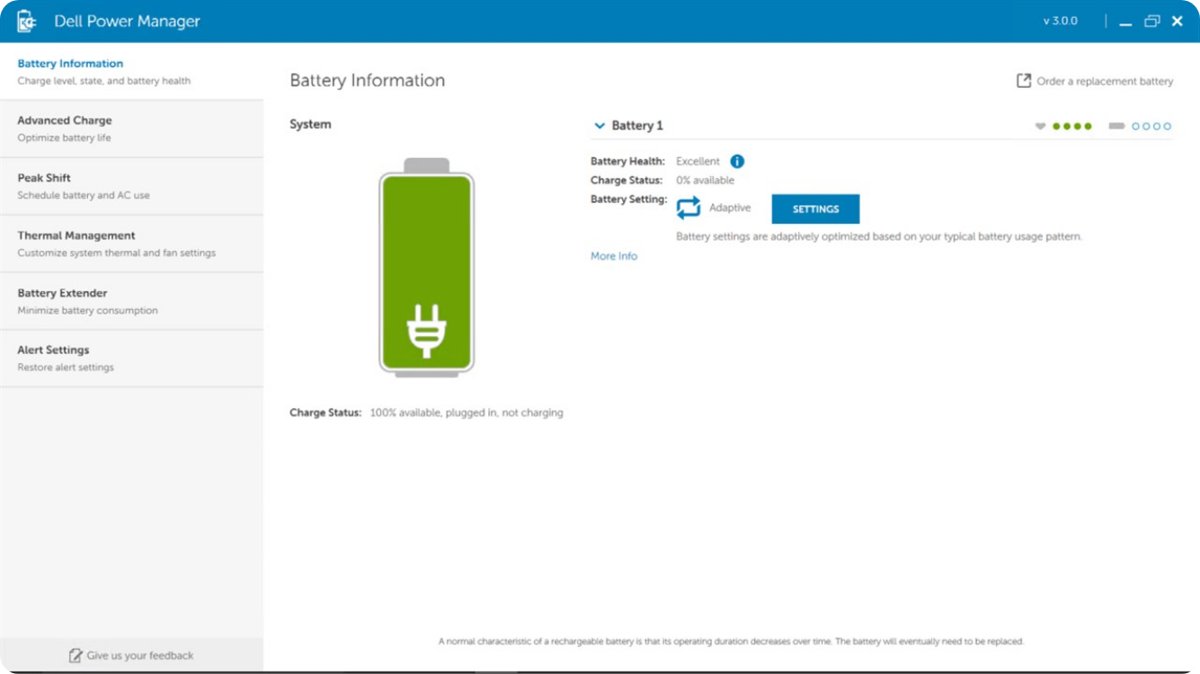
Dell Power Manager runs on Windows 11 and Windows 10 as an app paired with a component called Dell Power Manager Service. Without the service, the app shows only battery information.
Keep Dell Power Manager only if it already runs on your laptop and you rely on Advanced Charge or Peak Shift; otherwise move to Dell Optimizer. Dell ended support for Dell Power Manager on December 31, 2025, so it receives no further fixes. Dell Optimizer 6.0 carries over most of its features, but it does not include Advanced Charge or Peak Shift.
What does Dell Power Manager do?
Each feature has its own tab in the left pane of the app. Availability depends on your system and battery.
| Feature | What it does | Good for |
|---|---|---|
| Battery Information | Shows health and details for up to six batteries, and lets you edit or create charge settings | Checking whether a battery is wearing out |
| Advanced Charge | Charges to full once per day before your start time, then holds a lower charge state | Extending the battery's usable life |
| Peak Shift | Runs the system on battery during set hours, even when it is plugged in | Lowering power use at certain times of day |
| Thermal Management | Adjusts processor and fan settings | Balancing performance, surface temperature and fan noise |
| Battery Extender | Adjusts CPU power, screen brightness and keyboard illumination, and can mute audio | Saving charge away from a power outlet |
| Alert Settings | Lets you restore the default alert settings | Resetting battery and power alerts |
Is Dell Power Manager discontinued? Dell Optimizer features compared
Yes. Dell lists October 20, 2025 as the end of life and December 31, 2025 as the end of support, and names Dell Optimizer 6.x as the replacement. Check the table before you switch, because two features did not carry over.
| Dell Power Manager feature | In Dell Optimizer 6.0? | What to use |
|---|---|---|
| Battery information and alerts | Yes | Dell Optimizer |
| Thermal Management | Yes | Dell Optimizer |
| Battery Extender | Yes, as Intelligent Battery Extender | Dell Optimizer, which also adds Dynamic Charge |
| Charging mode | No | BIOS setup menu on supported platforms |
| Advanced Charge | No | Dell lists no alternative |
| Peak Shift | No | Dell lists no alternative |
Dell's older product page recommends Dell Optimizer for Latitude, Precision and OptiPlex, and MyDell for XPS, Inspiron and Vostro. Its newer transition article says Dell Optimizer 6.x also replaces MyDell, which reached end of support on December 31, 2025.
Which Dell models have Dell Power Manager?
Dell's download page for Dell Power Manager Service lists about 300 models across these families. You can check your Dell laptop model before you look for it.
| Dell family | Models listed | Device type |
|---|---|---|
| Latitude | 3000 through 9000 series | Laptops, 2-in-1s and rugged models |
| Precision | 3000, 5000 and 7000 series | Mobile workstations |
| XPS | 13, 15 and 17 models | Laptops and 2-in-1s |
| Inspiron | 3000, 5000 and 7000 lines, plus 3180 to 3195 | Laptops and 2-in-1s |
| Vostro | 3000, 5000 and 7000 series | Laptops |
| G-Series | G3, G5, G7 and G15 | Gaming laptops |
| Venue | Venue 8 Pro 5855 | Tablet |
A family listing does not guarantee your exact model is included, so confirm it on your model's own support page.
How to download and install Dell Power Manager?
You need 64-bit Windows 11 or Windows 10, Microsoft .NET Framework 4.6.1 and administrator rights. Dell ships the service as a Dell Update Package, a DUP.exe file, through its support site.
- Go to Dell.com/support.
- Enter your model number in the search field, for example Latitude 5510, and select Search.
- Select Drivers & Downloads and find Dell Power Manager Service.
- Download the DUP.exe file.
- Right-click the file and select Run as administrator.
- Follow the wizard's prompts until the installation finishes.
With MyDell 3.0 or later, or Dell Optimizer 3.2 or later, on the PC, Dell says you cannot install or upgrade Dell Power Manager. The newer app removes it, and the power settings stay available inside that app.
Dell's linked download page lists Dell Power Manager Service 3.9.0 (A00, May 20, 2021), while its user guide covers version 3.18. Use the newest version your model's page offers. You can also keep your Dell drivers updated from the same page.
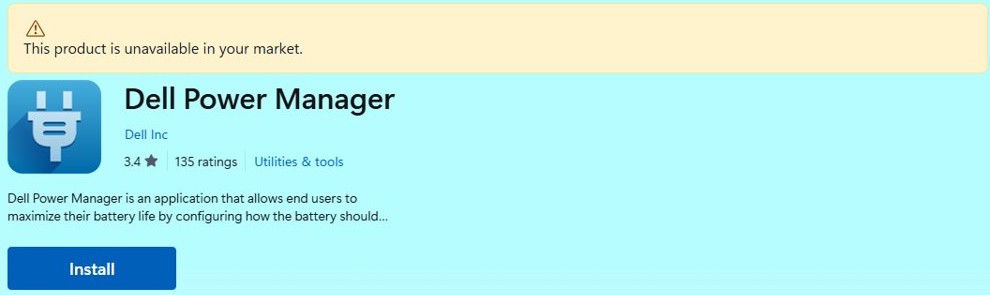
How to install Dell Power Manager from the Microsoft Store
Dell's user guide also lists a Microsoft Store route. It installs the app first, then asks for the service.
- Open Microsoft Store from the Start menu and sign in.
- Select Search and look for Dell Power Manager.
- On the Dell Power Manager page, select Install.
- When the installation finishes, select Launch.
- When the prompt asks about the service, select Download.
If you select Skip at that prompt, the app shows only battery information and leaves out the other features.
How to use Dell Power Manager?
Every feature follows the same pattern: open its tab, change the setting, and confirm with OK.
- Select Start > All Apps, then select Dell Power Manager. You can also type its name in the Start search box.
- Read the Battery Information page to see whether the system is plugged in and how much charge remains.
- Select a battery, such as Battery #1, to see its type, manufacturer and serial number.
- Select a tab in the left pane: Advanced Charge, Peak Shift, Thermal Management or Battery Extender.
- Change the setting on that tab, then select OK to save it, or Cancel to discard it.
Dell Power Manager battery health: Excellent, Good, Fair and Poor
The Battery Information page rates each Dell battery with up to four filled circles. Health information appears only when a Dell battery is attached.
| Rating | Circles filled | What it means |
|---|---|---|
| Excellent | 4 (green) | The battery operates at maximum capacity |
| Good | 3 (yellow) | It charges normally, but run time can shorten as its long-term life declines |
| Fair | 2 (orange) | It charges normally but is near the end of its usable life |
| Poor | 1 (red) | It no longer provides sufficient power, so Dell recommends replacing it |
| No rating | 0 of 4 | It no longer operates or its status cannot be determined, so Dell recommends replacing it |
Dell Power Manager battery settings: Standard, ExpressCharge, Primarily AC, Adaptive and Custom
These five settings control how the battery charges. Settings change only when a Dell battery is attached, and your battery can limit which options you see.
| Setting | How it charges | Who it suits |
|---|---|---|
| Standard | At a moderate rate, balancing battery life with reasonably fast charging | People who often switch between battery and external power |
| ExpressCharge | Fast charging, typically 80 percent in about an hour and 100 percent in about two with the system off | People who need charge quickly, although it can reduce battery health faster |
| Primarily AC | Lowers the charge threshold so the battery never reaches full capacity | People who mostly run on external power |
| Adaptive | Adjusts battery settings automatically to match your usual patterns | People who want a hands-off option |
| Custom | Starts and stops charging at the percentages you choose | Advanced users |
How to change the battery charge setting in Dell Power Manager
- On the Battery Information page, select the battery you want to change, such as Battery #1.
- Select Settings. If Advanced Charge is on, open battery settings from the Advanced Charge screen instead.
- Select a preset, or select Custom to set your own values.
- For Custom, set Start Charging and Stop Charging. With 60 and 90, charging starts at 60 percent and stops at 90 percent.
- Select OK to apply the setting.
Your system's BIOS sets a minimum gap between the two Custom values, so keep them at least that far apart.
How to enable Advanced Charge in Dell Power Manager
Advanced Charge is off by default. When you turn it on, it applies to all batteries, and per-battery settings are disabled.
- Select the Advanced Charge tab in the left pane.
- Switch the toggle at the top of the page to On.
- Turn on the toggle for each day you want it active. You must enable at least one day.
- Select Settings to open the time settings.
- Select a day and set Start of day and End of day with the circular slider or the drop-down menus.
- To reuse the schedule, select Copy the same settings to multiple days, then select the other days.
- Select OK to save.
How to enable Peak Shift in Dell Power Manager
If Peak Shift and Advanced Charge hours overlap, Peak Shift takes priority and the batteries do not charge during those hours.
- Select the Peak Shift tab in the left pane.
- Turn on the toggle at the top of the page.
- Move the slider to the battery percentage at which the system returns to AC power.
- Turn on the toggle next to each day you want to use it, then select Settings.
- Select a day and set Activate peak shift and End peak shift.
- Optionally select Operate on AC power without charging battery and choose when charging stops.
- Select OK to save.
Dell Power Manager thermal management modes: Optimized, Cool, Quiet and Ultra performance
Open the Thermal Management tab and select the radio button next to a mode. The tab is unavailable on systems without thermal settings support, and the feature is disabled if a fan has failed.
| Mode | What changes | Trade-off |
|---|---|---|
| Optimized | Balances performance, noise and temperature | None of the three is pushed to an extreme |
| Cool | Raises fan speed to keep the surface cooler | More noise and possibly lower performance |
| Quiet | Lowers fan and processor speeds | Lower performance and possibly a warmer surface |
| Ultra performance | Raises processor and fan speeds | More noise and a warmer surface |
Press Fn + T to toggle Ultra performance mode. To change related Windows power options, you can manage power settings in Windows from Control Panel.
How to turn on Battery Extender in Dell Power Manager
Battery Extender cannot turn on while the system is plugged in. It also needs a system that supports the Quiet thermal setting.
- Unplug the system from the power outlet.
- Select the Battery Extender tab in the left pane.
- Select the Settings button.
- Check the box beside each feature you want to change, and drag its slider or enter a percentage if one appears.
- Select OK to apply your changes.
- Turn on the toggle.
To undo your changes, select Restore Defaults. Changes you make in the BIOS or Windows battery settings are not reflected here.
How to uninstall Dell Power Manager completely?
Remove Dell Power Manager Service, not just the app tile. Dell says uninstalling the service also removes the application.
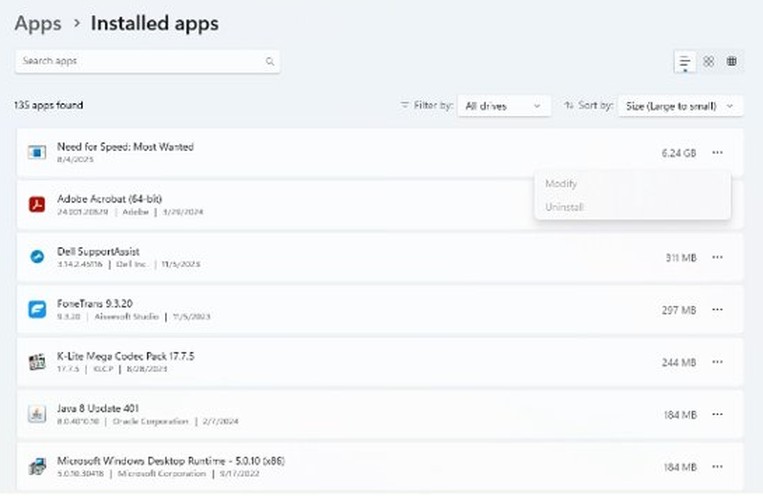
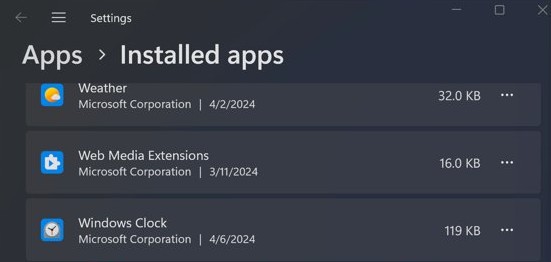
- Select Start > Settings.
- Select Apps > Installed apps.
- Find Dell Power Manager Service in the list.
- Select More, then select Uninstall.
- Confirm the prompt and let the uninstaller finish.
- Restart the PC if Windows asks.
If Settings cannot remove it, you can uninstall apps in Windows through Control Panel instead. Dell's uninstall pages list no leftover folders or registry keys, so do not delete Dell files by hand.
Installing Dell Optimizer also removes Dell Power Manager. Select Uninstall if its installer prompts you.
Uninstall Dell Power Manager using the command prompt
Dell documents an MSI command for removing the package. Its example names the 64-bit file for version 3.11, so replace the file name with the MSI that matches your installed version.
MSIEXEC /x DPM_Setup64_3_11_0.msiMSIEXEC runs the Windows Installer, and /x uninstalls the package named after it. Run the command from the folder that holds the MSI, or include its full path.
You should see: Dell Power Manager Service no longer appears under Installed apps.
How to check if Dell Power Manager is installed
- Select Start > Settings > Apps > Installed apps.
- Search the list for Dell Power Manager Service. Its entry means the service is installed.
- Select Start > All Apps and look for Dell Power Manager.
- Open it and check whether the Advanced Charge and Peak Shift tabs appear for your system. A battery-only view means the service is missing.
How to view Dell Power Manager event logs
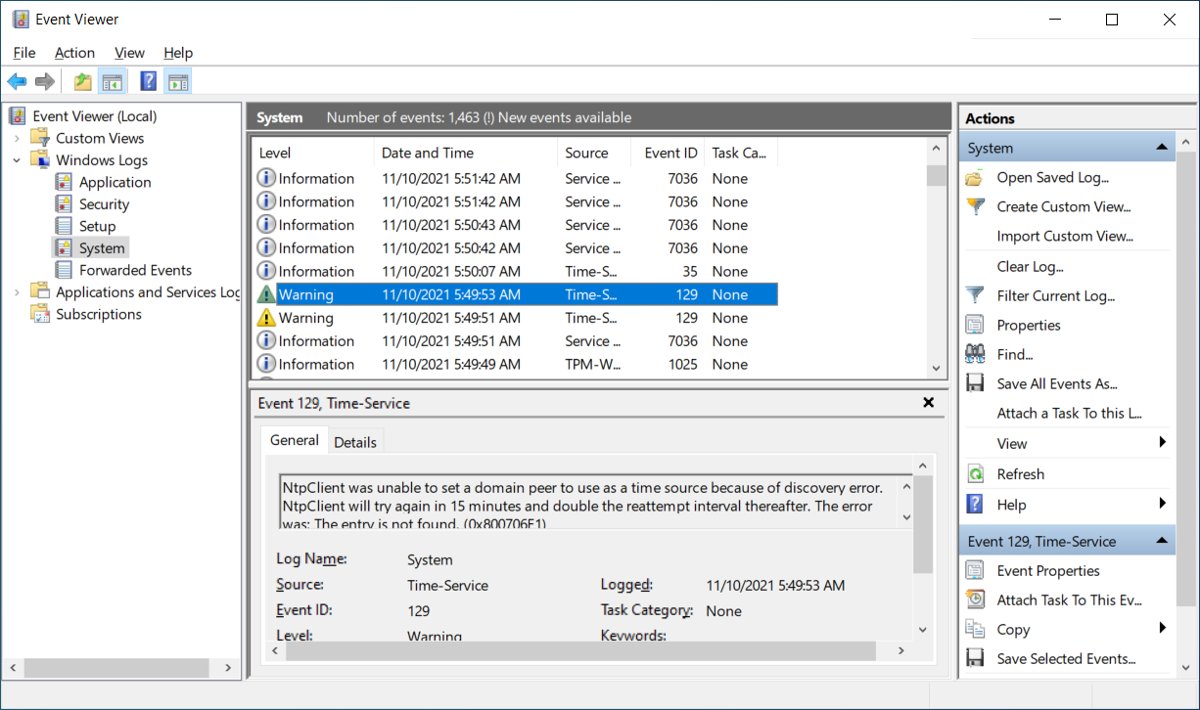
Dell Power Manager writes its errors and events to the Windows Application log. Read this log first when a setting will not apply.
- Open Control Panel > Administrative Tools, then double-click Event Viewer.
- In the left pane, expand Windows Logs and select Application.
- In the right pane, select Filter Current Log.
- Open the Event sources drop-down and select DellCommandPowerManager.
- Select OK to show the matching events and errors.
Dell Power Manager not working
If the app reports a fault you cannot place, keep your details ready for Dell. You can find your Dell Service Tag before you contact support.
Dell Power Manager will not install or upgrade
A newer MyDell or Dell Optimizer is installed, or an older copy is in the way.
- Check Installed apps for MyDell 3.0 or later, or Dell Optimizer 3.2 or later.
- If either one is there, use its power settings instead.
- Otherwise, uninstall any previous Dell Power Manager version.
- Run the installer again as an administrator.
Dell Power Manager shows only battery information
The app is installed, but Dell Power Manager Service is not.
- Go to Dell.com/support and open Drivers & Downloads for your model.
- Download Dell Power Manager Service and run it as an administrator.
- Open Dell Power Manager again and check the left pane for the other tabs.
Battery health or battery settings are not available
Both features work only with a Dell battery attached.
- Open Battery Information and find the battery graphic. Non-Dell batteries appear orange.
- Select the battery and read its manufacturer.
- Install a Dell battery if you need these features.
Battery does not charge while the laptop is plugged in
Peak Shift hours, Advanced Charge or Primarily AC can hold charging back on purpose.
- Open the Peak Shift tab and check today's schedule.
- Open the Advanced Charge tab and check Start of day.
- On Battery Information, select the battery, select Settings and check the active preset.
Thermal Management is missing or disabled
The system lacks thermal settings support, or a fan has failed.
- Check whether the Thermal Management tab appears at all.
- If it appears but is disabled, contact Dell support to have the fans checked.
- Have your Service Tag ready for the support request.
Battery Extender will not turn on
The system is plugged in, or it does not support the Quiet thermal setting.
- Unplug the system from the outlet.
- Open the Battery Extender tab and turn on the toggle.
- If the tab is missing, your system does not support the feature.
Dell Power Manager FAQ
What does Dell Power Manager do?
Dell Power Manager shows battery health and controls how a Dell laptop charges and cools. It offers Battery Information, Advanced Charge, Peak Shift, Thermal Management, Battery Extender and Alert Settings, with availability depending on the system and the battery installed.
Is Dell Power Manager still supported?
No. Dell lists October 20, 2025 as its end of life and December 31, 2025 as its end of support. Dell names Dell Optimizer 6.x as the replacement and no longer maintains its Dell Power Manager guide article.
Does Dell Power Manager work on Windows 11?
Yes. Dell lists Dell Power Manager for both Windows 11 and Windows 10, and the service installer requires a 64-bit operating system. One page in its user guide still mentions Windows 10 only, but its product and download pages include Windows 11.
How do I uninstall Dell Power Manager completely?
Open Settings > Apps > Installed apps, find Dell Power Manager Service, select More, and then select Uninstall. Dell says removing the service also removes the application. Installing Dell Optimizer removes Dell Power Manager as well, so you may not need a separate uninstall.
Why did Dell Power Manager disappear from my laptop?
Installing MyDell 3.0 or later, or Dell Optimizer 3.2 or later, uninstalls Dell Power Manager. Its power settings remain available inside those apps, although Dell Optimizer 6.0 does not include Advanced Charge, Peak Shift or the charging mode settings.
Can Dell Power Manager use a non-Dell battery?
Only partly. Dell Power Manager shows non-Dell batteries in orange on the battery graphic, and both battery health information and battery setting changes require a Dell battery. The rest of the app depends on what your system supports.