To add or change a Zoom background, open the Zoom Workplace desktop app, click your profile picture, select Settings > Video & effects, and pick or upload an image on the backgrounds tab.
This guide covers the desktop app before and during a meeting, iPhone, iPad and Android, the Zoom Web App, the web portal setting that switches virtual backgrounds on, image sizes, green screens, blur, removal and fixes when the background will not appear.
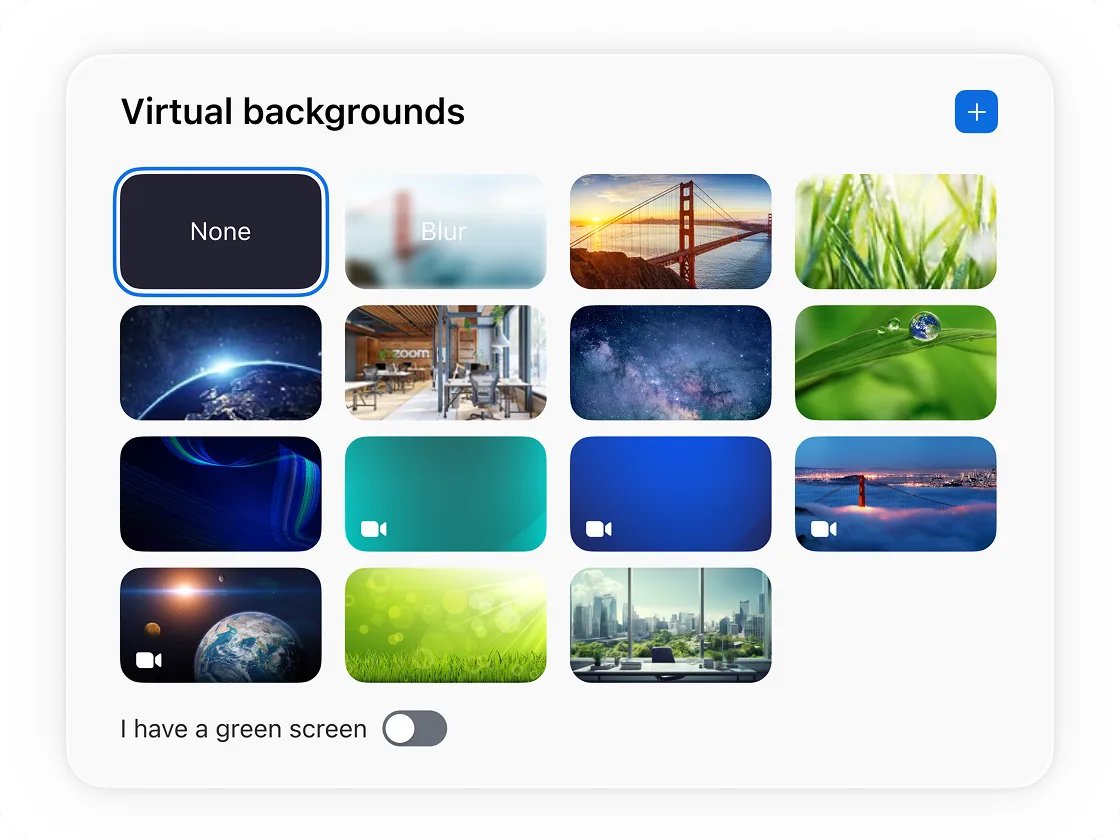
Step by step tutorial: How to add & change Zoom backgrounds
These steps use the Zoom Workplace desktop app on Windows, macOS or Linux and set the background before you join a call. The background you choose stays as your default for later meetings.
- Open the Zoom Workplace desktop app and sign in.
- Click your profile picture in the top-right corner, then click Settings.
- Click the Video & effects tab.
- Click the Virtual backgrounds tab (some app versions label it Backgrounds).
- Click one of the default images or videos to change your background straight away.
- To add your own picture, click the add icon, choose image or video, and select the file on your computer. Click Download if Zoom asks to fetch extra components.
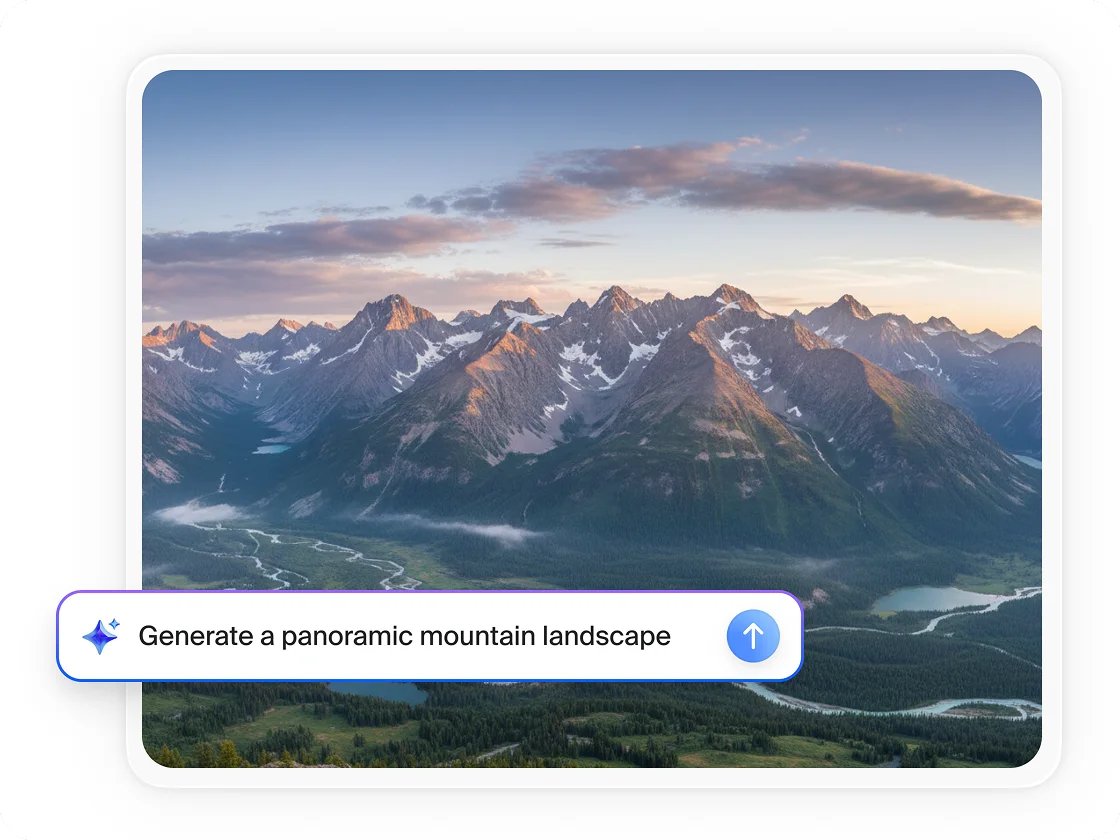
- To create one with AI, click Generate next to Create AI virtual background, type an idea, and click Generate. Click Try again for another result.
If the backgrounds tab is missing, the Virtual background setting is off for your account. The section on enabling it below shows where to turn it on.
How to change Zoom background during a meeting
You do not have to leave a call to swap backgrounds. With your video on, the change appears to other participants as soon as you click.
- Join or start the meeting in the Zoom Workplace desktop app.
- In the meeting controls, click the up arrow next to Video.
- Click Video & effect settings to open the Video & effects side panel.
- Click the Virtual backgrounds tab, or scroll to the Virtual backgrounds section.
- Click a default or recent background, or click the add icon to upload a new image or video.
- Close the panel to return to the meeting view.

How to change Zoom background on iPhone and Android
The Zoom Workplace mobile app supports image backgrounds on supported phones and tablets. The in-meeting steps are the same on Android and iOS.
- Open the Zoom Workplace mobile app, sign in and join a meeting.
- Tap More in the meeting controls, then tap Settings.
- Tap Virtual backgrounds.
- Tap Blur, a default image or a recent image, or tap the plus icon + to upload a photo from your device.
- Tap the close icon to return to the meeting.
On iPhone and iPad with app version 6.5.0 or later, you can also set it outside a meeting. Tap your profile picture in the top-left corner, tap Settings > Video & effects, then tap Background & effects under Appearance and choose an option on the Backgrounds tab.
How to change background on Zoom web app
The Zoom Web App runs in Chrome or Edge, or on ChromeOS, and has its own background menu inside the video controls.
- Join or start a meeting in the Zoom Web App.
- Click the up arrow next to Start Video or Stop Video.
- Click Choose Background.
- Click an image under Choose Background, or click the add icon to upload your own.
- Close the window to go back to the meeting.
If the add icon is missing in the browser, your account admin has not allowed uploads, so only the admin's images are available.
How to enable virtual background in Zoom settings
Every background option, including blur, depends on the Virtual background setting in the Zoom web portal. Turn it on there before you look for the tab in the app.
- Sign in to the Zoom web portal in your browser.
- Click your profile picture or initials, then click Settings.
- Click the Meeting tab.
- Under In Meeting (Advanced), turn on the Virtual background toggle.
- Click Enable if a verification dialog appears.
- Optionally turn on Allow use of videos as virtual backgrounds, then click Save.
- Sign out of the Zoom desktop app and sign back in so the backgrounds tab appears.
A grayed-out toggle means the setting is locked at group or account level. Account owners and admins change it in Admin Center > Settings > Meeting, where they can also tick Allow users to upload custom backgrounds, Require users to always use virtual background and Reset virtual backgrounds to default for users after each meeting.
Zoom virtual background size and format
Zoom accepts still images and short video loops. A file cropped to your camera's shape fills the frame without stretching.
| Background type | Accepted formats | Size or resolution | Notes |
|---|---|---|---|
| Image | 24-bit PNG, JPG or JPEG | Up to 15 MB | Crop to your camera's aspect ratio |
| Image for a 16:9 camera | PNG, JPG or JPEG | 1280 x 720 or 1920 x 1080 | Use at least 1280 x 720 if you are unsure of the ratio |
| Video (animated) | MP4 or MOV | Between 480 x 360 (360p) and 1920 x 1080 (1080p) | Needs more processing power than an image |
| AI generated | Created inside Zoom | Set by Zoom | Requires the Virtual background setting to be on |
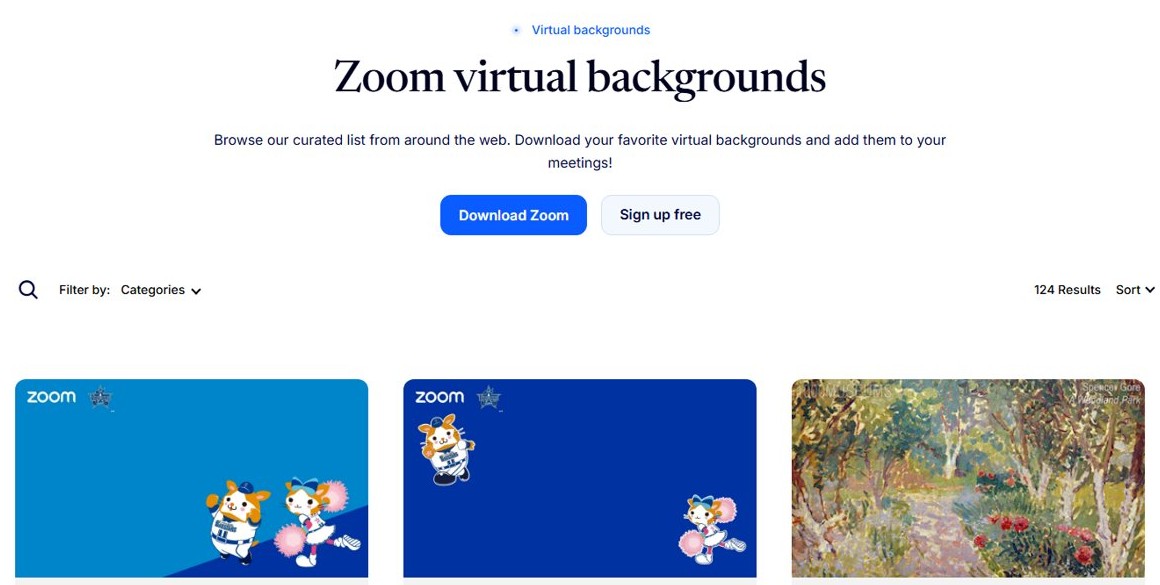
Zoom links to its own collection of free backgrounds at zoom.us/virtual-backgrounds, and to free photo libraries such as Pexels, Unsplash and Pixabay.
Zoom virtual background system requirements
Older processors can show a green-screen-only option or no video backgrounds at all. Backgrounds without a physical green screen and video backgrounds need the most power.
| Platform | Image background without a green screen | Video backgrounds |
|---|---|---|
| Windows 7, 8, 10 (64-bit) and 11 | Intel Core i3-5000, i5-3000, i7-3000 or i9-3000 or higher; AMD Ryzen 5/7/9; ARM64 with Qualcomm Adreno 680 or higher | 720p needs a 6th generation Intel Core i5 or better (not U series); Ryzen 5/7/9 supports 1080p |
| macOS | macOS 10.13 or later on Apple M-series, 5th generation Intel Core i5 or 8th generation quad-core Core i3 | 720p on Apple M-series; 1080p on M-series MacBook Pro or a quad-core 5th generation Core i5 |
| Linux | Intel Core i3-8000, i5-6000, i7-4000, i9-7000 or higher; Xeon with 4 cores at 2.0 GHz | Not listed |
| Android | Android 8.0 or later, 64-bit (arm64) processor with 8 or more cores, 3 GB RAM | Image backgrounds only in the mobile steps |
| iPhone and iPad | iPhone 8, 8 Plus, X or newer; 5th and 6th generation 9.7-inch iPad, 7th generation or later 10.2-inch iPad, iPad Pro | Image backgrounds only in the mobile steps |
| Zoom Web App | Chrome or Edge, or ChromeOS, with at least 4 logical processor cores | Not listed |
Virtual backgrounds without a green screen are not supported when the desktop app runs inside a virtual machine or virtual desktop.
How to use a green screen in Zoom
A physical green screen lets slower computers run virtual backgrounds and gives cleaner edges around your hair and shoulders.
- Hang a solid, bright green or blue backdrop behind you and light it evenly so it has few shadows.
- Open Settings > Video & effects and the backgrounds tab in the Zoom desktop app.
- Choose the image or video you want as your background.
- Turn on the I have a green screen toggle.
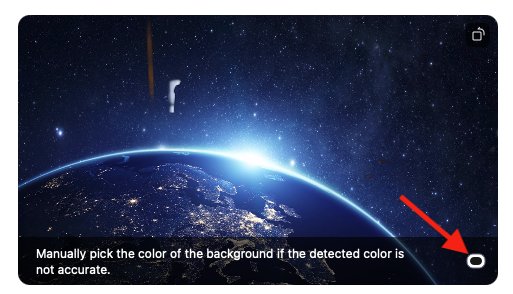
- Click your video preview on the backdrop to pick the screen color.
- If parts of your face disappear, pick the color again on a different area of the backdrop.
How to blur background in Zoom
Blur keeps your real room but softens it, and it uses the same requirements as an image background without a green screen.
- Before a meeting, open Settings > Video & effects in the desktop app and open the backgrounds tab.
- Click Blur.
- During a meeting, click the arrow next to Video and turn on Blur my background.
- On a phone or tablet, tap More > Settings > Video & effects, open the Backgrounds tab and tap Blur.
Turning on blur mid-meeting replaces the virtual background you were using, and blur stays as your default until you pick something else.
Tips for adding & changing Zoom backgrounds
Most poor-looking backgrounds come from the wrong image shape, uneven light or clothing that matches the backdrop.
| If you notice this | Do this | Why it helps |
|---|---|---|
| Background looks stretched or cropped | Use an image cropped to your camera's ratio, 1280 x 720 or 1920 x 1080 for 16:9 | Zoom fills the frame without distorting the picture |
| Edges flicker around your head | Light your face and the wall evenly, or use a green screen | Even lighting makes it easier to separate you from the room |
| Your shirt vanishes into the background | Wear a color that does not match the backdrop | Zoom replaces anything that matches the screen color |
| Video background makes the call lag | Switch to a still image or to Blur | Video backgrounds need more system resources |
| You want a fresh background every call | Use Create AI virtual background or Zoom's free collection | No file to prepare or upload |
| Work account resets your choice | Ask your admin about Reset virtual backgrounds to default for users after each meeting | The admin setting overrides your selection after each meeting |
A Zoom background changes only what other participants see in Zoom, so you set a Teams call background separately in Teams. To change your desktop background in Windows 11, use the Windows Personalization settings instead.
How to remove virtual background in Zoom
Removing the background shows your real room again. Uploaded images stay in the list until you delete them.
- Open Settings > Video & effects in the desktop app, or click the up arrow next to Video and choose Video & effect settings during a meeting.
- Open the backgrounds tab.
- Click None to turn the background off.
- On a phone or tablet, tap More > Settings > Virtual backgrounds and tap None.
Zoom virtual background not working
The virtual background tab is missing in the desktop app
The Virtual background setting is off, or the app has not picked up the change yet.
- Sign in to the Zoom web portal and open Settings > Meeting.
- Turn on Virtual background under In Meeting (Advanced).
- Sign out of the desktop app and sign back in, then check Video & effects again.
The Virtual background toggle is grayed out
Your organization has locked the setting at group or account level.
- Contact your Zoom account owner or admin.
- Ask them to enable Virtual background in Admin Center > Settings > Meeting or in your group's product settings.
Zoom will not let you upload your own background
The admin has turned off Allow users to upload custom backgrounds, so only the admin's images are offered.
- Pick one of the images your organization provides.
- Ask your admin to tick Allow users to upload custom backgrounds if you need your own file.
Only the green screen option works, or video backgrounds are missing
The computer's processor is below the requirement for backgrounds without a green screen or for video backgrounds.
- Compare your processor with the system requirements table above.
- Use a physical green screen and turn on I have a green screen, or choose a still image.
- Ask your admin to tick Allow use of videos as virtual backgrounds if your device meets the video requirements.
Parts of your face or body disappear into the background
The selected screen color is too close to your skin tone or clothing.
- Turn on I have a green screen and click your video to select the backdrop color again.
- Change clothes that match the backdrop.
- Even out the lighting so the backdrop has fewer shadows.
Virtual background does not work on a virtual desktop
Backgrounds without a green screen are not supported when the desktop app runs in a virtual environment.
- Use a physical green screen with I have a green screen turned on.
- Or join the meeting from the Zoom app installed on the local computer.
Zoom virtual background FAQ
If you are new to the app, you can join and schedule Zoom meetings on Windows from the desktop client and set a background before your first call.
What are the system requirements for using virtual backgrounds in Zoom?
Requirements depend on the platform and on whether you use a green screen. On Windows, an image background without a green screen needs at least an Intel Core i3-5000 or AMD Ryzen 5. On phones, Zoom lists iPhone 8 or newer and Android 8.0 or later with an 8-core 64-bit processor and 3 GB of RAM.
Can I use virtual backgrounds on a mobile device?
Yes. In the Zoom Workplace mobile app on a supported iPhone, iPad or Android device, tap More > Settings > Virtual backgrounds during a meeting. You can pick a default image, choose Blur, or tap the plus icon to upload a photo from your device.
Why isn't my virtual background working?
The usual cause is that the Virtual background setting is off in the Zoom web portal. Turn it on under Settings > Meeting > In Meeting (Advanced), then sign out of the app and back in. If it still fails, your processor may be below Zoom's requirements or your admin may have locked the setting.
Can I use animated backgrounds in Zoom?
Yes, Zoom supports video backgrounds in MP4 or MOV format between 360p and 1080p in the desktop app. Video backgrounds need a faster processor than images, and on work accounts the admin must allow use of videos as virtual backgrounds.
How can I remove my virtual background?
Open Settings > Video & effects in the Zoom desktop app, or the Video & effect settings panel during a meeting, and click None on the backgrounds tab. On a phone, tap More > Settings > Virtual backgrounds and tap None.
What size should a Zoom virtual background be?
Use an image that matches your camera's aspect ratio. For a 16:9 camera, Zoom recommends 1280 x 720 or 1920 x 1080 pixels. Images must be 24-bit PNG or JPG files of up to 15 MB.
How do I blur my background in Zoom?
In the desktop app, open Settings > Video & effects and click Blur on the backgrounds tab. During a meeting, click the arrow next to Video and turn on Blur my background. Blur also requires the Virtual background setting to be enabled.
How do I change my Zoom background in the browser?
In the Zoom Web App, click the up arrow next to Start Video or Stop Video, click Choose Background, then select an image or click the add icon to upload one. The web app works in Chrome, Edge and ChromeOS.
Where can I get free Zoom backgrounds?
Zoom offers a free collection of backgrounds at zoom.us/virtual-backgrounds. The desktop app also includes default images and videos and can generate an AI virtual background from a short text idea.