To change the home screen on Windows 11, right-click the desktop, select Personalize, then choose Background for the wallpaper or Lock screen for the sign-in picture.
Windows 11 has no single screen called the home screen, so the table below matches what you see to the right setting. It then covers the Start menu, taskbar, theme, desktop icons, Widgets, File Explorer Home and fixes for settings that do not stick.
What home screen means in Windows 11 and where to change each one
Find the screen you want to change in the left column, then follow the path. Every Windows path starts in Start > Settings unless the row says otherwise.
| What you call the home screen | Where to change it | What changes |
|---|---|---|
| The picture behind your apps and icons | Settings > Personalization > Background | Desktop wallpaper: a picture, solid color, slideshow or Windows spotlight |
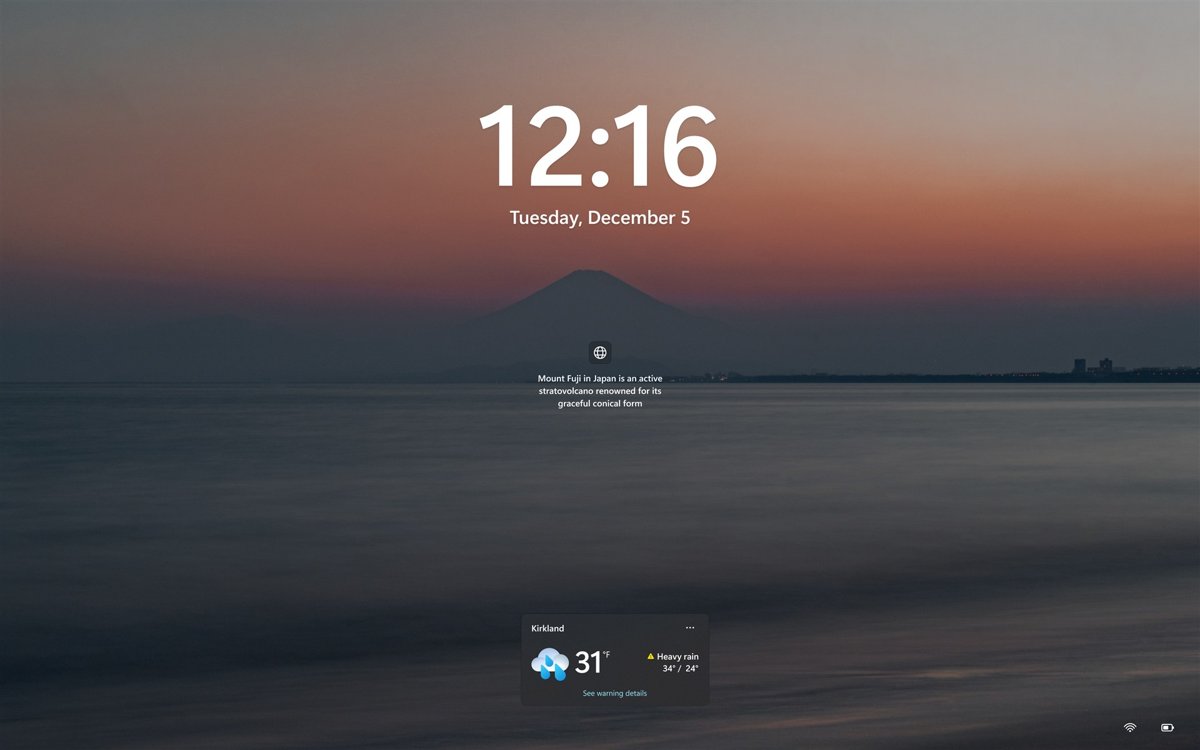
| The screen with the clock before you sign in | Settings > Personalization > Lock screen | Lock screen picture, slideshow or Windows spotlight, plus lock screen widgets |
| The menu that opens when you select Start | Settings > Personalization > Start | Pinned apps, folders next to Power, recently added and most used apps |
| The whole look: wallpaper, colors, sounds, cursor | Settings > Personalization > Themes | Applies a full theme in one click |
| Light or dark windows and menus | Settings > Personalization > Colors | Light, Dark or Custom mode and the accent color |
| The bar at the bottom of the screen | Right-click the taskbar, then Taskbar settings | Pinned apps, alignment, Search, Task view and Widgets buttons |
| The page File Explorer opens on | File Explorer: See more > Options > Open File Explorer to | Opens on Home or This PC |
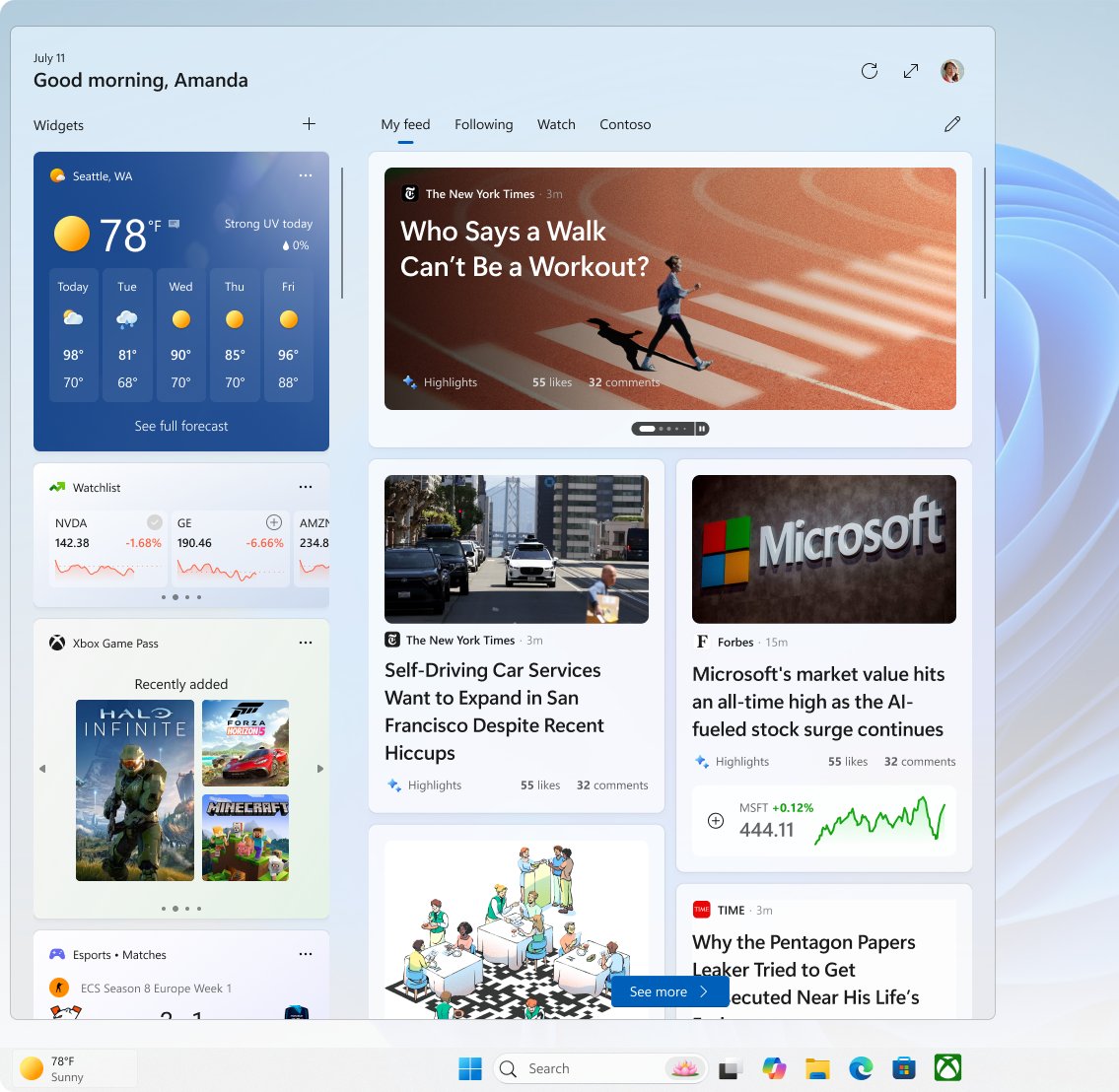
| The news and weather panel | Press Windows + W | Widgets you add, remove, move or resize |
| The page your web browser opens | Browser settings: Microsoft Edge help or Google Chrome help | Browser home page and startup page only, not Windows |
Change the desktop background
The desktop background is what most people mean by the home screen picture or wallpaper.
- Right-click an empty area of the desktop and select Personalize.
- Select Background.
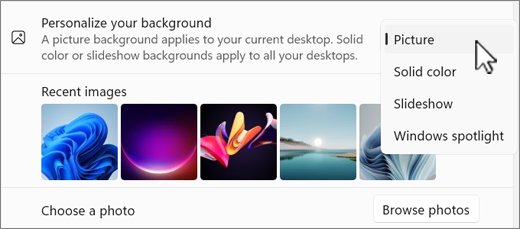
- Open the Personalize your background list and choose Picture, Solid color, Slideshow or Windows spotlight.
- For Picture, select one of the recent images or browse to your own photo.
- For Slideshow, choose a folder of images, then set how often the picture changes and whether to shuffle it.
- Open Choose a fit for your desktop image and pick Fill, Fit, Stretch, Tile, Center or Span.
- With more than one monitor and Picture selected, right-click an image and choose whether it goes on all displays or one display.
Windows spotlight shows a new image from around the world every day. Span stretches one image across multiple monitors, which suits panoramic photos.
Change the Windows 11 theme and switch between light mode and dark mode
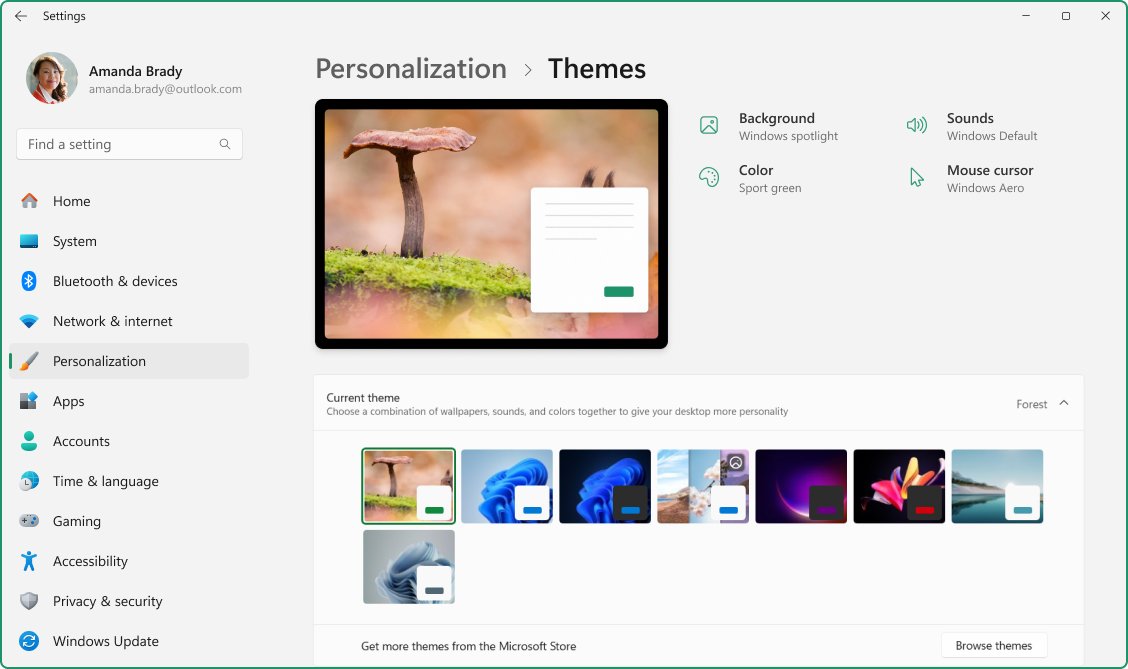
A theme changes the background, colors, sounds and mouse cursor together. Mode and accent color are set separately under Colors.
- Open Start > Settings > Personalization > Themes.
- Select one of the default themes to apply it, or select Browse themes to get more from the Microsoft Store.
- To keep your own mix of wallpaper and colors, select Save and give the theme a name.
- Go back to Personalization and select Colors.
- Choose Light, Dark or Custom as your mode. Custom lets Windows and apps use different modes.
- Under accent color, choose Automatic to match your wallpaper, or Manual to pick a color.
- Turn on Show accent color on Start and taskbar if you want the color there. It works only in Dark or Custom mode.
- Turn on Show accent color on title bars and window borders to color window frames too.
Customize the Start menu
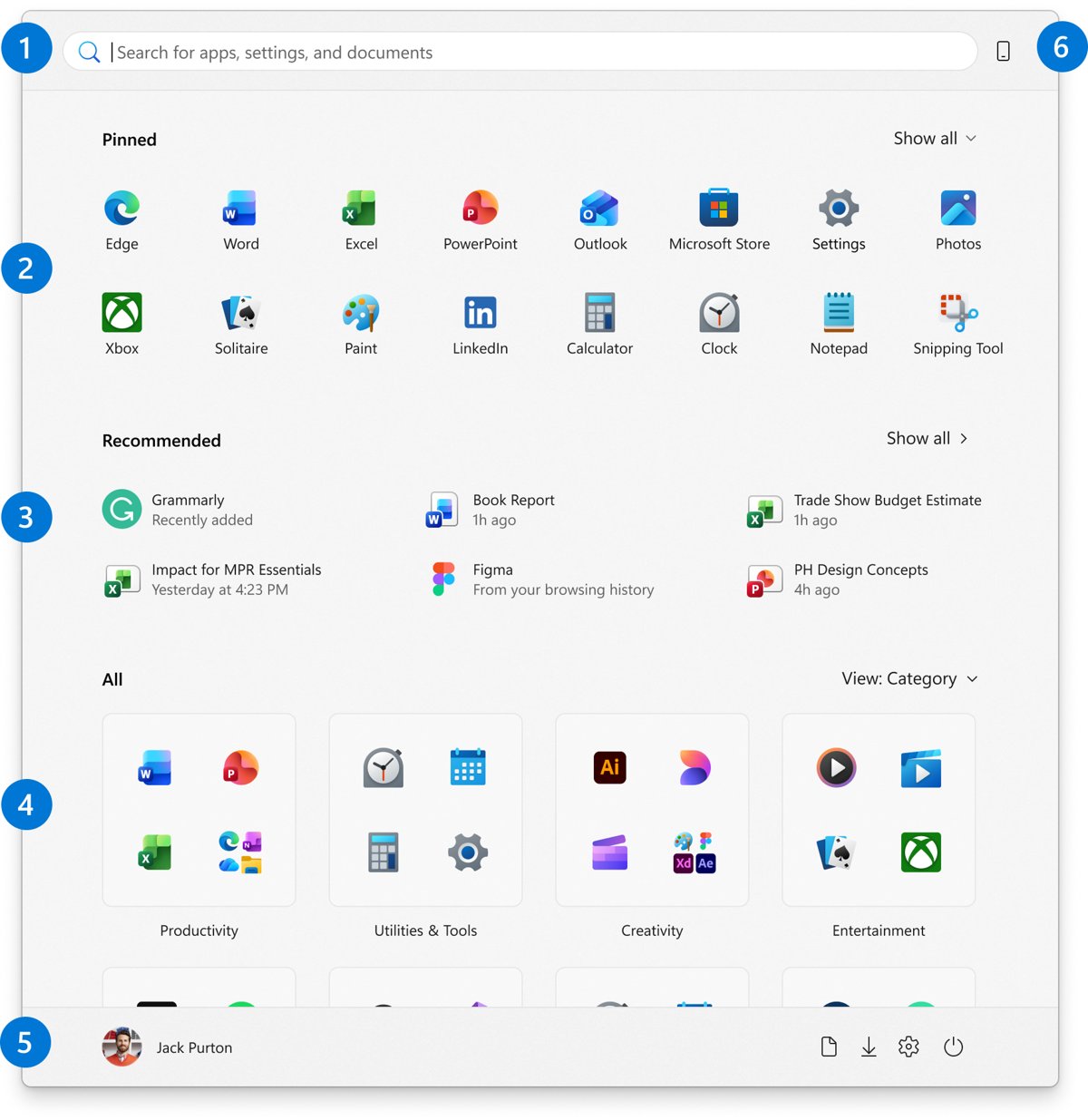
Start holds your pinned apps, recommendations and the full app list. Changes here make the menu feel like a home screen of your own apps.
- To pin an app, type its name in Search, right-click it and select Pin to Start.
- To pin a website, open it in Microsoft Edge, select the more options menu, then More tools > Pin to Start.
- To remove a pin, right-click it and select Unpin from Start.
- Drag a pin to a new position to reorder it. Drag one pin on top of another to create a folder, then rename the folder.
- Open Settings > Personalization > Start and switch Show recently added apps, Show most used apps and Show recently opened items in Start, Jump Lists, and File Explorer on or off.
- Select Folders and turn on the folders you want next to the Power button, such as Documents, Downloads or Pictures.
- In the All section of Start, pick Category, Grid or List view. Start remembers the view you chose last.
Customize the taskbar
Most taskbar changes live in one place. Right-click an empty part of the taskbar and select Taskbar settings before you start.
| What you want | Do this | Result |
|---|---|---|
| Pin an app | Search for the app, right-click it and select Pin to taskbar | The app stays on the taskbar after you close it |
| Remove an app | Right-click its taskbar icon and select Unpin from taskbar | The icon disappears when the app is closed |
| Move Start and icons to the left | Expand Taskbar behaviors and set Taskbar alignment to left | Start sits in the corner, as in Windows 10 |
| Hide Search, Task view or Widgets | Under Taskbar items, turn the Task view or Widgets switch off, or set Search to hide | Fewer buttons next to Start |
| Get more screen space | Expand Taskbar behaviors and select Automatically hide the taskbar | The taskbar appears when you point at the bottom edge |
| Use more than one monitor | Expand Taskbar behaviors and select Show my taskbar on all displays | Every connected monitor shows a taskbar |
Change desktop icons and shortcuts
- To choose which system icons appear, such as Recycle Bin, open Settings > Personalization > Themes and select Desktop icon settings.
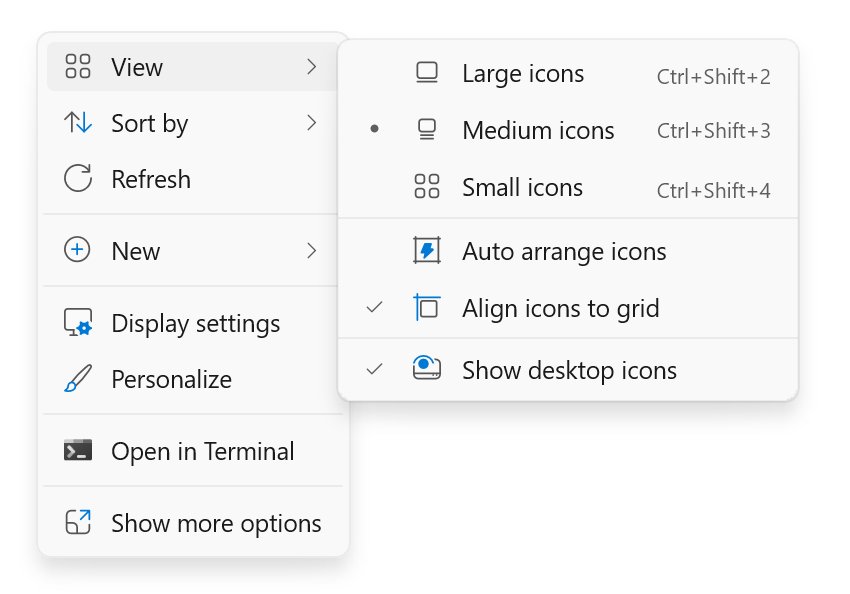
- To hide or show every icon, right-click an empty area of the desktop, select View, then clear or select Show desktop icons.
- To resize icons, right-click the desktop, select View, then choose Large icons, Medium icons or Small icons. Holding Ctrl while you scroll the mouse wheel also works.
- To add an app shortcut, open Start, select All, then drag the app onto the desktop.
- To add a website, file or folder shortcut, right-click the desktop, select New > Shortcut and follow the prompts.
Change the lock screen and screen saver
The lock screen appears before sign-in and whenever you lock the PC.
- Open Start > Settings > Personalization > Lock screen.
- Under Personalize your lock screen, choose Windows spotlight, Picture or Slideshow.
- For Picture or Slideshow, choose the image or folder you want.
- Turn Show the lock screen background picture on the sign-in screen on to use the same image on both screens.
- Turn off Get fun facts, tips, tricks, and more on your lock screen if you want the picture without Microsoft text.
- In the widgets area, select Add widget to add small widgets such as weather to the lock screen.
- For a screen saver, select Screen saver under Related settings, pick one from the list, set Wait in minutes and select OK.
Customize Widgets
- Press Windows + W, or select the Widgets area on the taskbar.
- Select the + button to open the widget picker and add a widget.
- To remove one, select its more options button in the upper corner and select Remove widget.
- To resize one, open more options and choose Small, Medium or Large.
- To move one, drag its header to a new spot on the board.
- In the Widgets settings, turn Discover off under Dashboards to hide the news feed, and turn off Open Widgets board on hover if it opens by accident.
- To remove the Widgets button entirely, open Taskbar settings and turn the Widgets switch off.
Make File Explorer open to This PC instead of Home
Since Windows 11 version 22H2, File Explorer opens on Home, which replaced Quick access. Home shows pinned folders and recent files; This PC shows your drives.
- Select File Explorer on the taskbar, or search for it from Start.
- Select See more (the three dots) on the ribbon.
- Select Options.
- Open the Open File Explorer to list and select This PC.
- Select Apply, then OK.
Change what opens when Windows starts
Apps that launch at sign-in cover the desktop before you reach it. Turn off the ones you do not need.
- Open Start > Settings > Apps > Startup.
- Switch an app to Off to stop it opening when you sign in.
- Switch an app to On if you want it waiting for you on the desktop.
- For more detail, right-click Start, select Task Manager and open the Startup apps tab.
- Select an app and choose Disable or Enable. Task Manager also shows the startup impact of each app.
Use virtual desktops for different home screens
Multiple desktops let you keep a work desktop and a personal desktop, each with its own wallpaper and open apps.
- Press Windows + Tab, or point at Task view on the taskbar.
- Select New desktop.
- Select the new desktop's name and type a name such as Work.
- Right-click the desktop thumbnail you want to customize and select Choose background.
- Set Personalize your background to Picture and choose an image.
- Press Windows + Tab again to switch between desktops.
A different background per desktop works only with Picture. Slideshows and a different solid color per desktop are not supported.
Make Windows 11 look more like Windows 10 with a cleaner home screen
Built-in settings get close to the Windows 10 layout without third-party Start menu replacements. Apply the rows that suit you.
| Setting | Change to | Effect |
|---|---|---|
| Taskbar behaviors > Taskbar alignment | Left | Start button returns to the corner |
| Taskbar items > Widgets and Task view | Off | Only Start, Search and your apps remain |
| Personalization > Start: recently added, most used and recently opened items | Off | Start shows your pins without suggestions |
| Personalization > Start > Folders | On for folders you open daily, such as Documents or Downloads | One-click folders next to Power |
| File Explorer Open File Explorer to | This PC | Explorer opens on drives, as Windows 10 did |
| Personalization > Colors mode | Dark, with Show accent color on Start and taskbar on | A darker, higher-contrast taskbar |
| Desktop View > Show desktop icons | Off, or keep only a few shortcuts | A clear desktop that shows the wallpaper |
| Apps > Startup | Off for apps you rarely use | Less clutter and a faster desktop after sign-in |
How to check your new home screen stuck
- Minimize your open windows. The new background should fill the screen with the fit you chose.
- Select Start. Your pins, folders and the switches you changed in Start settings should all show.
- Open File Explorer from the taskbar. It should open on the page you picked, Home or This PC.
- Select Start > Power > Restart and wait for the lock screen. It should show your new picture or slideshow.
- Sign in. Apps you switched off in Startup should no longer open, and every change above should remain.
Troubleshooting: home screen options missing or settings not working
My Windows home screen changed on its own
A rotating background is active: Windows spotlight or Slideshow changes the picture, or a newly applied theme replaced the wallpaper.
- Open Settings > Personalization > Background.
- If Personalize your background says Windows spotlight or Slideshow, change it to Picture.
- Choose the image you want and set the fit.
- Open Personalization > Lock screen and make the same change if the lock screen also keeps changing.
- Open Personalization > Themes and select Save so you can reapply the look later.
Each virtual desktop will not keep its own background
Separate backgrounds per desktop only work with a single picture, and the per-monitor picture option is unavailable while you use multiple desktops.
- Press Windows + Tab and right-click the desktop you want to change.
- Select Choose background.
- Set Personalize your background to Picture, not Slideshow or Solid color.
- Repeat for each desktop.
Widgets, Task view or the Start button is missing or in the wrong place
Taskbar items were switched off, or taskbar alignment changed.
- Right-click the taskbar and select Taskbar settings.
- Under Taskbar items, turn Widgets or Task view back on, and set Search to the style you want.
- Expand Taskbar behaviors and set Taskbar alignment to the position you want.
- If the taskbar itself is missing, clear Automatically hide the taskbar.
Desktop icons disappeared from the home screen
Show desktop icons is turned off, or a system icon was cleared in Desktop icon settings.
- Right-click an empty area of the desktop and select View.
- Select Show desktop icons.
- If Recycle Bin or This PC is still missing, open Settings > Personalization > Themes > Desktop icon settings.
- Select the icons you want and select OK.
Frequently asked questions
How do I change my home screen on Windows 11?
Right-click the desktop, select Personalize, then select Background and choose a Picture, Solid color, Slideshow or Windows spotlight. For the screen shown before sign-in, open Personalization > Lock screen instead. Start menu layout lives under Personalization > Start.
How do I change the home screen picture or wallpaper on Windows 11?
Open Settings > Personalization > Background, set Personalize your background to Picture and choose an image. Then pick a fit such as Fill or Span. With several monitors, right-click an image to set it on all displays or one display.
Why did my Windows home screen change?
The background is usually set to Windows spotlight or Slideshow, which change the image automatically. Applying a new theme also replaces the wallpaper and colors. Set Personalize your background to Picture under Personalization > Background, and do the same under Lock screen.
How do I change the home screen on Windows 10?
Windows 10 also changes the desktop background under Settings > Personalization > Background. Start differs: tiles can be resized, and Use Start full screen makes Start fill the display. To open File Explorer on This PC, select the View tab, then Options, and choose This PC.
How do I change the home screen on my PC so File Explorer opens somewhere else?
Open File Explorer, select See more on the ribbon, then Options. In the Open File Explorer to list, select This PC or Home, then select Apply. Home replaced Quick access in Windows 11 version 22H2.
How do I change the Microsoft home screen in Edge?
In Microsoft Edge, select Settings and more > Settings, then Start, home, and new tab page. Turn on Show home button on the toolbar and choose New tab page or Enter URL. This changes the browser only, not the Windows desktop.
Can I use a different home screen on each virtual desktop?
Yes, with a picture. Press Windows + Tab, right-click a desktop, select Choose background and set Picture. Slideshows and different solid colors per desktop are not supported, so each desktop needs its own image.
How do I make the Windows 11 home screen look like Windows 10?
Set Taskbar alignment to left under Taskbar settings > Taskbar behaviors, turn off Widgets and Task view, and make File Explorer open to This PC. Turning off recently added and most used apps in Start settings removes suggestions. No third-party Start menu is needed.



How to Change Taskbar Location in Windows 11: A Step-by-Step Guide - Techdows
[…] These settings sit on the same Taskbar page and change how the taskbar looks without moving it. Wallpaper, theme and Start menu options live under changing the home screen in Windows 11. […]
How to Change the Screen Saver on Windows 10 and 11 - Techdows
[…] check how to change the home screen on Windows 11 to match the rest of the […]
How to add Google Chrome to home screen: step-by-step guide - Techdows
[…] Arrange the rest of the desktop, Start menu and taskbar to suit you with these Windows 11 home screen settings. […]