To add the Google Chrome app to your home screen, drag its icon out of the app drawer on Android or out of the App Library on iPhone, and to add a website, open it in Chrome and choose Install and create shortcut (Android) or Share > Add to Home Screen (iPhone and iPad).
This guide covers both jobs on phones and tablets, the Shortcuts app route on iOS, pinning Chrome to the Windows desktop and taskbar, and fixes when the icon or the option is missing.
How to add the Chrome app icon to the home screen
Chrome is already installed if you can find it in your app list. These steps put the browser icon itself on the home screen, so one tap opens Chrome.
- On Android, swipe up from the bottom of the home screen to open your apps.
- Touch and drag the Chrome icon until previews of your home screens appear.
- Slide it to the spot you want, then lift your finger.
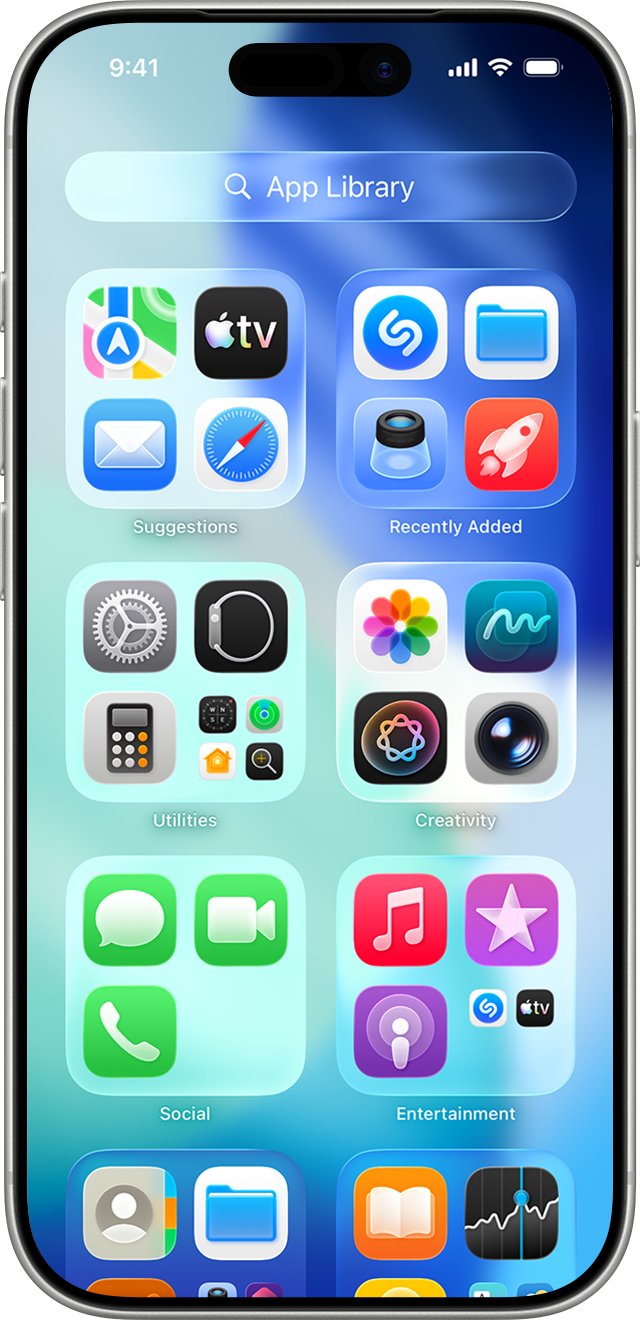
- On iPhone, swipe left on the Home Screen until you reach the App Library.
- Touch and hold the Chrome icon, then swipe left while still holding it.
- Place the icon on a Home Screen page and tap Done.
If Chrome is not in the app list at all, install it first: on Android, open the Play Store, search for Chrome and tap Install; on iPhone or iPad, open the App Store, search for Chrome and tap Get. Google lists Android 10 and iOS 18 as the minimum versions.
Chrome home screen shortcut options by device
| What you want | Device | Use this | Result |
|---|---|---|---|
| Open the Chrome browser in one tap | Android | Drag Chrome from the app drawer to the home screen | Chrome icon on the home screen |
| Open the Chrome browser in one tap | iPhone or iPad | Drag Chrome from the App Library to the Home Screen | Chrome icon on the Home Screen |
| Open one website in one tap | Android | Chrome More > Install and create shortcut | Site icon on the home screen |
| Open one website in one tap | iPhone or iPad | Chrome Share > Add to Home Screen | Site icon on the Home Screen |
| Open a site in Chrome even when Safari is the default | iPhone or iPad | A Shortcuts app shortcut added to the Home Screen | Custom icon that runs your shortcut |
| Open Chrome from a PC or laptop | Windows 11 or Windows 10 | Pin to taskbar, or drag Chrome from Start to the desktop | Taskbar icon or desktop shortcut |
| Open one website from a PC | Windows, Mac or Linux | Chrome More > Cast, save, and share > Install page as app | App icon in Start, the taskbar or the dock |
Why add Google Chrome to your home screen?
| Benefit | What it changes |
|---|---|
| Speed and convenience | Chrome or a favourite site opens from the first screen you see, with no search or app drawer |
| Quick access to web apps | Sites that offer a web app open in their own window from the icon, without the address bar clutter of a normal tab |
| Improved organization | You can group Chrome and your site icons in one home screen folder, such as News or Work |
| Lower tap count | One tap replaces opening Chrome, typing an address or finding a bookmark, then waiting for the page |
How to add Google Chrome to home screen on Android devices
This puts a website you visit in Chrome on the Android home screen. Sites that offer a web app install as an app; other sites get a shortcut that opens in Chrome.
- Open Chrome on your Android phone or tablet.
- Go to the website you want on your home screen.
- Tap More (three dots) on the right of the address bar.
- Tap Install and create shortcut.
- Edit the shortcut name if the suggested one is too long for the label under the icon.
- Tap Install and follow the on-screen prompts.
- Go to your home screen and confirm the new icon is there.
Older Chrome builds label this menu item differently, so update Chrome from the Play Store if you cannot find it. A web app you install this way also shows up under Settings > Apps, which is where you uninstall it later.
How to add Google Chrome to the home screen on iPhone/iPad (iOS devices)
Chrome on iPhone and iPad uses the iOS share sheet to save a site to the Home Screen. If the site offers a web app, the icon opens it; otherwise the icon opens the site in your default browser.
- Open Chrome on your iPhone or iPad.
- Go to the website you want to add.
- Tap Share on the right side of the address bar.
- Scroll the share sheet and tap Add to Home Screen.
- Check or edit the name and the site details.
- Tap Add.
If the shortcut must open in Chrome rather than Safari, make Chrome the default browser on the device, or build the Shortcuts app version below.
Safari has the same option: open the site in Safari, tap Share, then Add to Home Screen, and turn on Open as Web App if you want it to run like an app. Use this route when a site loads better in Safari.
Alternative method: using Chrome for iOS with Shortcuts app
The Shortcuts app gives you full control over the icon and name, and a shortcut can be built around Chrome's own actions. Shortcuts is preinstalled on current iPhones and iPads; reinstall it from the App Store if you deleted it.
- Open the Shortcuts app and tap the + button.
- Tap New Shortcut, tap Rename, type a name such as Chrome News, and confirm.
- Tap Add Action, then type Chrome in the search field to list the actions Chrome offers.
- Pick the Chrome action that opens a page or a new tab, and enter the website address if it asks for one.
- Tap Done to save the shortcut.
- Open the new shortcut's Details, then tap Add to Home Screen.
- Tap the icon to choose a photo or file as the icon, edit the name if needed, and tap Add.
Run the shortcut once from the Shortcuts app before you add it to the Home Screen, so you know it opens Chrome on the right page.
How to add Google Chrome to desktop and taskbar on Windows 11 and 10
Laptops from HP, Lenovo, Dell and Microsoft Surface use the same Windows steps. On a computer, the desktop and the taskbar play the role of a phone's home screen.
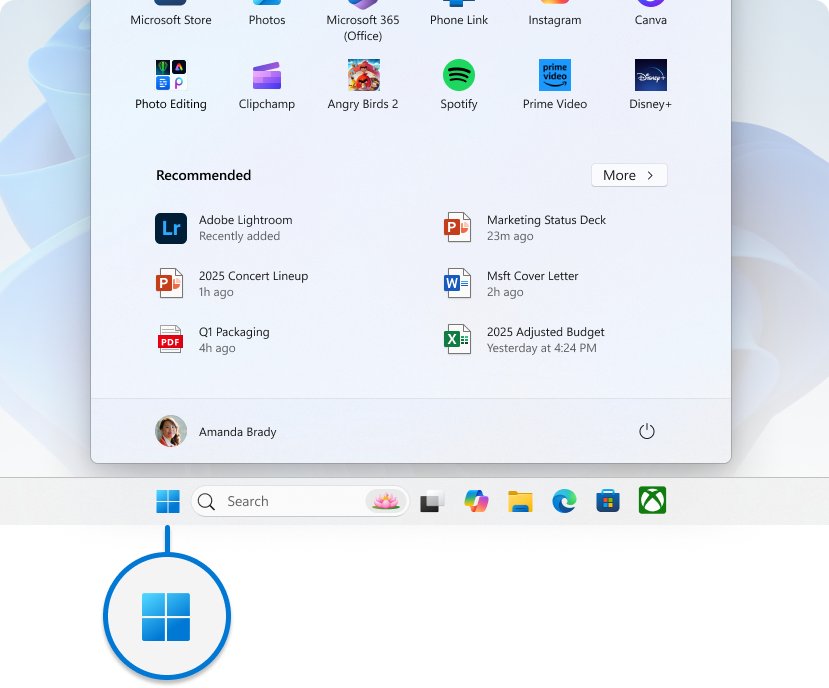
- Type Chrome in the Search box on the taskbar.
- Right-click Google Chrome in the results and select Pin to taskbar.
- If Chrome is already open, right-click its icon on the taskbar and select Pin to taskbar instead.
- For a desktop icon, press the Windows key and select All in Windows 11.
- Find Google Chrome in the list.
- Drag it onto the desktop and release; a Chrome shortcut appears there.
Arrange the rest of the desktop, Start menu and taskbar to suit you with these Windows 11 home screen settings.
How to add a website from Chrome to the desktop on Windows and Mac
Chrome on a computer installs a site as an app, which then sits in the Start menu, taskbar or dock like any other program.
- Open Chrome and go to the site you want.
- Click More (three dots, top right).
- Select Cast, save, and share > Install page as app, or click the install icon at the right end of the address bar when a site shows one.
- Follow the on-screen prompts to finish.
- To add a desktop icon, open a new tab and go to
chrome://apps. - Right-click the app, select Create shortcut, choose Desktop and click Create.
In chrome://apps, right-click an app and select Launch at startup if you want it to open each time you sign in.
How to check the Chrome home screen shortcut works
- Go to your home screen and find the new icon and its label.
- Tap the icon once.
- Confirm the right page loads, and in the right browser: Chrome, or a separate web app window for sites that offer one.
- On Android, open Settings > Apps > See all apps and confirm an installed web app appears in the list.
- On Windows, click the taskbar or desktop icon and confirm Chrome opens rather than another browser.
Tips for managing your Chrome website shortcuts
| Task | Android | iPhone and iPad | Windows |
|---|---|---|---|
| Move an icon | Touch and drag it to a new spot or page | Touch and hold an empty area, drag the icon, tap Done | Drag the taskbar icon to a new position |
| Group icons in a folder | Drag one icon on top of another, then tap the group to name it | Drag one icon on top of another | Create a desktop folder and move shortcuts into it |
| Take an icon off the home screen only | Touch and hold, drag it to Remove | Touch and hold, tap Remove App > Remove from Home Screen | Right-click the taskbar icon and select Unpin from taskbar |
| Uninstall a web app | Settings > Apps > See all apps, tap the app, tap Uninstall | Touch and hold the icon and delete it | Open the app, More > Uninstall [app name] > Remove |
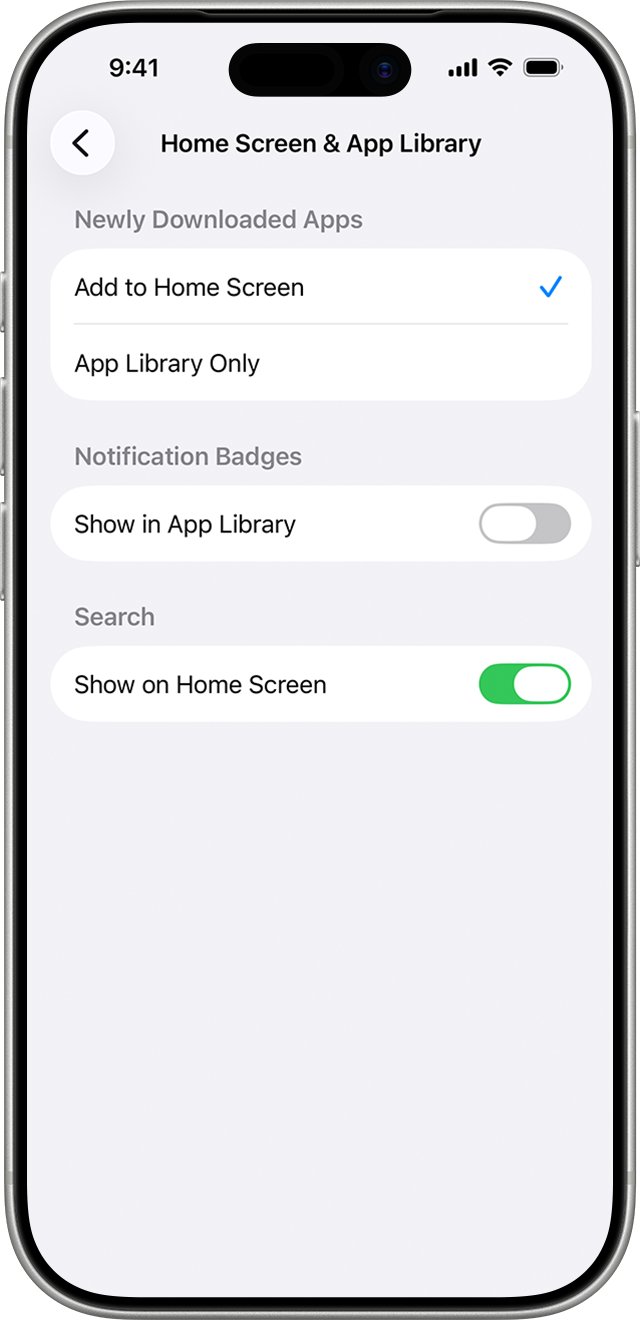
| Keep new apps off the Home Screen | Not applicable | Settings > Home Screen & App Library > App Library Only | Not applicable |
If a web app changes its name, Chrome asks you to accept the new name. Uninstall the app instead if the change looks drastic or suspicious.
If several people share one Windows PC, give each person a Chrome profile so their bookmarks and installed sites stay separate.
Common troubleshooting tips for Chrome home screen shortcuts
Why can't I add Google Chrome to my phone?
The device runs an Android or iOS version older than Chrome supports.
- Check the system version in your phone's Settings.
- Compare it with Google's minimum: Android 10, or iOS 18 for iPhone and iPad.
- Install any system update the phone offers.
- Search for Chrome in the Play Store or App Store again.
Chrome is installed but not on the iPhone Home Screen
iOS put the app in the App Library only, or the Home Screen page holding it is hidden.
- Swipe left to the App Library and search for Chrome.
- Touch and hold the icon, swipe left, place it on the Home Screen and tap Done.
- To unhide pages, touch and hold an empty area, tap the dots near the bottom and tick the hidden page.
- Set Settings > Home Screen & App Library to Add to Home Screen for future apps.
Add to Home Screen is missing from the iPhone share sheet
The action was removed from the share sheet's list.
- Tap Share in Chrome.
- Scroll to the bottom of the list and tap Edit Actions.
- Add Add to Home Screen back to the list.
- Return to the share sheet and tap Add to Home Screen.
The website shortcut opens in Safari instead of Chrome
On iOS, a site without a web app opens in the default browser.
- Open Chrome, tap More > Settings > Default Browser.
- Tap Go to Settings > Default Browser App and choose Chrome.
- Tap the Home Screen icon again to test it.
- If you want to keep Safari as default, use the Shortcuts app method for that site.
Can't add Google Chrome to Windows 11
Windows 11 in S mode runs only Microsoft Store apps, so the Chrome installer does not run.
- Open Settings > System > Activation and check for S mode.
- Switch out of S mode with Go to the Store and Get, knowing the switch is one-way.
- Install Chrome from google.com/chrome.
- Pin it to the taskbar or desktop with the Windows steps above.
Add Google Chrome to home screen FAQ
How do I add Google Chrome to my desktop?
On Windows, press the Windows key, select All in Windows 11, find Google Chrome and drag it onto the desktop. A shortcut appears where you release it. To put a single website on the desktop, install it from Chrome and use Create shortcut in chrome://apps.
How do I add Google Chrome to the taskbar in Windows?
Type Chrome in the taskbar Search box, right-click Google Chrome and select Pin to taskbar. If Chrome is already open, right-click its taskbar icon and select Pin to taskbar. To remove it later, right-click the icon and select Unpin from taskbar.
How do I add Google Chrome to an HP or Lenovo laptop?
Install Chrome from google.com/chrome, then pin it with the standard Windows steps. HP, Lenovo and Microsoft Surface laptops run the same Windows 11 or Windows 10, so Pin to taskbar and the drag-to-desktop method work identically. Laptops in S mode must leave S mode first.
Can I add Google Chrome to Windows 11?
Yes. Chrome supports Windows 10 and later on Intel-based PCs, and Windows 11 on ARM PCs. Download it from google.com/chrome, run the installer and select Yes at the permission prompt. PCs in S mode cannot run it until they switch out of S mode.
How do I add Google Chrome to my home screen on Android?
Swipe up to open your apps, touch and drag the Chrome icon, and drop it on a home screen page. To add a website instead, open it in Chrome, tap More > Install and create shortcut, then tap Install.
How do I add a Google Chrome shortcut to my iPhone home screen?
Open the site in Chrome, tap Share in the address bar, tap Add to Home Screen, edit the name and tap Add. For the Chrome app icon itself, find Chrome in the App Library, touch and hold it, swipe left and tap Done.
How do I add Google as the search engine in Chrome?
On a computer, click More > Settings > Search engine, click Change and pick Google from the list. This sets the engine Chrome uses when you type a search into the address bar.
Can I add Google Chrome to Microsoft Edge?
No. Chrome and Edge are separate browsers, and one cannot be added inside the other. Install Chrome alongside Edge, then make Chrome the default browser in Windows if you want links to open in it.
Is there a Microsoft Chrome?
No. Chrome is made by Google; Microsoft's browser is Microsoft Edge. Install Chrome from google.com/chrome; it runs alongside Edge on the same PC.
How do I set a Chrome home page on Android?
Open Chrome, tap More > Settings, then tap Homepage under Advanced. Choose Chrome's default homepage or enter a custom page. On a computer, turn on Show Home button under Appearance in Settings to get a Home icon by the address bar.
Final remarks: which Chrome home screen shortcut should you add?
Put the Chrome app icon on your home screen first, then add individual sites with Install and create shortcut on Android or Share > Add to Home Screen on iPhone; on Windows, pin Chrome to the taskbar. The app icon covers everyday browsing, while site icons save the most taps for pages you open daily. The Shortcuts app route is only worth the extra steps on an iPhone where Safari stays the default browser and the site must open in Chrome.

![How to remove Yahoo from your Chrome, Firefox, or Edge browser? [Easy steps]](https://techdows.com/wp-content/uploads/2026/10/How-to-remove-Yahoo-from-your-Chrome-Firefox-or-Edge-browser-Easy-steps-600x338.jpg)