To add a shortcut to the Windows desktop, open Start, select All, and drag any app from the list onto an empty part of the desktop.
This guide covers every route on Windows 11 and Windows 10: apps, Microsoft Store apps, files, folders, websites, web apps and the classic This PC and Recycle Bin icons.
The fastest way to add a shortcut to the Windows desktop
The quickest route depends on what the shortcut should open. Match your item to a row and use that route.
| Shortcut for | Fastest route | Works on |
|---|---|---|
| An installed app | Start > All, then drag the app to the desktop | Windows 11 and Windows 10 |
| A Microsoft Store app missing from Start | Open shell:AppsFolder and create the shortcut there |
Windows 11 and Windows 10 |
| A file or folder | Right-click it > Send to > Desktop (create shortcut) | Windows 11 and Windows 10 |
| A web page | Drag the View site information icon from the address bar to the desktop | Any major browser |
| A site that should open in its own window | Install it as an app in Edge or Chrome | Microsoft Edge, Google Chrome |
| This PC, Recycle Bin, Network, User's Files | Settings > Personalization > Themes > Desktop icon settings | Windows 11 and Windows 10 |
| A path, command or address you can type | Right-click the desktop > New > Shortcut | Windows 11 and Windows 10 |
Add app shortcuts via the Start menu
Dragging from the Start menu creates a shortcut and leaves the app where it is. Microsoft documents this route for Windows 11 and Windows 10, including Office programs such as Word and Excel.
- Select Start on the taskbar, or press the Windows key.
- On Windows 11, select All to show the full list of installed apps. On Windows 10, the app list is already visible.
- Scroll to the app you want, for example Word or Microsoft Edge.
- Left-click the app name and keep holding the mouse button.
- Drag the app onto an empty area of the desktop and release the button.
- Check that the new icon appears on the desktop with the app's name under it.
The same drag works for desktop apps such as Slack once they are installed, so you can add the Slack app to the desktop without hunting for its program file.
Add app shortcuts via the Applications folder
The Applications folder lists every app installed for your account, including Microsoft Store apps that have no program file you can browse to. Windows opens it with the shell:AppsFolder location.
- Press Windows + E to open File Explorer.
- Click the address bar, type
shell:AppsFolderand press Enter. The window lists all your apps. - Find the app in the list. Switch the view to Details if the icons are hard to scan.
- Right-click the app and choose the option to create a shortcut.
- Select Yes when Windows asks to place the shortcut on the desktop instead.
- Close the Applications folder and check the desktop for the new shortcut.
A shortcut made this way targets shell:AppsFolder\<PackageFamilyName>!<AppId> rather than an .exe path. That target keeps working when the Microsoft Store updates the app and its install folder changes.
Add traditional system shortcuts
By default, Windows shows only the Recycle Bin on the desktop. The other classic icons are switched on from Desktop icon settings.
- Right-click an empty area of the desktop and select Personalize, or open Settings > Personalization.
- Select Themes.
- Scroll down and select Desktop icon settings under Related settings.
- Tick the icons you want: Computer (This PC), User's Files, Network, Recycle Bin or Control Panel.
- Select Apply, then OK.
This PC opens your drives and connected devices, the Network icon on the desktop shows network resources, and User's Files opens your personal folders.
The Allow themes to change desktop icons box in the same dialog is ticked by default. Clear it if you have given these icons custom images and want a theme change to leave them alone.
Create program, file, and folder shortcuts via File Explorer
Use this route for a document you open every day, a project folder, or a program file that is not listed in Start.
- Press Windows + E to open File Explorer.
- Browse to the file, folder or program you want on the desktop.
- Right-click it.
- On Windows 11, select Show more options if Send to is not in the menu.
- Select Send to > Desktop (create shortcut).
- Minimize File Explorer and check the desktop for the new shortcut.
Some Windows 11 installs already show the full context menu, so Send to appears without Show more options. Either way, the original file or folder stays where it was.
Drag and drop URLs to create website shortcuts
A website shortcut opens the page in your default browser. Microsoft documents this drag for any web page on Windows 11 and Windows 10.
- Open your browser and go to the page you want on the desktop.
- Resize the browser window so part of the desktop is visible beside it.
- Find the View site information icon, the padlock or sliders icon to the left of the address.
- Drag that icon onto an empty area of the desktop and release it.
- Double-click the new shortcut to confirm it opens the page.
Streaming and media sites work the same way, so you can put Twitch on the desktop with this drag.
Create progressive web app shortcuts
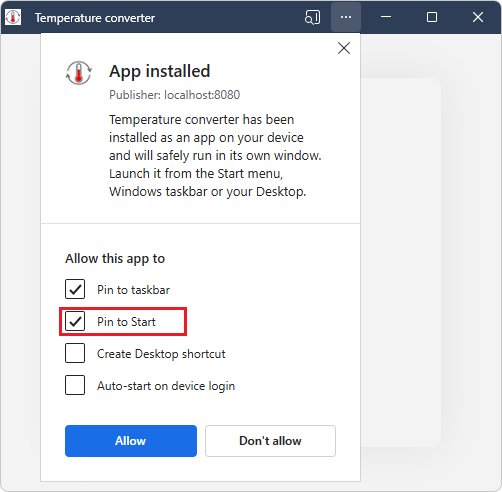
A progressive web app (PWA) opens a site in its own window with its own icon, closer to a desktop app than a browser tab. Edge and Chrome both install sites this way.
| Browser | Install the site | Put it on the desktop |
|---|---|---|
| Microsoft Edge | Go to the site, then select Settings and more (…) > More tools > Apps > Install this site as an app. Accept the install prompt if the site shows one. | Go to edge://apps, select Details on the app's card, then select Create Desktop shortcut. Pin to taskbar and Pin to Start are on the same page. |
| Google Chrome (as an app) | Go to the site, then select More (three dots) > Cast, save, and share > Install page as app…. Some sites show an Install icon in the address bar instead. | Follow the on-screen instructions to finish the install; the app then opens from its own icon. |
| Google Chrome (plain shortcut) | Go to the site, then select More > Cast, save, and share > Create shortcut…. | Keep or change the Name, then select Create. |
Mail and chat services suit this best, because they keep their own taskbar button. You can install Outlook as a PWA and keep it apart from your browser tabs.
Use the new shortcut wizard
The wizard builds a shortcut from any location you can type: a file path, a folder, a program or a web address. Use it when the item is hard to drag or you already have the path copied.
- Right-click an empty area of the desktop.
- Select New > Shortcut.
- Type the full location of the item, such as a file path or a web address that starts with
https://, and move to the next page. - Type a name for the shortcut. This is the label that shows under the icon.
- Finish the wizard and check the desktop for the new shortcut.
For a Microsoft Store app, the Applications folder method is simpler, because Windows fills in the app's identity for you.
How to check a new desktop shortcut works
- Press Windows + D to show the desktop with all windows minimized.
- Find the new icon and double-click it. The app, file, folder or page should open.
- If it opens the wrong item, right-click the shortcut and select Properties.
- Read the Target field. It should point to the item you meant, or to
shell:AppsFolder\...for a Store app. - Open File Explorer and select Desktop in the navigation pane. The shortcut should be listed there too.
Resize, show or hide desktop shortcut icons in Windows 11 and 10
Once the shortcuts are in place, three settings control how they look. All three start from a right-click on an empty area of the desktop.
| Change | How | Result |
|---|---|---|
| Make icons bigger or smaller | Select View > Large icons, Medium icons or Small icons | All desktop icons switch size at once |
| Fine-tune icon size | Hold Ctrl and turn the mouse scroll wheel on the desktop | Icons grow or shrink in small steps |
| Hide every icon for a presentation | Select View and clear Show desktop icons | Icons hide but stay in the Desktop folder |
| Show the icons again | Select View and tick Show desktop icons | All shortcuts return in place |
On a high-resolution monitor the default size can look tiny; there are more ways to change desktop icon size if the View sizes do not suit you.
Fix desktop shortcuts that are missing or show blank icons
New shortcuts do not appear on the desktop
Desktop icons are hidden, so every shortcut is invisible even though it exists.
- Right-click an empty area of the desktop.
- Select View.
- Tick Show desktop icons.
This PC or Recycle Bin is missing from the desktop
The system icon is switched off in Desktop icon settings.
- Right-click the desktop and select Personalize > Themes.
- Select Desktop icon settings under Related settings.
- Tick Computer or Recycle Bin, then select Apply and OK.
Shortcuts show blank or white icons
The Windows icon cache is damaged. The shortcuts still open when you double-click them.
- Save your work, then press Ctrl + Shift + Esc to open Task Manager.
- On the Processes tab, right-click Windows Explorer and select End task.
- Select File > Run new task, type
cmd.exe, tick the option to create it with administrative privileges and confirm. - Run
CD /d %userprofile%\AppData\Local, then runDEL IconCache.db /a. - Select File > Run new task again, type
explorer.exeand press Enter.
The desktop shows old or wrong shortcuts after OneDrive backup
The OneDrive Desktop folder points to the wrong location.
- Open File Explorer and expand your OneDrive folders.
- Right-click Desktop and select Properties.
- Select the Location tab. If it is missing, you are looking at the wrong Desktop folder.
- Select Move, go to the folder that holds your shortcuts, choose Select Folder and then Apply.
- Select Yes when asked to move the files.
Send to is missing from the right-click menu in Windows 11
Windows 11 shows a shorter context menu by default.
- Right-click the file or folder.
- Select Show more options.
- Select Send to > Desktop (create shortcut).
If the whole desktop looks empty after an update, the steps to show desktop icons on Windows 11 cover the remaining causes.
Windows desktop shortcuts FAQ
How do I add a shortcut to the desktop in Windows 11?
Select Start, select All, and drag the app onto the desktop. For a file or folder, right-click it and select Show more options > Send to > Desktop (create shortcut). For anything else, right-click the desktop and select New > Shortcut.
How do I add a website shortcut to my desktop?
Open the page in your browser and drag the View site information icon, the padlock or sliders next to the address, onto the desktop. In Chrome you can also select More > Cast, save, and share > Create shortcut, then select Create.
How do I put This PC on the desktop in Windows 11?
Open Settings > Personalization > Themes and select Desktop icon settings. Tick Computer, then select Apply and OK. The same dialog adds Recycle Bin, Network, User's Files and Control Panel.
How do I create a desktop shortcut for a Microsoft Store app?
Drag the app from Start > All to the desktop. If that fails, open File Explorer, type shell:AppsFolder in the address bar, right-click the app, choose to create a shortcut and select Yes to place it on the desktop. That shortcut survives Store updates.
How do I add an Office program like Word to the desktop?
Press the Windows key, select All on Windows 11, then drag Word, Excel or another Office program onto the desktop. Office also offers a desktop shortcut during installation, but you can add one any time afterwards this way.
How do I resize desktop icons?
Right-click an empty area of the desktop, select View, then choose Large icons, Medium icons or Small icons. For finer control, hold Ctrl on the desktop and turn the mouse scroll wheel up or down.
Can I make a website open like an app from the desktop?
Yes. In Edge, install the site from Settings and more > More tools > Apps, then open edge://apps, select Details and select Create Desktop shortcut. In Chrome, select More > Cast, save, and share > Install page as app.
Why did my desktop icons disappear?
The usual cause is that desktop icons were hidden. Right-click the desktop, select View and tick Show desktop icons. If only This PC or Recycle Bin is gone, switch it back on in Desktop icon settings.
Where are desktop shortcuts stored?
Desktop shortcuts live in your Desktop folder, which File Explorer lists in its navigation pane. If OneDrive backs up your Desktop, that folder sits inside OneDrive and syncs to your other devices.
What's next after adding desktop shortcuts?
Keep the desktop for the handful of files, folders and sites you open every day, and pin your most-used apps to the taskbar or Start instead. Desktop shortcuts are hidden behind open windows, while the taskbar is always visible. Type the app name in the taskbar search box, right-click the result and select Pin to taskbar; on Windows 10 you can also right-click it in Start and select More > Pin to taskbar.