When the search bar is missing in Google Chrome, press F11 (Windows) or ⌘ + Ctrl + F (Mac) to leave full-screen mode, then set Google as the default search engine if the New Tab page has lost its Google search box.
This guide matches each kind of missing search bar to its cause, then walks through every fix from extensions and updates to a settings reset, a new profile and a clean reinstall, plus the address bar position on Android and iPhone.
Google search bar missing in Chrome [how to fix]
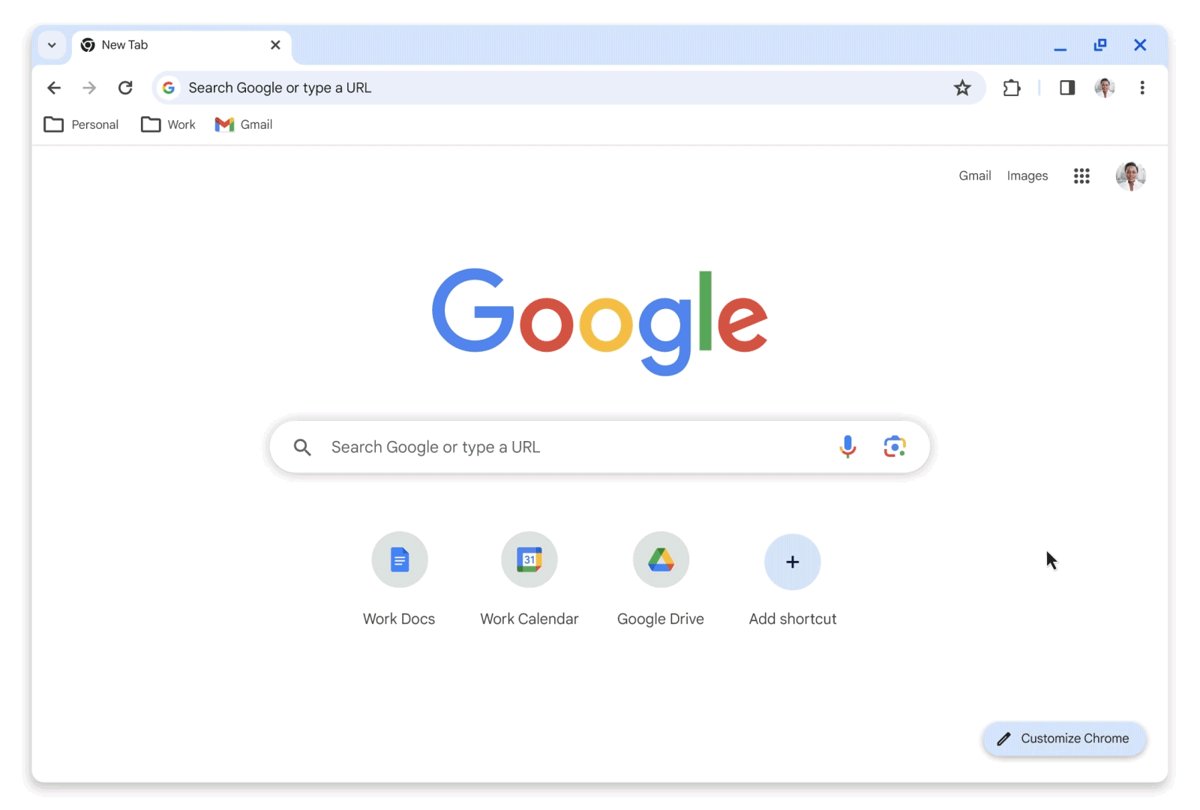
Chrome has two search boxes. The address bar (omnibox) at the top of every window searches with your default search engine. The large Google search box on the New Tab page appears only when Google is that default.
Most missing search bars come from full-screen mode, a changed default search engine, or an extension or unwanted program that took over Chrome's settings. Match what you see to the row below.
| What you see | Likely cause | Fix |
|---|---|---|
| No address bar, tabs or toolbar at all | Chrome is in full-screen mode | Press F11 on Windows or ⌘ + Ctrl + F on Mac |
| New Tab page has no Google search box | Another search engine is the default | Set Google as the default search engine |
| Address bar searches with Yahoo, Bing or an unknown site | An extension or unwanted program changed the search engine | Turn off recent extensions, then reset Chrome settings |
| Search engine keeps switching back after you fix it | Unwanted software on the computer | Remove the program, then reset Chrome settings |
| Search engine setting is locked | A work or school administrator manages Chrome | Ask the administrator; managed settings cannot be changed locally |
| Address bar missing at the top on a phone | It was moved to the bottom of the screen | Chrome Settings > Address bar > Top |
Set Google as the default search engine in Chrome
In some countries Google Search is Chrome's default; in others Chrome asks you to pick one. If something else is selected, the New Tab page loses its Google search box and the address bar sends searches elsewhere.
- Open Chrome on your computer.
- At the top right, select More (three dots) > Settings.
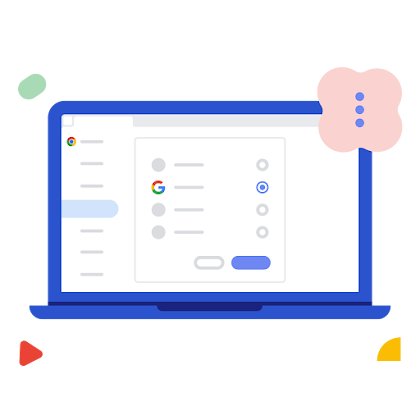
- Select Search engine on the left.
- Under Search engine, select Change.
- Choose Google from the list.
- Open a new tab and check that the Google search box is back.
To remove a search engine you never added, open Search engine > Manage search engines and site search, select More next to the entry, and choose Delete.
Chrome address bar hidden in full-screen mode
Full-screen mode hides the tab strip, the address bar and the toolbar, which looks exactly like a missing search bar. It is easy to switch on by accident with one key.
- On Windows or Linux, press F11 to leave full screen.
- On a Mac, press ⌘ + Ctrl + F.
- On a Chromebook, press the full-screen key at the top of the keyboard (also called F4).
Disable recently installed extensions in Chrome
Extensions can replace the New Tab page or change the default search engine. Google lists extensions or toolbars that keep coming back as a sign of unwanted software.
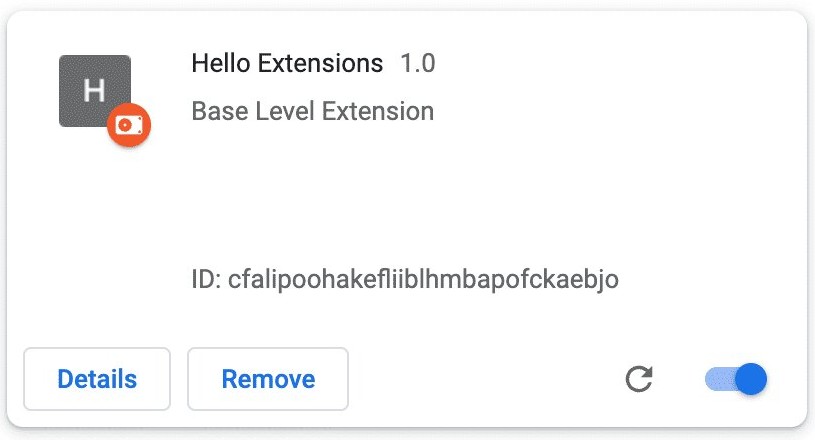
- Open Chrome and select More > Extensions > Manage extensions.
- Turn off every extension you installed shortly before the search bar disappeared.
- Open a new tab and check whether the Google search box returns.
- Turn the extensions back on one at a time to find the one responsible.
- Select Remove on that extension, then confirm with Remove.
Restart Google Chrome completely
Chrome installs pending updates when it fully closes and reopens, so closing one window is not enough.
- Close every Chrome window, including any Incognito windows.
- Wait a few seconds, then open Chrome again from the Start menu, Dock or taskbar.
- Chrome reopens the tabs and windows you had open, except Incognito windows.
- Open a new tab and check the search box.
Update Google Chrome to the latest version
- Open Chrome and select More > Help > About Google Chrome.
- Let Chrome check for and download any update.
- Select Relaunch when it appears.
- If there is no Relaunch option, you already have the latest version.
Updates normally install in the background when you close and reopen Chrome, so a browser left open for weeks is the usual reason it falls behind.
Restore Chrome's startup and homepage settings
If Chrome opens to an unfamiliar page with no Google search box, the startup page or homepage was changed. Google notes this can point to unwanted software.
- Open Chrome and select More > Settings.
- On the left, select On startup, then choose Open the New Tab page.
- To start with your own pages instead, choose Open a specific page or set of pages and remove any address you did not add.
- Under Appearance, turn on Show Home button if you want it.
- Under Show Home button, choose the New Tab page so Home opens a page with the Google search box.
Reset Chrome settings to default
A reset restores the default search engine, homepage, startup tabs, New Tab page and pinned tabs, and turns off extensions. Your bookmarks and saved passwords are not deleted.
- Open Chrome and select More > Settings.
- Select Reset settings.
- Select Restore settings to their original defaults.
- Select Reset settings to confirm.
- Go to More > Extensions > Manage extensions and turn back on only the extensions you trust.
The reset also clears content settings and cookies and site data, so expect to sign back in to some sites. Fonts and accessibility settings are not reset.
Clear Chrome cache and browsing data
- Open Chrome and select More > Delete browsing data.
- Choose a time range such as All time.
- Select Cookies and other site data, and tick any other items you want removed, such as cached images and files.
- Select Delete data to confirm.
- Restart Chrome and open a new tab.
If you are signed in to Chrome, the deletion also removes that data from your other synced devices and your Google Account.
Create a new Chrome user profile
A fresh profile has none of the old profile's extensions or settings. If the search bar works there, the problem lives in your original profile.
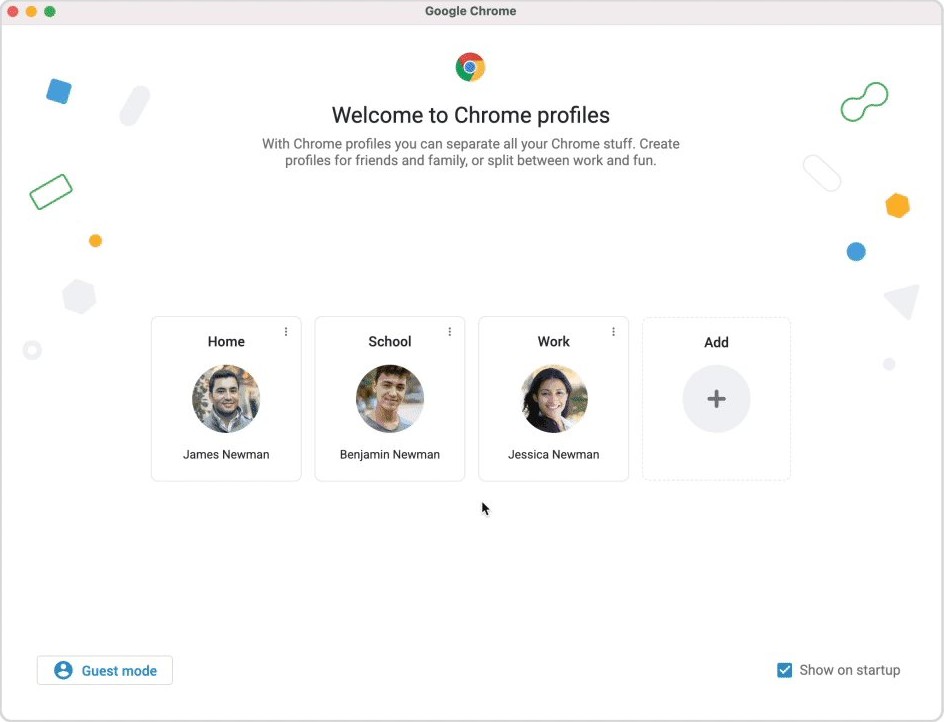
- Open Chrome and select your Profile icon at the top right.
- Select Add Chrome profile.
- Sign in with your Google Account or continue without one.
- Choose a name, photo and color scheme.
- Open a new tab in the new profile and check for the Google search box.
Signing in with your Google Account brings bookmarks and passwords into the new profile. Remove the old profile later from Profile > Manage Chrome profiles > More > Delete, which erases its local data.
Reinstall Google Chrome on Windows 11 and Windows 10
Google says uninstalling and reinstalling Chrome fixes most problems with default search engines, pop-ups and updates.
- Close all Chrome windows and tabs.
- On Windows 11, open Start > Settings > Apps > Installed apps, select More next to Google Chrome, then Uninstall.
- On Windows 10, open Start > Settings > Apps, select Google Chrome under Apps & features, then Uninstall.
- Tick Also delete your browsing data to remove the old profile, then select Uninstall and allow the change with Yes.
- Download Chrome again from Google's official Chrome download page and run the installer.
- Sign in to Chrome to bring back synced bookmarks and passwords.
Chrome address bar missing on Android or iPhone
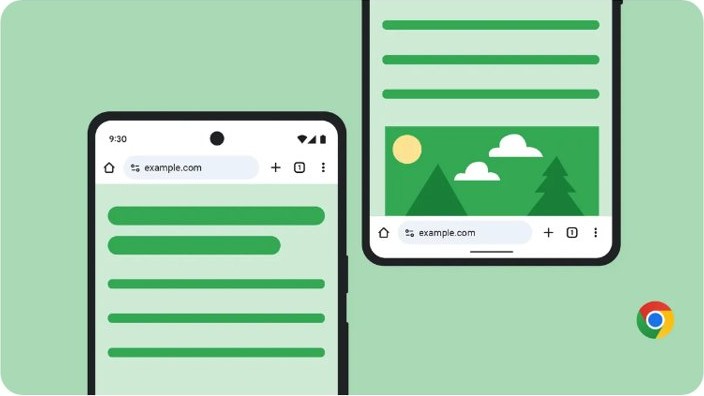
Chrome on phones can place the address bar at the bottom of the screen, so a missing bar at the top has usually just moved.
| Device | Where to change it | Shortcut |
|---|---|---|
| Android | Chrome > More > Settings > Address bar > Top or Bottom | None documented |
| iPhone | Chrome > More > Settings > Address bar > Top or Bottom | Touch and hold the address bar, then select Move address bar to top |
How to tell if Google is Chrome's default search engine
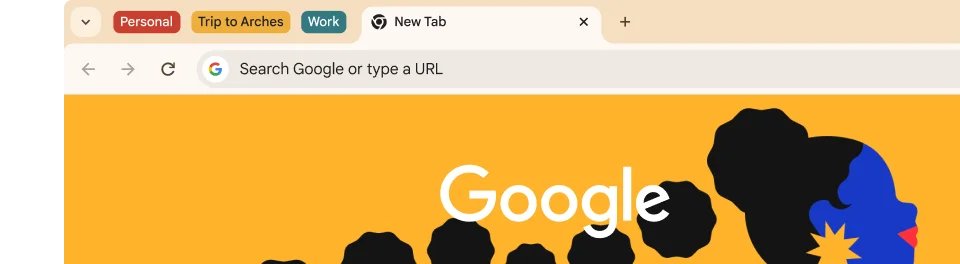
- Open a new tab and look for the Google search box in the middle of the page.
- Type a word into the address bar and press Enter. The results should open on google.com.
- Open More > Settings > Search engine and check that Google is listed as the search engine.
- Close and reopen Chrome, then repeat the test to make sure the setting stayed.
Chrome search engine keeps changing from Google
Google comes back but switches away again later
A program on the computer keeps rewriting Chrome's settings.
- On Windows 11, open Settings > Apps > Installed apps and uninstall any program you do not recognize or did not install.
- Reset Chrome with More > Settings > Reset settings > Restore settings to their original defaults > Reset settings.
- Turn extensions back on one by one and only for ones you trust.
- If Yahoo is the engine that keeps returning, remove Yahoo search from Chrome with the extra checks for that hijacker.
Chrome shows a notice that search was reset
Chrome detected a settings change by an unwanted program and restored safe defaults at launch.
- Select Got it on the notice on the search results page.
- Type
chrome://settingsin the address bar to review what changed. - Set Google as the default again under Search engine if it is not already.
Search engine options are greyed out or locked
Chrome is managed by a work or school administrator who sets the default search engine.
- Check whether the device belongs to an employer or school.
- Ask the administrator to change the managed search engine policy.
- Use a personal device or profile if the policy cannot change.
New Tab page still has no Google search box
An extension is replacing the New Tab page, or Google is not the default search engine.
- Confirm Google is selected under Settings > Search engine.
- Turn off extensions under More > Extensions > Manage extensions, especially any that changed your new tab.
- Open a new tab and select Customize Chrome at the bottom right to check the page's shortcuts and theme.
Chrome search bar FAQs
Why is my Google search bar missing in Chrome?
The usual causes are full-screen mode, which hides the address bar, a default search engine other than Google, which removes the New Tab page search box, or an extension or unwanted program that changed Chrome's settings.
How do I restore Google as my search engine in Chrome?
Open More > Settings > Search engine, select Change next to the search engine, and choose Google. Open a new tab to confirm the Google search box is back.
Will resetting Chrome delete my bookmarks?
No. Resetting Chrome settings keeps your bookmarks and saved passwords. It restores the default search engine, homepage, startup tabs and New Tab page, turns off extensions, and clears cookies and site data.
Can browser extensions remove the Google search bar?
Yes. An extension can replace the New Tab page or change the default search engine, which removes the Google search box. Turn off recent extensions under Manage extensions and remove any that caused it.
Does updating Chrome fix missing search bar issues?
Sometimes. An update installs fixes after you select Relaunch in Help > About Google Chrome. It does not change your search engine, so a changed default still needs setting back by hand.
Is it safe to reinstall Google Chrome?
Yes. Google recommends uninstalling and reinstalling Chrome to fix most problems with default search engines, pop-ups and updates. Sign in to Chrome afterwards to bring back synced bookmarks and passwords.
What should I do if none of these solutions work?
Create a new Chrome profile and test there. If the search bar works in the new profile, move to it. If it fails everywhere, check the computer for unwanted programs and ask your administrator if Chrome is managed.
How do I get the search bar back at the top in Chrome on my phone?
Open Chrome, tap More > Settings > Address bar, and choose Top. On iPhone you can also touch and hold the address bar and select Move address bar to top.