To make Excel allow multiple users, save the workbook to OneDrive or SharePoint in Microsoft 365, select Share, give people Can edit access and keep AutoSave on so everyone edits the same file at once.
This guide covers the co-authoring setup, sharing and permissions, Excel for the web and desktop, the legacy Shared Workbook option for network drives, and fixes for locked files and missing changes.
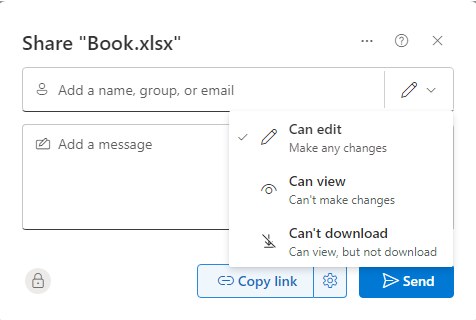
How to let multiple users edit an Excel file at the same time
Co-authoring is the built-in way for several people to edit one workbook. Changes from other people appear within seconds.
- Upload the workbook to OneDrive, OneDrive for Business or a SharePoint Online library in a web browser.
- Open the file, then select Editing > Open in Desktop if you want to work in the Excel app.
- Select Share in the upper-right corner of Excel.
- Type the email addresses of the people who need access, separated by semicolons.
- Leave the permission on Can edit, add an optional message, and select Add to send the invitation.
- Check that AutoSave is on in the upper-left corner, then keep the file open while others join.
When someone else opens the file, their picture or initials appear in the upper-right corner. A "G" in that spot means a guest is editing.
Understanding the basics of multi-user collaboration in Excel
Excel has two ways to let more than one person edit a workbook. Co-authoring is the current one; Shared Workbooks is the older feature Microsoft replaced with it.
| Approach | Where the file lives | Who can edit | Main limits |
|---|---|---|---|
| Modern co-authoring | OneDrive, OneDrive for Business or SharePoint Online | Excel for Microsoft 365 (Windows and Mac), Excel for the web, Android, iOS and Excel Mobile | Needs a supported Excel version and a modern file format |
| Traditional shared workbooks (legacy) | A network share such as \\server_name\folder_name | Desktop Excel users who can reach the share | No Excel for the web; tables, charts, PivotTables, conditional formats and macros cannot be added or changed |
| Emailing copies | Each person's own drive | One person per copy | Changes must be merged by hand, so it is not true multi-user editing |
The best approach for collaboration is co-authoring. Use a shared workbook only when the file must stay on an on-premises file server.
Setting up your environment for multiple users
| Requirement | What works | What does not |
|---|---|---|
| Subscription | A Microsoft 365 subscription, signed in inside Excel | Excel 2016, 2019 and 2021 LTSC, which do not support co-authoring |
| Excel version | The latest Excel for Microsoft 365, Excel for the web, Excel for Android or iOS | An outdated build that your IT department has not updated |
| Storage location | OneDrive, OneDrive for Business, SharePoint in Microsoft 365 | Server paths like \\server\folder, Dropbox, Box, Google Drive, local folders and SharePoint On-Premises libraries |
| Permissions | Each person has edit access through a sharing link or direct access | View-only links, or a link type your admin has disabled |
| OneDrive sync app | The latest version, not paused | A paused or outdated sync client |
Everyone who edits through the Excel desktop app needs a co-authoring version. If you are sharing one plan with family, share a Microsoft 365 subscription so each person signs in with their own account.
Making an Excel workbook suitable for multiple users
A workbook can block co-authoring even when it is stored in the right place. Clear these blockers before you share it.
- Check the file extension. If it is not .xlsx, .xlsm or .xlsb, select File > Save a Copy and choose Excel Workbook (*.xlsx). Avoid Strict Open XML Spreadsheet, which co-authoring does not support.
- Remove password encryption: select File > Info > Protect Workbook and clear any password or restricted access.
- Turn off the legacy Shared Workbook feature if it is on, because it blocks co-authoring.
- For each table or PivotTable with a data connection, go to Table Tools Design > Refresh > Connection Properties and clear Refresh data when opening file.
- Structure your workbook so each person works in their own sheet or a named block of rows; put names in heading cells or on sheet tabs.
- Build tables with Excel's own Insert > Table tool rather than hand-formatted ranges.
- Save the file and confirm AutoSave is on; it is enabled by default for workbooks saved in OneDrive or SharePoint.
Files protected with Information Rights Management (IRM) or Rights Management Service (RMS), files that are checked out, and files marked as final also cannot be co-authored.
Sharing the Excel workbook for multiple users
Sharing via OneDrive or SharePoint gives everyone a link to the same file. Sending the file via email as an attachment is less ideal, because each person edits a separate copy.
- Open the workbook from OneDrive or SharePoint and select Share.
- Select the permission setting to choose who the link works for: Anyone, People in your organization, People with existing access or Specific people.
- Keep Allow editing ticked so recipients can change the workbook, then select Apply.
- Add the people you are inviting, or select Copy link to paste the link into a chat or email yourself.
- Type a message if you like, then select Send.
Recipients who use the latest Excel can also find the file under File > Open > Shared with Me.
Collaborating in real-time with Excel Online
Excel for the web works for anyone with the link and a browser, so it is the fallback when someone's desktop Excel does not support co-authoring.
- Open the sharing email and select the link; the workbook opens in Excel for the web.
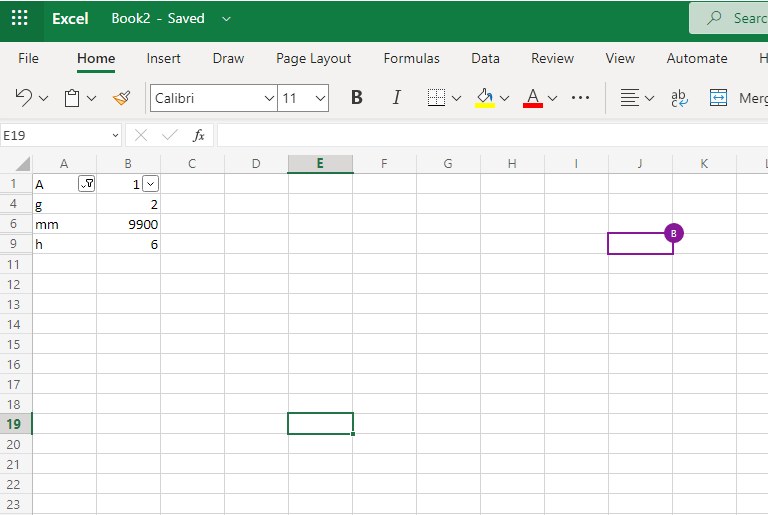
- Start editing. Your own selection shows in green, and other people's selections show in blue, purple and other colors.
- Rest your cursor over a colored selection to see whose it is.
- Select a person's picture or initials and choose Go to to jump to the cell they are editing.
- Use Comments with an @mention to ask a co-author a question inside the workbook.
Co-authoring tips for smooth sessions: select Reopen whenever Excel prompts you, and do not move or delete the file in OneDrive or SharePoint while others have it open.
Using Excel desktop for multi-user collaboration
- Open the shared link, then select Editing > Edit in Desktop to move from the browser to the Excel app.
- Select Enable Editing if a yellow Protected View bar appears.
- Confirm AutoSave is on in the upper-left corner; everyone in desktop Excel needs it on to see colored selections.
- Work in the sheet or range assigned to you to avoid edit conflicts.
- Write or edit macros and VBA only when nobody else has the file open. Running existing macros during a session is fine.
When two people change the same cell, the last change saved wins. If you use the OneDrive sync app, edits made offline merge only when your PC is back online.
How to enable Share Workbook (Legacy) in Excel
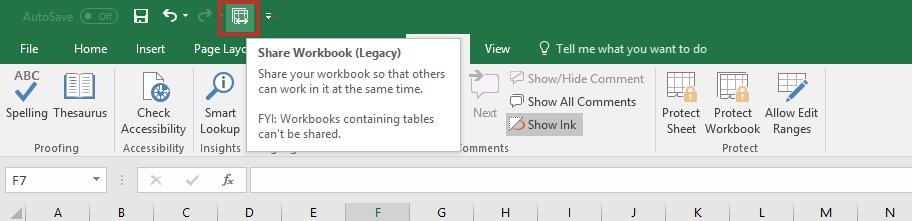
Use this only for a workbook that must stay on a network folder. Microsoft hid the Share Workbook button in current Excel, so add it to the Quick Access Toolbar first.
- Select File > Options > Quick Access Toolbar.
- Under Choose commands from, select All Commands.
- Add Share Workbook (Legacy), Track Changes (Legacy), Protect Sharing (Legacy) and Compare and Merge Workbooks, then select OK.
- Save the workbook to a network location such as \\server_name\folder_name, not OneDrive or SharePoint.
- Select Share Workbook (Legacy) on the Quick Access Toolbar.
- On the Editing tab, tick Allow changes by more than one user.
- On the Advanced tab, choose how changes are tracked and updated, select OK, then select File > Save.
"- Shared" appears next to the file name at the top of the window when it works. Shared workbooks cannot insert or delete blocks of cells, merge cells, delete worksheets, add threaded comments or record macros.
Managing permissions, security, and version control
| Task | Where to do it | What to know |
|---|---|---|
| Control permissions per person | OneDrive or SharePoint > Details > Manage access | Direct access can switch between view and edit; a sharing link cannot, so delete it and create a new one |
| Stop someone downloading the file | Link settings > Block download | Recipients can still view or edit online |
| Make a link expire | Link settings > Set expiration date | Microsoft 365 subscribers only |
| Require a password for the link | Link settings > Set password | Microsoft 365 subscribers only; send the password separately |
| Track changes and comments | Comments with @mentions in co-authoring; Track Changes (Legacy) in shared workbooks | Microsoft recommends Comments over Notes for discussions |
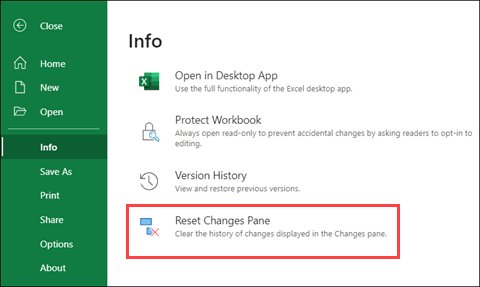
| Version history | File > Info > Version History | Restore an older version only after everyone has stopped co-authoring |
| Protect sensitive data | Sensitivity labels | IRM or RMS protection not applied through sensitivity labels blocks co-authoring |
If a link option is greyed out, your organization's admin has restricted it.
Advanced collaboration features and tips
| Feature | How to use it | Why it helps |
|---|---|---|
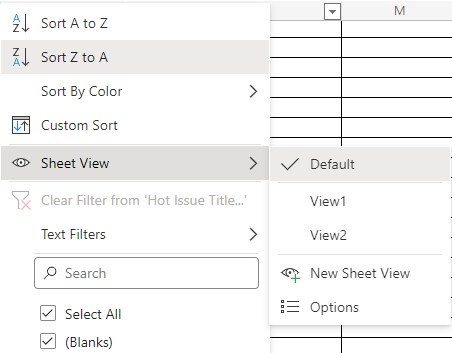
| Sheet View | View > Sheet View > New, apply a sort or filter, then rename Temporary View | Your sorts and filters do not disrupt anyone else; up to 256 views per sheet |
| Co-author on multiple devices | Open the same link in Excel for Android, Excel for iOS or Excel for the web | Mobile apps support co-authoring; turn on File > AutoSave in the app |
| Shared templates | Keep a master workbook in a shared OneDrive or SharePoint folder and open it read-only | Always Open Read-Only stops temporary edits from saving to the original |
| Automating tasks | Run macros during a session; edit VBA alone | Editing macros while co-authoring interrupts other users |
| Assigned areas | Name sheets or heading cells after each person | Reduces conflicts where the last save wins |
Sheet View needs a file stored in OneDrive or SharePoint and works in Excel for Microsoft 365 and Excel 2021. Other people can see views you create in the Sheet View menu.
How to tell if someone else is editing an Excel file
- Look at the upper-right corner of the Excel window for co-authors' pictures or initials.
- Select a picture to see the person's name and select Go to to jump to their cell.
- Watch for colored cell borders; each color is another person's current selection.
- Open File > Info and check that no errors are listed for the workbook.
Co-authors using Excel Mobile do not show colored selections, but their changes still appear almost instantly.
How to stop sharing an Excel workbook
- Select the workbook in OneDrive or SharePoint on the web.
- Select Details in the upper-right corner, then select Manage access.
- Select Stop sharing, or remove a single link from the Links tab.
- For a legacy shared workbook, select Share Workbook (Legacy), make sure you are the only person in Who has this workbook open now, and clear Allow changes by more than one user.
- If that check box is unavailable, select Unprotect Shared Workbook, enter the password, and clear it again.
Before turning off a shared workbook, copy its change history with Track Changes (Legacy) > Highlight Changes, set When to All, and tick List changes on a new sheet.
Troubleshooting common issues
Excel file is locked for editing by another user
Someone opened it in a version that does not support co-authoring, or the file sits in an unsupported location.
- Close the file on all your own devices and wait a few minutes for the server to release the lock.
- Ask everyone to use Excel for Microsoft 365 or Excel for the web.
- Move the file to OneDrive or SharePoint in Microsoft 365.
- Remove password protection on the workbook and disable add-ins under File > Options > Add-Ins if the lock persists.
Sync errors: you cannot see other people's changes
AutoSave is off, Protected View is still active, or OneDrive sync is paused.
- Wait a minute or two for Excel and the cloud to catch up.
- Ask everyone to select Enable Editing if it appears.
- Turn on AutoSave in every desktop and mobile copy.
- Resume the OneDrive sync app from OneDrive settings and make sure the file is not read-only.
"Refresh recommended" or "Upload failed" message
Someone used a feature co-authoring does not fully support yet.
- Select Refresh if you have no unsaved changes.
- Select Discard changes if you do not need your unsaved edits.
- To keep edits, select Save a Copy, copy your changes, reopen the cloud file and paste them back in.
Conflicts and data loss after two people edit the same cells
The last saved change wins.
- Open File > Info > Version History and open an earlier version.
- Wait until nobody else is co-authoring, then restore it.
- Assign separate sheets or ranges to each person from then on.
Permissions problems: the workbook opens as view-only
Your link or direct access grants view permission only.
- Select Viewing in the upper-right corner, then Request more access.
- Choose Ask to edit, add a note and send the request.
- Ask the owner to create a new edit link if the old link was view-only.
Excel multiple users FAQ
Can multiple users edit an Excel file at the same time?
Yes. Save the workbook to OneDrive, OneDrive for Business or SharePoint in Microsoft 365 and share it with edit access. People using Excel for Microsoft 365, Excel for the web or the mobile apps then edit it together and see changes within seconds.
Does Excel 2016, 2019 or 2021 support co-authoring?
No. Microsoft states that Excel 2016, 2019 and 2021 LTSC do not support co-authoring. People on those versions can still co-author by opening the shared link in Excel for the web instead of the desktop app.
Can multiple users edit an Excel file on a shared network drive?
Not with co-authoring, which does not work on paths like \\server\folder. The legacy Shared Workbook feature does work on a network share, but it blocks tables, charts, PivotTables, conditional formatting and macro editing.
Can I co-author an Excel file stored in Google Drive or Dropbox?
No. Excel co-authoring does not work from Dropbox, Box, Google Drive or local folders. Move the workbook to OneDrive or SharePoint in Microsoft 365, or the second person who opens it gets a "locked" error.
What happens when two people edit the same cell in Excel?
The last change saved, by the Save button or by AutoSave, generally wins. To avoid conflicts, give each person their own sheet or range, and use Version History to recover an earlier copy if needed.
How do I see who made changes in a shared Excel file?
Select File > Info > Version History to open earlier versions. During a session, colored selections and co-author pictures show who is working where. Legacy shared workbooks use Track Changes (Legacy) > Highlight Changes instead.
Why is the Share Workbook button missing in Excel?
Microsoft removed it from the Review tab because co-authoring replaced it. Add it back through File > Options > Quick Access Toolbar, choose All Commands, and add Share Workbook (Legacy).
Do macros work when multiple users have an Excel file open?
Running macros or VBA while co-authoring is fine. Writing or editing macros while others have the workbook open can interrupt them, so make code changes when you are working alone.
Excel co-authoring tips for teams
Store the workbook in OneDrive or SharePoint, share it with Can edit, keep AutoSave on and give each person their own sheet or range. Co-authoring works across Windows, Mac, the web and mobile, keeps a version history and avoids the feature limits of legacy shared workbooks. Keep Excel updated, use Comments instead of Notes and Sheet View for private filters.