To add a DuckDuckGo icon to your desktop, open duckduckgo.com in your browser and drag the site icon at the left of the address bar onto the desktop.
For a shortcut that shows the DuckDuckGo logo, install the site as an app in Edge, Chrome or Safari, or drag the DuckDuckGo browser app itself to the desktop on Windows or Mac.
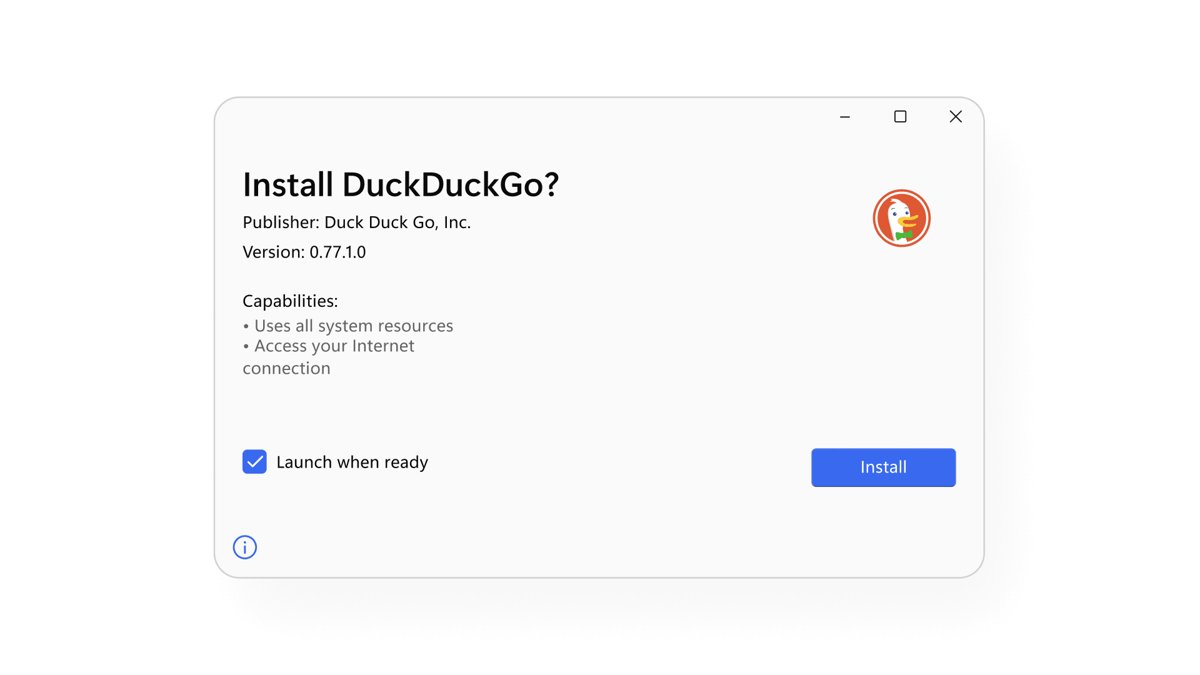
The fastest way to put DuckDuckGo on your desktop
Microsoft documents this route for any web page on Windows 11 and Windows 10, and it works in every major browser.
- Open your browser and go to https://duckduckgo.com.
- Resize the browser window so part of the desktop is visible beside it.
- Drag the site icon at the left edge of the address bar onto an empty spot on the desktop, then release it.
- Double-click the new desktop shortcut to confirm it opens DuckDuckGo.
This shortcut opens DuckDuckGo in your default browser. If you want the duck logo on the icon, use one of the app methods below.
Understanding the Benefits of Adding a DuckDuckGo Icon to Your Desktop
There are three kinds of DuckDuckGo desktop icon, and each opens something different. Match your setup to a row, then jump to that method.
| Icon type | What a double-click opens | Best for | Method |
|---|---|---|---|
| Dragged web link | duckduckgo.com in your default browser | Fastest setup in any browser | The fastest way, above |
| Site installed as an app (Edge, Chrome, Safari) | DuckDuckGo search in its own app window | A duck logo without installing a new browser | Windows (Edge), Chrome, or Safari sections |
| DuckDuckGo browser app | The full DuckDuckGo browser with tracker blocking | Using DuckDuckGo as your main browser | Windows browser or macOS sections |
Every option saves the same few seconds: one double-click replaces opening a browser and typing the address.
Prerequisites and Requirements
| Method | Requirement | Source of the rule |
|---|---|---|
| DuckDuckGo browser for Windows | Windows 10 (May 2020) or later; x64 Windows after version 0.170.0, because x86 support ends there | DuckDuckGo help pages |
| DuckDuckGo browser for Mac | macOS 12.3 or later, from duckduckgo.com or the Mac App Store | DuckDuckGo help pages |
| Safari web app (Add to Dock) | macOS Sonoma 14 or later | Apple Support |
| Edge or Chrome site app | Microsoft Edge or Google Chrome installed on Windows or Mac | Microsoft and Google help |
| Dragged web link | Any browser and a visible desktop | Microsoft Support |
The Windows browser is also listed on the Microsoft Store, and the Mac App Store build lacks Bitwarden integration and local file access.
Step-by-Step Guide to Adding the DuckDuckGo Icon on Windows
Microsoft Edge ships with Windows, so this route needs nothing new. It turns duckduckgo.com into an installed app with its own desktop shortcut.
- Open your web browser: start Microsoft Edge and go to https://duckduckgo.com.
- Access the website's menu: select Settings and more (the three dots at the top right).
- Create a shortcut: select More tools > Apps > Install this site as an app.
- Name your shortcut: keep or edit the app name in the install prompt, then confirm the install.
- Go to edge://apps in the address bar.
- Select Details on the DuckDuckGo card, then select Create Desktop shortcut.
- Confirm the shortcut on desktop: minimize your windows and check for the DuckDuckGo icon.
The same Details card also offers Pin to taskbar and Pin to Start, so you can add the icon to all three places in one visit.
Add the DuckDuckGo browser icon to the Windows desktop
If you already use the DuckDuckGo browser for Windows, drag its app entry out of Start. This works on Windows 11 and Windows 10.
- Install the DuckDuckGo browser from duckduckgo.com/windows or the Microsoft Store if it is not on your PC yet.
- Open Start and select All (Windows 11) to see the full app list.
- Scroll to DuckDuckGo.
- Drag DuckDuckGo from the list onto the desktop and release it.
- Double-click the new icon to confirm the browser opens.
Optional: Change the Icon
The icon you see depends on how the shortcut was made. Pick the row that matches the icon you have now.
| Shortcut you made | Icon it shows | To get the DuckDuckGo logo |
|---|---|---|
| Dragged web link | A web page icon from your browser | Replace it with an Edge or Chrome site app |
| Edge site app (Install this site as an app) | The icon supplied by duckduckgo.com | Already shows the DuckDuckGo logo |
| Chrome site app (Install page as app) | The icon supplied by duckduckgo.com | Already shows the DuckDuckGo logo |
| DuckDuckGo browser app | The DuckDuckGo browser logo | No change needed |
To change the size of any desktop icon, right-click the desktop, select View, and pick Large icons, Medium icons or Small icons.
Step-by-Step Guide to Adding the DuckDuckGo Icon on macOS
This puts an alias of the DuckDuckGo browser for Mac on your desktop. An alias opens the app without moving it out of Applications.
- Install the DuckDuckGo browser from duckduckgo.com/mac or the Mac App Store.
- Open Finder and select Applications in the sidebar.
- Hold Option-Command and drag DuckDuckGo onto the desktop.
- Release the mouse button to create the alias.
- Double-click the alias on the desktop to confirm the browser opens.
You can also select the app and choose File > Make Alias, then drag the alias to the desktop.
Create a Shortcut Using Safari
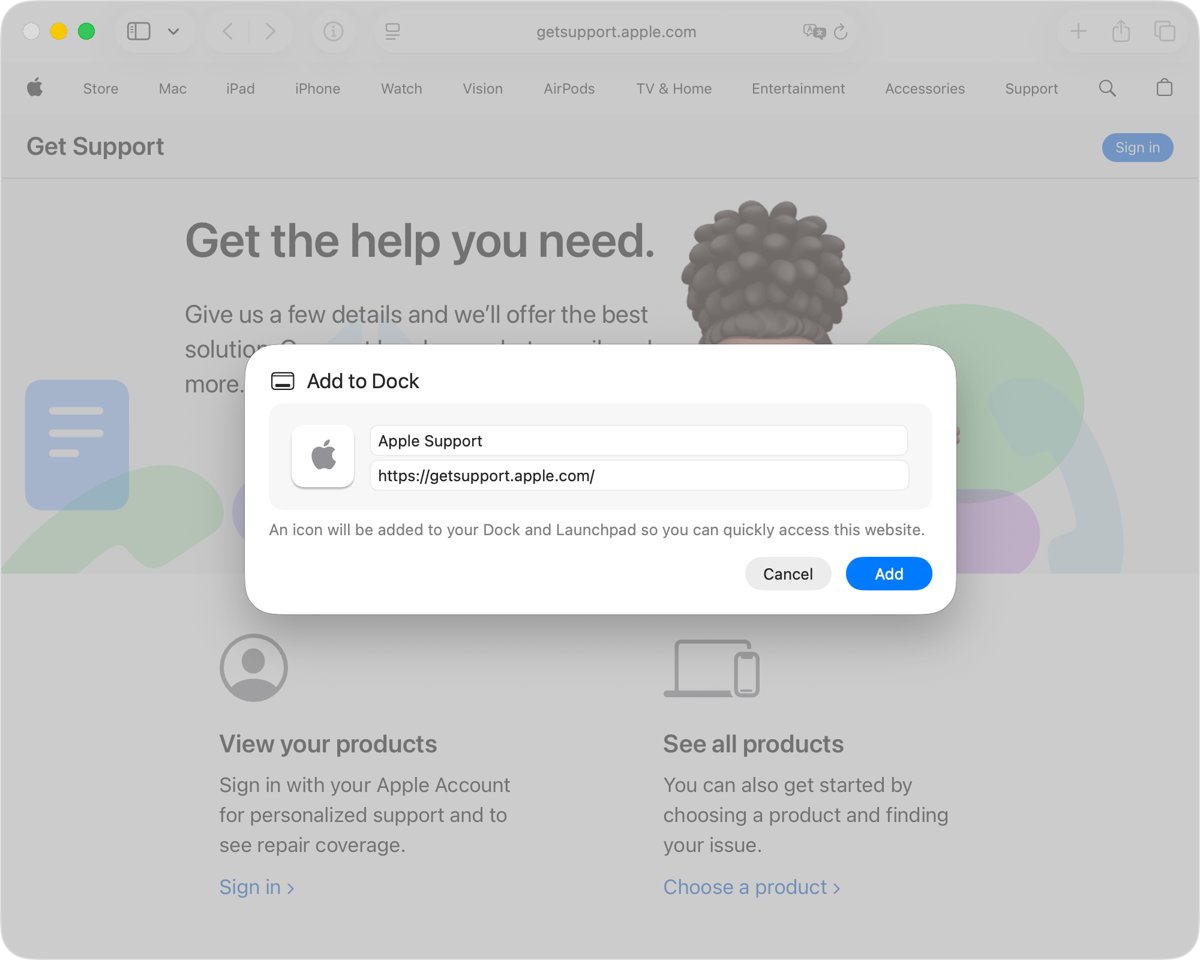
Safari on macOS Sonoma 14 or later turns any page into a web app. The app lands in your Dock, and an alias puts it on the desktop.
- Open https://duckduckgo.com in Safari.
- Choose File > Add to Dock from the menu bar, or click the Share button and choose Add to Dock.
- Type DuckDuckGo as the name, then click Add.
- In Finder, choose Go > Home, then open the Applications folder.
- Hold Option-Command and drag the DuckDuckGo web app onto the desktop.
The web app is saved in the Applications folder of your home folder, so you can also open it from Spotlight.
Adjust the Shortcut Icon (Optional)
macOS lets you paste any image over a file's icon, including a DuckDuckGo alias. Use an image you have permission to use.
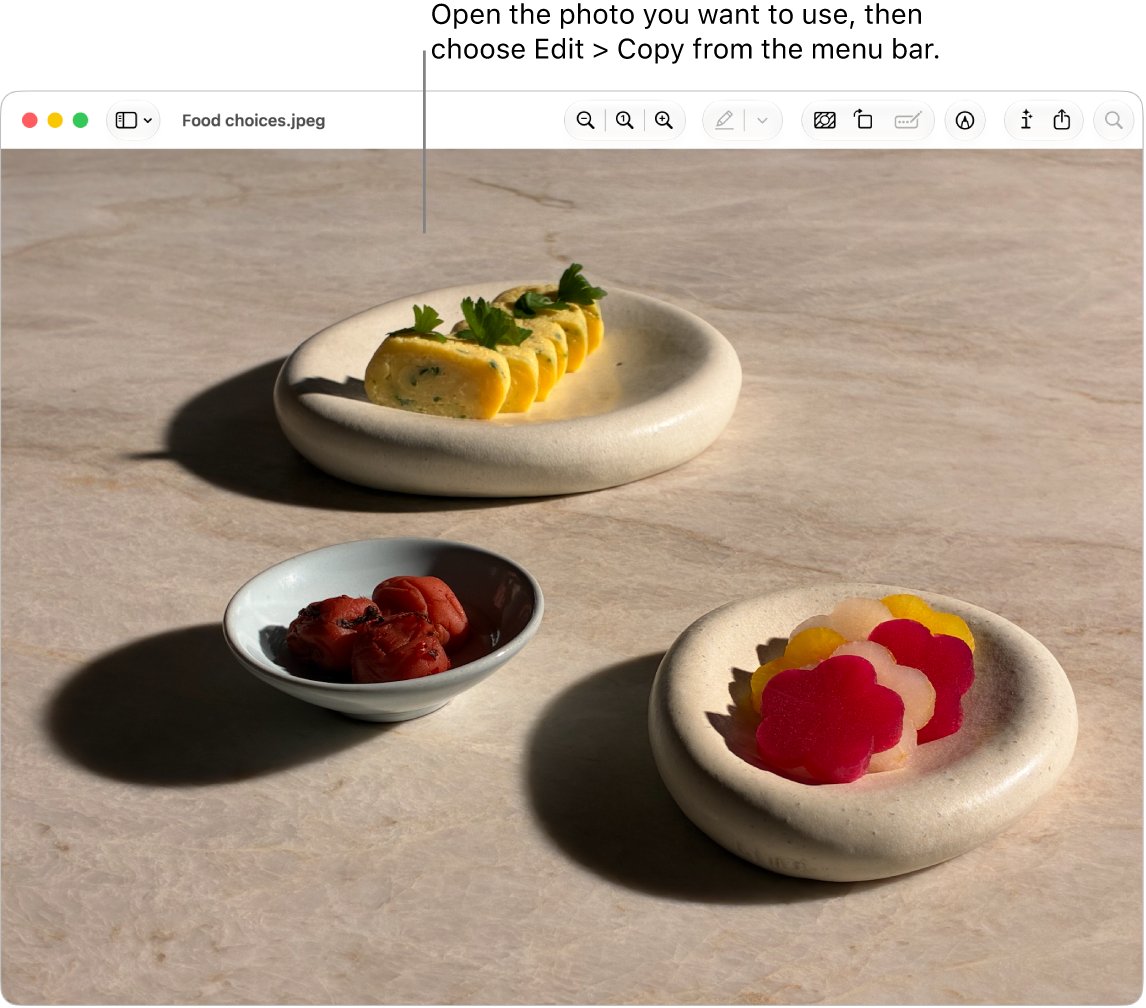
- Double-click the image file to open it in Preview.
- Choose Edit > Copy to copy the image.
- Select the DuckDuckGo alias on the desktop.
- Choose File > Get Info.
- Click the small icon at the top of the Info window, below the title bar.
- Choose Edit > Paste.
Alternative Method Using Chrome
Chrome installs duckduckgo.com as an app on Windows and Mac, then creates a desktop shortcut from its app list.
- Open Chrome and go to https://duckduckgo.com.
- Select More (three dots) > Cast, save, and share > Install page as app….
- Follow the on-screen prompt to finish the install.
- Open a new tab and go to chrome://apps.
- Right-click the DuckDuckGo app and select Create shortcut.
- Choose the desktop as the location, then click Create.
If you reach the Chrome app list often, you can add the Apps icon back to the bookmarks bar.
Customizing the DuckDuckGo Desktop Icon
| Platform | Change | How |
|---|---|---|
| For Windows users | Icon size | Right-click the desktop > View > Large icons, Medium icons or Small icons, or hold Ctrl and scroll the mouse wheel |
| For Windows users | Hide or show all icons | Right-click the desktop > View > Show desktop icons |
| For Windows users | Also add to Start or taskbar | Edge: edge://apps > Details > Pin to Start or Pin to taskbar |
| For macOS users | Custom picture | Copy an image in Preview, select the alias, File > Get Info, click the small icon, Edit > Paste |
| For macOS users | Restore the original icon | Select the alias, File > Get Info, click the small icon, Edit > Cut |
How to check the DuckDuckGo icon works
- Double-click the DuckDuckGo icon on the desktop.
- Confirm the DuckDuckGo search page or browser opens, not a different site.
- For an Edge app, go to edge://apps and check that DuckDuckGo is listed.
- For a Chrome app, go to chrome://apps and check that DuckDuckGo is listed.
- For a Safari web app, check that DuckDuckGo appears in the Dock and in Spotlight.
Icon Not Appearing on Desktop
No icons at all are visible on the Windows desktop
Desktop icons are hidden.
- Right-click an empty area of the desktop.
- Select View.
- Select Show desktop icons so it is checked.
The shortcut was created but the desktop shows other files
OneDrive backs up the Desktop folder and the backup location points to the wrong folder.
- Open File Explorer.
- Right-click the Desktop folder in OneDrive and select Properties.
- Open the Location tab and select Move.
- Pick the folder that holds your desktop icons and confirm.
Add to Dock is missing in Safari
Safari web apps need macOS Sonoma 14 or later.
- Update the Mac to macOS Sonoma 14 or later, if the hardware supports it.
- Otherwise, use the Chrome method or install the DuckDuckGo browser for Mac, which needs macOS 12.3 or later.
Icon Looks Incorrect or Not Customizing
The desktop icon shows a generic page icon instead of the duck
A dragged web link uses the browser's page icon, not the site logo.
- Delete the dragged shortcut.
- Install duckduckgo.com with Edge (Install this site as an app) or Chrome (Install page as app…).
- Create the desktop shortcut from edge://apps or chrome://apps.
A pasted custom icon does not appear on the Mac alias
The image was not on the clipboard, or the small icon in the Info window was not selected.
- Open the image in Preview and choose Edit > Copy.
- Select the alias and choose File > Get Info.
- Click the small icon below the title bar so it is highlighted.
- Choose Edit > Paste.
Shortcut Not Opening the Browser
The DuckDuckGo link opens in the wrong browser
A dragged web link always opens in the Windows default browser.
- Open Settings and select Apps > Default apps.
- Under Set defaults for applications, select the browser you want.
- Select Set default next to the prompt to make it your default browser.
- Double-click the DuckDuckGo shortcut again.
The Edge or Chrome site app shortcut does nothing
Installed site apps depend on the browser that installed them, so removing or breaking that browser stops them.
- Open the browser that installed the app and check that it starts normally.
- Go to edge://apps or chrome://apps and confirm DuckDuckGo is still listed.
- If it is missing, install the site again and recreate the desktop shortcut.
The DuckDuckGo browser for Windows will not install or update
The browser needs Windows 10 (May 2020) or later, and x86 builds stop updating after version 0.170.0.
- Check that the PC runs Windows 10 (May 2020) or later.
- On 32-bit (x86) Windows, move to x64 Windows 10 or Windows 11 to keep receiving updates.
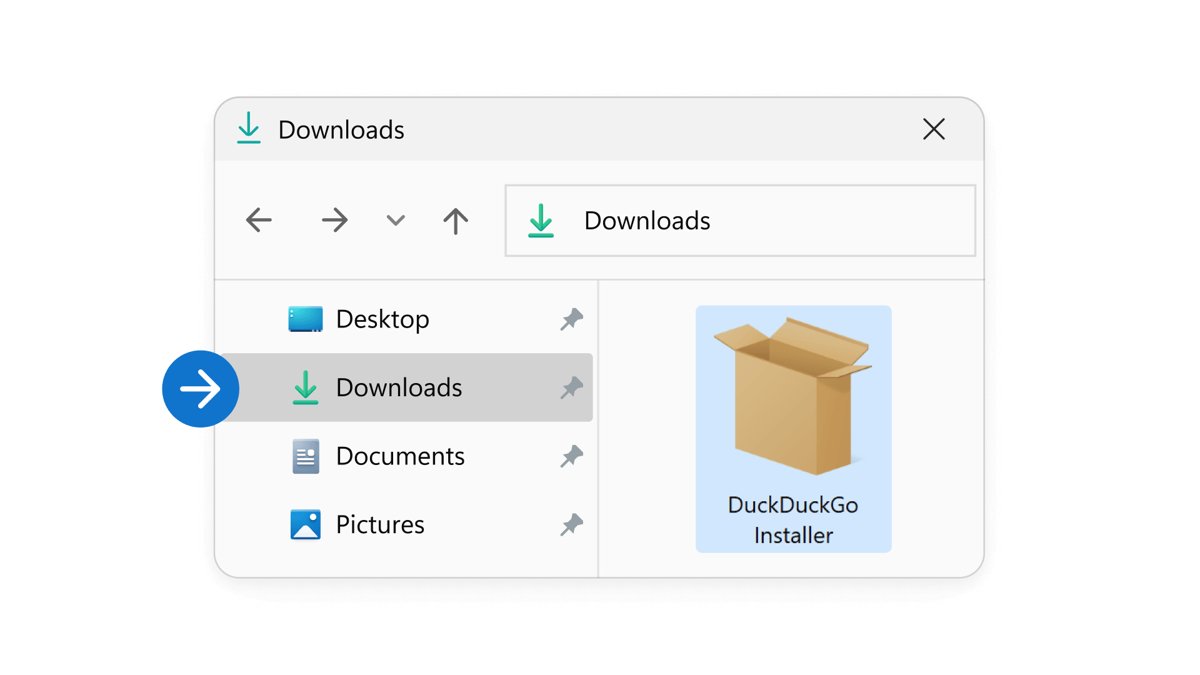
- If the regular installer fails, use the MSIXbundle option on the DuckDuckGo help page, open it from Downloads and select Install.
How to remove the DuckDuckGo icon or app
- Dragged link or Mac alias: drag the icon to the Recycle Bin or Trash; the browser or app itself stays installed.
- Edge app: go to edge://apps, select Details on the DuckDuckGo card, select Uninstall, and choose whether to delete its data.
- Chrome app: open the DuckDuckGo app, select More > Uninstall DuckDuckGo > Remove, and tick Also delete data from Chrome if wanted.
- Safari web app: in Finder choose Go > Home, open Applications, and drag the web app to the Trash.
Additional Tips
| Tip | Why it helps |
|---|---|
| Pin the Edge app to Start as well as the desktop | Open windows cover desktop icons; Start is always one key away |
| Use the dragged link if you switch browsers often | It follows whichever browser is set as default |
| Choose the DuckDuckGo browser for tracker blocking | A duckduckgo.com shortcut in another browser gives private search, not the browser's tracker and cookie pop-up blocking |
| Set DuckDuckGo as default search too | Every address-bar search then uses DuckDuckGo, with or without the icon |
Alternative Methods to Access DuckDuckGo Quickly
A desktop icon is hidden whenever a window is maximized. These four routes keep DuckDuckGo one click or keypress away instead.
| Your situation | Use this | Why |
|---|---|---|
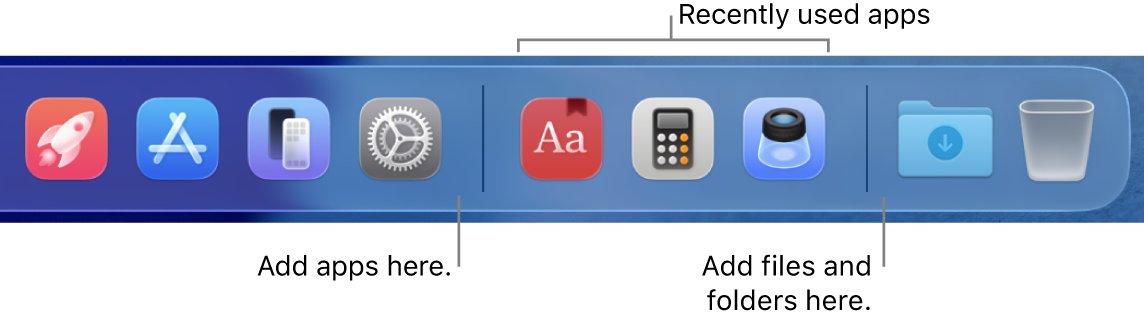
| You want a visible icon at all times | Pin DuckDuckGo to the taskbar or Dock | The taskbar and Dock stay on screen |
| You already live inside your browser | Bookmark or favorite duckduckgo.com | One click on the bookmarks or favorites bar |
| You prefer the keyboard | Set DuckDuckGo as homepage and press the home key combination | No mouse needed |
| You want DuckDuckGo every time the browser opens | Use a custom homepage and startup page | The browser opens straight to DuckDuckGo |
1. Pin DuckDuckGo to Taskbar or Dock
- Windows, DuckDuckGo browser: type DuckDuckGo in the Search box on the taskbar, right-click the app, and select Pin to taskbar.
- Windows, app already open: right-click its icon on the taskbar and select Pin to taskbar.
- Windows, Edge site app: go to edge://apps, select Details on the DuckDuckGo card, and select Pin to taskbar.
- Mac, DuckDuckGo browser: open the app, Control-click its Dock icon, and choose Options > Keep in Dock.
- Mac, Safari web app: File > Add to Dock already places it in the Dock.
To remove it later on Windows, right-click the pinned icon and select Unpin from taskbar; on a Mac, drag it out of the Dock until Remove shows.
2. Use Browser Bookmarks with Desktop Shortcut
A bookmark on the always-visible bar pairs well with a desktop icon: the icon starts the browser, and the bookmark gets you back to DuckDuckGo from any tab. If you bookmark the address from Show Bookmarklet in DuckDuckGo settings, that bookmark also carries your theme and region choices.
- Edge: open duckduckgo.com, select the Add this page to favorites button in the address bar, choose a folder, and select Done.
- Edge: select Settings and more > Settings > Appearance, then under Toolbar set Favorites to Always to show the favorites bar.
- Chrome: open duckduckgo.com and select Bookmark (the star) to the right of the address bar.
- Chrome: select More > Bookmarks and lists > Show bookmarks bar.
- Drag the new bookmark along the bar to the position you want.
For pages you only want to read once, Chrome's reading list keeps the bookmarks bar uncluttered.
3. Create a Keyboard Shortcut
Once DuckDuckGo is your homepage (next section), Chrome's home key combination opens it from any tab.
| Action in Chrome | Windows | Mac |
|---|---|---|
| Open the home page (DuckDuckGo once set) | Alt + Home | Command + Shift + H |
| Bookmark the current page | Ctrl + D | Command + D |
| Show or hide the bookmarks bar | Ctrl + Shift + B | Command + Shift + B |
4. Use a Custom Browser Homepage
- In Chrome, select More > Settings.
- Under Appearance, turn on Show Home button and enter https://duckduckgo.com as the custom page.
- Under On startup, select Open a specific page or set of pages.
- Select Add a new page, enter https://duckduckgo.com, and select Add.
- Select Search engine in the left sidebar and choose DuckDuckGo as the default.
In Edge, change the default search under Settings > Privacy, search, and services > Address bar and search.
Frequently Asked Questions
How do I put the DuckDuckGo icon on my desktop?
Open duckduckgo.com and drag the site icon at the left of the address bar onto the desktop. For the duck logo, install the site as an app in Edge or Chrome and create a desktop shortcut from edge://apps or chrome://apps.
How do I add DuckDuckGo to my Windows 11 or Windows 10 desktop?
The steps are the same on both versions. Drag duckduckgo.com from the browser address bar to the desktop, or, with the DuckDuckGo browser installed, open Start, select All, and drag DuckDuckGo onto the desktop.
How do I get the DuckDuckGo icon on my taskbar?
Type DuckDuckGo in the taskbar Search box, right-click the app, and select Pin to taskbar. For a site app installed with Edge, open edge://apps, select Details on the DuckDuckGo card, and select Pin to taskbar.
How do I add DuckDuckGo to the icon bar in my browser?
Bookmark duckduckgo.com and show the bar. In Edge, select Add this page to favorites and set the favorites bar to Always. In Chrome, select the Bookmark star, then More > Bookmarks and lists > Show bookmarks bar.
How do I add DuckDuckGo to favorites?
In Microsoft Edge, open duckduckgo.com, select the Add this page to favorites button in the address bar, choose a folder, and select Done. In Chrome, select the Bookmark star to the right of the address bar, or press Ctrl + D.
Where is my DuckDuckGo icon?
If all desktop icons vanished, right-click the desktop, select View, and check Show desktop icons. If only DuckDuckGo is missing, search for it from the taskbar Search box, or check edge://apps or chrome://apps if you installed it as a site app.
Can I download a DuckDuckGo icon for my desktop?
There is no separate icon download. The DuckDuckGo logo comes with the DuckDuckGo browser, or with duckduckgo.com installed as an app in Edge, Chrome or Safari. Create the desktop shortcut from one of those instead.
Is the DuckDuckGo icon on a laptop set up differently?
No. A laptop running Windows or macOS uses exactly the same steps as a desktop PC. Drag the site link, install duckduckgo.com as a browser app, or create a shortcut or alias of the DuckDuckGo browser.



How to Add Pandora to Desktop - Techdows
[…] Edge lists every installed app at edge://apps; Chrome lists them at chrome://apps. Related desktop-icon jobs follow the same pattern, such as adding a DuckDuckGo icon to the desktop. […]