To move apps on the iPhone, touch and hold the Home Screen background until the icons jiggle, then drag an app to a new spot or to another page.
This guide covers moving apps between pages, into and out of folders, from App Library, whole Home Screen pages, apps from an Android phone, and how to undo a layout you dislike.
How to move apps from one page to another on the iPhone
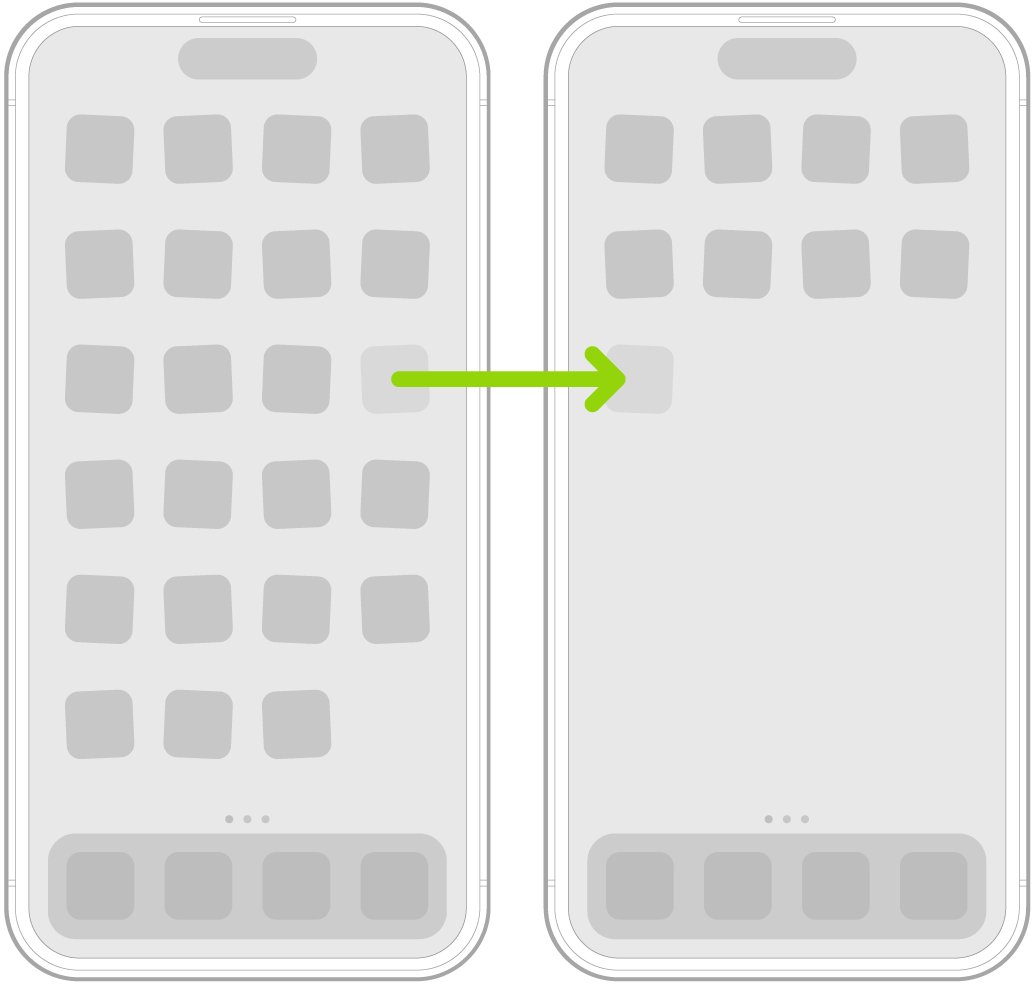
Apps and widgets can sit anywhere on a page, including along the top, bottom or side of the screen. Each Home Screen page keeps its own layout.
- Go to the Home Screen.
- Touch and hold an empty part of the Home Screen background until the icons begin to jiggle.
- Touch the app you want to move and drag it.
- Drag it to the right edge of the screen and wait a moment for the next page to appear.
- Keep dragging to the page you want, then lift your finger where the app should sit.
- Drag it to the right edge of your last page to create a new Home Screen page.
- Tap the Home Screen background to finish, or press the Home button on iPhone SE.
The dots near the bottom of the screen show how many pages you have and which one you are viewing. Widgets move the same way as apps.
How to move apps easily on iPhone
Dragging across many pages is slow. Match what you want to the quickest route below.
| What you want | Quickest route | What happens |
|---|---|---|
| Move one app a short distance | Drag it on the same page while icons jiggle | Other icons shift to make room |
| Move an app many pages away | Remove it from the Home Screen, then drag it back from App Library onto the page you want | The app stays installed the whole time |
| Group related apps | Drag one app onto another to make a folder | Both apps sit in one icon |
| Move a whole page of apps | Reorder the page from the page thumbnails | Every app on that page moves together |
| Get apps off the Home Screen without deleting them | Remove App > Remove from Home Screen | The app moves to App Library |
| Arrange apps from a Mac | Use iPhone Mirroring | You drag icons with the Mac pointer |
If you prefer a mouse, you can rearrange iPhone apps from a Mac with iPhone Mirroring.
How to move apps to home screen on iPhone from App Library
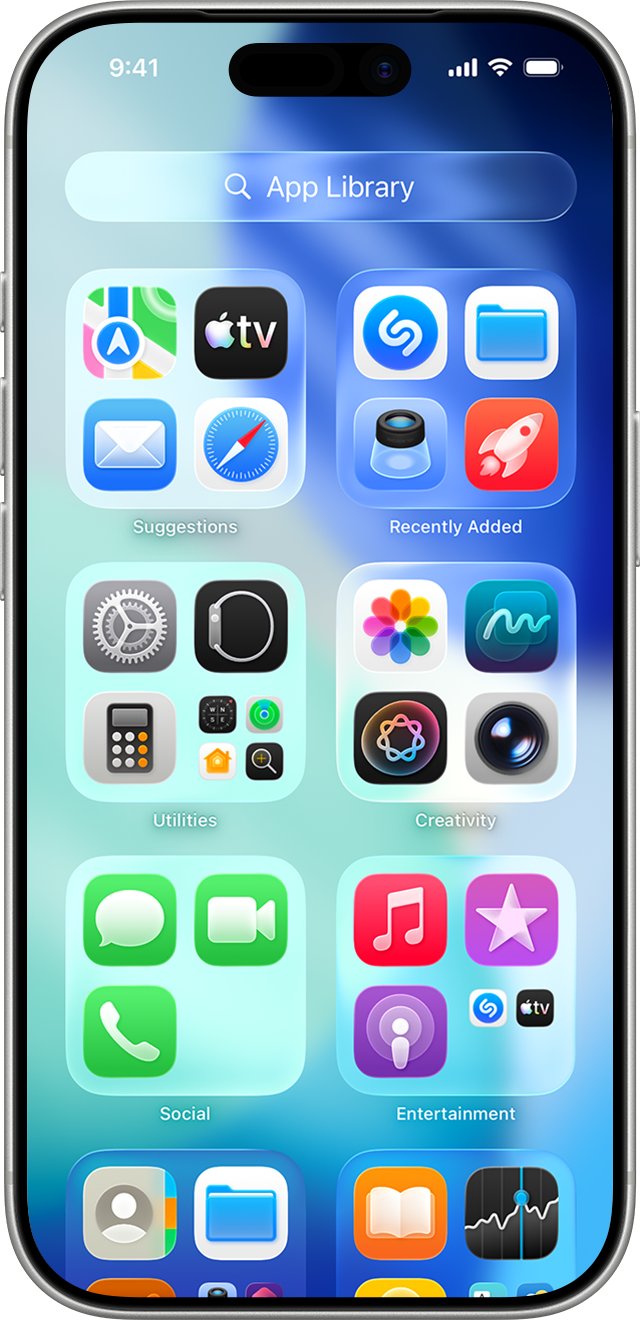
App Library sits past your last Home Screen page and holds every app, including ones you removed from the Home Screen.
- Go to the Home Screen and swipe left past all your pages to reach App Library.
- Tap the search field at the top and type the app's name, or scroll the alphabetical list.
- Touch and hold the app until the icons begin to jiggle and the app moves to the Home Screen.
- Keep your finger down and drag the app to the spot you want.
- Lift your finger, then tap the Home Screen background to finish.
App Library sorts apps into categories such as Social and Entertainment by itself. You can add an app from there to the Home Screen, but you cannot move it to a different App Library category.
How to put apps in a folder on iPhone
Folders let one Home Screen spot hold many apps, and a folder can have several pages of its own.
- Touch and hold the Home Screen background until the apps begin to jiggle.
- Drag an app onto another app to create a folder.
- Drag more apps into the folder while the icons still jiggle.
- To rename it, touch and hold the folder, tap Rename, then type a new name.
- Tap Done when you are finished.
If the apps start jiggling when you try to rename, tap the Home Screen background and try again. Folders on the Home Screen do not change how apps are grouped in App Library.
How to move an app out of a folder on iPhone
Taking an app out of a folder puts it back on the Home Screen as its own icon.
- Go to the Home Screen and tap the folder that holds the app.
- Touch and hold the app until the apps begin to jiggle.
- Drag the app out of the folder onto the Home Screen.
- Drop it where you want it, then tap the background to finish.
Drag every app out of a folder and the empty folder is deleted automatically.
How to move a whole Home Screen page on iPhone
Moving a page shifts every app on it at once. Use it to make your favourite page the first one.
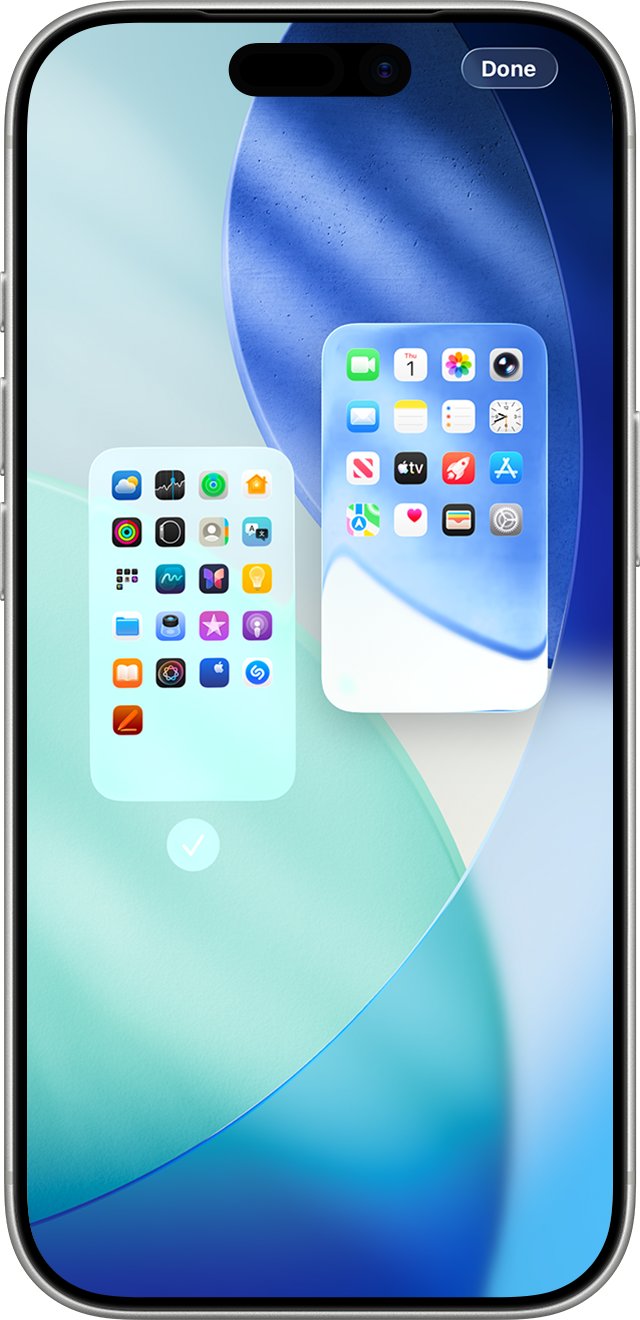
- Touch and hold the Home Screen wallpaper until the app icons begin to jiggle.
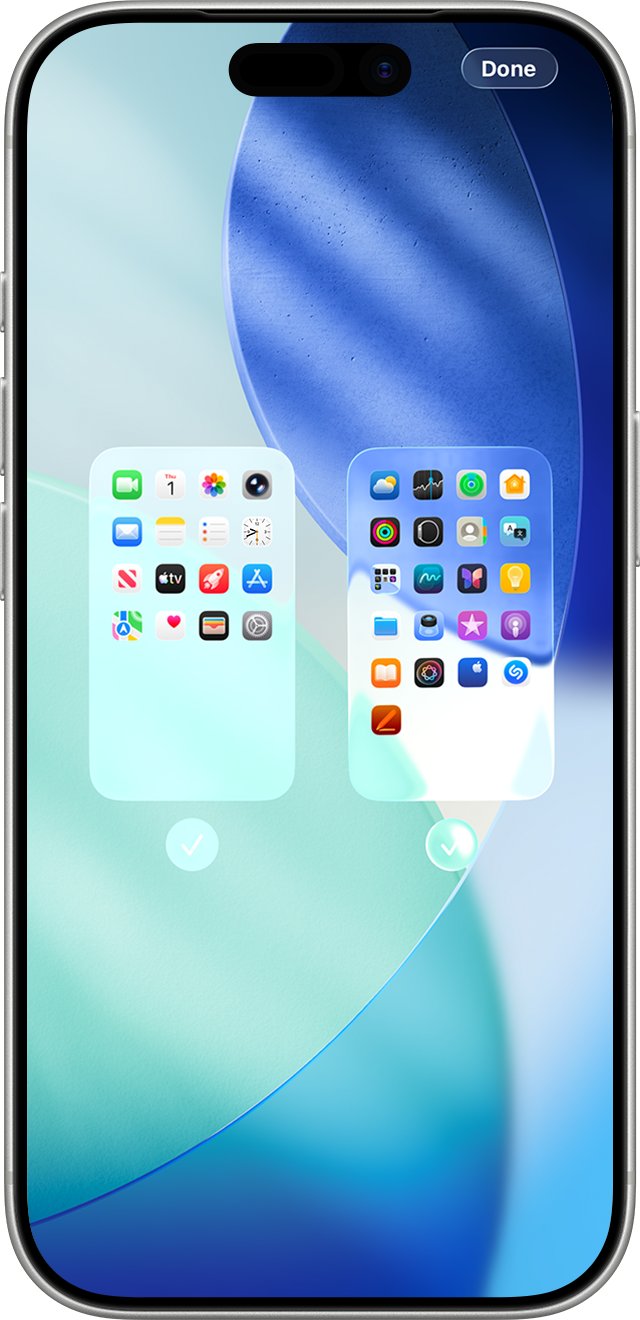
- Tap the dots at the bottom of the screen to show page thumbnails.
- Touch and hold a page thumbnail and drag it to a new position.
- Tap the checkmark under a page to hide it, or tap again to show it.
- Tap the done icon, or press the Home button on iPhone SE.
Hiding pages brings App Library closer to your first page. If an app seems to vanish, it may sit on a hidden page, so find hidden apps on iPhone before you reinstall it.
Where do new apps go on iPhone: Home Screen or App Library?
New App Store downloads land on the Home Screen or only in App Library, depending on one setting.
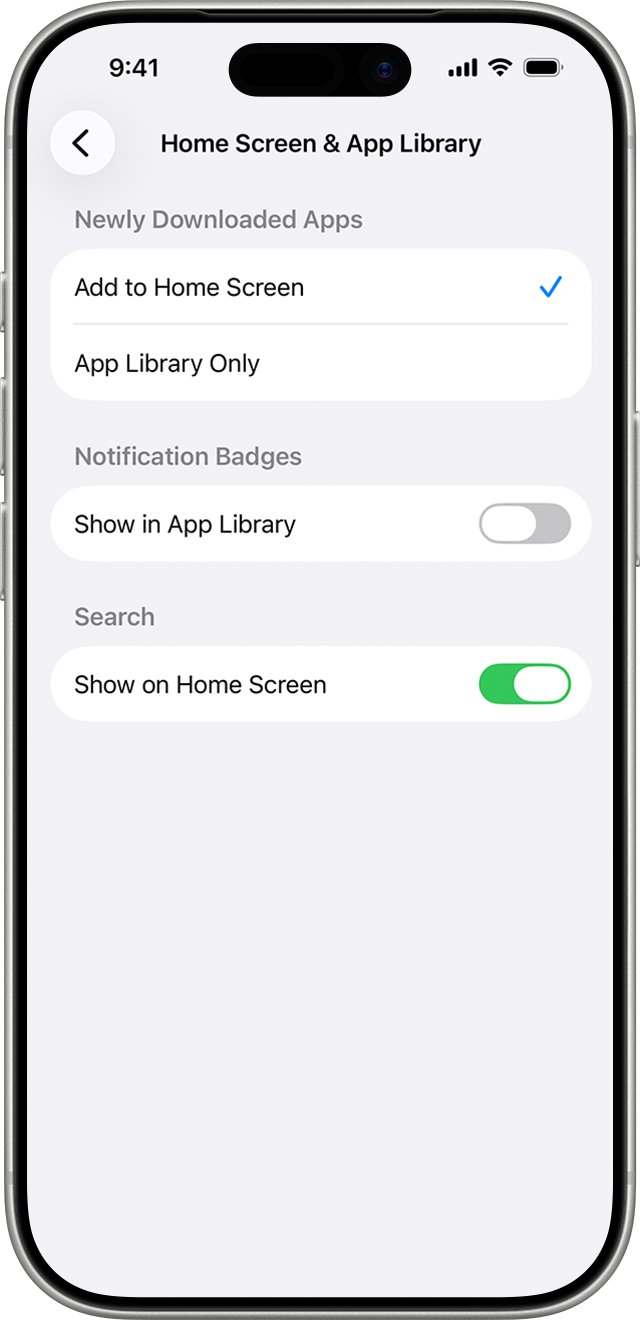
- Open the Settings app.
- Tap Home Screen & App Library.
- Choose Add to Home Screen to place new apps on a page, or App Library Only to keep the Home Screen as it is.
- Turn on Show in App Library if you want notification badges on apps that live only in App Library.
With some Home Screen pages hidden, new apps can still go to App Library even when Add to Home Screen is selected.
How to use Move to iOS app to move apps from Android to iPhone
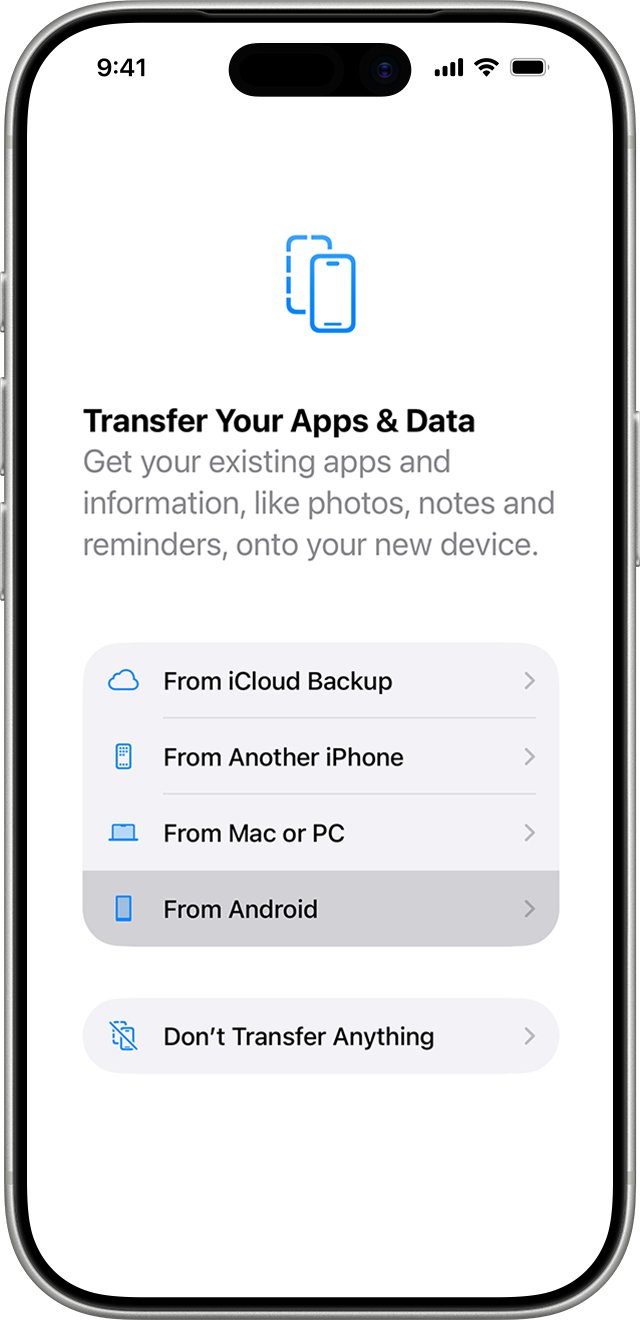
Move to iOS copies data from an Android phone during iPhone setup. Some free apps that exist on both Google Play and the App Store also come across.
- Turn on the new iPhone, keep it near the Android phone, and plug both into power.
- On the Quick Start screen, tap Set Up Without Another Apple Device and follow the prompts.
- On Transfer Your Apps & Data, tap From Android, then tap Transfer with App.
- Open Move to iOS on the Android phone, tap Continue, then tap Agree.
- Enter the code the iPhone shows, then tap Connect to join the iPhone's temporary Wi-Fi network.
- Choose the content to transfer, tap Continue, and leave both phones alone until the iPhone's loading bar finishes.
- Open the App Store on the iPhone to download matched free apps and any others you need.
Move to iOS works only during setup. If the iPhone is already set up, erase it and start again or move content by hand. Moving between two iPhones uses a different iPhone to iPhone transfer process.
How to undo moving apps on iPhone
There is no undo button for a drag. To start fresh, reset the Home Screen to its original layout.
- Open the Settings app.
- Tap General, then tap Transfer or Reset iPhone.
- Tap Reset, then tap Reset Home Screen Layout.
- Tap Reset Home Screen to confirm.
The reset removes every folder you made and lists your downloaded apps alphabetically after the apps that came with the iPhone. No apps or data are deleted.
Why do my apps keep moving on iPhone?
Apps that change places on their own usually trace back to a setting or a gesture, not a fault.
New apps don't appear on the Home Screen
App Library Only is selected, or some Home Screen pages are hidden.
- Open Settings > Home Screen & App Library and choose Add to Home Screen.
- Touch and hold the wallpaper, tap the dots, and show any hidden pages.
- Drag the new app from App Library to the page you want.
Apps are suddenly in alphabetical order and folders are gone
The Home Screen layout was reset.
- Rebuild folders by dragging one app onto another.
- Move favourite apps back to the first page.
Apps start jiggling when you only meant to open a menu
Holding a little too long, or on the background, starts editing mode.
- Tap the Home Screen background, or press the Home button on iPhone SE, to stop the jiggle.
- Touch and hold the app again to open its menu, then tap the option you want.
A Home Screen page changes when a Focus turns on
The Focus is set to switch to a custom Home Screen page.
- Open Settings > Focus and tap the Focus that is on.
- Choose the Home Screen page you want that Focus to show.
You can't move an app to another App Library category
App Library sorts apps into categories automatically.
- Drag the app to the Home Screen and group it in a folder there instead.
Want more than a new order? You can also customize the iPhone Home Screen with widgets, icon tints and wallpaper.
Move apps on iPhone FAQ
How do you move apps on an iPhone?
Touch and hold the Home Screen background until the icons jiggle, then drag an app to a new spot. Drag it to the right edge of the screen to reach the next page, and tap the background to finish.
How do I move apps to the home screen?
Swipe left past your last Home Screen page to open App Library. Touch and hold the app until it jumps to the Home Screen, drag it into place, then lift your finger and tap the background to finish.
How do I move apps easily on iPhone?
For long moves, remove the app from the Home Screen, which sends it to App Library, then drag it from App Library onto the page you want. To move many apps at once, move their whole Home Screen page instead.
Why do my apps keep moving on my iPhone?
Common causes are a Home Screen layout reset, new apps set to App Library Only, hidden Home Screen pages, or a Focus that switches to a custom page. Check Settings > Home Screen & App Library and your Focus settings.
How do I use the Move to iOS app?
Install Move to iOS on the Android phone. During iPhone setup, tap From Android and Transfer with App on Transfer Your Apps & Data, enter the code shown on the iPhone, choose your content, and wait for the transfer to finish.
Does moving an app on iPhone delete its data?
No. Moving an app, putting it in a folder or removing it from the Home Screen keeps the app and its data. Only Remove App followed by Delete App removes the app and its data from the iPhone.
How do I move apps on my phone back to how they were?
Open Settings, tap General, Transfer or Reset iPhone, Reset, then Reset Home Screen Layout. This restores the original layout, removes your folders and lists downloaded apps alphabetically after built-in apps.