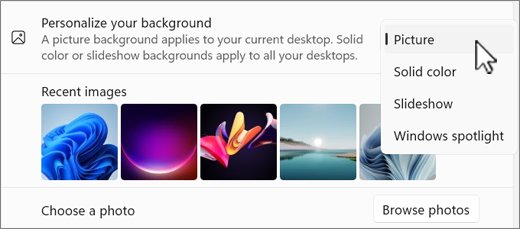
To change your desktop background in Windows 11 or 10, open Settings, go to Personalization > Background, and pick a picture, solid color, slideshow or Windows spotlight.
This guide covers each background type, per-monitor wallpapers, fit options, quicker right-click shortcuts and fixes for a background that will not change.
Set a picture as your Windows desktop wallpaper
Changing the desktop background with a single picture takes under a minute, and the same steps work on Windows 11 and Windows 10.
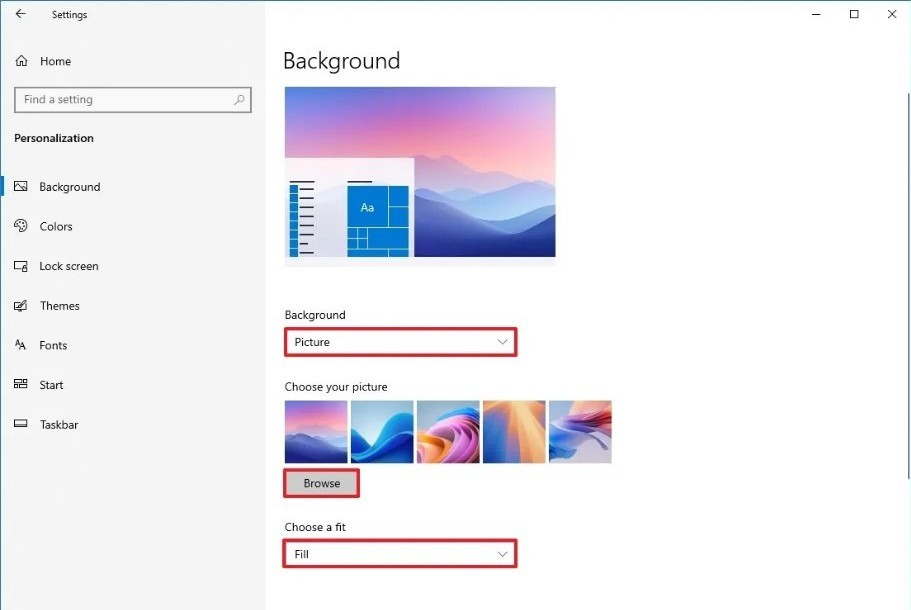
- Right-click an empty area of the desktop and select Personalize, or open Settings and select Personalization.
- Select Background.
- Open the Personalize your background list and choose Picture.
- Click one of the images under Recent images, or browse to your own image file.
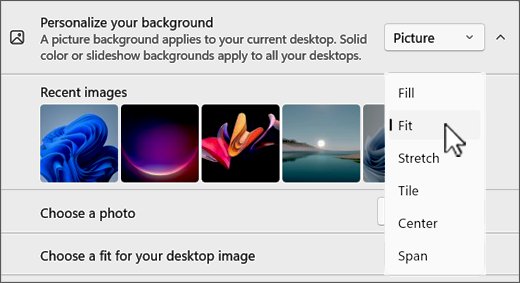
- In the fit list, select Fill, Fit, Stretch, Tile, Center or Span.
- Close Settings. The new wallpaper applies straight away, with no restart.
How to access desktop background settings in Windows 11
Every background option sits on one Settings page. These are the routes that open it.
| Starting point | What to do | Where it lands |
|---|---|---|
| Desktop | Right-click an empty area and select Personalize | Personalization page, then select Background |
| Settings app | Open Settings > Personalization > Background | Background page directly |
| Windows 10 | Open Settings > Personalization > Background | Same page and same options as Windows 11 |
Understanding the desktop background in Windows 11
The Personalize your background list offers four background types. Each one behaves differently on a multi-monitor setup.
| Option | What it shows | Good for |
|---|---|---|
| Picture | One image, either a built-in one or your own file | A fixed wallpaper you chose |
| Solid color | One flat color with no image | A clean desktop with readable icons |
| Slideshow | Images from a folder, changing on a timer | Rotating your own photo album |
| Windows spotlight | A new photo from around the world every day | Fresh images with no effort |
On updated Windows 11 PCs, Windows spotlight may already be selected, because the October 2024 update KB5046633 made it the default wallpaper.
Set a solid color as your Windows desktop wallpaper
- Open Settings > Personalization > Background.
- Set Personalize your background to Solid color.
- Click one of the color swatches.
- For a shade not in the grid, open the custom color option below it and pick one.
- Confirm the choice. The desktop switches to the color at once.
Create a slideshow background in Windows
Setting up a slideshow background needs a folder that already holds the pictures you want to rotate.
- Put the pictures you want in one folder, for example a folder inside Pictures.
- Open Settings > Personalization > Background.
- Set Personalize your background to Slideshow.
- Browse to your folder and confirm it as the slideshow album.
- Set how often the picture changes, then turn on the shuffle option if you want a random order.
- Pick a fit, such as Fill, from the fit list.
- To skip ahead at any time, right-click the desktop and select Next desktop background.
Set different backgrounds on different monitors
With two or more displays connected, Picture mode lets you give each screen its own image.
- Open Settings > Personalization > Background and choose Picture.
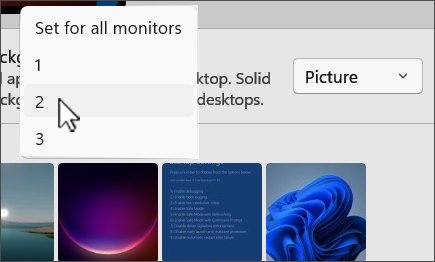
- Under Recent images, right-click the thumbnail you want.
- Choose the monitor the picture should appear on, or apply it to all monitors.
- Repeat with another thumbnail for each remaining display.
- To stretch one wide image across every screen instead, choose Span as the fit.
Slideshow mode handles this automatically: each screen shows a different picture from the chosen folder.
Other ways to change your background wallpaper in Windows
You can skip Settings entirely when the picture is already in front of you.
| Where the picture is | What to do | Result |
|---|---|---|
| File Explorer or the desktop | Right-click the image file and select Set as desktop background | Image applies with the current fit |
| Photos app | Open the image, select the … menu, then Set as > Background | Image applies to the desktop |
| A running slideshow | Right-click the desktop and select Next desktop background | Jumps to the next picture |
Customizing your wallpaper experience
The fit setting decides how a picture fills the screen when its shape does not match your display. It applies to Picture and Slideshow.
| Fit | What it does | Use it when |
|---|---|---|
| Fill | Enlarges the image to cover the screen; edges may be cropped | Most photos on a single monitor |
| Fit | Keeps the whole image and its proportions; bars may appear | You must see the entire picture |
| Stretch | Covers the screen but can distort the image | The image already matches your screen shape |
| Tile | Repeats the image across the screen | Small patterns or textures |
| Center | Shows the image at its original size in the middle | Logos or small artwork |
| Span | Spreads one image across all monitors | Ultra-wide or panoramic wallpapers |
Enhancing your desktop experience goes beyond the wallpaper: a theme changes the background, accent color and sounds together from Settings > Personalization > Themes.
Additional customizations and tips
If you use virtual desktops, each one can carry its own wallpaper.
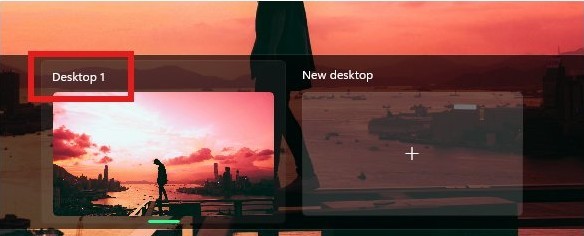
- Switch to the virtual desktop you want to change.
- Open Settings > Personalization > Background and choose Picture.
- Right-click a thumbnail under Recent images.
- Select Set for all desktops, or pick the specific desktop from the menu.
- Switch desktops to confirm each one shows its own image.
With multiple desktops in use, per-monitor backgrounds and slideshow backgrounds are not available.
Where Windows 11 stores its default wallpapers
The built-in Windows 11 wallpapers live in a protected system folder, and the quickest way to reuse one is the thumbnail grid in Settings rather than the folder itself.
| You want to | Do this |
|---|---|
| Go back to a default wallpaper | Open Settings > Personalization > Background, choose Picture and click its thumbnail under Recent images |
| Restore the full default look | Open Settings > Personalization > Themes and apply one of the built-in Windows themes |
| Get the daily Microsoft photo instead | Set Personalize your background to Windows spotlight |
Looking for more wallpaper?
Online wallpaper options from Microsoft refresh the desktop without any manual downloading.
| Source | What you get | How to use it |
|---|---|---|
| Windows spotlight | A new image from around the world each day | Choose it in Personalize your background |
| Bing Wallpaper app | The Bing image of the day as your background, updated daily | Install it from Microsoft and let it run |
| Themes in Microsoft Store | Wallpaper packs that apply as a theme | Open Settings > Personalization > Themes and browse themes |
You can also use the Bing image without its logo as a plain desktop picture.
Advanced customization: third-party applications
Use the built-in Settings options or Microsoft's own Bing Wallpaper app before any third-party wallpaper tool. Settings already covers pictures, colors, slideshows, per-monitor images and daily photos. Third-party animated wallpaper apps add background processes, so install them only from Microsoft Store or the developer's own site.
Best practices for choosing a desktop background
| Tip | Why |
|---|---|
| Pick an image at or above your screen resolution | Small images look soft once Windows enlarges them |
| Match the image shape to your screen, usually 16:9 | A 16:9 image is cropped at the sides on 4:3 or 16:10 screens |
| Keep important detail near the center | Cropping on other screen shapes trims the edges, not the middle |
| Choose calm areas where your icons sit | Busy detail makes desktop icons and labels hard to read |
Troubleshooting common issues
Background settings are greyed out or reset after sign-in
A work or school policy such as Desktop Wallpaper sets the image for you.
- On your own PC, press Win + R, type
gpedit.mscand press Enter (Pro, Enterprise and Education only). - Go to User Configuration > Administrative Templates > Desktop > Desktop and open Desktop Wallpaper.
- Set it to Not Configured, select OK and sign out and back in.
- On a work PC, ask your IT department, because the policy is set centrally.
No option to set a picture for each monitor
Per-monitor backgrounds are not available while multiple virtual desktops are in use, or Picture is not selected.
- Set Personalize your background to Picture.
- Close extra virtual desktops from Task view if you do not need them.
- Right-click a thumbnail under Recent images and choose a monitor.
Wallpaper looks stretched, blurry or cropped
The image shape or resolution does not match the screen.
- Change the fit to Fill or Fit.
- Use an image at least as large as your screen resolution.
- For several monitors, try Span with a panoramic image.
Slideshow does not work on a virtual desktop
Slideshow backgrounds are not supported with multiple desktops.
- Close the extra desktops in Task view.
- Select Slideshow again and choose your folder.
Changing the desktop background
The background settings are in one place on Windows 11 and Windows 10, and the type you pick decides what appears on the desktop.
- Right-click an empty area of the desktop and select Personalize, or open Settings and select Personalization.
- Select Background.
- Open the Personalize your background list and choose Picture, Solid color, Slideshow or Windows spotlight.
- Pick the image, color or folder, then choose a fit such as Fill for pictures and slideshows.
- Close Settings. The new background applies straight away, with no restart.
Windows desktop background FAQ
How do I change my desktop background in Windows 11?
Open Settings, select Personalization, then Background, and choose Picture, Solid color, Slideshow or Windows spotlight from the Personalize your background list. Pick an image or color and the desktop updates straight away without a restart.
Is changing the desktop background the same in Windows 10?
Yes. Windows 10 uses the same route, Settings > Personalization > Background, with the same Picture, Solid color, Slideshow and fit options. Right-clicking the desktop and choosing Personalize opens the same page on both versions.
How do I set a different wallpaper on each monitor?
Choose Picture on the Background page, right-click a thumbnail under Recent images and select the monitor it should go on. Repeat for each display. Slideshow mode shows a different picture on each screen automatically.
Can I set a picture as wallpaper without opening Settings?
Yes. Right-click the image file in File Explorer and select Set as desktop background. In the Photos app, open the picture, select the three-dot menu, then Set as and Background.
How do I make my wallpaper change automatically?
Set Personalize your background to Slideshow and pick a folder of pictures, then choose how often the picture changes. For a new image daily without your own photos, choose Windows spotlight instead.
Why can't I change my desktop background?
Usually a policy controls it. Work and school PCs often apply a fixed wallpaper through Group Policy or Intune, which greys out the Background page. On a personal PC, set the Desktop Wallpaper policy to Not Configured.
Which fit option should I use for my wallpaper?
Fill suits most photos because it covers the whole screen while keeping proportions, though edges may be cropped. Use Fit to see the entire image, and Span to stretch one wide picture across several monitors.
Can each virtual desktop have its own background?
Yes. Right-click a picture thumbnail on the Background page and choose a specific desktop or Set for all desktops. While multiple desktops are in use, per-monitor and slideshow backgrounds are not available.
Enjoy your new background
Use Picture with the Fill fit for a fixed wallpaper, and Windows spotlight or Slideshow if you want it to change on its own. All of them live on one Settings page in Windows 11 and Windows 10, apply instantly and are easy to switch back.