To fix the Windows 11 search bar, end the SearchHost.exe process in Task Manager so Windows Search restarts, then rebuild the index and repair system files if results are still missing.
This guide works through seven fixes in order, from a ten-second restart to DISM and SFC repairs, and ends with symptom-specific fixes for the cases that keep coming back.
1. Restart Windows Search without rebooting the PC
Windows 11 runs the search box as a process called SearchHost.exe. Ending it stops Windows Search, and the next time you click the search box it starts fresh.
- Press Ctrl + Alt + Delete and select Task Manager.
- Select the Details page in the left pane.
- In the Name column, right-click SearchHost.exe and select End task.
- Confirm with End process when Windows asks.
- Click the search box on the taskbar and type a query to start Windows Search again.
If search still fails, restart the PC. A restart also installs any update that is waiting for one. If the box is missing from the taskbar rather than broken, add the search bar back to the taskbar first.
Primary procedure to fix Windows 11 search: which step matches your problem
Work through the fixes in order unless your symptom points straight at one of them. Each step is less disruptive than the next.
| What you see | Start with | Why |
|---|---|---|
| Search box does not open, shows a blank panel or freezes | Step 1: end SearchHost.exe | Restarts the search interface without a reboot |
| Search opens but results are wrong or slow | Step 2 and Step 3 | The troubleshooter and indexing status reveal a stalled or paused indexer |
| Apps appear but a document folder never does | Step 4 | The folder is outside the indexed locations |
| Files you know exist are missing or stale | Step 5: rebuild the index | A damaged index returns incomplete results |
| Problem started after a recent update or keeps returning | Step 6 and Step 7 | Updates and DISM/SFC replace damaged system components |
Windows 11 search fix prerequisites and compatibility
| Requirement | Details |
|---|---|
| Windows version | Every step applies to Windows 11. Windows 10 uses the same tools, but its search process is SearchUI.exe and its settings live under Settings > Search > Searching Windows. |
| Administrator account | Needed for Services, DISM, SFC and the Search and Indexing troubleshooter. |
| Free disk space | Keep more than 1 GB free on the system drive. The index is generally about 10 percent of the size of the content it covers. |
| Power | Plug in a laptop. Windows pauses indexing on low battery, and a rebuild can take hours. |
| Internet connection | DISM downloads repair files from Windows Update by default, and Step 6 needs Windows Update. |
| Time | Steps 1 to 4 take minutes. A full index rebuild can run for up to 24 hours on a large drive. |
2. Run the Search and Indexing troubleshooter
The Search and Indexing troubleshooter runs on the Microsoft Support Diagnostic Tool (MSDT). Microsoft is retiring MSDT troubleshooters, and Search and Indexing is on the removal list rather than moving to the Get Help app, so the command below only opens on Windows 11 builds that still include MSDT.
- Type
cmdin the taskbar search box, right-click Command Prompt and select Run as administrator. - Type
msdt.exe -ep WindowsHelp id SearchDiagnosticand press Enter. - Run the troubleshooter and select every problem that matches what you see.
- Let the troubleshooter apply its fixes, then close it and test search.
If the command reports that MSDT is not available, skip to Step 3. The remaining steps fix the same faults by hand.
3. Check whether Windows is still indexing
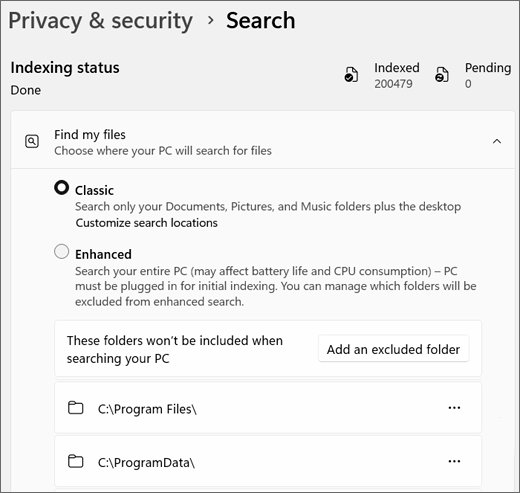
Search results stay incomplete while the indexer is still working. Windows 11 shows the indexer's status and the number of indexed items in Settings.
| Status shown in Settings | What it means | What to do |
|---|---|---|
| Indexing complete | The index is finished | If files are still missing, go to Step 4 |
| Indexing in progress | New files are being added | Leave the PC on and plugged in for a few hours |
| Indexing speed is reduced because of user activity | The indexer slows down while you work | Leave the PC idle and on power |
| Indexing is paused to conserve battery power | Battery is low | Connect the charger; indexing resumes once charged |
| Indexing is paused | Someone paused it in Settings | Wait 15 minutes, or restart the Windows Search service |
| Indexing is paused by an external application | Game mode or an upgrade requested a pause | Restart the Windows Search service |
| Indexing is not running | The Windows Search service is stopped or disabled | Set the service to Automatic (Delayed Start) and start it |
| Insufficient disk space to continue indexing | Less free space than the indexer needs | Free more than 1 GB on the system drive |
To read the status, open Settings > Privacy & security > Searching Windows (shown as Search on some builds) and check the status message and the Indexed count.
4. Confirm that the missing folder is included in Search
With the default Classic setting, Windows 11 indexes only Documents, Pictures, Music and the desktop. A folder on another drive or elsewhere in your profile never appears in results until you add it.
- Open Settings > Privacy & security > Searching Windows.
- Under Find my files, check whether Classic or Enhanced is selected. Enhanced indexes the entire PC.
- With Classic selected, select Customize search locations to open Indexing Options.
- Select Modify and tick the drive or folder that is missing from results.
- Select OK, then Close.
- Check the excluded folders list on the same page, next to Add an excluded folder, and remove the folder if it is listed.
5. Rebuild the Search index
A rebuild deletes the index database and creates it again from scratch. Search results stay incomplete until it finishes, which can take up to 24 hours on a large drive.
- Open Settings > Privacy & security > Searching Windows.
- Scroll down and select Advanced indexing options.
- In Indexing Options, select Advanced.
- Select Rebuild.
- Select OK to confirm, then leave the PC on and plugged in.
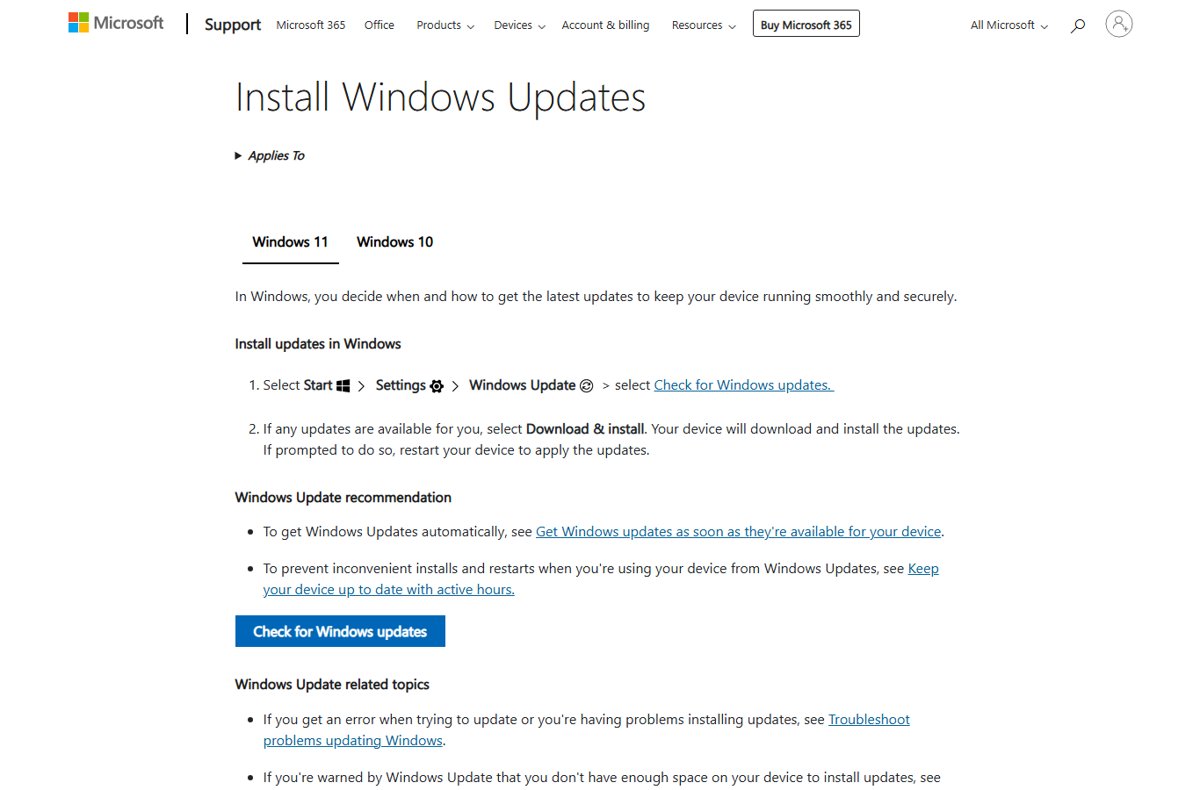
- Return to the Indexing Options window later and wait for Indexing complete.
Rebuilding does not touch your files. It only affects the database Windows uses to find them.
6. Install available Windows updates
Microsoft ships search fixes in cumulative updates, so an unpatched PC can carry a search bug that is already fixed. If an update refuses to download, run the Windows Update troubleshooter and try again.
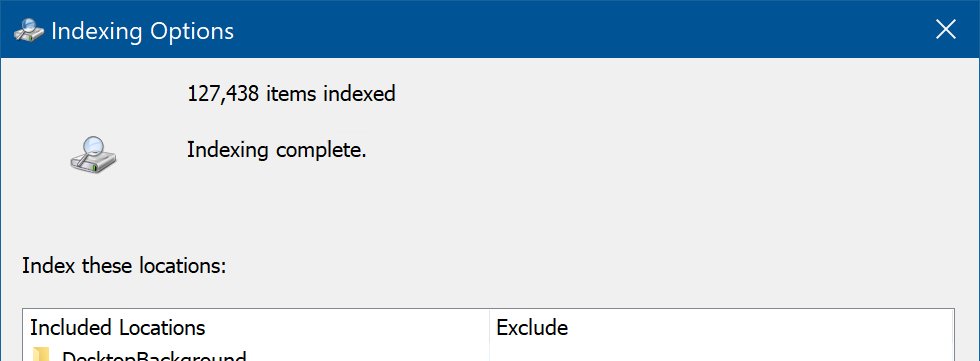
- Open Start > Settings > Windows Update.
- Select Check for updates.
- Select Download & install if updates are listed.
- Restart the PC when Windows asks, then test search.
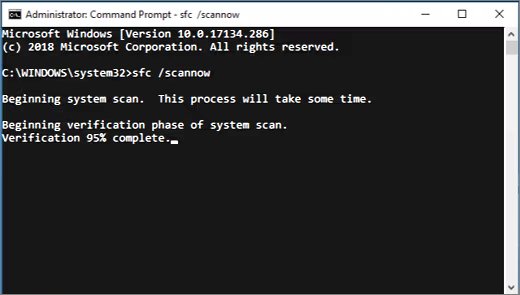
7. Repair Windows components with DISM and SFC
DISM repairs the Windows component store that System File Checker copies from, so run DISM first and SFC second. Both need an elevated Command Prompt.
- Type
cmdin the search box, right-click Command Prompt and select Run as administrator. - Type
DISM.exe /Online /Cleanup-image /Restorehealthand press Enter. It can take several minutes. - When DISM reports that the restore operation completed, type
sfc /scannowand press Enter. - Leave the window open until verification reaches 100 percent.
- Read the result: did not find any integrity violations means system files are fine, and found corrupt files and successfully repaired them means the repair worked.
- Restart the PC and test search.
If SFC says it could not perform the requested operation, run it again from Safe Mode and scan the drive with chkdsk. If DISM fails to download files, use the repair source fix in the troubleshooting section below.
Verification of success: test Windows 11 search
- Click the taskbar search box and confirm the panel opens within a second or two.
- Type the name of an app such as Notepad and check that it appears as the best match.
- Type the name of a document from a folder you checked in Step 4 and confirm it appears under Documents.
- Open Settings > Privacy & security > Searching Windows and confirm the status reads Indexing complete.
- Check that the Indexed count is above zero and rises after you save a new file in an indexed folder.
Troubleshooting and escalation for Windows 11 search problems
Search works after ending SearchHost.exe, but fails again later
Restarting the process clears the symptom, but a damaged search package, an outdated build or a stuck dependent service brings it back.
- Install every update in Settings > Windows Update.
- Press Win + R, type
services.mscand press Enter. - Right-click Windows Font Cache Service, select Stop, test search, then right-click it again and select Start.
- If the fault returns, reset Windows Search with Microsoft's ResetWindowsSearchBox.ps1 script from the Microsoft Download Center: right-click the saved file, select Run with PowerShell and approve the prompt.
- Wait for Done in the PowerShell window, then restart the PC.
Search finds apps but not personal files
The folder holding the files is not indexed, or the index is incomplete.
- Open Settings > Privacy & security > Searching Windows.
- Select Enhanced under Find my files, or add the folder through Customize search locations > Modify.
- Check that the folder is not in the excluded folders list on the same page.
- Rebuild the index from Advanced indexing options > Advanced > Rebuild if the files still do not appear.
Search says “Indexing in progress” for a long time
A large number of items is being indexed, or the PC is too busy for the indexer to run. Performance problems start above roughly 400,000 indexed items.
- Plug the PC in and leave it idle for a few hours.
- Check the Indexed count in Searching Windows. A typical PC indexes fewer than 30,000 items.
- If the count is very high, exclude large folders you never search with Add an excluded folder.
- Open Indexing Options > Advanced > File Types and stop indexing file contents for large file types you do not search inside.
- Rebuild the index and allow up to 24 hours.
The Windows Search service will not start or stops immediately
The service is disabled, often by an "optimize your PC" tool, or its database is damaged.
- Press Win + R, type
services.mscand press Enter. - Right-click Windows Search and select Properties.
- Set Startup type to Automatic (Delayed Start) and select Apply.
- Select Start, then OK.
- If the service still stops and the Searching Windows page is greyed out with no status, the index database or its registry keys are damaged. With the service stopped, delete the contents of
C:\ProgramData\Microsoft\Search\Data, then start the service again so Windows recreates the index. - Run DISM and SFC from Step 7 if the service will not stay running.
DISM fails because it cannot download source files
Windows Update is blocked or broken, so DISM has nowhere to fetch clean files from.
- Get Windows 11 installation media at the same or a later cumulative update level as the PC, and note its drive letter.
- Open an elevated Command Prompt.
- Type
DISM.exe /Online /Cleanup-Image /RestoreHealth /Source:D:\sources\SxS /LimitAccess, replacingD:with the media's drive letter, and press Enter. - To use a WIM file instead, put the
Wim:prefix and the image index after the path, for example/Source:Wim:D:\sources\install.wim:1. - Run
sfc /scannowafter DISM succeeds. - If no repair source is available, use Settings > System > Recovery > Fix problems using Windows Update > Reinstall now, which keeps apps, files and settings.
Search is still blank or closes after all steps
The search package data in your user profile is damaged. Search working in a new user account confirms it.
- Create a new local user account, sign in to it and test search. If it works there, the problem is limited to your profile.
- Sign in to a different account, then delete
%USERPROFILE%\AppData\Local\Packages\MicrosoftWindows.Client.CBS_cw5n1h2txyewyfor the affected profile. - Back up the registry, sign in to the affected account, open Registry Editor and delete the
HKEY_CURRENT_USER\SOFTWARE\Microsoft\Windows\CurrentVersion\Searchkey. - Open PowerShell as administrator and run
Add-AppxPackage -Path "C:\Windows\SystemApps\MicrosoftWindows.Client.CBS_cw5n1h2txyewy\Appxmanifest.xml" -DisableDevelopmentMode -Register. - Restart the PC and search again.
- If search still fails, run Reinstall now under Settings > System > Recovery, and report the fault in Feedback Hub under Desktop Environment > Search.
Windows 11 search bar not working FAQ
Why is my Windows 11 search bar not working?
The usual causes are a hung SearchHost.exe process, a stopped Windows Search service, a damaged or unfinished index, or corrupted system files. End SearchHost.exe in Task Manager first, then check the indexing status in Settings > Privacy & security > Searching Windows.
How do I restart Windows Search in Windows 11?
Open Task Manager with Ctrl + Alt + Delete, go to Details, right-click SearchHost.exe and select End task. Windows Search starts again the next time you click the search box. To restart the indexer, restart the Windows Search service in services.msc.
Does rebuilding the search index delete my files?
No. Rebuilding deletes only the index database Windows uses to locate files, then builds it again. Your documents, photos and apps are untouched, but search results stay incomplete until indexing finishes, which can take up to 24 hours.
How long does rebuilding the Windows search index take?
The first indexing run can take a couple of hours on a typical PC, and Microsoft advises allowing up to 24 hours for a full rebuild. Keep the PC on, plugged in and idle so the indexer does not slow down or pause.
Where is the Search and Indexing troubleshooter in Windows 11?
It runs through MSDT with the command msdt.exe -ep WindowsHelp id SearchDiagnostic. Microsoft is removing MSDT troubleshooters from newer Windows 11 releases, and Search and Indexing is being retired rather than moved to Get Help, so use the manual fixes if the command fails.
What is SearchHost.exe in Windows 11?
SearchHost.exe is the process that runs the Windows 11 search interface. Windows 10 uses SearchUI.exe for the same job. Ending it in Task Manager stops Windows Search, and it restarts automatically the next time you open the search box.
Should I run DISM or SFC first?
Run DISM first with DISM.exe /Online /Cleanup-image /Restorehealth, then run sfc /scannow. DISM repairs the component store that SFC copies replacement files from, so running it first gives SFC clean files to work with.
Why does Windows search show apps but not my files?
Windows 11 indexes only Documents, Pictures, Music and the desktop with the Classic setting. Add the missing folder through Customize search locations, or switch Find my files to Enhanced to index the entire PC.