If you can't type in the Windows search bar, restart Windows Explorer from Task Manager first, because that reloads the taskbar and the search box in a few seconds.
If that fails, the 15 fixes below run from quick restarts to the Windows Search service, the CTF Loader, an index rebuild, system file repair and a reset, on Windows 11 and Windows 10.
1. Restart Windows Explorer
Windows Explorer draws the taskbar, so restarting it also reloads the search box. Save open File Explorer work first, because its windows close.
- Press Ctrl + Shift + Esc to open Task Manager.
- On the Processes tab, find Windows Explorer.
- Right-click Windows Explorer and select End task. The taskbar disappears.
- In Task Manager, select File > Run new task.
- Type
explorer.exeand press Enter. - Wait for the taskbar to return, then click the search box and type.
Identify where typing fails in Windows Search
Typing that fails only in Search points to the search app. Typing that fails everywhere points to the keyboard or the input method, so check that first.
| What you see | Likely cause | Start with |
|---|---|---|
| Search panel opens, but nothing appears when you type | Search process or CTF Loader stuck | Fix 2, then Fix 6 |
| Search box does not open at all | Explorer or the Windows Search service | Fix 1, then Fix 3 |
| You cannot type in Search, Notepad or Edge either | Keyboard, driver or input method | Fix 6 and the keyboard checks in it |
| Search works, but results are missing or slow | Damaged search index | Fix 8 |
| Problem started right after an update | A bad recent update | Fix 10 |
| Problem appears only in your account | Damaged user profile | Fix 14 |
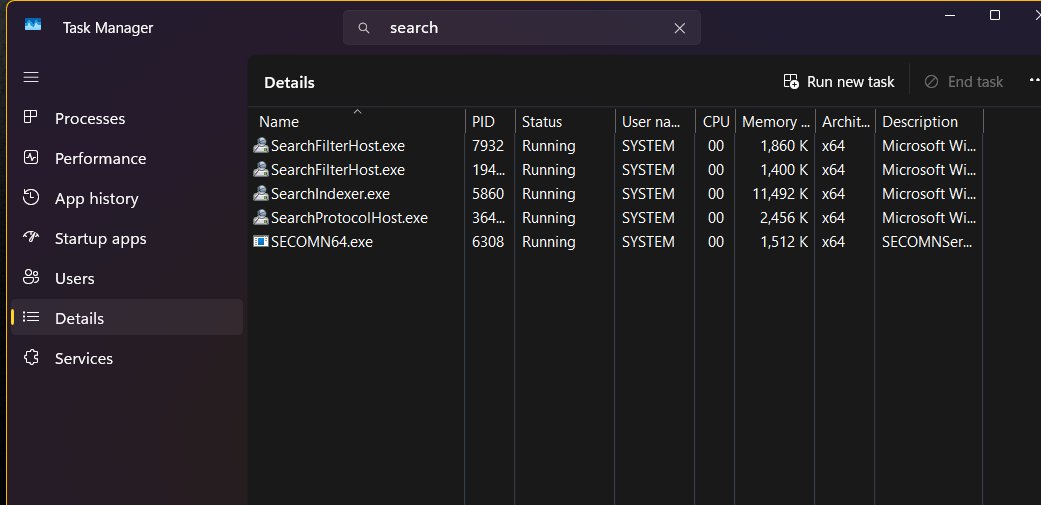
2. End Windows Search and Cortana processes
Ending the search process restarts it the next time you open Search. Windows 11 calls it SearchHost.exe; Windows 10 calls it SearchUI.exe, which belonged to Cortana in older builds.
- Press Ctrl + Alt + Delete and select Task Manager.
- Select the Details tab.
- In the Name column, right-click SearchHost.exe (Windows 11) or SearchUI.exe (Windows 10).
- Select End task.
- Confirm with End process when prompted.
- Click the search box. Windows Search starts again automatically.
3. Restart the Windows Search service
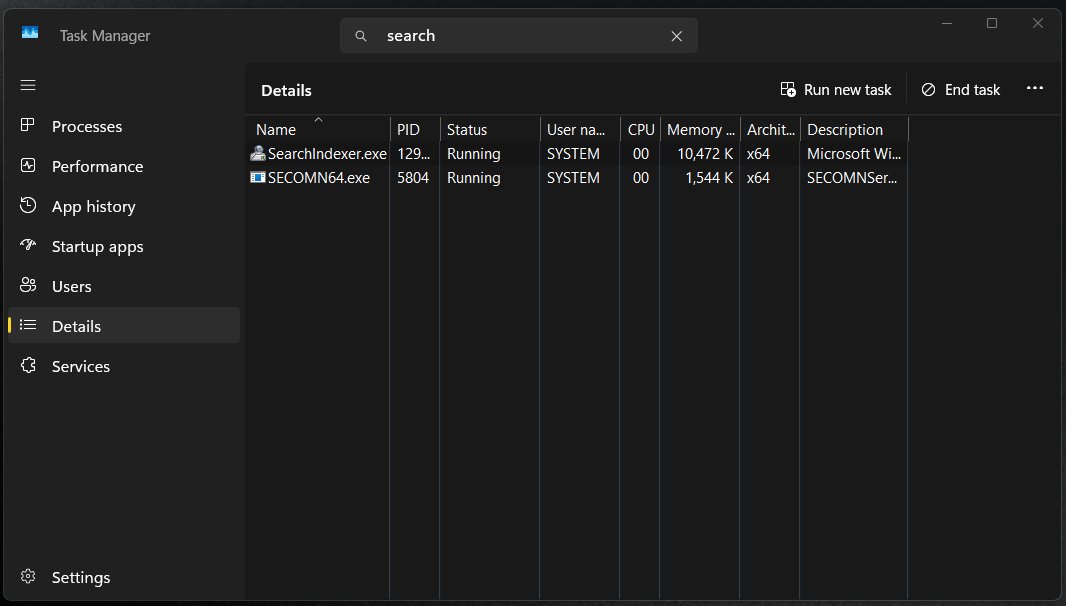
The Windows Search service runs the indexer behind the search box. Make sure it is running, then restart it. Restarting Windows Font Cache Service the same way also clears some search problems.
- Press Win + R, type
services.mscand press Enter. - Scroll to Windows Search and check the Status column.
- If it is blank, right-click Windows Search and select Start.
- If it shows Running, right-click it and select Restart.
- Right-click Windows Font Cache Service, select Stop, try Search, then select Start again.
4. Restart your computer
When you reboot your PC, Windows clears every stuck process at once and installs any pending updates.
- Save your work and close open apps.
- Select Start > Power > Restart. Choose Restart, not Shut down.
- Sign in and wait a minute for startup apps to load.
- Click the search box and type a test word.
5. Run Search and Indexing troubleshooter
Microsoft is removing the legacy Search and Indexing troubleshooter from newer Windows 11 releases. On Windows 10 and Windows 11 version 22H2 or older it still runs from a command.
- Right-click Start and select Terminal or Command Prompt.
- Run
msdt.exe -ep WindowsHelp id SearchDiagnostic. - Tick every problem that matches what you see.
- Select Next and let the troubleshooter apply its fixes.
- If the command reports the troubleshooter is unavailable, skip to Fix 6.
Windows 10 version 1903 and later also run this troubleshooter on their own when they detect a search problem. Check Settings > Update & Security > Troubleshoot > View troubleshooting history to see whether it already ran.
6. Run the CTF Loader
CTF Loader (ctfmon.exe) runs the text input services that feed typed characters into modern apps like Search. When it is not running, Search opens but ignores the keyboard. Rule out the keyboard and input method first.
- Open Notepad and type. If nothing appears there either, unplug the keyboard, plug it into a different USB port, and replace the batteries on a wireless model.
- If other apps accept typing, press Win + R to open the Run box.
- Type
ctfmon.exeand press Enter. Nothing visible opens. - Click the search box and type again.
- If only one language misbehaves, switch the input method with Win + Space and test again.
7. Always run CTF Loader at startup
If Fix 6 works but the problem returns after every restart, put a shortcut to CTF Loader in your Startup folder so it launches at each sign-in.
- Right-click Start and select Run.
- Type
shell:startupand press Enter. The Startup folder opens in File Explorer. - Right-click an empty area and select New > Shortcut.
- Type
ctfmon.exeas the location and select Next. - Name it CTF Loader and select Finish.
- Restart the PC and test the search box.
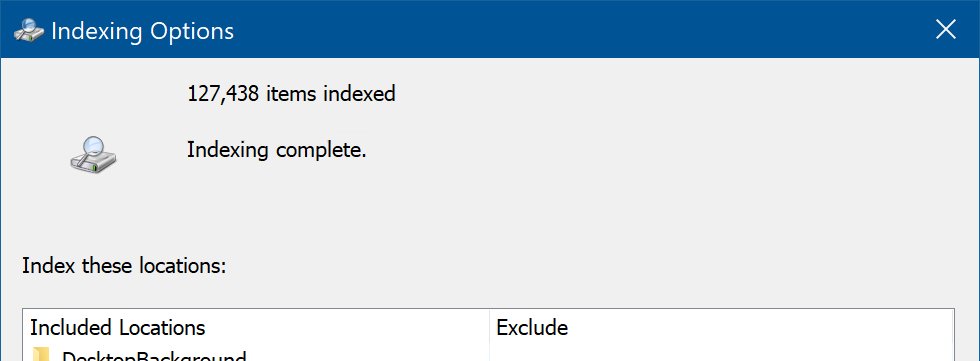
8. Rebuild the indexing services in Windows
Rebuilding the Windows Search index deletes and recreates the database behind search results. It does not touch your files, but results stay incomplete until it finishes, which can take up to 24 hours.
- Windows 11: open Settings > Privacy & security > Searching Windows.
- Windows 10: open Settings > Search > Searching Windows.
- Select Advanced indexing options (Windows 11) or Advanced Search Indexer Settings (Windows 10).
- In Indexing Options, select Advanced.
- Under Troubleshooting, select Rebuild and confirm with OK.
- Leave the PC on so the indexer can finish.
9. Re-register all Microsoft Store apps
Search is a packaged app, so re-registering built-in Windows apps repairs a damaged registration. Start with the search component alone, then re-register every app for your account if that fails.
- Right-click Start and select Terminal (Admin) or Windows PowerShell (Admin).
- Windows 11: run
Add-AppxPackage -Path "C:\Windows\SystemApps\MicrosoftWindows.Client.CBS_cw5n1h2txyewy\Appxmanifest.xml" -DisableDevelopmentMode -Register. - Windows 10: run
Add-AppxPackage -Path "C:\Windows\SystemApps\Microsoft.Windows.Search_cw5n1h2txyewy\Appxmanifest.xml" -DisableDevelopmentMode -Register. - If Search still fails, run
Get-AppxPackage | ForEach-Object { Add-AppxPackage -Path "$($_.InstallLocation)\AppxManifest.xml" -Register -DisableDevelopmentMode }. - Ignore red errors for apps that are in use; they re-register at next launch.
- Restart the PC and test the search box.
10. Update Windows to latest version
Microsoft fixes search bugs in cumulative updates, so install pending Windows updates first. If the problem started right after an update, remove that update instead.
- Select Start > Settings > Windows Update (Windows 10: Update & Security > Windows Update).
- Select Check for updates and install everything offered.
- Restart when prompted and test Search.
- To remove a bad recent update, go to Windows Update > Update history.
- Under Related settings, select Uninstall updates.
- Select the most recent update and choose Uninstall, then restart.
Some updates cannot be uninstalled. Microsoft advises understanding the risk before removing a security update.
11. Check your computer for malware
Malware can hook into Explorer and input processes. A Microsoft Defender full scan checks every file; the offline scan runs before Windows loads.
- Open the Windows Security app.
- Select Virus & threat protection.
- Under Current threats, select Scan options.
- Choose Full scan and select Scan now.
- If anything is found, follow the prompts, then run Microsoft Defender Antivirus (offline scan) from the same list.
- Check Protection history for the offline scan's results.
12. Run the System File Checker
System File Checker scans protected Windows files and replaces damaged ones with a cached copy. Microsoft recommends running DISM (Fix 13) before it, so if SFC cannot repair everything, run Fix 13 and then SFC again.
- Type
cmdin any working search box, or press Win + R, typecmdand press Ctrl + Shift + Enter. - Approve the administrator prompt.
- Run
sfc /scannow. - Keep the window open until verification reaches 100%.
- Read the result. Windows Resource Protection did not find any integrity violations means system files are fine.
13. Perform a DISM scan
DISM repairs the Windows image that SFC copies its replacement files from. It uses Windows Update as the source, so stay online. Run it from an elevated Command Prompt, then run sfc /scannow again.
DISM.exe /Online /Cleanup-image /Restorehealth/Online targets the running Windows installation, /Cleanup-image selects image repair, and /Restorehealth scans for corruption and fixes it with files from Windows Update.
You should see: The command ends with "The restore operation completed successfully." Then run sfc /scannow so it can use the repaired image.
14. Create a new Windows user account
If Search works in a fresh account, your old user profile holds the damage. Create a test account to find out.
- Open Settings > Accounts > Other users.
- Under Add other user, select Add account.
- Select I don't have this person's sign-in information, then Add a user without a Microsoft account for a quick local test profile.
- Enter a name and password and finish the wizard.
- Sign out, sign in to the new account and test the search box.
- If Search works there, move your files to the new profile or regenerate the old profile's search data (see the advanced options below).
15. Reset Windows 10/11 to factory defaults
Reset reinstalls Windows and is the last resort. Keep my files keeps documents but removes apps and settings. Back up first and have your BitLocker recovery key ready.
- Open Settings > System > Recovery.
- Under Recovery options, select Reset PC.
- Choose Keep my files.
- Choose Cloud download for a fresh copy, or Local reinstall on a slow connection.
- Follow the prompts and do not restart the PC yourself; the screen can stay black for 15 minutes or more.
Why the Windows Search bar stops accepting text
| Cause | What happens | Fix that targets it |
|---|---|---|
| Stuck SearchHost.exe or SearchUI.exe | Search panel opens but does not react to keys | Fixes 1 and 2 |
| CTF Loader not running | Typed characters never reach modern apps | Fixes 6 and 7 |
| Windows Search service stopped | Search box or results fail to load | Fix 3 |
| Damaged index | Results missing or slow | Fix 8 |
| Broken app registration | Search package fails to start | Fix 9 |
| Corrupt system files | Several Windows features misbehave | Fixes 12 and 13 |
| Third-party startup app or service | Search breaks only in a normal boot | Clean boot, below |
Test typing in Windows Search after each fix
- Press Win + S to open Search.
- Type
notepad. Letters should appear in the box as you type. - Check that Notepad appears as the best match within a second or two.
- Type part of a document name to confirm file results appear.
- Restart once and repeat, so you know the fix survives a reboot.
More advanced options if nothing works
Search still ignores the keyboard after all 15 fixes
Windows Search settings themselves are damaged; reset Windows Search to its default state.
- Open PowerShell as administrator and run
Get-ExecutionPolicy. Note the value. - Run
Set-ExecutionPolicy -Scope CurrentUser -ExecutionPolicy Unrestrictedand accept with Y. - Get Microsoft's ResetWindowsSearchBox.ps1 script from the Learn article Fix problems in Windows Search, right-click it and select Run with PowerShell.
- When the word Done appears, set the policy back with
Set-ExecutionPolicy -Scope CurrentUser -ExecutionPolicy <PreviousValue>.
Search works in safe startup but fails in a normal boot
A third-party service or startup app conflicts with Search.
- Search for or run
msconfigand open System Configuration. - On Services, select Hide all Microsoft services, then Disable all and Apply.
- On Startup, select Open Task Manager and disable each enabled startup app.
- Restart and test Search. Re-enable items in small groups to find the one that breaks it.
Search fails only in your account, and you want to keep the profile
The account's Search package data or registry key is corrupt.
- Sign in to another administrator account.
- Delete
%USERPROFILE%\AppData\Local\Packages\MicrosoftWindows.Client.CBS_cw5n1h2txyewyfor the affected user (Windows 10:Microsoft.Windows.Search_cw5n1h2txyewy). - Back up the registry, sign in to the affected account and delete
HKEY_CURRENT_USER\SOFTWARE\Microsoft\Windows\CurrentVersion\Search. - Run the re-register command from Fix 9 and restart.
Useful workarounds while you fix search
| What you need | Workaround |
|---|---|
| Open an app | Press Win + R and type its name, for example notepad or control |
| Open Settings | Press Win + I |
| Find a file | Use the search box in the top-right corner of File Explorer |
| Browse installed apps | Open Start > All apps, or run shell:appsfolder in the Run box |
| Open Task Manager | Press Ctrl + Shift + Esc |
If the search box has vanished rather than stopped working, you can add the search bar to the Windows 11 taskbar again from taskbar settings.
Windows Search fixes that can cost you data
| Avoid this | Why |
|---|---|
| Choosing Remove everything in Reset PC | It deletes personal files; Keep my files is enough for a search fault |
| Editing the registry without a backup | A wrong deletion can break more than Search |
| Leaving the execution policy at Unrestricted | Set it back to its previous value after the reset script |
| Closing the window during SFC or DISM | An interrupted repair can leave files half replaced |
| Installing third-party PC cleaners to fix Search | Windows already includes every repair tool listed here |
You can type in the Windows Search bar again
Restart Windows Explorer and end SearchHost.exe first, then run CTF Loader; together these clear most cases where the search bar will not accept typing. They restart the exact processes that receive keystrokes, take under a minute, and change nothing permanent, so save index rebuilds, repairs and resets for when they fail.
Windows Search bar typing FAQ
Why can't I type in the Windows 11 search bar?
Usually SearchHost.exe or CTF Loader has stopped responding, so keystrokes never reach the search box. Restart Windows Explorer, end SearchHost.exe in Task Manager, or run ctfmon.exe from the Run box. A stopped Windows Search service or a damaged index causes the rest.
What is CTF Loader and is it safe?
CTF Loader, ctfmon.exe, is the Windows process behind text input services such as keyboard languages and handwriting. It is part of Windows and should run in the background. If it stops, modern apps like Search and Start can stop accepting typed text.
Does rebuilding the search index delete my files?
No. Rebuilding deletes and recreates only the index database that speeds up searching. Your documents, photos and apps stay untouched. Search results stay incomplete until the rebuild finishes, which can take up to 24 hours on a PC with many files.
Is the Search and Indexing troubleshooter still in Windows 11?
Not on newer releases. Microsoft is removing the legacy Search and Indexing troubleshooter from Windows 11 after version 22H2. On Windows 10 and Windows 11 22H2 or older, run msdt.exe -ep WindowsHelp id SearchDiagnostic to start it.
Will resetting Windows Search affect my files?
No. Microsoft states that resetting Windows Search does not affect your files. It can temporarily make search results less relevant while Windows rebuilds its search data and learns your usage again.
Why does the search bar stop working after every restart?
If running ctfmon.exe fixes typing but the fault returns after a reboot, CTF Loader is not starting at sign-in. Add a ctfmon.exe shortcut to the shell:startup folder, and run a clean boot to check whether a startup app is blocking it.
Can a Windows update break the search bar?
Yes, occasionally. If typing stopped right after an update, open Windows Update, select Update history, then Uninstall updates and remove the latest one. Install newer updates afterwards, because Microsoft often ships the fix in the next cumulative update.