Restart Windows Explorer from Task Manager to bring back missing or blank taskbar icons in Windows 11 and Windows 10; if the icons stay blank, clear the icon cache.
This guide works through every fix in order, from a restart to app repair, Windows updates, DISM and System File Checker, with symptom-by-symptom fixes when a step fails.
1. Restart Windows Explorer
Windows Explorer draws the taskbar, so restarting it redraws every icon without signing you out. Save open work first.
- Press Ctrl + Shift + Esc to open Task Manager.
- On the Processes tab, find Windows Explorer.
- Right-click Windows Explorer and select Restart.
- If Windows Explorer is not listed, select File > Run new task, type
explorer.exeand press Enter. - Wait for the taskbar to reload and check the icons.
Primary procedure: which fix matches your taskbar icon problem
Work through the numbered fixes in order and test the taskbar after each one. Use this table to jump ahead when the symptom is specific.
| What you see | Start with | Why |
|---|---|---|
| Every icon blank or the taskbar empty | 1. Restart Windows Explorer, then 2. Restart Windows | Explorer redraws the taskbar when it starts |
| Icons blank but apps still open when clicked | 4. Rebuild the Windows icon cache | Microsoft ties blank shortcut icons to the icon cache and the IconHandler key |
| Only one app shows a blank icon | 3. Repair the affected app, then 5. Re-pin the shortcut | The fault sits in that app or its shortcut, not in Windows |
| Problem started after an update | 6. Install pending Windows updates, or roll back the update | A later update may carry the fix |
| Icons break again after every fix | 7. DISM and System File Checker | Damaged system files keep Explorer from loading icons |
| Network or internet icon missing | Check the Hide the notification area policy | That policy removes notification-area icons |

Prerequisites and compatibility
| Requirement | Details |
|---|---|
| Windows version | Windows 11 and Windows 10; menu paths differ where noted |
| Administrator account | Needed for the icon-cache command prompt, app repair from Control Panel, PowerShell, DISM and SFC |
| Saved work | Restarting Windows Explorer closes File Explorer windows and redraws the desktop |
| Internet connection | DISM downloads repair files from Windows Update unless you give it another source |
| Registry backup | Only needed for the IconHandler check in the last-resort fixes |
2. Restart Windows normally
A full restart reloads Explorer and every shell component. Use Restart, not Shut down, so Windows starts fresh.
- Save your work and close open apps.
- Select Start > Power > Restart.
- Sign in and wait a minute for startup apps to load.
- Check whether the taskbar icons are back.
3. Repair the affected app when only one app icon is broken
When a single app shows a blank icon, repair the broken app. Some apps have no Advanced options; use the Control Panel route for those.
| Windows version | Steps |
|---|---|
| Windows 11 | Select Start > Settings > Apps > Installed apps, select More next to the app, select Advanced options, then Repair. If Repair is missing or does not help, select Reset. |
| Windows 10 | Select Start > Settings > Apps > Apps & features, select the app, select Advanced options, then Repair. If Repair is missing or does not help, select Reset. |
| Desktop programs on either version | Open Control Panel > Programs > Programs and Features, right-click the program and select Repair, or Change if Repair is not offered. |
4. Rebuild the Windows icon cache
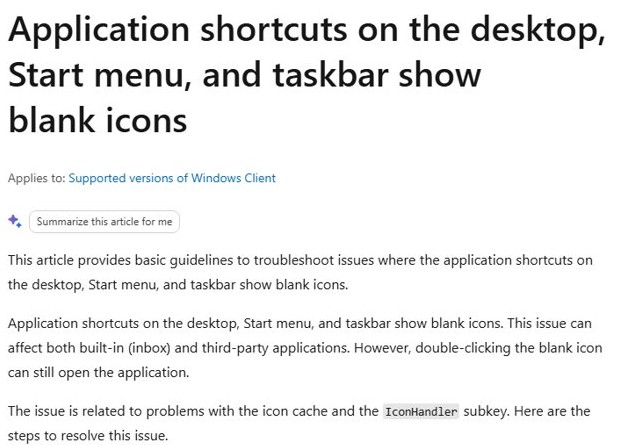
Microsoft links blank shortcut icons on the desktop, Start menu and taskbar to the icon cache. The fix ends Explorer, deletes IconCache.db and starts Explorer again.
Press Ctrl + Shift + Esc, right-click Windows Explorer and select End task. Then select File > Run new task, type cmd.exe, tick the option to create the task with administrative privileges and select OK.
CD /d %userprofile%\AppData\Local
DEL IconCache.db /a
The first line moves to your local AppData folder; the second deletes the icon cache file, including when it is hidden. Press Enter after each line.
You should see: The prompt returns without an error. In Task Manager, select File > Run new task, type explorer.exe and press Enter; Windows rebuilds the cache as the icons redraw.
5. Remove and re-pin a broken shortcut
A pinned shortcut whose target moved or was reinstalled can keep a blank icon. Unpinning it and pinning the app to the taskbar again creates a fresh shortcut.
- Right-click the blank pinned icon on the taskbar and select Unpin from taskbar.
- Type the app's name in the taskbar search box.
- Right-click the app in the results and select Pin to taskbar.
- On Windows 10, you can also press and hold the result instead of right-clicking it.
- If the app is already open, right-click its taskbar icon and select Pin to taskbar.
6. Install pending Windows updates
Microsoft fixes shell bugs in cumulative updates, so installing pending Windows updates can clear the problem. That included a 2025 issue where the taskbar failed to appear on Windows 11 version 24H2 and 25H2.
| Windows version | Steps |
|---|---|
| Windows 11 | Select Start > Settings > Windows Update, select Check for updates, install what is offered and restart. |
| Windows 10 | Select Start > Settings > Update & Security > Windows Update, select Check for updates, install what is offered and restart. |
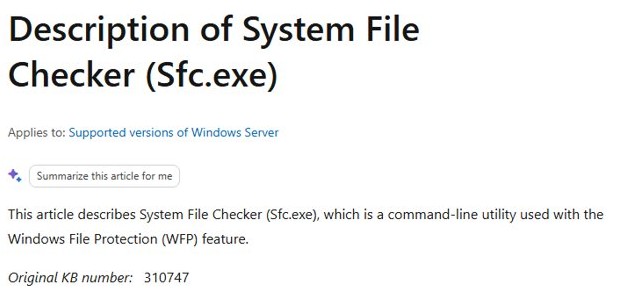
7. Repair Windows system files with DISM and System File Checker
Type cmd in the search box, right-click Command Prompt and select Run as administrator. Run DISM first, then System File Checker, and keep the window open until both finish.
DISM.exe /Online /Cleanup-image /Restorehealth
sfc /scannow
DISM repairs the Windows component store using files from Windows Update and can take several minutes. SFC then checks protected system files and replaces damaged ones from that store.
You should see: SFC reports "Windows Resource Protection did not find any integrity violations" or "found corrupt files and successfully repaired them". Restart and check the taskbar.
Verification of success
- Restart the PC and sign in.
- Check that every pinned taskbar icon shows its picture, not a blank square.
- Open two or three apps and confirm their running icons appear on the taskbar.
- Check the desktop and Start menu shortcuts, which use the same icon cache.
- Sign out and back in once more to confirm the icons survive a fresh session.
Troubleshooting and rollback/escalation
Windows Explorer immediately disappears again
Explorer crashes on start; Microsoft documented this after some 2025 cumulative updates on Windows 11 24H2 and 25H2 when shell packages did not register in time.
- Press Ctrl + Shift + Esc, select File > Run new task, type
explorer.exeand press Enter to get a working desktop. - Install the latest cumulative update from Settings > Windows Update; Microsoft shipped the fix in KB5095093.
- Run
DISM.exe /Online /Cleanup-image /Restorehealthand thensfc /scannowfrom an administrator Command Prompt.
The icon-cache deletion command reports “Access is denied”
Explorer still holds the file open, or the command prompt is not elevated.
- In Task Manager, right-click Windows Explorer and select End task before you run the command.
- Open the command prompt from File > Run new task with the administrative privileges option ticked.
- Run
DEL IconCache.db /aagain, then startexplorer.exefrom Run new task.
DISM stops with a source or Windows Update error
DISM gets repair files from Windows Update, which may be unreachable or broken.
- Check the internet connection and run the command again.
- Point DISM at another repair source, such as a Windows side-by-side folder on a network share or removable media.
- Run
DISM.exe /Online /Cleanup-Image /RestoreHealth /Source:C:\RepairSource\Windows /LimitAccess, replacing the path with your own source.
SFC cannot perform the requested operation
Windows Resource Protection could not run the scan in the current session.
- Restart Windows in Safe Mode.
- Confirm the PendingDeletes and PendingRenames folders exist under
%WinDir%\WinSxS\Temp. - Run
sfc /scannowagain from an administrator Command Prompt.
The problem began directly after a Windows update
The update changed shell components that draw the taskbar.
- First check Windows Update for a newer update that fixes the problem.
- On Windows 11, select Start > Settings > Windows Update > Update history > Uninstall updates.
- On Windows 10, select Start > Settings > Update & Security > Windows Update > View your update history > Uninstall updates.
- Select the update and select Uninstall, then restart.
Icons are correct in a new Windows account but not in your usual account
Your user profile is corrupted.
- Add a new user account and make it an administrator.
- Sign in to the new account.
- Copy your files from
C:\Users\<Old_Username>toC:\Users\<New_Username>. - Restart the PC and sign in as the new user.
Icons remain blank after all steps
The Shell Experience Host registration or the shortcut IconHandler registry value is damaged.
- Open Windows PowerShell as administrator and run
Get-AppXPackage -AllUsers | Where-Object {$_.InstallLocation -like "*ShellExperienceHost*"} | Foreach {Add-AppxPackage -DisableDevelopmentMode -Register "$($_.InstallLocation)\AppXManifest.xml"}, then restart. - Back up the registry, open Registry Editor and check that
HKEY_CLASSES_ROOT\lnkfile\shellex\IconHandlerhas a (Default) value such as{00021401-0000-0000-C000-000000000046}. - Under
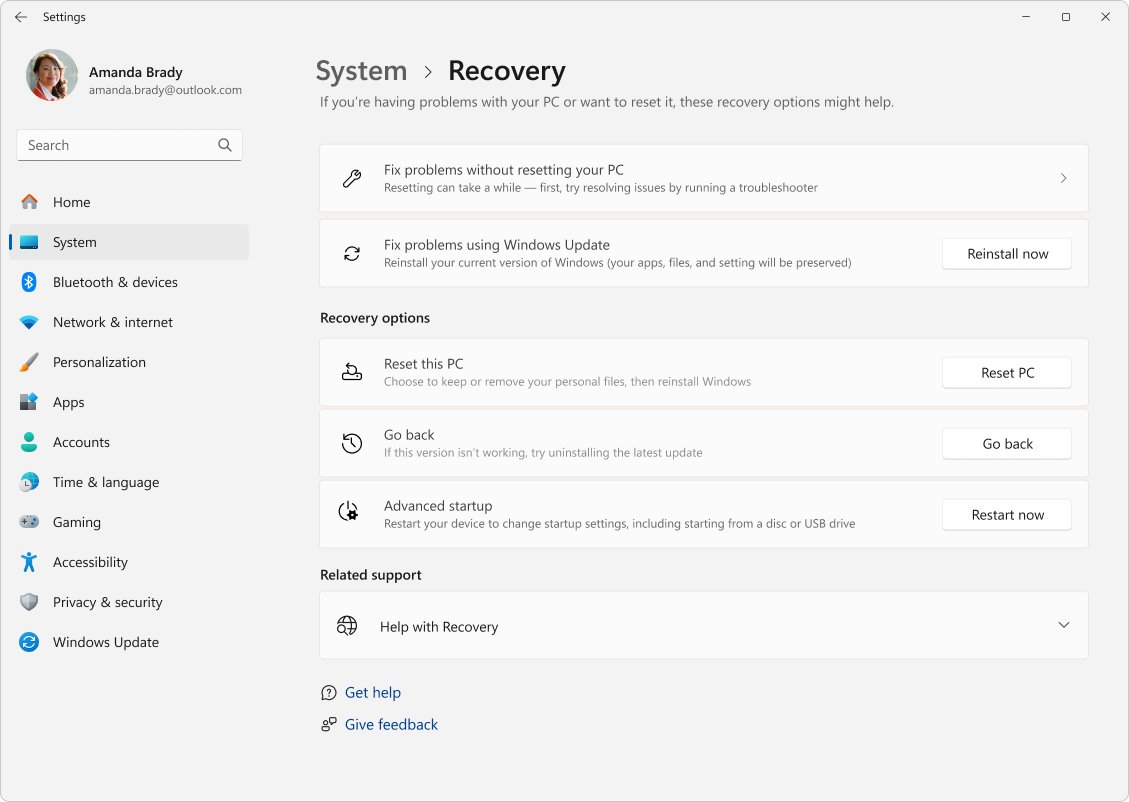
HKEY_CLASSES_ROOT\CLSID\{00021401-0000-0000-C000-000000000046}, confirm (Default) is Shortcut, and under its InProcServer32 subkey confirm (Default) isC:\Windows\System32\windows.storage.dll. - If icons are still blank on Windows 11, select Start > Settings > System > Recovery and, under Fix problems using Windows Update, select Reinstall now; it keeps your apps, files and settings.
Missing or blank taskbar icons FAQ
Why are my taskbar icons blank in Windows 11?
Blank taskbar icons usually come from a damaged icon cache or IconHandler registry value. The apps still open when clicked. Restart Windows Explorer first, then delete IconCache.db and restart Explorer.
Where is the icon cache file in Windows 10 and 11?
IconCache.db sits in your local AppData folder, %userprofile%\AppData\Local. It is hidden, so delete it with DEL IconCache.db /a from an administrator command prompt after ending Windows Explorer.
How do I restart Windows Explorer?
Press Ctrl + Shift + Esc, right-click Windows Explorer on the Processes tab and select Restart. If it is not listed, select File > Run new task, type explorer.exe and press Enter.
Is it safe to delete IconCache.db?
Yes. Microsoft's own fix for blank icons deletes IconCache.db. Windows Explorer rebuilds the cache when it starts again, so you lose nothing except the stored icon images.
Should I run DISM or SFC first?
Run DISM first, then SFC. DISM.exe /Online /Cleanup-image /Restorehealth repairs the component store that sfc /scannow uses as its source for replacing damaged system files.
Why is only one app icon blank on my taskbar?
The app or its pinned shortcut is damaged. Repair or reset the app from Settings > Apps, then unpin the blank icon and pin the app to the taskbar again.