Go to copilotstudio.microsoft.com and sign in with a work or school account that has a Copilot Studio license, a Microsoft 365 Copilot license or a free trial.
This guide covers the trial, the license an admin must assign, access from Teams, Microsoft 365 Copilot and GCC, and fixes for the common access errors.
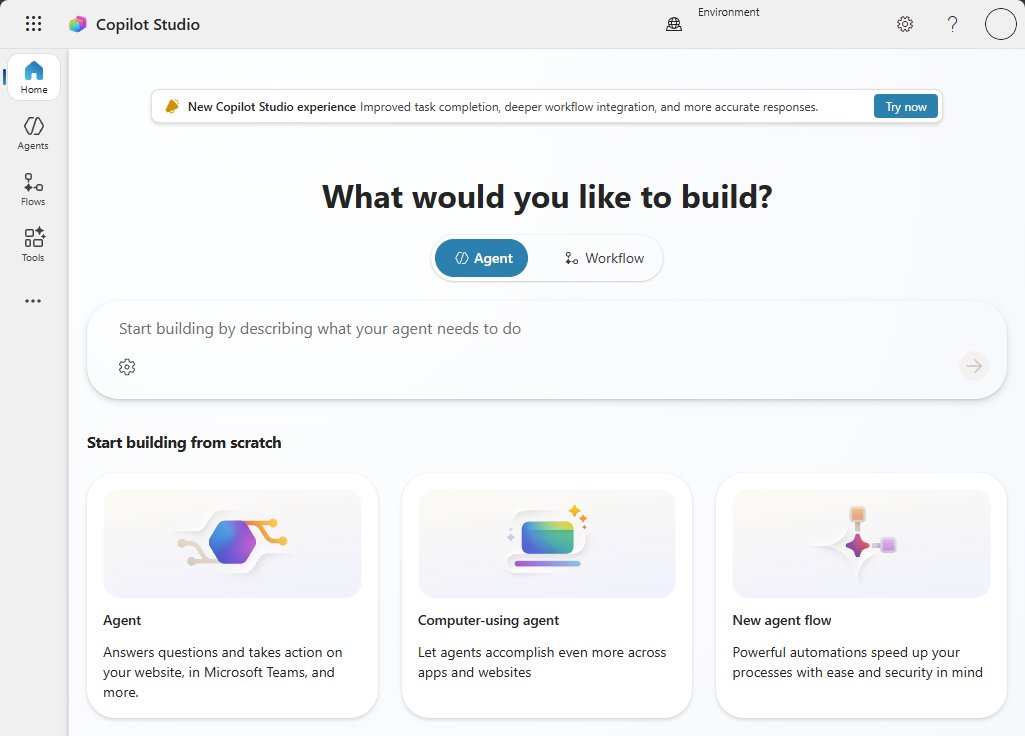
The fastest way to open Copilot Studio
This route works for anyone whose organization already has Copilot Studio licenses. If you have no license yet, the sign-in page offers the trial instead.
- Open a supported browser and go to copilotstudio.microsoft.com.
- Sign in with your work or school account, not a personal email address.
- Wait for the Home page to load. Copilot Studio creates a default environment the first time you create an agent.
- Describe the agent you want in the box on Home, or open an existing agent from the list.
US government tenants use a different address: gcc.powerva.microsoft.us for GCC and high.powerva.microsoft.us for GCC High.
Which way into Copilot Studio fits your situation?
| Your situation | Where to go | What you get |
|---|---|---|
| Your admin assigned a Copilot Studio User License | copilotstudio.microsoft.com | Full authoring and publishing to any supported channel |
| No license, work or school account | The free trial sign-up | Create and test agents; publishing is blocked |
| Microsoft 365 Copilot license | Agent Builder in Microsoft 365 Copilot, or Copilot Studio itself | Both are included for authenticated users |
| Microsoft 365 plan with the Teams plan only | copilotstudio.microsoft.com (the Teams app now redirects there) | Classic agents published to Teams only |
| US government tenant | gcc.powerva.microsoft.us or high.powerva.microsoft.us | Separate government cloud; the Teams app experience works in GCC but not GCC High |
| You only need to chat with an agent someone built | Teams or Microsoft 365 Copilot | No Copilot Studio license needed |
Prerequisites for Accessing Copilot Studio
Missing any row below produces a sign-in that fails, a trial that is refused, or a portal you can open but cannot publish from.
| Requirement | What Microsoft Learn specifies |
|---|---|
| Valid Microsoft account | A work or school account in a Microsoft Entra tenant. Personal email addresses are rejected at trial sign-up, and guest users of a tenant can't access Copilot Studio. |
| Appropriate licensing | A Copilot Studio User License plus the tenant license, a Microsoft 365 Copilot license, a Teams plan, or a trial. |
| Administrative permissions | A tenant admin buys and assigns licenses in the Microsoft 365 admin center. You need access to the Power Platform environment you build in. |
| Compatible browser | Chrome 91 or later, Firefox 89 or later, or Safari 16.4 or later are the examples Microsoft gives of a modern browser. |
| Network and security settings | Your network must not block the Copilot Studio service domains, such as *.powerva.microsoft.com. |
| Organizational enablement | Self-service trial sign-up must be allowed in your tenant, or your admin must assign the license for you. |
Appropriate Licensing
Makers need a license; the people who chat with a published agent do not. Pick the row that matches your tenant.
| License | How you get it | What it allows |
|---|---|---|
| Free trial | Self-service sign-up with a work or school email | Build and test agents in the test chat panel. You can't publish. Extend by 30 days when it expires. |
| Standalone Copilot Studio subscription | Tenant license plus per-user Copilot Studio User License from the Microsoft 365 admin center | Generative orchestration, premium connectors, any supported channel |
| Copilot Studio for Microsoft Teams plan | Included in select Microsoft 365 subscriptions | Classic orchestration, Dataverse for Teams, publish to Teams only |
| Microsoft 365 Copilot add-on | Assigned by your admin | Agent Builder in Microsoft 365 Copilot and Copilot Studio for authenticated users |
| Copilot Credits or pay-as-you-go | Set up by an admin | Access to either experience without a Copilot license |
| Dynamics 365 Customer Service add-ons | Digital Messaging and Chat add-ons | Copilot Studio entitlements included |
The Teams plan excludes GCC, GCC High, DoD, EDU A1 and SUB SKUs. Upgrading to a standalone license keeps your existing agent in the same environment.
Sign up for the Copilot Studio free trial
The trial suits anyone who wants to try building before the organization buys licenses. Your agents keep working for up to 90 days after the trial expires.
- Open the Get access to Copilot Studio article on Microsoft Learn, or select Free trial at the top of any Copilot Studio docs page.
- Select the sign-up page link.
- Enter your work or school email address and select Next.
- Follow the remaining prompts until Copilot Studio opens.
- Build and test your agent in the Test your agent panel. Publishing needs a paid license.
Watch for the expiry emails and notifications. When the trial ends, you can extend it by 30 days without losing data.
Step-by-Step Guide to Accessing Copilot Studio
Use this when you have a license and want to go from sign-in to a working agent. Copilot Studio is a no-code, graphical tool, so there is no code environment to install.
- Sign in to your Microsoft account at copilotstudio.microsoft.com with the work account that holds the license.
- Verify your permissions: upgrade prompts or trial expiry notices mean your license isn't the one you expected.
- Choose the environment from the environment switcher on the top menu bar. The default environment is created on your first agent.
- Set up your workspace: on the Teams plan, pick the Teams team that will manage your agent and select Continue.
- Start using Copilot Studio: describe your agent in your own words on Home, up to 1,024 characters.
- Review the Overview page that appears, then test the agent in the Test your agent panel.
Verify Your Permissions
A license lets you into the portal, but building also requires access to the environment. Without it, you can open Copilot Studio but not create agents there.
- Open the environment switcher on the top menu bar and select the environment you were told to use.
- Try to create an agent. If it fails, you lack access to that environment.
- Ask a system administrator of that environment to create one agent there, which installs the Copilot Studio solutions.
- Ask the administrator to assign you the agent author security role in that environment.
- Return to Copilot Studio and create your agent in the environment.
Access Copilot Studio in Teams
The Copilot Studio for Teams app can no longer create classic chatbots after the end of June 2026. It now redirects you to the Copilot Studio web app.
- Go to copilotstudio.microsoft.com, or open the Copilot Studio app in Teams and follow the redirect.
- If prompted, select the Teams team that will manage your agent and select Continue. This provisions a Dataverse for Teams environment.
- Select Create blank agent, enter a name and select Create.
- Build your topics, then select Publish at the top of the page.
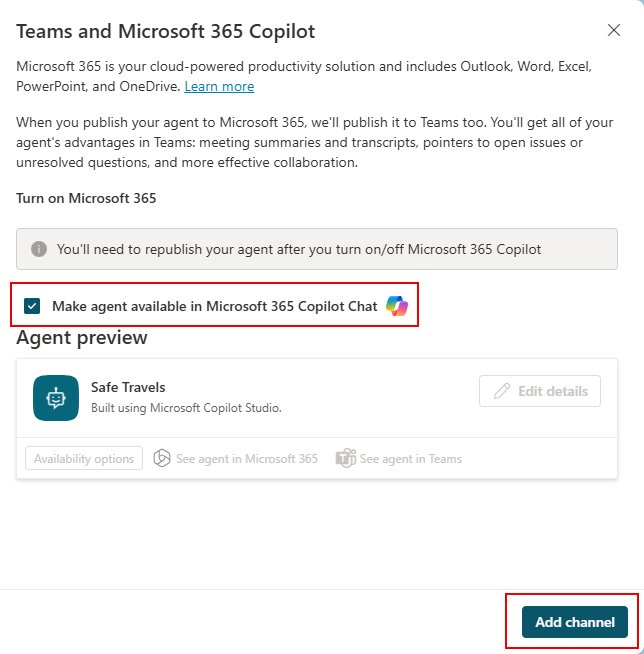
- Go to Channels, select Microsoft 365 and Microsoft Teams, and then select Add channel.
Access Copilot Studio from Microsoft 365 Copilot
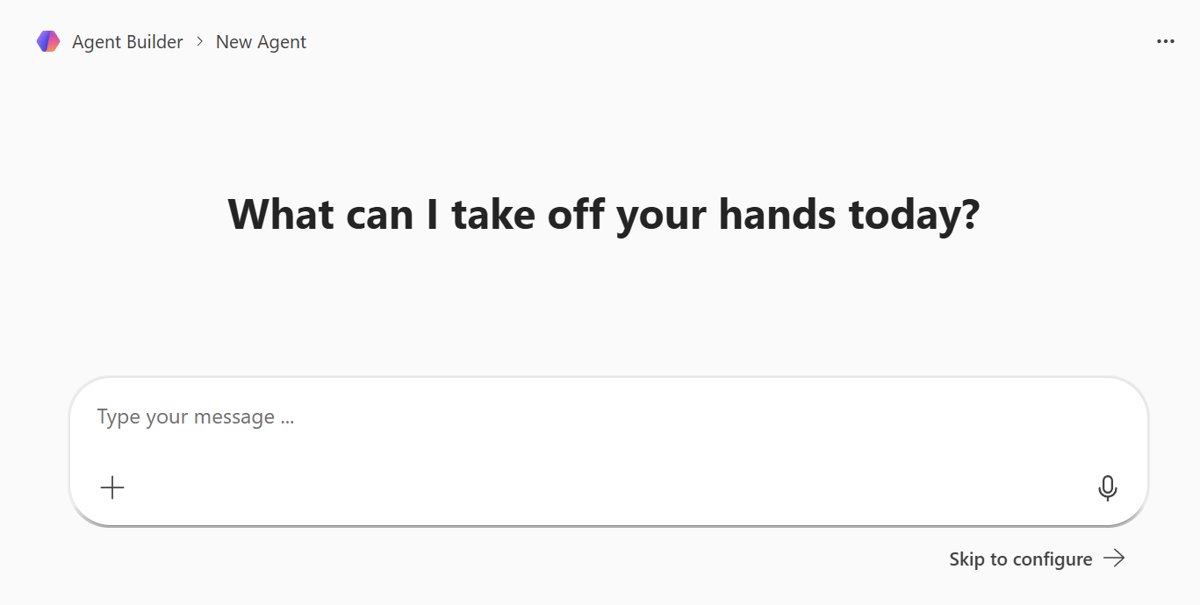
Microsoft 365 Copilot has its own lighter builder, called Agent Builder. It runs at microsoft365.com/chat, office.com/chat and in the Teams desktop and web clients, but not on mobile.
- Open microsoft365.com/chat and build or open your agent in Agent Builder.
- Select the More options (…) menu on the agent.
- Select Copy to Copilot Studio.
- Choose the Power Platform environment to store the agent in. The copy starts after you select it.
- Save the agent in Copilot Studio, then test it before you publish.
Copying needs a Copilot Studio or Microsoft 365 Copilot license and the Dataverse entitlement in your Microsoft 365 license. Embedded files, email knowledge and Copilot connectors don't carry over and must be added again.
Open a Copilot Studio agent in Teams and Microsoft 365 Copilot
Publish the agent at least once before these steps. Install it for yourself first, then share it.
- In Copilot Studio, open the configuration panel for the Teams and Microsoft 365 Copilot channels.
- Make sure Make agent available in Microsoft 365 Copilot is selected if you want it in both places.
- Select See agent in Teams, then select Add. The agent appears in the agent list on the left.
- In Microsoft 365 Copilot, type @, pick the agent from the list, enter your question and press Enter.
- To share, select Availability options and then Copy link, or submit the agent for admin approval to show it to everyone.
Shared users find the agent in the Built with Power Platform section of the Teams app store. Admin-approved agents appear under Built for your org.
Access Copilot Studio in GCC and GCC High
Government plans use separate service addresses. Licensing is the same as the public cloud, bought through Volume Licensing or Cloud Solution Provider channels.
| Service | Commercial | GCC | GCC High |
|---|---|---|---|
| Copilot Studio | copilotstudio.microsoft.com | gcc.powerva.microsoft.us | high.powerva.microsoft.us |
| Power Automate | flow.microsoft.com | gov.flow.microsoft.us | high.flow.microsoft.us |
| Power Apps | make.powerapps.com | make.gov.powerapps.us | make.high.powerapps.us |
| Power Platform admin center | admin.powerplatform.microsoft.com | gcc.admin.powerplatform.microsoft.us | high.admin.powerplatform.microsoft.us |
| Copilot Studio Teams app | Yes | Yes | No |
GCC High requires Microsoft Entra ID for Government, while GCC uses the public Microsoft Entra ID.
Administrative Permissions: Buy and Assign Licenses
A tenant admin needs two purchases: the Copilot Studio tenant license and a Copilot Studio User License for each maker. Buying through Volume Licensing means buying both there, ideally in one transaction.
- Sign in to the Microsoft 365 admin center with an admin account.
- Expand Billing, select Purchase services, search for Copilot Studio and complete checkout.
- Return to Purchase services, scroll to Add-ons, select Copilot Studio User License and buy the number you need.
- Expand Users and select Active users.
- Select a name, then select Manage product licenses.
- Select the Copilot Studio user license check box and select Save changes.
To manage many makers at once, assign the license to a Microsoft Entra ID security group instead of one user at a time.
Confirm Your Subscription Status
Admins who aren't sure the tenant has both licenses can check in one place. Users who aren't admins should send this check to their admin.
- Sign in to the Microsoft 365 admin center.
- Go to Billing, then Subscriptions.
- Confirm two entries: Copilot Studio and Copilot Studio User License.
- Assign only the Copilot Studio User License to people. The tenant license isn't assignable.
Organizational Enablement
Several separate switches decide whether people in a tenant can reach Copilot Studio at all. Each one sits with a different admin role.
| Control | Where it's set | Effect on access |
|---|---|---|
| Self-service trial sign-up | The AllowAdHocSubscriptions flag in organization settings | Off: users see a message that sign-up couldn't be completed |
| Copilot Studio User License | Microsoft 365 admin center, Active users | Required for each maker |
| Environment access and security role | Power Platform admin center or the environment's system administrator | Without it, you can't create agents in that environment |
| Agent Builder availability | Microsoft 365 admin center, Integrated Apps agent controls | Decides whether users see Agent Builder in Microsoft 365 Copilot |
| Org-wide agent visibility | Teams admin center, Manage apps | Admin approval puts an agent in Built for your org |
Network and Security Settings
Firewalls and proxies that block these domains break the authoring portal even when the license is fine. Using Power Automate alongside also needs its own required services.
| Domain | Required | Used for |
|---|---|---|
| *.powerva.microsoft.com | Yes | Copilot Studio authoring experience and APIs |
| cci-prod-botdesigner.azureedge.net | Yes | Copilot Studio authoring experience |
| *.directline.botframework.com | Yes (HTTPS and WebSocket) | Bot Framework Web Chat and the test chat connection |
| bot-framework.azureedge.net | Yes | Bot Framework resources |
| *.analysis.windows.net | Yes | Analytics reports through Power BI |
| token.botframework.com | Only for manual authentication | Bot Framework OAuth redirect |
| *.api.powerplatform.com | Yes, for Agent Builder | Agent authoring, publishing and sharing in Microsoft 365 Copilot |
| pa-guided.azureedge.net and pipe.aria.microsoft.com | No (recommended) | In-product guidance and telemetry |
Logging In and Accessing the Dashboard
A working sign-in lands you on the Home page, which acts as the Copilot Studio dashboard. Check these signs to confirm your access is complete.
- Confirm the Home page shows a box asking you to describe what your agent should do. If it's missing, your environment doesn't support natural-language agent creation.
- Open the environment switcher on the top menu bar and confirm the environment you expect is listed.
- Create a test agent and confirm its Overview page opens.
- Ask the agent a question in the Test your agent panel and confirm it replies.
- Select Publish. A green banner confirms a full license; a block on publishing means you're on the trial.
Navigating the Copilot Studio Interface
These are the main sections a new maker uses first. Each row names the place and the job it does.
| Section | Where | Use it to |
|---|---|---|
| Home | Landing page after sign-in | Describe a new agent or open an existing one |
| Environment switcher | Top menu bar | Move between Power Platform environments |
| Overview | Inside an agent | Edit name, description, instructions and suggested prompts |
| Knowledge | Overview page | Add websites, SharePoint and other sources |
| Topics | Agent navigation | Build conversation paths with trigger phrases and nodes |
| Channels | Agent navigation | Connect Teams, Microsoft 365 Copilot and websites |
| Test your agent | Side panel | Try changes in real time before you publish |
| Publish | Top of the page | Push the latest version to connected channels |
Using the interface effectively comes down to one loop: change something, test it with Start new test session, and repeat. Additional tips: suggested prompts only show in Teams and Microsoft 365 Copilot, not in the test panel.
Key Features and Functionalities of Copilot Studio
What you can reach inside the portal depends on the plan. This comparison comes from Microsoft's own Teams plan versus standalone table.
| Feature | Teams plan | Standalone subscription |
|---|---|---|
| Generative orchestration | Not available | Available |
| Publish to channels | Teams only | Any supported channel |
| Premium Power Platform connectors | Not available | Available as tools |
| Environment types | Dataverse for Teams | Any |
| Create and edit with Copilot | Not available | Describe topics and AI builds them |
| Hand off to a live agent | Not available | Available |
| Web security secrets | Secure access on by default, no secrets | Generate secrets and toggle secure access |
Leverage Context-Aware Suggestions
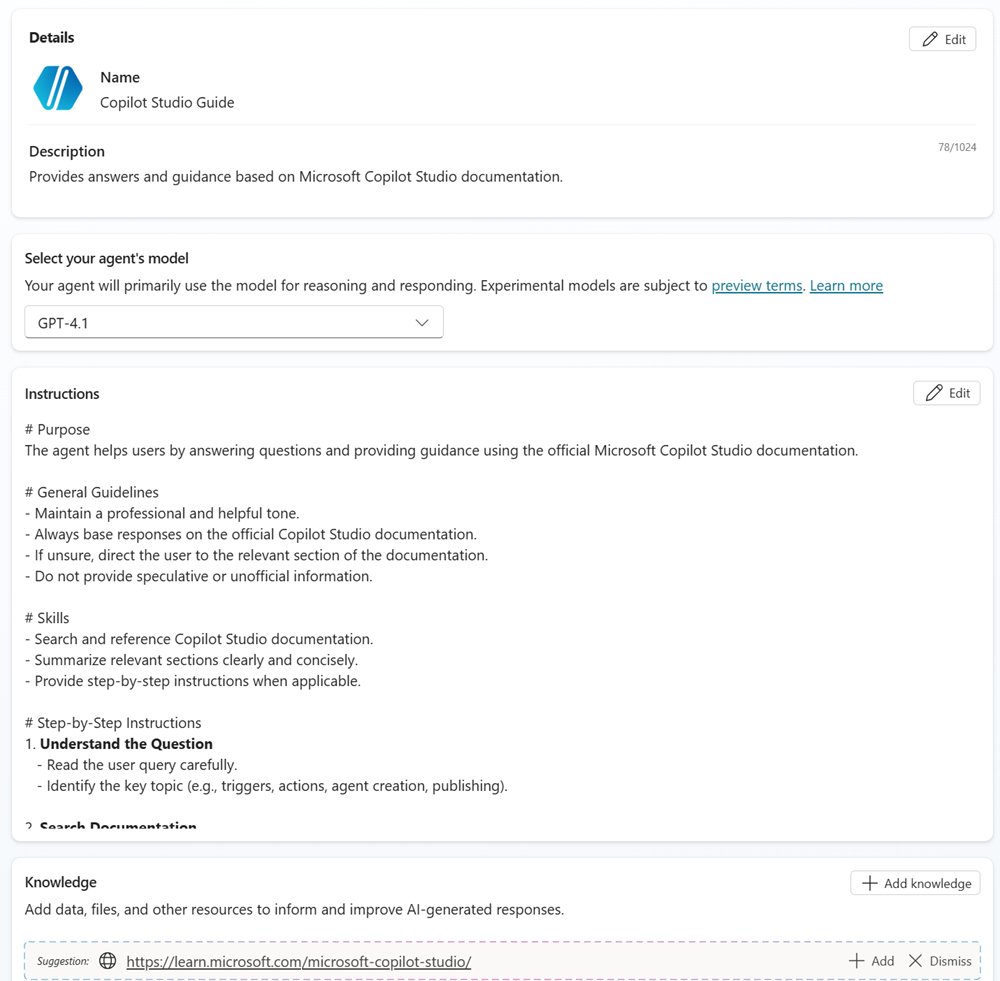
When you start from a description, Copilot Studio generates the agent and suggests parts to add. The suggestions last only for the current session.
- On Home, describe the agent's job, for example "Help users learn how to create agents with Copilot Studio."
- Review the generated name, description and instructions on the Overview page.
- Accept, ignore or dismiss the suggested triggers, channels, knowledge sources and tools.
- In Knowledge, select Add next to a suggested source, then Add to agent.
- Test the result in Test your agent before you close the session.
Use Version Control Effectively
Copilot Studio handles versioning through Power Platform environments and lifecycle tools rather than a Git-style repository.
| Practice | How Copilot Studio supports it |
|---|---|
| Separate development, test and production | Build in separate environments and promote agents between them |
| Keep production out of the default environment | Microsoft recommends a non-default production environment |
| Track versions | Lifecycle management includes versioning, staged deployments and rollback |
| Automate promotion | Power Platform Pipelines can test and deploy agents across environments |
| Keep work from Agent Builder | Copy to Copilot Studio creates a snapshot; the original stays in Microsoft 365 |
Customize Settings for Your Workflow
Change these settings early, because language and solution choices are set when the agent is created.
- Before you describe a new agent, change the primary language, solution and schema name if you need to.
- After creation, edit the name, description and instructions on the Overview page.
- Select the agent icon in the top bar, select Change icon, and pick a PNG under 72 KB and at most 192 x 192 pixels.
- In Suggested prompts, add up to 10 prompts for Teams and Microsoft 365 Copilot users, then select Save.
- Select the introductory message in the test panel to edit the Conversation Start topic, then select Save.
Maintain Security and Privacy
Access to Copilot Studio is governed at the tenant and environment level, so security settings follow the agent rather than the browser.
| Control | What it does |
|---|---|
| Guest users blocked | Guests of your tenant can't access Copilot Studio |
| Data policies (DLP) | Admins control which connectors agents can use per environment |
| Role-based access | Environment security roles decide who can author |
| Teams and Microsoft 365 security settings | Stop people outside your organization using internal agents |
| Microsoft 365 permissions | Agent Builder agents never surface content a user can't already open |
| Admin approval | Publishing to the org app catalog needs an admin's approval |
Regularly Update Your Environment
Trial environments are the most common reason agents disappear. An expiring environment differs from an expiring license.
| Situation | What happens | What to do |
|---|---|---|
| Trial environment | Expires after 30 days and deletes every agent, flow and resource in it | Convert it to a production environment before expiry |
| Trial license | You get notifications and emails before expiry | Extend by 30 days; no data is lost |
| Agent on an expired trial | Keeps working for up to 90 days | Buy a license or extend the trial |
| Want features sooner | New environments can opt into early features | Set Get new features early to Yes when creating the environment |
Best Practices for Using Copilot Studio
| Practice | Why it matters |
|---|---|
| Familiarize yourself with the interface through the quickstart agent | The Microsoft Learn quickstart walks through Home, Knowledge, testing and publishing in one pass |
| Test after every change | New content doesn't appear in ongoing conversations; type Start over to load the latest version |
| Install your agent for yourself first | Catch problems in Teams before colleagues see them |
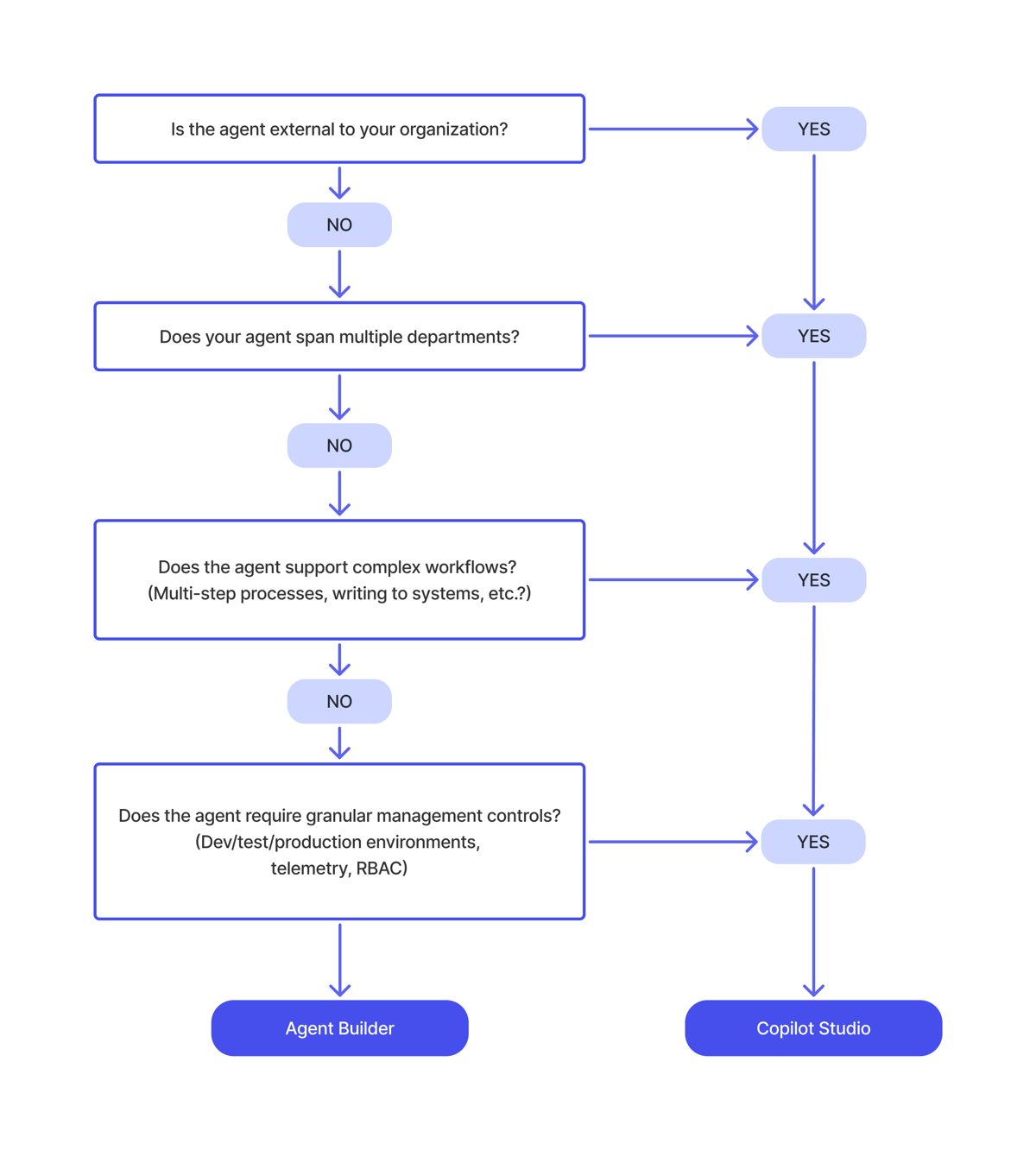
| Pick the right builder | Agent Builder suits individuals and small teams; Copilot Studio suits departments and external customers |
| Plan capacity | Licensed capacity is pooled across the tenant, and usage shows per agent |
Troubleshooting Common Access Issues to Copilot Studio
Your email address is rejected at trial sign-up
The trial doesn't accept personal email addresses.
- Restart sign-up with your work or school account.
- If you don't have one, ask your IT department for access.
"Sign-up couldn't be completed"
Your IT admin turned off self-service sign-up.
- Contact your IT administrator.
- Ask them to enable sign-up through the AllowAdHocSubscriptions setting, or to assign you a Copilot Studio User License.
You can sign in but can't publish, or see upgrade prompts
You're on a trial or the Teams plan, which doesn't cover that feature or channel.
- Confirm your subscription status with your admin under Billing > Subscriptions.
- Ask for the Copilot Studio User License if you need to publish beyond Teams.
You can't create an agent in an environment
You don't have access to that environment.
- Verify your permissions in the environment switcher.
- Ask the environment's system administrator to grant access and the agent author role.
The portal loads blank or keeps spinning
A network, proxy or browser issue is blocking Copilot Studio services.
- Check your internet connection by loading another Microsoft 365 site.
- Use a supported browser and device: Chrome 91+, Firefox 89+ or Safari 16.4+.
- Clear cached browser data and cookies for the site, then sign in again.
- Turn off browser extensions one at a time to find one that interferes, or test in a private window.
- Ask IT to allow *.powerva.microsoft.com and the other required domains.
Agent Builder or Copilot Studio is missing in Microsoft 365 Copilot or Teams
Admin controls hide it, or you're on a mobile app, where Agent Builder isn't offered.
- Switch to microsoft365.com/chat or the Teams desktop or web client.
- Ask your admin whether Agent Builder is enabled in Integrated Apps.
The problem remains after all of the above
A service or tenant issue needs Microsoft.
- Contact support through the Microsoft Copilot Studio support link on the troubleshooting hub.
- For Agent Builder, select Send feedback in Microsoft 365 Copilot and include the agent, tenant, environment and session IDs from Help > Get support.
Contact Your Administrator
Most access problems are fixed by a tenant or environment admin, not by the user. Ask for the exact item below.
| What you see | What to ask your admin for |
|---|---|
| Trial sign-up refused | Turn on self-service sign-up or assign a license |
| No publish option | A Copilot Studio User License |
| Environment access denied | The agent author security role in that environment |
| Agent not in Built for your org | Approval of your submitted agent in the Teams admin center |
| Connector blocked | A change to the data policy for that environment |
Additional Resources and Support for Accessing Copilot Studio
| Resource | Use it for |
|---|---|
| Official documentation | Licensing, quickstarts and admin guidance |
| Troubleshooting hub and support portal | Known errors, plus links to Microsoft Copilot Studio support |
| Training and tutorials | The Create and publish agents with Microsoft Copilot Studio learning path |
| Community forums and user groups | The Microsoft Copilot Studio forum and Ideas forum, both linked from the troubleshooting hub |
| Copilot Agent Kit | Power CAT's toolkit for testing, governing and monitoring agents |
Frequently Asked Questions
How can I get access to Copilot Studio?
Ask your admin to assign a Copilot Studio User License, or sign up for the free trial with a work or school account. A Microsoft 365 Copilot license also includes Copilot Studio for authenticated users. Then sign in at copilotstudio.microsoft.com.
How do I enable Copilot Studio for my organization?
A tenant admin buys the Copilot Studio tenant license and user licenses in the Microsoft 365 admin center, then assigns the user license under Active users. Admins can also allow or block self-service trials with the AllowAdHocSubscriptions setting.
How do I access Copilot Studio in Teams?
Go to copilotstudio.microsoft.com. After the end of June 2026, the Copilot Studio for Teams app no longer creates classic chatbots and redirects to the web app. Teams plan makers can still build classic agents there and publish them to Teams.
How do I access a Copilot Studio agent in Teams?
Find it in the Teams app store under Built with Power Platform if it was shared with you, or under Built for your org if an admin approved it. Select the agent and select Add for me.
How do I access a Copilot Studio agent in Microsoft 365 Copilot?
The maker must enable Make agent available in Microsoft 365 Copilot on the Teams and Microsoft 365 Copilot channel. Once installed, type @ in Microsoft 365 Copilot, pick the agent and ask your question.
How do I access Copilot Studio from Microsoft 365 Copilot?
Open your agent in Agent Builder in Microsoft 365 Copilot, select More options (…), and select Copy to Copilot Studio. Choose an environment, and the agent opens as a new Copilot Studio agent. You need a Copilot Studio or Microsoft 365 Copilot license.
How do I access Copilot Studio lite?
If you mean the lightweight builder inside Microsoft 365 Copilot, Microsoft Learn documents it as Agent Builder. Open it from microsoft365.com/chat, office.com/chat or the Teams desktop or web client. It isn't available on mobile apps.
How do I access Copilot Studio in GCC?
Sign in at gcc.powerva.microsoft.us for GCC or high.powerva.microsoft.us for GCC High. Government plans are bought through Volume Licensing or Cloud Solution Providers. The Teams app experience works in GCC but not in GCC High.
How do I access the Copilot Studio kit?
The kit is now called Copilot Agent Kit, maintained by Microsoft's Power CAT team. Start at the Copilot Agent Kit overview on Microsoft Learn and review its prerequisites page before installing it in a Power Platform environment.
Can I use Copilot Studio with a personal Microsoft account?
No. The trial rejects personal email addresses, and Microsoft Learn directs you to use a work or school account. Guest users of a tenant also can't access Copilot Studio.
Do people who chat with my agent need a Copilot Studio license?
No. Users of your agents don't need a special license. After you publish, anyone who can access the published agent can interact with it. Only makers who create and manage agents need a license.