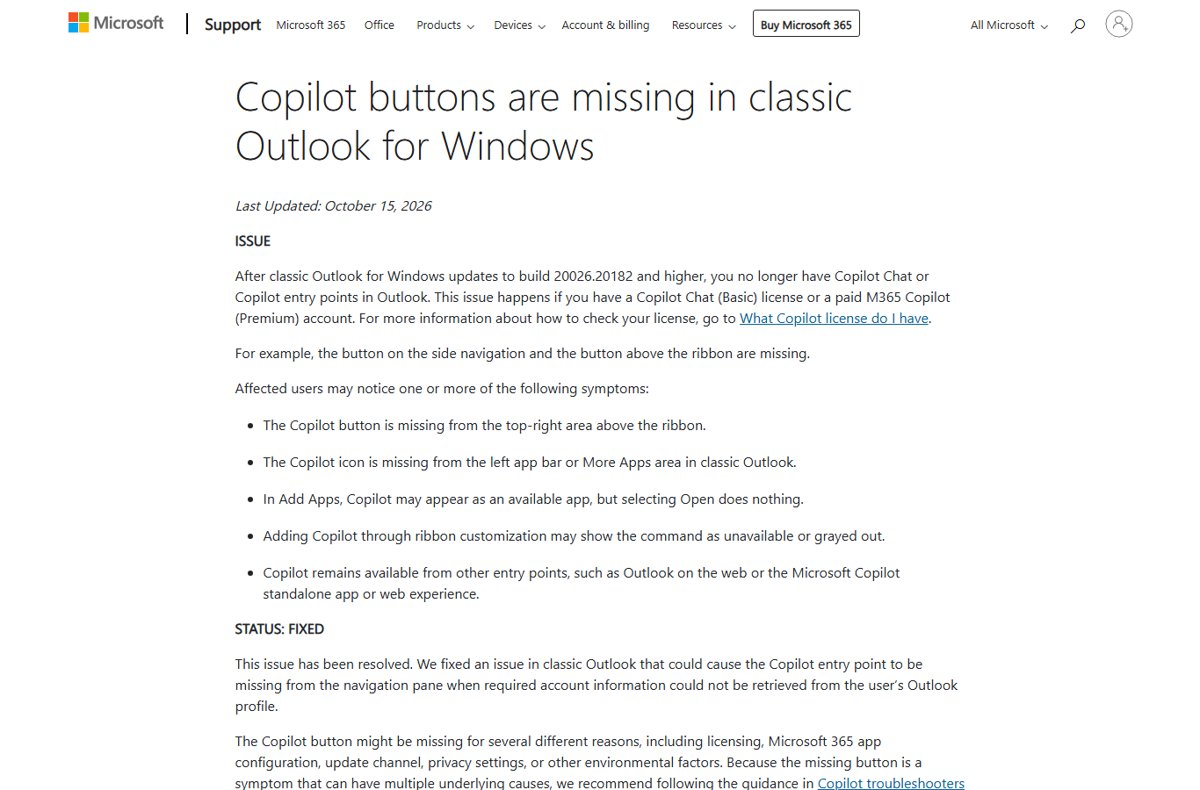
Microsoft has marked the missing Copilot buttons in classic Outlook for Windows as fixed, so updating Outlook and restarting it should bring Copilot back for Copilot Chat (Basic) and Microsoft 365 Copilot (Premium) users.
This guide explains what the build 20026.20182 issue was, how your license changes the diagnosis, and the checks to run before you consider rolling Outlook back.
How to get the Copilot button back in classic Outlook
- In classic Outlook, select File > Office Account.
- Select Update Options > Update Now and wait for the update to finish.
- Close Outlook completely and open it again.
- Look for the Copilot button above the ribbon at the top right and the Copilot icon on the left app bar.
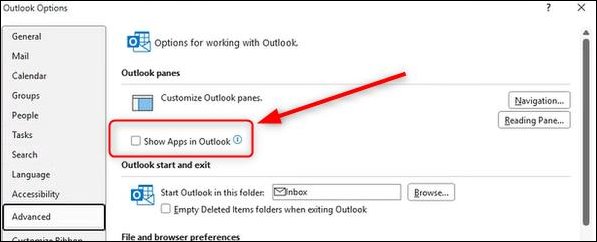
- If it is still missing, select File > Options > Advanced and, under Outlook panes, tick Show Apps in Outlook.
If Update Options is missing, your copy is managed by volume licensing or Group Policy, and your IT help desk controls updates.
Classic Outlook build 20026.20182 Copilot buttons issue: what happened and current status
The build number was real: after classic Outlook updated to build 20026.20182 or higher, Copilot Chat and Copilot entry points disappeared. The incident has since moved on to fixed status.
| Detail | What Microsoft says |
|---|---|
| Affected builds | Classic Outlook for Windows build 20026.20182 and higher |
| Who was affected | Users with a Copilot Chat (Basic) license or a paid M365 Copilot (Premium) account |
| Missing entry points | Copilot button above the ribbon, Copilot icon on the left app bar or More Apps |
| Cause | The Copilot entry point could vanish when required account information could not be retrieved from the Outlook profile |
| Status | Fixed (article last updated October 15, 2026) |
| Where Copilot still worked | Outlook on the web, new Outlook, and the Microsoft Copilot app or web experience |
Microsoft lists the issue under October 2026 updates on its page of fixes and workarounds for classic Outlook.
Copilot Chat (Basic) vs M365 Copilot (Premium): why the license changes the diagnosis
The license distinction changes the diagnosis because Copilot in Outlook is included with both, while Copilot in Word, Excel, PowerPoint and OneNote depends on your label. A missing button in Outlook alone points to this bug; a missing button everywhere points to licensing or configuration.
| Label under your name | Copilot in Outlook | Copilot in Word, Excel, PowerPoint, OneNote |
|---|---|---|
| Copilot Chat (Basic) | Included | Not available without the add-on license |
| M365 Copilot (Basic) | Included | Standard access |
| M365 Copilot (Premium) | Included | Priority access to the full experience |
How to check which Copilot license you have
- Sign in at m365.cloud.microsoft with your work or school account.
- Scroll to the bottom of the home page to find your account.
- Read the label under your name: Copilot Chat (Basic), M365 Copilot (Basic) or M365 Copilot (Premium).
- If you use a personal Microsoft account instead, check your subscription at account.microsoft.com/services; personal accounts do not show these labels.
Classic Outlook Copilot buttons in GCC High and DoD tenants
Government cloud tenants such as GCC High and DoD are a separate case. Microsoft's known-issue article for the missing buttons does not name them as an exception, and Copilot availability in those clouds is set by the tenant, not by this fix.
If your tenant is GCC High or DoD, ask your Microsoft 365 admin whether Copilot Chat is enabled for your cloud before troubleshooting the Outlook client. A related July 2025 fix covered GCC-M users who saw Copilot Chat in classic Outlook even when the license was unassigned or the app was blocked, which shows that government tenants follow their own availability rules.
Turn on Show Apps in Outlook to show the Copilot icon
This setting is separate from the bug, but when it is off, Copilot does not appear on the Outlook app bar.
- In classic Outlook, select the File tab, then Options.
- Select Advanced.
- Under Outlook panes, tick Show Apps in Outlook.
- Select OK and restart Outlook.
Create a new Outlook profile to restore Copilot in classic Outlook
Because the bug was tied to account information Outlook could not read from the profile, a fresh profile is Microsoft's own workaround.
- Close Outlook, then hold Shift while you start it to open the profile picker. You can also select File > Account Settings > Change Profile while it runs.
- In the profile picker, select Options.
- Optionally tick Prompt a profile to be used so you can switch back to the old profile later.
- Select New, type a name for the profile and select OK.
- Add your work or school email account when prompted and finish the wizard.
- Open Outlook with the new profile and check for the Copilot button.
Refresh your Microsoft 365 license and check the update channel
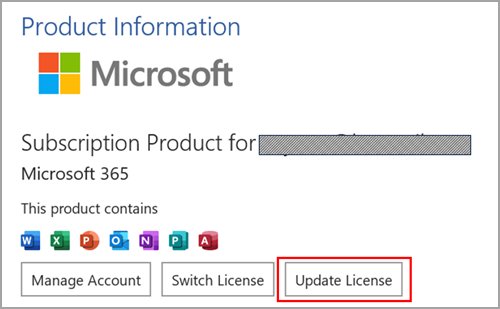
Microsoft notes the Copilot button can also go missing because of licensing, update channel or app configuration, not only this bug.
- In any Microsoft 365 app, select File > Account (Office Account in classic Outlook).
- Select Update License.
- Close and restart every open Microsoft 365 app so the refresh takes effect.
- Look in the Product Information section on the same page for the update channel.
- If it says Semi-Annual Enterprise Channel, ask your help desk to move you to Current Channel or Monthly Enterprise Channel, because Copilot features are not available on Semi-Annual Enterprise Channel.
Check Microsoft 365 privacy settings that hide Copilot
- Open any Microsoft 365 app and select File > Account.
- Under Account Privacy, select Manage Settings.
- Make sure Experiences that analyze your content is turned on.
- Scroll down and make sure All connected experiences is turned on.
- Restart the app; if your organization manages these settings, ask your IT admin to change them.
What to check before rolling classic Outlook back to an older build
Rolling Outlook backward to a build before 20026.20182 is rarely needed now that Microsoft lists the issue as fixed, and an older build also drops later security and bug fixes.
| Check first | Why |
|---|---|
| Install the latest update from Update Options > Update Now | The fix ships in current builds |
| Confirm Show Apps in Outlook is ticked | A separate setting that hides the app bar icon |
| Check your Copilot label | No Copilot license means no button, whatever the build |
| Check the update channel | Semi-Annual Enterprise Channel has no Copilot features |
| Try a new Outlook profile | Microsoft's documented workaround for this bug |
| Use new Outlook or Outlook on the web meanwhile | Copilot kept working there throughout |
If every check passes and the button is still missing, contact your Microsoft 365 admin rather than downgrading Outlook yourself.
How to confirm Copilot is working in classic Outlook again
- Open classic Outlook and confirm the Copilot button shows at the top right above the ribbon.
- Check that the Copilot icon appears on the left app bar.
- Select Copilot and confirm the Copilot Chat pane opens and answers a short prompt.
- Open an email and confirm Copilot options such as drafting or summarizing are available.
Classic Outlook Copilot button still missing: symptoms and fixes
Copilot appears in Add Apps but selecting Open does nothing
The profile issue Microsoft fixed in later builds.
- Update Outlook from File > Office Account > Update Options > Update Now.
- Restart Outlook.
- If it persists, create a new Outlook profile.
Copilot is grayed out when added through ribbon customization
Outlook cannot confirm your Copilot access from the profile or license.
- Select File > Office Account > Update License and restart Outlook.
- Check your Copilot label at m365.cloud.microsoft.
- Create a new Outlook profile if the label is correct.
Copilot icon missing from the left app bar only
Show Apps in Outlook is turned off.
- Select File > Options > Advanced.
- Under Outlook panes, tick Show Apps in Outlook and restart Outlook.
Copilot missing in every Microsoft 365 app, not just Outlook
Licensing, update channel or privacy settings rather than the Outlook bug.
- Check the update channel under File > Account > Product Information.
- Turn on All connected experiences under Account Privacy > Manage Settings.
- Ask your admin to confirm a Copilot license is assigned.
Classic Outlook missing Copilot button FAQ
Is the classic Outlook Copilot button issue fixed?
Yes. Microsoft lists the missing Copilot buttons in classic Outlook for Windows as fixed in its known-issue article updated October 15, 2026. Update Outlook and restart it to get the fix.
Which classic Outlook builds lost the Copilot button?
Microsoft says the issue appeared after classic Outlook for Windows updated to build 20026.20182 and higher. Installing the latest available update replaces those builds with ones that include the fix.
Does Copilot Chat (Basic) include Copilot in Outlook?
Yes. Copilot in Outlook is included both with Copilot Chat only and with a Microsoft Copilot add-on license. The add-on mainly changes access in Word, Excel, PowerPoint and OneNote, plus priority access and advanced agents.
Why did Copilot disappear from classic Outlook but not Outlook on the web?
The bug was in the classic Outlook client, which could fail to read required account information from the Outlook profile. Outlook on the web, new Outlook and the Microsoft Copilot app were not affected.
What is Microsoft's workaround for the missing Copilot buttons?
Microsoft's workaround is to use new Outlook or Outlook on the web, or to create a new Outlook profile in classic Outlook. A new profile rebuilds the account information the bug could not read.
Should I roll back classic Outlook to fix Copilot?
Usually not. The issue is fixed in current builds, and rolling back drops later security fixes. Update Outlook, check Show Apps in Outlook, your license and your profile first, then contact your admin.
How do I add Copilot to the classic Outlook app bar?
Select File > Options > Advanced and tick Show Apps in Outlook under Outlook panes. Restart Outlook, and the Copilot icon appears on the left app bar if your account has Copilot access.