To check installed apps on your Windows device, open Start > Settings > Apps > Installed apps on Windows 11, or Apps > Apps & features on Windows 10.
This guide covers that list, the Start menu, Control Panel, winget, PowerShell, the Apps folder and the registry, plus how to export the list and fix apps that seem to be missing.
Check installed apps on your device Windows (standard)
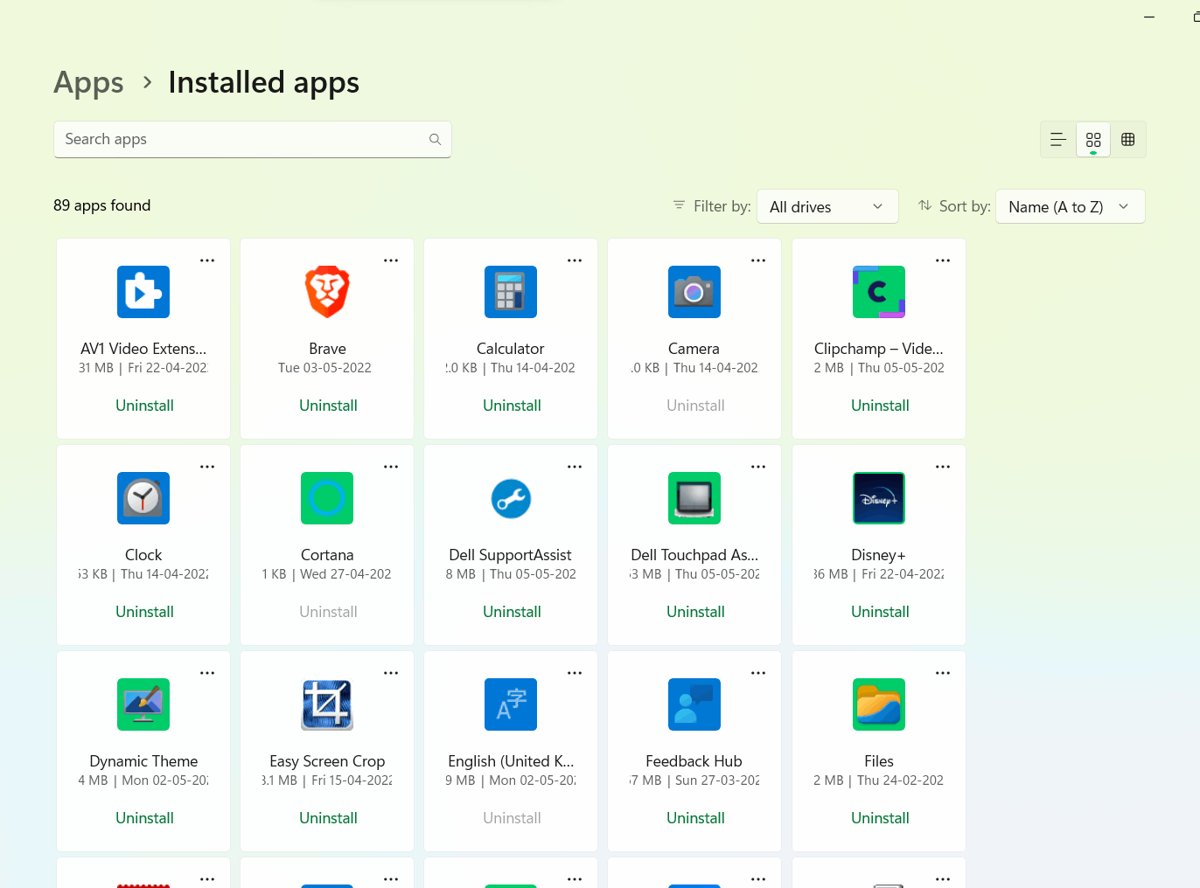
The Settings app holds the standard list of installed apps. It shows desktop programs and Microsoft Store apps together in one place.
- Select Start, then select Settings.
- Select Apps in the left pane.
- Select Installed apps on Windows 11, or Apps & features on Windows 10.
- Scroll the list to see every app installed for your account.
- Select the More icon next to an app to see Advanced options or Uninstall where the app offers them.
If you just want to open an app rather than audit the list, the All list in Start is quicker. Settings is the better view when you need sizes, versions or a quick way to remove programs in Windows 11.
Show all apps installed on this device: every method compared
Each method sees a slightly different slice of the PC. Use this quick guide to decide which method you should use for your situation.
| Your situation | Use this method | Why |
|---|---|---|
| You want a quick look at everything installed | Settings > Apps > Installed apps | One list with desktop and Store apps, plus uninstall buttons |
| You only want to launch something | Start > All | Alphabetical list of everything with a Start entry |
| You need an older program's Uninstall/Change option | Control Panel > Programs and Features | Lists classic desktop programs, including ones Settings cannot remove |
| You want a text list you can save or share | winget list or winget export | Covers apps installed by any means and writes to a file |
| You need Microsoft Store packages for every user | Get-AppxPackage -AllUsers in an admin PowerShell | Reads app packages for all user profiles |
| You want every app icon in one File Explorer window | shell:Appsfolder in the Run box | Shows each app with its AppUserModelId column |
| You need install paths and publisher data | The Uninstall registry key | Holds DisplayName, DisplayVersion, Publisher and InstallLocation |
Method 1: Check the Start menu
Start shows every app that has a shortcut, sorted alphabetically. It is the fastest way to confirm an app exists and open it.
- Select Start on the taskbar.
- On Windows 11, select All. On Windows 10, the alphabetical list appears on the left; in full-screen Start, select All apps at the top.
- Scroll through the alphabetical list.
- To jump ahead, select any letter heading, then pick the letter you want from the alphabet grid, for example T for Teams.
- Or press the Windows key and start typing the app name to search for it directly.
Method 2: Use the classic Control Panel
Programs and Features lists classic desktop programs. Some apps that cannot be removed from Settings can be removed here.
- Select Search on the taskbar and type Control Panel.
- Open Control Panel from the results.
- Select Programs, then Programs and Features.
- Right-click a program and select Uninstall or Uninstall/Change if you want to remove it.
Microsoft Store apps do not appear in Programs and Features. Use Settings or PowerShell for those.
Check installed apps on your device Windows (advanced methods)
The command-line tools give you lists you can filter, sort and save. Pick the one that matches the kind of app you are hunting for.
| Tool | What it lists | Admin rights needed? |
|---|---|---|
| winget list | Apps installed through Windows Package Manager and apps installed by other means, with available updates | No |
| Get-AppxPackage | Microsoft Store (.msix and .appx) packages in your user profile | Only with -AllUsers or -User |
| Get-StartApps | Names and AUMIDs of every app that appears in the Start menu | No |
| shell:Appsfolder | Every app for the current user in a File Explorer window | No |
| Uninstall registry key | Desktop programs registered for Add or Remove Programs | No, for reading |
| WMIC | Removed from Windows 11, version 24H2 and later; use PowerShell instead | Not available |
Microsoft deprecated the WMIC command-line utility in Windows 10, version 21H1 and lists it as removed on Windows 11, version 24H2 and above. If you are unsure which release you run, you can confirm Windows 11 26H2 is installed from Settings before trying old WMIC commands.
Method 3: Use winget to list installed apps
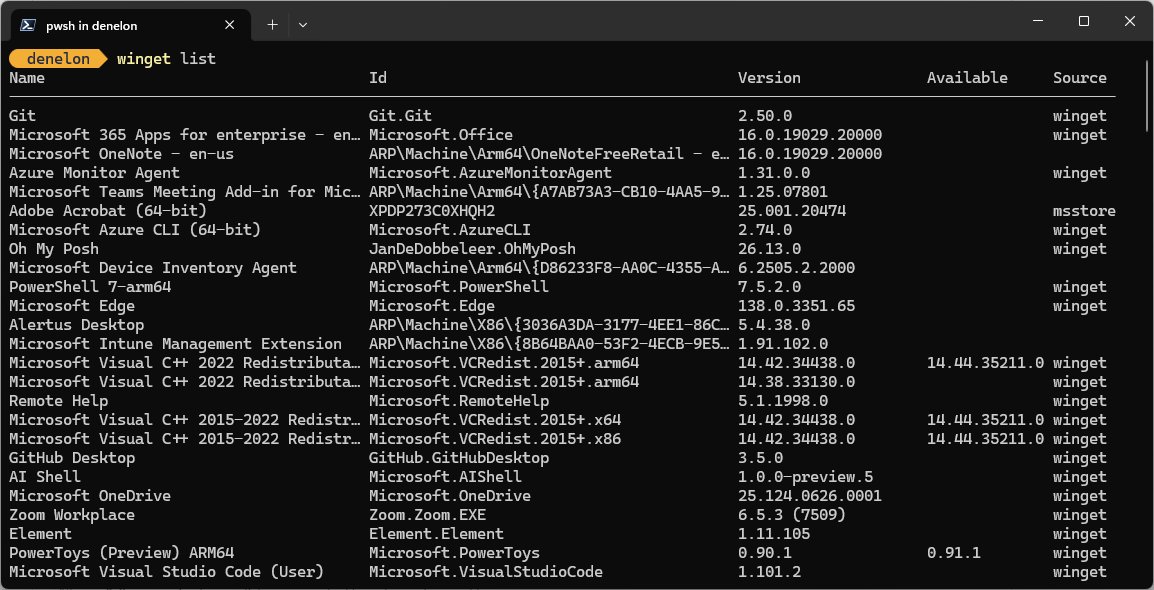
Windows Package Manager's list command shows apps installed through winget and apps installed any other way. Open Windows Terminal, PowerShell or Command Prompt to run it.
winget listPrints a table of installed apps with Name, Id, Version and, where one exists, the Available update version. Add a name to filter, for example winget list chrome, or add --upgrade-available to see only apps with updates.
You should see: A table of installed apps appears. Filtering by name returns only matching apps, which confirms whether a specific app is installed.
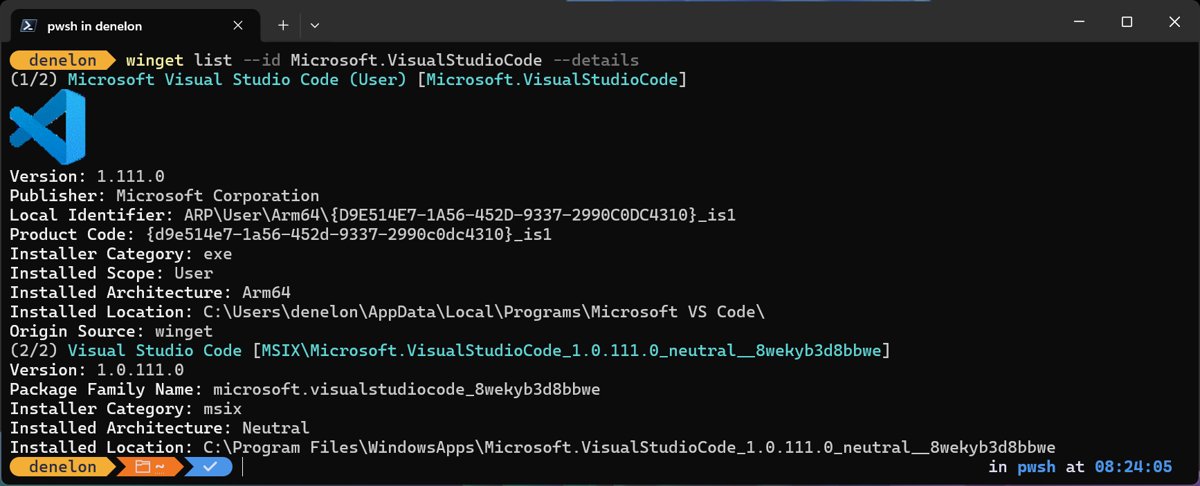
Use --scope user or --scope machine to separate per-user installs from system-wide ones, and --details to see full details for one app.
Method 4: Use a PowerShell command to list apps
Get-AppxPackage lists Microsoft Store app packages installed in your user profile. Run PowerShell as administrator to see packages for every account.
Get-AppxPackage -AllUsers | Select-Object Name, VersionLists the app packages installed for every user account on the PC and trims the output to name and version. Drop -AllUsers to list only your own packages without admin rights.
You should see: You see package names such as Microsoft.ScreenSketch with a version number next to each.
To list everything pinned to Start with its AppUserModelId instead, run Get-StartApps. Apps without a Start entry do not appear in that output.
Method 5: Use the Apps folder shell command
The Apps folder is a File Explorer view of every app installed for the current user, desktop and Store apps alike.
- Press Windows + R to open Run.
- Type
shell:Appsfolderand select OK. - In the File Explorer window that opens, switch the view to Details.
- Press Alt + V, then select Choose details.
- Tick AppUserModelId and select OK to add the app ID column.
Method 6: The source of truth: finding apps in the Windows registry
Desktop installers register each program under the Uninstall key, and Add or Remove Programs reads that data. On 64-bit Windows, 32-bit programs sit under the WOW6432Node branch of HKEY_LOCAL_MACHINE\Software.
Get-ItemProperty HKLM:\Software\Microsoft\Windows\CurrentVersion\Uninstall\*, HKLM:\Software\WOW6432Node\Microsoft\Windows\CurrentVersion\Uninstall\* | Select-Object DisplayName, DisplayVersion, Publisher, InstallLocationReads every program's subkey under the 64-bit and 32-bit Uninstall keys and shows its display name, version, publisher and install folder. It only reads the registry, so nothing changes.
You should see: A list of programs with their versions and publishers appears. InstallLocation shows where a program is installed when the installer recorded it.
Read this key; do not delete subkeys by hand. A wrong edit can break the installed programs list itself.
Why you should regularly check your installed apps
| Reason | What to look for |
|---|---|
| Security | Apps you do not recognise, or old versions with pending updates in winget list --upgrade-available |
| Storage | Large apps you no longer use, found by scrolling Installed apps in Settings |
| Performance | Programs that add background tasks you never asked for |
| Moving to a new PC | A saved list of what to reinstall, made with winget export |
| Troubleshooting | Apps installed just before a problem started; the registry InstallDate value records when a program was installed or last serviced |
If something unknown appears and you did not install it, run a scan with Windows Security before you remove it.
Decoding your app list: key concepts to know
| Concept | What it means for your list |
|---|---|
| User vs. system-wide installations | A per-user app appears only for the account that installed it; a system-wide app appears for everyone. winget list --scope user or --scope machine shows each group. |
| Desktop apps vs. Microsoft Store apps | Desktop programs appear in Control Panel and the Uninstall registry key; Store apps appear in Settings and in Get-AppxPackage, not in Control Panel. |
| Frameworks and dependencies | Get-AppxPackage returns Main and Framework packages by default, so runtime libraries show up next to real apps. |
| Built-in apps | Some apps that ship with Windows cannot be uninstalled, so they stay on the list. |
| Portable apps | Programs run from a folder without an installer are not registered anywhere, so no list shows them. |
Beyond viewing: how to manage and export your apps list
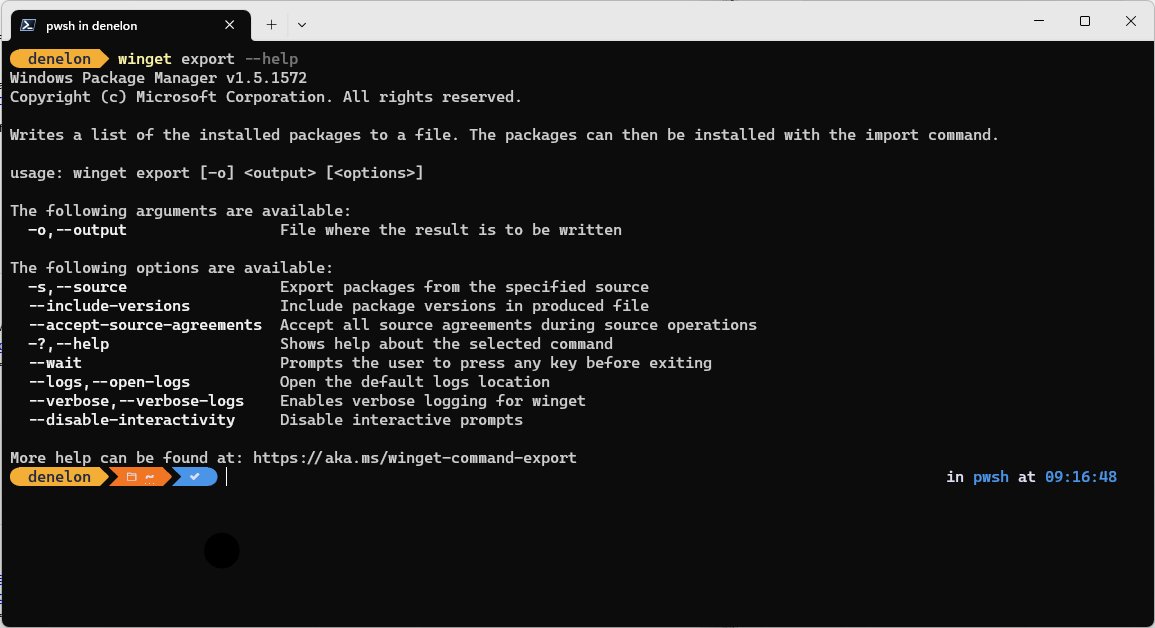
Exporting gives you a record of what is installed. Windows has no export button in Settings, so use winget or PowerShell.
- Open Windows Terminal or PowerShell.
- Run
winget export -o "$env:USERPROFILE\Desktop\apps.json"to save a JSON list of apps that winget can match to a source. - Read the warnings: apps winget cannot match to a source are skipped from the JSON file.
- For a full list of desktop programs, run the registry command from Method 6 and add
| Export-Csv "$env:USERPROFILE\Desktop\programs.csv" -NoTypeInformation. - Open the CSV in Excel or Notepad to sort and review it.
- To remove an app you no longer need, go to Settings > Apps > Installed apps, select More next to it, then select Uninstall.
On a new PC, winget import reads the same JSON file to reinstall those apps in one go. If you need to set the machine up from scratch, the steps to install apps on a Windows PC cover the Store and installer routes.
Going further: using third-party tools for a deeper clean
Third-party uninstallers promise to remove leftover files and registry entries. Windows already has the tools to list, repair broken apps and programs and remove them, so start there.
Use the app's own uninstaller through Settings or Control Panel first, then Microsoft's Program Install and Uninstall troubleshooter if removal fails; skip registry cleaners and PC cleaner utilities. The built-in route runs the uninstaller the developer wrote, while bulk registry deletion by a cleaner can remove entries Windows still needs, and the troubleshooter is designed for installs and uninstalls that are blocked or corrupted.
Why can't I find an installed app on Windows?
The app is missing from the Settings list
It may be a classic program Settings does not handle well, or it was installed for another user.
- Open Control Panel > Programs > Programs and Features and look there.
- Run
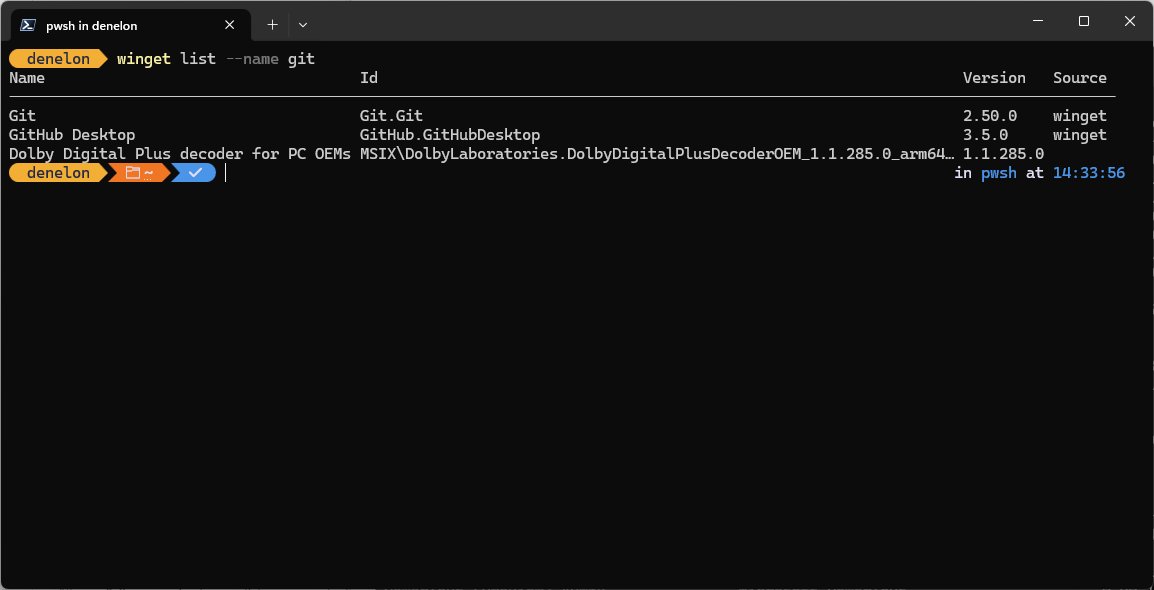
winget listwith part of the app name, for examplewinget list zoom. - Sign in to the account that installed it, or run
Get-AppxPackage -AllUsersin an admin PowerShell for Store apps.
The app is installed but not in Start
Some programs never create a Start shortcut.
- Press Windows + R, type
shell:Appsfolderand select OK. - Look for the app in the Apps folder.
- If it is not there, check the Uninstall registry key with the Method 6 command to find its InstallLocation.
The Uninstall button is greyed out
The app is built into Windows, managed by your organisation, or Settings cannot remove it.
- Try Control Panel > Programs and Features and select Uninstall/Change.
- If the error persists, run Microsoft's Program Install and Uninstall troubleshooter.
- On a work or school PC, ask your IT admin, because policy-managed apps stay locked.
wmic is not recognized as a command
WMIC is removed on Windows 11, version 24H2 and later.
- Open PowerShell instead of Command Prompt.
- Run
winget listfor every app, or the Method 6 registry command for desktop programs. - Replace any saved WMIC scripts with PowerShell equivalents.
Frequently asked questions (FAQ)
Where do I check installed apps on Windows?
Open Start > Settings > Apps > Installed apps on Windows 11, or Apps & features on Windows 10. That list shows desktop programs and Microsoft Store apps together, with options to modify or uninstall each one.
How do I check installed apps on a laptop?
A Windows laptop uses the same list as a desktop PC. Go to Settings > Apps > Installed apps, or select Start > All to scroll every app with a Start entry alphabetically.
How do I check all installed apps at once?
Run winget list in Windows Terminal or PowerShell. It lists apps installed through Windows Package Manager and apps installed by any other method, in one table with names, IDs and versions.
How do I check if a specific app is installed?
Press the Windows key and type the app's name, or run winget list followed by part of the name, such as winget list firefox. If the app is installed, it appears in the results with its version.
How do I find where an app is installed?
For desktop programs, read the InstallLocation value under the Uninstall registry key with the PowerShell command in Method 6. Installers record the program folder there, though some leave the value empty.
How do I see my installed Microsoft Store apps?
Store apps appear in Settings > Apps > Installed apps, but not in Control Panel. In PowerShell, Get-AppxPackage lists the Store app packages installed in your user profile.
Can I save a list of my installed apps to a file?
Yes. Run winget export -o apps.json to save a JSON list that winget import can reinstall later, or pipe the registry command in Method 6 to Export-Csv for a spreadsheet of desktop programs.
Why does Control Panel show fewer apps than Settings?
Control Panel's Programs and Features lists classic desktop programs only. Microsoft Store apps appear in Settings, so the Settings list is usually longer on the same PC.