Open Settings > Apps > Installed apps to remove a program in Windows 11, and use the Microsoft Store or the publisher's own installer to add one.
This guide covers the Settings and Control Panel routes, winget commands, optional features, built-in apps, browser web apps and uninstalls that refuse to finish.
The fastest way to add or remove a program in Windows 11
Installed apps is what Windows 11 calls Add or Remove Programs. It lists Microsoft Store apps and traditional desktop programs in one place.
- Select Start > Settings > Apps > Installed apps.
- Find the program you want gone in the list.
- Select More next to it, then select Uninstall.
- Select Uninstall again to confirm, then follow any prompts the program's own uninstaller shows.
- To add a program instead, select Start > Microsoft Store, open the app's page and select Get.
Typing Add or remove programs into the Settings search box opens the same list.
Before you start: know what kind of program you’re dealing with
Windows 11 keeps four kinds of software in different places. Matching the type to the right page saves a hunt through menus that will never list it.
| Kind of software | How it is added | How it is removed |
|---|---|---|
| Microsoft Store app | Get on the app's Store page | Installed apps > More > Uninstall |
| Desktop program (.exe or .msi) | Downloaded from the publisher's site and run | Installed apps, or Control Panel > Programs and Features |
| WinGet package | winget install <name> |
winget uninstall <name> |
| Windows optional feature | Settings > System > Optional features | Installed features > select it > Remove |
| Legacy Windows component | Turn Windows Features on or off | Clear its checkbox in the same dialog |
| Web app installed from a browser | Install in the browser's address bar | The browser's apps page, or Installed apps |
| Built-in Windows app | Ships with Windows | Installed apps, when Uninstall is offered |
Which method should you use?
| Your situation | Use this | Why |
|---|---|---|
| Removing something you installed recently | Settings > Apps > Installed apps | Store apps and desktop programs are listed together |
| Settings shows no Uninstall for an old program | Control Panel > Programs and Features | Microsoft points here for apps Settings cannot remove |
| The app opens but misbehaves | Advanced options > Repair | Keeps the app and its data instead of removing it |
| Adding or removing several programs in a row | winget in Terminal |
One line per program, no installer dialogs to click |
| Turning a Windows component on or off | Optional features or Turn Windows Features on or off | Components are not listed with installed apps |
| The uninstaller fails or the entry is stuck | Program Install and Uninstall troubleshooter | Microsoft's tool repairs registry keys that block removal |
How to add programs from the Microsoft Store
Store apps install without an installer wizard and update themselves afterwards.
- Select Start, then select Microsoft Store.
- Select Apps or Gaming, and select Show all to see more of a category.
- Open the app's page and select Get.
- Wait for the download to finish, then open the app from Start > All apps.
- To reinstall something you already own, select More info near your account picture, select My Library, then select the Download icon beside the app.
Apps bought or installed from the Store follow your Microsoft account to any device you sign in on, and they update automatically.
Anything you installed but cannot see in My Library will be listed in your Microsoft account order history.
How to install traditional desktop programs
Desktop programs arrive as an .exe or .msi installer from the publisher's own website.
- Open the publisher's official download page and select the download link.
- Select Save to put the file in your Downloads folder, or Save as to pick another location such as the desktop.
- Open the downloaded file, and select Yes if Windows asks for permission to make changes.
- Read every installer screen and clear any checkbox offering a toolbar, a trial product or a different search engine.
- Finish the wizard, then confirm the program under Start > All apps.
Download and install programs only from trusted publishers and retail websites. Microsoft Defender scans the file during the download.
Pin a newly installed program where you will reach it fastest, or put it on a taskbar toolbar.
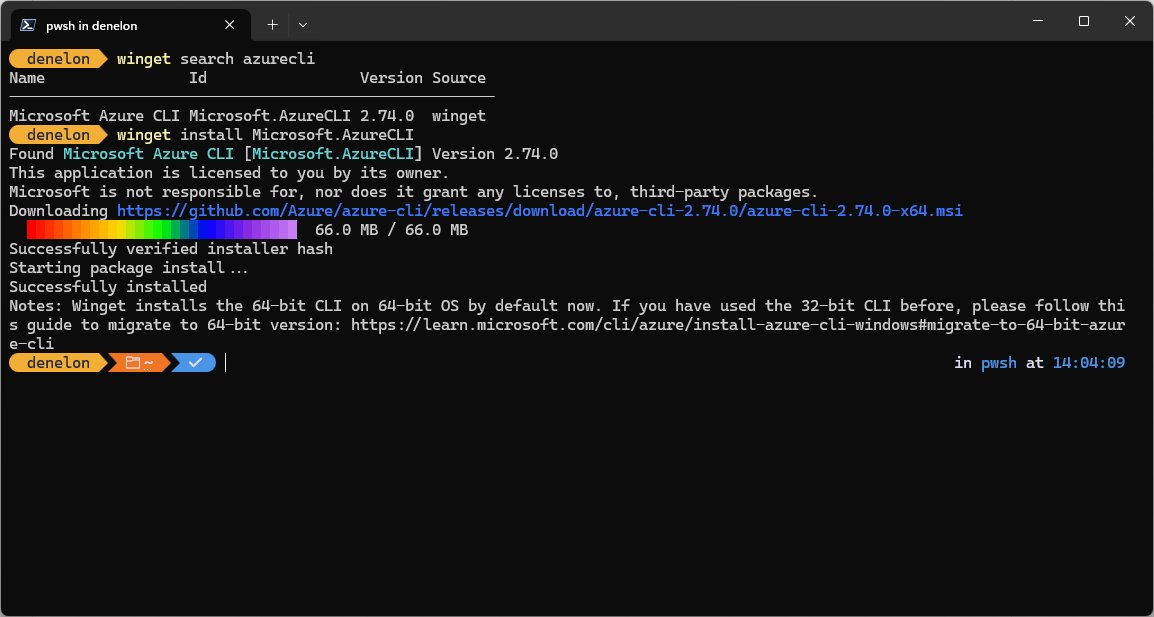
How to install programs with Windows Package Manager winget
WinGet ships with Windows 11 as part of App Installer, so there is nothing to set up first.
Select Start, type Terminal, and open it. Run winget -v to confirm the tool is available; it returns the installed WinGet version.
winget search vlc
winget install --id VideoLAN.VLC -e
winget search finds the package and shows its Id. winget install then downloads and runs the publisher's installer. --id limits the install to that exact package id, and -e forces an exact, case-sensitive match instead of a substring match.
You should see: WinGet reports the package it found, shows download progress, and returns to the prompt without an error. winget list vlc then lists the program.
Run winget upgrade on its own to preview available updates, then winget upgrade --all to update every program that has one.
Some programs need elevation. Run WinGet without administrator rights and Windows prompts you to elevate; decline and the install fails.
How to remove programs using Settings
Settings removes Store apps, web apps and most desktop programs from the same list.
- Select Start > Settings > Apps > Installed apps.
- Find the program in the list.
- Select More next to it, then select Uninstall.
- Select Uninstall in the confirmation message.
- Follow the program's own uninstaller if one opens, and restart the computer if it asks.
For a single app there is a shorter route: select Start > All apps, right-click the app and select Uninstall.
Some apps cannot be uninstalled from Settings. Microsoft's instruction for those is to remove them from Control Panel instead.
How to remove older programs using Control Panel
Control Panel still carries Programs and Features, the page older installers register with.
- Enter Control Panel in the taskbar search box and select it.
- Select Programs, then select Programs and Features.
- Right-click the program and select Uninstall, or Uninstall/Change when the program offers both.
- Follow the on-screen directions from the program's uninstaller.
- Close Control Panel and confirm the entry has gone from the list.
Uninstall/Change hands control to the publisher's own maintenance tool, where a repair or a change of installed components is often offered instead of a full removal.
Use Installed apps for Microsoft Store apps, which register differently.
How to repair or reset an app instead of uninstalling it
A crashing app usually does not need removing. Windows 11 can rebuild it in place.
- Select Start > Settings > Apps > Installed apps.
- Select More next to the app, then select Advanced options.
- Select Repair.
- Open the app and check whether the problem has gone.
- Return to Advanced options and select Reset if Repair is unavailable or did not fix it.
Repair, change and modify options do not appear for every app and program; availability is set by the app itself.
Desktop programs offer the equivalent through Uninstall/Change in Programs and Features.
How to add or remove Windows optional features
Optional features are Windows components that are not installed by default, such as language resources and handwriting support. Microsoft calls them Features on Demand.
- Select Start > Settings > System > Optional features.
- Select View features next to Add an optional feature.
- Select the checkbox beside each feature you want, then select Next.
- Review the list and select Add.
- To remove one, find it under Installed features using the Search installed features box, select the feature to expand it, then select Remove.
The computer must be online, because Windows Update downloads the content an optional feature needs.
On some Windows 11 versions the Optional features page sits under Settings > Apps rather than System. Right-click Start, select Run, enter ms-settings:optionalfeatures and select OK to open it either way.
Legacy components are elsewhere: enter Turn Windows Features on or off in the taskbar search box, tick or clear the component, select OK, and restart if prompted.
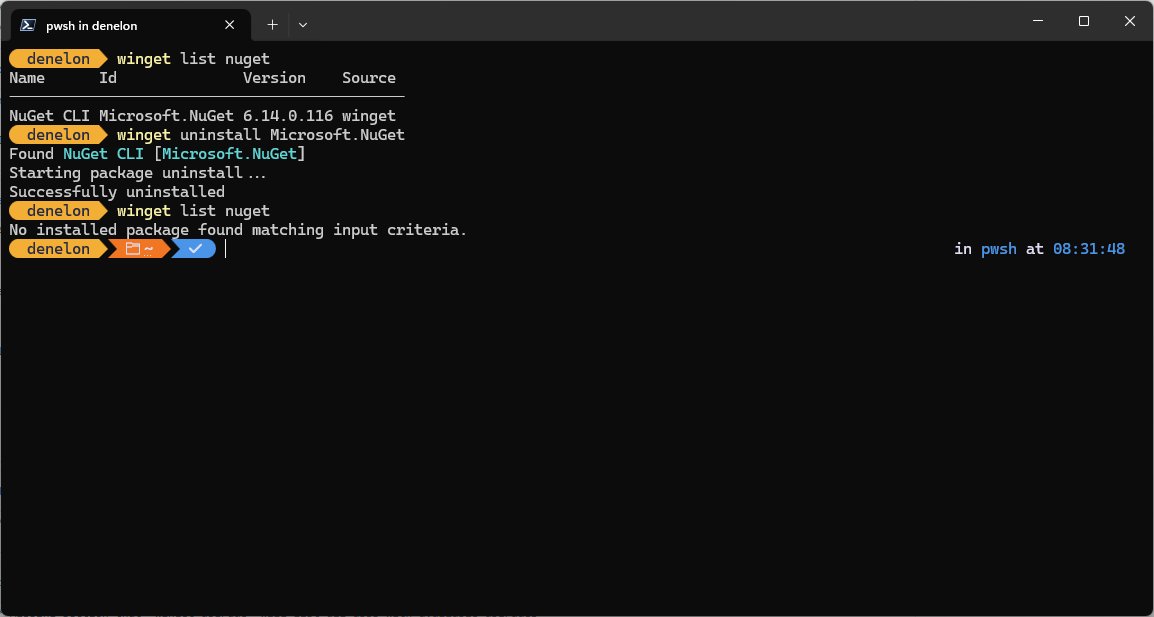
How to uninstall apps with winget
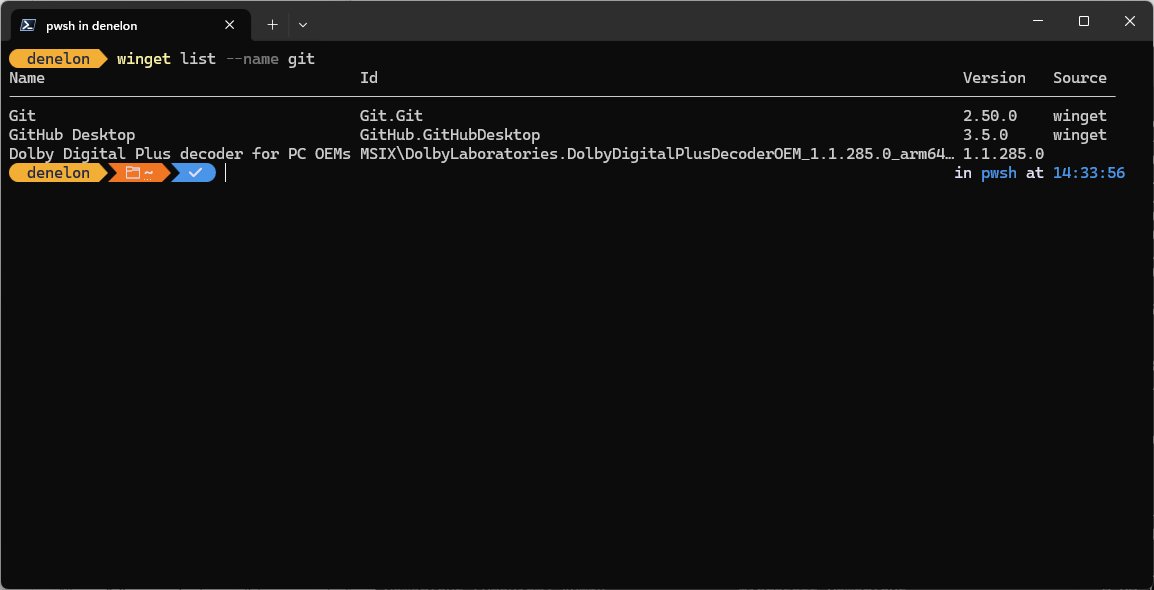
WinGet removes programs it did not install, because winget list reads everything registered on the computer.
winget list
winget uninstall --id VideoLAN.VLC -e --source winget
winget list displays every installed application with its Id, and flags any that have an update available. winget uninstall then removes the one you name. --source winget keeps the command on the WinGet repository and avoids a Microsoft Store agreement prompt, and -e matches the id exactly.
You should see: The uninstaller runs with a progress indicator, then winget list <name> returns no matching package.
Add --silent to suppress the uninstaller's own interface, or --interactive to click through it yourself.
winget list --upgrade-available narrows the list to programs with a pending update, which is a quicker way to spot what is worth keeping.
How to remove built-in Windows 11 apps
Many apps that ship with Windows 11 can be uninstalled like any other. A smaller set is part of Windows itself and cannot be.
- Select Start > Settings > Apps > Installed apps.
- Find the built-in app, select More, then select Uninstall if the option is offered.
- Treat a missing or greyed-out Uninstall as final: that app is built into Windows and cannot be removed.
- For anything still listed, open Terminal, run
winget listto read the package id, then runwinget uninstall --id <id> -e. - To remove a Store-style app from your own account only, open Windows PowerShell and run
Get-AppxPackage *name* | Remove-AppxPackage.
Remove-AppxPackage removes the package from the signed-in user's account. Its -AllUsers switch covers every account on the computer and has to be run with administrator permissions.
Removing a built-in app does not stop Windows reinstalling it for a new user account created later.
How to remove web apps installed from a browser
A website installed as an app behaves like a program on Windows: it appears in the taskbar, in Start and in Alt + Tab.
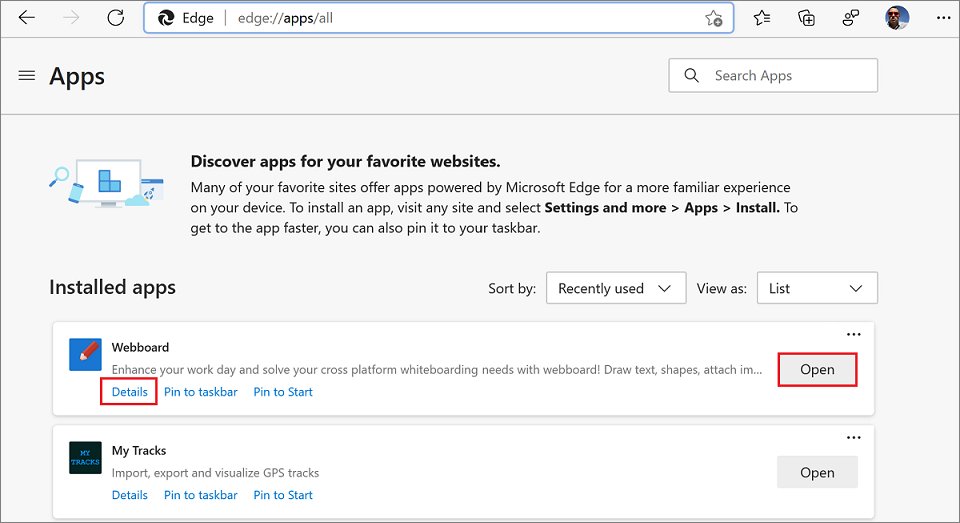
- In Microsoft Edge, go to
edge://apps, select Open on the app tile, then select Details and uninstall it there. - Alternatively in Edge select Settings and more > More tools > Apps > View apps, right-click the app and select Manage app.
- In Google Chrome, open the installed app, select More, select Uninstall, then select Remove.
- Tick Also delete data from Chrome in that dialog to clear the site's stored data as well.
- Or remove either one from Settings > Apps > Installed apps, where installed web apps are listed with everything else.
Browser extensions are not programs and never appear in Installed apps; remove them inside the browser, as with Firefox's system add-ons.
How to check it worked
An uninstaller that closes without a message has not necessarily finished. Three lists have to agree.
- Reopen Settings > Apps > Installed apps and search for the program; a removed program is no longer listed.
- Select Start > All apps and confirm its entry has gone from the alphabetical list.
- Open Control Panel > Programs > Programs and Features and confirm the entry has gone there too.
- Run
winget list <name>in Terminal; a removed program returns no matching package. - Restart the computer if any uninstaller asked for one, then repeat the first check.
- For a program you added, open it from Start > All apps and confirm it launches.
What to do when a program will not uninstall
Group the fix by the symptom rather than working through every option.
The **Uninstall** option is greyed out or missing
The app is built into Windows, or it was installed for all users by an account with higher rights than yours.
- Open Control Panel > Programs > Programs and Features and look for the program there.
- Sign in with an administrator account and repeat the uninstall.
- Accept that apps built into Windows cannot be uninstalled, and hide the entry instead by unpinning it from Start.
- On a work or school computer, ask whoever manages it: a policy can hide the Programs and Features page entirely.
The uninstaller fails, or the entry stays in the list afterwards
An incomplete install or update left corrupt registry keys behind, which block both removal and reinstallation.
- Restart the computer and try the uninstall once more before anything else.
- Run Microsoft's Program Install and Uninstall troubleshooter and follow its instructions.
- Select the program that will not uninstall when the troubleshooter asks which one is affected.
- Reinstall the program over the top, then uninstall it again from Installed apps if the entry survives.
`winget` is not recognised as a command
App Installer has not registered yet, which happens before a new user account's first proper sign-in.
- Run
winget -vin Terminal to check whether the tool answers at all. - Open Microsoft Store, search for App Installer and install or update it.
- Open PowerShell and run
Add-AppxPackage -RegisterByFamilyName -MainPackage Microsoft.DesktopAppInstaller_8wekyb3d8bbweto request registration. - Sign out of Windows and back in, then run
winget -vagain.
An app cannot be found or installed from Microsoft Store
The Store is signed out, or the app is not offered for the account's region or Windows version.
- Open Microsoft Store and confirm the account picture shows the account that owns the app.
- Check Settings > Time & language > Language & region and confirm the country is correct.
- Install any pending Windows updates, then reopen the Store.
- Install the program from the publisher's own website instead if the Store still does not offer it.
How to clean up after removing programs
Uninstallers leave temporary files and installer caches behind. Windows 11 clears them from Storage settings.
- Select Start > Settings > System > Storage.
- Select Cleanup recommendations.
- Expand Temporary files, tick what you want gone, then select Clean up.
- Expand Unused apps and remove programs you have stopped opening.
- Review Large or unused files and Files synced to the cloud, then select Clean up for each section you use.
Turn on Storage Sense on the same page to have Windows repeat this on a schedule.
No third-party cleaner is needed for this, and none can remove a program that Windows itself refuses to.
Safety tips for adding and removing programs
Install desktop programs only from the publisher's own site or the Microsoft Store, and leave Microsoft Defender switched on while you do it. Microsoft's guidance is to download and install programs only from trusted publishers and retail websites, and Defender scans the file during the download. Clear the bundled extras on every installer screen, remove only entries you can name, and leave a program alone if you cannot identify its publisher in Programs and Features.
Running WinGet from an administrator Command Prompt suppresses the elevation prompt, so only install packages you trust from that window.
Frequently asked questions
Where is Add or Remove Programs in Windows 11?
It is the Installed apps page at Settings > Apps > Installed apps. Typing Add or remove programs into the Settings search box opens the same page, which lists Microsoft Store apps and desktop programs together.
How do you add or remove programs from CMD?
Use WinGet. winget search <name> finds a package, winget install --id <id> -e adds it, winget list shows what is installed, and winget uninstall --id <id> -e removes it. WinGet runs in Command Prompt, PowerShell and Terminal.
How do you add or remove programs in Windows 10?
Windows 10 uses Settings > Apps > Apps & features instead of Installed apps, with the same Uninstall button. Control Panel, WinGet and the Optional features page all work the same way on Windows 10 as on Windows 11.
Is Add or Remove Programs the same as Programs and Features?
They overlap but are not identical. Programs and Features in Control Panel lists desktop programs only, while Installed apps in Settings lists desktop programs, Microsoft Store apps and web apps installed from a browser.
Why does a program still appear in the list after uninstalling?
The uninstaller failed to remove its registration, usually because an earlier install or update left corrupt registry keys. Restart the computer, then run Microsoft's Program Install and Uninstall troubleshooter and point it at that program.
How do you remove a program that is not in the Add or Remove Programs list?
Check Control Panel > Programs > Programs and Features first, then run winget list in Terminal, which reports applications installed by any means. Windows components live under Optional features or Turn Windows Features on or off instead.
Does uninstalling a program delete its files?
The uninstaller removes the program's own files, but settings, saved documents and temporary files are often left in place. Clear the leftovers through Settings > System > Storage > Cleanup recommendations.
Can you reinstall a program you removed?
Yes. A Microsoft Store app returns from My Library in the Store at no extra cost, and a WinGet package returns with winget install --id <id> -e. A desktop program needs its installer and, where it applies, its licence key again.
How do you add or remove programs without administrator rights?
Microsoft Store apps and programs installed only for your own user account can be added and removed from a standard account. Anything installed for all users needs an administrator, and Windows will prompt for those credentials.
How do you add or remove Windows features rather than programs?
Open Settings > System > Optional features and use View features to add or Remove under Installed features to take one away. Legacy components use the Turn Windows Features on or off dialog.
Can you uninstall several programs at once in Windows 11?
Not from Settings, which handles one program at a time. WinGet can be run repeatedly in a single Terminal window, and winget uninstall --id <id> -e --silent removes a program without its uninstaller interface appearing.

View all startup programs in Windows [step by step guide] - Techdows
[…] the remaining entries, or uninstall the program if you do not need […]
How to remove Dropbox from Windows 11 - Techdows
[…] is the same page you use to add or remove programs in Windows 11, so nothing here needs extra […]
How to completely remove a program from Windows 11 - Techdows
[…] and services that were in use during the uninstall are often removed only at the next start. The Installed apps page in Windows 11 also handles repairs when you want to keep the program […]