Background activity on an iPhone 11 means an app used battery while it was not on screen, such as playing music, giving directions, syncing photos or fetching mail.
This guide shows where to see background activity, how to limit it with Background App Refresh, Location Services, notifications and Low Power Mode, and how to close an app on an iPhone 11.
Stop background activity on iPhone 11 with Background App Refresh
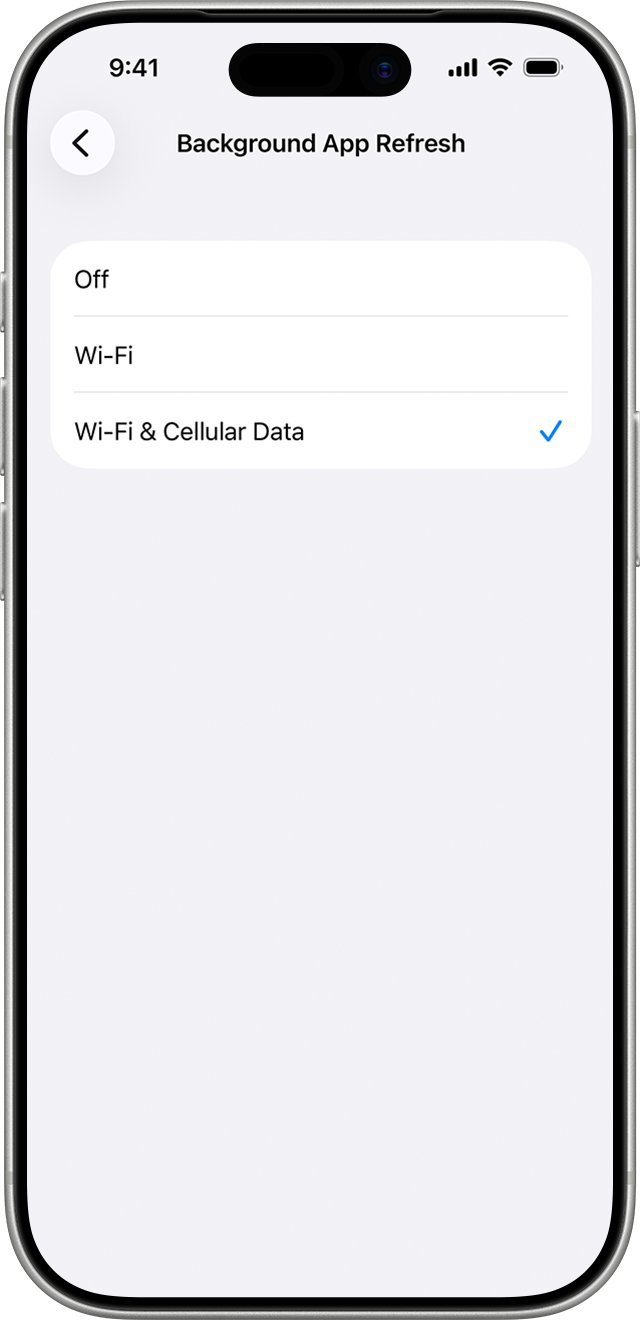
Background App Refresh lets suspended apps check for new content. Turning it off or limiting it to Wi-Fi is the single biggest switch for background activity.
- Open the Settings app on your iPhone 11.
- Tap General.
- Tap Background App Refresh.
- Tap Background App Refresh once more.
- Select Off to stop it entirely, or Wi-Fi to stop it using cellular data.
Apps still run in the background for tasks you start, such as music playback or navigation. Background App Refresh only controls the routine content checks.
What is background activity on iPhone?
iPhone lists a label under each app in its battery screen. These labels explain why an app used power.
| Label in Settings > Battery | What it means | What to change |
|---|---|---|
| Background / Background Activity | The app used battery while you were in another app: directions, music, photo sync, mail fetch | Background App Refresh, or the app's own settings |
| On screen | The app was open and visible | Screen time with that app |
| Location / Background Location | The app used Location Services | Location permission for that app |
| Notifications | The app woke the iPhone to check for new information | That app's notification settings |
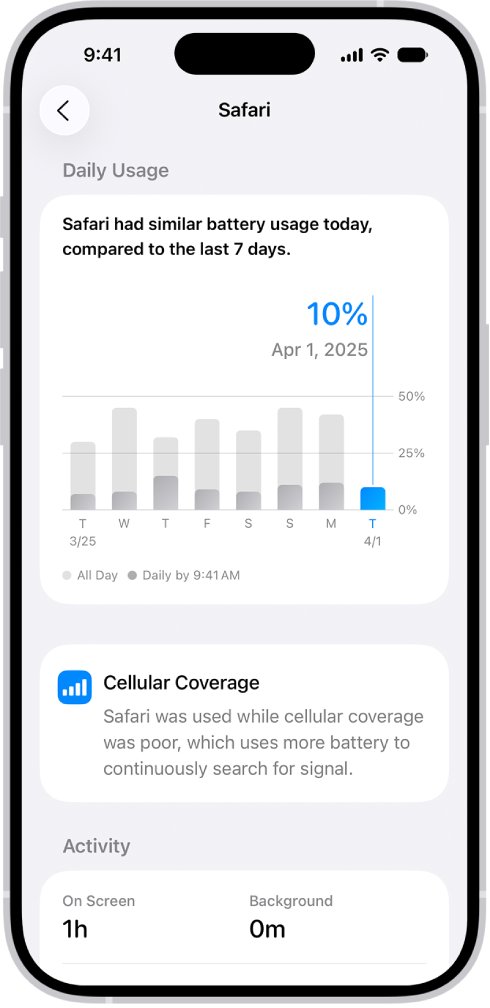
| Cellular coverage | The app ran in a low-signal area, which costs more power | Use Wi-Fi where possible |
Which background activity setting should you change?
| What you see | Change this | Why |
|---|---|---|
| Many apps show background time | Background App Refresh set to Off or Wi-Fi | Stops routine content checks for all apps |
| One app shows Background Location | That app's Location Services setting | Set it to While Using the App or Never |
| An app keeps waking the screen | That app's notifications | Each wake costs battery |
| Battery is low and you need it to last | Low Power Mode | Mail and other apps stop downloading in the background |
| An app is frozen or misbehaving | Close it from the App Switcher | Closing helps only an unresponsive app |
How to find background apps on iPhone 11
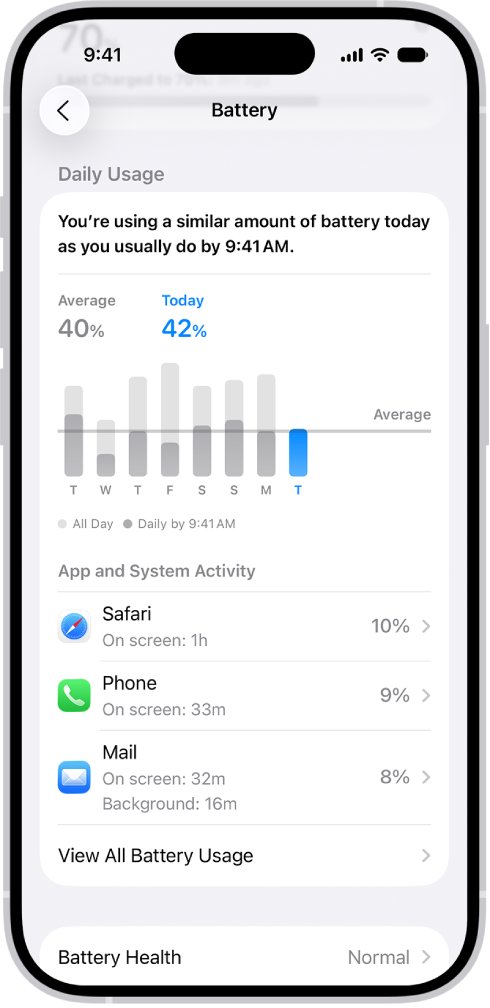
The battery screen is where iPhone shows which apps ran in the background and for how long.
- Open the Settings app.
- Tap Battery and scroll down to the app and system activity list.
- Tap View All Battery Usage, then tap a day to see earlier usage.
- Read the label under each app, such as Background or On screen.
- Tap an app to see its battery use and activity for each day.
A long background duration explains higher battery use than on previous days. That app is the first one to limit.
Stop background location activity on iPhone 11
An app set to Always can use your location even when it is in the background. Most apps work with a narrower setting.
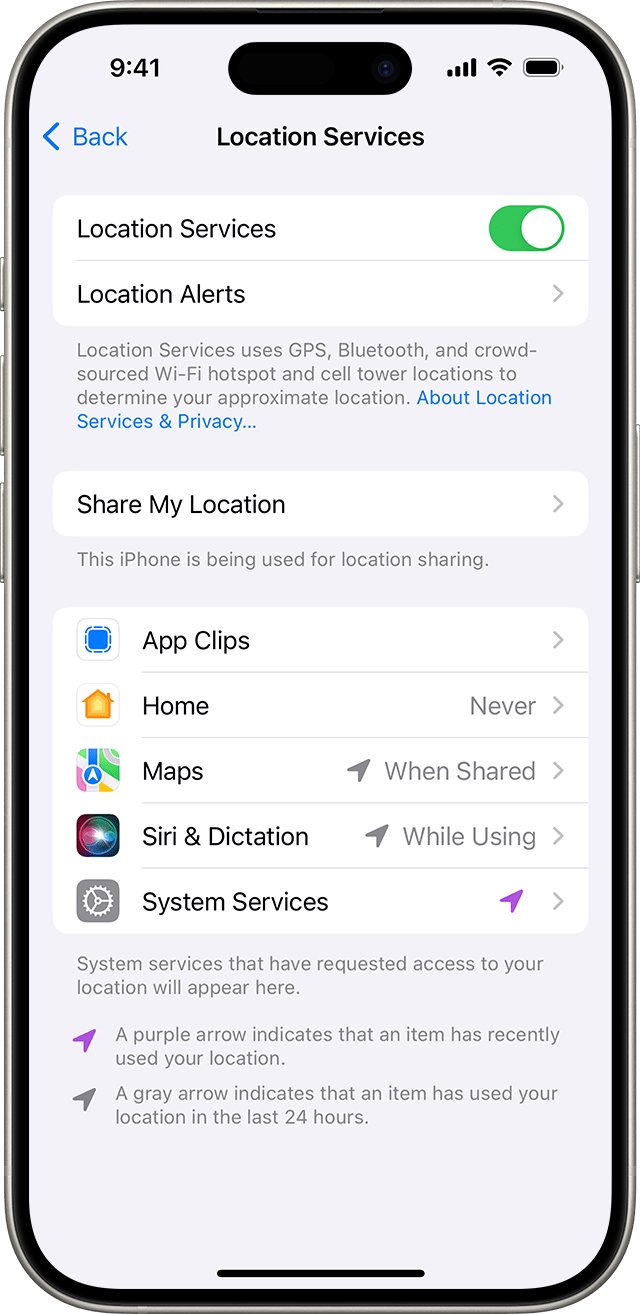
- Open Settings and tap Privacy & Security.
- Tap Location Services.
- Scroll down and tap the app that showed background location.
- Select While Using the App to allow location only while the app is on screen.
- Select Never instead if the app does not need your location at all.
Stop notifications from waking your iPhone 11
When the battery screen lists Notifications under an app, that app woke the iPhone to check for new information.
- Open Settings and tap Notifications.
- Tap the app that keeps waking the screen.
- Turn off Allow Notifications.
Turn on Low Power Mode to limit background activity
Low Power Mode reduces power use when the battery is low. Apps including Mail stop downloading content in the background, and iCloud sync pauses.
- Open the Settings app.
- Tap Battery.
- Turn on Low Power Mode.
- Charge the iPhone to 80% or more and Low Power Mode turns off by itself.
iPhone also offers Low Power Mode with one tap when the battery reaches 20% and again at 10%.
iPhone 11: close apps running in the background
Apple advises closing an app only when it is unresponsive. Closing every app does not improve overall performance or battery life, because recent apps use power only while active or doing specific background tasks.
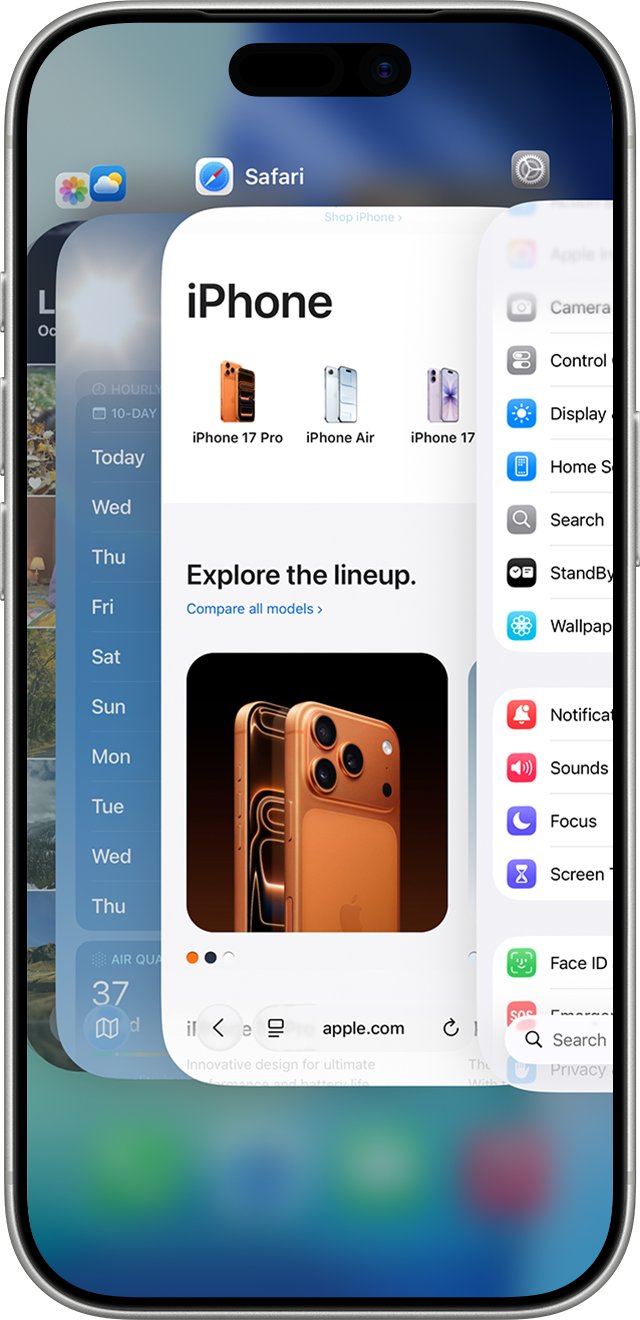
- From the Home Screen, swipe up from the bottom of the screen and pause in the middle.
- Swipe right or left to find the app you want to close.
- Swipe up on the app's preview to close it.
An app you close from the App Switcher may not check for new content until you open it again.
How to change the background on iPhone 11
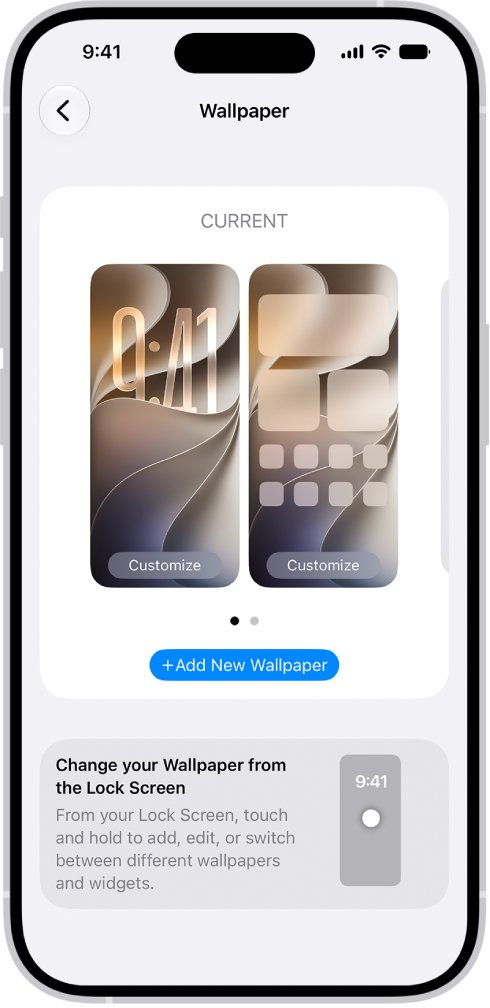
Many people searching for background on iPhone mean the wallpaper. You can set it for the Lock Screen and Home Screen in Settings.
- Open the Settings app.
- Tap Wallpaper, then tap Add New Wallpaper.
- Tap Photos, Emoji or Color at the top of the gallery, or pick a featured set such as Nature.
- Tap Add.
- Tap Set as Wallpaper Pair to use it on both screens, or Customize Home Screen to give the Home Screen a different look.
Check that background activity dropped on iPhone 11
- Use the iPhone normally for a day after changing the settings.
- Open Settings > Battery and look at the Daily Usage summary.
- Look for the blue similar or lower usage message instead of the orange higher usage one.
- Tap the app you limited and confirm its background time is shorter than on earlier days.
Fix high background activity on iPhone 11
An app still shows background activity after Background App Refresh is off
Music playback, navigation and similar tasks you start keep running in the background.
- Stop the playback or navigation inside the app when you finish.
- Check the app's Location Services setting and set it to While Using the App.
- Turn off Allow Notifications for that app if it also lists notifications.
Apple Music shows background activity
Playing music counts as background activity whenever another app is on screen.
- Expect background time while music plays with the screen off or in another app.
- Pause playback when you stop listening so the app has no background task.
An app is frozen or keeps misbehaving in the background
The app has stopped responding.
- Swipe up from the bottom and pause to open the App Switcher.
- Swipe up on the app's preview to close it.
- Open the app again from the Home Screen.
iPhone 11 background activity FAQ
What is background activity on iPhone?
Background activity is battery an app used while it was not on screen, for example while you were in another app. Directions, playing music, syncing photos and fetching mail are typical background activities. iPhone shows the time under each app in Settings > Battery.
What is background app activity on iPhone?
It is the same label as background activity: power an app used while running behind another app. Background App Refresh is the setting that lets suspended apps check for new content, and turning it off reduces this activity.
How do I stop background activity on iPhone?
Go to Settings > General > Background App Refresh, tap Background App Refresh again and select Off or Wi-Fi. Then limit Location Services and notifications for any app that still shows high background time in Settings > Battery.
How do I find background apps on iPhone?
Open Settings and tap Battery, then scroll to the list of apps and system activities. The label under each app shows whether its battery use came from on-screen or background time. Tap View All Battery Usage to see earlier days.
Should I close apps running in the background on iPhone 11?
Only when an app is frozen. Apple states that closing all apps does not improve performance or battery life, because recently used apps use power only while active or doing specific background tasks.
How do I change the background on iPhone 11?
Open Settings, tap Wallpaper, then tap Add New Wallpaper. Choose a photo, emoji, color or featured set, tap Add, and select Set as Wallpaper Pair to use it on both the Lock Screen and the Home Screen.
How do I set a background picture on iPhone?
In Settings > Wallpaper, tap Add New Wallpaper and tap Photos at the top of the gallery. Pick the picture, tap Add, then choose Set as Wallpaper Pair or Customize Home Screen to use a different look on the Home Screen.
Does Low Power Mode stop background activity?
It reduces it. With Low Power Mode on, apps including Mail stop downloading content in the background and iCloud sync pauses. Calls, messages, email and web browsing still work, and the mode turns off when the battery charges to 80%.
Bottom line: background activity on an iPhone 11
Check Settings > Battery first, then limit Background App Refresh and the location setting of the app that shows the most background time. Background activity is normal for music and navigation, and targeting the one app that overuses it saves battery without breaking the apps that need it.