To customise the status bar in Microsoft Excel, right-click the bar along the bottom of the window and tick or clear the options you want to show, such as Sum, Average, Minimum or Maximum.
This guide explains every default status bar option, how to read the cell mode and lock indicators, how to use the quick totals and zoom controls, and what to do when the bar or its sum goes missing.
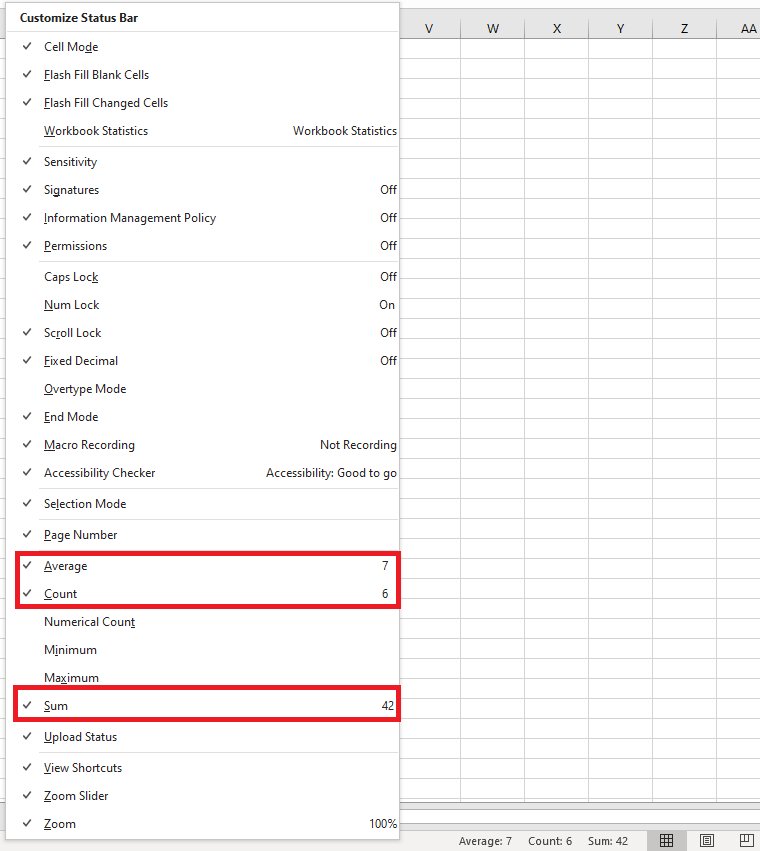
How to customize status bar in Excel
The status bar is the strip under the sheet tabs at the bottom of the Excel window. The steps below are for the Excel desktop app on Windows; Excel for the web has its own menu, covered further down. If Excel is not installed yet, get Microsoft Excel for Windows first.
- Open any workbook in Excel.
- Right-click an empty part of the status bar at the bottom of the window. The Customize Status Bar menu opens.
- Select an option without a check mark, for example Maximum, to add it to the status bar.
- Select an option that has a check mark to remove it from the status bar.
- Repeat for each option you want to change, then press Esc or click a cell to close the menu.
Options that are switched on but have nothing to report stay hidden. Caps Lock, for example, shows on the bar only while CAPS LOCK is on.
What is the status bar in Excel?
The status bar reports what Excel is doing right now and gives you quick figures for the cells you select. It splits into three zones from left to right.
| Zone | What appears there | Example |
|---|---|---|
| Left | Cell mode, selection mode, lock keys, macro recording button, permissions and signature icons | Ready, Edit, Extend Selection, Scroll Lock |
| Centre and right | Calculations on the selected cells, Flash Fill counts and upload status | Average, Count, Sum |
| Far right | View buttons and the zoom controls | Normal, Page Layout, Page Break Preview, zoom slider, zoom percentage |
Some indicators show only when they apply. Page Number, for example, appears only in Page Layout view or Print Preview, and Permissions appears only when access to the workbook is restricted.
Excel status bar default options
Most options are switched on when you install Excel. Five are off by default. Microsoft notes that a few options may be missing depending on your Excel version.
| Option | On by default? | What it shows |
|---|---|---|
| Cell Mode | Yes | Ready, Enter, Edit or Point on the left of the bar |
| Flash Fill Blank Cells | Yes | How many cells Flash Fill left blank |
| Flash Fill Changed Cells | Yes | How many cells Flash Fill filled in |
| Signatures | Yes | That the active workbook is digitally signed |
| Information Management Policy | Yes | That Information Rights Management restricts the workbook |
| Permissions | Yes | An icon for the current read and edit permissions, only on restricted files |
| Caps Lock | No | Caps Lock when CAPS LOCK is on |
| Num Lock | No | Num Lock when NUM LOCK is on |
| Scroll Lock | Yes | Scroll Lock when the arrow keys scroll the sheet instead of moving the cell |
| Fixed Decimal | Yes | Fixed Decimal when Excel inserts a decimal point automatically |
| Overtype Mode | No | Overtype when INSERT was pressed while editing a cell |
| End Mode | Yes | End Mode after you press END |
| Macro Recording | Yes | A button that starts recording a macro |
| Selection Mode | Yes | Extend Selection (F8) or Add to Selection (Shift+F8) |
| Page Number | Yes | Page X of Y in Page Layout view or Print Preview |
| Average | Yes | Average of the numbers in the selection |
| Count | Yes | Number of selected cells that are not empty |
| Numerical Count | No | Number of selected cells that hold numbers |
| Minimum | No | Smallest number in the selection |
| Maximum | No | Largest number in the selection |
| Sum | Yes | Total of the numbers in the selection |
| Upload Status | Yes | Upload status of the workbook to the web |
| View Shortcuts | Yes | Normal, Page Layout and Page Break Preview buttons |
| Zoom | Yes | The zoom percentage, which opens the Zoom dialog box |
| Zoom Slider | Yes | The slider with Zoom out and Zoom in buttons |
Newer Microsoft 365 builds also list Sheet Number, which adds a sheet count to the bar. Select that count to jump to another sheet and open the Navigation pane.
How to show sum, average and count on the Excel status bar
Excel calculates these figures live from whatever you select, so you get a total without typing a formula. Text cells add to Count but are ignored by Sum and Average.
- Select two or more cells that contain numbers, for example drag across a column of sales figures.
- Look at the right side of the status bar for Average, Count and Sum.
- To add more cells, hold Ctrl and select another range; the figures update to cover both ranges.
- Change a value inside the selection and watch the figures recalculate immediately.
- If one of the three is missing, right-click the status bar and select it so a check mark appears.
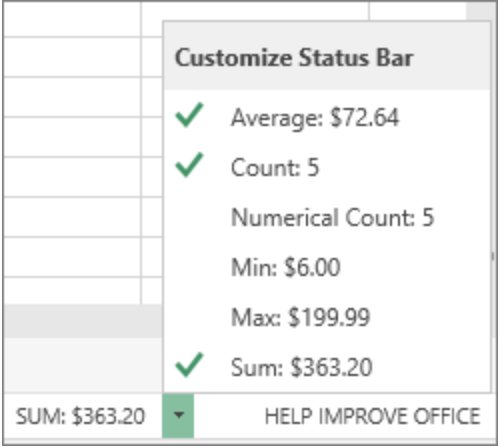
Example: select four cells holding 2, 3, cloud and 4. Count shows 4, Sum shows 9 and Average shows 3, because the word is counted but not added.

How to add min and max to the Excel status bar
Numerical Count, Minimum and Maximum are switched off by default. Turn them on when you regularly check ranges, outliers or how many cells hold real numbers.
- Right-click the status bar.
- Select Numerical Count to count only the cells that contain numbers.
- Select Minimum to show the smallest number in the selection.
- Select Maximum to show the largest number in the selection.
- Click a cell to close the menu, then select a range to see Min and Max next to Sum.
With the same four cells from the example above, Numerical Count shows 3, Min shows 2 and Max shows 4. The gap between Count and Numerical Count tells you how many selected cells hold text.
How to copy the sum from the Excel status bar
In Excel for the web, a status bar figure doubles as a copy button. This saves retyping a total into a cell, an email or a chat.
- Select the cells you want to total.
- Select Sum (or Average, Count, Min or Max) on the status bar.
- Click the cell or app where the figure should go.
- Press Ctrl + V to paste the value.
The pasted figure is a plain value, not a formula. If the source cells change later, the pasted number does not update; use a SUM formula when the total must stay live.
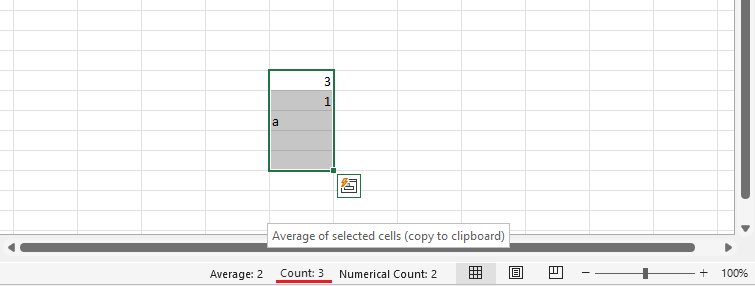
How to customize the status bar in Excel for the web
Excel for the web shows Average, Count and Sum automatically when you select two or more numeric cells. It can also show Numerical Count, Min and Max, but the menu opens from an arrow instead of a right-click.
- Open the workbook in Excel for the web.
- Select the arrow next to the last entry on the status bar.
- In the Customize Status Bar gallery, select each entry you want to show. A check mark appears next to it.
- Select a checked entry again to remove its check mark and hide it.
Excel status bar cell mode: Ready, Enter, Edit and Point
The word on the far left of the status bar tells you what your next keystroke will do. Reading it saves a lot of accidental overwrites.
| Mode shown | What it means | How you get there |
|---|---|---|
| Ready | Excel is idle and waiting | Default state, or press Enter or Esc to finish an entry |
| Enter | You are typing new content into a cell | Select a cell and start typing, or press F2 twice |
| Edit | You are editing inside a cell | Double-click a cell or press F2 |
| Point | You are picking cells for a formula | Start a formula, then click the cells to include |
| Extend Selection | Arrow keys grow the selection | Press F8 |
| Add to Selection | Arrow keys add a separate range | Press Shift + F8 |
In Enter mode the arrow keys leave the cell. In Edit mode they move the cursor inside the cell text instead, which is why F2 is useful for fixing a typo.
Excel status bar indicators: Caps Lock, Num Lock, Scroll Lock and End Mode
These indicators explain most of the moments when the keyboard seems to behave strangely in a sheet. Caps Lock, Num Lock and Overtype Mode must be turned on in the status bar menu before they appear.
| Indicator | What you notice | How to turn it off |
|---|---|---|
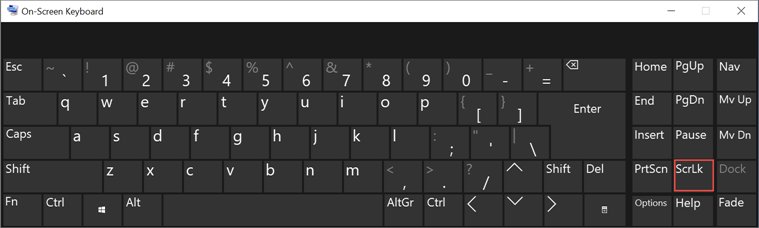
| Scroll Lock | Arrow keys scroll the whole sheet and the active cell stays put | Press Scroll Lock (ScrLk); without that key, turn off Scroll Lock from the On-Screen Keyboard by selecting ScrLk |
| End Mode | The next arrow key jumps to the edge of the data | Press an arrow key; the selection jumps and End Mode clears |
| Overtype | Typing replaces characters inside a cell | Press Insert while editing the cell |
| Fixed Decimal | Numbers you type gain decimal places you did not enter | File > Options > Advanced, then clear Automatically insert a decimal point |
| Caps Lock | Letters type in uppercase | Press Caps Lock |
| Num Lock | Number keypad types numbers instead of moving the cursor | Press Num Lock |
On Windows 11 the On-Screen Keyboard is under Start > Settings > Accessibility > Keyboard. On Windows 10 it is under Settings > Ease of Access > Keyboard.
How to use zoom and view shortcuts on the Excel status bar
The right end of the status bar holds the view buttons and zoom controls. View Shortcuts, Zoom and Zoom Slider are all on by default.
- Select Normal, Page Layout or Page Break Preview to switch views. Page Layout also shows the page number on the bar.
- Drag the zoom slider left to shrink the sheet or right to enlarge it.
- Select the Zoom out (minus) or Zoom in (plus) button to change the zoom in steps.
- Select the zoom percentage to open the Zoom dialog box.
- Type a custom value in the dialog box, or pick a preset, and select OK.
How to show or hide the status bar in Excel with VBA
Excel for Windows has no ribbon button that hides the status bar. The switch is the DisplayStatusBar property, which a macro can turn off and forget to restore. Enable the Developer tab first under File > Options > Customize Ribbon if the ribbon does not show it, then select Developer > Visual Basic to open the editor.
Application.DisplayStatusBar = TrueRun this line from a macro or the Immediate window in the Visual Basic Editor. True shows the status bar and False hides it. To put your own message on the bar during a long macro, set Application.StatusBar = "Please wait…" and finish with Application.StatusBar = False, which hands the bar back to Excel.
You should see: The status bar reappears at the bottom of the Excel window and shows Ready on the left.
How to tell which status bar options are turned on in Excel
- Right-click the status bar.
- Look down the left edge of the menu: every option with a check mark is turned on.
- Select a range of numbers and confirm each checked calculation appears on the bar.
An option can be checked and still invisible on the bar. Indicators such as Scroll Lock or Page Number appear only while that state applies.
Excel status bar not showing sum
Sum, Average or Count does not appear when you select cells
The option is unchecked, or only one cell is selected.
- Right-click the status bar and select Sum, Average and Count so each shows a check mark.
- Select at least two cells that contain numbers.
- Check the selection includes number cells, not just blanks or headings.
Count shows a number but Sum is missing or zero
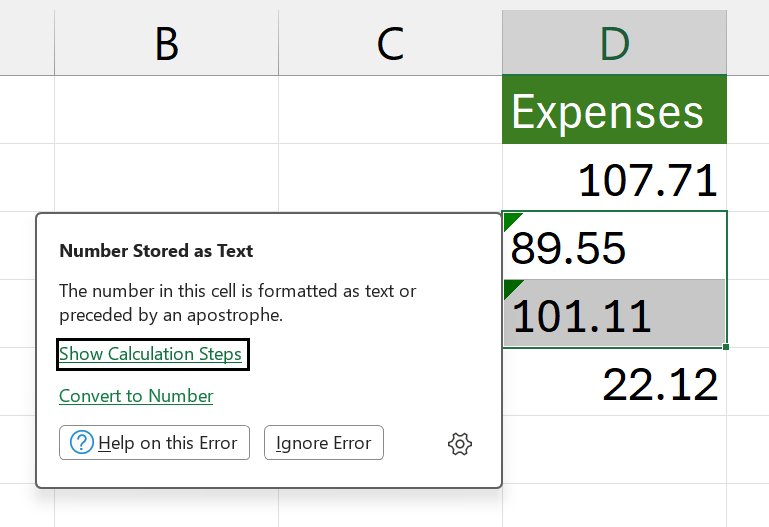
The numbers are stored as text, so Excel counts them but does not add them.
- Look for a green triangle in the top-left corner of the cells.
- Select the cells, then select the error indicator or press Alt + Shift + F10.
- Select Convert to Number.
- If no indicator appears, go to File > Options > Formulas and select Enable background error checking.
The whole status bar is missing
A macro or add-in set DisplayStatusBar to False.
- Open the Visual Basic Editor from Developer > Visual Basic.
- Select View > Immediate Window.
- Type
Application.DisplayStatusBar = Trueand press Enter.
The status bar shows custom text that never goes away
A macro wrote to the status bar and did not hand it back.
- Open the Immediate window in the Visual Basic Editor.
- Type
Application.StatusBar = Falseand press Enter. - The default status bar text returns, even if the bar was hidden.
Scroll Lock shows and the arrow keys scroll the sheet
Scroll Lock is on.
- Press the Scroll Lock or ScrLk key.
- If your keyboard has no such key, open the On-Screen Keyboard and select ScrLk.
Excel status bar FAQ
Where is the status bar in Excel?
The status bar is the thin strip along the bottom edge of the Excel window, just below the sheet tabs. It shows the cell mode on the left, calculations for selected cells in the middle, and the view buttons and zoom slider on the right.
How do I add Sum to the status bar in Excel?
Right-click the status bar and select Sum so a check mark appears next to it. Then select two or more cells that hold numbers, and the total appears on the right side of the bar. Sum is on by default, so it usually only needs turning back on.
Why does the Excel status bar show Count but not Sum?
Count includes every non-empty cell, but Sum only adds real numbers. If Count shows a value and Sum does not, the selected numbers are probably stored as text. Select them, use the green error indicator and choose Convert to Number.
What is the difference between Count and Numerical Count in Excel?
Count shows how many selected cells are not empty, including cells with text. Numerical Count shows only how many selected cells contain numbers. Numerical Count is off by default; right-click the status bar and select it to turn it on.
Can I copy the sum from the Excel status bar?
Yes, in Excel for the web. Select a summary value such as Sum, Average or Count on the status bar to copy it to the clipboard, then paste it into a cell or another app. The pasted figure is a fixed value, not a formula.
How do I hide the status bar in Excel?
Excel for Windows has no menu option to hide the status bar. You can hide it with the VBA line Application.DisplayStatusBar = False and bring it back with Application.DisplayStatusBar = True, run from the Immediate window in the Visual Basic Editor.
What does Ready mean at the bottom of Excel?
Ready is the default cell mode and means Excel is waiting for input. It changes to Enter while you type into a cell, Edit while you edit inside a cell, and Point while you click cells to build a formula.