To convert Word to PDF with embedded links, open the document in Word, select File > Save As (or Save a Copy), choose PDF as the file type and select Save, and the hyperlinks stay clickable in the PDF.
This guide covers Word for Windows, Word for Mac and Word for the web, the PDF options that matter for links, how to test the links afterwards and what to do when they stop working.
How to convert Word to PDF with embedded links
These steps apply to Word for Microsoft 365, Word 2021, Word 2019 and Word 2016 on Windows. Word builds the PDF itself, so text links, email links and links to headings carry over.
- Open the Word document that contains your hyperlinks.
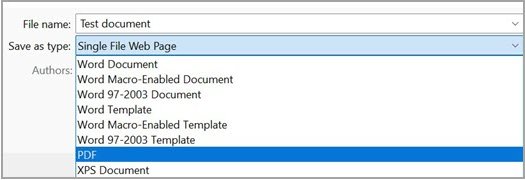
- Select File > Save a Copy if the file has been saved before, or File > Save As if it has not. Pressing F12 opens the Save As dialog box directly.
- Browse to the folder where you want the PDF.
- In the file type drop-down, select PDF (*.pdf).
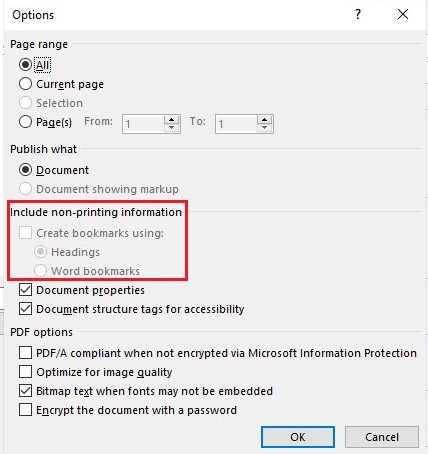
- Select More options > Options to open the PDF options.
- Check Document structure tags for accessibility, and under Create bookmarks using pick Headings, then select OK.
- Select Save, then open the PDF and click one of the links to test it.
Keep a different file name or make a copy of the Word document first, so the original .docx stays untouched. A PDF is meant for reading, and turning it back into an editable document needs a separate PDF to Word conversion.
Does Word to PDF keep hyperlinks on Windows, Mac and the web?
The route you use decides what happens to the links. Match your setup to a row.
| Where you use Word | Route to PDF | What happens to the links |
|---|---|---|
| Word for Windows | File > Save As or Save a Copy > PDF | Links are kept; the Options dialog adds heading bookmarks and accessibility tags |
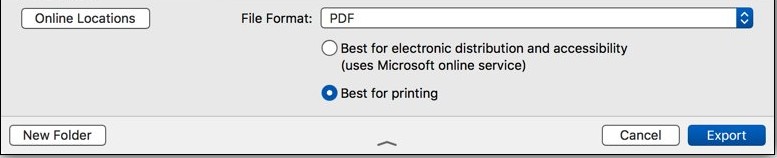
| Word for Mac | File Format > PDF > Best for electronic distribution and accessibility | Links are kept and the PDF is tagged; the conversion uses a Microsoft online service |
| Word for Mac | File Format > PDF > Best for printing | Microsoft lists a known issue: hyperlinks may not convert correctly |
| Word for the web | File > Export > Download as PDF | A basic PDF that keeps the layout; open the file in the desktop app for bookmarks and other options |
| Word with tracked comments | Options > Publish what > Document showing markup | Comments and tracked changes appear in the PDF along with the links |
How to add a hyperlink in Word before converting to PDF
A PDF only contains the links that Word already treats as hyperlinks. A web address typed as plain text with no link formatting stays plain text.
- Select the text or picture you want to act as a link.
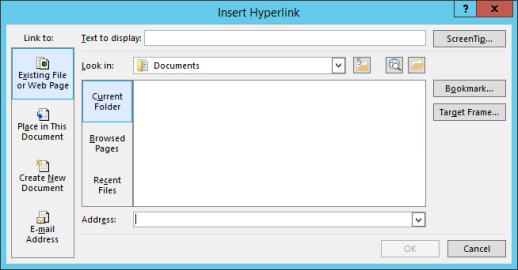
- Press Ctrl + K, or on the Insert tab select Link. You can also right-click the selection and choose Link.
- For a web page, enter the URL in the Address box under Existing File or Web Page.
- For a jump inside the document, select Place in This Document, then pick a heading or bookmark.
- For an email link, select E-mail Address, type the address and, if you want, a Subject.
- Select ScreenTip to set the hover text, then select OK to insert the link.
Word also turns a typed web address into a link when you press Enter or the Spacebar right after it, as long as Internet and network paths with hyperlinks is on under File > Options > Proofing > AutoCorrect Options > AutoFormat As You Type.
How to convert Word to PDF on Mac with hyperlinks
Word for Mac offers two PDF modes, and only one of them reliably keeps links. Pick Best for electronic distribution and accessibility.
- Open the document in Word for Mac.
- Press Command + Shift + S, or select File > Save As.
- Type a file name that differs from the original document.
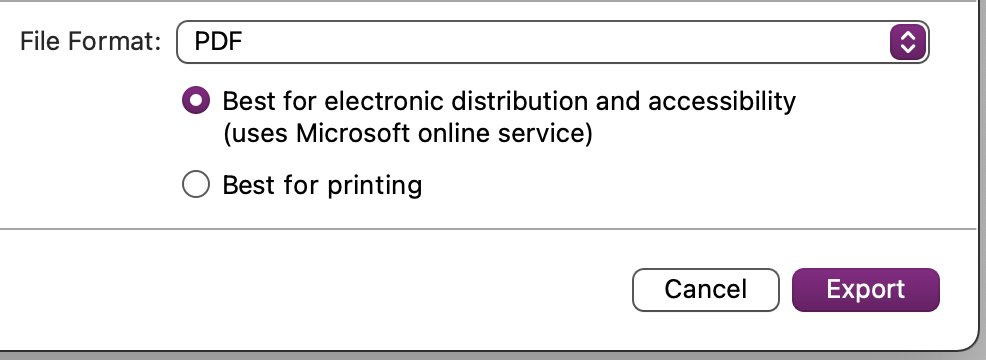
- In the File Format box, select PDF.
- Select Best for electronic distribution and accessibility (uses Microsoft online service).
- Select Export, then open the PDF in Preview and click a link to test it.
The online service can only use fonts Microsoft has the rights to, so a custom font may be replaced. Embed the fonts in the document first if the look matters.
How to convert Word to PDF free online in Word for the web
Word for the web runs in the browser, so this works on a laptop or a borrowed computer with nothing installed. Open the document from OneDrive or SharePoint first.
- Open the document in Word for the web.
- Select File at the top of the screen.
- Select Export.
- Select Download as PDF for a clean copy, or Download as PDF with comments to include comments.
- Select Download in the confirmation box.
- Open the PDF from your downloads folder and click a link to test it.
For heading bookmarks or other PDF options, select the Editing drop-down, choose Open in Desktop App, and save the PDF from Word for Windows or Mac instead.
Word save as PDF options for links, bookmarks and comments
On Windows, select More options > Options in the Save As dialog to reach these settings. Each one changes the PDF that the links live in.
| Option | What it does | When to change it |
|---|---|---|
| Page range | Exports only the pages you choose | Send one section of a long document without the rest |
| Publish what | Document leaves out markup; Document showing markup includes tracked changes | Keep Document to convert Word to PDF without comments |
| Create bookmarks using | Builds PDF bookmarks from Headings or Word Bookmarks | Long reports, so readers can jump from the bookmarks pane |
| Document properties | Adds the title, author and other properties to the PDF | Turn on when the PDF is published online |
| Document structure tags for accessibility | Tags the PDF so screen readers find headings, links and reading order | Leave on for any PDF with links |
| ISO 19005-1 compliant (PDF/A) | Saves an archive-grade PDF that looks the same on other computers later | Records you must keep long term |
| Bitmap text when fonts may not be embedded | Saves text as images when a font cannot be embedded | A font is being replaced in the PDF |
| Encrypt the document with a password | Only people with the password can open the PDF | Confidential files you send by email |
How to check hyperlinks in a PDF made from Word
A link that looks blue and underlined is not proof it works. Test it in the PDF itself.
- Open the PDF in a PDF reader on Windows 11, such as Microsoft Edge, or in Preview on a Mac.
- Hover over a linked word; the pointer changes to a hand on a working link.
- Click one web link and check that the right page opens.
- Click one link to a heading and check that the PDF jumps to that heading.
- Click an email link and check that a new message opens with the address filled in.
- Open the bookmarks pane and check that your headings are listed, if you chose Headings under Create bookmarks using.
Pros of converting Word to PDF with embedded links
| Advantage | Why it matters |
|---|---|
| Formatting stays fixed | Fonts, spacing and page breaks look the same on every device |
| Links stay clickable | Readers reach web pages, email addresses and headings straight from the PDF |
| Smaller files | A PDF is often smaller than the original document, which helps with email limits |
| Built-in navigation | Heading bookmarks let readers move through a long report |
| Accessibility | Tagged PDFs help screen readers follow reading order and announce links |
| Protection | Password encryption limits who can open the file |
| Long-term storage | The PDF/A option saves a version meant for archiving |
Cons of converting Word to PDF with embedded links
| Drawback | How to handle it |
|---|---|
| Hard to edit | Keep the .docx; editing a PDF later needs a conversion back to Word or an open-source PDF editor |
| Links are frozen | A changed URL means fixing the link in Word and saving a new PDF |
| Mac print mode can break links | Use Best for electronic distribution and accessibility, not Best for printing |
| Custom fonts may be swapped on Mac | Embed fonts in the document before using the online conversion |
| One document at a time | Word saves each file separately; batch convert files to PDF when you have a folder of them |
| Comments are left out by default | Choose Document showing markup or Download as PDF with comments if reviewers need them |
Hyperlinks not working in PDF from Word
Links were lost when saving from Word to PDF on Mac
The PDF was saved with Best for printing, which Microsoft lists as a known issue for hyperlinks.
- Open the original document in Word for Mac.
- Press Command + Shift + S and choose PDF under File Format.
- Select Best for electronic distribution and accessibility (uses Microsoft online service).
- Select Export and test the links again.
A web address in the PDF is plain text, not a link
Word never formatted the address as a hyperlink, often because automatic hyperlinks are turned off.
- In Word, select the web address.
- Press Ctrl + K, check the Address box and select OK.
- To make Word link typed addresses again, go to File > Options > Proofing > AutoCorrect Options > AutoFormat As You Type and check Internet and network paths with hyperlinks.
- Save the PDF again.
A link opens the wrong page
The text shows one address but the link points to another.
- Right-click the link in Word and select Edit Hyperlink.
- Correct the URL in the Address box and select OK.
- Save a new PDF and click the link to test it.
Why can't I convert Word to PDF?
Save As PDF to SharePoint does nothing
A Word for Microsoft 365 version 2609 issue saved the PDF to a temporary folder with no error; Microsoft fixed it by a service change on 25 September 2026.
- Close every open Office app.
- Open Word again so the fix takes effect.
- Save the PDF to the SharePoint location again.
Fonts look different in the PDF
Word could not embed a font, so the reader substituted another one.
- In the Save As dialog, select More options > Options.
- Check Bitmap text when fonts may not be embedded, then select OK.
- Select Save and compare the PDF with the document.
Only part of the document is in the PDF
A page range was set in the PDF options.
- Select More options > Options in the Save As dialog.
- Under Page range, set the export back to every page, then select OK.
- Save the PDF again.
Word to PDF with embedded links FAQ
How do I convert Word to PDF in MS Word?
Select File > Save As or Save a Copy, choose PDF as the file type and select Save. Word for Microsoft 365, 2021, 2019 and 2016 all build the PDF themselves, and hyperlinks in the document stay clickable.
How do I convert Word to PDF on a laptop?
Use the same steps as any Windows PC: open the document, press F12, set the file type to PDF and select Save. On a MacBook, press Command + Shift + S and pick Best for electronic distribution and accessibility.
How can I convert Word to PDF free online?
Open the document in Word for the web, select File > Export > Download as PDF, then Download. Word for the web runs in the browser, so nothing needs to be installed on the computer.
Do I need a free download to convert Word to PDF?
No. PDF export is built into Word on Windows and Mac and into Word for the web. A separate converter is only needed if you do not have Word at all.
How do I convert Word to PDF without comments?
On Windows, select More options > Options and keep Publish what set to Document rather than Document showing markup. In Word for the web, choose Download as PDF, not Download as PDF with comments.
Why can't I convert Word to PDF?
The most common causes are a save location that fails, such as the version 2609 SharePoint issue Microsoft has fixed, or fonts that cannot be embedded. Restart Word, save locally, and turn on Bitmap text when fonts may not be embedded if fonts change.
Can I convert a Word document to a PDF with embedded links on a Mac?
Yes. Save as PDF and select Best for electronic distribution and accessibility (uses Microsoft online service). Microsoft warns that Best for printing may not convert hyperlinks correctly, so avoid that option for linked documents.
How do I convert a PDF to Word so I can edit it?
Open the PDF in Word, which makes an editable Word copy and leaves the PDF unchanged. Text-heavy files convert best, while tables, footnotes and graphics may shift, so the original .docx is the cleaner file to edit if you still have it.