To turn off Background App Refresh on an iPhone or iPad, open Settings > General > Background App Refresh, tap Background App Refresh again and choose Off; doing so saves battery and mobile data.
This guide explains what the feature does, why you might switch it off, per-app and Wi-Fi-only options, Low Power Mode and Low Data Mode, and how to live without it.
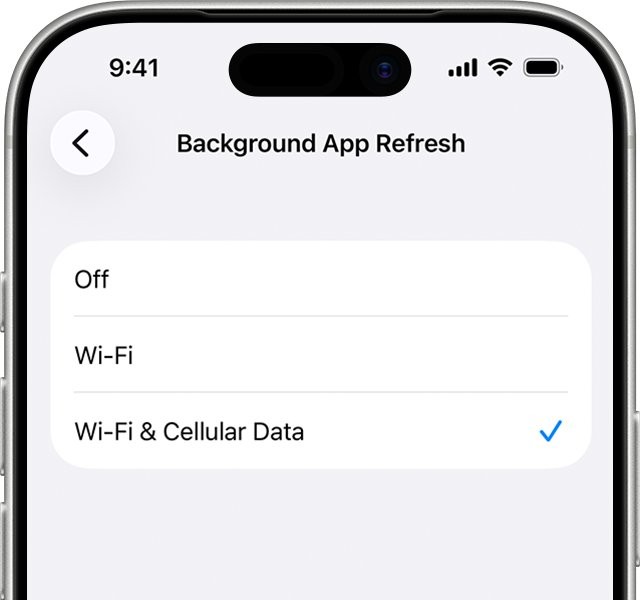
How to turn off Background App Refresh on iPhone & iPad
The steps are the same on iPhone and iPad, because both use the same Settings layout for this feature.
- Open the Settings app.
- Tap General.
- Tap Background App Refresh.
- Tap Background App Refresh again at the top of the screen.
- Choose Off to stop it for every app, or Wi-Fi to allow it only on Wi-Fi.
- Tap the back arrow to return to General.
The change takes effect at once. Apps still update their content when you open them.
Understanding Background App Refresh on iPhone
After you switch away from an app, it runs for a short time and then iOS puts it in a suspended state. A suspended app is not active and uses no system resources. Background App Refresh lets those suspended apps wake up to check for updates and new content.
| Setting | What it does |
|---|---|
| Wi-Fi & Cellular Data | Suspended apps can refresh on any connection, including mobile data |
| Wi-Fi | Apps refresh in the background only when the device is on Wi-Fi |
| Off | No app refreshes in the background; content updates when you open the app |
| Per-app switches | The list below the main setting lets you allow or block individual apps |
| Low Power Mode | Turns Background App Refresh off while the mode is on |
| Low Data Mode | Turns Background App Refresh off on the network where Low Data Mode is on |
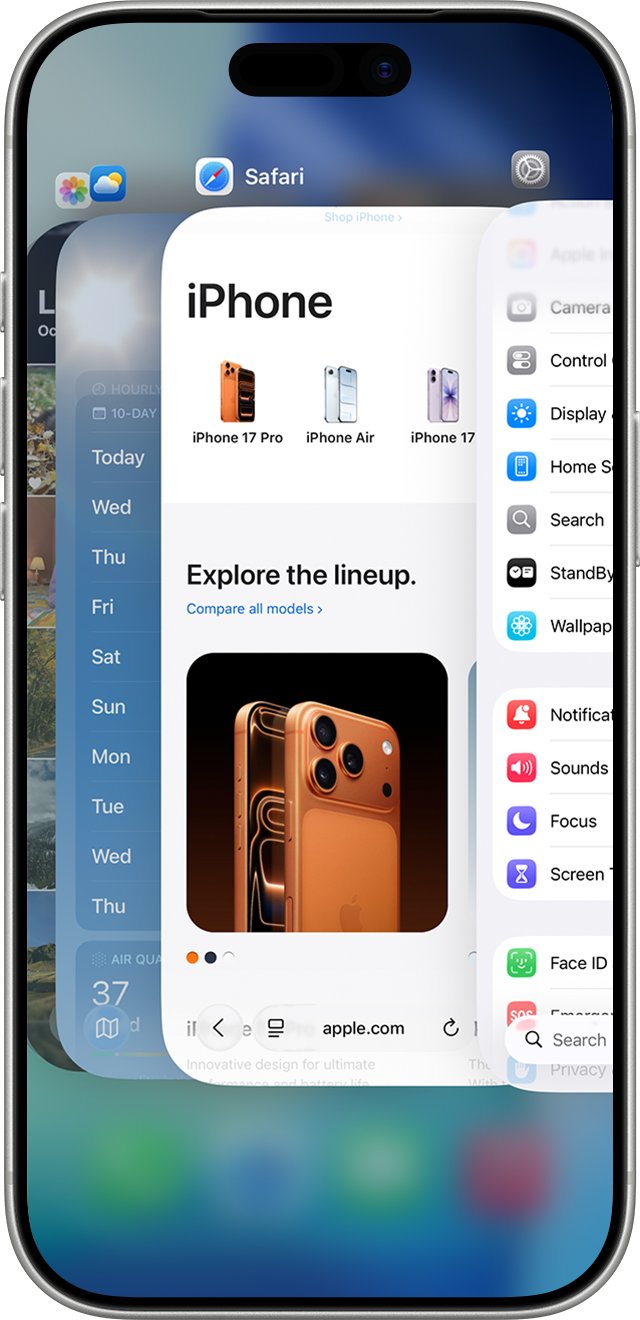
Quitting an app from the App Switcher has a similar effect for that one app: it may not check for new content until you open it again.
Why you might want to disable Background App Refresh
| Reason | What changes when it is off | Worth it? |
|---|---|---|
| Battery life conservation | Apps stop waking up to fetch content, so Apple lists turning it off as a way to improve battery life | Yes, especially on an older battery |
| Data usage management | No background downloads over mobile data, which matters on a capped plan | Yes on limited plans; choose Wi-Fi only instead of Off |
| Improved performance | Small gain at most; Apple says closing apps does not change overall performance, because idle apps use no resources | Rarely the main reason |
| Privacy considerations | Fewer background check-ins by apps; background location is controlled separately in Location Services | Pair it with Location Services settings |
| Reducing notifications | Notifications are set per app in Settings > Notifications, not by this switch | Change notification settings too |
Turn off Background App Refresh for individual apps
Switching the feature off for a few heavy apps keeps it working for apps you rely on, such as messaging or navigation.
- Open Settings and tap General.
- Tap Background App Refresh.
- Make sure the top setting is Wi-Fi or Wi-Fi & Cellular Data, not Off.
- Scroll through the list of apps below it.
- Turn off the switch next to each app you want to stop refreshing in the background.
- Leave the switch on for apps that need fresh content, such as mail, messaging or maps.
Set Background App Refresh to Wi-Fi only on iPhone
Wi-Fi only keeps apps current at home and work while protecting a mobile data allowance. Apple also notes that Wi-Fi uses less power than a cellular connection.
- Open Settings > General > Background App Refresh.
- Tap Background App Refresh at the top.
- Choose Wi-Fi.
- To find which apps use the most mobile data, go back to Settings and tap Cellular.
- Tap Show All under the app list to see data used by each app.
- Turn off the cellular switch for any app that should never use mobile data.
Turn off Background App Refresh with Low Power Mode
Low Power Mode turns off Background App Refresh, email fetch and automatic downloads together, then switches itself off once you charge the battery to 80%.
- Open Settings and tap Battery.
- On iPhone 15 and later, tap Power Mode, then turn on Low Power Mode.
- On iPhone 14 and earlier, turn on Low Power Mode directly on the Battery screen.
- For a faster route, swipe down from the top-right corner to open Control Center and tap the battery icon.
- Check that the battery icon in the status bar is yellow, which shows the mode is on.
Low Data Mode and Background App Refresh on iPhone and iPad
Low Data Mode, available since iOS 13, turns off Background App Refresh and restricts other background network use on the connection you choose.
- For a 4G or LTE plan, open Settings > Cellular > Cellular Data Options and turn on Low Data Mode.
- For a 5G plan, open Settings > Cellular > Cellular Data Options > Data Mode and choose Low Data Mode.
- For a Wi-Fi network, open Settings > Wi-Fi and tap the Info button next to the network you are on.
- Turn on Low Data Mode for that Wi-Fi network.
- Expect lower streaming quality and paused automatic downloads, iCloud backups of your iPhone and iCloud Photos updates while it is on.
Should I turn off Background App Refresh on iPhone?
Set Background App Refresh to Wi-Fi only and turn it off for apps you rarely open, rather than switching it off for everything. Turning it fully off saves the most battery and data, but every app then shows stale content until you open it. A per-app setup keeps messaging, mail and navigation current while cutting the background work you do not need.
How to see which apps use background activity on iPhone
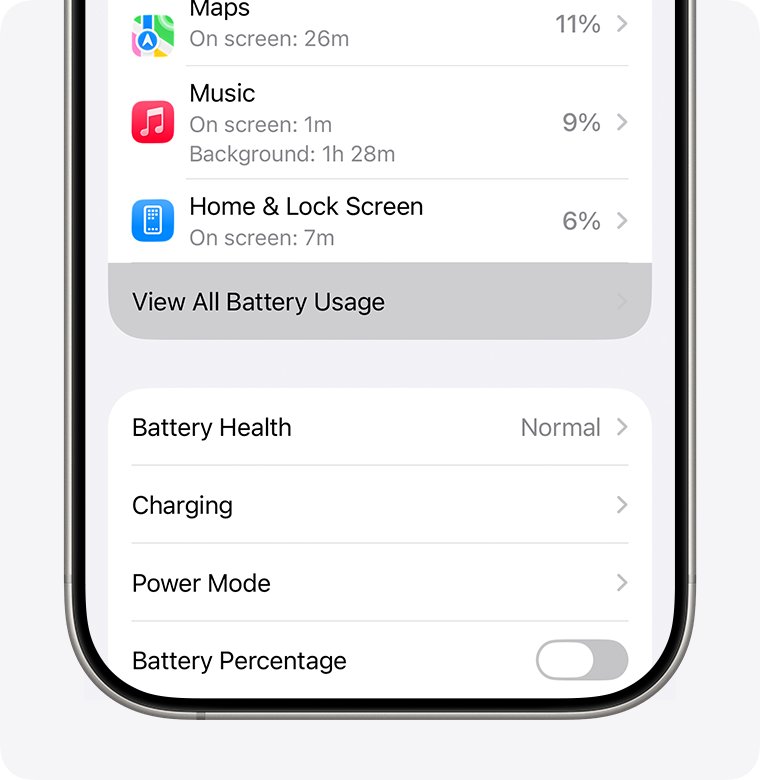
The Battery screen shows whether your changes are working. An app marked Background Activity used battery while you were using another app.
- Open Settings and tap Battery.
- Scroll to the list of apps under battery usage.
- Look for apps marked Background Activity beneath their name.
- Turn off Background App Refresh for any app you do not need updated in the background.
- Check the same list a day later; the Background Activity label should drop for those apps.
The same Battery labels help you reduce background activity on an iPhone 11 and newer models.
Tips for using your iPhone or iPad without Background App Refresh
- Manually refresh apps: open the app when you want new content; it updates once it is on screen.
- Use Wi-Fi whenever possible, since Wi-Fi uses less power than cellular and keeps a Wi-Fi-only refresh setting working.
- Optimize your notifications in Settings > Notifications: tap an app and turn off Allow Notifications if it keeps waking the screen.
- Close unused apps only when they stop responding; Apple says closing apps does not improve overall performance.
- Evaluate your app usage on the Battery screen and the Cellular data list to decide which apps deserve background access.
- Consider refreshing periodically by turning the feature back on for a day when you travel or need live updates.
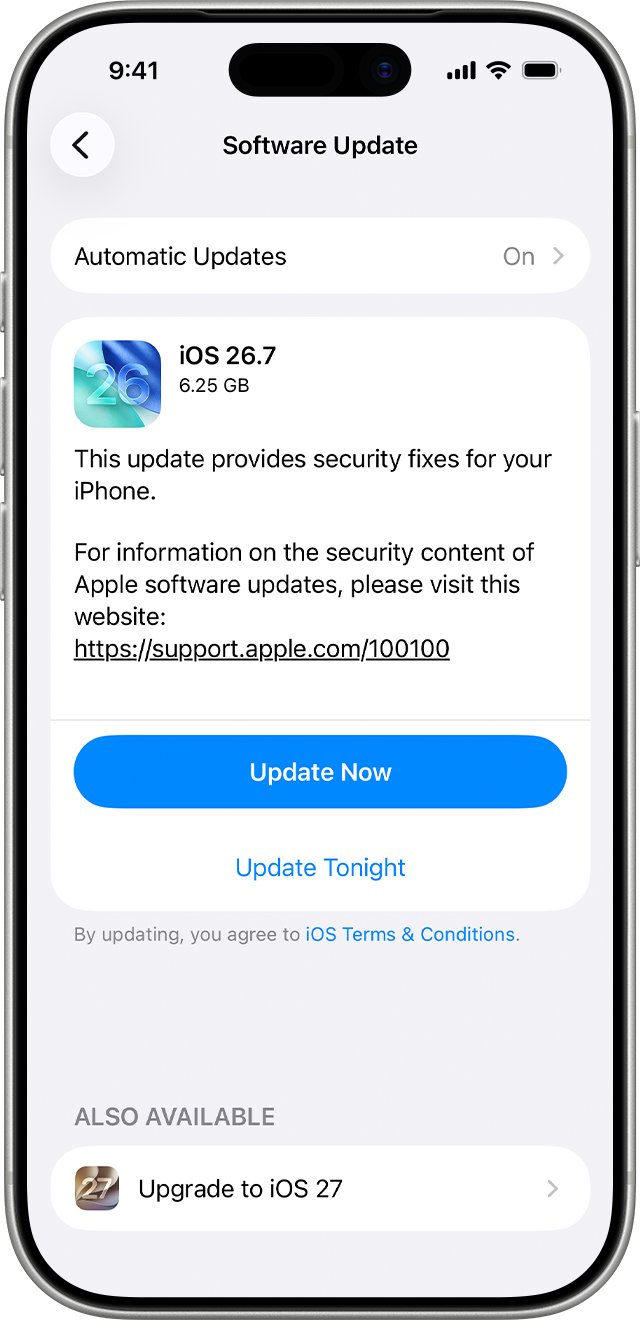
- Keep your device updated in Settings > General > Software Update for the latest battery and bug fixes.
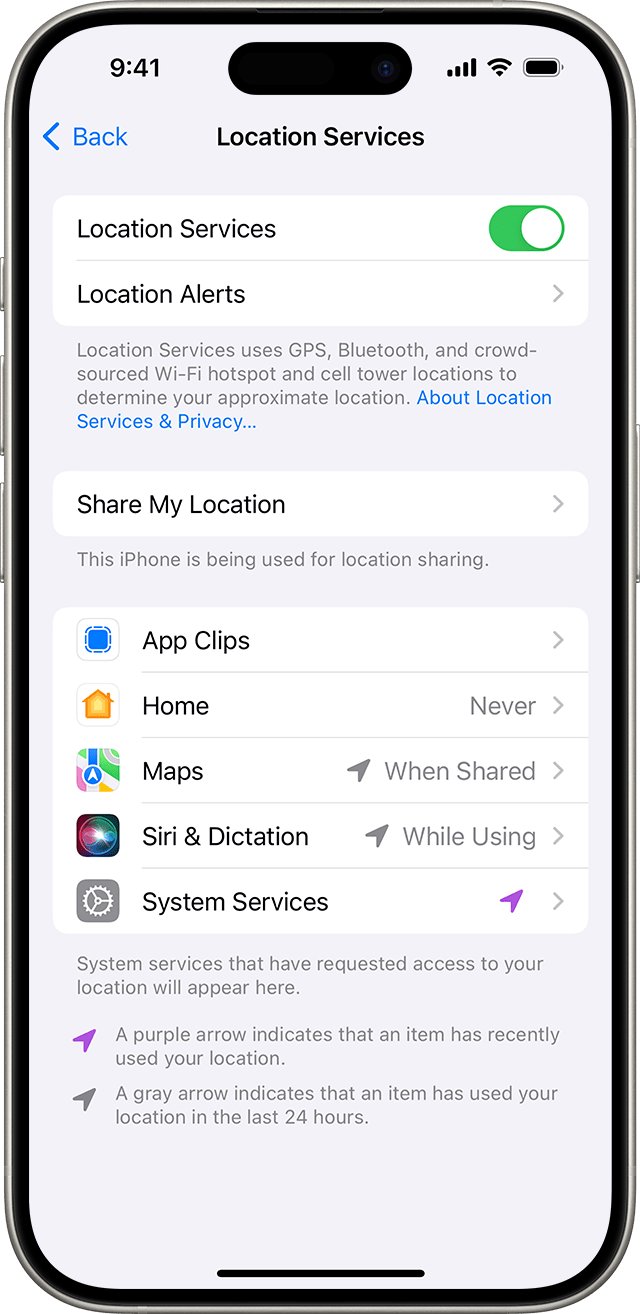
Apps that track you in the background are controlled in Settings > Privacy & Security > Location Services. Choose While Using the App or Never for apps that do not need Always.
How to turn Background App Refresh back on
- Turn off Low Power Mode in Settings > Battery if it is on.
- Turn off Low Data Mode for your cellular plan or Wi-Fi network if it is on.
- Open Settings > General > Background App Refresh.
- Tap Background App Refresh and choose Wi-Fi or Wi-Fi & Cellular Data.
- Turn on the switch for each app you want refreshed.
Background App Refresh not working on iPhone or iPad
Background App Refresh turns off by itself
Low Power Mode or Low Data Mode is on; both switch the feature off.
- Open Settings > Battery and turn off Low Power Mode.
- Check Settings > Cellular > Cellular Data Options and your Wi-Fi network's Info screen for Low Data Mode.
- If your iPhone supports Adaptive Power and it is on, expect Low Power Mode to turn on by itself below 20% battery.
An app still shows old content with the feature on
The app was quit from the App Switcher, or its own switch is off.
- Open the app once; after being quit from the App Switcher it may not check for content until you reopen it.
- Open Settings > General > Background App Refresh and make sure the app's switch is on.
- Leave the app in the App Switcher instead of swiping it away.
Battery still drains with Background App Refresh off
Other features, such as location, notifications or weak cell signal, are using power.
- Open Settings > Battery and look at the labels under the top apps.
- For Background Location, change the app to While Using the App in Location Services.
- For frequent screen wake-ups, turn off notifications for that app.
- Install any update in Settings > General > Software Update.
Weather apps often keep using power this way, and you can stop the Weather Channel app draining battery even with background activity off.
Background App Refresh on iPhone and iPad FAQ
What does Background App Refresh do on iPhone?
It lets suspended apps wake up briefly to check for updates and new content, so an app shows fresh information when you open it. Without it, the app updates only after you bring it on screen.
Does turning off Background App Refresh save battery?
Yes. Apple lists turning off Background App Refresh as a way to improve battery life, because apps stop waking up to fetch content. The Battery screen shows which apps used power through Background Activity.
Should Background App Refresh be on or off?
For most people, set it to Wi-Fi only and turn it off for apps you rarely use. Turn it fully off if battery life or a small data plan matters more than up-to-date app content.
Does Background App Refresh use mobile data?
It can when set to Wi-Fi & Cellular Data. Choose Wi-Fi in Settings > General > Background App Refresh to stop background refreshes over mobile data while keeping them on Wi-Fi.
Does Low Power Mode turn off Background App Refresh?
Yes. Low Power Mode turns off Background App Refresh, email fetch and automatic downloads. It turns itself off once the battery is charged to 80% or more, and background refresh returns with it.
Is Background App Refresh the same on iPad?
Yes. On iPad the setting is in the same place, Settings > General > Background App Refresh, with the same Off, Wi-Fi and Wi-Fi & Cellular Data choices and per-app switches.
Does closing apps do the same thing as turning off Background App Refresh?
Not quite. Quitting an app from the App Switcher may stop it checking for content until you reopen it, but Apple says closing apps does not improve overall performance. The setting is the reliable control.
Will turning off Background App Refresh stop location tracking?
No. Location access is a separate permission in Settings > Privacy & Security > Location Services. Set apps to While Using the App or Never to stop background location use.