To open Snipping Tool in Windows 11, select Start, type snipping tool, and select Snipping Tool in the results, or press Windows + Shift + S to jump straight to the capture overlay.
This guide covers every way to open it on Windows 11 and Windows 10: Start search, the keyboard shortcut, the taskbar, the Print Screen key, screen recording, keyboard-only access, and what to do when the app refuses to start.
How to open Snipping Tool in Windows 11
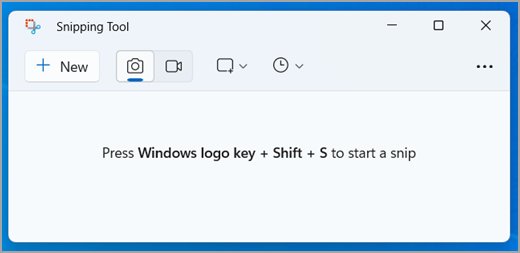
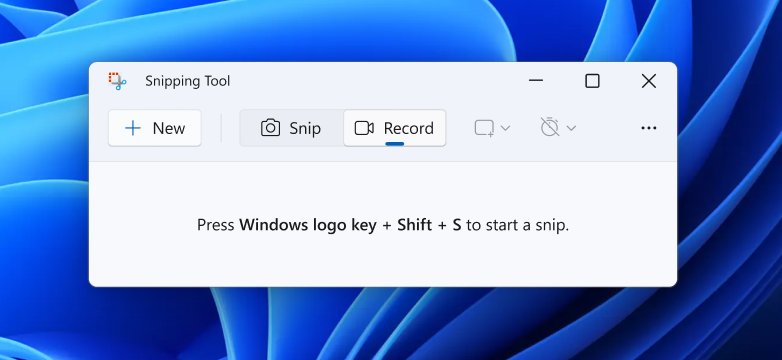
Start search opens the full Snipping Tool window, where you choose the snip mode, set a delay and pick between a screenshot and a recording.
- Select the Start button on the taskbar.
- Type snipping tool.
- Select Snipping Tool in the search results to open the app window.
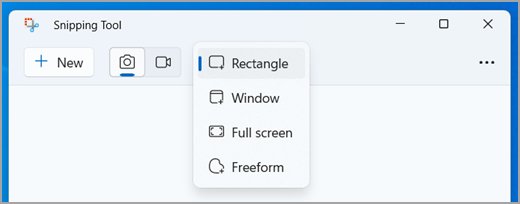
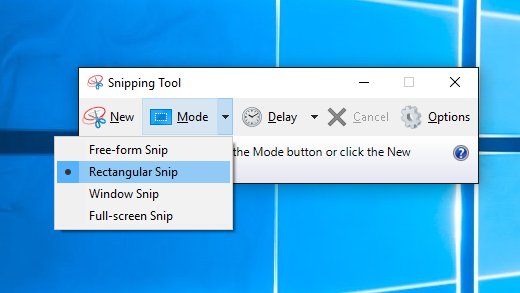
- Select Snipping Mode and choose Rectangle, Window, Full screen or Freeform.
- Select New when the screen you want to capture is ready. The screen dims slightly to show it is ready to capture.
Each snip opens in the Snipping Tool window, where you can mark it up, save it or share it.
Start search vs. Windows + Shift + S
Both routes reach the same capture modes. The difference is whether you land in the app window first or go straight to the overlay.
| Your situation | Use this | Why |
|---|---|---|
| You want a quick screenshot of part of the screen | Windows + Shift + S | The capture overlay opens immediately and the snip goes to the clipboard |
| You need a delay so a menu stays open | Start search, then Delay | The delay setting lives in the app window, not the overlay |
| You want to record a video clip | Windows + Shift + R | Opens the overlay in recording mode |
| You capture the screen many times a day | Pin it to the taskbar or use Print Screen | One click or one key every time |
| Your mouse is not working | Windows key, type snipping tool, press Enter | Everything works from the keyboard |
| You use Windows 10 | Start search or Windows + Shift + S | Both work on Windows 10 too |
Open Snipping Tool with Windows + Shift + S
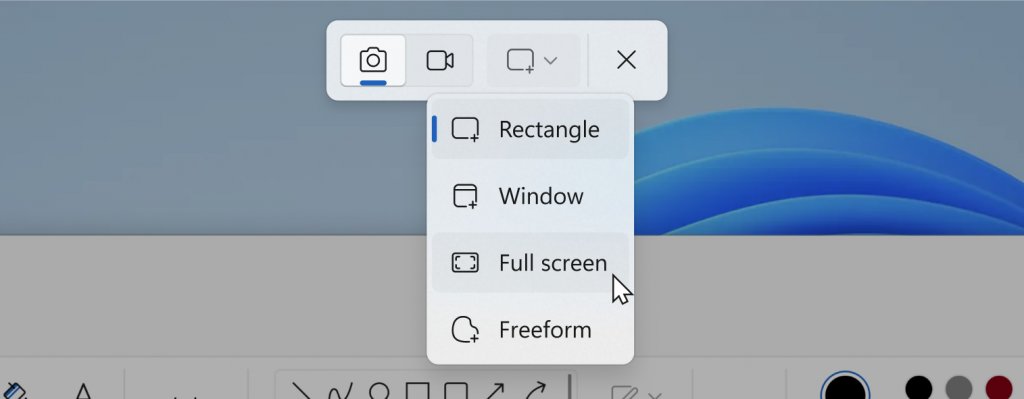
Windows + Shift + S opens the Snipping Tool overlay rather than the full app window. It is the fastest way to grab an image of part of the screen.
- Press Windows + Shift + S together.
- Choose a mode on the capture bar at the top of the screen: Rectangle, Window, Full screen or Freeform.
- Drag around the area you want, or select the window you want to capture.
- Press Ctrl + V in any app to paste the snip, since it is copied to the clipboard.
- Open the snip in Snipping Tool if you want to share it or mark it up first.
If the overlay never appears, work through the Windows + Shift + S fixes for a broken shortcut.
Open Snipping Tool from the taskbar
Pinning Snipping Tool puts its icon next to your other apps, so the full app window is always one click away.
- Select the search box or Start on the taskbar.
- Type snipping tool.
- In the actions listed beside the Snipping Tool result, select Pin to taskbar.
- Select the new Snipping Tool icon on the taskbar whenever you want to open it.
Can the Print Screen key open Snipping Tool?
Yes. On Windows 11 the PrtScn key opens screen snipping by default, so pressing it brings up the same capture overlay as Windows + Shift + S.
On Windows 10, PrtScn copies the whole screen to the clipboard unless you switch on the Print Screen shortcut in Ease of Access.
| Windows version | Setting path | What to set |
|---|---|---|
| Windows 11 | Start > Settings > Accessibility > Keyboard | Use the Print Screen button to open screen snipping: On to open Snipping Tool, Off to stop it |
| Windows 10 | Start > Settings > Ease of Access > Keyboard | Turn on the toggle under Print Screen shortcut |
With the setting off on Windows 11, use Windows + PrtScn for a full-screen capture saved to Pictures > Screenshots, or Alt + PrtScn to copy only the active window. Laptops without a PrtScn key can use Fn + Windows + Space Bar on supported hardware.
How to open Snipping Tool for screen recording
Snipping Tool records a rectangular part of the screen as a video clip. You can open it straight in recording mode with a shortcut or switch to recording inside the app.
- Press Windows + Shift + R, or open Snipping Tool from Start, select the Record button, then select New.
- Drag to select the area of the screen you want to record.
- Select Start to begin recording.
- Select Stop when you are finished.
- Save the recording as it is, or select Edit in Clipchamp to add captions or audio.
Recordings are saved automatically as MP4 files in the Screen Recordings subfolder of your Videos folder.
How to open Snipping Tool without a mouse
Every Snipping Tool action has a keyboard route, so a dead mouse or touchpad does not stop you from taking a snip.
- Press the Windows key to open Start.
- Type snipping tool and press Enter to open the app.
- Press Alt + M to choose a snipping mode, then use the arrow keys and Enter to pick one.
- Press Alt + D to set a delay of 1 to 5 seconds if you need time to open a menu.
- Press Alt + N to start a new snip in the same mode as the last one.
- Press Ctrl + S to save the snip, or Ctrl + C to copy it to the clipboard.
Inside the capture overlay, Shift + arrow keys move the cursor to select between the different snip types.
How to open Snipping Tool in Windows 10
Windows 10 opens Snipping Tool the same way as Windows 11. The main difference is the Print Screen setting, which sits under Ease of Access.
- Select Start or the search box on the taskbar.
- Type snipping tool and select Snipping Tool in the results.
- Or press Windows + Shift + S to capture part of the screen without opening the app window.
- To make PrtScn open screen snipping, select Start > Settings > Ease of Access > Keyboard and turn on the toggle under Print Screen shortcut.
If Snipping Tool is missing from the search results, you can install Snipping Tool without the Store or fix a Snipping Tool install that fails.
How to change where Snipping Tool saves screenshots
Snipping Tool saves every snip automatically to your Screenshots folder. You can change that folder or turn auto-save off from the app's settings.
- Open Snipping Tool from Start.
- Select See More (the three dots) at the top right of the window.
- Select Settings.
- Change the automatic save option or the default Screenshots folder.
- To keep a separate copy of a single snip, select Save as, choose a location and file name, and select Save.
To find saved snips, open File Explorer, select Pictures in the side pane, and open Screenshots.
Snipping Tool modes in Windows 11
Pick the mode before you start the capture. The same modes appear in the app window and on the Windows + Shift + S overlay.
| Mode | What it captures | Open it with |
|---|---|---|
| Rectangle | An area you drag a box around | Windows + Shift + S, or Snipping Mode in the app |
| Window | One window or dialog box you select | Windows + Shift + S, or Snipping Mode in the app |
| Full screen | The entire screen, captured immediately | Windows + Shift + S, or Snipping Mode in the app |
| Freeform | Any shape you draw around an object | Windows + Shift + S, or Snipping Mode in the app |
| Video snip | A recording of a rectangular area | Windows + Shift + R, or Record in the app |
| Perfect screenshot | A rectangle that snaps to the main content | Perfect Screenshot in the app, Copilot+ PCs only |
| Color picker | An exact color value from the screen | Color picker in the app, Copilot+ PCs only |
What if Snipping Tool will not open?
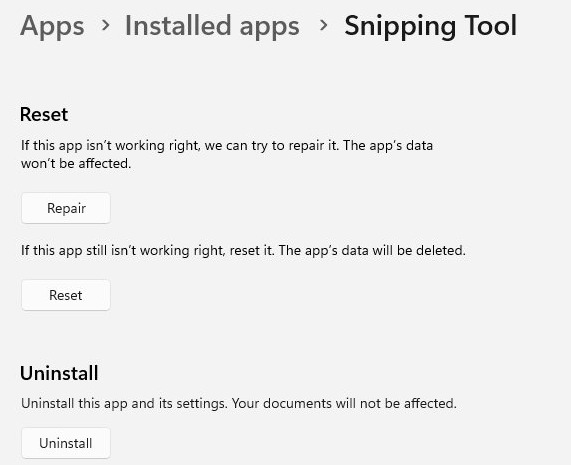
Start with a restart, then repair the app. Most cases where Snipping Tool cannot open in Windows 11 end at the repair or reset step.
Snipping Tool does not open from Start or the taskbar
The app's files or settings are damaged, or an update has not finished.
- Restart the PC and try opening Snipping Tool again.
- Select Start > Settings > Apps > Installed apps.
- Select the More icon next to Snipping Tool, then select Advanced options.
- Select Repair and try the app again.
- If it still fails, return to the same page and select Reset.
Snipping Tool is missing from Start search
The app has been uninstalled or never installed on this PC.
- Open Microsoft Store.
- Search for Snipping Tool and open the listing published by Microsoft.
- Select Get or Install.
- Open Snipping Tool from Start once the install finishes.
Snipping Tool cannot open on a work or school PC
The Do not allow Snipping Tool to run policy is enabled. It applies to Pro, Enterprise and Education editions.
- Ask your IT administrator first if the PC is managed by an organization.
- On your own PC, press Windows + R, type
gpedit.mscand press Enter. - Go to User Configuration > Administrative Templates > Windows Components > Tablet PC > Accessories.
- Open Do not allow Snipping Tool to run, set it to Not Configured or Disabled, and select OK.
- Check the same path under Computer Configuration, then restart the PC.
Windows + Shift + S does nothing, but the app opens from Start
The shortcut is the problem, not the app.
- Press Windows + E to test the Windows key. If File Explorer does not open, the keyboard is at fault.
- Press PrtScn on Windows 11, which opens the same overlay when the Print Screen setting is on.
- Repair Snipping Tool from Settings > Apps > Installed apps > Advanced options if the shortcut still fails.
Snipping Tool keeps opening when you press Print Screen
On Windows 11, PrtScn opens screen snipping by default. If you want the key to do something else, switch that behavior off.
The capture overlay appears every time you press PrtScn
Use the Print Screen button to open screen snipping is turned on.
- Select Start > Settings > Accessibility > Keyboard.
- Set Use the Print Screen button to open screen snipping to Off.
- Press PrtScn to check. It now behaves as a plain Print Screen key, and Windows + Shift + S still opens the overlay.
Snipping Tool in Windows 11 FAQ
What is the fastest way to open Snipping Tool in Windows 11?
Press Windows + Shift + S. The capture overlay opens immediately and the snip is copied to the clipboard, ready to paste or to open in Snipping Tool. On Windows 11, PrtScn opens the same overlay by default.
How do I open Snipping Tool in Windows 10?
Select Start, type snipping tool, and select Snipping Tool in the results. You can also press Windows + Shift + S to capture part of the screen. To make PrtScn open it, turn on Print Screen shortcut under Settings > Ease of Access > Keyboard.
How do I open Snipping Tool in Windows 12?
Microsoft's Snipping Tool help lists Windows 11 and Windows 10, and there is no separate Windows 12 method to follow. Use Start search, Windows + Shift + S, or PrtScn on Windows 11 to open it.
Does Windows + Shift + S open the full Snipping Tool app?
No. Windows + Shift + S opens only the capture overlay. The snip goes to the clipboard, and you can then open it in the full Snipping Tool window to mark it up, save it or share it.
Can I put Snipping Tool on the taskbar?
Yes. Type snipping tool in the taskbar search box, then select Pin to taskbar in the actions listed beside the result. The icon then opens the full Snipping Tool window with one click.
What shortcut opens Snipping Tool screen recording?
Press Windows + Shift + R. It opens the overlay in recording mode, so you drag around the area, select Start, and select Stop when finished. Recordings are saved as MP4 files in Videos > Screen Recordings.
Why can't I open Snipping Tool in Windows 11?
The app is usually damaged, uninstalled or blocked by policy. Repair or reset it from Settings > Apps > Installed apps > Advanced options, reinstall it from Microsoft Store if it is missing, and check the Do not allow Snipping Tool to run policy on work PCs.
Why does Snipping Tool keep opening on its own?
On Windows 11, the PrtScn key opens screen snipping by default, so every press brings up the overlay. Turn off Use the Print Screen button to open screen snipping in Settings > Accessibility > Keyboard to stop it.
How do I use Snipping Tool in Windows?
Open Snipping Tool, select Snipping Mode, choose Rectangle, Window, Full screen or Freeform, and select New. Capture the area, then use Pen, Highlighter, Image crop or Text actions to edit it before you save or share.