Windows 11 is Microsoft's current PC operating system, and the basics come down to five tools: the Start menu, the taskbar, Settings, File Explorer and Windows Update.
This guide covers the hardware it needs, how to upgrade, each part of the desktop, keeping the PC secure and the shortcuts worth learning first, all checked against version 26H2.
Windows 11 basics for beginners
These six steps get a new Windows 11 PC ready for daily use. Each one is explained in more detail further down.
- Press the Windows key to open the Start menu, and type the name of any app, setting or file to find it.
- Press Windows + I to open Settings, select Windows Update, then select Check for updates.
- Right-click an empty part of the taskbar, select Taskbar settings, and choose which icons appear.
- Press Windows + E to open File Explorer and find your Documents, Pictures and Downloads folders.
- Search the Start menu for Windows Security and confirm each area shows a green check.
- Pin the apps you use most by right-clicking them and selecting Pin to Start or Pin to taskbar.
What is Windows 11?
Windows 11 is built on the same foundation as Windows 10, so most Windows 10 apps run on it. It first reached the public in October 2021 and gets one feature update each year plus monthly security updates.
| Fact | Detail |
|---|---|
| Current version | 26H2 (OS build 26300), released 29 September 2026 |
| Earlier versions still supported for Home and Pro | 25H2 (build 26200) |
| Special release | 26H1 ships only preinstalled on select new devices and is not offered through Windows Update |
| Update rhythm | One feature update a year, monthly quality and security updates |
| Home edition setup | Needs an internet connection and a Microsoft account on first use |
| Windows 10 status | Support ended on 14 October 2025, so Windows 10 no longer gets free security fixes |
Minimum system requirements for Windows 11
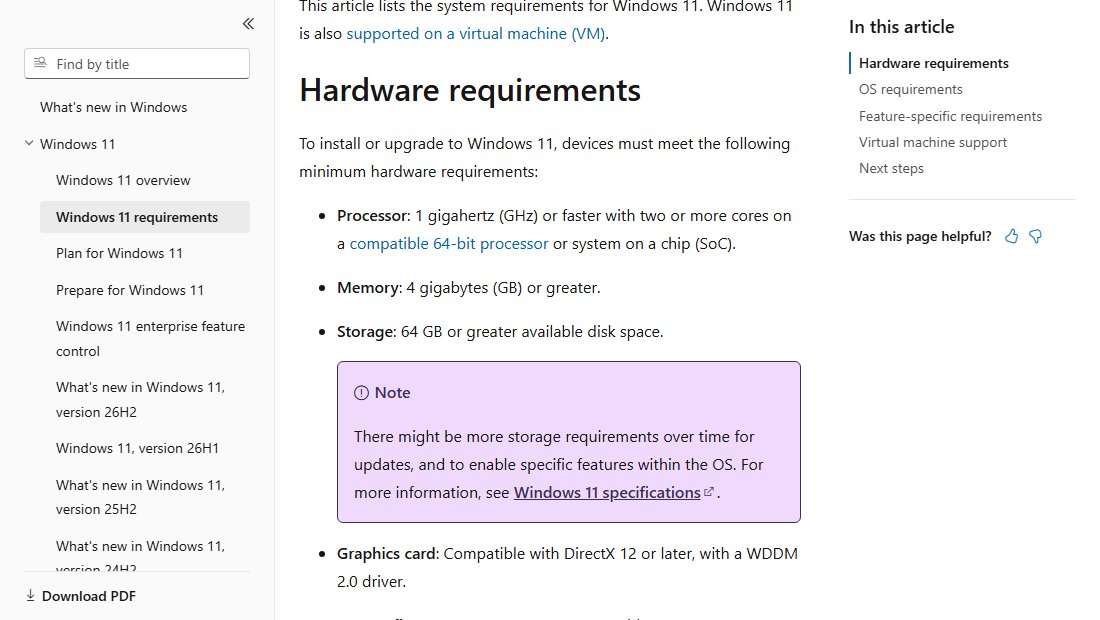
A PC has to meet every line below to install or upgrade. Microsoft recommends the PC Health Check app to test a Windows 10 PC.
| Component | Minimum |
|---|---|
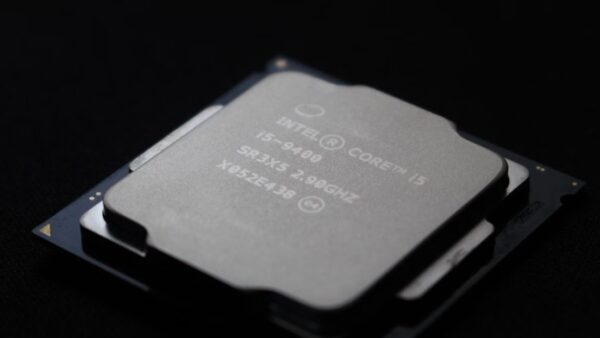
| Processor | 1 GHz or faster, two or more cores, on a compatible 64-bit processor or system on a chip |
| Memory (RAM) | 4 GB |
| Storage | 64 GB or more |
| System firmware | UEFI, Secure Boot capable |
| TPM | Trusted Platform Module version 2.0 |
| Graphics card | DirectX 12 or later with a WDDM 2.0 driver |
| Display | 720p HD, larger than 9 inches diagonally, 8 bits per color channel |
| Internet and account | Internet for updates; Home and Pro for personal use need a Microsoft account during setup |
Windows 10 PCs also need version 2004 or later before they can upgrade directly. Three-column Snap layouts need a screen at least 1920 effective pixels wide.
Installing or upgrading to Windows 11
Microsoft lists three routes. Windows Update is the recommended one, because it only offers the upgrade once the PC is ready.
| Route | How to start it | Best for |
|---|---|---|
| Upgrade via Windows Update | On Windows 10, open Settings > Update & Security > Windows Update, select Check for updates, then Download and install when Windows 11 is offered | Most Windows 10 PCs that meet the requirements |
| Windows 11 Installation Assistant | Run the assistant from Microsoft's Windows 11 download page, select Accept and install, then Restart now | Eligible PCs that have not been offered the upgrade yet |
| Create installation media | Make a USB drive, then run setup.exe from it inside Windows, or boot from it for a clean install | New drives, clean installs, or several PCs |
Running setup from the USB drive keeps your files and apps by default; select Change what to keep for other options. Booting from the drive wipes the disk, so back up your files first.
The new look of Windows 11
Most of the visual changes from Windows 10 sit in a few places, and each one can be adjusted.
| Change | What it means for you | Where to adjust it |
|---|---|---|
| Centered Start menu and taskbar | Start and the app icons sit in the middle of the taskbar | Taskbar settings > Taskbar behaviors > Taskbar alignment (choose Left) |
| New Start menu design | Pinned apps, recommendations and an All list in category, grid or list view | Start menu, Settings > Personalization > Start |
| Rounded corners and Fluent design | Windows, menus and dialogs have softer corners and a lighter look | Settings > Personalization > Colors for light or dark mode |
| Snap layouts and multitasking improvements | Hover over a window's maximize button to place it in a preset layout | Settings > System > Multitasking |
| Redesigned File Explorer and context menus | Tabs, a Home page and a Gallery for photos | File Explorer View menu |
| Widgets board | Weather, news, stocks and photos in one panel | Taskbar settings > Taskbar items |
Getting started with the Start menu
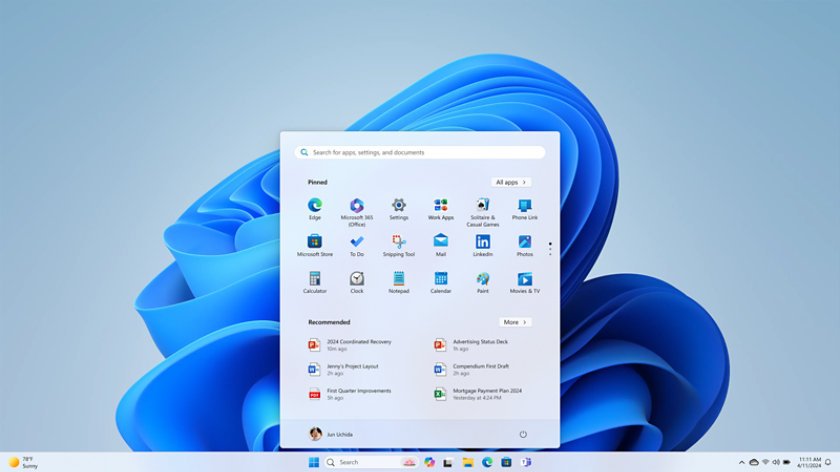
The Start menu holds search, your pinned apps, recommendations, the full app list and the power button.
- Select Start on the taskbar or press the Windows key.
- Type an app, setting or file name to search for it.
- Right-click an app in the results and select Pin to Start to keep it on the menu.
- Drag one pinned app onto another to create a folder, then rename the folder.
- Select All to see every installed app, and switch between Category, Grid and List views.
- Select the power button to lock, sleep, shut down or restart the PC.
To remove a pin, right-click it and select Unpin from Start.
Using the taskbar and system tray
The taskbar shows Start, search, pinned and open apps. The system tray on the right holds the clock, network, volume and background app icons.
- Right-click an empty area of the taskbar and select Taskbar settings.
- Under Taskbar items, choose a Search style and turn Widgets and Task view on or off.
- Under Other system tray icons, choose which app icons show next to the clock.
- Expand Taskbar behaviors to change Taskbar alignment or select Automatically hide the taskbar.
- Right-click an open app's icon and select Pin to taskbar to keep it there.
- Drag pinned icons to reorder them.
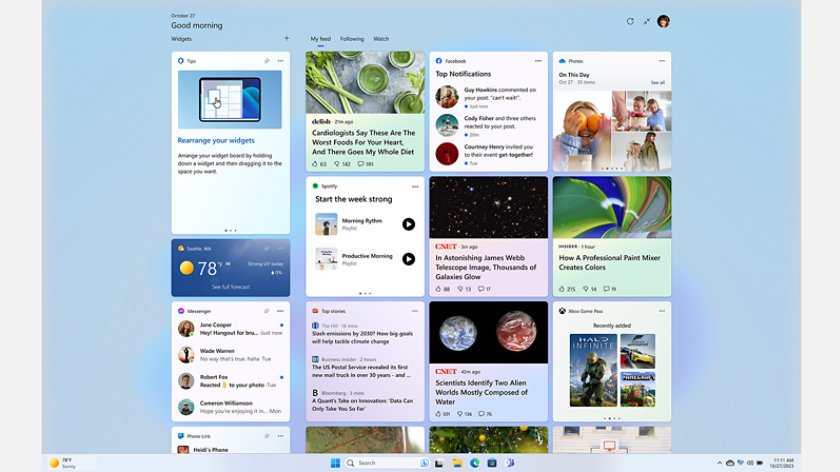
Widgets in Windows 11
Widgets are cards for weather, news, stocks, photos and more, collected on one board. They give quick information without opening the full app.
- Press Windows + W, or select the Widgets area on the taskbar.
- Select the + button to open the widget picker.
- Add the widgets you want from the list.
- Drag a widget to move it, or use its more options (three dots) menu to resize or remove it.
- To hide Widgets from the taskbar, open Taskbar settings and turn Widgets off under Taskbar items.
How to use virtual desktops
Virtual desktops give you separate workspaces, such as one for work and one for personal apps, on the same screen.
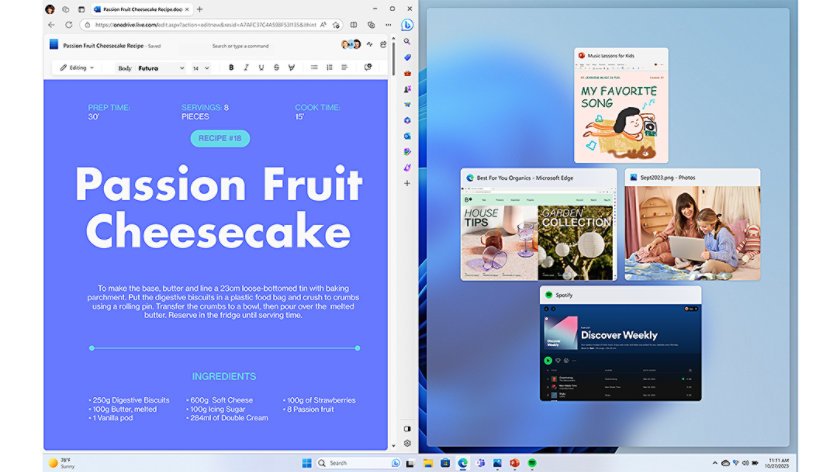
- Hover over the Task view icon on the taskbar, or press Windows + Tab.
- Select New desktop, or press Ctrl + Windows + D.
- Select the new desktop's name and type a name you will recognize.
- Right-click a desktop in Task view and select Choose background to give it its own picture.
- Press Ctrl + Windows + Left arrow or Right arrow to switch desktops.
- Press Ctrl + Windows + F4 to close the desktop you are on.
Go to Settings > System > Multitasking and expand Desktops to choose whether the taskbar and Alt + Tab show windows from every desktop or only the current one.
Settings and personalization
Settings replaces most of the old Control Panel. Press Windows + I to open it, then use the categories on the left.
- Press Windows + I to open Settings.
- Select Personalization > Background and choose a picture, solid color or slideshow.
- Select Personalization > Colors and pick light or dark mode and an accent color.
- Select Personalization > Themes to apply a theme that changes background, colors and sounds together.
- Select Personalization > Start or Taskbar to adjust those menus.
- Use the search box at the top of Settings when you do not know which category holds an option.
Managing files and folders with File Explorer
File Explorer is where you open, move and organize everything stored on the PC and in OneDrive.
- Press Windows + E to open File Explorer on Home.
- Press Ctrl + T to open a new tab, so several folders stay in one window.
- Right-click a folder you use often and select Pin to Quick access.
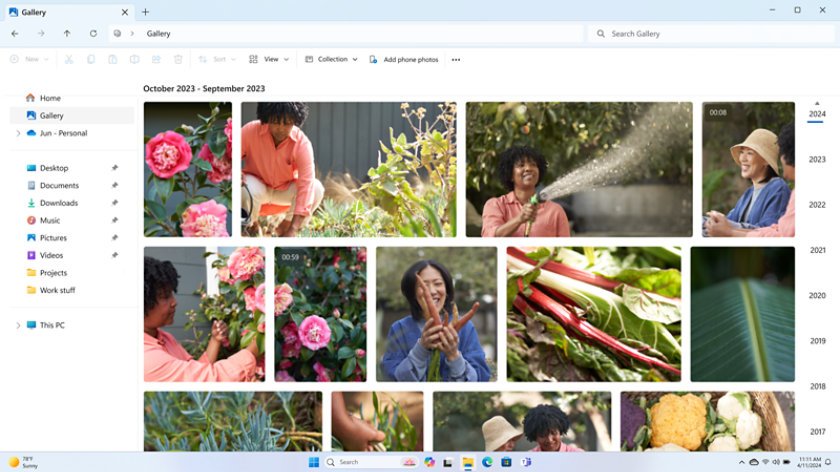
- Select Gallery to browse photos from the PC, phone and cloud storage in one place.
- Select View and choose icons, list, details or Compact view.
- Right-click inside a folder and select New > Folder to create a folder.
Microsoft Store and apps
The Microsoft Store is the built-in place to get apps and games, and Windows 10 apps also run on Windows 11. Settings > Apps lets you manage what is installed and which apps start when you sign in.
- Open Microsoft Store from the Start menu or the taskbar.
- Search for the app you want and open its page.
- Select Get or Install and wait for it to finish.
- Find the new app in the Start menu under All.
- Open Settings > Apps to uninstall apps or choose which ones run at startup.
Windows Terminal, Microsoft Edge and the Windows Security app come built in. You can also use Windows Terminal when a guide asks for PowerShell or Command Prompt.
Tips for using Windows 11 efficiently
| Tip | How to do it | Why it helps |
|---|---|---|
| Snap two or more windows side by side | Hover over a window's maximize button, or press Windows + Z, then pick a layout | Fills the screen without manual resizing |
| Use Snap groups | Hover over a snapped app on the taskbar and select the group | Brings back the whole layout at once |
| Turn on clipboard history | Press Windows + V and turn it on when asked | Paste anything you copied earlier, not just the last item |
| Capture part of the screen | Press Windows + Shift + S and drag around the area | Copies a screenshot to the clipboard |
| Open the quick link menu | Press Windows + X or right-click Start | Reaches Device Manager, Disk Management and Terminal fast |
| Type with your voice | Press Windows + H in any text box | Dictates text instead of typing |
Security and updates
Windows Security and Windows Update are both built in. Microsoft Defender Antivirus runs automatically unless another antivirus product is installed.
- Search the Start menu for Windows Security and open it.
- Check that Virus & threat protection, Account protection, Firewall & network protection, App & browser control and Device security show no warnings.
- Open Settings > Windows Update.
- Select Check for updates and install anything offered.
- Select Restart now when an update asks for a restart.
The Windows Update settings page holds the rest of the update options. Once Windows itself is current, update drivers on Windows 11 so hardware keeps working after feature updates.
Windows 11 shortcuts for beginners
| Shortcut | What it does |
|---|---|
| Windows | Open or close the Start menu |
| Windows + E | Open File Explorer |
| Windows + I | Open Settings |
| Windows + D | Show or hide the desktop |
| Windows + L | Lock the PC |
| Windows + Tab | Open Task view |
| Windows + Z | Open Snap layouts |
| Windows + Left / Right arrow | Snap the window to that side of the screen |
| Alt + Tab | Switch between open windows |
| Windows + A | Open the action center (quick settings) |
| Windows + N | Open notifications and the calendar |
| Windows + . | Open the emoji panel |
| Ctrl + Shift + Esc | Open Task Manager |
Find your Windows 11 version with winver
- Press Windows + R to open Run.
- Type
winverand press Enter. - Read the version line, for example Version 26H2, and the OS build number.
- Open Settings > System > About to see the edition, such as Home or Pro, and the PC's specifications.
Windows 11 for beginners FAQ
What is the latest version of Windows 11?
Version 26H2, OS build 26300, released on 29 September 2026 through the General Availability Channel. Version 25H2 is still supported for Home and Pro. Version 26H1 only ships preinstalled on select new devices and is not offered as an update.
Can my PC run Windows 11?
It needs a compatible 64-bit processor with two or more cores, 4 GB of RAM, 64 GB of storage, UEFI with Secure Boot, TPM 2.0 and a DirectX 12 graphics card. Run Microsoft's PC Health Check app on Windows 10 to test it.
Does Windows 11 need a Microsoft account?
Yes for Home and for Pro on personal devices. Microsoft states both editions need an internet connection and a Microsoft account to finish setup on first use. Internet access is also needed for updates and some features.
How do I move the Start button to the left in Windows 11?
Right-click the taskbar, select Taskbar settings, expand Taskbar behaviors and set Taskbar alignment to Left. The Start button and pinned apps move to the left edge, as in Windows 10.
How do I take a screenshot in Windows 11?
Press Windows + Shift + S, then drag around the part of the screen you want. The screenshot is copied to the clipboard, ready to paste into a document, chat or image editor.
Is Windows 10 still supported?
No. Support for Windows 10 ended on 14 October 2025, so it no longer receives free security fixes, technical help or software updates from Windows Update. The PC keeps working, but Microsoft recommends moving to Windows 11.
How do I create a new desktop in Windows 11?
Press Ctrl + Windows + D, or press Windows + Tab and select New desktop. Switch between desktops with Ctrl + Windows + Left or Right arrow, and close the current one with Ctrl + Windows + F4.
Do Windows 10 apps work on Windows 11?
Yes. Microsoft states that Windows 11 is built on the same foundation as Windows 10, and Windows 10 apps also work on Windows 11. Install new apps from the Microsoft Store or the developer's own site.