To see the names and values of environment variables in Windows 11/10, open Control Panel > System > Advanced system settings > Environment Variables, or open Command Prompt and type set to print every name and value at once.
This guide covers the Environment Variables dialog, the set and echo commands, PowerShell's Env: drive, PowerToys, the difference between user and system variables, and the messages you see when a variable is missing.
How to check names and values of environment variables in Windows 11/10
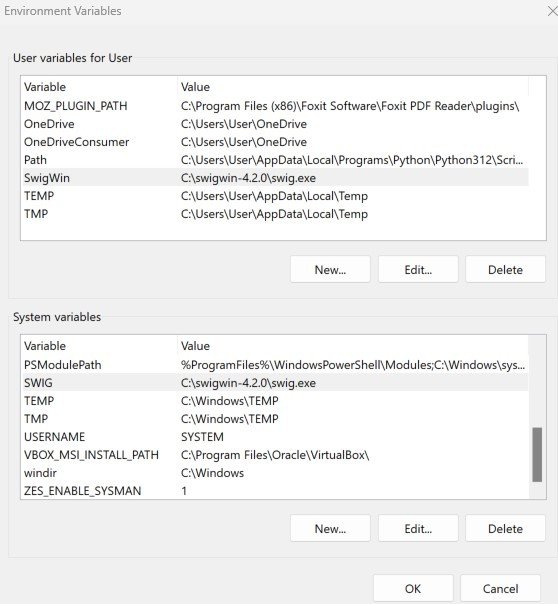
The Environment Variables dialog shows every user and system variable in two lists, with the name in one column and the value beside it.
It is the same dialog in Windows 11 and Windows 10, and you do not need administrator rights just to look.
- Open Control Panel and select System.
- Select Advanced system settings.
- In System Properties, go to the Advanced tab.
- Select Environment Variables….
- Read the top list, User variables for <your user name>, for variables that apply only to your account.
- Read the bottom list, System variables, for variables that apply to every user on the PC.
- Select Cancel when you are done looking, so nothing is saved by accident.
If you came here to change a value, the steps to edit environment variables in Windows use this same dialog.
Environment Variables dialog vs set command vs PowerShell
| Your situation | Use this | Why |
|---|---|---|
| You want to see user and system variables separately | Environment Variables dialog | It splits the two scopes into separate lists |
| You want one full list of names and values quickly | set in Command Prompt |
One word prints every variable as NAME=value |
| You need the value of a single variable | echo %NAME% or $Env:NAME |
Prints only the value you asked for |
| You want a sortable list or need to script it | Get-ChildItem Env: in PowerShell |
Returns objects with Name and Value columns |
| You switch between sets of variables for development work | PowerToys Environment Variables | Shows profile, User and System variables and the applied result |
List all environment variables with the set command in Command Prompt
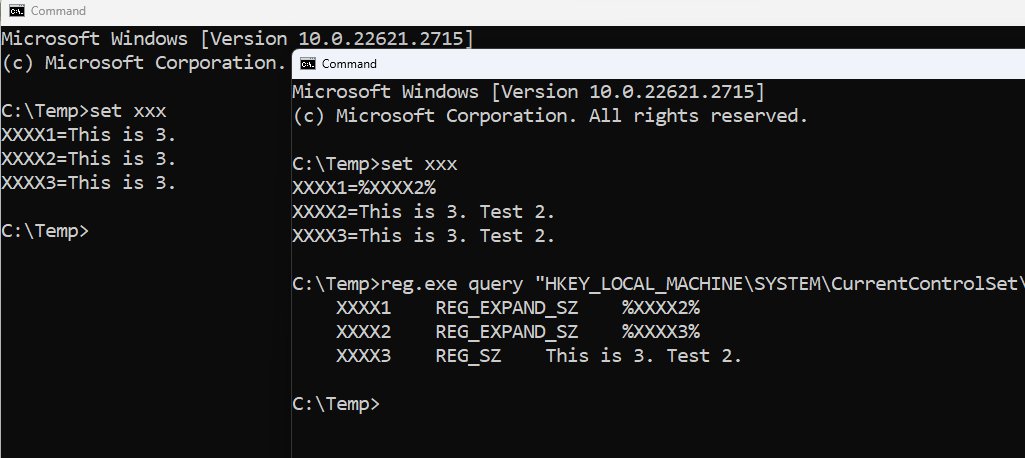
Microsoft documents that set, one of the built-in Command Prompt commands, without parameters displays the current environment variable settings of the Command Prompt window.
Each line shows one variable in the form NAME=value, and the list usually includes COMSPEC and PATH.
setRun in Command Prompt (cmd.exe) with no parameters to print every environment variable name with its value. Add the start of a name, for example set pro, to list only the variables whose names begin with those letters, such as PROCESSOR_ARCHITECTURE and PROGRAMFILES.
You should see: The window prints lines such as SystemRoot=C:\Windows and Path= followed by a list of folders separated by semicolons.
The list reflects the environment of that Command Prompt window, built from the system and user variables when the window opened. Variables created later with setx appear only in new windows.
List environment variables in PowerShell with Get-ChildItem Env:
PowerShell exposes environment variables through a drive named Env:, so you list them the same way you would list files in a folder.
The output is a two-column table with Name and Value, which is easier to scan than the Command Prompt list.
Get-ChildItem Env:Lists every environment variable in the current PowerShell session. Use Get-Item -Path Env:\Pro* to filter by name with a wildcard, or Get-ChildItem Env:Path to show one entry with its name and value.
You should see: PowerShell prints a Name column and a Value column, with entries such as windir and C:\Windows.
Environment variable names are not case-sensitive on Windows, so $Env:Path and $Env:PATH return the same value. Changes made with $Env:NAME = 'value' last only for the current session.
Show the value of one environment variable in Windows
When you only need one value, ask for it by name instead of reading the whole list.
Command Prompt wraps the name in percent signs, while PowerShell uses the $Env: prefix.
echo %USERPROFILE%In Command Prompt, echo prints the value of the variable between the percent signs. In PowerShell, type $Env:USERPROFILE instead. To read the saved value from one scope in PowerShell, use [Environment]::GetEnvironmentVariable('Path','User') or replace User with Machine for the system value.
You should see: You see only the value, for example the path of your user profile folder.
If Command Prompt prints the text %USERPROFILE% back unchanged, the name is misspelled or the variable does not exist in that window.
View environment variables with PowerToys Environment Variables
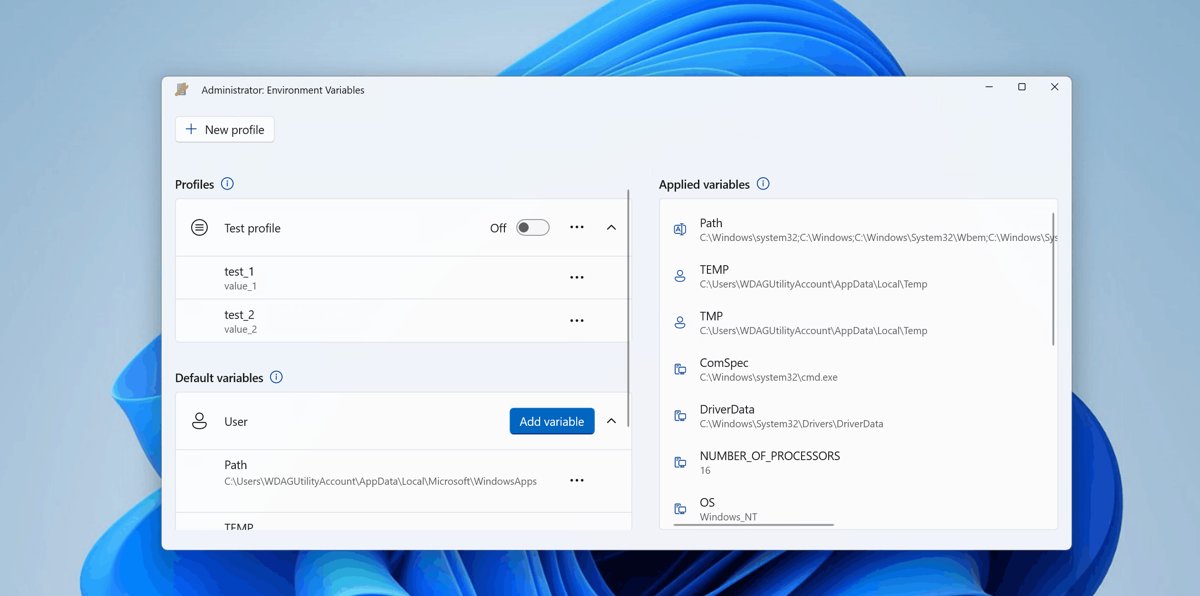
The free Microsoft PowerToys toolkit includes an Environment Variables utility that lists profile, User and System variables in one window.
Its Applied variables list shows the current result in the order Windows evaluates it, Profile > User > System, with the evaluated Path value at the top.
- Install Microsoft PowerToys using Microsoft's own installation instructions if it is not already on your PC.
- Open PowerToys and open the Environment Variables utility.
- Expand User or System to see each variable's name and value.
- Check the Applied variables list for the values actually in effect.
- Select the more button (…) on a variable if you want to edit or remove it.
The utility opens as administrator by default, which is what allows it to manage System variables. With Open as administrator turned off, only profile and User variables can be changed.
What are environment variables in Windows 11/10
An environment variable is a named string that Windows and programs read to find folders, settings and search paths.
Every process gets a copy of these names and values when it starts, and a child process inherits the variables of the process that launched it.
| Variable | What its value points to | Typical value |
|---|---|---|
| WINDIR / SYSTEMROOT | The Windows folder on the system drive | C:\Windows |
| SYSTEMDRIVE | The drive that holds Windows, as a drive name only | C: |
| PROGRAMFILES | The Program Files folder | C:\Program Files |
| PROGRAMFILES(X86) | The 32-bit Program Files folder on 64-bit Windows | C:\Program Files (x86) |
| ALLUSERSPROFILE | The shared data folder for all users | C:\ProgramData |
| APPDATA | The user's roaming application data folder | C:\Users\<username>\AppData\Roaming |
| PATH | Folders Windows searches for programs you run by name | A list of folders separated by semicolons |
A single user-defined variable can hold up to 32,767 characters, and a variable name cannot contain an equal sign.
User vs system environment variables in Windows
Windows keeps two saved sets of variables and builds a third, the process environment, each time a program starts.
Knowing which set a variable lives in tells you where to look for it.
| Scope | Who it applies to | Where you see it | Persists after restart |
|---|---|---|---|
| User | Only the signed-in account | Top list in the Environment Variables dialog; [Environment]::GetEnvironmentVariable('NAME','User') |
Yes |
| System (Machine) | Every account on the PC | Bottom list in the dialog; registry key HKEY_LOCAL_MACHINE\System\CurrentControlSet\Control\Session Manager\Environment | Yes |
| Process | One running window or program | set in Command Prompt or Get-ChildItem Env: in PowerShell |
No, it ends with the window |
The process list combines the system and user variables, which is why set shows both sets mixed together in one alphabetical list.
Check that a new environment variable value is visible
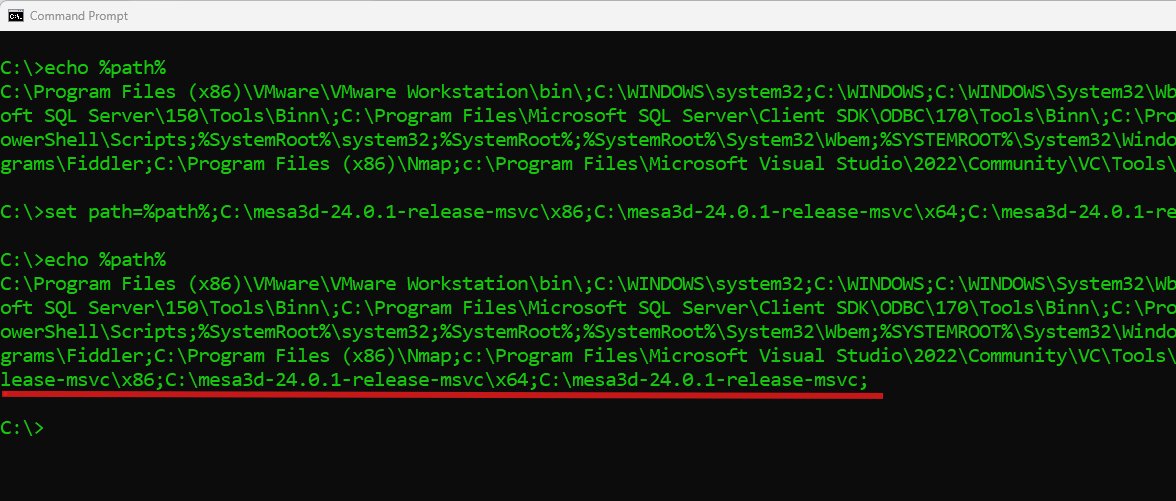
A new or changed variable only reaches windows and programs that start after the change, so an already open window still shows the old value.
- Close every Command Prompt and PowerShell window that was open before the change.
- Open a new Command Prompt window.
- Type
echo %NAME%, replacing NAME with the variable, and press Enter. - Confirm the window prints the new value instead of the old one or the literal
%NAME%text. - For a Path change, type
echo %PATH%and look for the folder you added near the end of the list.
Environment variable not showing in Command Prompt or PowerShell
A variable you just added does not appear in `set` output
Variables saved with setx or the dialog reach future windows only, not the window that was already open.
- Close the Command Prompt or PowerShell window.
- Open a new window and run
setorGet-ChildItem Env:again. - If the variable is still missing, reopen the Environment Variables dialog and confirm it was saved under the scope you expected.
Command Prompt prints "ECHO is off" instead of a value
The variable passed to echo is empty in that window.
- Run
setfollowed by the first letters of the name to see whether the variable exists. - Type
echo:%NAME%if you want a blank line instead of the message in a batch file. - Give the variable a value in the Environment Variables dialog, then open a new window.
PowerShell says "Cannot find path" for an Env: entry
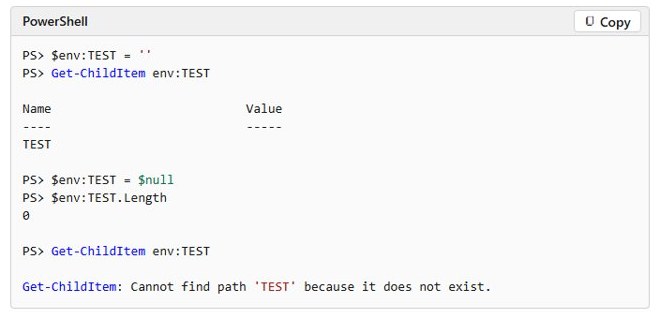
The variable does not exist in the current session, or it was removed by setting it to $null.
- Run
Get-ChildItem Env:and look for the exact name. - Check the spelling, then run
Get-Item -Path Env:\FirstLetters*with a wildcard. - Read the saved value with
[Environment]::GetEnvironmentVariable('NAME','User')or'Machine'to see whether it exists outside the session.
The Path value is too long to read in the dialog
Path holds many folders in one semicolon-separated string.
- Run
$Env:Path -split ';'in PowerShell to print one folder per line. - Run
echo %PATH%in Command Prompt if you only need to search the string for one folder.
Windows environment variables names and values FAQ
How do I view environment variables in Windows 11?
Open Control Panel, select System, then Advanced system settings, and select Environment Variables on the Advanced tab. The dialog lists your user variables at the top and system variables at the bottom, each with its name and value.
How do I get a list of environment variables?
Type set in Command Prompt and press Enter to print every variable as NAME=value. In PowerShell, run Get-ChildItem Env: to get the same list as a table with Name and Value columns.
How do I find the value of one environment variable?
In Command Prompt, type echo followed by the name between percent signs, such as echo %TEMP%. In PowerShell, type $Env:TEMP. Both print only the value of that single variable.
What is the difference between user and system variables?
User variables apply only to the account that created them, while system variables apply to every account on the PC. Both are saved and survive a restart, and changing system variables needs administrator rights.
Can I show only variables that start with certain letters?
Yes. In Command Prompt, type set followed by the first letters, such as set pro, to list every variable whose name begins with them. In PowerShell, use Get-Item -Path Env:\Pro* with a wildcard.
Are Windows environment variable names case-sensitive?
No. On Windows, Path, PATH and path refer to the same environment variable. Names are case-sensitive on macOS and Linux, which matters only if you run PowerShell on those systems.
Why does set show different variables than the dialog?
The set command shows the environment of the current Command Prompt window, which merges user and system variables and adds session values. The dialog shows only the saved user and system variables.
Do I need admin rights to see environment variables?
No. Any account can open the Environment Variables dialog or run set and Get-ChildItem Env: to read names and values. Administrator rights are needed only to change system variables.