To close a running app on Windows 11, select it and press Alt + F4, or press Ctrl + Shift + Esc, right-click the app on the Processes tab and select End task.
This guide covers every built-in way to close apps, including frozen ones, how to close several at once, and how to stop apps from running in the background after you close them.
How to close running apps on Windows 11/10
Task Manager closes any app, including one that has stopped responding, and shows you everything that is still running.
- Press Ctrl + Shift + Esc to open Task Manager, or right-click Start and select Task Manager.
- Select More details if Task Manager opens in its compact view.
- On the Processes tab, find the app under Apps.
- Right-click the app and select End task.
- Repeat for any other app you want to close.
Unsaved work in an app you end this way is lost, so close responsive apps normally first.
Ways to close apps on Windows 11 compared
| Your situation | Use this | Why |
|---|---|---|
| The app is responding and in front | Alt + F4 or the X in the title bar | The app closes normally and asks to save your work |
| The app is frozen or has no window | Task Manager > End task | Works on apps that are not responding |
| You close apps often from the taskbar | Taskbar End task option | One right-click, no Task Manager needed |
| Many windows are open | Task view (Windows + Tab) | Shows every window so you can close each one in place |
| You want to script it or Task Manager will not open | taskkill in Terminal |
Ends a process by name or PID, with force if needed |
| You want every app closed at once | Sign out or restart | Windows closes all apps in your session |
Close an app with Alt + F4 or the title bar
- Select the app's window so it is the active window.
- Press Alt + F4 to close it.
- If the app asks to save changes, select Save or Don't save.
- To use the mouse instead, select the X at the top-right corner of the window.
On Windows 11, pressing Alt + F4 with no windows open brings up the shutdown prompt instead, so check that the app is focused first.
Enable End task in the Windows 11 taskbar
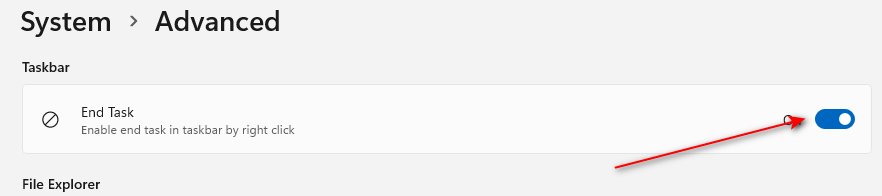
Windows 11 can add End task to the menu you get when you right-click an app on the taskbar. In version 25H2 and later the toggle is on the Advanced page, which was called For developers in earlier versions.
- Select Start > Settings > System.
- Select Advanced (or For developers on Windows 11 24H2 and earlier).
- Turn on End Task.
- Right-click any running app on the taskbar.
- Select End task to close the app and its processes.
Close open windows from Task view
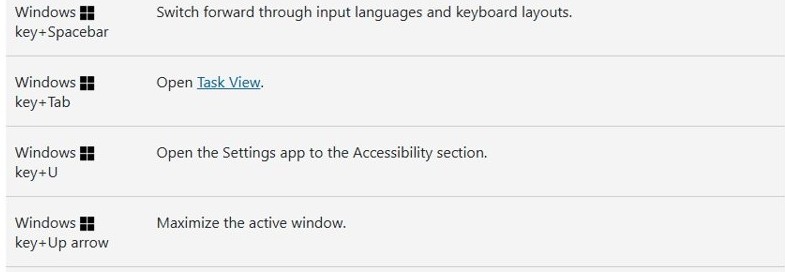
- Press Windows + Tab to open Task view.
- Hover over the window you want to close.
- Select the X at the top-right corner of its thumbnail.
- Close the other windows the same way, then press Esc to leave Task view.
Force close an app with taskkill in Command Prompt
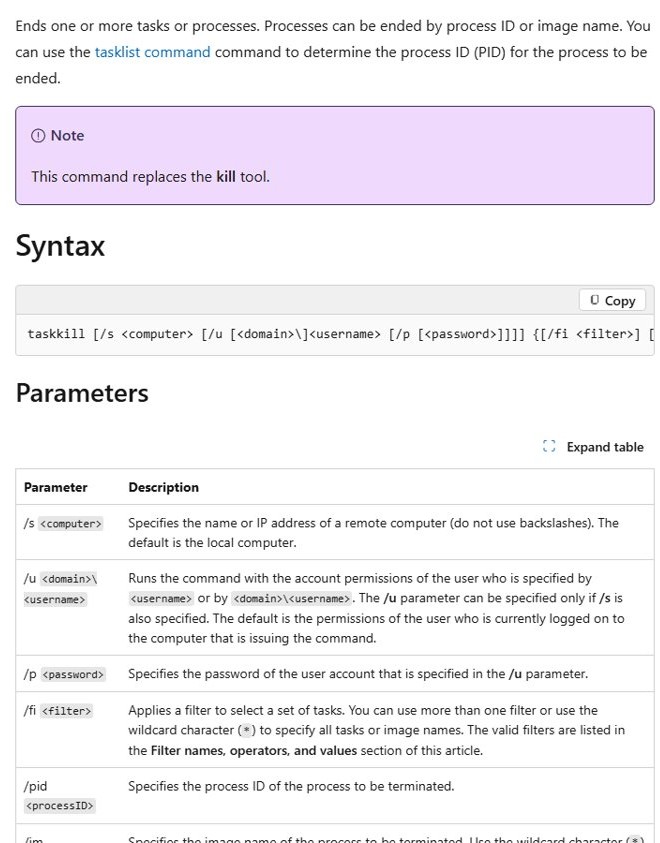
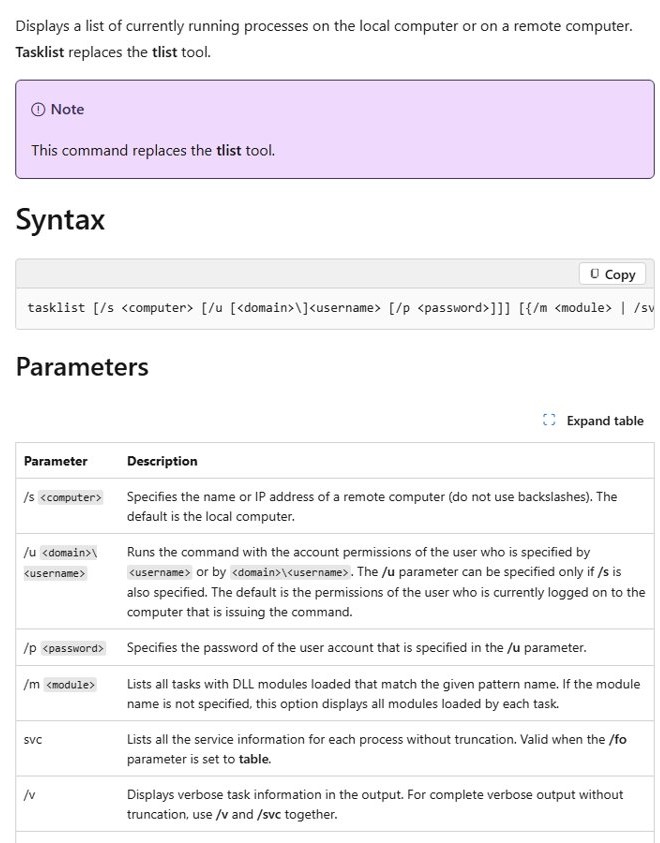
Run tasklist first to see the image name and PID of every running process. Replace notepad.exe with the app's image name.
taskkill /im notepad.exe /f /t/im picks the process by image name, /f ends it forcefully, and /t also ends any child processes it started. Use /pid <number> instead of /im to end one specific process.
You should see: The app disappears from the taskbar and from the Processes tab in Task Manager.
How to close all Windows apps at once?
Windows 11 has no single button that closes every app. Signing out or restarting closes all of them in one step, so save your work before you do either.
- Save your work in every open app.
- Select Start, then select your account picture.
- Select Sign out to close all your apps and end the session.
- Or select Start > Power > Restart to close everything and restart the PC.
After the restart, open only the apps you need and close them when you are done.
How to enable or disable hardware acceleration in Windows 11
Hardware-accelerated GPU scheduling lets the graphics card handle more of its own scheduling work. Windows shows the switch only when both the GPU and its driver support it, and apps such as browsers keep a separate hardware acceleration setting of their own.
- Select Start > Settings > System > Display.
- Select Graphics.
- Open the default or advanced graphics settings on that page and find Hardware-accelerated GPU scheduling.
- Turn the switch on to enable it, or off to disable it.
Stop apps from running in the background on Windows 11
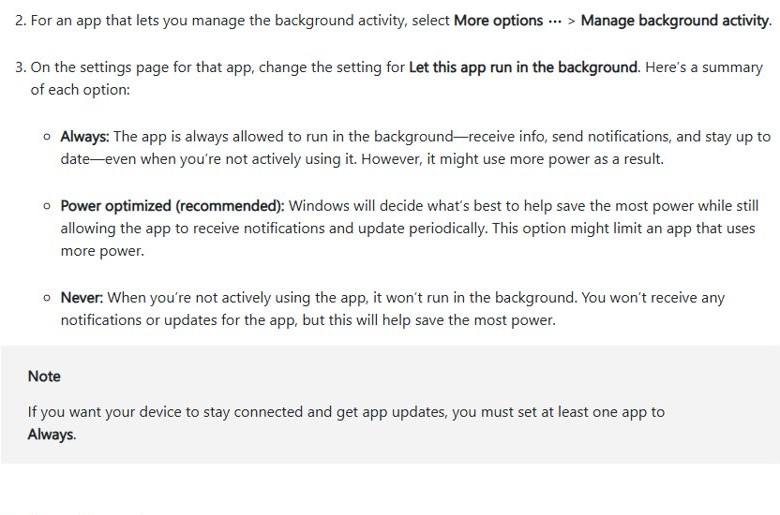
Some apps keep background processes running after you close their window. You can stop that per app; the trade-off is that the app sends no notifications or updates while closed. If you are on Windows 10, stop background apps from running from the Privacy settings instead.
- Select Start > Settings > Apps > Installed apps.
- Find the app, select More options (…), then select Advanced options.
- Under Background app permissions, set Let this app run in the background to Never.
- On a laptop, you can also go to Settings > System > Power & battery > Battery usage.
- Select More options next to an app, select Manage background activity, and choose Never.
Power optimized is the recommended middle setting, and Microsoft notes that at least one app must stay on Always to keep the device connected and receiving app updates.
Check that the app is no longer running
- Press Ctrl + Shift + Esc to open Task Manager.
- On the Processes tab, confirm the app no longer appears under Apps or Background processes.
- Check the taskbar and the system tray near the clock for the app's icon.
- In Command Prompt, run
tasklist /fi "IMAGENAME eq notepad.exe"with the app's image name; no matching task means it is closed.
App will not close on Windows 11
The app is not responding and Alt + F4 does nothing
The app's window has frozen and cannot process the close request.
- Press Ctrl + Shift + Esc to open Task Manager.
- Right-click the app on the Processes tab and select End task.
- If it stays listed, run
taskkill /im <name>.exe /f /tin Command Prompt.
The app keeps running in the background after you close it
The app is allowed to run background processes.
- Open Settings > Apps > Installed apps > More options > Advanced options.
- Set Let this app run in the background to Never.
- Right-click the app's icon in the system tray and choose its quit or exit option, if it has one.
End task is missing from the taskbar menu
The End Task toggle is off, or an organization policy disables it.
- Open Settings > System > Advanced (or For developers) and turn on End Task.
- If the toggle is greyed out on a work PC, ask your IT administrator; managed devices can disable these settings.
- Make sure Windows 11 is up to date in Settings > Windows Update.
taskkill says access is denied
The process runs with administrator or system rights.
- Right-click Start and select Terminal (Admin).
- Run the same
taskkillcommand again. - If a protected Windows process refuses to end, leave it running; restarting the PC clears a stuck app instead.
Closing running apps on Windows 11 FAQ
How do I see what apps are running in the background in Windows 11?
Press Ctrl + Shift + Esc to open Task Manager. The Processes tab lists open apps under Apps and everything else under Background processes, with the CPU, memory and disk each one uses.
How do I stop apps from running in the background in Windows 11?
Go to Settings > Apps > Installed apps, select More options next to the app, then Advanced options. Under Background app permissions, set Let this app run in the background to Never.
What is the shortcut to close an app in Windows 11?
Alt + F4 closes the active window. If no windows are open, Windows 11 shows the shutdown prompt instead. Ctrl + Shift + Esc opens Task Manager for apps that will not close.
Is End task safe to use?
End task is safe for ordinary apps, but any unsaved work in that app is lost. Avoid ending Windows processes you do not recognise, because some keep the system running.
Does closing apps make Windows 11 faster?
Closing apps you are not using frees memory and processor time. Microsoft lists closing unneeded apps and tabs as one of its tips to improve PC performance.
How do I close all apps at once on Windows 11?
Windows 11 has no close-all button. Save your work, then sign out from the Start menu or restart the PC, and Windows closes every app in your session.