To edit the Windows Registry with Reg.exe, open Command Prompt as administrator and run reg add, reg delete or reg query followed by the full key path, such as reg add HKCU\Software\MyApp /v Theme /t REG_SZ /d Dark /f.
This guide covers every Reg.exe operation in Windows 11 and Windows 10, the syntax for each, how to back up and restore a key first, remote edits, and the Group Policy setting that controls background processing of registry policy.
How to use Reg.exe command line
Reg.exe is the Console Registry Tool built into Windows 11 and Windows 10. It reads and changes the same data you see in Registry Editor, but from a command line or a batch file you run.
- Select Start, type
cmd, right-click Command Prompt and select Run as administrator. Keys under HKLM need an elevated prompt. - Back up the key you plan to change:
reg export HKCU\Software\MyApp C:\Backup\MyApp.reg. - Add or change a value:
reg add HKCU\Software\MyApp /v Theme /t REG_SZ /d Dark /f. - Read the value back to confirm it:
reg query HKCU\Software\MyApp /v Theme. - Delete the value if you no longer need it:
reg delete HKCU\Software\MyApp /v Theme /f. - Type
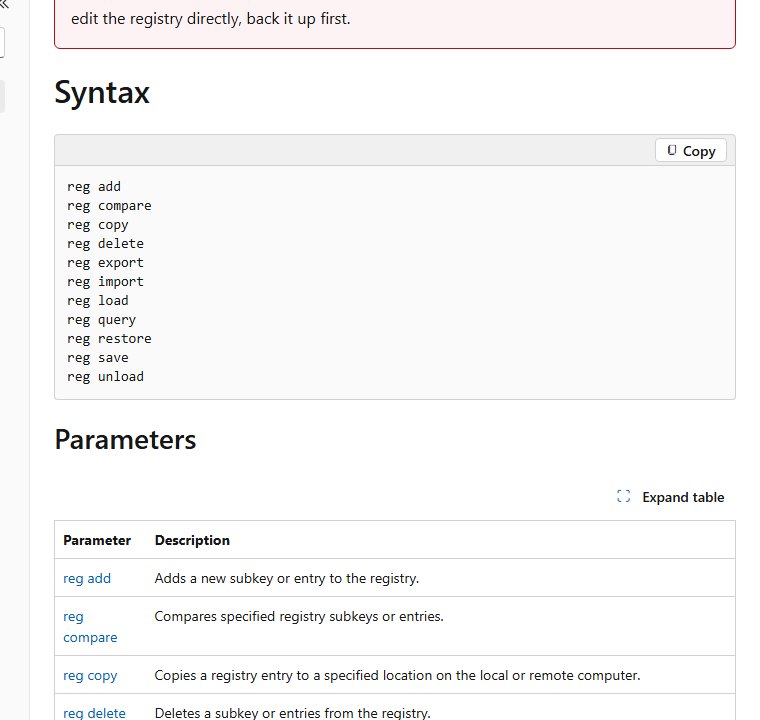
reg /?orreg add /?at any time to see the built-in help for an operation.
Wrap any key path that contains a space in double quotes, for example "HKCU\Software\My App". The /f switch skips the confirmation prompt, so use it only once you have checked the path.
Reg.exe vs Registry Editor (regedit) in Windows 11
| Your situation | Use this | Why |
|---|---|---|
| You want to browse keys and change one value by hand | Registry Editor (regedit) |
You see the tree and can check the value before you change it |
| You apply the same change on many PCs | Reg.exe in a batch file or logon script | One line per change, no clicks, repeatable |
| You need to read a value inside a script | reg query |
Returns text and an exit code your script can test |
| You need to change another computer on the network | Reg.exe with \\computername\ |
Works on HKLM and HKU of a remote PC |
| You want to share a set of changes as a file | A .reg file, created with reg export |
Double-click or reg import applies it |
To open Registry Editor instead, press Win + R, type regedit and press Enter. Registry Editor can also add, rename and delete keys, and you can add a DWORD value in Registry Editor the same way Reg.exe does it with /t REG_DWORD.
Reg.exe commands and what each one does
Reg.exe has 11 operations. Some work on remote computers, and some only on the local one.
| Operation | What it does | Remote PC? |
|---|---|---|
reg add |
Adds a new subkey or value, or overwrites an existing value | Yes (HKLM, HKU) |
reg query |
Lists the subkeys and values under a key, or searches for data | Yes (HKLM, HKU) |
reg delete |
Deletes a subkey, one value or every value in a key | Yes (HKLM, HKU) |
reg copy |
Copies a key and its values to another location | Yes (HKLM, HKU) |
reg compare |
Compares two keys or values and lists differences | Yes (HKLM, HKU) |
reg export |
Writes a key and its subkeys to a .reg text file |
No, local only |
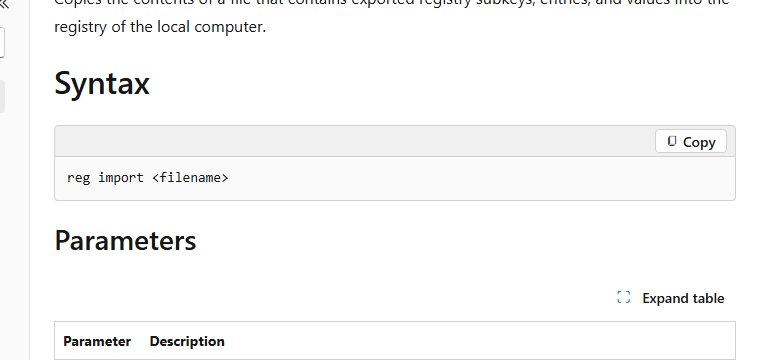
reg import |
Writes a .reg file created by reg export back into the registry |
No, local only |
reg save |
Saves a key to a binary hive file, usually .hiv |
Yes (HKLM, HKU) |
reg restore |
Writes a .hiv file from reg save back over a key |
No, local only |
reg load |
Mounts a saved hive file under a different subkey | Yes (HKLM, HKU) |
reg unload |
Removes a hive that reg load mounted |
Yes (HKLM, HKU) |
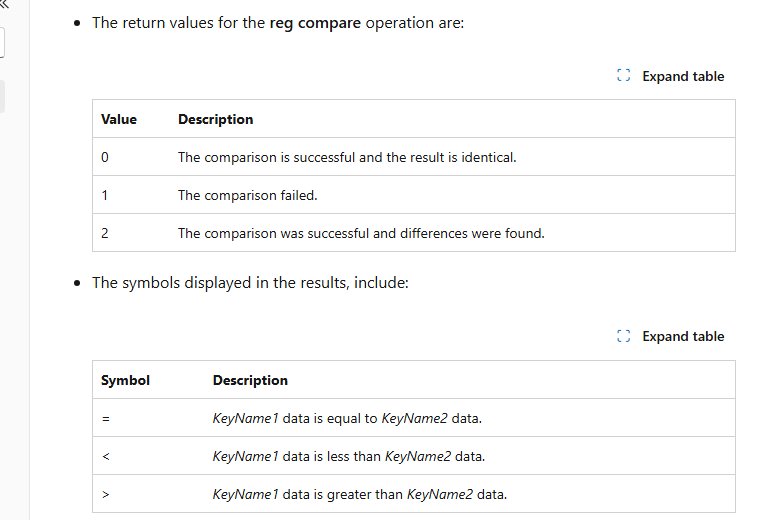
Every operation returns 0 for success and 1 for failure. reg compare adds a third code, 2, which means the comparison worked and found differences.
Registry root keys and value types Reg.exe accepts
Each key path must start with a valid root key. Reg.exe accepts the short forms below.
| Short form | Full name | What it holds |
|---|---|---|
| HKCU | HKEY_CURRENT_USER | Settings for the signed-in user, such as folders, screen colors and Control Panel settings |
| HKLM | HKEY_LOCAL_MACHINE | Settings that apply to the computer and every user |
| HKCR | HKEY_CLASSES_ROOT | File associations, merged from HKLM\Software\Classes and HKCU\Software\Classes |
| HKU | HKEY_USERS | Every loaded user profile; HKCU is one of its subkeys |
| HKCC | HKEY_CURRENT_CONFIG | The hardware profile used at startup |
Use /t to set the value type with reg add. The common types are REG_SZ (text), REG_EXPAND_SZ (text with variables such as %systemroot%), REG_MULTI_SZ (a list of strings), REG_DWORD (a 32-bit number) and REG_BINARY (raw binary data shown as hex). Name the type every time so the value matches what the app expects.
Reg add command to create a registry key or value
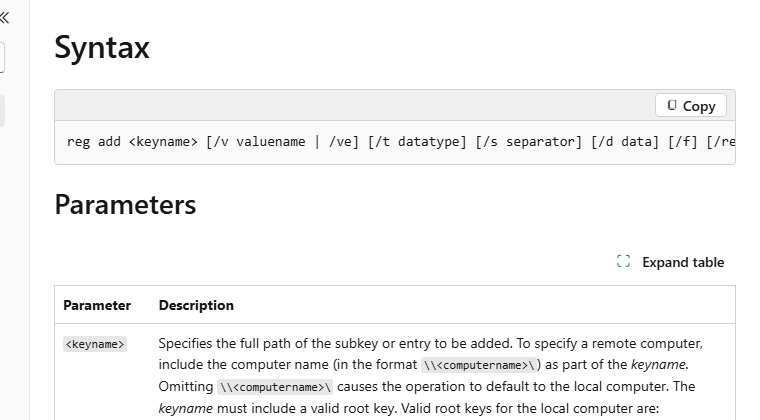
reg add creates a key, adds a value, or overwrites a value that already exists. The full syntax is reg add <keyname> [/v valuename | /ve] [/t datatype] [/s separator] [/d data] [/f] [/reg:32 | /reg:64].
reg add HKCU\Software\MyApp
reg add HKCU\Software\MyApp /v StartCount /t REG_DWORD /d 5 /f
reg add HKCU\Software\MyApp /v MRU /t REG_MULTI_SZ /d fax\0mail\0 /f
reg add HKCU\Software\MyApp /v Path /t REG_EXPAND_SZ /d ^%systemroot^% /f
Line 1 creates the key. Line 2 adds a DWORD named StartCount with the data 5. Line 3 adds a multi-string value whose entries are separated by \0. Line 4 stores the literal text %systemroot%; the carets stop Command Prompt from expanding the variable before Reg.exe sees it. /ve sets the key's (Default) value instead of a named one, and /f overwrites without asking.
You should see: Command Prompt prints The operation completed successfully. and the exit code is 0.
On 64-bit Windows, add /reg:32 to write to the 32-bit registry view that 32-bit apps read, or /reg:64 to force the 64-bit view.
Reg query command to read a registry value
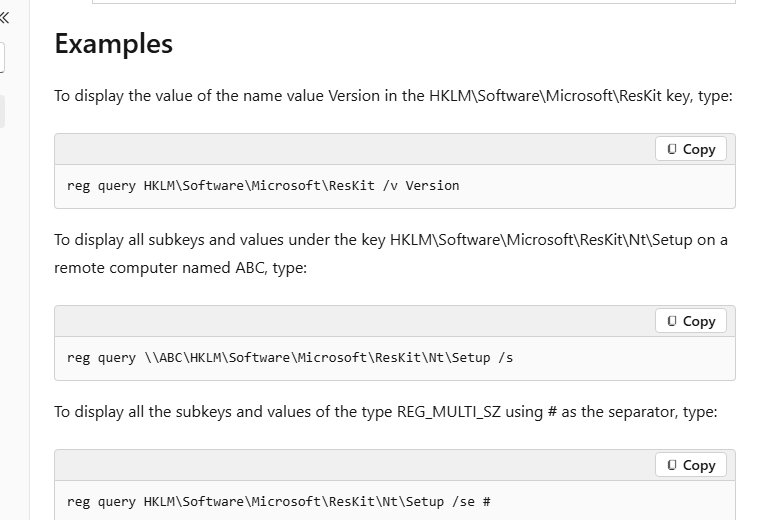
reg query lists the next tier of subkeys and values under a key. Add /v for one value, /s to recurse, or /f to search.
reg query HKCU\Software\MyApp /v StartCount
reg query HKCU\Software\MyApp /s
reg query HKLM\SOFTWARE\Microsoft /s /f asp.net /k
Line 1 prints one value with its type and data. Line 2 prints every subkey and value under MyApp. Line 3 searches key names only (/k) under HKLM\SOFTWARE\Microsoft for asp.net. Use /d to search data only, /c for a case-sensitive match, /e for exact matches, and /t REG_DWORD to limit the search to one type.
You should see: Output shows the key path, then each value as name, type and data, for example StartCount REG_DWORD 0x5.
Reg delete command to remove a registry key or value
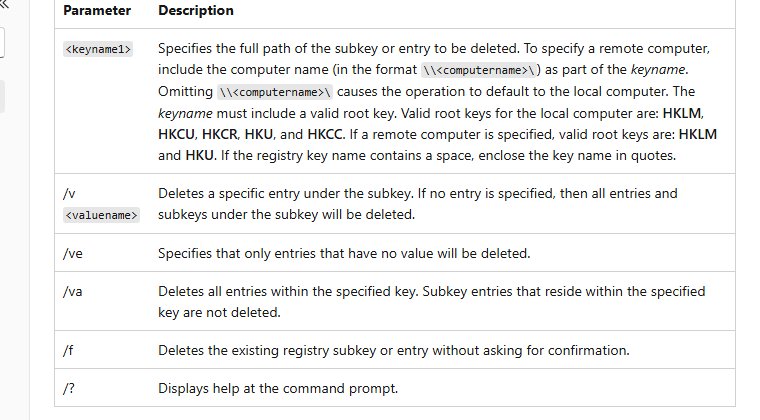
reg delete removes one value, every value in a key, or a whole key with all of its subkeys. Export the key before you run it.
reg delete HKCU\Software\MyApp /v StartCount /f
reg delete HKCU\Software\MyApp /va /f
reg delete HKCU\Software\MyApp /f
Line 1 deletes only the StartCount value. Line 2 deletes every value in MyApp but keeps its subkeys. Line 3 deletes the MyApp key and everything under it. Without /v, /ve or /va, Reg.exe deletes the whole subkey, so check the path twice.
You should see: The operation completed successfully. A later reg query on the deleted path returns an error saying the key or value could not be found.
Back up a registry key with reg export or reg save
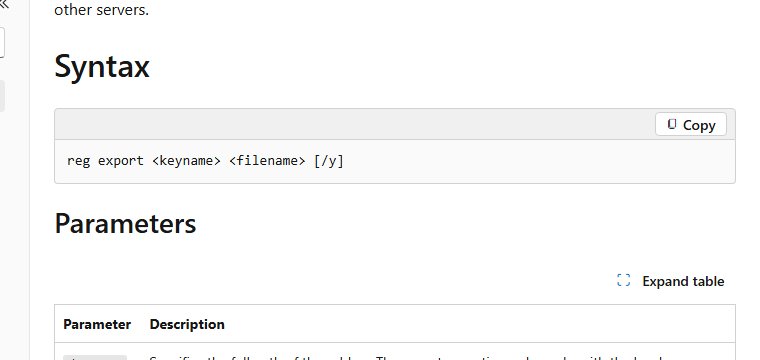
Microsoft advises backing up a key before you edit it. Reg.exe gives you two formats.
| Command | File it creates | Restore with | Best for |
|---|---|---|---|
reg export HKCU\Software\MyApp MyApp.reg /y |
Text .reg file you can read in Notepad |
reg import or a double-click |
Small keys, sharing changes, version control |
reg save HKCU\Software\MyApp MyApp.hiv /y |
Binary hive file | reg restore |
An exact copy you put back over the key |
/y overwrites an existing file without asking. reg export works on the local computer only and the file must end in .reg. reg save uses the current folder when you give no path. To protect the whole registry rather than one key, create a system restore point or a system state backup.
Reg copy and reg compare commands
Copy a key before testing changes on it, then compare the two to see exactly what changed.
reg copy HKCU\Software\MyApp HKCU\Software\MyAppBackup /s /f
reg compare HKCU\Software\MyApp HKCU\Software\MyAppBackup /s
reg copy with /s copies all subkeys and values; /f skips the prompt. reg compare lists only differences by default. Add /oa to show matches and differences, /os for matches only, or /v name to compare a single value.
You should see: reg compare returns exit code 0 when the keys are identical and 2 when it found differences. Lines marked < or > show which side holds the larger data, and = marks equal data.
Edit the registry of a remote computer with Reg.exe
Put the computer name in front of the key path in the form \\computername\. Remote operations accept only the HKLM and HKU root keys.
- Open Command Prompt as administrator with an account that has administrator rights on the remote PC.
- Read a remote value:
reg query \\PC01\HKLM\Software\MyCo /v Version. - Add a remote value:
reg add \\PC01\HKLM\Software\MyCo /v Version /t REG_SZ /d 2.0 /f. - Delete a remote value:
reg delete \\PC01\HKLM\Software\MyCo /v Version /f. - Compare a remote key with the same key on your PC:
reg compare \\PC01\HKLM\Software\MyCo \\. /s.
reg export, reg import and reg restore cannot target a remote computer. Run them on the remote PC itself, for example from a logon script.
Check a Reg.exe registry change worked
- Run
echo %errorlevel%straight after the Reg.exe command.0means success and1means failure. - Run
reg queryon the same key and value and check the type and data in the output. - Press Win + R, type
regedit, press Enter and browse to the key to see the value in Registry Editor. - Sign out and back in, or restart, if the setting belongs to Explorer or a service that reads the value only at start.
In a batch file, test the exit code with if errorlevel 1 so the script stops when a change fails instead of carrying on.
Restore a registry key with reg import or reg restore
- Open Command Prompt as administrator.
- For a
.regbackup, runreg import C:\Backup\MyApp.reg. Add/reg:32or/reg:64if you exported from that registry view. - For a
.hivbackup, runreg restore HKCU\Software\MyApp C:\Backup\MyApp.hiv. This overwrites the current contents of the key. - Run
reg query HKCU\Software\MyApp /sand confirm the old values are back. - Restart the PC if the restored values belong to a driver or service.
reg import merges the file into the registry. Values you added after the export stay in place, so delete those separately if you need an exact rollback.
How to disable Background Processing of Registry Policy in Windows 11
Windows refreshes registry-based Group Policy settings in the background while the PC is in use. The Configure registry policy processing policy can stop that, so policy changes apply only at the next sign-in or restart. It is available in the Local Group Policy Editor on Windows 11 and Windows 10 Pro, Enterprise and Education.
- Press Win + R, type
gpedit.mscand press Enter. - Go to Computer Configuration > Administrative Templates > System > Group Policy.
- Double-click Configure registry policy processing.
- Select Enabled.
- Check Do not apply during periodic background processing.
- Optionally check Process even if the Group Policy objects have not changed to reapply settings a user changed by hand.
- Select OK, then run
gpupdate /force.
The policy is stored under HKLM\Software\Policies\Microsoft\Windows\Group Policy\{35378EAC-683F-11D2-A89A-00C04FBBCFA2}. Run reg query "HKLM\Software\Policies\Microsoft\Windows\Group Policy\{35378EAC-683F-11D2-A89A-00C04FBBCFA2}" to see whether it is set. Set it back to Not Configured to restore normal background refresh.
Is it safe to edit the registry with Reg.exe?
Use Reg.exe only for a change you can name exactly, and export the key first. Microsoft warns that direct registry edits bypass the normal safeguards and can degrade performance or force a reinstall of Windows. Settings, Control Panel or Group Policy are the safer route whenever they offer the same option.
Reg.exe has no undo, and /f removes the only prompt. If you would rather inspect a .reg file before applying it, Registry Preview in PowerToys shows its keys and values first.
Reg.exe and registry editing FAQ
How do I edit the registry in Windows 11?
Press Win + R, type regedit and press Enter to use Registry Editor, or open Command Prompt as administrator and use Reg.exe. For example, reg add HKCU\Software\MyApp /v Theme /d Dark /f adds a text value without opening any window.
How do I edit the registry in Windows 10?
The steps are the same as on Windows 11. Registry Editor opens with regedit, and Reg.exe ships with Windows 10 with the same add, query, delete, export and import operations and the same syntax.
How do I edit a registry entry from the command line?
Run reg add with the key path, /v for the value name, /t for the type, /d for the data and /f to skip the confirmation prompt. Run reg query on the same value afterwards to confirm the new data.
How do I modify registry settings without opening Registry Editor?
Use Reg.exe from Command Prompt, import a .reg file with reg import, or set the matching Group Policy. Microsoft recommends Settings or Control Panel first when they offer the same option.
How do I get to Windows Registry Editor?
Press Win + R, type regedit and press Enter, then select Yes at the User Account Control prompt. You can also type regedit in the Start menu search box and select Registry Editor.
How do I bring up registry edit as administrator?
Registry Editor always asks for administrator approval through User Account Control when it opens. For Reg.exe, right-click Command Prompt and select Run as administrator, because changes under HKLM fail from a standard prompt.
How do I do a registry edit safely?
Export the key first with reg export or File > Export in Registry Editor. Change one value at a time, confirm it with reg query, and keep the .reg file so you can import it again if something breaks.
What is the use of Registry Editor?
Registry Editor lets you find, add, change, rename and delete registry keys and values. Windows stores user profiles, installed apps, file associations and hardware settings in the registry.
How do I change a registry value with a batch file?
Put Reg.exe commands in a .bat or .cmd file and run it as administrator. Each reg add line sets one value, and if errorlevel 1 after a line lets the script stop on a failure.
How do I see help for Reg.exe?
Type reg /? in Command Prompt to list all 11 operations, or add /? to one operation, such as reg query /?, to see its full syntax, switches and examples. Reg.exe is built into Windows 11 and Windows 10.