Right-click the registry key in Registry Editor, point to New, select DWORD (32-bit) Value, type the name and set the data.
This guide covers the Registry Editor route, the reg add and PowerShell equivalents, a .reg file for several computers, how to verify the entry and how to remove it again.
Step-by-Step Guide to Adding a DWORD to the Registry
Registry Editor writes the entry the moment you select OK. There is no Save or Apply button and no undo.
- Open the Registry Editor: select Start, type
regedit, press Enter and approve the User Account Control prompt. - In the left pane, expand the folders to navigate to the desired registry path, for example
HKEY_LOCAL_MACHINE\SYSTEM\CurrentControlSet\Control\FileSystem. - Right-click the key, point to New, and then select DWORD (32-bit) Value to add a new DWORD value.
- Type the entry name exactly as the documentation gives it, then press Enter twice.
- In the Edit DWORD (32-bit) Value window, choose Decimal, type the number in the Value data box and select OK to configure the DWORD value.
- Close Registry Editor to finalize and exit, then restart the computer if the component reads its settings at startup.
The entry now appears in the right pane with its Type column reading REG_DWORD.
Which method should you use?
| Your situation | Use this | Why |
|---|---|---|
| One entry, one computer | Registry Editor (regedit) | Nothing to mistype except the name and the number |
| You are already at a Command Prompt or writing a batch file | reg add |
One line, and it returns 0 on success |
| You script Windows with PowerShell | New-ItemProperty or Set-ItemProperty |
Creates the entry, its type and its data in one command |
| The same tweak on several computers | A Registration Entries (.reg) file | A text file anyone can double-click |
| A domain-joined or Intune-managed fleet | Group Policy registry item | Applies and reapplies without touching each machine |
Pre-requisites for Adding a DWORD to the Registry
| Requirement | Why it matters | How to satisfy it |
|---|---|---|
| Backup the registry | A wrong entry can stop a program, a driver or Windows itself from starting | Select the key, then File > Export, and save a .reg file |
| Identify the correct registry path | The right name under the wrong key does nothing at all | Take the full key path from the vendor's own documentation |
| Have administrative privileges | HKEY_LOCAL_MACHINE is protected by registry permissions an administrator controls |
Approve the User Account Control prompt, or sign in as an administrator |
| Understand the DWORD value | The data is a 32-bit number, and most entries accept only a documented range | Read the valid data range before typing anything |
| Use caution | Registry Editor applies each change immediately and offers no undo | Change one entry, test it, then move on |
Using Registry Editor (Regedit) to Add a DWORD
This worked example creates LongPathsEnabled, the REG_DWORD that lets long-path-aware apps pass the 260-character MAX_PATH limit.
- Open Registry Editor: select Start, type
regedit.exe, press Enter and approve the prompt. - Navigate to the target registry key
HKEY_LOCAL_MACHINE\SYSTEM\CurrentControlSet\Control\FileSystem. - Right-click FileSystem, point to New, and select DWORD (32-bit) Value, adding the DWORD value to the key.
- Type
LongPathsEnabledand press Enter. - Double-click
LongPathsEnabledto configure the DWORD data. - Choose Decimal, type
1in the Value data box and select OK. - Finish and apply the change with a restart, because Windows caches the value per process after the first call.
Registry Editor also accepts Hexadecimal. 1 in decimal and 00000001 in hexadecimal store the same 32-bit number.
The long-path setting only affects applications whose manifest declares the longPathAware element, so it is not a global fix.
Using Command Prompt to Add a DWORD to the Registry
Open Command Prompt with administrative privileges first: select Start, type cmd, then choose Run as administrator.
reg add HKLM\SYSTEM\CurrentControlSet\Control\FileSystem /v LongPathsEnabled /t REG_DWORD /d 1 /fThe reg add command takes the key path, /v for the entry name, /t REG_DWORD for the 32-bit number type, /d for the data, and /f to add it without prompting for confirmation.
You should see: The operation completed successfully. The reg add operation returns 0 for success and 1 for failure.
Examples: reg add HKCU\Software\MyCo /v Data /t REG_DWORD /d 0 /f writes a per-user switch, and reg add \\ABC\HKLM\Software\MyCo /v Data /t REG_DWORD /d 1 /f writes the same entry on a remote computer named ABC.
Important tips: valid root keys are HKCR, HKCU, HKLM, HKU and HKCC locally, but only HKLM and HKU on a remote computer. Put quotes around any key path that contains a space.
Add /reg:32 or /reg:64 when the entry must land in a specific registry view.
Using PowerShell to Add a DWORD to the Registry
Open PowerShell with administrative rights before writing anywhere under HKLM:.
New-ItemProperty creates the entry and declares its type; the Set-ItemProperty cmdlet writes the data and creates the entry when it is missing.
New-ItemProperty -Path "HKLM:\SYSTEM\CurrentControlSet\Control\FileSystem" -Name "LongPathsEnabled" -Value 1 -PropertyType DWORD -Force-PropertyType DWord is the REG_DWORD type and takes a [System.Int32] value. -Force overwrites an entry that already exists.
You should see: PowerShell echoes the new entry, LongPathsEnabled : 1, along with its PSPath and PSProvider.
Example: adding a DWORD value with Set-ItemProperty instead — Set-ItemProperty -Path "HKLM:\SYSTEM\CurrentControlSet\Services\LanmanServer\Parameters" SMB1 -Type DWORD -Value 0 -Force.
Verify the addition with Get-ItemProperty -Path "HKLM:\SYSTEM\CurrentControlSet\Control\FileSystem" -Name LongPathsEnabled.
Important tips: use the HKCU: drive for the signed-in account, pass Qword instead of DWord for a 64-bit number, and use Remove-ItemProperty to take the entry out again.
Automating Registry Tweaks
A Registration Entries (.reg) file carries the same DWORD to any number of machines, and Group Policy pushes it without a visit.
- Open Notepad and type
Windows Registry Editor Version 5.00on the first line, then leave one blank line. - Add the key path in square brackets:
[HKEY_LOCAL_MACHINE\SYSTEM\CurrentControlSet\Control\FileSystem]. - Add the entry on the next line as
"LongPathsEnabled"=dword:00000001, writing the data as eight hexadecimal digits. - Save the file with a
.regextension, then run it on the target computer to import the entry. - For a managed fleet, open Group Policy Management Console and edit the Group Policy object instead.
- Under Computer Configuration, expand Preferences, expand Windows Settings, right-click Registry, point to New, and select Registry Item.
- In the New Registry Properties dialog set Action to Create, Hive to HKEY_LOCAL_MACHINE, the Key Path, the Value name, Value type to REG_DWORD, and the Value data.
Windows Script Host scripts and the WMI command-line utility (Wmic.exe) can also write registry entries from a logon script.
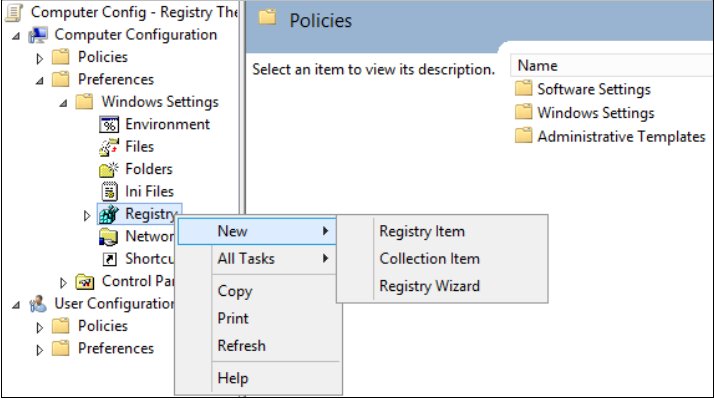
Which hive and which registry view the DWORD belongs in
A DWORD under HKEY_CURRENT_USER applies only to the account that is signed in, so it has to be repeated in every profile, including any user account you add later.
| What reads the value | Where the entry belongs | How to get there |
|---|---|---|
| A 64-bit program on 64-bit Windows | The key path exactly as documented | Registry Editor, or reg add with /reg:64 |
| A 32-bit program on 64-bit Windows | The 32-bit keys under HKEY_LOCAL_MACHINE\Software\WOW6432Node |
Registry Editor shows them under that node; reg add with /reg:32 |
| A setting for the signed-in account only | HKEY_CURRENT_USER |
Usually no elevation needed |
| A setting for every account on the computer | HKEY_LOCAL_MACHINE |
Needs administrative privileges |
| A file-association or shell setting | HKEY_CURRENT_USER\Software\Classes overrides HKEY_LOCAL_MACHINE\Software\Classes |
HKEY_CLASSES_ROOT is the merged view of the two |
Verifying the DWORD Addition
- Select the key again in the left pane of Registry Editor and read the right pane.
- Check that the Name column matches the documentation character for character.
- Check that the Type column reads
REG_DWORDand notREG_SZorREG_QWORD. - Check the Data column; Registry Editor displays DWORD data in binary, hexadecimal or decimal, so
1and0x00000001are the same entry. - Run
reg query HKLM\SYSTEM\CurrentControlSet\Control\FileSystem /v LongPathsEnabledfor a reading from outside Registry Editor. - Reopen the program or restart the computer, then confirm the behavior the documentation describes.
Additional verification tips: reg query returns 0 on success and 1 on failure, so a batch file can branch on it. Get-ItemProperty prints the entry with its data in PowerShell.
Understanding the Windows Registry
The registry is a central hierarchical database Windows references constantly for user profiles, installed applications, hardware and ports.
A hive is a group of keys, subkeys and values with supporting files. Every hive except HKEY_CURRENT_USER keeps those files in %SystemRoot%\System32\Config.
| Predefined key | Short form | What it holds |
|---|---|---|
| HKEY_CURRENT_USER | HKCU | Configuration for the user who is currently logged on: folders, screen colors and Control Panel settings |
| HKEY_USERS | HKU | All the actively loaded user profiles; HKEY_CURRENT_USER is a subkey of it |
| HKEY_LOCAL_MACHINE | HKLM | Configuration particular to the computer, for any user |
| HKEY_CLASSES_ROOT | HKCR | A merged view of the Software\Classes keys that decides which program opens a file |
| HKEY_CURRENT_CONFIG | HKCC | The hardware profile the local computer uses at system startup |
The maximum size of a key name is 255 characters, and there is a 64K limit for the total size of all values in one key.
What is a DWORD?
A DWORD is a registry value that stores a number four bytes long, a 32-bit integer. Registry Editor labels it DWORD Value; the Windows header file winnt.h calls it REG_DWORD.
| Registry Editor name | Type | What it stores |
|---|---|---|
| DWORD (32-bit) Value | REG_DWORD | A 32-bit number, four bytes long |
| QWORD (64-bit) Value | REG_QWORD | A 64-bit number |
| String Value | REG_SZ | A fixed-length text string |
| Expandable String Value | REG_EXPAND_SZ | A string holding variables such as %PATH% that are resolved when the data is used |
| Multi-String Value | REG_MULTI_SZ | A list of strings, one per line |
| Binary Value | REG_BINARY | Raw binary data, shown in hexadecimal |
REG_DWORD_LITTLE_ENDIAN is defined as REG_DWORD in the Windows header files, because Windows is designed for little-endian architectures. REG_DWORD_BIG_ENDIAN exists for big-endian systems.
Format and Representation
The base you pick in the Edit DWORD (32-bit) Value window changes how the number is written, never what is stored.
Microsoft documentation often prints both forms: Outlook's MaxLargeFileSize default is 0x0000C800, which is 51,200, which is 50 GB.
| How the data is written | Example | Where you see it |
|---|---|---|
| Decimal | 51200 | The Value data box with Decimal selected |
| Hexadecimal | 0x0000C800 | The Value data box with Hexadecimal selected, and most Microsoft articles |
| Eight hexadecimal digits | dword:00000001 | A Registration Entries (.reg) file |
| Command-line switches | /t REG_DWORD /d 1 |
reg add at a Command Prompt |
| Cmdlet parameters | -PropertyType DWord -Value 1 |
New-ItemProperty in PowerShell |
Type the number in the base the documentation uses. Typing a hexadecimal figure while Decimal is selected stores a different value entirely.
Common Uses of DWORDs
The role of a DWORD is usually a switch: 0 for off, 1 for on. Additional use cases for DWORD values are numeric limits and service start types.
| Job | Example entry | Key path |
|---|---|---|
| Enabling or disabling features | LongPathsEnabled = 1 |
HKLM\SYSTEM\CurrentControlSet\Control\FileSystem |
| Adjusting system behavior | Start = 4 stops the mrxsmb10 driver from starting |
HKLM\SYSTEM\CurrentControlSet\services\mrxsmb10 |
| Modifying application settings | MaxLargeFileSize = 51200 caps an Outlook data file at 50 GB |
HKCU\Software\Policies\Microsoft\Office\16.0\Outlook\PST |
| Managing security policies | SMB1 = 0 turns off the SMBv1 server component |
HKLM\SYSTEM\CurrentControlSet\Services\LanmanServer\Parameters |
| Automating registry tweaks | The same entries delivered by a .reg file or a Group Policy registry item | Any key path the vendor documents |
Several of these settings are also exposed in Group Policy. LongPathsEnabled matches Computer Configuration > Administrative Templates > System > Filesystem > Enable Win32 long paths.
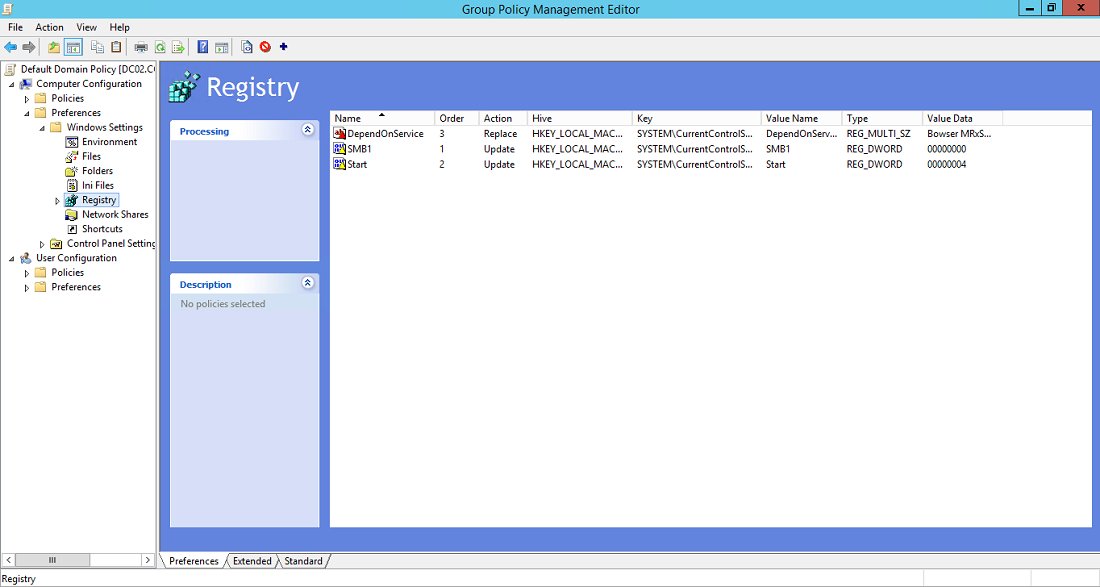
How to change the DWORD data afterwards
- Open Registry Editor and select the key that holds the entry.
- Right-click the entry in the right pane and select Modify.
- Choose Decimal or Hexadecimal, type the new number in the Value data box and select OK.
- From a Command Prompt, run the same
reg addline with new/ddata and/fto overwrite it without a prompt. - From PowerShell, run
Set-ItemPropertywith the new-Value, or repeatNew-ItemPropertywith-Force. - Restart the computer or the program if the value is only read at startup.
Rename-ItemProperty fixes an entry name you typed wrong without recreating the data.
Backing Up and Restoring the Registry
Backing up the registry before an edit means exporting the key you are about to change to a .reg file.
- Select Start, type
regedit.exeand press Enter. - Locate and select the registry key or subkey you want to back up.
- Select File > Export.
- In the Export Registry File dialog, choose a location, enter a file name and select Save.
- To put it back, select File > Import, pick the saved file in the Import Registry File dialog and select Open.
- To drop a single entry instead, right-click it in Registry Editor and select Delete, or run
Remove-ItemProperty -Path "HKLM:\SYSTEM\CurrentControlSet\Control\FileSystem" -Name LongPathsEnabledin PowerShell.
Double-clicking the exported .reg file restores those subkeys as well. Restoring the whole registry is a different job: restore the system state from a backup.
A registry cleaner does not reverse an entry you added; the export does. Techdows looked at what one of those tools actually touches in When to use Avira RegistryCleaner?
Common Mistakes and Troubleshooting When Adding a DWORD to the Registry
The DWORD is there but nothing changed
Many components read their registry entries once and cache the result for the life of the process.
- Close and reopen the program that should be reading the entry.
- Restart the computer; some processes start before the key is set and never reload it.
- Check whether the documentation asks for a service restart or a sign-out instead.
Registry Editor refuses to create the value
Registry permissions block the account, or Registry Editor is not running with administrative privileges.
- Close Registry Editor.
- Select Start, type
regedit, press Enter and approve the User Account Control prompt. - Sign in with an administrator account if no prompt appears.
- Write the entry under
HKEY_CURRENT_USERinstead when the setting is per-user.
The data shows a number you did not type
The figure was typed in one base while the other was selected.
- Double-click the entry to reopen the Edit DWORD (32-bit) Value window.
- Select Decimal and read the Value data box.
- Retype the number in the base the documentation uses and select OK.
Only DWORD (32-bit) Value and QWORD (64-bit) Value are offered
Those are the two integer types Registry Editor creates. REG_DWORD is the 32-bit one.
- Select DWORD (32-bit) Value for anything documented as
REG_DWORD. - Select QWORD (64-bit) Value only where the documentation says
REG_QWORD. - Read the Type column afterwards to confirm which one was created.
A 32-bit program ignores the entry
64-bit Windows keeps a separate 32-bit registry view, and a 32-bit program reads that one.
- Look under
HKEY_LOCAL_MACHINE\Software\WOW6432Nodefor the 32-bit copy of the key. - Add the DWORD there as well.
- From a Command Prompt, run
reg addwith/reg:32to target the 32-bit view explicitly.
The key or the entry will not save
The parent key does not exist yet, or a name or data limit has been hit.
- Create the missing key first: right-click the parent key, point to New, and select Key.
- Keep the key name within the 255-character maximum.
- Keep the combined data in one key under the 64K limit, and store anything larger as a file.
Troubleshooting tips that apply to all six: change one entry at a time, and re-read the full key path in the Registry Editor title bar before you blame the value.
Risks and Safety Precautions When Adding a DWORD to the Registry
Export the key before you add the DWORD, and change one entry at a time. Microsoft states that serious problems might occur if you modify the registry incorrectly, and that those problems might require reinstalling the operating system. Understand the potential risks: Registry Editor writes immediately, has no undo, and does not check that the data makes sense to whatever reads it. Precautions to follow are an export of the key, a value name and data range taken from the vendor's own documentation, and a test before the next edit. Additional tips: use the Windows user interface or Group Policy when the same setting is exposed there, because both write the registry for you.
Best Practices for Modifying the Registry
| Practice | What it means in a DWORD edit |
|---|---|
| Backup the registry | Export the key to a .reg file before the first change |
| Use accurate values and data types | Match the documented name, pick REG_DWORD, and type the data in the documented base |
| Navigate carefully | Expand one key at a time and read the whole path before right-clicking |
| Modify with caution | One entry, then stop |
| Test changes | Reopen the program or restart, then confirm the documented behavior |
| Document your changes | Keep the key path, entry name, type, old data and new data in a text file |
Documented changes matter most on a shared or work computer, where the next person to open the key has no idea why the entry is there.
Frequently asked questions
These questions come from Bing autocomplete for this topic, plus the headings the pages currently ranking for it use.
What is a DWORD?
A DWORD is a registry value that stores a 32-bit number, four bytes long. Registry Editor calls it DWORD Value and the Windows header files call it REG_DWORD. Most DWORD entries behave as a switch, where 0 means off and 1 means on.
What is DWORD in the registry?
In the registry, DWORD is the data type behind entries such as LongPathsEnabled or SMB1. The entry holds a single 32-bit integer that a driver, service or application reads. Registry Editor can display that number in binary, hexadecimal or decimal format.
How do you create a new DWORD?
Right-click the key in the left pane of Registry Editor, point to New, then select DWORD (32-bit) Value. Type the name and press Enter twice. In the Edit DWORD (32-bit) Value window, choose Decimal, type the number in the Value data box and select OK.
How do you create a DWORD 32-bit value rather than a 64-bit one?
Select DWORD (32-bit) Value from the New menu. That matches any entry documented as REG_DWORD. The QWORD (64-bit) Value option beside it creates a REG_QWORD, which holds a 64-bit number and is not interchangeable with a DWORD.
How do you add a DWORD to the registry from a command line?
Run reg add with the key path, /v for the name, /t REG_DWORD for the type, /d for the data and /f to skip the prompt. An elevated Command Prompt is required for HKLM. The command returns 0 on success and 1 on failure.
What is DWORD in C?
In Windows programming, DWORD is a 32-bit number, the same width as a REG_DWORD registry value. The registry value types are defined in the winnt.h header file. QWORD is the 64-bit equivalent, and both have little-endian and big-endian variants.
Do you need administrator rights to add a DWORD?
For HKEY_LOCAL_MACHINE, yes, because it holds configuration for the whole computer and its keys are protected by registry permissions. Entries under HKEY_CURRENT_USER apply to the signed-in account and usually need no elevation. Approve the User Account Control prompt when it appears.
Do you have to restart after adding a DWORD?
Often, yes. Many components read a registry entry once at startup and cache it for the life of the process. Microsoft notes that a reboot might be required for LongPathsEnabled, because some processes start before the key is set.
How do you delete a DWORD you added?
Right-click the entry in Registry Editor and select Delete, or run Remove-ItemProperty with the key path and the entry name in an elevated PowerShell window. Importing the .reg file you exported beforehand puts the key back the way it was.
Where is a DWORD stored on disk?
In a hive file. Every hive except HKEY_CURRENT_USER keeps its supporting files in %SystemRoot%\System32\Config, and HKEY_CURRENT_USER is stored with the user profile. Those files are not meant to be edited directly; Registry Editor and reg.exe write them for you.
Can you add a DWORD to the registry on Windows 11?
Yes, and the steps are identical on Windows 10 and Windows Server. Right-click the key, point to New, select DWORD (32-bit) Value, then set the data. Microsoft's backup and restore instructions cover Windows 11, Windows 10 and Windows 8.1.




Chrome 69: Disable browser Auto Sign In and Sync - Techdows
[…] Create a new DWORD (32-bit) value, assign name as SyncDisabled and give value data as […]
Enable or disable “Leave touchpad on when a mouse is connected” in Windows 11 - Techdows
[…] documents the value behind this check box as LeaveOnWithMouse, a DWORD registry value under the current user's PrecisionTouchPad key. A value of 1 (the default) leaves the touchpad […]