When accepting the iCloud terms of service only brings the same terms screen back, update each iPhone, iPad and Mac to the latest software it supports, because Apple's fix for failed terms acceptance is a software update.
This guide covers the update route, iCloud's minimum system requirements, Apple's system status page, signing out and back in, iCloud.com as a stopgap, and the other sign-in errors that look like the same loop.
Fix the iCloud terms and conditions loop on iPhone or iPad
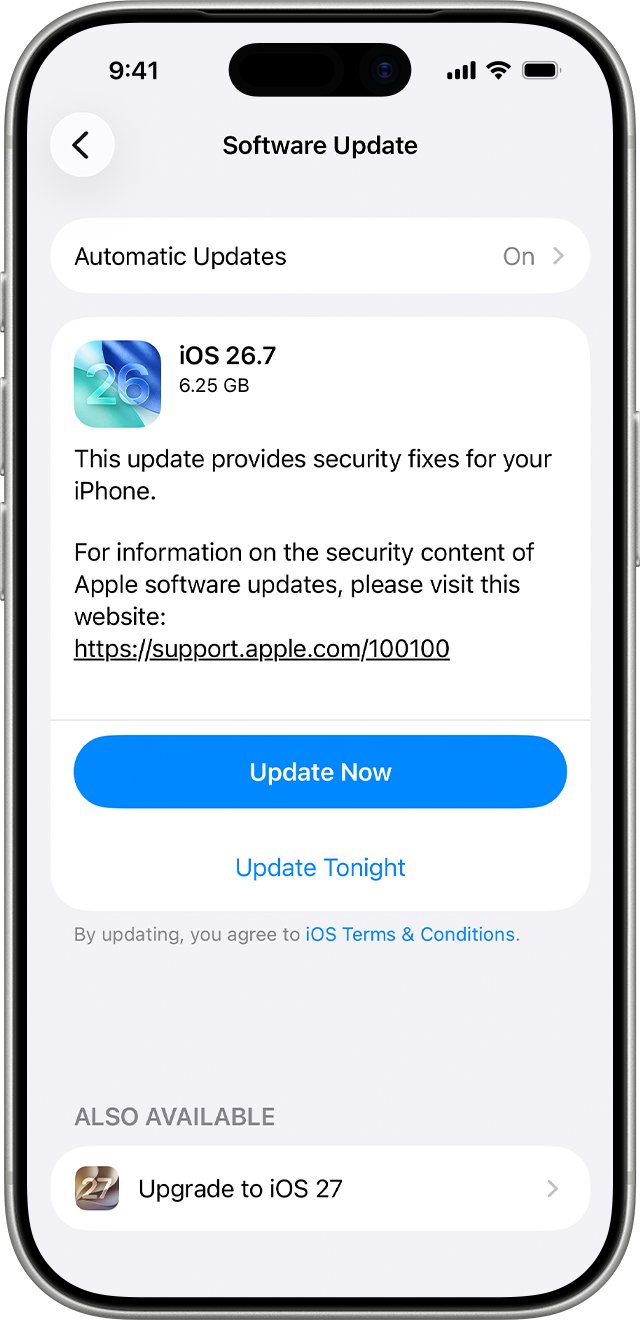
Apple's support article for this problem names one fix: when new iCloud terms and conditions will not accept, update the iPhone or iPad to the latest iOS or iPadOS. The same error can read "Cannot Complete Action. This action cannot be completed at this time."
- Back up the iPhone or iPad with iCloud or your computer.
- Plug it into power and connect to Wi-Fi.
- Open Settings and tap General.
- Tap Software Update to see the installed version and any available update.
- Tap Download and Install, then follow the onscreen instructions.
- After the restart, accept the iCloud terms again when they appear.
Do the same on every device that shows the loop before accepting the terms on any of them.
Why the iCloud terms of service screen keeps coming back
| What you see | Likely cause | What to do |
|---|---|---|
| Terms reappear after you tap Agree on an iPhone or iPad | The device runs software that cannot complete the new terms acceptance | Update to the latest iOS or iPadOS |
| Loop on a Mac that cannot install new macOS versions | macOS older than Mojave 10.14 is below iCloud's minimum requirement | Use iCloud.com in a supported browser, or sign out of iCloud on that Mac |
| Loop on every device at the same moment | An iCloud outage or maintenance window | Check iCloud Account & Sign In on Apple's System Status page |
| "Cannot Complete Action" alert | The terms acceptance failed on that device | Update the device, then accept again |
| Repeated Apple Account password prompts instead of terms | A changed password, an unfinished restore, or pending downloads | Update the password on each service and let any restore finish |
iCloud minimum system requirements by device
iCloud needs an Apple Account, an internet connection and up-to-date software. Devices below the minimum versions here cannot use iCloud at all, so no number of accepted terms will sign them in.
| Device | Minimum for iCloud | Recommended |
|---|---|---|
| iPhone | iOS 12 (iPhone 5s or later) | iOS 27 |
| iPad | iOS 12 on iPad (5th generation), iPad Pro or iPad mini 2 | iPadOS 27 |
| Mac | macOS Mojave 10.14 | macOS 27 Golden Gate |
| Apple Watch | watchOS 5 | watchOS 27 |
| Apple TV | tvOS 12 on Apple TV (4th generation) | tvOS 27 |
| Windows PC | Varies by feature | Windows 11 with iCloud for Windows 15 |
A Mac on macOS High Sierra 10.13 is below the iCloud minimum. Some features, such as account recovery contacts, need even newer software on every signed-in device.
Check Apple System Status for an iCloud sign-in outage
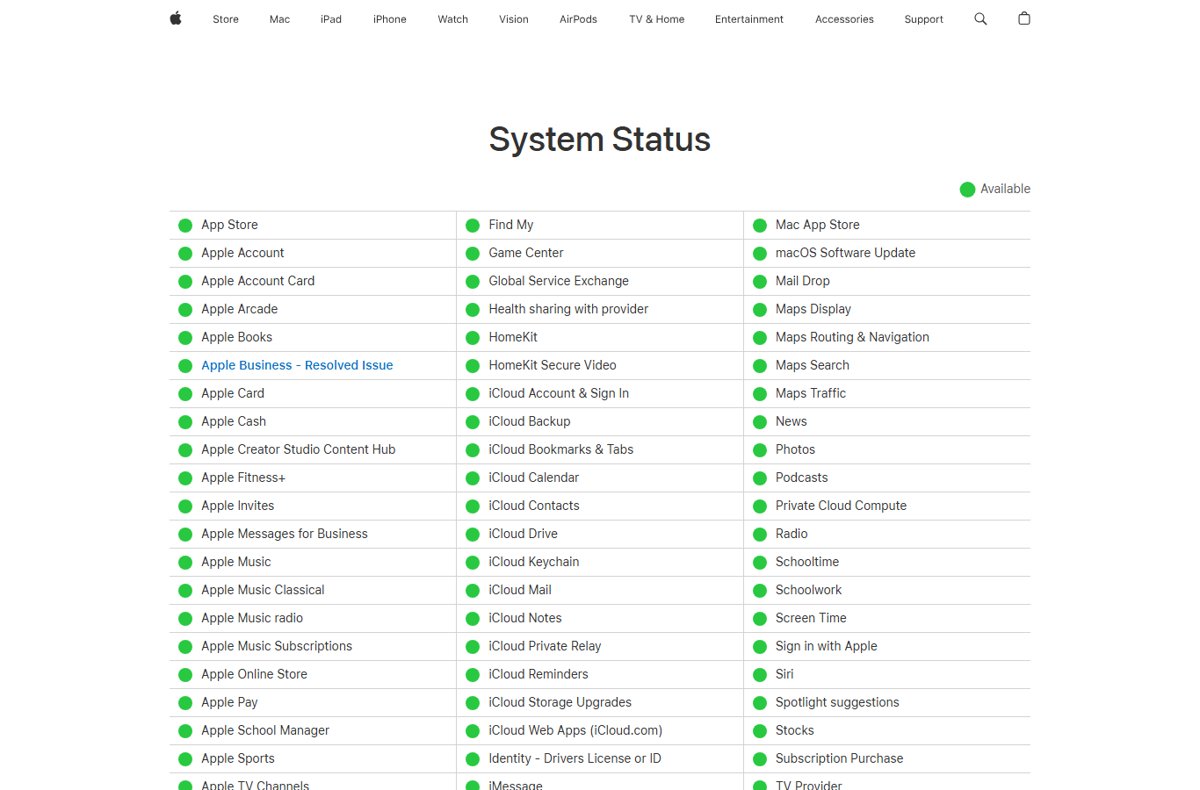
A loop that starts on all your devices on the same day can be a service problem rather than a device problem.
- Open apple.com/support/systemstatus in any browser.
- Find iCloud Account & Sign In in the list.
- Check that it shows a green circle for Available.
- If it shows an issue or maintenance, wait until it clears before accepting the terms again.
Update macOS on Mac to accept the iCloud terms
- Back up your Mac.
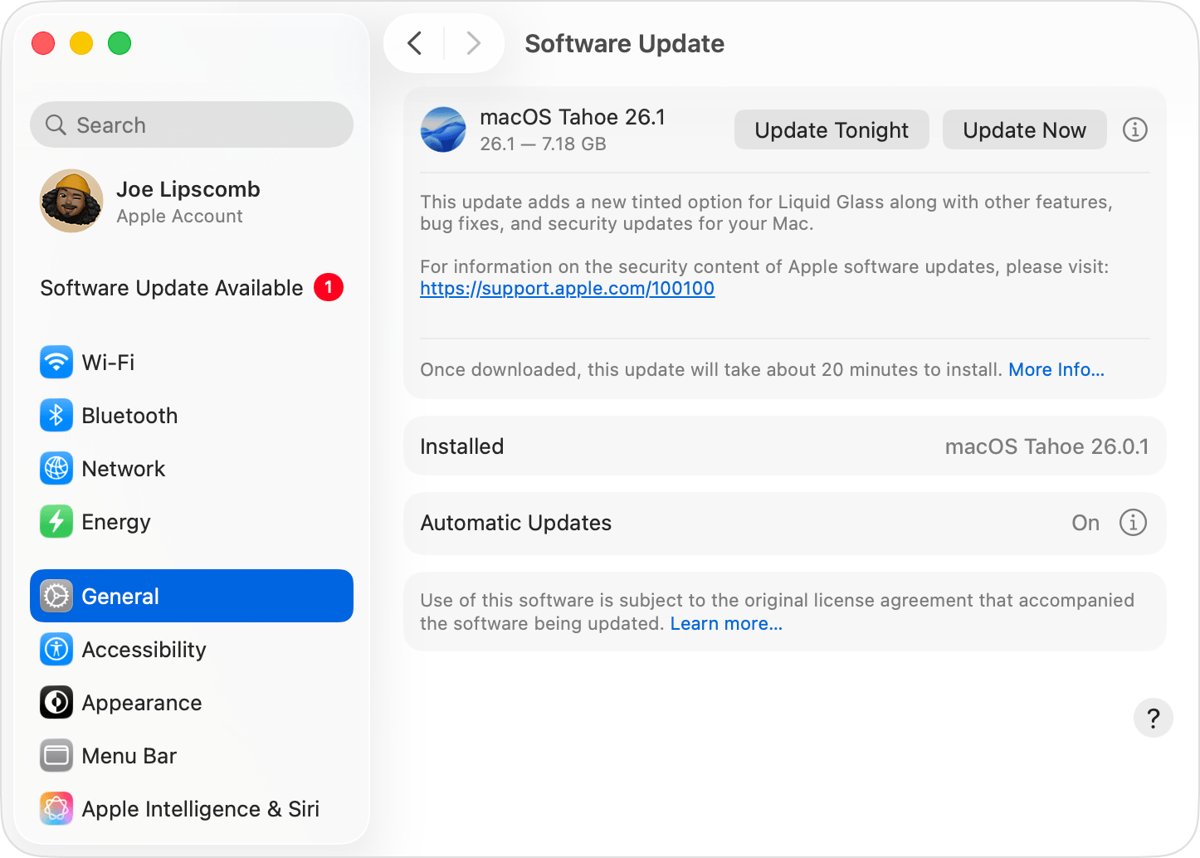
- Choose Apple menu > System Settings.
- Click General in the sidebar, then Software Update on the right.
- Click the button to update, upgrade or restart now, then enter the password you use to log in to your Mac.
- Keep the Mac awake and the lid open until installation finishes.
- Sign in to iCloud again and accept the terms.
Software Update only offers versions compatible with your Mac model. If it says the Mac is up to date and the version is older than Mojave 10.14, that Mac cannot meet iCloud's minimum.
Sign out of your Apple Account on iPhone and sign back in
Signing out turns off iCloud, Find My, iCloud Backup and other services on that device, but your data stays in iCloud. Make sure you have a current backup first.
- Open Settings and tap your name.
- Scroll to the bottom and tap Sign Out.
- Choose Sign Out But Don't Erase.
- Enter the device passcode or your Apple Account password.
- Tap Confirm and Sign Out.
- Open Settings, tap Apple Account, sign in again and accept the iCloud terms.
Sign out of iCloud on Mac and sign back in
- Choose Apple menu > System Settings.
- Click your name, then click Sign Out.
- Select the checkboxes for any iCloud data you want to keep a copy of, then click Keep a Copy.
- Click Sign Out. If you use Apple Pay, click Sign Out and Remove Cards.
- Click Sign in at the top of the System Settings sidebar, enter your Apple Account email or phone number, then click Continue.
- Enter your password, click Continue and accept the terms.
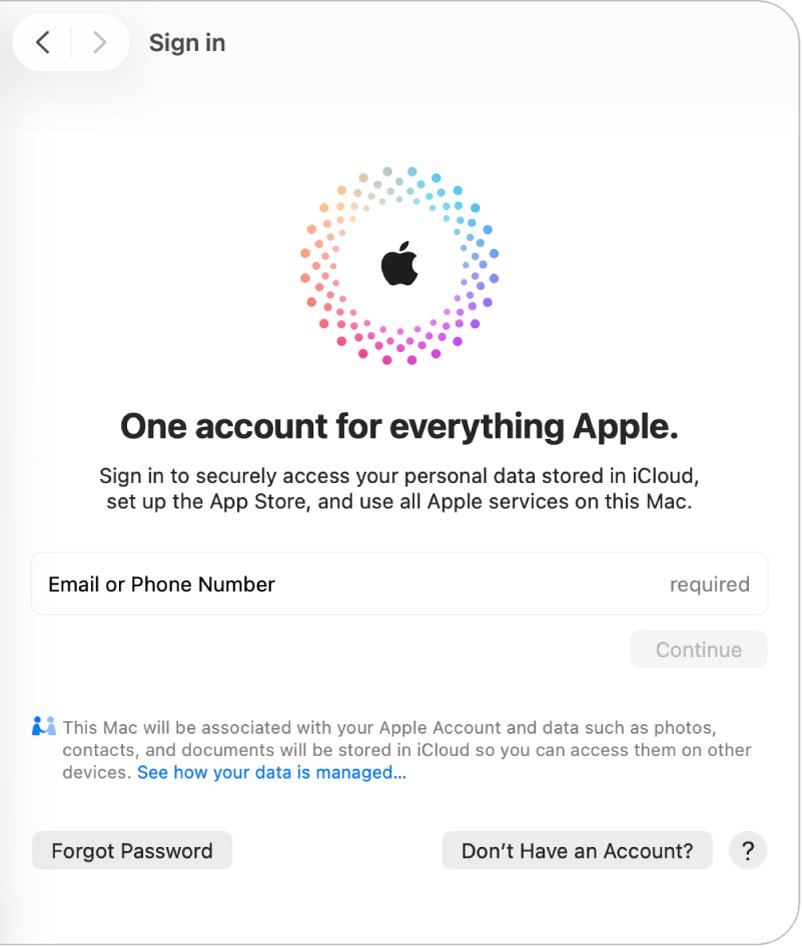
Reach iCloud Mail, Photos and Drive on iCloud.com while the loop lasts
If the devices stay stuck, iCloud.com in a browser can still open your files, photos and email. If it works, your Apple Account and storage are fine and the loop is on the devices.
| Computer | Supported browsers for iCloud.com |
|---|---|
| Mac | Safari 13.1 or later, Firefox 128 or later, Google Chrome 130 or later, Opera, Microsoft Edge 130 or later |
| Windows PC | Firefox 128 or later, Google Chrome 130 or later (desktop mode only), Microsoft Edge 130 or later |
Sign in at icloud.com with your Apple Account email or phone number and password, then enter the verification code if one is requested.
Confirm iCloud is signed in after the terms loop
- On iPhone or iPad, open Settings and confirm your name appears at the top with no terms prompt.
- On Mac, open System Settings and confirm your name appears at the top of the sidebar.
- Open Photos, Mail or Files and check that iCloud content loads.
- Confirm every device uses the same Apple Account, since a second account brings its own terms.
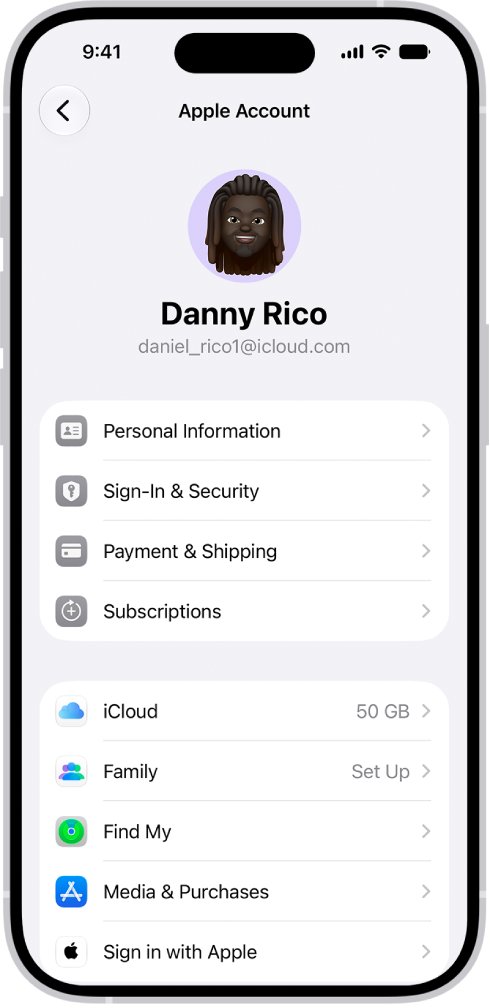
iCloud login not working: fixes by symptom
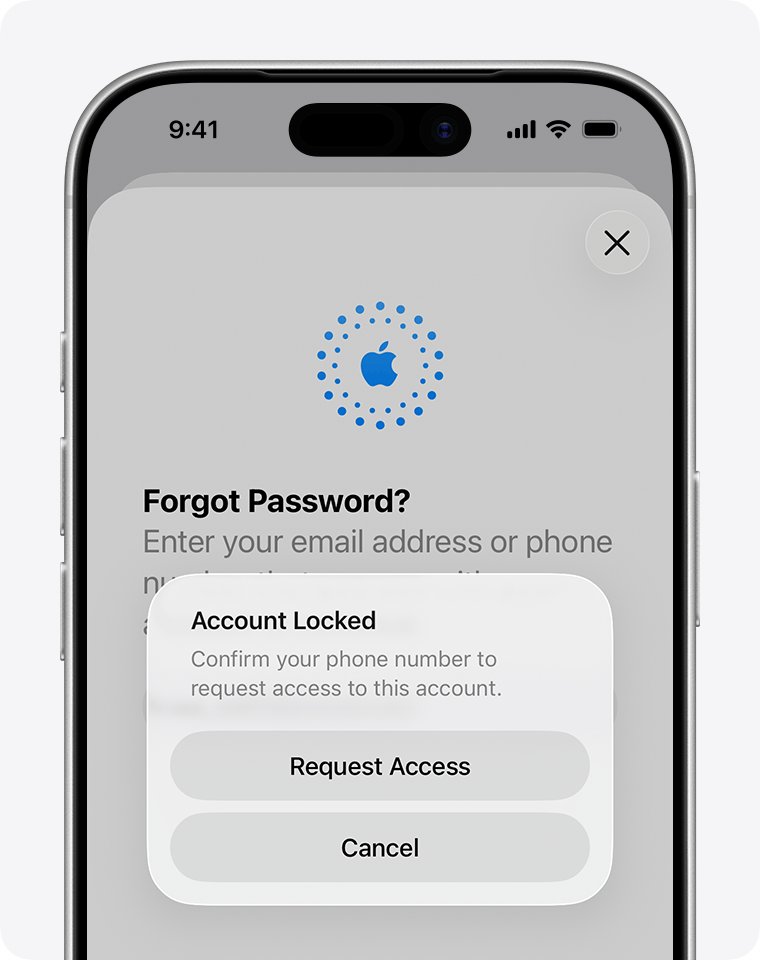
"This Apple Account has been locked for security reasons"
The password or account details were entered incorrectly too many times.
- Reset your Apple Account password to regain access.
- If the alert shows Request Access, tap it and follow the onscreen instructions.
- Sign in again and accept the terms on an updated device.
iCloud login issue: verification failed or code rejected
Two-factor authentication needs the code from a trusted device or trusted phone number.
- Unlock a trusted iPhone, iPad or Mac signed in to the same Apple Account to see the code.
- Enter the six-digit code on the device that asked for it.
- If no trusted device is available, have the code sent to your trusted phone number.
iCloud will not sign in on cellular data
Cellular or Mobile Data is turned off for the services that need it.
- Connect to a strong internet connection.
- Open Settings and tap Cellular or Mobile Data.
- Confirm the setting is on, then try the sign-in again.
iCloud keeps asking for the Apple Account password
A recent restore did not finish, a changed password was not updated in a service, or Automatic Downloads has content waiting.
- Stay on Wi-Fi and power until any iCloud restore finishes.
- Update the sign-in on each iCloud service with your new password.
- Check whether Automatic Downloads has content ready and let it continue.
iCloud login issue forgot password
The Apple Account password is unknown, so every sign-in fails before the terms appear.
- Select Forgot password? on the sign-in screen.
- Follow the onscreen instructions to verify with a trusted device or trusted phone number.
- If you cannot reset it, start account recovery at iforgot.apple.com.
iCloud terms of service loop FAQ
Why can I not log into iCloud?
The usual causes are outdated software, an iCloud outage, a locked Apple Account, a wrong password or a missing verification code. Check Apple's System Status page, update the device, confirm every device uses the same Apple Account, then sign in again.
Why does iCloud keep asking me to accept the terms and conditions?
The acceptance is not completing on that device. Apple's fix is to update the iPhone or iPad to the latest iOS or iPadOS, or Apple Vision Pro to the latest visionOS, then accept the terms again.
How do I fix an iCloud login issue on Mac?
Update macOS from System Settings > General > Software Update, then sign out of your Apple Account in System Settings and sign back in. iCloud needs at least macOS Mojave 10.14, so an older Mac cannot sign in at all.
How do I fix an iCloud login issue on iPhone or iPad?
Update to the latest iOS or iPadOS from Settings > General > Software Update. If the loop continues, sign out from Settings > your name > Sign Out, choose Sign Out But Don't Erase, then sign back in and accept the terms.
Can I use iCloud on Windows 10?
Apple recommends Windows 11 with iCloud for Windows 15. Some features list Windows 10 with iCloud for Windows 10 or later as the minimum, and iCloud.com works in Firefox 128, Chrome 130 or Edge 130 or later on a PC.
Will signing out of iCloud delete my photos and files?
No. Information stored in iCloud stays in iCloud when you sign out. Data can be removed from the device unless you keep a copy, so back up first and wait for recent changes to sync.
Does changing my Apple Account password fix the terms loop?
It does not address the terms acceptance itself. Each iCloud service then needs the new password, and too many wrong entries can lock the account, so update the device software first.