Open Settings > Bluetooth & devices > Cameras, select your front-facing camera, and turn on the effects listed under Windows Studio Effects to enable them on Windows 11.
This guide covers the Settings route, the quick settings tile, the Camera app, which effects each NPU supports, and what to do when the Studio Effects options do not appear.
Enable Studio Effects on Windows 11
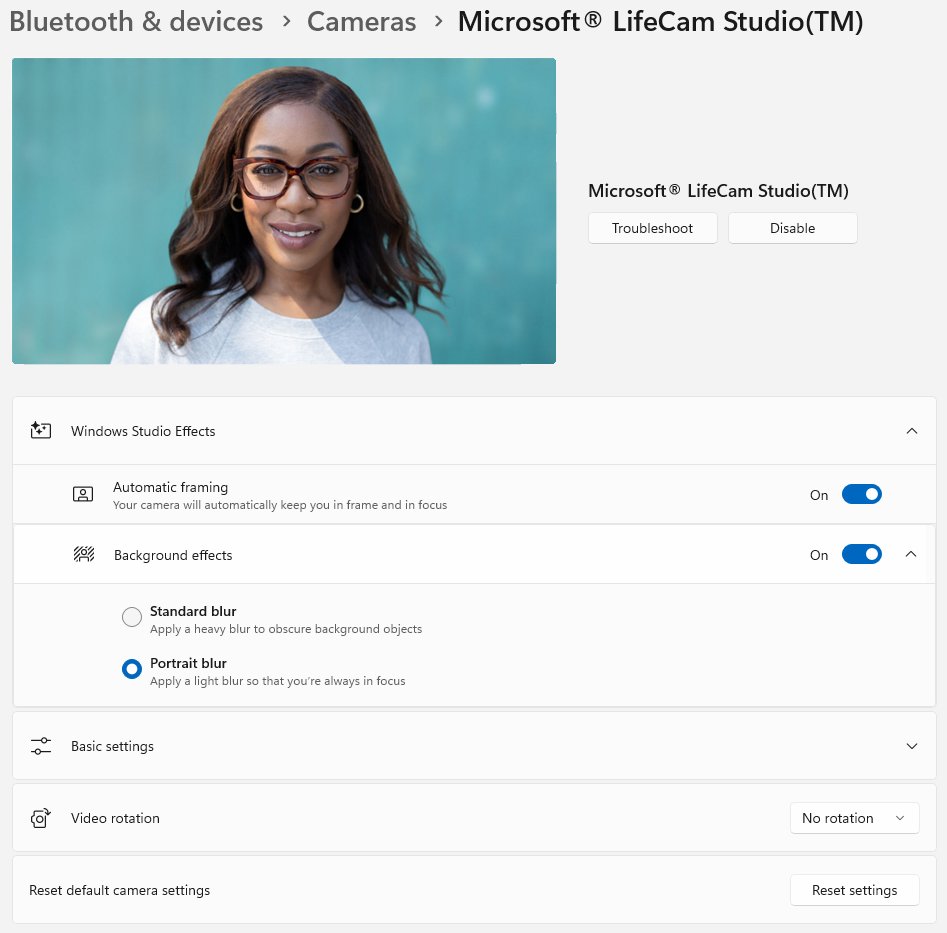
The Settings app holds the default Studio Effects for each camera. Whatever you turn on here applies to every app that opens the camera afterwards.
- Select Start, then open Settings.
- Select Bluetooth & devices > Cameras.
- Under Connected cameras, select your front-facing camera.
- Find the Windows Studio Effects section below the camera preview.
- Turn on the effects you want, such as Automatic framing, Eye contact or Background effects.
- Pick a mode where one is offered, for example Standard blur or Portrait blur under Background effects.
- Watch the live preview at the top of the page to confirm each change.
If the camera page shows only Basic settings and no Windows Studio Effects section, the PC most likely lacks a supported NPU or the manufacturer's Studio Effects driver.
What is Windows Studio Effects?
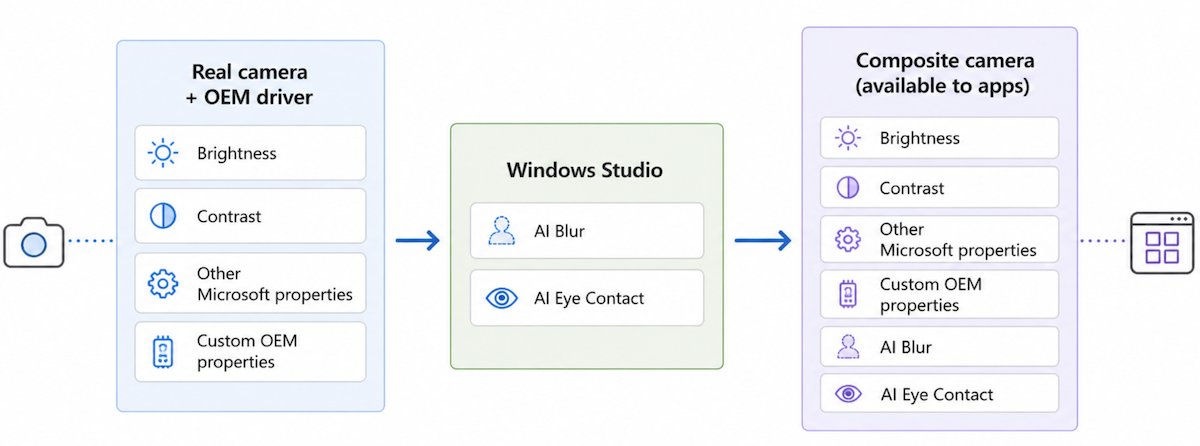
Windows Studio Effects is a set of AI camera and microphone effects that run on the PC's neural processing unit (NPU) instead of the CPU or GPU.
Microsoft applies the effects at the hardware level, so an effect you switch on is active in any app that uses the camera, even an app that knows nothing about it.
| Effect | What it does | Modes | Availability |
|---|---|---|---|
| Automatic framing | Detects you in the frame and crops and zooms to keep you centred as you move | On or off | All Studio Effects PCs |
| Background effects | Blurs everything behind you | Standard blur (Gaussian) or Portrait blur (bokeh-style) | Standard blur on all; Portrait blur needs a higher-capacity NPU |
| Eye contact | Adjusts your gaze so you appear to look into the camera | Standard (looking down at the screen) or Teleprompter (eyes moving across the screen) | Standard on all; Teleprompter on Snapdragon Copilot+ PCs |
| Portrait light | Brightens your face in poor lighting and removes strong screen reflections | On or off | Snapdragon Copilot+ PCs only |
| Creative filters | Restyles the video feed | Illustrated, Animated or Watercolor | Snapdragon Copilot+ PCs only |
| Voice focus | Filters background noise from the built-in microphone | On or off | All Studio Effects PCs |
Windows Studio Effects requirements
| Requirement | Detail |
|---|---|
| Windows version | Windows 11, version 22H2 or newer (build 22623.885 or later), with the latest updates installed |
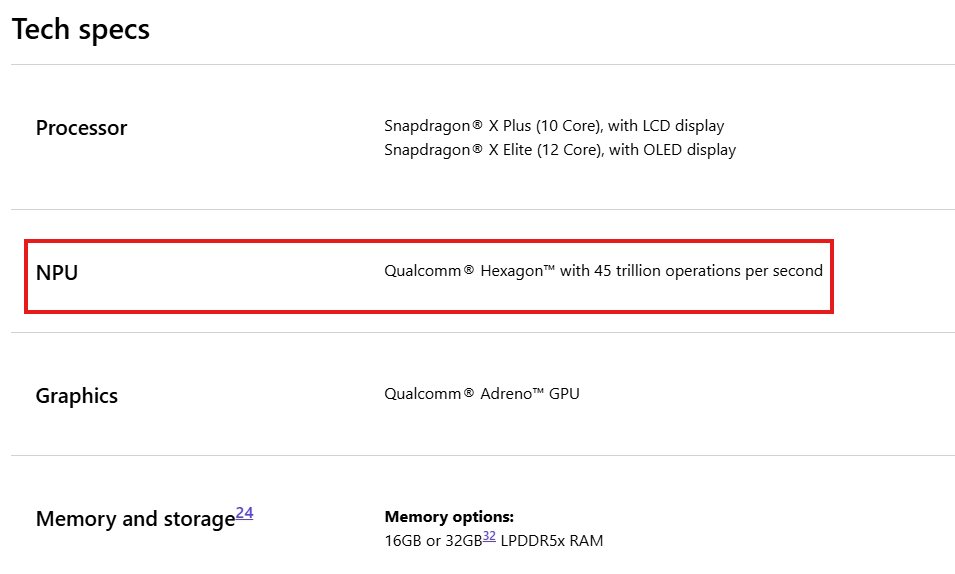
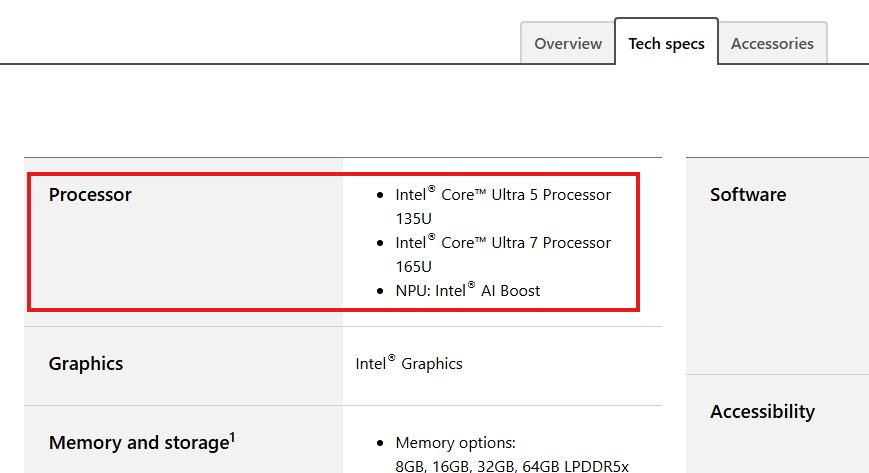
| NPU | A supported neural processing unit; the full set of effects needs a Copilot+ PC whose NPU exceeds 40 TOPS |
| Driver | The PC maker must opt in and install the Windows Studio Effects driver |
| Camera | Front-facing camera; compatible third-party cameras are now supported too |
| Microphone | Voice focus works on the integrated microphone |
Windows 10 does not offer Windows Studio Effects, and a Windows 11 PC without an NPU cannot gain it through an update.
Use Studio Effects on Windows 11
During a call, the quick settings tile is the faster route. It opens the same controls without leaving the meeting.
- Start the app that uses your camera, such as Camera, Microsoft Teams or another video calling app.
- Select the Network, Sound or Battery icon next to the time and date on the taskbar.
- Select the Studio Effects tile in quick settings.
- Turn on or off the camera effects you want and watch the change in the preview.
- Switch to the audio controls and turn on Voice focus if your PC offers it.
- Close quick settings and carry on with the call.
If the Studio Effects tile is missing, add it when you customize the quick settings panel first. If it still cannot be added, the PC most likely has no supported NPU.
Open Windows Studio Effects in the Camera app
The Windows Camera app has its own shortcut to the effects panel, which is handy for testing a look before a meeting or a Teams test call.
- Select Search on the taskbar.
- Type Camera in the search box.
- Under Best match, select the Camera app.
- Select the Windows Studio Effects icon in the top-right corner of the app.
- Turn the effects on or off and check the result in the viewfinder.
If the camera does not start at all, turn on the camera in Windows 11 before you look for the effects.
Studio Effects for non-NPU PCs
A PC with no NPU gets no Windows Studio Effects at all. A PC with a smaller NPU, one that performs under 40 trillion operations per second (TOPS), gets a reduced set.
| Effect | NPU under 40 TOPS | Copilot+ PC (over 40 TOPS) |
|---|---|---|
| Background effects | Yes, often Standard blur only, shown as a single Background blur toggle | Yes, with a choice of Standard blur and Portrait blur |
| Eye contact | Standard only | Standard, plus Teleprompter on Snapdragon devices |
| Automatic framing | Yes | Yes |
| Voice focus | Yes | Yes |
| Portrait light | No | Snapdragon devices only |
| Creative filters | No | Snapdragon devices only |
The label in Settings tells you which tier you have: Background effects with radio buttons means both blur types, while a plain Background blur toggle means Standard blur only.
Test Windows Studio Effects with the camera preview
- Open Settings > Bluetooth & devices > Cameras and select your front-facing camera.
- Turn on Background effects and confirm the background softens in the preview.
- Lean to one side with Automatic framing on and confirm the image follows you.
- Look down at the screen with Eye contact on and confirm your gaze still meets the camera.
- Open a video app and confirm the same effects appear there without changing anything in the app.
Changes on the Settings page apply instantly to the live preview and are saved as the default for the next app that opens the camera.
Studio Effects in Microsoft Teams and other video apps
Apps start with the Studio Effects defaults from Settings, but an app can change the current value while it uses the camera. Teams, for example, always shows its own background effects control when you join a call and applies the value you pick there.
| What you see | Likely cause | What to do |
|---|---|---|
| App shows blur as off, yet your background is blurred | Studio Effects blur is on in Settings and the app does not read it | Leave Studio Effects on and keep the app's own blur off |
| Background looks blurred twice | The app's blur runs on top of the Studio Effects blur | Turn off one of them, preferably the app's, since the NPU version uses less power |
| A camera maker's effect fights the Windows one | The manufacturer's companion app adds its own blur or framing | Use either the companion app's effect or the Windows effect, not both |
| Settings shows one value, the call shows another | The app changed the current value after the camera started | Change the effect inside the app, or close the app and set the default in Settings |
Turn off or reset Windows Studio Effects
- Open Settings > Bluetooth & devices > Cameras.
- Select your front-facing camera under Connected cameras.
- Turn off each effect you no longer want under Windows Studio Effects.
- Select Reset Effects to return all Studio Effects to their defaults.
- Use Reset settings only if you also want to clear brightness, contrast, rotation and companion-app defaults.
Reset settings restarts the camera with its factory configuration, so expect to set your preferred effects again afterwards.
Windows Studio Effects not showing or not working
No Windows Studio Effects section on the camera page
The PC has no supported NPU, or the manufacturer has not installed the Studio Effects driver.
- Install the latest updates in Settings > Windows Update.
- Install the camera and NPU drivers from your PC maker's support site.
- Reopen Settings > Bluetooth & devices > Cameras and select the front-facing camera again.
- If only Basic settings appear, the hardware does not support Studio Effects.
Studio Effects tile missing from quick settings
The tile has not been added, or the device lacks an NPU.
- Open quick settings from the Network, Sound or Battery icon.
- Use the edit option to add the Studio Effects tile.
- If it is not offered, check the camera page in Settings for a Windows Studio Effects section.
Portrait light, Teleprompter or creative filters are missing
These effects need a Snapdragon Copilot+ PC; other NPUs offer a smaller set.
- Compare your options with the non-NPU table above.
- Use Standard eye contact and Standard blur, which most Studio Effects PCs support.
Effects out of sync or applied twice in a video app
The app or a camera maker's companion app runs its own version of the same effect.
- Turn off the matching effect inside the app or the companion app.
- Keep the Windows Studio Effects version on in Settings.
- Restart the app so it picks up the camera defaults again.
Voice focus has no effect on your microphone
Voice focus applies to the built-in microphone, and the app may not have microphone access.
- Make sure the call uses the built-in microphone, not a headset or USB microphone.
- Check that you allow apps to access your microphone in privacy settings.
- Turn Voice focus off and on again from the Studio Effects tile.
Battery drains faster or the PC slows during calls
Background effects, Eye contact and Automatic framing can affect performance and battery life on some devices.
- Turn off the effects you do not need for the call.
- Keep only Background effects on if privacy is the main goal.
- Plug the laptop in for long meetings.
Windows Studio Effects FAQ
What is Windows Studio Effects?
Windows Studio Effects is a set of AI camera and microphone effects in Windows 11, including background blur, eye contact, automatic framing, portrait light, creative filters and voice focus. The effects run on the PC's NPU, which keeps the load off the CPU and GPU and reduces battery drain.
Do I need a Copilot+ PC for Studio Effects?
The full set of Windows Studio Effects needs a Copilot+ PC with an NPU above 40 TOPS. PCs with smaller NPUs get background blur, standard eye contact, automatic framing and voice focus. A PC without a supported NPU gets no Studio Effects at all.
Can I use Windows Studio Effects on Windows 10?
No. Windows Studio Effects requires Windows 11, version 22H2 or newer, along with a supported NPU and the manufacturer's Studio Effects driver. Windows 10 has no Studio Effects settings, quick settings tile or Camera app panel.
Do Studio Effects work in Zoom, Teams and other apps?
Yes. Windows applies Studio Effects at the camera level, so an effect turned on in Settings is active in any app that opens the camera. Some apps, such as Microsoft Teams, show their own effect controls and can override the default during a call.
Does Windows Studio Effects work with an external webcam?
Windows Studio Effects now supports compatible third-party cameras, though it was designed around the front-facing camera. If your external webcam shows a Windows Studio Effects section under Settings > Bluetooth & devices > Cameras, the effects are available for it.
What does the Teleprompter eye contact mode do?
Teleprompter applies a stronger gaze correction than Standard mode. It keeps eye contact even while your eyes move across the screen reading notes, slides or chat comments. Teleprompter is only available on Snapdragon Copilot+ PCs.
Do Studio Effects drain the battery?
On some devices, Background effects, Eye contact and Automatic framing have a noticeable effect on performance and battery life. Turn off the effects you do not need, or plug the laptop in for long calls, to reduce the impact.
How do I reset Windows Studio Effects?
Open Settings > Bluetooth & devices > Cameras, select your front-facing camera and select Reset Effects. That returns the Studio Effects to their defaults. Reset settings goes further and restores every camera setting to the factory configuration.