To enable developer mode on a Samsung TV, open Smart Hub, go to Apps, type 12345 on the remote, switch Developer mode to On, enter your computer's IP address and reboot the TV.
This guide walks through those 5 steps, shows how to find the right IP address, connect the TV to Tizen Studio, confirm the mode is active, turn it off again and fix the errors that stop it working.
How to enable developer mode on Samsung TV
Developer mode is a hidden setting on Tizen-based Samsung smart TVs. It lets one computer on your network install and debug test apps on the TV through the Samsung TV SDK.
Before you begin, update the TV to the latest firmware and connect your computer to the same Wi-Fi network as the TV. Samsung lists both as requirements.
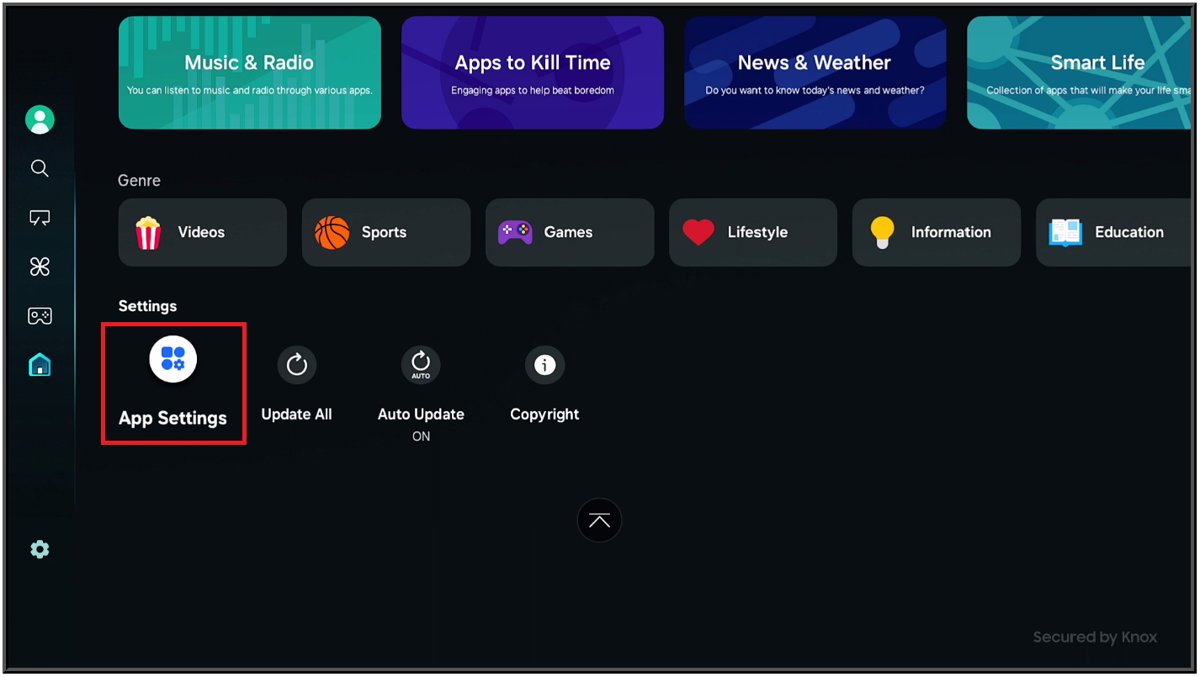
- Step 1: Turn on your Samsung TV and access Smart Hub. Open Smart Hub on the TV, then select the Apps panel.
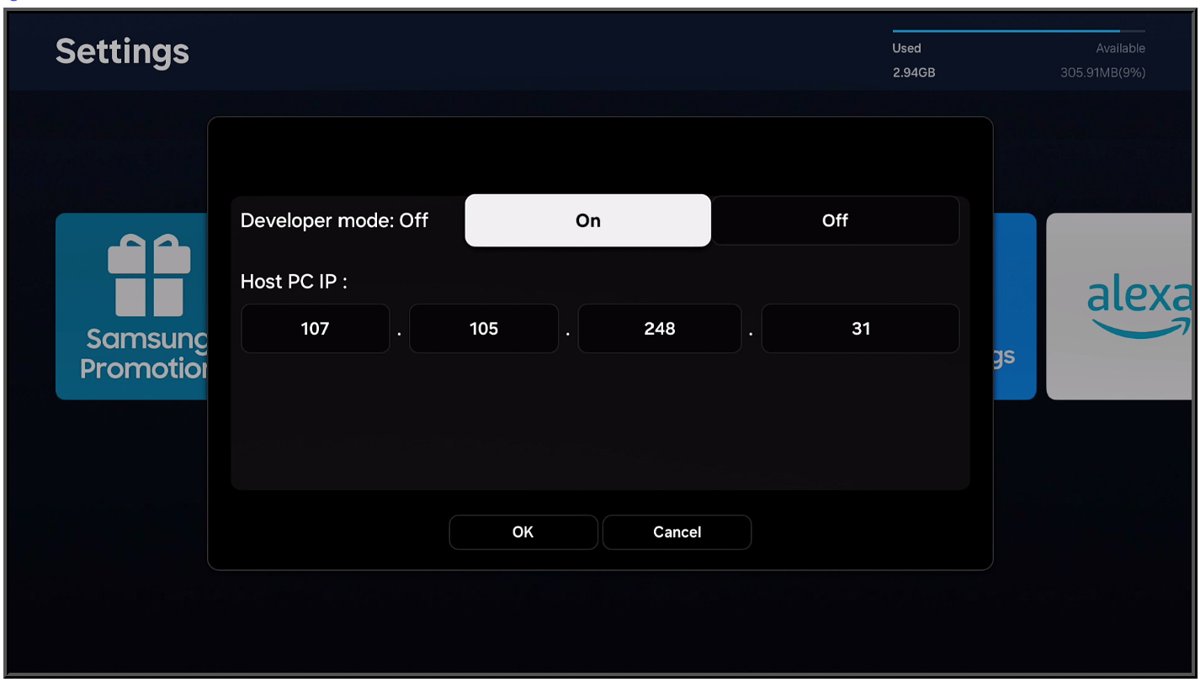
- Step 2: Enter the developer mode activation PIN. Scroll down to App Settings. With the Apps Settings panel open, type 12345 on the remote or the on-screen number keypad. The Developer mode configuration popup appears.
- Step 3: Enable developer mode. Switch Developer mode to On.
- Step 4: Enter your IP address. Type the IP address of the computer you want to connect to the TV, then select OK.
- Step 5: Restart your Samsung TV. Accept the reboot prompt, or turn the TV off and on again, so the setting takes effect.
The IP address in step 4 belongs to your computer, not to the TV. Only the computer at that address can push apps to the TV.
Samsung TV developer mode requirements
| Requirement | Why it matters |
|---|---|
| A Tizen-based Samsung smart TV with the latest firmware | Samsung's error table says older firmware causes "You are not an authorized user!" and Null Pointer errors |
| The TV and the computer on the same network | The TV only accepts a connection from the host PC address saved in developer mode |
| Your computer's local IPv4 address | You type it into the developer mode popup in step 4 |
| Tizen Studio with the Samsung TV Extensions and Samsung Certificate Extension | These install, run and debug apps on the TV |
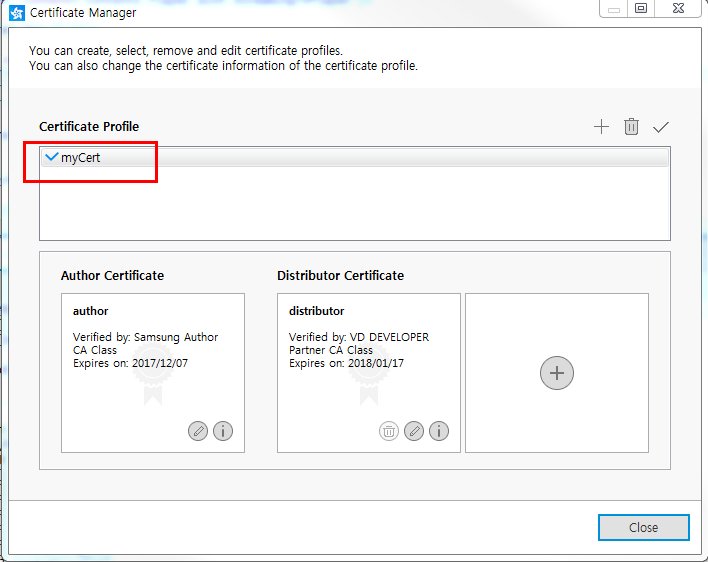
| A Samsung certificate profile | Apps must be signed before the TV will install them |
Samsung notes that certificate creation stops working in Samsung Certificate Extension versions older than 2.0.73 after September 2025, so update the extension first.
How to find your computer's IP address for Samsung TV developer mode
The developer mode popup needs the local address of the computer running Tizen Studio. On Windows you can find your IP address with one command.
- Open Command Prompt on the Windows PC.
- Type
ipconfigand press Enter. - Find the adapter you use for the network the TV is on, usually the Wi-Fi or Ethernet adapter.
- Note the IPv4 Address value under that adapter, for example
192.168.1.25. - Type that address into the developer mode popup on the TV.
On a Mac, find the IP address on macOS instead. If the router later gives the computer a new address, the TV stops accepting connections until you update the address in the developer mode popup.
How to connect a Samsung TV to Tizen Studio after enabling developer mode
Developer mode alone does nothing visible. The point is to link the TV to Tizen Studio so you can run your own web apps on it.
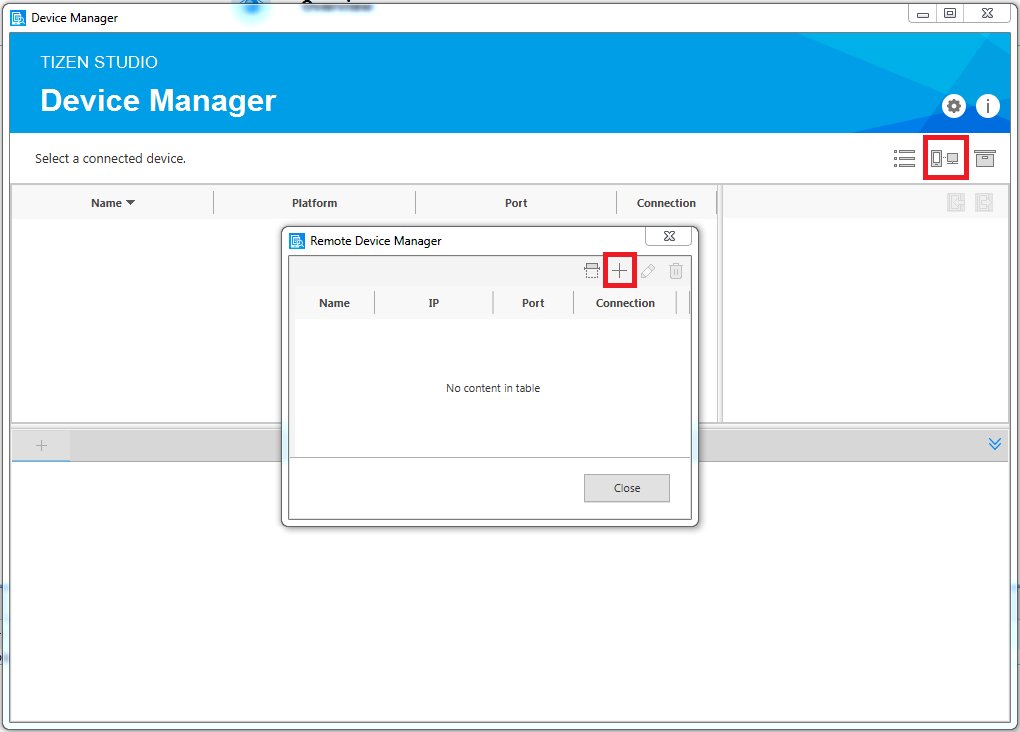
- In Tizen Studio, select Tools > Device Manager.
- Click Remote Device Manager, then click +.
- In the Add Device popup, enter a name, the TV's IP address and the port number, then click Add.
- Select the TV in the Device Manager list and switch Connection to On.
- Right-click the TV and select Permit to install applications.
- In Project Explorer, right-click your project and select Run As > Tizen Web Application to launch it on the TV.
To debug instead, select Debug As > Tizen Web Application. Web Inspector opens automatically. Only .wgt packages can be installed on a TV.
How to tell if developer mode is on on a Samsung TV
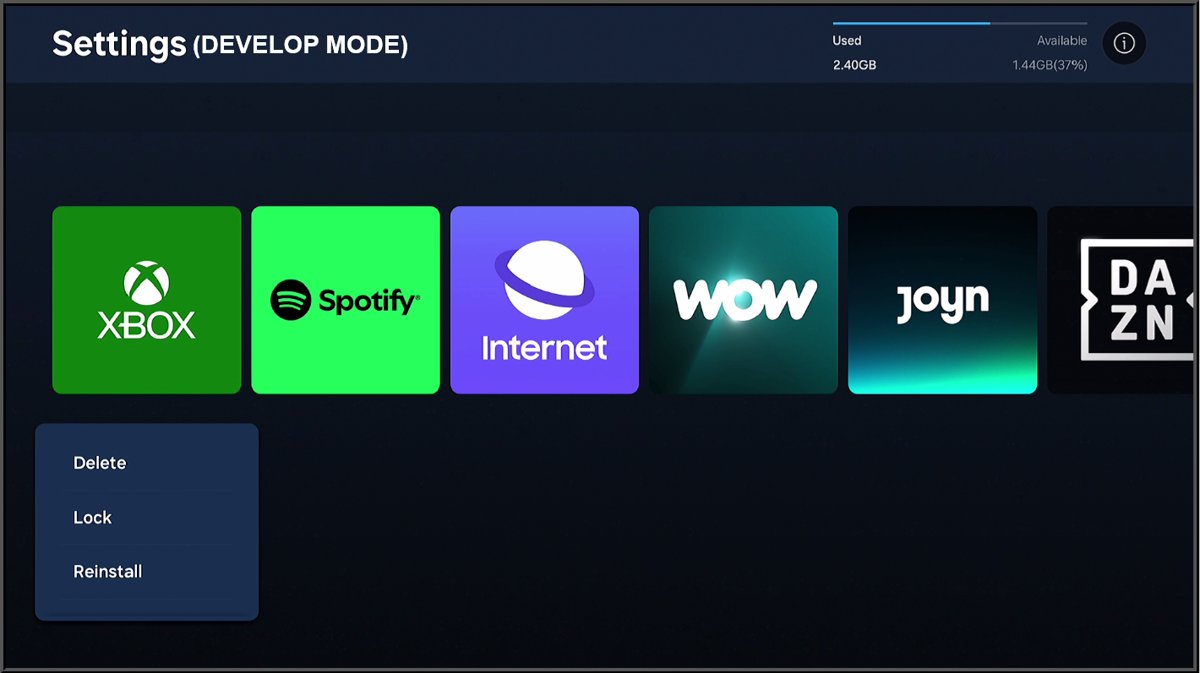
- Open Smart Hub and select the Apps panel after the TV restarts.
- Look at the top of the screen for the Develop Mode label. Samsung shows it whenever developer mode is active.
- In Tizen Studio, open Device Manager and confirm the TV is listed with Connection set to On.
If the label is missing, the reboot did not happen or the setting did not save. Repeat the PIN entry and restart the TV again.
How to turn off developer mode on Samsung TV
- Open Smart Hub and select the Apps panel.
- Scroll down to App Settings.
- Type 12345 on the remote to reopen the Developer mode popup.
- Switch Developer mode to Off and select OK.
- Restart the TV and check that the Develop Mode label no longer appears in Apps.
Can’t activate developer mode
Most failures come from the PIN entry, the network or out-of-date software. Match your symptom below.
Typing 12345 does not open the developer mode popup
The number was entered outside the Apps settings panel, or on the wrong screen.
- Open Smart Hub and select the Apps panel.
- Scroll down until App Settings is highlighted, then open it.
- Type 12345 with the remote's number keys, or the on-screen number keypad if the remote has none.
- Update the TV firmware and try again if the popup still does not appear.
Developer mode is on but Tizen Studio cannot connect to the TV
The computer's IP address changed, or the two devices are on different networks.
- Run
ipconfigon the computer and compare the IPv4 Address with the address saved in the TV's developer mode popup. - Reopen the popup with 12345 and update the address if they differ, then restart the TV.
- Connect the TV and the computer to the same router or network.
- In Device Manager, check the TV's IP address and port, then switch Connection to On again.
"You are not an authorized user!" or a Null Pointer error
Samsung says these appear with older device firmware or an older SDK.
- Install the latest firmware on the TV.
- Open Tizen Studio Package Manager and update Tizen Studio and the TV Extensions.
- Reconnect the TV in Device Manager.
"1010 : App install fail"
A signing certificate problem is the most common reason.
- In Tizen Studio, select Tools > Certificate Manager.
- Check that a valid Samsung certificate profile is active, or create a new one.
- Rebuild and reinstall the app.
- Confirm the application ID and package ID exist in the project's
config.xmlfile.
"1009 : App uninstall fail" or "1013 : App run fail"
An internal device problem stops Tizen Studio from removing or launching the app.
- For an uninstall failure, remove the app from the Apps panel on the TV.
- For a run failure, launch the app again from Tizen Studio.
- Reboot the TV if it still fails.
"Failed to get a device information" message
This appears only on 2015 Samsung TVs.
- Ignore the message. Samsung says it has no effect on running the application.
FAQs
What is the developer mode code for a Samsung TV?
The code is 12345. Type it with the remote or on-screen keypad while the App Settings panel in Smart Hub's Apps section is open, and the Developer mode configuration popup appears.
What IP address do I enter in Samsung TV developer mode?
Enter the local IPv4 address of the computer running Tizen Studio, not the TV's address. On Windows, run ipconfig in Command Prompt and copy the IPv4 Address of the adapter on the same network as the TV.
Why do I need to restart the TV after enabling developer mode?
The setting only takes effect after a reboot. Samsung's setup shows a reboot prompt after you select OK, and the Develop Mode label appears in the Apps panel once the TV starts again.
Can I install apps on a Samsung TV through USB in developer mode?
No. Samsung states that installing applications or widgets through USB is no longer supported for security reasons. Test apps are installed over the network from Tizen Studio after developer mode is enabled.
How do I open port 26101 on a Samsung TV?
You cannot. Samsung describes port 26101 as an internal device port that cannot be opened separately, so there is nothing to change on the TV or router for it.
Does installing a newer test app version replace the old one?
Yes. Samsung says the previous version of an application uninstalls automatically when you install the new version on the TV, so you do not need to remove it first.
Why does my app work in the Web Simulator but fail on the TV?
The Web Simulator uses a different web engine from the TV and the TV Emulator. Behaviour can differ between them, so Samsung recommends final testing on both the emulator and a real TV.
How do I know developer mode is enabled on my Samsung TV?
Open the Apps panel after the TV restarts. A Develop Mode label at the top of the screen confirms developer mode is active. If it is missing, repeat the 12345 entry and reboot.
End up lines
Enable developer mode only on a TV you use for testing your own Tizen apps, and switch it off when you finish. It does nothing for normal viewing, it only accepts the one host PC address you enter, and a stale address after a router change is the most common reason the connection breaks.