Yes, leave Game Mode on in Windows 11 26H2: it is on by default, it stops Windows Update from installing drivers and showing restart notifications while you play, and it can steady your frame rate depending on the game and PC.
This guide explains what Game Mode does, how to turn it on or off in Settings > Gaming > Game Mode or the registry, the few cases where switching it off makes sense, and what Windows 11 26H2 did and did not change for gaming.
Should you turn on Game Mode in 26H2?
Keep Game Mode on; check it once in Settings > Gaming > Game Mode and move on. Microsoft turns it on by default, and its two documented effects both help while you play: no driver installs or restart prompts from Windows Update, and a steadier frame rate on some games and systems. It costs nothing when no game is running, and 26H2 lists no change to how it works.
What is Game Mode?
Game Mode is a Windows setting that prioritises the game you are playing by turning things off in the background. It works on its own whenever Windows detects a game; there is nothing to launch.
| Question | Answer |
|---|---|
| What it does while a game runs | Stops Windows Update from installing drivers and sending restart notifications |
| Effect on performance | Helps achieve a more stable frame rate, depending on the specific game and system |
| Default state | On |
| Where it lives | Settings > Gaming > Game Mode |
| Registry value behind the switch | AutoGameModeEnabled under HKCU\Software\Microsoft\GameBar |
| Does it raise FPS on every PC? | No. Microsoft promises stability, not a set frame-rate gain |
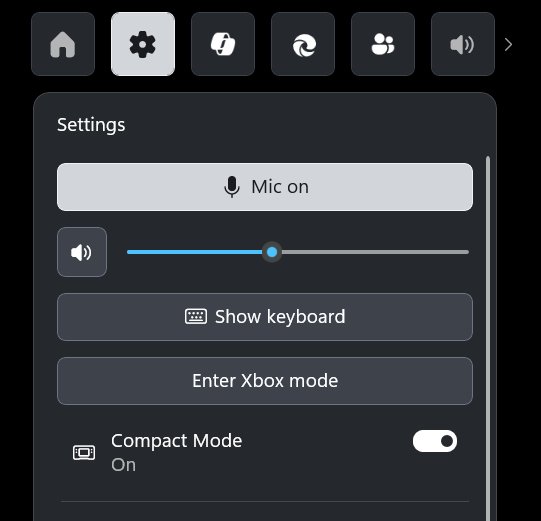
| Is it the same as Xbox mode? | No. Xbox mode is a full-screen, controller-first launcher in Settings > Gaming > Xbox mode; Game Mode is a background setting |
When to leave Game Mode on and when to turn it off
| Your situation | Game Mode | Why |
|---|---|---|
| Playing games on a desktop or laptop | On | No surprise driver installs or restart prompts mid-session |
| Streaming or recording while you play | On, then test | Background work is deprioritised; if the stream stutters, compare with it off |
| A specific game stutters or crashes only with it on | Off, then test | Rules Game Mode in or out as the cause in one session |
| You rely on a background app during play (voice, capture, downloads) | Test both | Background activity is what Game Mode holds back |
| Work PC that never runs games | Either | Game Mode only acts when a game is running |
| Want a console-style launcher on a handheld | On, plus Xbox mode | Xbox mode is a separate switch; with Enter Xbox mode on startup, Windows also limits background processes |
How to Turn Game Mode On or Off in Settings
- Press the Start button, type Settings in the search box, and select Settings.
- Select Gaming in the left pane.
- Select Game Mode.
- Turn the Game Mode switch On to turn it on, or Off to turn it off.
- Close Settings and launch your game.
Press Win + I to open Settings directly if you prefer the keyboard.
How to Turn Game Mode On or Off Using the Registry (Advanced)
Microsoft documents AutoGameModeEnabled as the value behind the Game Mode switch. Use the registry only when Settings is not an option, such as a script for several PCs, and back up the key first.
- Press Win + R, type
regeditand press Enter, then select Yes at the prompt. - Go to
HKEY_CURRENT_USER\Software\Microsoft\GameBar. - Right-click GameBar, select Export and save a backup of the key.
- Double-click AutoGameModeEnabled; if it is missing, right-click the right pane and select New > DWORD (32-bit) Value with that name.
- Set Value data to
1to turn Game Mode on or0to turn it off, then select OK. - Close Registry Editor and restart the game, then check the switch in Settings > Gaming > Game Mode.
What 26H2 changed for gaming, and what it did not
26H2 is an enablement package on top of 24H2 and 25H2, which share the same system files, so gaming behaviour is the same as on a fully updated 25H2 PC.
| Area | Status in 26H2 |
|---|---|
| Game Mode | No change listed by Microsoft; still on by default |
| Xbox mode | Available; requires Windows 11 version 24H2 or later and a supported market |
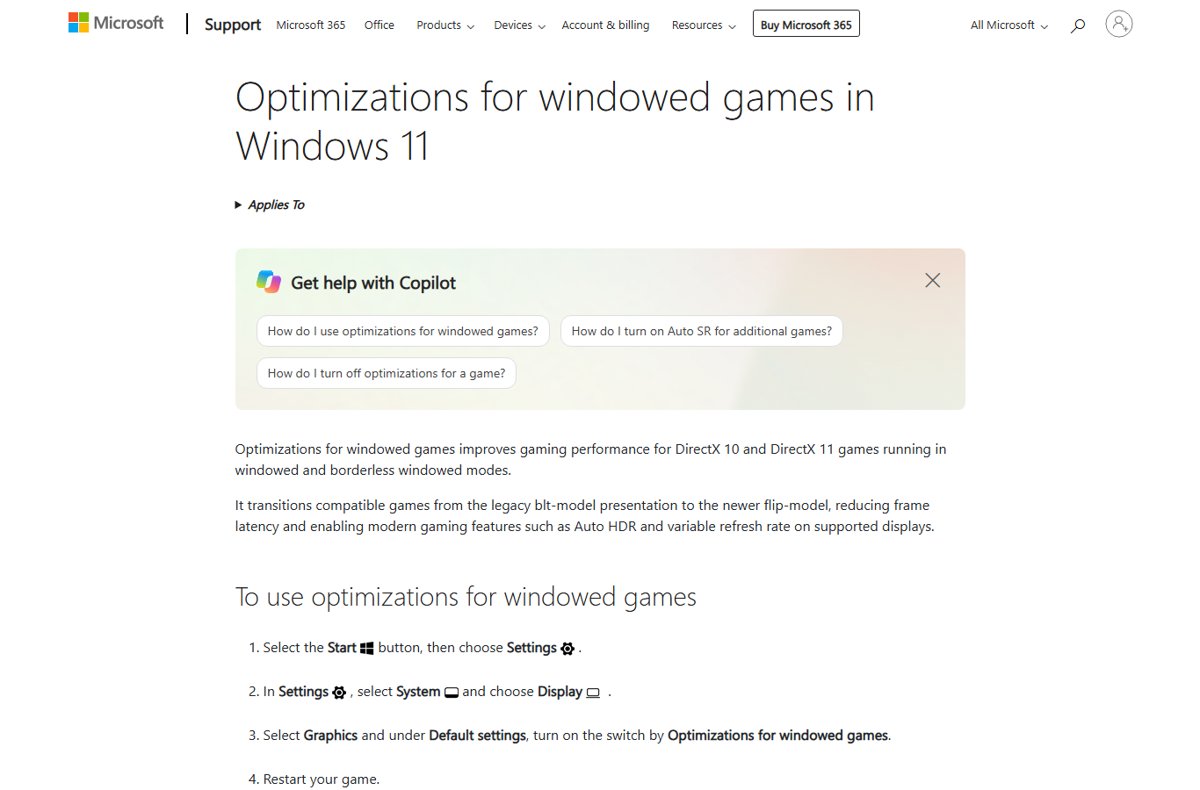
| Optimizations for windowed games | Unchanged; improves DirectX 10 and 11 games in windowed and borderless modes |
| Driver trust | Default trust for cross-signed kernel drivers is removed, after an audit period of at least 100 hours and three restarts |
| Bluetooth LE Audio and USB4 docks | Reliability improvements for headsets and displays on docks |
| Known 26H2 audio issue | Some USB Audio Class 1.0 devices show Code 10 with no sound |
Microsoft published no frame-rate figures for 26H2 against 25H2, so any claim of a gaming speed-up is not backed by Microsoft.
Other gaming settings to set alongside Game Mode
- Open Settings > System > Display > Graphics and, under Default settings, turn on Optimizations for windowed games, then restart your game.
- In the same page, under Custom options for apps, select a game, select Options, pick High performance as the graphics preference on a PC with two GPUs, and select Save.
- Open Settings > System > Power & battery and set Power mode to Best performance while plugged in.
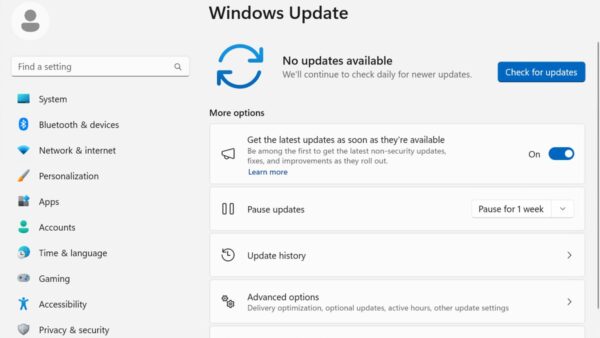
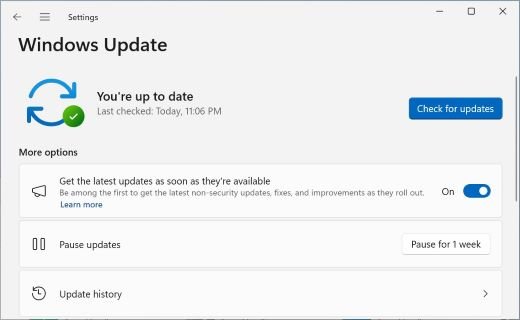
- Open Settings > Windows Update > Advanced options > Optional updates and install any graphics driver offered.
- Press Ctrl + Shift + Esc, select Startup apps, and disable apps you do not need running while you play.
Best performance increases power use, so a laptop runs warmer and drains its battery faster. For tearing on a fixed-refresh display, turn on VSync in your game or graphics driver.
How to check Game Mode is on
- Open Settings > Gaming > Game Mode and confirm the switch reads On.
- If the switch will not stay on, open
regeditand check that AutoGameModeEnabled underHKEY_CURRENT_USER\Software\Microsoft\GameBaris1. - Press Win + R, type
winverand press Enter to confirm the PC runs version 26H2, OS build 26300. - Launch a game and play through a spot that used to stutter to judge the difference.
The steps to check if 26H2 is installed cover the other ways to read your version.
Fix gaming problems after installing 26H2
Games freeze, close or show EXCEPTION_ACCESS_VIOLATION
Microsoft traced crashes in ARC Raiders, MARVEL Tōkon and THE FINALS to RGB lighting drivers named like inpoutx64, not to Windows itself.
- Install the latest update from Settings > Windows Update; Microsoft resolved the issue with a block that stops the inpoutx64 driver loading on affected PCs.
- Update or remove the RGB lighting software for your case, keyboard or motherboard.
- Update the game itself; Embark Studios fixed THE FINALS on its side.
- On a work PC, ask IT to apply Microsoft's workaround, because the block does not reach managed devices automatically.
No sound in games after the update
A known 26H2 issue stops some USB Audio Class 1.0 devices, which show Code 10 in Device Manager.
- Open Device Manager and check your headset or DAC for a Code 10 error.
- Follow the workaround Microsoft lists for this issue in the 26H2 known issues.
- For onboard sound, work through the Realtek audio fixes for 26H2.
Games run slower after 26H2
Background work after an update, an old driver, or a changed power or graphics setting.
- Confirm Game Mode is On in Settings > Gaming > Game Mode.
- Install optional driver updates from Settings > Windows Update > Advanced options > Optional updates.
- Set Power mode to Best performance in Settings > System > Power & battery.
- If the whole PC is slow, not just games, follow the steps for 26H2 running slow.
Frequently asked questions
Is Game Mode on by default in Windows 11 26H2?
Yes. Microsoft turns Game Mode on by default, and 26H2 does not change that. Check it in Settings > Gaming > Game Mode; if the switch reads On, Windows applies it automatically whenever you launch a game.
Does Game Mode increase FPS in Windows 11?
Not in a fixed amount. Microsoft says Game Mode helps achieve a more stable frame rate depending on the specific game and system. Test your own games with it on and off to see the difference on your PC.
Should I turn Game Mode off?
Only to test a specific problem. If one game stutters or crashes, turn Game Mode off, play the same section, and compare. If nothing changes, turn it back on, because its protection from driver installs and restart prompts is still useful.
Does Game Mode stop Windows updates?
Only partly, and only while a game runs. Game Mode stops Windows Update from installing drivers and sending restart notifications during play. Driver installs and restart prompts resume normally once you close the game.
Does Game Mode hurt performance when I am not gaming?
No. Game Mode acts only when Windows detects a running game. On a PC used for work, browsing or video, leaving it on has no effect, so there is no reason to turn it off for everyday use.
What is the difference between Game Mode and Xbox mode?
Game Mode is a background setting that prioritises a running game. Xbox mode is a full-screen, controller-friendly launcher you turn on in Settings > Gaming > Xbox mode and enter with Win + F11. It needs Windows 11 version 24H2 or later.
Did Windows 11 26H2 change Game Mode?
No. Microsoft's list of 26H2 changes includes no Game Mode item. Because 26H2 shares its system files with 24H2 and 25H2, Game Mode behaves the same on a fully updated 25H2 PC as it does on 26H2.
Why does Game Mode keep turning off?
Check the registry value behind the switch. AutoGameModeEnabled under HKEY_CURRENT_USER\Software\Microsoft\GameBar should be 1. Set it with Registry Editor, restart the game, and check the switch again in Settings > Gaming > Game Mode.
Need More Help?
These official pages cover the settings in this guide in more depth. Upgrading first? Weigh up whether to update to 26H2 before you install it.
- Use Game Mode while gaming on your Windows device — Microsoft's own description of Game Mode and the Settings path
- Optimizations for windowed games in Windows 11 — Flip-model presentation for DirectX 10 and 11 games, Auto HDR and per-game options
- Windows Gaming: Full screen experience — How to turn on and use Xbox mode
- Windows 11, version 26H2 known issues — Microsoft's live list of 26H2 issues and workarounds

Windows 11 26H2 performance and gaming: what changed - Techdows
[…] Game Mode is on by default and stays on through the update. While a game runs, it stops Windows Update from installing drivers and sending restart notifications. […]