Open the App Store, tap your profile picture, then tap Apps to see what other members of your Family Sharing group have bought.
This guide covers where shared purchases live on iPhone, iPad, Mac, Apple TV and Windows, how the organiser reads the billing history, what can and cannot be shared, and what to do when a purchase never shows up.
The fastest way to see a family member's purchases
This works once the organiser has turned on Purchase Sharing for the group.
- Open the App Store on your iPhone or iPad.
- Tap your profile picture at the top of the screen.
- Tap Apps.
- Tap the family member's name to open the list of apps they bought.
- Tap the Download button next to any item you want on your own device.
Only shared purchases appear here. A member's private activity, messages and browsing are not part of Family Sharing.
Which app holds which kind of purchase
| What you are looking for | Where to look | Why |
|---|---|---|
| Apps and their subscriptions | App Store > profile picture > Apps | Shared app purchases are listed under each family member's name |
| Movies and TV shows | Apple TV app > Library > Family Sharing | Store purchases in the Apple TV app sit in the library, not the store tab |
| Books and audiobooks | Apple Books > profile picture > the member's name | Book Store purchases are grouped by member |
| Music bought from the iTunes Store | Mac: Music > Account > Purchased | iTunes Store music is shared through the Purchased list |
| What an item cost and who paid | Purchase History, or reportaproblem.apple.com | Charges billed to the organiser's payment method are itemised there |
| A purchase that needs approval first | Ask to Buy notification | A child's request reaches the organiser or a parent before the purchase completes |
What you need before you start
| Requirement | Detail |
|---|---|
| A family group | One adult is the organiser, and up to six people in total share access |
| Purchase Sharing turned on | The organiser turns it on and keeps a payment method on file |
| The same country or region | All members must use the same Apple Account country or region to share purchases |
| One account for purchases | The Apple Account signed in for Media & Purchases must match the one used for Family Sharing |
| Supported software | iPhone or iPad on iOS 9 or later, or a Mac on OS X El Capitan 10.11 or later |
What is Family Sharing?
Family Sharing links up to six Apple Accounts so they can share services and content without anyone sharing a password.
| Part of Family Sharing | What it does |
|---|---|
| The family group | You and up to five other people share access to Apple services, each keeping a separate Apple Account |
| Purchase Sharing | Everyone gets access to the apps, music, movies, TV shows and books that members buy |
| Shared payment | The organiser pays for everyone's purchases unless another adult uses their own payment method |
| Shared subscriptions | Apple One, Apple Music family plans, Apple Arcade, Apple Fitness+, Apple News+, Apple TV, Apple TV channels and iCloud+ |
| Parental controls | Child accounts, Screen Time limits and Ask to Buy approval for purchases |
| Location and devices | Members can share location and help locate each other's missing devices in Find My |
| Apple Cash Family | Money transfers between members, available in the United States |
Setting Up Family Sharing
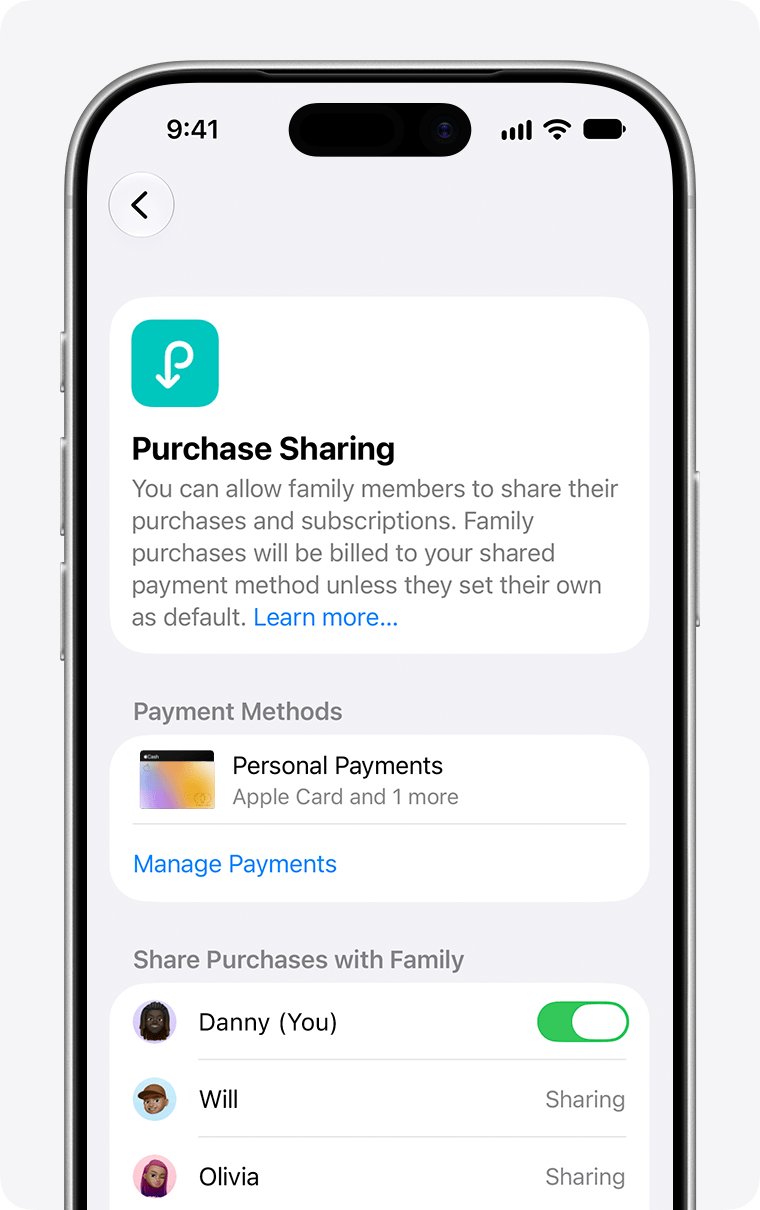
Purchase sharing only starts after three things happen: the group exists, the organiser turns on Purchase Sharing, and each member accepts the invitation.
- On the organiser's iPhone or iPad, open Settings, then tap your name.
- Tap Family, then tap Continue and follow the onscreen instructions to create the group.
- Back in Family, tap Purchase Sharing, then tap Turn On.
- Return to Purchase Sharing and check the card listed under Payment Methods.
- Tap the Add Member button, then tap Invite Others to send the invitation by Messages or email.
- On the member's device, open Settings, tap your name, then tap Invitations.
- Follow the onscreen instructions to accept the invitation.
A Family Sharing group cannot be created in the Apple TV app. Start it on a Mac, iPhone or iPad.
Locating Shared Purchases Made by Family Members
On a Mac each store app keeps family purchases in its own account screen rather than in one shared list.
- Open the App Store on your Mac and sign in with your Apple Account.
- Choose Store > Account from the menu bar.
- Click the Purchased by pop-up menu and choose the family member.
- Click the download icon beside an app to install it.
- For music, open Music, choose Account > Purchased, then choose the member from the pop-up menu next to Purchased.
- For books, open Books, choose Account > View Account, then click a name under Family Purchases.
How to find family purchases on an Apple TV
- Open the Apple TV app.
- Go to the Library tab.
- Select Family Sharing.
- Select the family member whose collection you want to open.
- Select a movie or show to play it.
- On an iPhone or iPad, tap the Download button first if you want an offline copy.
On a TV or living room device you can watch and share family purchases, but you cannot download, import or hide purchases in the Apple TV app library.
How to find family purchases on Windows
Windows uses either iTunes or the newer Apple apps from the Microsoft Store, and the route differs between them.
- Open iTunes on your PC if it is installed.
- Choose Account > Family Purchases.
- Click the name next to Purchased at the top left, then choose the family member.
- Click the cloud download icon next to an item to download it.
- Click Downloaded in the sidebar to list only what is already on the PC.
- In the Apple TV app instead, open the library and select Family Sharing, then select a family member.
The Apple Music, Apple TV, Apple Devices and iTunes apps for Windows are downloaded from the Microsoft Store.
What Purchases Can Be Shared?
| Content type | Shared | Notes |
|---|---|---|
| Apps | Yes | App Store apps, though not all apps support Family Sharing |
| Music | Yes | Music bought from the iTunes Store |
| Movies and TV shows | Yes | Bought from the store in the Apple TV app |
| Books | Yes | Bought from the Book Store in Apple Books |
| Subscriptions | Yes | Apple One, AppleCare One Family, Apple Music family plans, Apple Arcade, Apple Fitness+, Apple News+, Apple Podcasts subscriptions, Apple TV channels and iCloud+ |
| In-app purchases | Sometimes | Only subscriptions and in-app purchases from participating apps |
| Consumable in-app purchases | No | Coins, gems and similar items stay with the buyer |
| Individual and student plans | No | Individual Apple Music and Apple One subscriptions, and student plans, cannot be shared |
| Hidden purchases | No | Anything a member hides drops out of the shared list |
| Discontinued items | No | Content no longer available in the store cannot be redownloaded |
| Apple School Manager content | No | Content assigned through Apple School Manager is not shareable |
| Purchases not billed by Apple | No | In-app purchases or subscriptions billed by someone other than Apple |
How to see what a family purchase cost and who was billed
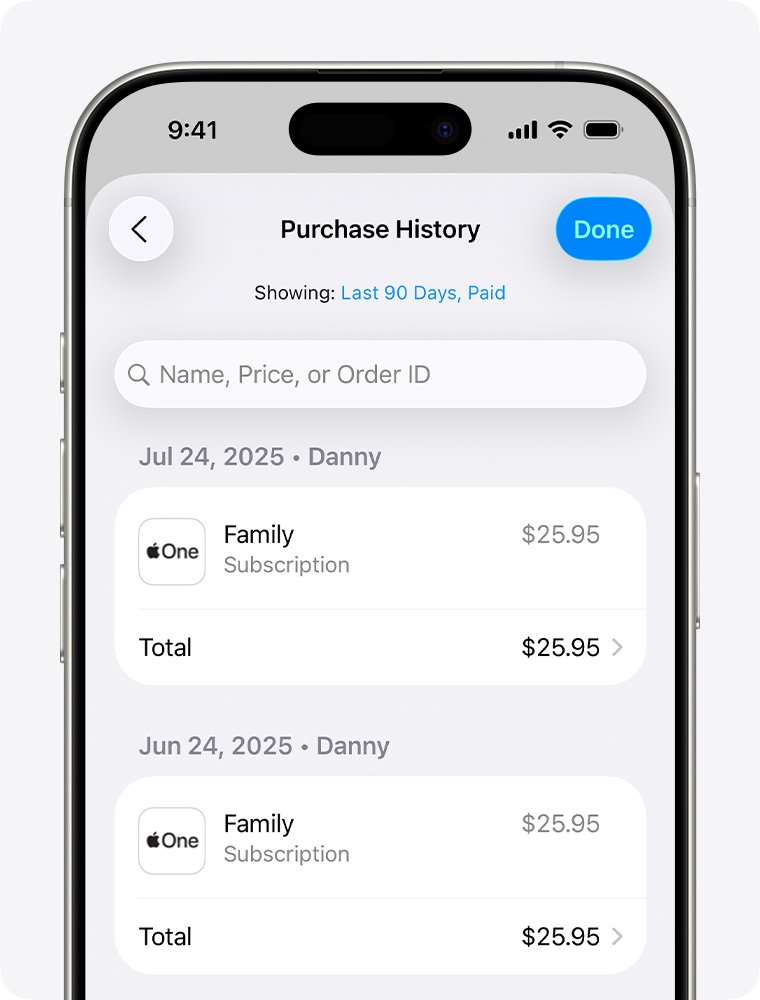
Purchase History is the organiser's record of every charge made against the shared payment method.
- Open the App Store on your iPhone or iPad.
- Tap your profile picture, then tap Apps & Purchase History.
- Tap Purchase History.
- Tap Last 90 days at the top and choose a different range to look further back.
- On a Mac, open the App Store, click your name in the sidebar, click Apps & Purchase History, then click Purchase History.
- In a browser, sign in at reportaproblem.apple.com and search the same list by amount.
A charge you do not recognise may be several purchases grouped into one bill, or an item a family member bought. Ask the member before reporting it.
How to make a child's purchases wait for approval
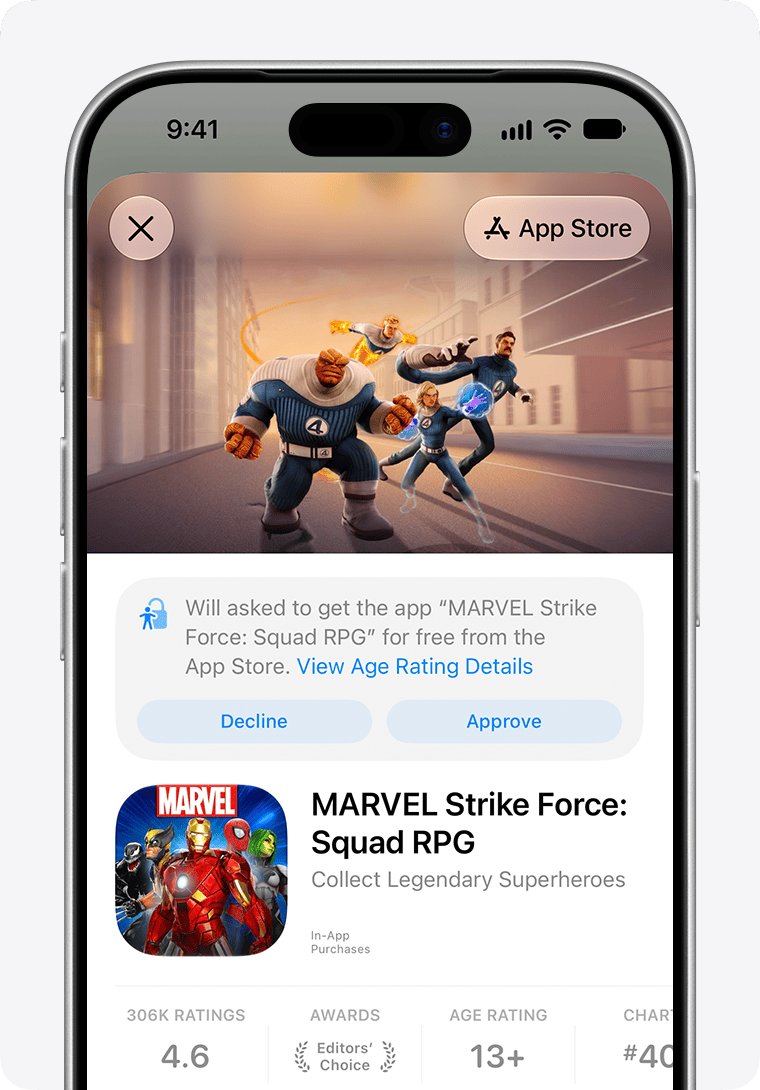
Ask to Buy puts the organiser or a parent in front of every purchase a child account makes, including free downloads and redownloads of shared apps.
- Open Settings, then tap Family.
- Tap your child's name.
- Tap Apps & Websites, then tap Restrictions.
- Tap Ask to Buy, then turn on Require Purchase Approval.
- On a Mac, choose Apple menu > System Settings, click Family, click the child's name, click Ask To Buy, then click Turn On Ask to Buy.
- Approve or decline each request from the notification on your iPhone, iPad, Mac or Apple Watch.
An approved item downloads to the child's device automatically. A declined request completes no purchase and no download.
How to check it worked
- Open the App Store, tap your profile picture, then tap Apps; family members' names should be listed.
- Tap a name and confirm items show a Download button instead of a price.
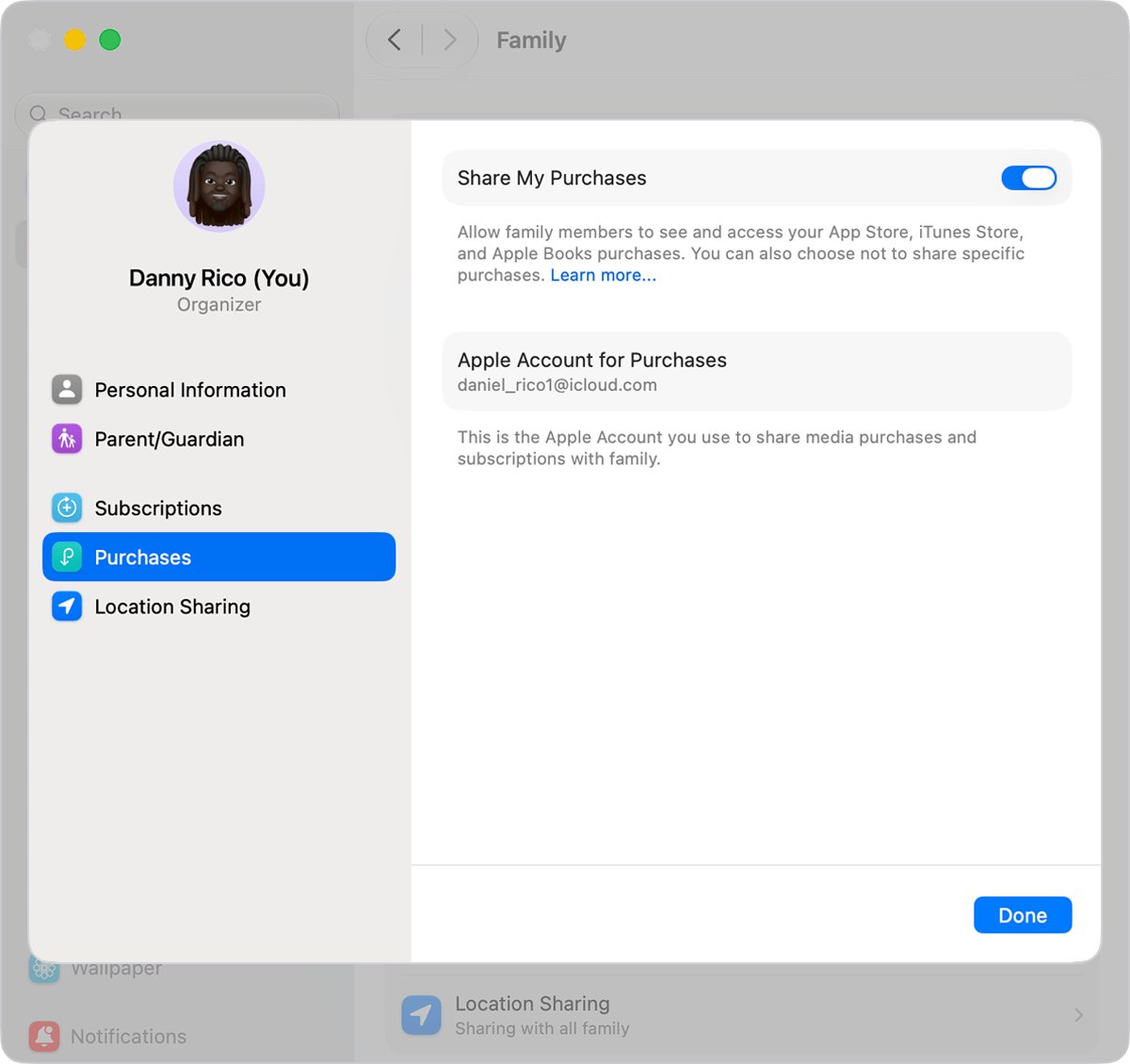
- Open Settings > Family, tap your name, then tap Purchases.
- Confirm Apple Account for Purchases shows the same account you use for Family Sharing.
- Open the Apple TV app, tap Library, then tap Family Sharing and confirm a member's name appears.
Tips for Managing Family Sharing
| What you want to manage | Where to do it | Effect |
|---|---|---|
| Stop sharing purchases entirely | Settings > Family > Purchase Sharing | Members lose access to each other's shared content |
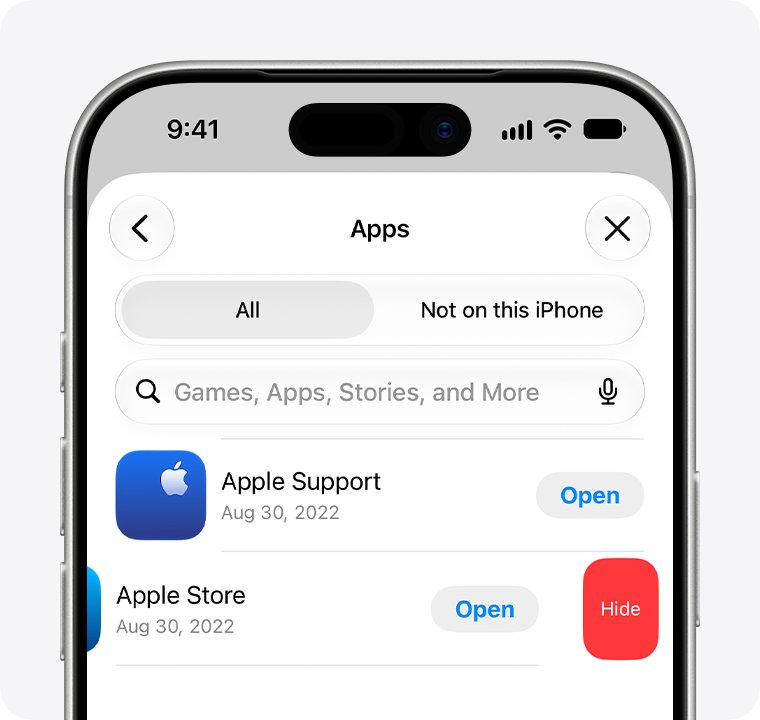
| Hide one app from the family | App Store > profile picture > Apps & Purchase History > Your Apps, swipe left, tap Hide | Family members can no longer redownload it, and its in-app purchases disappear with it |
| Hide an app on a Mac | App Store > your name > Apps & Purchase History > Your Apps, point at the app, click the More button, choose Hide Purchase | Same result as hiding on iPhone |
| Bring a hidden app back | App Store > profile picture > your name > Hidden Purchases > Unhide | The app returns to the shared list |
| Control what a child buys | Ask to Buy | Every purchase and download waits for approval |
| Pay for something yourself | Use your own payment method at checkout | Another adult's purchase is not billed to the organiser |
| Check who is paying | Settings > Family > Purchase Sharing > Payment Methods | Shows the card the shared purchases are billed to |
Why Can’t I See Some Purchases?
One app is missing from a family member's list
The member hid the app, or the app does not support Family Sharing.
- Ask the member to open the App Store and tap their profile picture.
- Ask them to tap their name, then tap Hidden Purchases.
- Ask them to find the app and tap Unhide.
- If it is not hidden, check the app's App Store listing for Family Sharing support.
Music, a movie or a book never appears
The item was bought with a different Apple Account, or it is no longer sold in the store.
- Ask the member which Apple Account they used for that purchase.
- Open Settings > Family, tap their name, then tap Purchases to see the account in use.
- Search the store for the title; content pulled from sale cannot be redownloaded.
A subscription is not shared with the group
Individual plans, student plans and subscriptions not billed by Apple stay with the buyer.
- Check whether the plan is an individual or a family plan.
- Switch an individual Apple Music or Apple One plan to a family plan if you want the group to have it.
- For a subscription billed outside Apple, manage it in that company's own app or website.
In-app purchases are missing from a shared app
Only subscriptions and in-app purchases from participating apps are shareable, and consumables never are.
- Confirm the purchase was not a consumable such as coins or gems.
- Confirm the app itself is not hidden, because hiding an app hides its in-app purchases too.
- Buy the item on the account that needs it if the app does not participate.
Troubleshooting Common Issues
No family member names appear at all
Purchase Sharing is off, or the device is signed in with a different Apple Account for Media & Purchases.
- Ask the organiser to open Settings > Family > Purchase Sharing and confirm it is on.
- On your own device, open Settings > Family, tap your name, then tap Purchases.
- Check that Apple Account for Purchases matches your Family Sharing account.
- Sign out of Media & Purchases and sign back in with the correct Apple Account on every device.
Shared content will not download to an older device
The device is below the minimum version needed for shared purchases.
- Update the iPhone or iPad to iOS 9 or later.
- Update the Mac to OS X El Capitan 10.11 or later.
- Download the item on a newer device if the old one cannot be updated.
Nothing is shareable after someone moves abroad
All family members must use the same Apple Account country or region.
- Open Settings, tap your name, then check the country or region on the account.
- Compare it with the organiser's account.
- Bring the accounts onto the same country or region before expecting purchases to share.
A child cannot download a shared app
Ask to Buy or a Screen Time restriction is blocking the download.
- Check your notifications for a pending Ask to Buy request and approve it.
- Open Settings > Family, tap the child's name, then tap Apps & Websites.
- Review Restrictions and Screen Time limits that block installing apps.
- Ask the child to retry the download once the restriction is changed.
A charge appears that nobody recognises
Purchases are often grouped into one bill, and family purchases are billed to the organiser.
- Open Purchase History and tap the charge to see the individual items.
- Ask each family member whether they bought any of the listed items.
- Sign in at reportaproblem.apple.com to search for the exact amount.
- Turn on Ask to Buy for child accounts to stop the next surprise.
Frequently Asked Questions
These questions come from what people type into Bing about finding purchases, narrowed to the Family Sharing case.
How do I find my purchases on an iPhone?
Open the App Store, tap your profile picture, then tap Apps & Purchase History. Tap Purchase History to see charges, or tap Apps to see the apps tied to your Apple Account and those shared by your family group.
How do I see purchases made by a family member?
Turn on Purchase Sharing, then open the App Store, tap your profile picture and tap Apps. Each family member's name opens the list of apps they bought. Movies and shows sit under Library then Family Sharing in the Apple TV app.
How do I check purchases made further back than 90 days?
Open Purchase History, tap Last 90 days at the top, then choose a different date range. The same filter is available on a Mac under Apps & Purchase History, and on the web at reportaproblem.apple.com.
How do I see purchase history for the whole family in one place?
The organiser sees every charge billed to the shared payment method in Purchase History. Content itself is not pooled into one list: apps, music, films and books each stay in their own store app, grouped by the member who bought them.
How do I find in-app purchases a family member made?
Open the shared app from that member's list in the App Store. Subscriptions and in-app purchases from participating apps carry over with the app. Consumables such as coins and gems never transfer, and hiding the app hides its in-app purchases too.
How do I check what I bought when a charge looks wrong?
Open Purchase History and tap the charge to expand it. One bill often groups several purchases, and a family member's purchase is billed to the organiser. Ask the member before reporting the item to Apple.
How do I see what family members purchased on a Mac?
In the App Store choose Store then Account, and pick a name from the Purchased by menu. In Music choose Account then Purchased. In Books choose Account then View Account and click a name under Family Purchases.
How do I find purchases on Windows?
Open iTunes and choose Account then Family Purchases, then pick a family member from the menu next to Purchased. In the Apple TV app for Windows, family purchases sit under Family Sharing in the library.
Can the organiser see what a family member does on their device?
No. Family Sharing shows shared purchases and billing, not someone's messages, browsing or app use. Child accounts are the exception: Screen Time reports and Ask to Buy requests are visible to the organiser and parents.
Why can I see a charge but not the app itself?
The buyer hid that purchase. Hidden apps stay in the buyer's own purchase history but drop out of the shared list for everyone else. Ask them to unhide it from Hidden Purchases in the App Store.
How do I stop sharing my own purchases?
Open Settings, tap Family, then tap Purchase Sharing and turn it off. Members lose access to each other's shared content from that point, though anything already downloaded stays on their devices.
Bottom Line
Look for shared content in each store app under the member's name, and look for money in Purchase History. Apple splits the two deliberately: the store apps list what can be redownloaded, while Purchase History lists what the organiser's payment method was charged for.