Music you bought from the iTunes Store is not deleted when you join or leave Apple Music: it stays tied to your Apple Account and can be redownloaded from Purchased at any time.
This guide shows how to get missing purchases back on iPhone, iPad, Mac and Windows, why songs turn gray or vanish after Sync Library, and how to protect your library from it happening again.
Redownload purchased iTunes music on iPhone or iPad
Start here if songs you paid for disappeared from the Music app after you subscribed to Apple Music or turned on Sync Library.
- Open the iTunes Store app.
- Tap Purchased, then tap Music. With Family Sharing, tap your own name or a family member's.
- Select Not on This iPhone (or Not on This iPad).
- Select the artist whose music is missing.
- Tap the Download button next to each song you want back.
Downloaded purchases play without an internet connection, and Apple cannot remove them from your device once they are stored on it. If a relative bought the album, you can find Family Sharing purchases under their name instead.
Why purchased music disappears after Apple Music
| What you see | Likely cause | Fix |
|---|---|---|
| Purchases gone from every device | Signed in with a different Apple Account than the one that bought the music | Sign in with the purchasing account under Media & Purchases |
| Album missing from Purchased list | The purchase is hidden | Unhide it in Hidden Purchases or Hidden Items |
| Purchased song is gray on a computer | Computer is not authorized for that Apple Account | Authorize the computer, then play the song again |
| Songs gray with No Longer Available | The track was removed from the Apple Music catalog | Search for another version and add it |
| Explicit songs gray | Restrictions set to Clean | Allow explicit content |
| Ripped CDs and imports missing on phone | Sync Library off, or the source computer has not uploaded them | Turn on Sync Library everywhere and update the Cloud Library |
| Everything added from Apple Music gone | Apple Music subscription ended | Purchases remain; Apple Music catalog songs return only with a subscription |
Check the Apple Account used for iTunes purchases
Purchases belong to the account that paid for them, and you can view purchased items for an Apple ID to confirm which account that is. Apple states that signing in with a different Apple Account removes the previous account's purchases from the device.
| Device | Where to check the signed-in account |
|---|---|
| iPhone or iPad | Settings > [your name] > Media & Purchases |
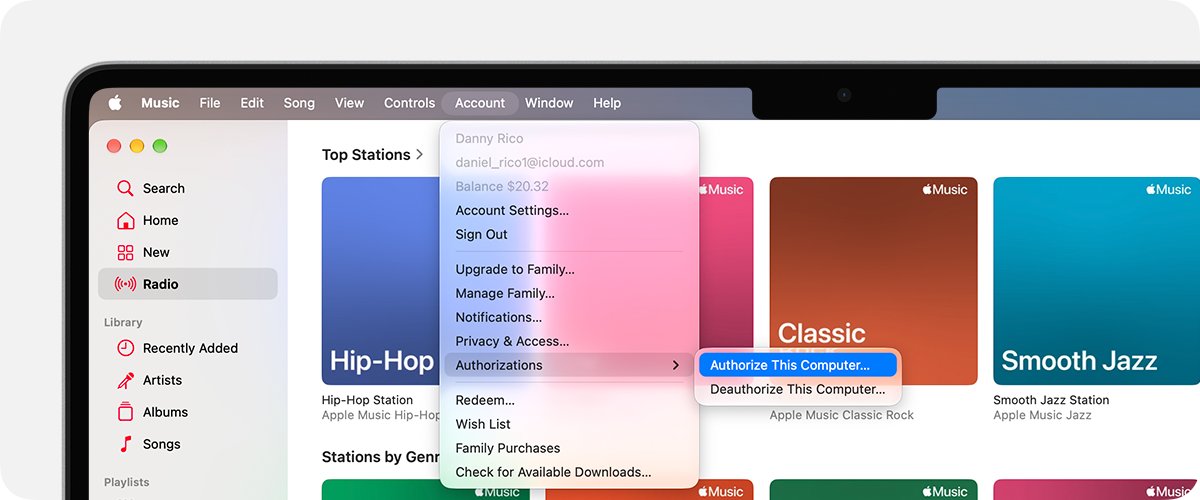
| Mac (Music app) | Menu bar > Account; the account shows at the top of the menu |
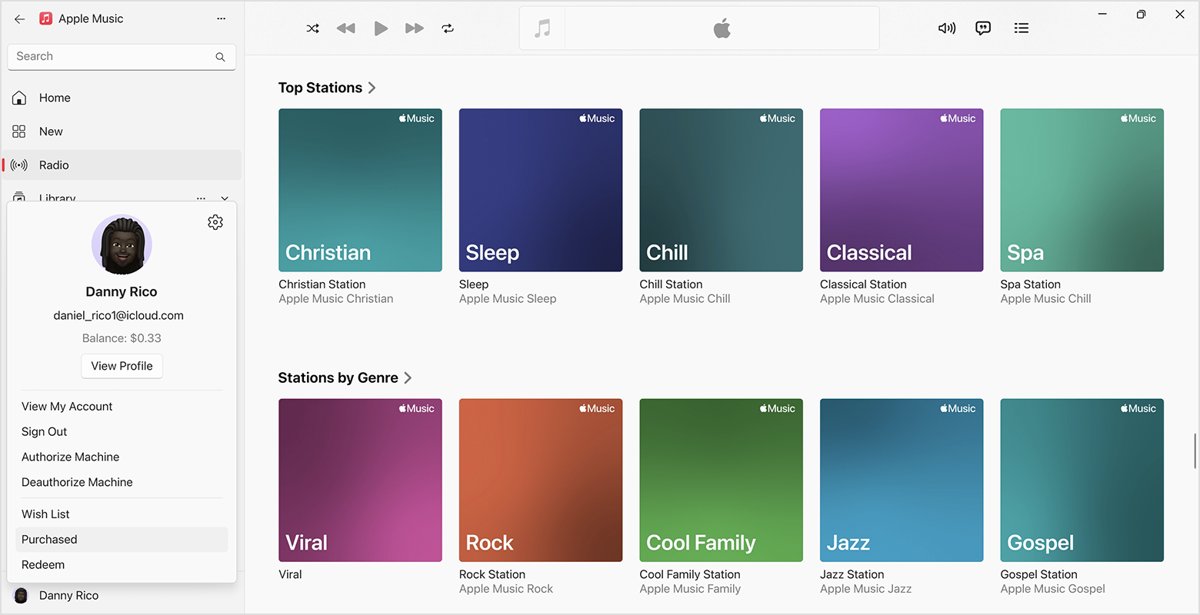
| Windows (Apple Music app) | Click your name at the bottom of the sidebar |
| Windows (iTunes) | Menu bar > Account |
If the wrong account appears, sign out and sign in with the account on your purchase receipts. Use that same account for Apple Music on every device.
Unhide hidden purchases in Apple Music
A hidden album does not show in Purchased and a hidden song can look gray in the library. Unhiding it lets you play and download it again.
- On iPhone or iPad, open Settings, tap your name, then tap Media & Purchases.
- Tap Hidden Purchases and tap Unhide next to the song.
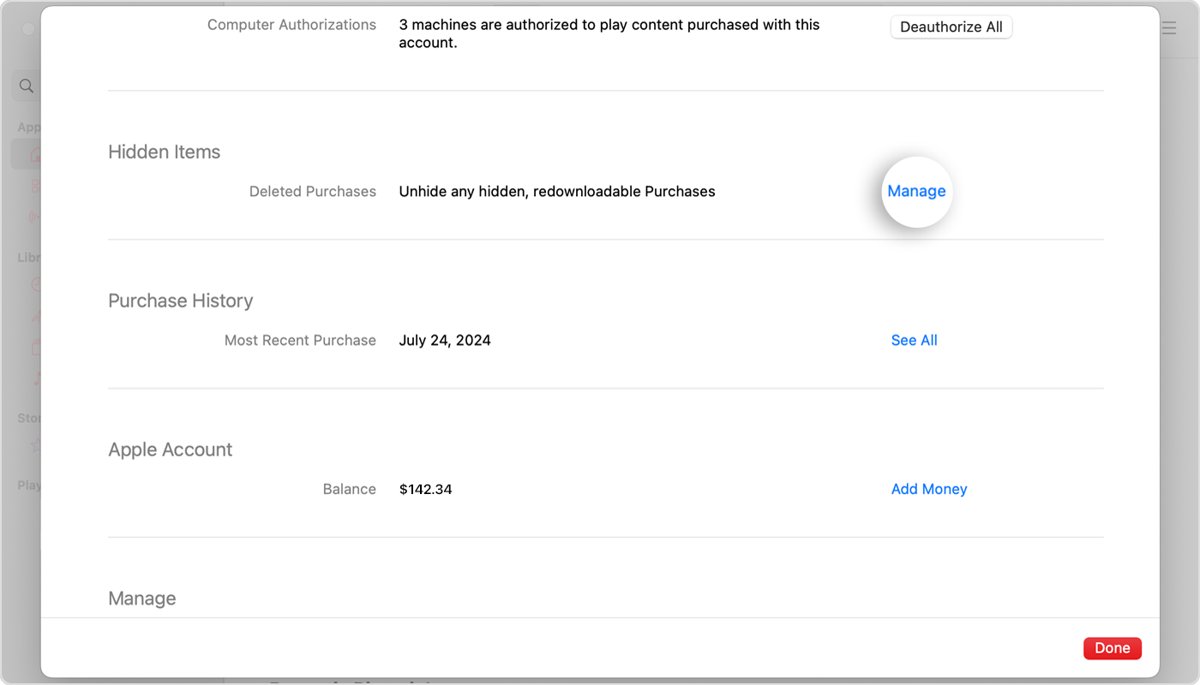
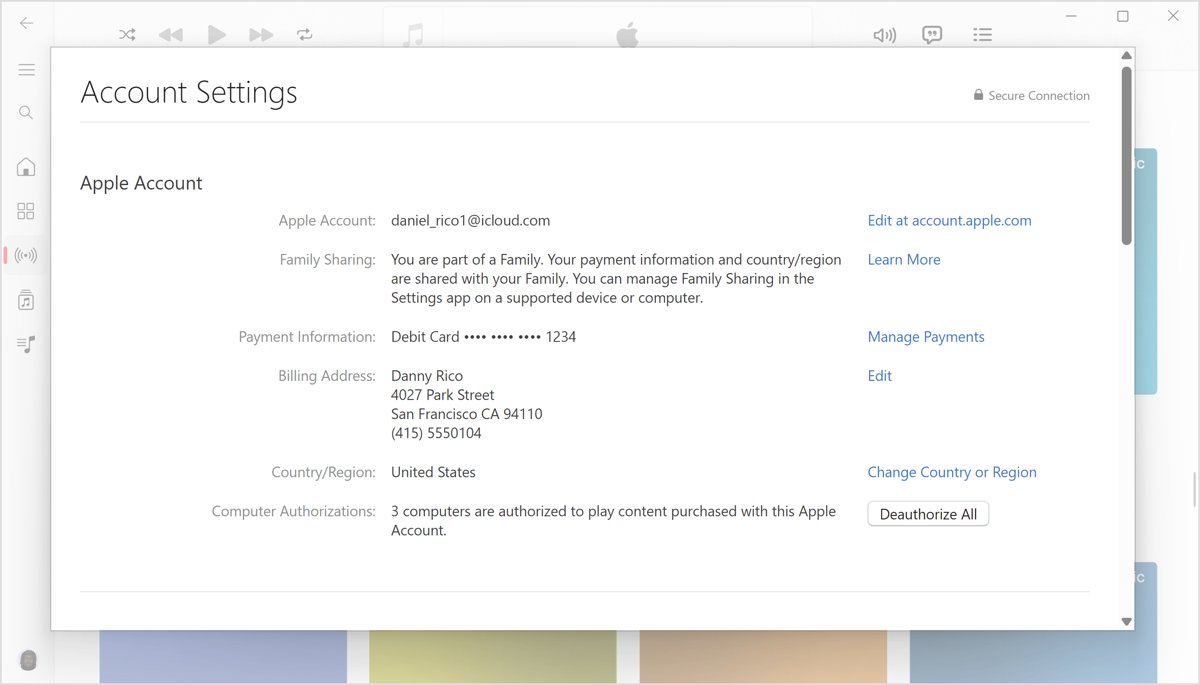
- On a Mac or PC, open the Apple Music app (or iTunes), choose Account > Account Settings and sign in if asked.
- Scroll to Hidden Items and click Manage.
- Click Unhide next to the music, then redownload it from Purchased.
Redownload purchased music on Mac
- Open the Apple Music app.
- Authorize the Mac first: choose Account > Authorize This Computer, sign in and click Authorize.
- Choose Account > Purchased (Family Purchases if you use Family Sharing).
- Click Albums and the Download button to restore an album, or Songs for single tracks.
- Click Download All at the bottom of the window to restore every purchase.
If the Download button is missing or gray, the song or album is already in your Music library.
Redownload purchased music on a Windows PC
Purchases are available in the Apple Music app for Windows and in iTunes for Windows.
- Open the Apple Music app and click your name at the bottom of the sidebar.
- Click Authorize Machine, sign in and click Authorize.
- Click your name again and select Purchased (Family Purchases with Family Sharing).
- Click Albums or Songs and select the download button next to the music.
- Click Download All at the bottom of the screen to restore the whole collection.
- In iTunes instead, choose Account > Purchased, pick Music from the pop-up menu in the upper-left corner and download the same way.
You can authorize up to five computers at a time. If you hit the limit, use Deauthorize All in account settings, which works once a year, then authorize each computer again.
Fix missing songs after turning on Sync Library
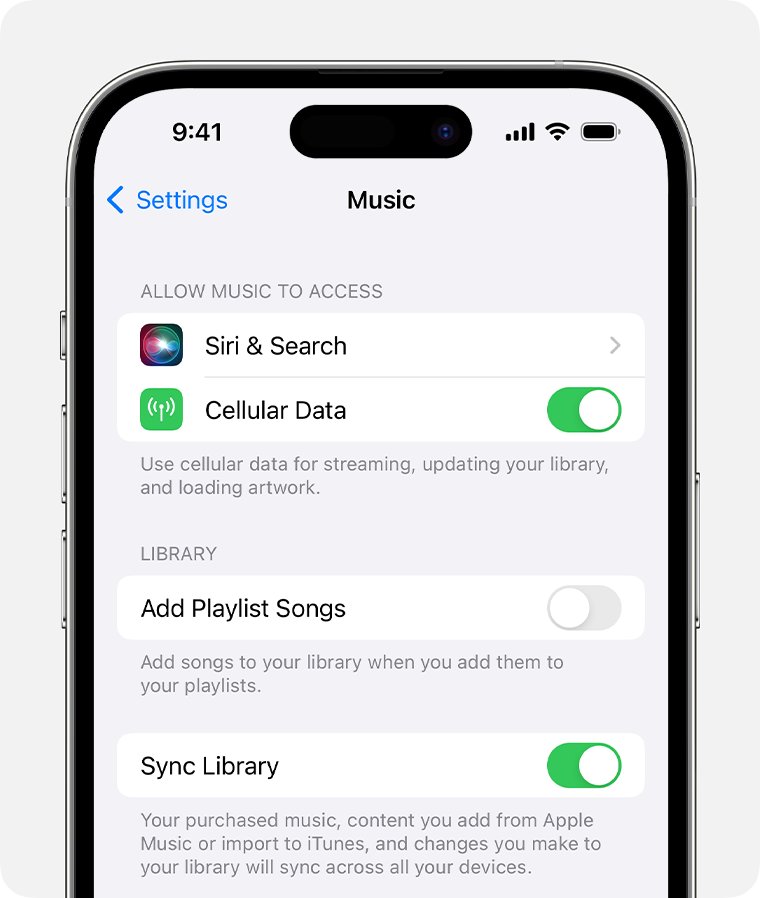
Sync Library streams one library to every device, but the songs you ripped or imported still live on the original computer. Apple says plainly that Apple Music is not a backup service.
- Sign in to the Apple Account you use with Apple Music on every device.
- Turn on Sync Library: on iPhone or iPad, Settings > Music; on Mac, Music > Settings > General; on Windows, Sidebar Actions > Settings > General.
- Connect all devices to the internet.
- On the computer that holds the original library, update the Cloud Library: on Mac choose File > Library > Update Cloud Library; on Windows choose Sidebar Actions > Library > Update Cloud Library.
- Repeat the update on any other synced computer.
- If songs are still missing, turn Sync Library off and on again on every device, on a good connection.
Turning Sync Library off removes all downloaded music from that device, so expect to download songs again afterwards.
Check Cloud Status for gray songs on Mac or PC
The Cloud Status column shows exactly why a synced song will not play or appear on your phone.
- Open the Apple Music app and select Songs in the sidebar.
- On Mac, choose View > Show View Options; on Windows, right-click the headings bar.
- Select Cloud Status and Cloud Download.
- For an exclamation point, click it, click Locate and point to the file; click Find Files to match other missing songs.
- For Waiting, keep the source computer online and update the Cloud Library.
- For No Longer Available, search for another version, delete the old entry from the library and add the new one.
Check that your purchased music is back
- Open Purchased in the iTunes Store app or the Music app and confirm the Download button is gone for restored albums.
- Turn on Airplane Mode and play a restored song; a downloaded purchase plays offline.
- On a computer, confirm the Cloud Status column shows no exclamation points or Waiting entries.
- Open the library on a second device signed in to the same account and check the same songs appear.
Apple Music purchased songs still missing: more fixes
Download button missing or gray in Purchased
The song or album is already in the Music app on that device.
- Search your Music library for the title.
- On iPhone or iPad, sign out of Media & Purchases and tap Continue to sign back in with the same account.
- Expect signing out to remove downloaded content from Apple services, then download again.
Song is on the computer but not in the Apple Music app
The file was moved, or the library sits on an external drive that is not connected.
- Search the Mac or PC for the song file.
- Drag the file into the Apple Music app.
- Update the Cloud Library so other devices receive it.
"This item is not currently available in your country or region"
The catalog version of the track is not offered in your region, or the account is mismatched.
- Search for the song; if it is available, delete the gray copy and add it again.
- Confirm the same Apple Account is signed in on every device.
- Update your Apple devices or the Apple Music app for Windows, then turn Sync Library off and on.
Songs and playlists vanished after canceling Apple Music
Canceling removes everything added from the Apple Music catalog, including playlists built from it, from all devices except the original computer.
- Check that iTunes Store purchases are still listed; Apple keeps them in your library on all devices.
- Redownload purchases from Purchased on each device.
- Resubscribe to restore catalog songs, or buy the tracks you want to keep.
A purchased track was removed from the iTunes Store
Apple can lose the rights to offer content, so it may become unavailable to redownload.
- Download every purchase to a device you own while it is still available.
- Keep a backup of the computer that holds your music library.
Missing Apple Music purchases FAQ
What happened to my Apple Music library?
It is usually signed out, out of sync or on the wrong Apple Account. Sign in with the account you use for Apple Music on every device, turn on Sync Library and update the Cloud Library on the computer that holds the original files.
Why is my Apple Music gone?
If your subscription ended, everything you added from the Apple Music catalog is removed. iTunes Store purchases stay in your library and can be redownloaded from Purchased on iPhone, iPad, Mac or Windows.
Where did my Apple Music go?
Purchased songs are still listed under Purchased in the iTunes Store app or the Music app. Select Not on This iPhone to see purchases that are not downloaded, then tap the Download button.
What happened to my Apple Music playlist?
Playlists added from the Apple Music catalog, built from catalog songs or synced with Sync Library are removed when an Apple Music subscription is canceled. Playlists on the original computer's local library remain there.
What is wrong with my Apple Music when songs are gray?
A gray song is hidden, blocked by Clean restrictions, removed from the catalog, or a purchase on an unauthorized computer. Check the Cloud Status column on a Mac or PC to see which applies.
Why is my Apple Music censored?
Restrictions are set to Clean, so explicit songs appear gray. Allow explicit content in Content & Privacy Restrictions; on a child's device, a parent changes it from Settings > Family > the child's name.
How do I stop paying for Apple Music?
On iPhone, open Settings, tap your name, tap Subscriptions, tap Apple Music and tap Cancel Subscription. Cancel a trial at least 24 hours before it ends so it does not renew.
Does canceling Apple Music delete songs I bought?
No. Apple states that iTunes purchases remain in your library on all devices after you cancel. Only music added or downloaded from the Apple Music catalog is removed.
Bottom line: getting purchased music back after Apple Music
Sign in with the Apple Account that bought the music, unhide anything hidden, authorize your computer and use Download All in Purchased. iTunes purchases are tied to the account, not to the Apple Music subscription, so they can be redownloaded. Keep a downloaded copy and a backup, since Apple Music and Sync Library are not backup services.