Press Windows key + R, type services.msc and select OK to open the Services console, where you start, stop and configure every Windows service on Windows 11 and Windows 10.
Below: every way to open it, what each status and startup type means, safe steps for changing a service, Log On and recovery settings, the PowerShell and sc.exe equivalents, and fixes for services that will not start.
The fastest way to open Services and change a service
The Run box works the same on Windows 11 and Windows 10. Use an administrator account, because changing a service needs administrator rights.
- Press Windows key + R to open the Run box.
- Type
services.mscin the Open box and select OK. - In the Services (Local) pane, scroll to the service by its display name.
- Right-click the service and select Start or Stop.
- To change when it starts, double-click the service, pick a value in Startup type, then select Apply and OK.
What Services.msc Is and When to Use It
services.msc is the Microsoft Management Console snap-in for the Service Control Manager, the part of Windows that starts and stops services. Microsoft's own troubleshooting articles call it the Services snap-in, the Services console or the Windows Services Manager.
A service is a program that runs in the background without a window, often before anyone signs in. Printing, Windows Update, Windows Search and the firewall all run as services.
| Job | Where in Services.msc | Typical reason |
|---|---|---|
| Start, stop or restart a service | Right-click the service | A feature stopped working, or an app's support article tells you to restart its service |
| Change the startup type | Properties > Startup type | Make a service start with Windows, only on demand, or never |
| Change the account a service runs as | Properties > Log On tab | An app's service needs a specific account or a new password |
| Set what happens when a service crashes | Properties > Recovery tab | Restart a service automatically after a failure |
| Read a service's description and status | The service list itself | Find out what a background process is before touching it |
For a quick list of running services without opening the console, see Get a list of Services Running on your computer.
How to Open Services.msc in Windows 10 and Windows 11
Every route below opens the same console. Pick the one that matches where you already are.
| Route | What to do | Best when |
|---|---|---|
| Run box | Windows key + R, type services.msc, select OK |
Your hands are on the keyboard |
| Taskbar search | Enter services.msc in the search box on the taskbar, or enter Services and press Enter |
You prefer the Start menu |
| Computer Management | Search for Computer Management, open it, expand Services and Applications and select Services | You also want Event Viewer or Device Manager in the same window |
| Windows Administrative Tools (Windows 10) | Select Start > Windows Administrative Tools > Services | You browse the Start menu on Windows 10 |
| Task Manager | Press Ctrl + Shift + Esc and use the Services tab for a quick start or stop | You only need to start one service and already have Task Manager open |
Task Manager's list shows the service name and status only. For startup types, Log On and recovery settings, open the full console. More ways to reach Task Manager are in 12 Shortcuts to Open Task Manager in Windows 10/11.
Understanding Service Status, Startup Types, and Dependencies
Each service has two separate settings. Status is what it is doing now, and Startup type is what Windows does with it at the next boot. A stopped service set to Automatic starts again after a restart.
Microsoft says it chose each default startup type to balance performance, functionality and security, so treat the default as the correct value unless you have a specific reason.
| Setting | Value | What it means |
|---|---|---|
| Startup type | Automatic | Starts each time the computer restarts and runs even if no one signs in |
| Startup type | Automatic (Delayed Start) | Starts automatically a short time after the other automatic services. Windows Search uses it by default |
| Startup type | Manual | Starts only when a user, an app or another service asks for it. A Manual service can still be running |
| Startup type | Disabled | Cannot be started by a user or an app until you change the startup type |
| Status | Running / Stopped / Paused | The service is working, not running, or suspended |
| Status | Start pending / Stop pending | The service is in the middle of starting or stopping |
| Dependencies | Services it requires | Services that must start first. If an automatic service depends on a Manual one, Windows starts that one automatically too |
| Dependencies | Dependent services | Services that stop working if you stop or disable this one |
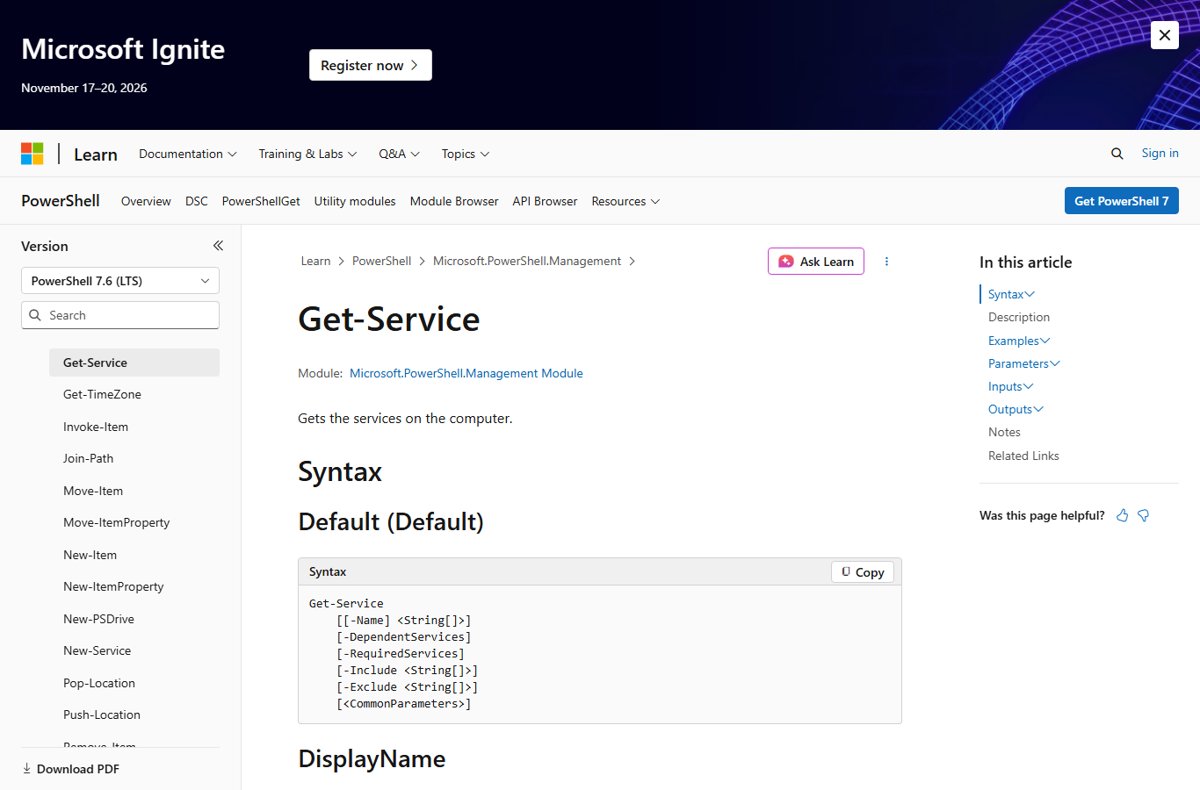
To list dependencies exactly, run Get-Service -Name <name> -RequiredServices for the services a service needs, and Get-Service -Name <name> -DependentServices for the services that need it.
How to Start, Stop, Restart, Enable, or Disable a Service
Before changing anything, write down the current Startup type and Status. That note is your way back.
Change one service at a time and test after each change. Never disable a service that Microsoft marks as required (see the warning below).
- Open Services with Windows key + R and
services.msc. - To start a stopped service, right-click it and select Start.
- To stop a running service, right-click it and select Stop. Check its dependent services first, because they stop working too.
- To restart a service, stop it, wait until it no longer shows as running, then right-click it and select Start.
- To enable or disable it, double-click the service and choose Automatic, Automatic (Delayed Start), Manual or Disabled in Startup type.
- Select Apply, then OK.
- Restart the PC if you changed the startup type and want to confirm it takes effect at boot.
Stopping a service lasts until the next restart or until something starts it again. Setting Disabled is the only change that keeps it off across restarts.
Is it safe to disable Windows services?
Microsoft publishes service-by-service guidance for only two scenarios: Windows Server 2016 with Desktop Experience and fixed-function Windows IoT Enterprise devices. Neither is a tuning list for a home Windows 11 PC.
Both pages sort services into Don't disable, OK to disable and No guidance. For services with no guidance, Microsoft says the effect of disabling them isn't fully evaluated, so leave the default configuration alone.
Do not disable Windows services to speed up a PC, and never disable one that Microsoft lists as Don't disable. Microsoft's own examples show the damage: stopping or disabling the Base Filtering Engine significantly reduces system security, and disabling the Time Broker service stops Task Scheduler from starting. Disable a service only when a Microsoft page or the software's own vendor tells you to, and record the original startup type first.
Configuring Log On, Recovery, and Service Permissions Safely
These three settings sit in each service's Properties dialog or in policy. Most Windows services never need them changed; they matter most for services that third-party apps install.
| Setting | Where | What to know |
|---|---|---|
| Log On account | Properties > Log On tab. Select This account, then Browse to pick a user, and fill Password and Confirm Password | Every service runs as an account. LocalSystem has extensive privileges on the PC; LocalService and NetworkService have minimum privileges. Windows does not store service passwords for you, so an expired password makes the service fail to start |
| Recovery actions | Properties > Recovery tab | Sets what happens after the first, second and later failures: no action, restart the service, run a program, or restart the computer. A program run here runs under the service's account |
| Reset fail count after | Recovery tab | Days after which Windows forgets earlier failures. Microsoft suggests 1 day for a crashing service; with a reset period of 0 and a restart action, a crashing service restarts in a continuous loop |
| Service permissions | Set-Service -Name <name> -SecurityDescriptorSddl <SDDL> in an elevated PowerShell window |
Changes who may start, stop or configure a service. The account running it needs WRITE_DAC and WRITE_OWNER rights. Leave Windows services at their defaults |
| Startup type by policy | Group Policy: Computer Configuration > Windows Settings > Security Settings > System Services | How organisations set startup types on many PCs. |
Change a Log On account only when the software vendor documents it. After you change the account or password, restart the service so it signs in with the new credentials.
Manage services from PowerShell and sc.exe
Open Windows PowerShell or Terminal with Run as administrator. Microsoft's reference states that Set-Service requires elevated permissions.
Commands take the service name, such as BITS or wuauserv, not the display name. Run Get-Service to see both.
- List every service with its status and startup type:
Get-Service | Select-Object Name, DisplayName, Status, StartType. - Find a service by part of its display name:
Get-Service -DisplayName "*network*". - Start, stop or restart it:
Start-Service -Name BITS,Stop-Service -Name BITS,Restart-Service -Name BITS. - Stop a service that others depend on:
Stop-Service -Name <name> -Force -Confirm.-Forcealso stops the dependent services. - Change the startup type:
Set-Service -Name BITS -StartupType Manual. Accepted values in Windows PowerShell 5.1 are Automatic, Manual and Disabled; PowerShell 7 adds AutomaticDelayedStart. - Set a delayed start from any shell:
sc.exe config BITS start= delayed-auto. Type the space afterstart=; without it the command fails. - Other
sc.exestart values areauto,demand(Manual) anddisabled. Check a service withsc.exe query BITS, or list every service withsc.exe query state= all.
Type sc.exe with the extension inside PowerShell, as Microsoft's command reference does. Use -WhatIf with Set-Service to preview a change without applying it.
How to check a service change worked
- Close Services.msc, open it again with
services.msc, and read the status and startup type shown for the service. - In PowerShell, run
Get-Service -Name <name> | Select-Object Name, StartType, Status. The output should show the values you set. - In Command Prompt, run
sc.exe query <name>. The STATE line shows RUNNING or STOPPED. - If you changed the startup type, restart the PC and check again. An Automatic service should show Running after sign-in.
- Test the feature that depends on the service, such as printing after starting Print Spooler.
How to undo a service change
- Open
services.msc, double-click the service and set Startup type back to the value you noted. - Select Apply, then right-click the service and select Start if it was running before.
- If you do not know the original value, check Microsoft's documentation for that service rather than guessing. Microsoft's default settings are the baseline.
- If you used a clean boot in System Configuration, run
msconfig, choose Normal Startup on the General tab, clear Hide all Microsoft services on the Services tab, select Enable all and Apply, then restart. - If Windows no longer starts after a service change, let it enter the Windows Recovery Environment after a few failed starts and use its recovery options.
Troubleshooting Common Windows Service Problems
Check Event Viewer first. Microsoft points to the System and Application logs for service start failures, and to Event ID 1000 to find a crashing program.
"The service on Local Computer started and then stopped"
A service it needs is stopped or disabled. Microsoft's example: Task Scheduler shows this when the Time Broker service is disabled.
- Run
Get-Service -Name <name> -RequiredServicesto list the services it needs. - In
services.msc, set each required service back to its default startup type. - Start the required services, then start the original service.
- Restart the PC and confirm both show Running.
Error 5: Access is denied
You are not running with administrator rights, or the service's account lacks a permission it needs.
- Sign in with an administrator account, or open PowerShell with Run as administrator before running
Set-Service. - On a work or school PC, ask your IT admin. Services there are often set by policy.
- For Task Scheduler specifically, Microsoft traces this error to the SYSTEM account losing write access to the System event log; follow its Task Scheduler troubleshooting article.
Error 1079: the account differs from other services in the same process
The service was set to run as Local System instead of Local Service. Microsoft documents this for Windows Time, Windows Event Log and Windows Firewall.
- Double-click the service in
services.mscand select the Log On tab. - In This account, type
NT AUTHORITY\LocalService. - Leave both password boxes blank, then select Apply and OK.
- Repeat for services that depend on it, then restart both.
Error 126: The specified module could not be found
A system file the service loads is missing, or its registry configuration points to the wrong file.
- Open Command Prompt as administrator.
- Run
sfc /scannowto repair missing or corrupted system files. - Restart the PC and start the service again.
The Startup type box is greyed out or will not change
The service is protected, or a Group Policy sets its startup type. Since Windows 10, the Application Identity service is protected and its startup type cannot be set to Automatic in the Services snap-in.
- On a managed PC, ask IT; the value comes from System Services policy.
- For a protected service that Microsoft documents, use an elevated prompt, for example
sc.exe config appidsvc start= autofor Application Identity. - Back up the system first. Microsoft notes that Application Identity cannot be set back to Manual with
sc.exe.
A service keeps crashing and restarting
A faulty service with a recovery action and a reset period of 0 restarts in a continuous loop.
- Find the failing program under Event ID 1000 in Event Viewer.
- Double-click the service in
services.mscand open the Recovery tab. - Set Reset fail count after to 1 day, then select OK.
- Update or reinstall the software that owns the service.
An app or game fails and you suspect a background service
A non-Microsoft service conflicts with it.
- Run
msconfigand open the Services tab. - Select Hide all Microsoft services, then Disable all, and select Apply.
- Restart and test the app. If it works, re-enable half of the services at a time to find the one causing it.
- When done, return to Normal Startup as described in the undo steps above.
The clean boot hides Microsoft services on purpose. Leave Load system services selected; Microsoft notes that clearing it also stops the Windows Installer service from starting.
Services.msc vs PowerShell, Task Manager, and Windows Admin Tools
All of these tools talk to the same Service Control Manager, so a change in one shows up in the others. Pick by the job, not by habit.
| Your situation | Use this | Why |
|---|---|---|
| Change one service on this PC | Services.msc | Shows descriptions, startup type, Log On and Recovery in one dialog |
| Quickly start or stop a service | Task Manager > Services tab | Already open; no startup-type or recovery settings |
| Script a change or change several services | PowerShell: Get-Service, Set-Service, Restart-Service |
Pipe several services to Set-Service in one line; works remotely through Invoke-Command |
| Set a delayed start in Windows PowerShell 5.1, or work from Command Prompt | sc.exe config |
Supports delayed-auto, which Set-Service in 5.1 does not |
| Services plus logs and devices in one window | Computer Management | Contains the same Services snap-in next to Event Viewer |
| Isolate a conflicting third-party service | System Configuration (msconfig) |
Hide all Microsoft services keeps Windows services out of the test |
| Enforce startup types on many PCs | Group Policy System Services | Applies the setting on every computer the policy covers |
Frequently Asked Questions
Bing autocomplete returned no questions for this query; these come from the questions the competing guide answers and from its section headings.
Is it safe to disable Windows services in Services.msc?
Usually not. Microsoft chose default startup types to balance performance, functionality and security, and it publishes disable guidance only for Windows Server 2016 and Windows IoT Enterprise devices. Disable a service only when Microsoft or the software vendor tells you to, and note the original setting first.
What is the difference between Manual, Automatic, and Automatic Delayed Start?
Automatic starts the service at every boot, even before anyone signs in. Automatic (Delayed Start) starts it a short time after the other automatic services. Manual starts it only when a user, an app or another service requests it.
What should I do if a service will not start?
Read the error first. "Started and then stopped" usually means a required service is disabled, so check it with Get-Service -RequiredServices. Error 5 means missing permissions, error 1079 means the wrong Log On account, and error 126 means a missing file that sfc /scannow can repair.
Do I need administrator rights to change services?
Yes. Changing a startup type, Log On account or recovery setting needs an administrator account. In PowerShell, Microsoft states that Set-Service requires elevated permissions, so open the window with Run as administrator. Use an elevated prompt for sc.exe config as well.
Should I use Services.msc or PowerShell to manage Windows services?
Use Services.msc for a one-off change, because it shows the description, startup type, Log On and Recovery settings in one place. Use PowerShell to script changes, change several services at once or manage a remote PC through Invoke-Command.
How do I see which services depend on a service?
Run Get-Service -Name followed by the service name and -DependentServices in PowerShell. Use -RequiredServices instead to see the services it needs. Stopping a service also affects every service that depends on it.
What is the difference between a service name and a display name?
The display name is the friendly label in Services.msc, such as Background Intelligent Transfer Service. The service name is the short registry name, such as BITS, which sc.exe and Set-Service expect. Run Get-Service to see both in the Name and DisplayName columns.
Bottom Line
Use services.msc to restart a stuck service or apply a change a vendor documents, and leave Windows services at Microsoft's default startup types. The console shows startup type, Log On and Recovery settings together, which makes it the safest tool for a single change. Disabling Windows services to gain speed is not something Microsoft recommends for Windows 11 or Windows 10 PCs, and the fixes above undo most mistakes.