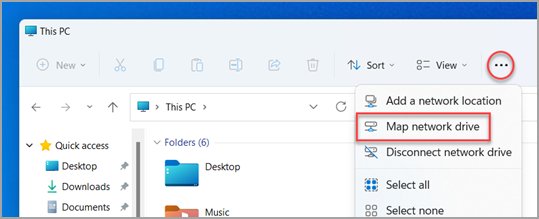
Open Settings > Network & internet, select Wi-Fi or Ethernet, and read the number next to IPv4 address to find your PC's IP address on Windows 11 or Windows 10.
That number is your local, private address, such as 192.168.1.20, and it is not the public address the internet sees. Windows never shows your public IP, so start with the table below to confirm which address your task needs.
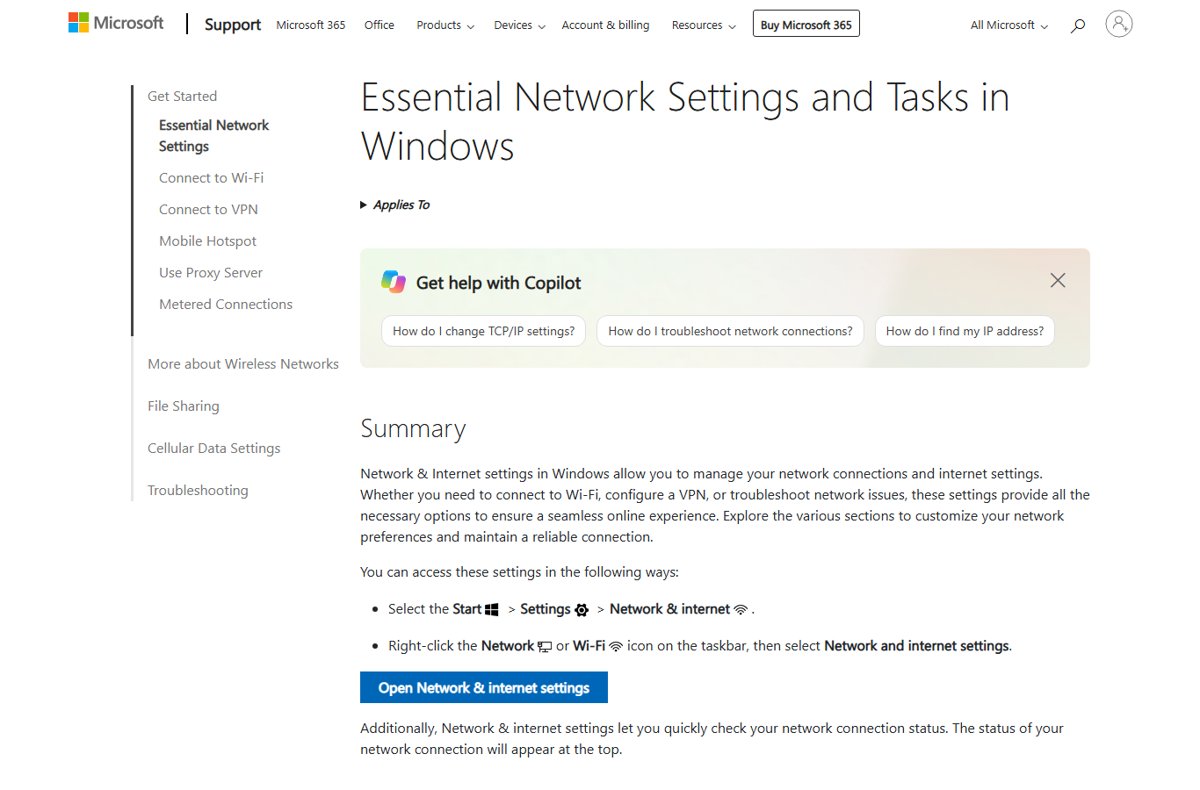
The fastest way to find your IP address in Windows Settings
Microsoft documents the same Settings path for Windows 11 and Windows 10. It shows the address of the connection you are using right now.
- Select Start > Settings > Network & internet. You can also right-click the Network or Wi-Fi icon on the taskbar and select Network and internet settings.
- On Wi-Fi, select Wi-Fi, then select the Wi-Fi network you are connected to.
- On a cable connection, select Ethernet.
- Find your IP address listed next to IPv4 address.
- For a quick summary of the connected network instead, select Properties next to your connection on the Network & internet page.
If the value starts with 169.254, or no IPv4 address appears at all, jump to the troubleshooting section below.
Which IP address do you need: local or public?
Your router hands each device at home a private address from a reserved range. Those ranges (10.x.x.x, 172.16.x.x to 172.31.x.x, and 192.168.x.x) are not routable on the internet, so websites see your router's public address instead.
Match the reason you need an address to the row below. The first column is what you are trying to do.
| Why you need it | Which address | Where to find it |
|---|---|---|
| Share files, a printer or a game with another device on the same Wi-Fi or router | Local (private) IPv4 address | Settings > Network & internet, or ipconfig in Command Prompt |
| Connect with Remote Desktop from another PC at home | Local IPv4 address | ipconfig or Settings |
| Open your router's settings or test whether the PC reaches the router | Default gateway address | ipconfig output, on the Default Gateway line |
| Script or audit every address on the PC | All IPv4 and IPv6 addresses | Get-NetIPAddress in PowerShell |
| Someone outside your home network needs to reach you, or a service asks for your internet address | Public IP address | Not shown in Windows. Check your router's admin page or your ISP account |
| Troubleshoot "no internet" on this PC | Local IPv4 address and default gateway | ipconfig, then compare against the troubleshooting section |
How to find your IP address using Command Prompt (ipconfig)
Command Prompt shows every adapter at once, including the default gateway and subnet mask. It works the same on Windows 11 and Windows 10 and needs no administrator rights.
ipconfigSelect Search on the taskbar, type command prompt, and open Command Prompt. Type ipconfig and press Enter. Without parameters, ipconfig lists the IPv4 address, IPv6 address, subnet mask and default gateway for each adapter. Find the section for your Wi-Fi or Ethernet adapter and read the IPv4 Address line. Run ipconfig /all when you need the full configuration, including whether DHCP is enabled.
You should see: a Wi-Fi or Ethernet section with an IPv4 Address line such as 192.168.1.20, and a Default Gateway line such as 192.168.1.1. Adapters that are not in use show no address.
How to find your IP address using PowerShell (Get-NetIPAddress)
PowerShell returns the address configuration as objects you can filter, which suits scripts and PCs with many adapters. Add -AddressFamily IPv4 to show only IPv4 addresses.
Get-NetIPAddress -AddressFamily IPv4 | Format-TableSelect Search on the taskbar, type powershell, and open Windows PowerShell. Run the command above. Get-NetIPAddress alone lists the entire IP configuration, both IPv4 and IPv6. -AddressFamily IPv4 limits it to IPv4, and Format-Table prints one row per address. To see a single adapter, add -InterfaceAlias followed by the adapter name that ipconfig shows; wildcards such as Wi* are accepted. The PrefixOrigin value tells you where an address came from: Dhcp means the router assigned it, Manual means someone typed it in, and WellKnown marks a built-in address.
You should see: a table with one row per IPv4 address. The row for your Wi-Fi or Ethernet adapter holds the same address Settings shows.
How to find your public IP address when Windows does not show it
Windows only reports addresses assigned to its own network adapters. Behind a home router, the public address belongs to the router, so no Windows screen, command or cmdlet displays it.
Online lookup sites can report it, but they are third-party services. The steps below keep the lookup on equipment and accounts you already control.
- Run
ipconfigand note the Default Gateway address. That is your router's address on the local network. - Check the label on the router or its maker's support site for how to open the router's admin page.
- Sign in to the admin page with the router's administrator password.
- Open the status or internet connection page and read the internet (WAN) address the ISP assigned.
- If the router is supplied by your ISP, check your ISP account or app for the connection's public address instead.
- If the address you find falls in 10.x.x.x, 172.16.x.x to 172.31.x.x, or 192.168.x.x, it is still private. Your ISP or another router upstream holds the public address, so contact your ISP.
How to identify IPv4, IPv6 and default gateway details
Windows usually lists two addresses because IPv4 and IPv6 run side by side. IPv6 is a mandatory part of Windows, and by default Windows favors IPv6 global addresses over IPv4 when both work. Microsoft does not recommend disabling IPv6.
| Value | What it looks like | What it is for | Where Windows shows it |
|---|---|---|---|
| IPv4 address | Four numbers separated by dots, for example 192.168.1.20 | The address most home devices, printers and games use to find this PC | IPv4 address in Settings; IPv4 Address in ipconfig |
| IPv6 address | A longer address written with colons and letters | The newer protocol; often used alongside IPv4 on the same connection | IPv6 lines in ipconfig; Get-NetIPAddress -AddressFamily IPv6 |
| Subnet mask | Four numbers separated by dots, for example 255.255.255.0 | Defines which addresses count as the same local network | ipconfig; PrefixLength in PowerShell |
| Default gateway | An IPv4 address on the same network, for example 192.168.1.1 | Your router's local address, the route out to the internet | Default Gateway in ipconfig |
| 169.254.x.x | Starts with 169.254 | A link-local fallback address; Windows couldn't get an address from the router | Settings and ipconfig, in place of a normal IPv4 address |
| Public IP | Any address outside the private ranges | What websites and outside services see | Not in Windows; router admin page or ISP account |
How to check the IP address and gateway you found are working
A correct address plus a reply from the router proves the PC is on the local network. Use the default gateway from ipconfig.
- Open Command Prompt from Search on the taskbar.
- Type
ipconfigand press Enter. Confirm the IPv4 Address does not start with 169.254. - Note the Default Gateway address in the same adapter section.
- Type
pingfollowed by that gateway address, for exampleping 192.168.1.1, and press Enter. - Look for reply lines from the gateway address. Replies mean the PC reaches the router; timeouts point to the troubleshooting steps below.
Fix IP address problems on Windows
The IP address starts with 169.254
Windows couldn't get an address from the router's DHCP service, so it fell back to Automatic Private IP Addressing (APIPA).
- Select Search on the taskbar and type command prompt.
- Next to Command Prompt, select Run as administrator > Yes.
- Type
ipconfig /releaseand press Enter. - Type
ipconfig /renewand press Enter. - If the address still starts with 169.254, unplug the router and modem from power, wait at least 30 seconds, and plug them back in.
- If you do not use static addresses on your network, sign in to the router and check that DHCP is enabled.
You can't find an IP address on your computer
The adapter is not connected, you are looking at the wrong adapter, or the connection has not received an address.
- Open Settings > Network & internet and confirm Wi-Fi or Ethernet shows as connected.
- On Wi-Fi, select the network you are connected to, not the Wi-Fi page itself; the IPv4 address appears on the network's page.
- Run
ipconfigand check every adapter section. Unused adapters, such as Ethernet on a laptop using Wi-Fi, show no address. - If the connected adapter still shows no IPv4 address, run
ipconfig /releaseandipconfig /renewfrom an administrator Command Prompt. - Restart the router and modem, then run
ipconfigagain.
The IP address changes after a restart
DHCP leases addresses for a set time rather than assigning them permanently, so the router can hand out a different one.
- Run
ipconfig /alland confirm DHCP is enabled for your adapter. - For a consistent address, sign in to your router and reserve an address for this PC. DHCP reservations tie one address to one device.
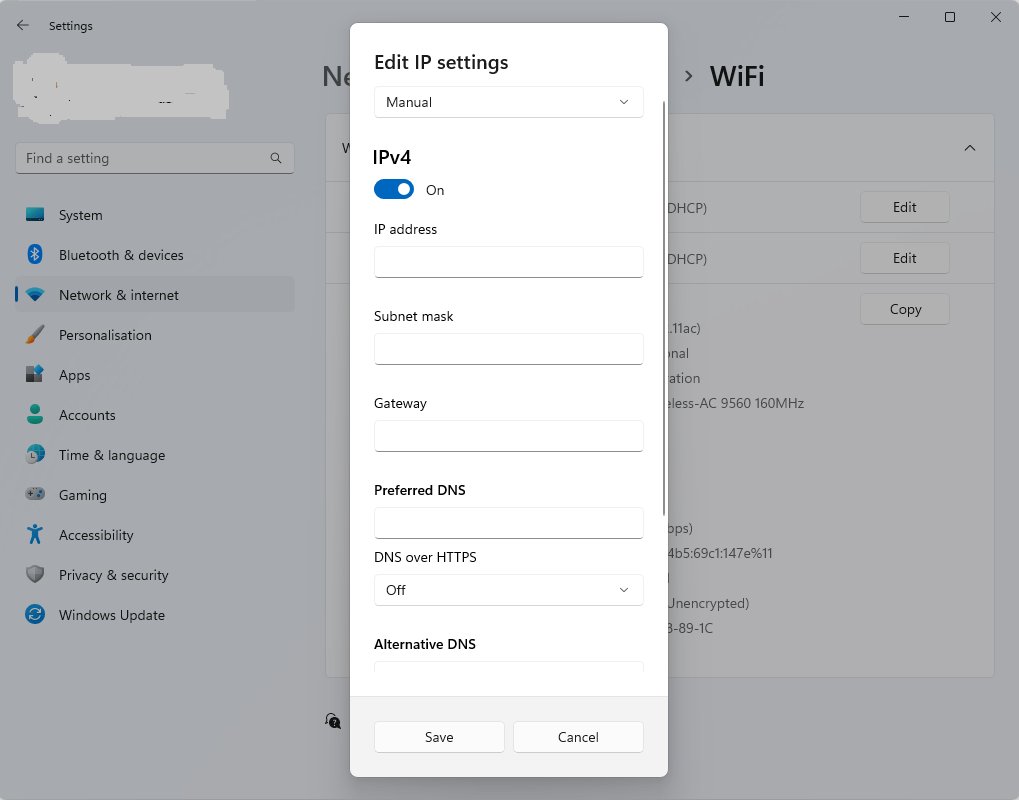
- Alternatively, open Settings > Network & internet, select Ethernet (or Wi-Fi > Manage known networks and your network), and next to IP assignment select Edit.
- Switch from Automatic (DHCP) to Manual and enter the IPv4 address, subnet, gateway and DNS details. Pick an address outside the router's DHCP pool so it doesn't clash with another device.
- Save the change, then run
ipconfigto confirm the new address.
Your public IP does not match the address in Windows
This is expected. Windows shows the private address your router assigned; the internet sees the router's public address.
- Use the local IPv4 address for anything on your own network.
- Use the router's admin page or your ISP account for the public address, as described in the public IP section above.
Frequently asked questions
Where do I find my IP address on Windows 11?
Open Settings > Network & internet, select Wi-Fi and your connected network, or select Ethernet. The address sits next to IPv4 address. You can also type ipconfig in Command Prompt and read the IPv4 Address line for your adapter.
How do I find my IP address on Windows 10?
Windows 10 uses the same route Microsoft documents for Windows 11: Settings > Network & internet, then Wi-Fi and your network, or Ethernet. Read the value next to IPv4 address. The ipconfig command in Command Prompt works identically on both versions.
How do I find my IP address in Command Prompt?
Search for command prompt on the taskbar, open it, type ipconfig and press Enter. Find your Wi-Fi or Ethernet section and read the IPv4 Address line. Use ipconfig /all for the full configuration, including DHCP status and DNS servers.
Why can't I find my IP address on my computer?
Usually the PC is not connected, or you are reading an unused adapter. Confirm the connection in Settings > Network & internet, then check each adapter in ipconfig. An address starting with 169.254 means Windows couldn't get one from the router.
What determines your IP address?
Your router's DHCP service assigns the local address Windows shows, drawing from its pool and leasing it for a set time. Your internet provider assigns the public address your router uses online. A manual setting in Windows overrides DHCP for the local address.
Can people find your IP address?
Websites and online services you connect to see your public IP address, because traffic arrives from it. They do not see the private address Windows shows, such as 192.168.1.20. Devices on your own Wi-Fi or router can see that private address.
How do you understand an IP address like 192.168.1.20?
An address starting 192.168, 10, or 172.16 to 172.31 is private and only works inside your home or office network. Anything outside those ranges is public. The default gateway listed in ipconfig is your router's address on the same network.
Which IP address do I use to host a game such as Minecraft?
Players on the same Wi-Fi or router connect with your local IPv4 address from Settings or ipconfig. Players outside your home network need your public address, which Windows does not show, plus router configuration that the game and router makers document.

![How to Manage Power Management Settings in Windows 11/10 [Guide]](https://techdows.com/wp-content/uploads/2026/09/Control-Panel-All-Items-view-with-Power-Options-icon-highlighted-600x338.jpg)
![How to Create a Survey in MS Forms [Step-by-Step Guide]](https://techdows.com/wp-content/uploads/2026/09/Microsoft-Forms-portal-with-New-Form-and-New-Quiz-buttons-600x242.jpg)