To find your computer name on Windows 11 or Windows 10, open Settings > System > About and read the device name at the top of the page, or type hostname in Command Prompt and press Enter. Your PC's physical location is a separate setting, controlled under Settings > Privacy & security > Location and shown on a map by Find My Device.
Below are all the places Windows shows the name, from a keyboard shortcut to the registry, plus how to check the domain or workgroup, the network and device location settings, and how to rename the PC safely.
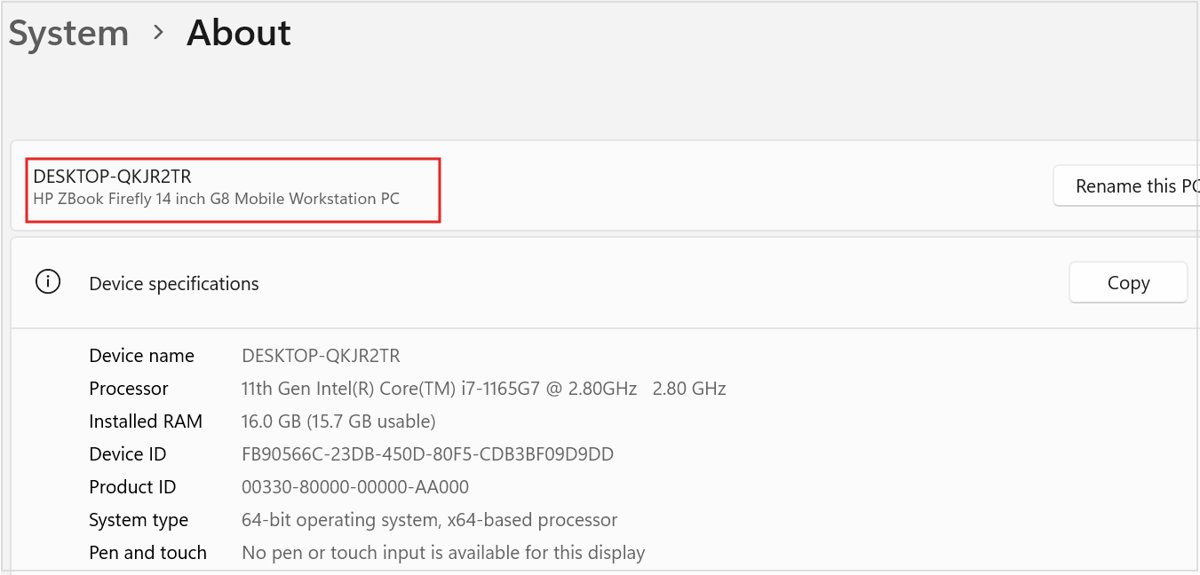
How to find your computer name in Windows 11 and 10
On Windows 11 one key combination opens the right page directly. On Windows 10 the Settings route takes three clicks.
- Press Windows logo key + Pause. On Windows 11 this opens Settings at System > About.
- On Windows 10, right-click Start, select Settings, then System > About.
- Read the device name at the top of the page. The model name is shown just below it.
No Pause key? Press Windows logo key + R, type ms-settings:about and press Enter to open the same page.
Every route reads the same name. Pick the one that also gives you the extra detail you need.
| Your situation | Use this | Why |
|---|---|---|
| You just need the name | Settings > System > About | Same on Windows 11 and Windows 10 |
| Your hands are on the keyboard | Windows logo key + Pause, or Win + X > System | Opens the About page without the mouse |
| You are in a terminal or a script | hostname, echo %COMPUTERNAME% or $Env:COMPUTERNAME |
Prints the name as text you can copy |
| You need the domain or workgroup | sysdm.cpl > Computer Name tab |
Shows the name and membership together |
| IT wants a full hardware report | System Information (msinfo32) |
Name plus hardware details, exportable |
| You also need the IP address | ipconfig /all |
Lists the host name and every adapter's addresses |
| You lost the laptop | Find My Device at account.microsoft.com/devices | Shows the device on a map if it was turned on |
Find your computer name in Windows Settings
The About page is where Microsoft documents the device name for both versions, and it is also where you rename the PC.
- Press the Windows key, type System, and open System settings. Right-clicking Start and selecting Settings > System works too.
- Scroll to the bottom and select About.
- Read the Device name at the top of the page, with the model name below it.
- Check Device specifications on the same page for the processor, installed RAM and system type.
- Select the Domain or workgroup link under Related links to see which domain or workgroup the PC belongs to.
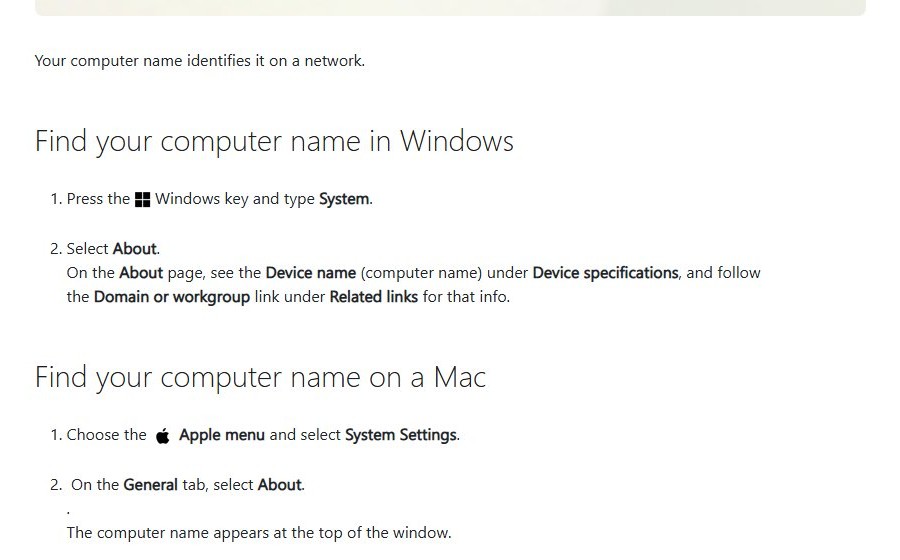
Find your computer name with the Power User menu
Two shortcuts reach the About page in one move, which helps when someone on the phone asks for the name.
- Power User menu: press Win + X (or right-click Start) and select System. Windows 11 and Windows 10 both open the About page.
- Keyboard shortcut: press Windows logo key + Pause. On laptops without a Pause key, some keyboards map it to Fn plus another key; check the key labels.
- Run box: press Win + R, type
ms-settings:about, and press Enter.
Find your computer name using the search box
- Select the search box or icon on the taskbar.
- Type computer name or about your PC.
- Select View your PC name or About your PC in the results. The About page opens with the device name at the top.
Find your computer name using File Explorer
- Press Win + E to open File Explorer.
- Right-click This PC in the left pane.
- Select Properties. The About page opens and shows the device name.
On a home network, other PCs appear by their computer names under Network in the same pane, which is a quick way to check what name a second PC uses.
Find your computer name in System Properties
The Computer Name tab shows the name together with the domain or workgroup, and it is the classic place to rename a PC or join a domain.
- Press Win + R, type
sysdm.cpl, and press Enter. - Open the Computer Name tab if it is not already selected.
- Read Full computer name and the Workgroup or Domain line below it.
- Select Cancel to close without changing anything.
Use Control Panel to view PC name, domain, or workgroup
- Select Start, type
Control Panel, and press Enter. - Set View by to Category, then select System and Security > System.
- On Windows 11, select Domain or workgroup. On Windows 10, select Change settings next to Computer name, domain, and workgroup settings.
- Read the Computer Name tab that opens.
The Change button on that tab switches between Domain and Workgroup under Member of. Joining a domain needs Windows Pro, Enterprise or Education, an administrator account, and usually credentials from your IT team.
Check the full computer name with System Information
System Information collects hardware, component and software details in one window, and help desks ask for it because the whole report can be saved to a file.
- Press Win + R, type
msinfo32, and press Enter. - Select System Summary at the top of the left pane.
- Read System Name in the list on the right, alongside the OS name, version and manufacturer.
- To keep a copy, run
msinfo32 /report %USERPROFILE%\Desktop\sysinfo.txtfrom Command Prompt.
The short name is the host name. On a domain PC the full computer name adds the domain suffix, such as PC01.corp.contoso.com. An administrator can also run msinfo32 /computer PC01 to read another PC on the network, given WMI permissions on it.

Find your computer name with Command Prompt or PowerShell
Several one-line commands print the name. hostname runs in both shells; the others belong to one shell each.
hostname
echo %COMPUTERNAME%
$Env:COMPUTERNAME
[System.Environment]::MachineName
hostname prints the host name portion of the full computer name. echo %COMPUTERNAME% is the Command Prompt form and, as Microsoft notes, usually prints the same string in uppercase. $Env:COMPUTERNAME reads the same environment variable in PowerShell, and [System.Environment]::MachineName asks .NET for the NetBIOS name. hostname only works when TCP/IP is installed on a network adapter, which is the default.
You should see: One line with the name, for example PC01, matching the About page apart from letter case.
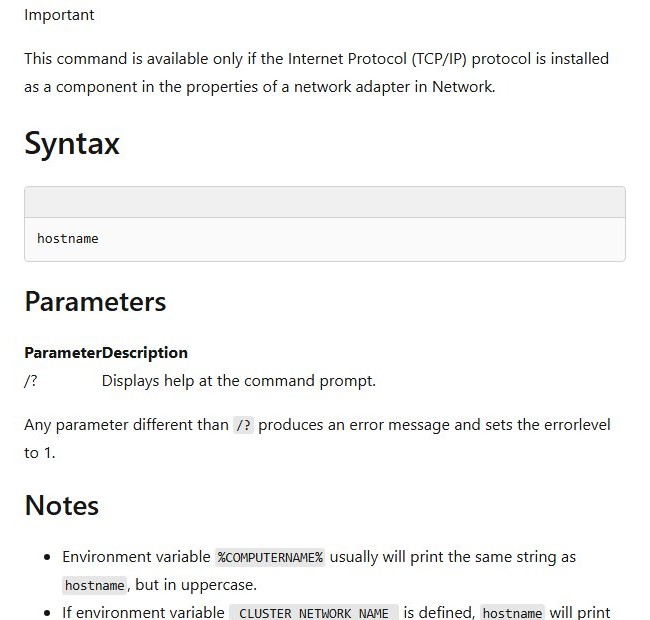
Use the Command Prompt ipconfig to find a computer name
When support asks for both the name and the address, one command gives you both.
ipconfig /allThe first block, Windows IP Configuration, starts with Host Name, which is your computer name. Each adapter block below lists its IPv4 and IPv6 addresses, subnet mask, default gateway and physical (MAC) address.
You should see: Host Name . . . : PC01 near the top, followed by one section per network adapter.
If you only need the IP address on Windows, Settings shows it too, and the Physical Address line in the same output is the adapter's MAC address.
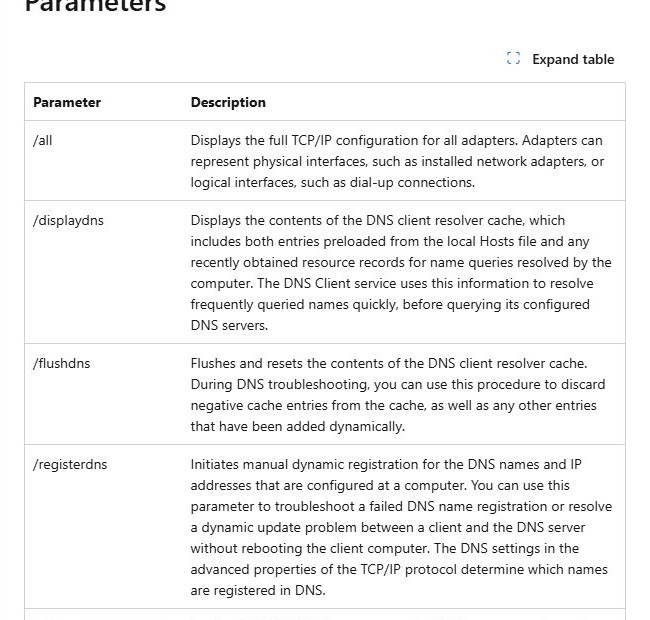
Find your computer name in Registry Editor
The registry holds the name Windows uses at startup. Read it only; editing it by hand is not a supported way to rename a PC.
- Press Win + R, type
regedit, and press Enter. Select Yes at the User Account Control prompt. - Paste
HKEY_LOCAL_MACHINE\SYSTEM\CurrentControlSet\Control\ComputerName\ComputerNameinto the address bar and press Enter. - Read the ComputerName value in the right pane.
- Close Registry Editor without changing anything.
Check network location and device location settings
"Location" means two things in Windows. The network location, now called the network profile type, controls whether other PCs on the network can see yours. Device location controls whether Windows, apps and Find My Device know where the PC physically is, worked out from GPS, nearby Wi-Fi, cell towers, your IP address, or a default location you set.
| What you want to check | Windows 11 | Windows 10 |
|---|---|---|
| Whether the network is Public or Private | Settings > Network & internet > Wi-Fi or Ethernet > Network profile type | Select the connected network, then Network profile type |
| Whether location is on | Settings > Privacy & security > Location > Location services | Settings > Privacy > Location |
| Which apps see your location | Let apps access your location and the per-app list | Allow apps to access your location and the per-app list |
| The fallback location | Default location > Set default | Default location > Set default |
| Whether Find My Device is on | Win + R > ms-settings:findmydevice |
Same shortcut, under Update & Security |
Microsoft labels Public network (Recommended) as the right choice in most cases because it hides your PC from other devices. Choose Private network only on a network you trust when you need file and printer sharing. A "your location is currently in use" icon after turning location on is normal and means an app is reading your location.
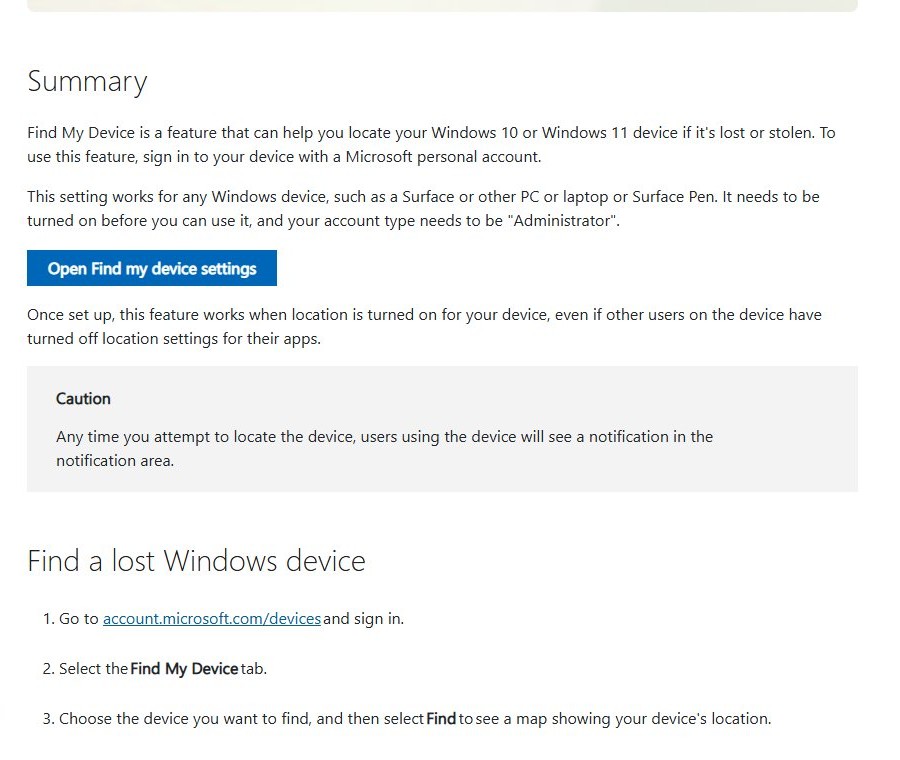
Find where a lost Windows PC is with Find My Device
Find My Device shows a lost or stolen PC on a map. It works only if it was turned on beforehand, you sign in with a personal Microsoft account, your account is an Administrator, and location is on.
- In any browser, go to account.microsoft.com/devices and sign in.
- Select the Find My Device tab.
- Choose the device by its computer name and select Find to see the map.
- To lock it, select Lock > Next, then reset your Microsoft account password.
Anyone using the PC sees a notification each time you locate it. The serial number for a police or insurance report is on the same site under Info and support.
Computer name rules: length and allowed characters
Pick the new name before you rename. Windows rejects names that break these rules, and names that pass can still clash with other devices.
| Rule | Detail | Source of the limit |
|---|---|---|
| Length | 1 to 15 characters; the 16th NetBIOS character is reserved | NetBIOS name limit |
| Safe characters | Letters A-Z, numbers 0-9 and the hyphen (-) | DNS host name rules (RFC 1123) |
| Not allowed | Spaces, periods and \ / : * ? " < > | , ~ ! @ # $ % ^ & ' ( ) { } _ | NetBIOS and DNS rules combined |
| First and last character | Start with a letter or number; do not end with a hyphen | DNS host name rules |
| Numbers only | Not allowed on a PC that joins an Active Directory domain | DNS restriction |
| Uniqueness | A different name for every PC on the network | Duplicate names conflict |
A short name that says who owns the PC or what it is for, such as ALEX-LAPTOP, is easiest to spot in device lists. Letter case is not preserved everywhere, so do not rely on it.
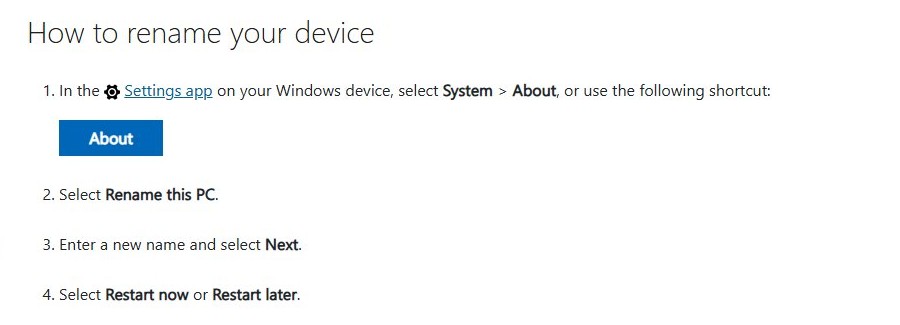
Rename your Windows 11 or Windows 10 computer safely
You can rename the PC from Settings, System Properties or PowerShell; the new name takes effect after a restart. On a domain-joined work PC, ask IT first, because renaming a domain member needs domain administrator credentials.
- Save your work and close open files.
- Open Settings > System > About.
- Select Rename this PC.
- Type the new name and select Next.
- Select Restart now or Restart later.
From System Properties, open the Computer Name tab, select Change, type the name under Computer name, select OK, and restart. Afterwards, update mapped drives or shortcuts on other PCs that point to the old name, such as \\OLD-NAME\Share.
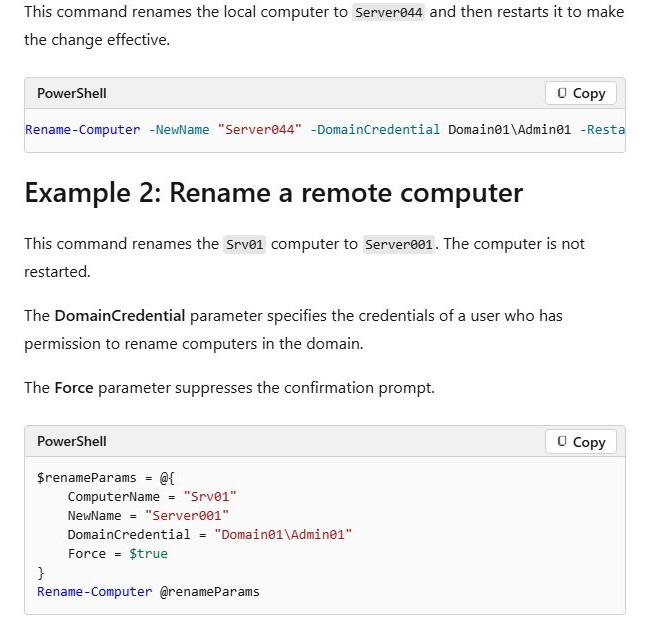
Rename computer with PowerShell or Command Prompt
Rename-Computer renames the local PC in one line. Open PowerShell as an administrator and replace NEW-NAME with your chosen name.
Rename-Computer -NewName "NEW-NAME" -Restart
Rename-Computer -NewName "NEW-NAME" -DomainCredential CONTOSO\Admin01 -Restart
The first line renames a home or workgroup PC and restarts it; leave out -Restart to restart later. The second is for a domain-joined PC, where explicit domain credentials are required and you are prompted for the password.
You should see: The PC restarts, and hostname prints the new name after you sign in.
Check the new computer name after a restart
- Open Command Prompt and type
hostname. It should print the new name. - Open Settings > System > About and confirm the name at the top.
- If the old name still shows, restart once more.
- Check that account.microsoft.com/devices lists the name you expect.
Find your computer name on a Mac
- Choose Apple menu > System Settings.
- Select General in the sidebar, then About. The computer name is at the top, and you can edit it there.
- For the local hostname used on the network, open General > Sharing and look at the bottom of the window.
Computer name FAQ
How do I find my computer name on Windows 11?
Press Windows logo key + Pause, or open Settings > System > About. The device name is at the top of the page. Typing hostname in Command Prompt shows the same name.
How do I find my computer name on Windows 10?
Right-click Start, select Settings, then System > About. The device name is at the top. Control Panel > System and Security > System, or hostname in Command Prompt, show it too.
How do I find my computer name with CMD?
Open Command Prompt, type hostname and press Enter. The name prints on the next line. echo %COMPUTERNAME% prints the same name in uppercase.
How do I find my computer name and IP address at the same time?
Run ipconfig /all in Command Prompt. Host Name at the top is the computer name, and each adapter section lists its IPv4 and IPv6 addresses.
What is the shortcut to find my computer name?
Windows logo key + Pause opens the About page on Windows 11, and Win + X followed by System works on both versions. Win + R, then sysdm.cpl, opens the Computer Name tab.
What is the difference between computer name and full computer name?
The computer name is the short host name, such as PC01. The full computer name adds the DNS domain suffix, such as PC01.corp.contoso.com. On a home PC in a workgroup the two are usually the same.
Where can I see whether my PC is in a domain or workgroup?
Press Win + R, type sysdm.cpl and press Enter. The Computer Name tab shows the domain or workgroup. On Windows 11 the Domain or workgroup link on the About page opens the same tab.
Does my Windows computer name show my physical location?
No. The computer name is only a label on the network. Physical location comes from Windows location services, which you control under Privacy & security > Location.
Can I rename my Windows computer without causing problems?
Yes, on a home PC. Use Settings > System > About > Rename this PC, pick a name of up to 15 letters, numbers and hyphens, then restart. Update mapped drives that use the old name, and ask IT first on a domain-joined PC.







How to Rename PC in Windows 11 (Change Computer Name) - Techdows
[…] For every other place the name shows up, including System Information and the network, see how to find your computer name and location on Windows 11/10. […]
How to Find Your Files on iPhone: A Step-by-Step Guide - Techdows
[…] To reach a computer or NAS, tap Browse, tap the More button, tap Connect to Server, then enter the hostname or network address. Looking that up first helps: see how to find your computer name and location on Windows 11/10. […]