Fix the GLCKIO2.SYS warning by updating or uninstalling the program that installed the driver, and leave Memory Integrity turned on.
The steps below identify the file, trace it to its publisher, remove it cleanly if you no longer need it, and rule out malware on Windows 11 and Windows 10.
How to fix the GLCKIO2.SYS driver cannot load warning
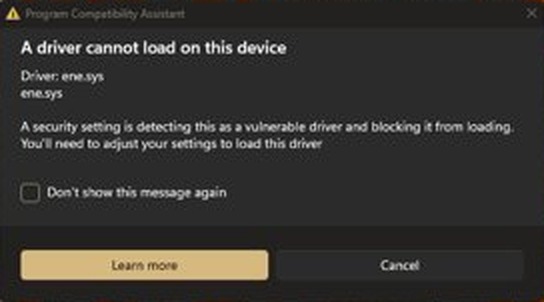
Windows shows "A driver can't load on this device" because a security setting blocked the driver. The block protects the PC, so the fix belongs with the software that brought the driver in.
- Note the driver name and company name shown in the notification.
- Check Windows Update for an updated driver.
- Install the current version of the utility from the publisher's own support site.
- If no compatible version exists and you do not need the utility, select Start > Settings > Apps > Installed apps, then select More > Uninstall next to it.
- Restart the PC and check whether the warning returns.
If the warning survives the uninstall, the service entry was left behind. Step 5 below removes it.
What is GLCKIO2.SYS?
GLCKIO2.SYS is a kernel-mode driver file installed alongside third-party software. Microsoft's Windows documentation does not list it as a Windows component, and the name is commonly linked with motherboard RGB and system utilities.
| Question | Answer |
|---|---|
| File type | A .sys driver, which runs in kernel mode with deep access to Windows |
| Where to look first | C:\Windows\System32\drivers, though the command in Step 1 prints the exact path on your PC |
| Who published it | Read the company name in the notification and in the file's Details tab rather than assuming a brand |
| Is it dangerous? | Microsoft says a driver blocked this way most likely has a minor vulnerability and is not malicious, but you can still check it |
| Does Windows need it? | It is not a Windows component. The software that installed it is what relies on it |
Why Windows says the driver cannot load
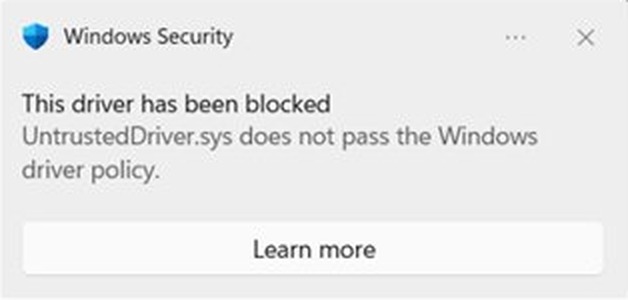
Three Windows protections can stop a kernel driver from loading. Microsoft's support page ties the "driver can't load" message specifically to Memory Integrity.
| Windows protection | What it blocks | Where it shows |
|---|---|---|
| Memory Integrity (core isolation) | Drivers it treats as incompatible, so malicious programs cannot use low-level drivers to hijack the PC | The "A driver can't load on this device" notification |
| Microsoft vulnerable driver blocklist | Drivers with known security flaws, signatures tied to malware, or behavior that circumvents the Windows security model | Windows Security > Device security > Core isolation details |
| Windows Driver policy | Kernel drivers that are not certified through the Windows Hardware Compatibility Program or on Microsoft's allow list | Code Integrity event ID 3077 in Event Viewer |
The blocklist is enforced automatically whenever Memory Integrity, Smart App Control, or S mode is on. Microsoft updates it through monthly Windows updates, so a driver that loaded last month can be blocked this month.
Symptoms associated with GLCKIO2.SYS
| What you see | What it means |
|---|---|
| "A driver can't load on this device" naming GLCKIO2.SYS | Memory Integrity stopped the driver from loading |
| Memory Integrity will not turn on and reports an incompatible driver | The driver is installed and is blocking the setting |
| An RGB, fan, or system utility stops working or will not start | The utility depends on the blocked driver |
| A game refuses to start or asks you to unload the driver | The game's own checks object to the driver while it is present |
| A blue screen after the block, which is rare | Microsoft notes that blocking a driver can cause malfunctions and, in rare cases, a blue screen |
Your PC can keep running normally with the warning showing. The blocked driver is not loaded, and the only loss is whatever that driver supported.
Step 1: Record the exact warning and locate the file
Write down the details before changing anything. Microsoft says the driver and company names in the notification are the only reliable details it has about the driver.
- Take a screenshot of the notification, or note the driver name and company name.
- Open Windows PowerShell as administrator.
- Run
Get-CimInstance Win32_SystemDriver | Where-Object PathName -match 'glckio' | Select-Object Name, State, StartMode, PathName. - Note the Name value, which is the service name, and the PathName value, which is the file's location.
- Open Event Viewer and go to Applications and Services Logs > Microsoft > Windows > CodeIntegrity > Operational.
- Look for event ID 3077 or 3023 that names the file, and note the time it was logged.
You can open Event Viewer from the Start menu, the Run box, or Windows Tools.
Step 2: Find the application that installed it
The file's publisher points you to the program. Match that name against your installed apps instead of guessing from the file name.
- In File Explorer, open the folder from the PathName value.
- Right-click
GLCKIO2.sys, select Properties, and open the Details tab. - Note the Product name, File version, and Copyright fields.
- Select Start > Settings > Apps > Installed apps.
- Look for software from that publisher, especially RGB lighting, motherboard, fan control, or hardware monitoring tools.
- If nothing matches, run
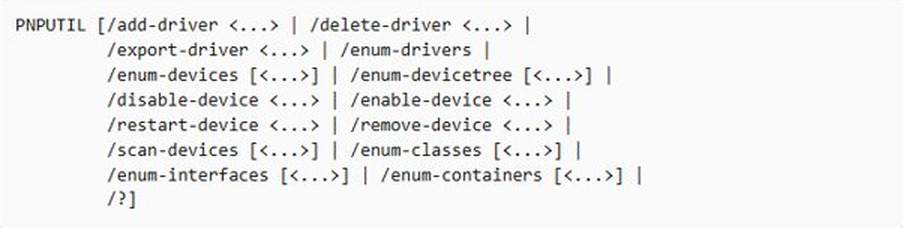
pnputil /enum-driversin an administrator window and check the Provider Name of each listed package.
Microsoft's free Sysinternals Autoruns tool also lists drivers set to start automatically and can hide signed Microsoft entries, which makes third-party drivers easy to spot.
Step 3: Update the official RGB or system utility
An updated driver is Microsoft's first recommendation, because a compatible version loads with Memory Integrity on. Get it only from the publisher, and skip third-party driver updater tools.
- Close the utility and exit it from the notification area.
- Check Windows Update for an updated driver and install it.
- Open the support page for your exact motherboard, PC, or device model on the manufacturer's website.
- Download the current version of the utility listed for your model and your Windows version.
- Install it and restart the PC.
- Run the Step 1 command again and check that the PathName or the file version has changed.
If the warning returns with the newest version, the publisher has not shipped a compatible driver yet. Move to Step 4, or contact the manufacturer if you need the utility.
Step 4: Uninstall the RGB utility if you do not need it
Removing the utility is the cleanest fix when you can live without its controls. Check afterward whether its driver service went with it, because some uninstallers leave one behind.
- Select Start > Settings > Apps > Installed apps.
- Find the utility, then select More > Uninstall.
- If Settings cannot remove it, open Control Panel > Programs > Programs and Features, right-click it, and select Uninstall or Uninstall/Change.
- Restart the PC.
- Run the Step 1 command again. No output means the driver service is gone.
If the command still returns a row, the uninstaller left the driver behind. Step 5 handles that case.
Step 5: Remove the driver package only if necessary
Use this step only after the uninstall fails to remove the driver, and only if you confirmed the file belongs to software you no longer use. Create a restore point first.
- Open Windows PowerShell as administrator.
- Run
pnputil /enum-drivers /fileson Windows 11 version 22H2 or later, orpnputil /enum-driverson older versions, and look for the package containingglckio2.sys. - If a package appears, run
pnputil /delete-driver oem#.inf /uninstall, replacingoem#.infwith its published name. - If no package appears, run
sc.exe delete <Name>, using the service name from Step 1. - Restart the PC and run the Step 1 command again.
- If the file is still in the PathName folder, move it to a folder outside
System32for a week, then delete it if nothing breaks.
sc delete removes a service's registry subkey, so use it only on the exact name you recorded. Microsoft warns against using it on built-in Windows services.
Should you turn off Memory Integrity?
Microsoft's page lists turning it off as a fallback when no updated driver works, and it attaches clear warnings. A lighting or monitoring utility rarely justifies that trade.
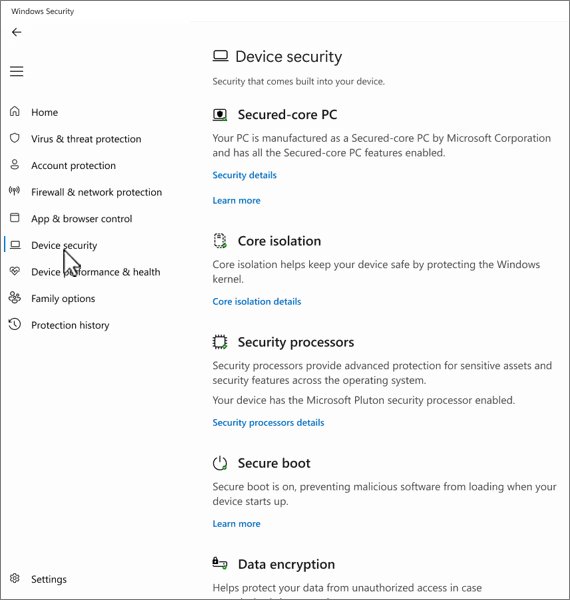
No. Leave Memory Integrity on, and update or remove the utility instead. Memory Integrity makes it harder for malicious programs to use low-level drivers to hijack the PC. Turning it off also takes a Secured-core PC out of its Secured-core state, and it exposes the PC to the same vulnerable driver that triggered the warning.
To check the current state, open Windows Security and select Device security > Core isolation details. If you changed it earlier, you can turn Memory Integrity back on after the driver is gone.
How to assess whether the file is malware
A blocked driver usually is not malware, but a quick check settles it. Run these checks if you do not recognize the publisher or the location looks wrong.
- Compare the PathName from Step 1 with
C:\Windows\System32\drivers. A copy in a temp, download, or user folder deserves more suspicion. - Run
Get-AuthenticodeSignature "C:\Windows\System32\drivers\GLCKIO2.sys" | Format-List Status, SignerCertificate, changing the path if yours differs, and read the status and signer. - Right-click the file, select Show more options, and select Scan with Microsoft Defender.
- Open Windows Security > Virus & threat protection > Scan options, and run a Full scan.
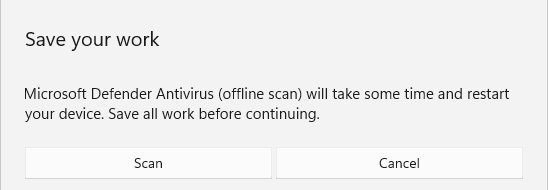
- If you remain concerned, select Microsoft Defender Antivirus (offline scan) on the same page. It restarts the PC and scans without loading Windows.
- Check the results under Protection history.
- Submit the file through the Microsoft Security Intelligence file submission page if you want an analyst's opinion.
When you run a Microsoft Defender Offline scan, save your open files first, because the PC restarts straight away. A valid signature does not prove a driver is safe, since Microsoft's blocklist includes signed drivers with known flaws.
When the warning appears only while starting a game
A game that names GLCKIO2.SYS at launch is reacting to the driver being present on the system. The fix is the same: deal with the utility, and leave Windows security settings alone.
- Read the game's message and note any error code or support link.
- Exit the RGB or system utility completely, then restart the game.
- If the message repeats, update the utility as in Step 3.
- If the newest version still triggers it, uninstall the utility as in Step 4 and restart the PC.
- Run the Step 1 command to check that the driver service is gone, then launch the game again.
- If the game still refuses to start with the driver gone, contact the game publisher's support with the error code.
Common mistakes to avoid
| Mistake | Why it backfires | Do this instead |
|---|---|---|
| Deleting the file before uninstalling the utility | The service entry stays behind and the utility can reinstall the file | Uninstall the utility first, then use Step 5 if needed |
| Turning off Memory Integrity as the first move | It removes protection for the sake of one utility | Look for an updated driver, then remove the software |
Downloading a replacement .sys file from a DLL site |
You cannot trust where the file came from | Get drivers only from the publisher |
| Installing a driver updater or PC cleaner | These tools add more unvetted software to a PC that already has a driver problem | Use Windows Update and the manufacturer's support page |
Running sc delete on a guessed name |
It can remove the wrong service from the registry | Use the exact Name value from Step 1 |
When to contact the manufacturer
Contact the publisher when you need the utility and its newest version still gets blocked. Microsoft suggests asking whether a fix is coming.
| Include in your request | Where to get it |
|---|---|
| Driver name, company name, and file version | The notification and the file's Details tab |
| Your exact Windows version | Select Start > Settings > System > About |
| Motherboard or device model and utility version | The product label and the utility's own About screen |
| Code Integrity event ID and time | Event Viewer > CodeIntegrity > Operational |
| A direct question | Ask for a version certified through the Windows Hardware Compatibility Program |
How to tell if GLCKIO2.SYS is still installed
Get-CimInstance Win32_SystemDriver | Where-Object PathName -match 'glckio' | Select-Object Name, State, StartMode, PathNameThis PowerShell command lists every kernel driver service whose path contains "glckio", with its name, state, start mode, and file location.
You should see: No output means the driver service is gone. Windows Security > Device security > Core isolation details should also show Memory integrity available without an incompatible driver listed.
Driver GLCKIO2.SYS cannot load after uninstalling the utility
The warning returns after every restart
The uninstaller left the driver service registered.
- Run the Step 1 command to confirm the service still exists.
- Remove it with the commands in Step 5.
- Restart the PC.
GLCKIO2.SYS came back after an update
Another program, or a new version of the same utility, reinstalled it.
- Check Installed apps and sort by install date.
- Remove or update the app installed around that date.
- Turn off any bundled lighting or system utility option when you reinstall that software.
Memory Integrity will not turn on on Windows 11
An incompatible driver is still installed.
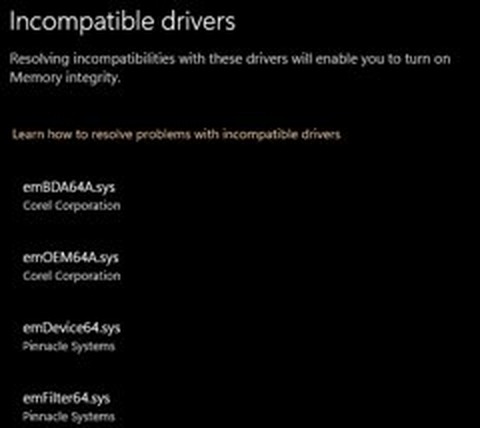
- Open Windows Security > Device security > Core isolation details.
- Review the incompatible drivers it lists.
- Check with the device maker for an updated driver, or remove the device or app that uses it.
GLCKIO2.SYS FAQ
What is the GLCKIO2.SYS driver?
GLCKIO2.SYS is a third-party kernel-mode driver installed with other software, and its name is commonly linked with RGB and system utilities. Check the company name in the Windows notification or the file's Details tab to identify the publisher on your PC.
Is GLCKIO2.SYS a Windows system file?
No. Microsoft's Windows documentation does not list it as a Windows component, and it arrives with third-party software. It can sit in the Windows drivers folder because that is where kernel drivers are commonly installed, so its location alone does not make it part of Windows.
How do I update GLCKIO2.SYS?
Check Windows Update first, then install the newest version of the utility that brought the driver from the manufacturer's support page. The driver updates with that utility. Avoid downloading the file on its own, and never use a third-party driver updater for this.
How do I disable GLCKIO2.SYS?
You can stop it from starting by running sc.exe config followed by its service name and start= disabled in an administrator window. Uninstalling the utility is the better choice, because a disabled driver stays installed and the utility may turn it back on.
How do I delete GLCKIO2.SYS?
Uninstall the utility first, restart, and check whether the file remains. If it does, remove the driver package with pnputil or the service with sc.exe delete, then move the leftover file out of System32. Deleting the file on its own leaves the service entry behind.
How do I remove GLCKIO2 completely?
Uninstall the program that installed it, restart, and run the Get-CimInstance check from Step 1. No output means the service is gone. If a row remains, use the pnputil or sc.exe delete commands in Step 5, then restart the PC again.
Can I safely delete GLCKIO2.SYS?
You can remove it once you confirm it belongs to a utility you no longer use. The utility that installed it may stop working. Create a restore point first, and follow the order in Steps 4 and 5.
Does GLCKIO2.SYS mean my computer has a virus?
Usually not. Microsoft says a driver blocked this way has a minor vulnerability and is most likely not malicious. Check the file's location and signature, then run a Microsoft Defender scan if you do not recognize the publisher or the file sits in an unusual folder.
Will disabling Memory Integrity fix the problem?
It can stop the warning, but it leaves the vulnerable driver free to load and removes a kernel protection from your PC. Update or uninstall the utility instead. Microsoft lists turning the setting off only as a fallback and warns about the consequences.
Why does a game ask me to unload GLCKIO2.SYS?
The game's checks object to that driver being present on the system. Exit the utility that uses it, update that utility, or uninstall it and restart. Contact the game publisher's support if the message continues after the driver service is gone.