On a Windows PC, select Start and choose iTunes, or type iTunes in the search box on the taskbar and select it from the results.
On a Mac with macOS Catalina or later there is no iTunes app, so this guide also covers what opens instead, how to open your library, a CD or your iPhone, and what to do when iTunes won't open.
How to open iTunes on Windows
iTunes for Windows is a normal desktop app, so it opens from the Start menu like any other program. This works the same on a laptop and a desktop PC.
- Select Start on the taskbar.
- In the search box on the taskbar, enter iTunes.
- Select iTunes from the results to open it.
- To use the iTunes Store, choose Account > Sign In, enter your Apple Account email and password, then click Next.
You can also go to Start and choose iTunes > iTunes from the apps list.
How to open iTunes app on PC if it isn't installed
If no iTunes result appears, the app is not installed. Apple distributes iTunes for Windows through the Microsoft Store, and the listed requirements include Windows 10 or later and 400MB of free disk space.
- Select Start, then select Microsoft Store from the apps list.
- Search for iTunes in the Microsoft Store.
- Select the iTunes app from Apple, then select Get.
- When the install finishes, open iTunes from Start as described above.
- Keep it current from Library > Get updates in the Microsoft Store.
Apple asks Windows users to contact Microsoft if the Store download itself fails. Once it is installed, you can also update iTunes on Windows from the Store's Library page.
Where is iTunes on Mac?
Apple retired iTunes on the Mac with macOS Catalina. Your music, TV shows, movies, podcasts and audiobooks moved automatically into separate apps, and iPhone syncing moved into the Finder.
| Your Mac runs | Music and purchases open in | iPhone, iPad and iPod sync in |
|---|---|---|
| macOS Mojave 10.14 or earlier | iTunes | iTunes |
| macOS Catalina 10.15 or later | Apple Music, Apple TV, Apple Podcasts and Apple Books apps | Finder |
How to open iTunes on Mac
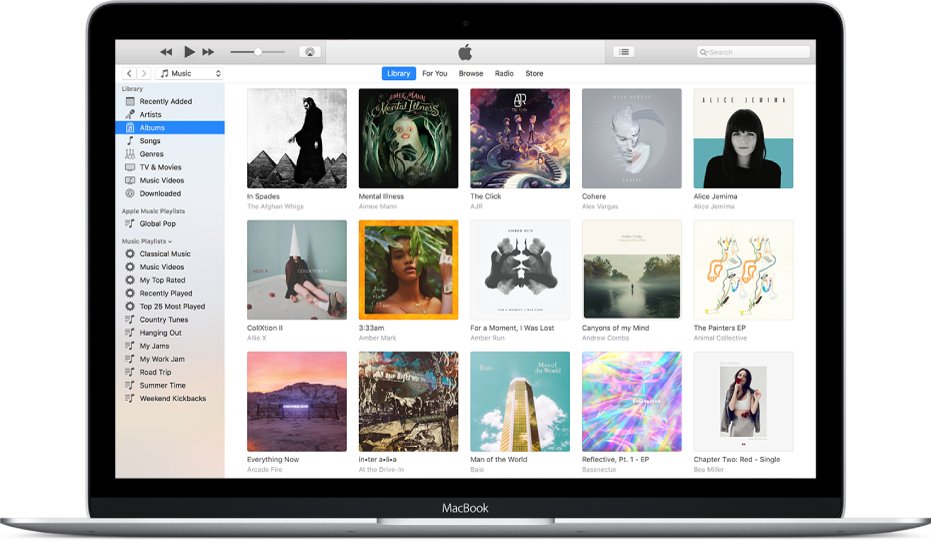
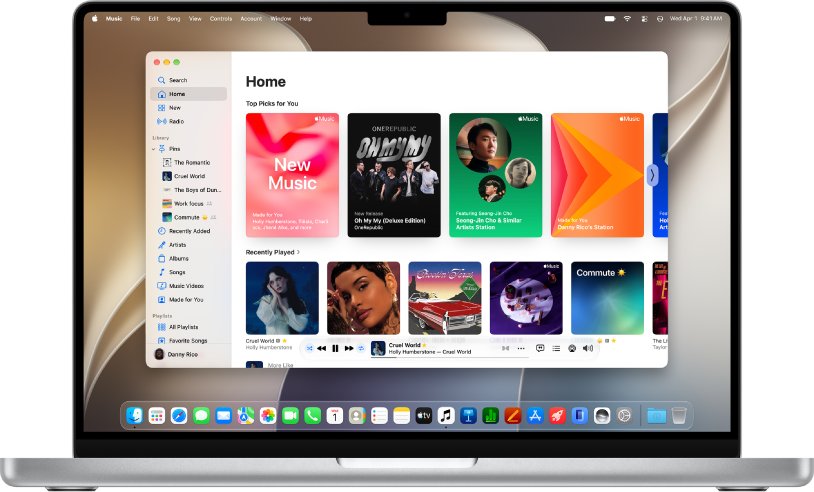
On a current Mac, opening iTunes means opening the Music app, which holds your iTunes library and iTunes Store purchases. Spotlight is the fastest way to reach it.
- Press Command-Space bar to open Spotlight.
- Type Music (or iTunes on macOS Mojave or earlier).
- Press Return to open the best match at the top of the results.
- For movies and TV shows, repeat the search with TV; for podcasts, use Podcasts; for audiobooks, use Books.
How to open iPhone in iTunes on PC
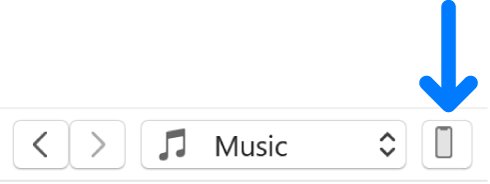
iTunes shows a connected iPhone, iPad or iPod as a small device button, not as a separate window. You can connect your iPhone to iTunes with a USB or USB-C cable, or over Wi-Fi once Wi-Fi syncing is on.
- Connect your iPhone to the PC with a USB or USB-C cable.
- Open iTunes from Start.
- Click the Device button near the top left of the iTunes window.
- Select Summary to see backup and update options, or select a content type such as Music or TV Shows in the sidebar.
- Select the Sync checkbox for the content you want, then click Apply.
If Music, Movies or TV Shows is missing from the pop-up menu, the Apple Music or Apple TV app is installed and handles that content. The Apple Devices app from the Microsoft Store can also update, restore and sync an iPhone or iPad, and back up your iPhone to the PC.
How to open iPhone in Finder on Mac
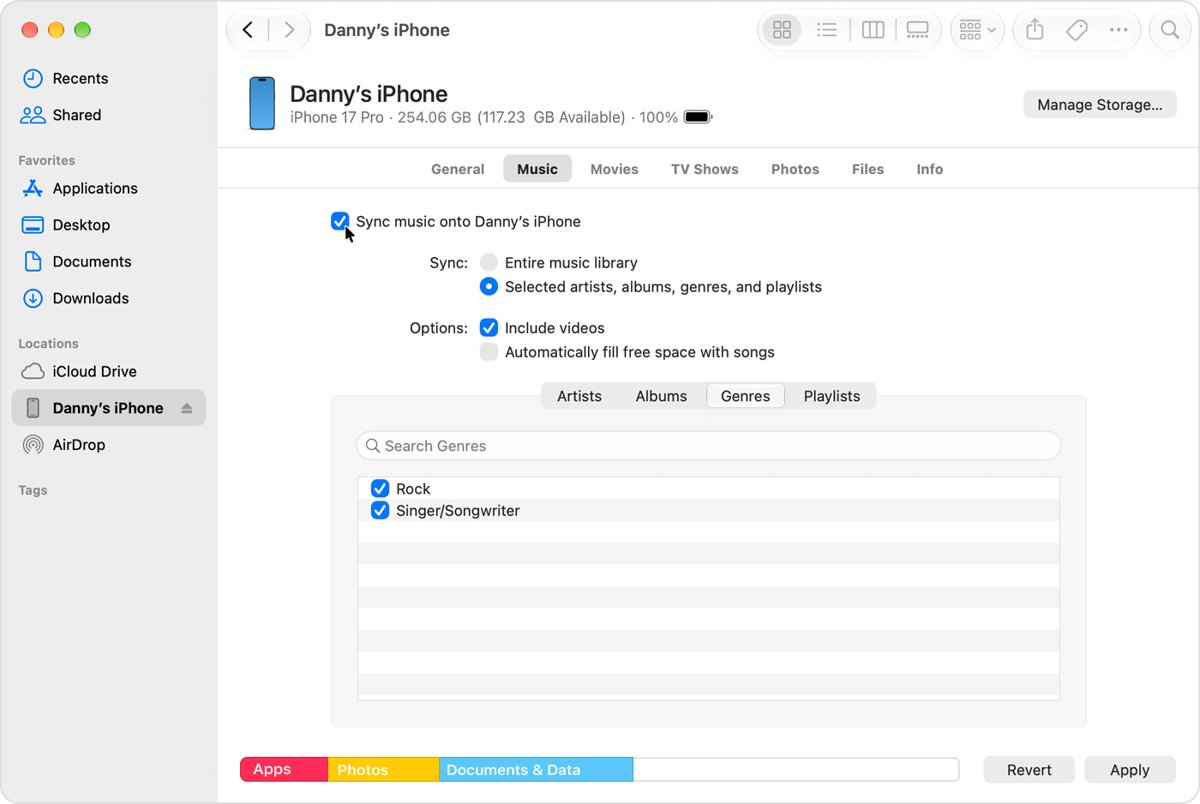
On macOS Catalina or later, the Finder does the syncing job iTunes used to do. The experience is similar to syncing in iTunes on earlier versions of macOS.
- Connect your iPhone, iPad or iPod touch to the Mac with a USB cable.
- Click the Finder icon in the Dock to open a Finder window.
- Select your device from the list in the sidebar.
- Select the content type to sync, such as General, Music, Movies, TV Shows, Photos or Files.
- Select the Sync checkbox for that content, then click Apply.
To skip the cable next time, select General, turn on Show this [device] when on Wi-Fi, and click Apply.
How do I open my iTunes library
iTunes opens the last library you used. To open a different library, such as one stored on an external drive, hold the Shift key while iTunes starts.
- In iTunes, choose File > Exit to close it.
- Press and hold the Shift key.
- While holding Shift, go to Start and choose iTunes > iTunes.
- In the window that appears, click Choose Library to open an existing library, or Create Library to start a new one.
- Pick the library folder, which contains the iTunes Library.itl file, and open it.
Give each extra library its own name. Apple advises against naming a new library "iTunes" or "iTunes Music", so you can tell them apart.
How to open CD player in iTunes
iTunes has no separate CD player. An audio CD opens inside the main iTunes window, from your PC's CD or DVD drive or an external drive.
- Open iTunes on your PC.
- Insert an audio CD into the computer's CD or DVD drive, or into a connected external drive.
- If the CD's information doesn't appear, click the CD button near the top left of the iTunes window.
- If a dialog asks whether to import the CD, click Cancel to play it without importing.
- Double-click a song to play it.
To make every CD start playing as soon as you insert it, choose Edit > Preferences, click General, open the When a CD is inserted menu and choose Play CD. The same menu offers Show CD, Ask to Import CD, Import CD and Import CD and Eject.
How to open an iTunes account
An iTunes account is an Apple Account. You already have one if you joined Apple Music, use iCloud or bought something from the Apple website.
- Open iTunes on your PC.
- Choose Account > Sign In.
- Click Create New Apple ID and follow the onscreen instructions.
- If you already have an account, enter your Apple Account and password instead, then click Next.
- Choose Account > View My Account to check payment and billing details.
If the password is refused or the sign-in window loops, the usual iTunes sign-in fixes apply on any PC.
How to open iTunes on iPhone and iPad
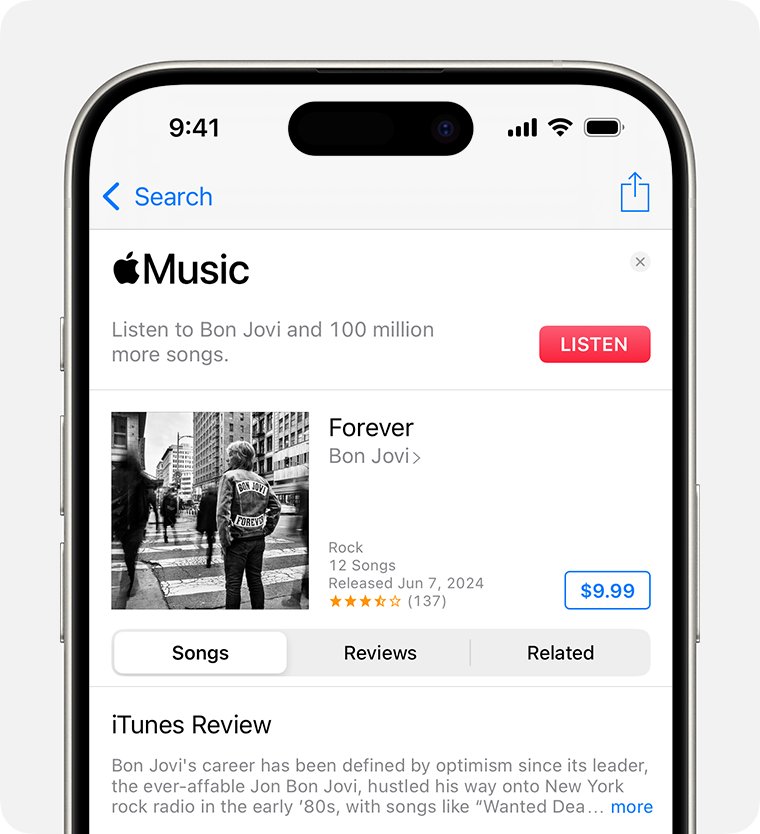
There is no iTunes app on iPhone or iPad. The iTunes Store app is where you buy music, ringtones and other media, and it needs an internet connection.
- Open the iTunes Store app on your iPhone or iPad.
- Tap Music to browse, or tap Search and enter what you want.
- Tap an item to see more information.
- Tap the price to buy it, or tap Get if it is free, then confirm with Face ID, Touch ID or your passcode.
- To redownload something you already bought, tap Purchased, then tap Music.
The iTunes Store and its features vary by country or region, so some sections may be missing on your device.
iTunes vs Apple Music, Apple TV and Apple Devices on Windows
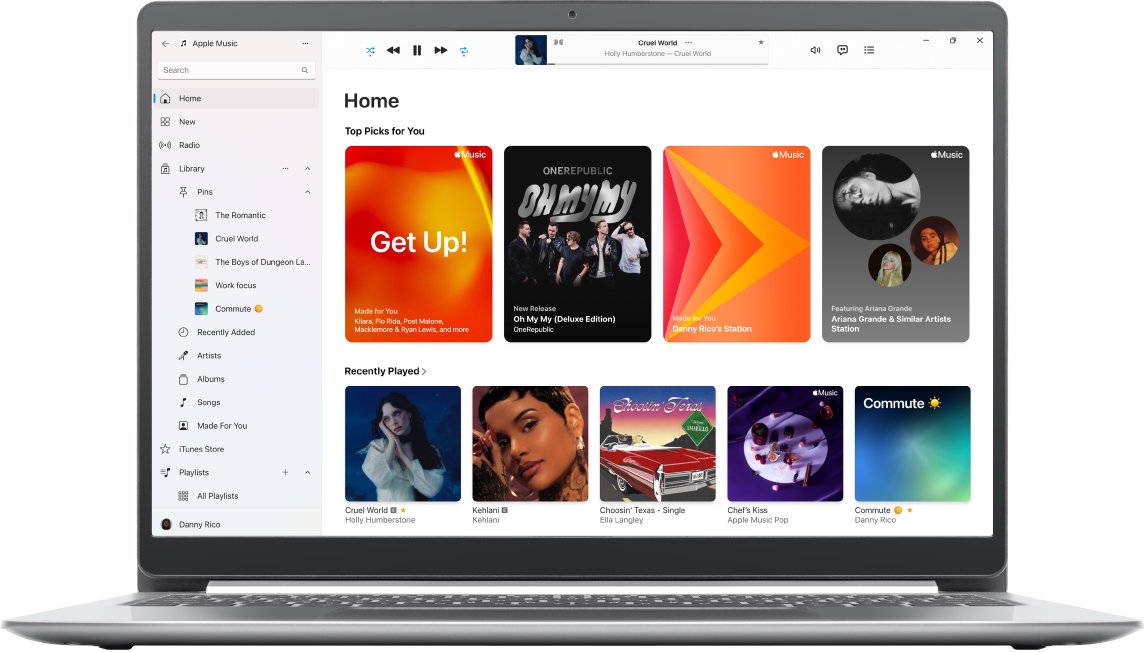
On Windows, iTunes now shares its old jobs with three newer Apple apps from the Microsoft Store. Once you install Apple Music or Apple TV, iTunes no longer opens your music, movies or TV shows.
| App | What it opens | When to use it |
|---|---|---|
| iTunes | Audiobooks and podcasts; all media if Apple Music and Apple TV are not installed | You have not installed the newer apps, or you want podcasts and audiobooks |
| Apple Music | Your music library, including iTunes Store music purchases | Listening to and managing songs |
| Apple TV | Movies and TV shows, including purchases | Watching or managing video |
| Apple Devices | Your iPhone, iPad or iPod touch | Updating, backing up, restoring and syncing a device |
Why won't iTunes open on my computer
iTunes won't open on my laptop or PC
The app install is damaged, or Windows and the Microsoft Store are out of date.
- Close iTunes with the Close (X) button in the upper-right corner, then open it again.
- Select Start > Settings > Windows Update > Check for updates, and select Install now if an update is offered.
- Open Microsoft Store, select Library > Get updates to update iTunes and the Store.
- Select Start > Settings > Apps > Installed apps, select More next to iTunes, then Advanced options > Repair.
- If Repair is missing or doesn't help, select Reset on the same page.
- Reinstall from Microsoft Store > Library: find iTunes and select Install.
iTunes opens but my music, movies or TV shows are gone
The Apple Music or Apple TV app is installed, so iTunes only manages audiobooks and podcasts.
- Select Start and open Apple Music to reach your songs and music purchases.
- Open Apple TV for movies and TV shows.
- Keep using iTunes for audiobooks and podcasts.
"Error 2" or "Apple Application Support was not found"
iTunes or one of its support components did not install correctly.
- Sign in to Windows with an administrator account.
- Install the latest Windows updates from Settings > Windows Update.
- Install the current iTunes from the Microsoft Store.
- Restart the computer, then open iTunes again.
Why can't I open iTunes on my Mac
macOS Catalina and later have no iTunes app; its content moved to Music, TV, Podcasts and Books.
- Press Command-Space bar, type Music and press Return.
- Connect your iPhone and select it in the Finder sidebar to sync or back it up.
iTunes doesn't respond when you insert a CD
Opening iTunes from a damaged desktop shortcut can stop it recognising audio CDs.
- Quit iTunes.
- Open iTunes by double-clicking the app icon in the iTunes folder inside Program Files, not the desktop shortcut.
- If iTunes now recognises the CD, delete the old shortcut and create a new one.
- If it still fails, choose Help > Run Diagnostics, select the CD/DVD drive tests, and click Next.
Help > Run Diagnostics only gathers information and doesn't fix anything. Click Save to create iTunes Diagnostics.rtf and iTunes Diagnostics.spx files you can share with Apple Support.
How to open iTunes FAQ
How do I open iTunes on my laptop?
Select Start, type iTunes in the taskbar search box and select iTunes from the results. A Windows laptop works exactly like a desktop PC. If nothing appears, install iTunes from the Microsoft Store first, then open it from Start.
How to open iTunes on Mac?
On macOS Catalina or later, open the Music app instead, because iTunes no longer exists there. Press Command-Space bar, type Music and press Return. Use the TV, Podcasts and Books apps for the rest of your old iTunes content, and the Finder for iPhone syncing.
How to open iTunes on iPad?
Open the iTunes Store app on your iPad, because there is no full iTunes app for iPadOS. The iTunes Store app sells music and ringtones and lists your past purchases. To manage the iPad itself, use iTunes or Apple Devices on a PC, or the Finder on a Mac.
How to open iTunes on iPhone?
Open the iTunes Store app on your iPhone. Tap Music to browse, Search to find something, or Purchased to redownload past buys. The iTunes Store needs an internet connection, and its features vary by country or region.
How do I get iTunes to open?
Close iTunes completely, then open it again from Start. If it still won't start, install Windows updates, update iTunes from Microsoft Store Library, then use Repair or Reset under Settings > Apps > Installed apps > iTunes > Advanced options. Reinstall from the Store as the last step.
Why can't I open iTunes on Windows?
Usually the install is damaged, Windows or the Store is out of date, or iTunes is not installed at all. Repair or reset the app in Settings, install pending Windows updates, and reinstall iTunes from the Microsoft Store if the problem continues.
How do I open the iTunes Store on this computer?
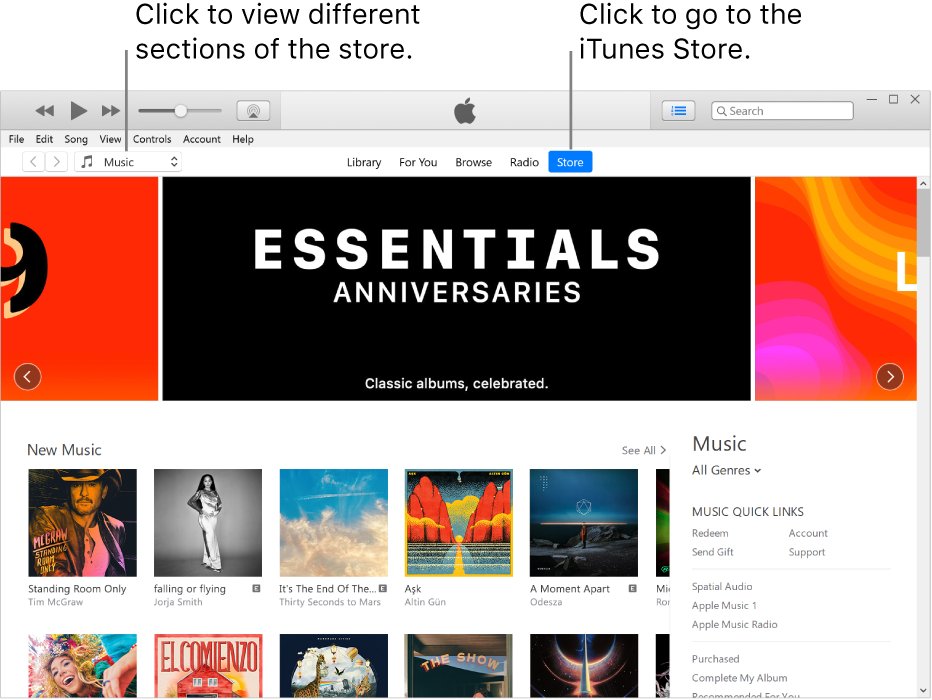
Open iTunes, sign in with Account > Sign In, then click Store in the navigation bar. Choose a media type such as Music or Movies from the pop-up menu at the top left to see other parts of the store. You need an Apple Account and an internet connection.
How to open iPhone using iTunes?
Connect the iPhone to the PC with a USB or USB-C cable, open iTunes, and click the Device button near the top left of the window. Select Summary for backups and updates, or a content type in the sidebar to set up syncing.