To take video in landscape orientation on iPhone, turn off rotation lock in Control Center, open Camera in Video mode, turn iPhone sideways and only then tap Record.
This guide also covers how to rotate a clip that already plays back vertical, on iPhone, on a Mac and on a Windows PC, and how to turn true vertical footage into a 16:9 landscape video.
How to record video in landscape mode on iPhone
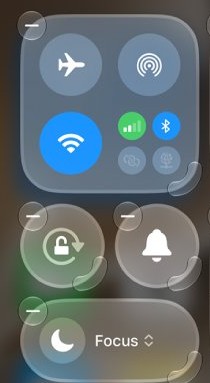
Rotation lock stops the screen from turning when you rotate iPhone. Switch it off first so the Camera screen follows the phone when you turn it sideways.
- Open Control Center. If the Lock Rotation button is red, tap it so it turns gray.
- Open Camera and swipe to Video mode.
- Turn iPhone sideways so the long edge is horizontal, and frame your shot.
- Tap the Record button, or press either volume button, to start recording.
- Keep iPhone sideways for the whole clip.
- Tap the Record button again to stop, then tap the thumbnail to play the video in Photos.
If you do not see Lock Rotation in Control Center, add it from the Control Center customization screen. When the lock is on, a lock icon appears in the status bar on supported models.
Orientation portrait vs landscape for video
Landscape video is wider than it is tall; portrait video is taller than it is wide. The frame shape decides where the video looks right.
| Orientation | Common aspect ratio | How you hold iPhone | Where it fits best |
|---|---|---|---|
| Landscape (widescreen) | 16:9 | Sideways, long edge horizontal | YouTube, Vimeo, laptops, TVs and most streaming |
| Portrait (vertical) | 9:16 | Upright, long edge vertical | Instagram Reels, Facebook Stories, YouTube Shorts |
| Square | 1:1 | Either way, then cropped | Facebook and Instagram feed posts |
| Cinematic | 21:9 | Sideways, then cropped wider | Film-style projects and banners |
Microsoft calls 16:9 the most common aspect ratio for streaming, TV series and films, which is why landscape is the safe choice for anything watched on a big screen.
How to rotate a video on iPhone in the Photos app
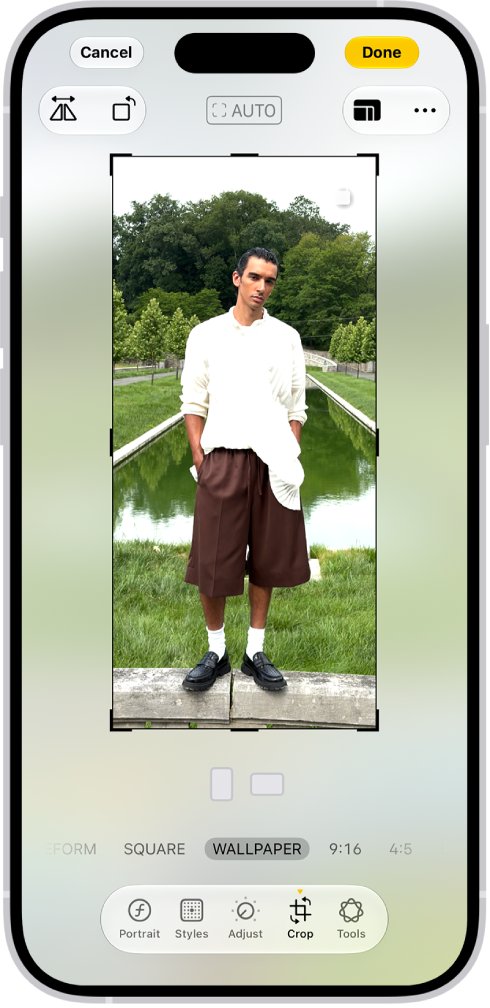
If a clip you shot sideways plays back sideways or vertical, rotate it in Photos. Each tap of the rotate button turns the video 90 degrees.
- Open the Photos app and tap the video to open it.
- Tap the Edit button.
- Tap the Crop button.
- Tap the Rotate button to turn the video 90 degrees; tap again until it is the right way up.
- Tap Done to save, or tap Cancel > Discard Changes to leave it as it was.
With iCloud Photos turned on, the rotation is saved across all your devices. The Flip button next to Rotate mirrors the video horizontally instead, so do not use it to fix orientation.
How to straighten a tilted video on iPhone
A video that is a few degrees off level needs straightening, not a 90-degree rotation.
- Open the video in Photos and tap Edit.
- Tap the Crop button.
- Tap the straighten button below the frame.
- Drag the slider until the horizon is level.
- Tap Done to save, or Reset to return to the original.
The same tool has vertical and horizontal tilt buttons for footage shot looking up or down at a subject.
How to rotate a video on Mac with QuickTime Player
QuickTime Player rotates a clip left or right without opening a full editor. It works on videos you AirDropped or copied from iPhone.
- Open the movie in QuickTime Player on the Mac.
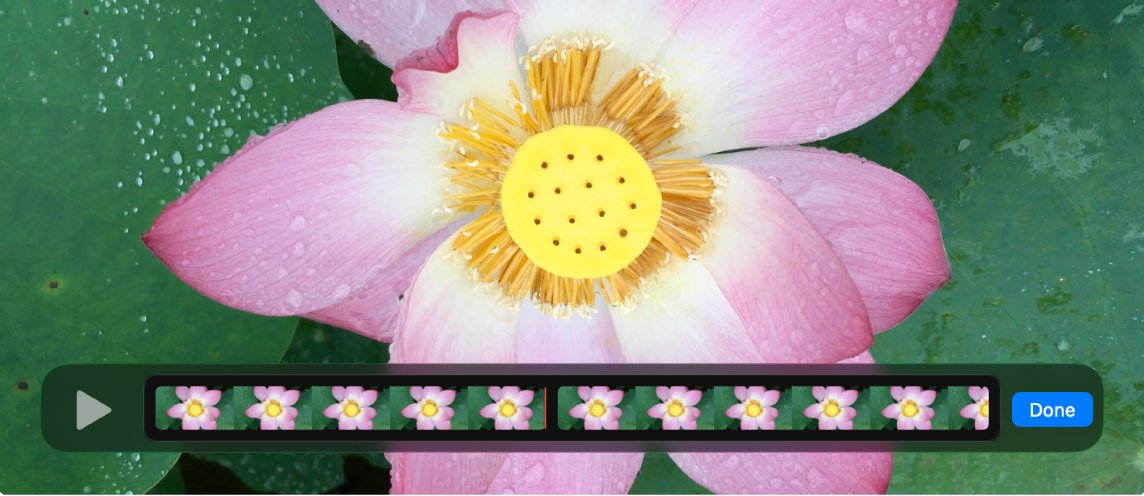
- Choose View > Show Clips, then select the clip; it is outlined in yellow.
- Open the Edit menu and choose to rotate the clip left or right.
- Repeat until the video is landscape, then click Done.
- Save the movie so the rotation is kept.
How to change video orientation in Photos on Mac
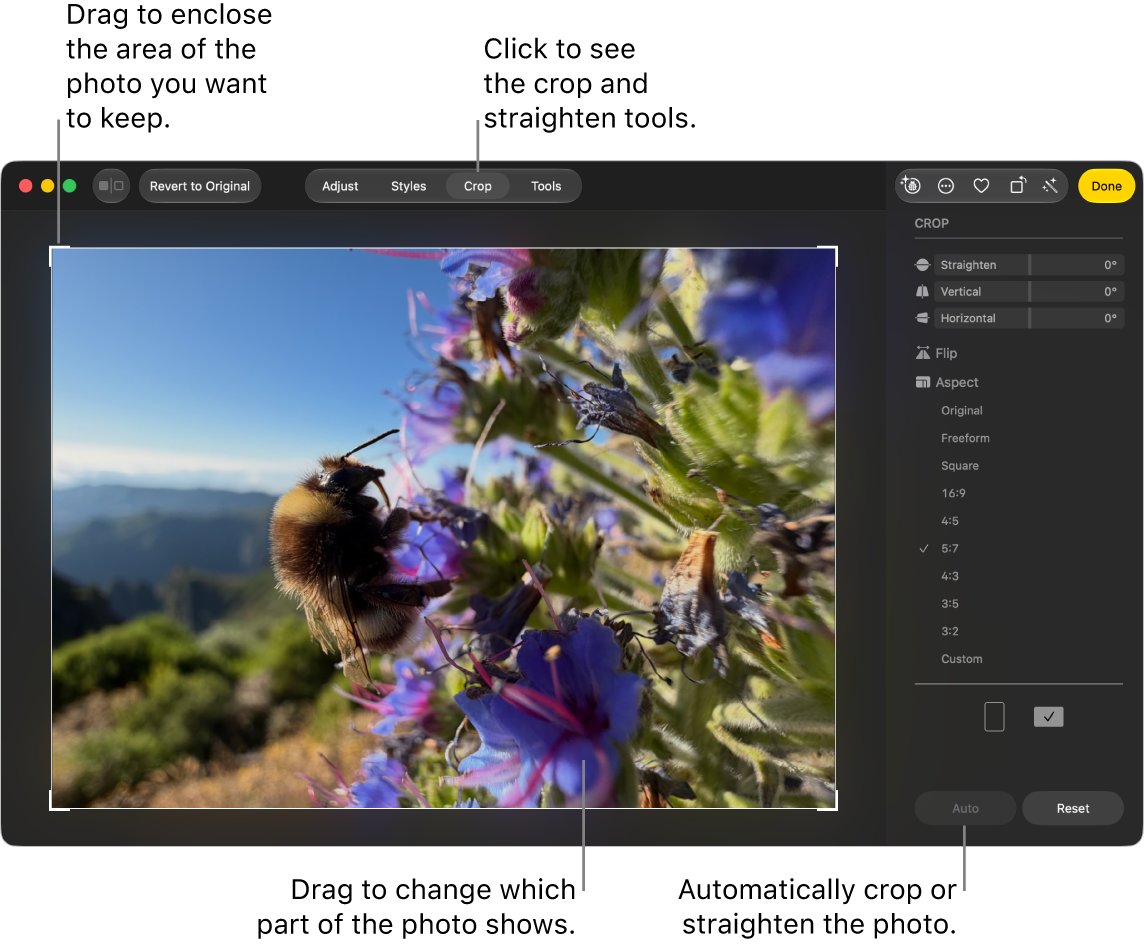
Photos on Mac can crop a video to a landscape shape. Use it when the video is upright but you want a wide frame.
- Open the Photos app on the Mac and double-click the video.
- Click Edit in the toolbar, then click Crop.
- Choose the horizontal orientation.
- Click 16:9 in the sidebar for a high-definition video shape.
- Drag the selection rectangle over the part of the frame you want to keep.
- Click Done to save, or Revert to Original to undo.
Cropping changes the video everywhere it appears in Photos, including albums and projects. Duplicate the video first if you want to keep the vertical version too.
How to convert vertical video to landscape in Clipchamp
On a Windows PC, Clipchamp can both rotate a clip and change the project to a 16:9 frame. A clip shot vertically stays narrow in a wide frame, so choose between black bars and a cropped fill.
- Open Clipchamp, start a new video and add your clip to the timeline.
- If the clip lies on its side, click it, select the three dots on the floating toolbar and click the rotate by 90 degrees button until it is upright.
- Click the size button on the floating toolbar above the stage and choose 16:9.
- To remove the black bars at the sides, click the clip and select the fill button on the floating toolbar.
- Drag the video in the stage to reposition the part that stays in frame.
- Export the video.
To keep the full picture, use fit instead of fill and accept the side bars. If Clipchamp is not installed, get the Windows video editor first.
How to change video resolution and frame rate on iPhone
Landscape footage for YouTube or a TV is worth recording at a higher resolution. The available formats depend on your iPhone model.
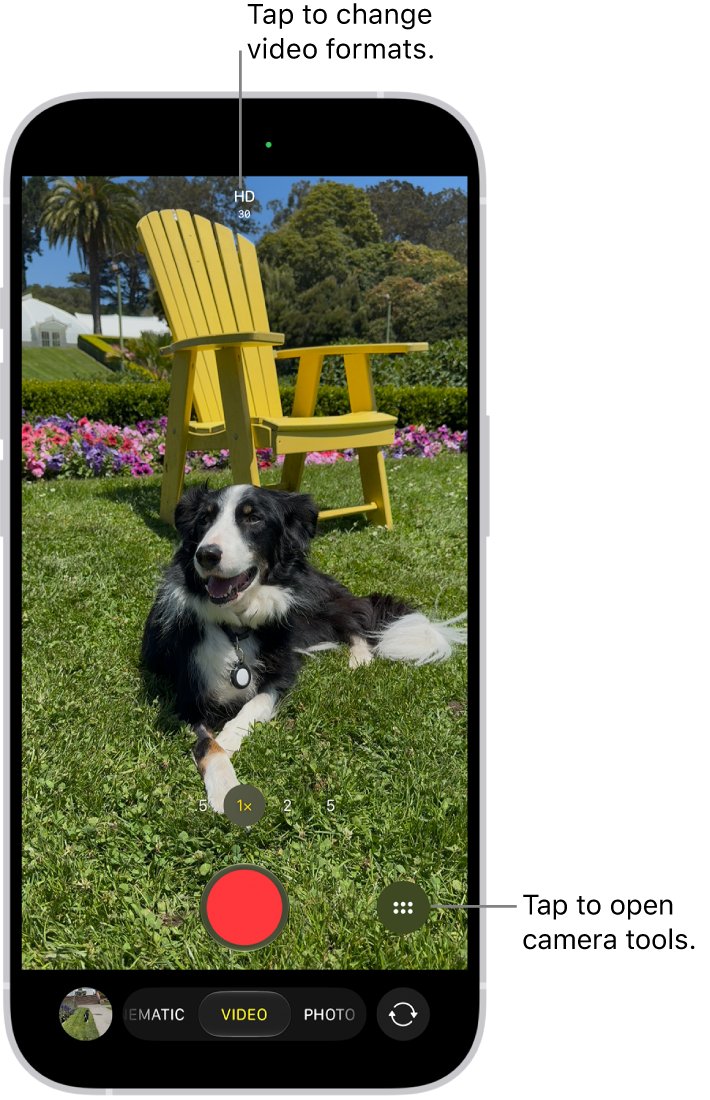
- With Video mode open in Camera, tap the resolution and frame rate values at the top of the screen.
- Tap the resolution or frame rate you want, such as 4K or 60 fps.
- For more formats, open Settings > Camera > Record Video.
- Select a format and frame rate from the list.
- On supported models, tap the Action mode button in Camera for steadier handheld landscape shots.
Faster frame rates and higher resolutions make larger files. Action mode records at up to 2.8K and works best in bright light.
How to tell if an iPhone video is landscape
- Open the video in the Photos app while holding iPhone upright.
- Look at the frame: a landscape video is wider than it is tall, with empty space above and below it.
- Turn iPhone sideways with rotation lock off; the video turns with the screen and fills more of it.
- Tap Edit > Crop and check whether the frame outline is wide or tall.
If the picture itself lies on its side, the clip needs rotating; if the frame is tall and the picture upright, it was recorded vertically and needs cropping or a 16:9 project instead.
How to undo a video rotation on iPhone
- Open the edited video in Photos.
- Tap the Edit button.
- Tap Revert to return the video to its original orientation.
In Clipchamp, press Ctrl + Z right after a rotation to undo it. On Mac Photos, click Revert to Original.
iPhone video in landscape mode plays back vertical
Video shot horizontally plays back vertical or sideways
The clip was saved in a different orientation from how it was framed.
- Open the clip in Photos and tap Edit > Crop.
- Tap Rotate until the picture is upright and wide.
- Tap Done.
- Before the next recording, turn off Lock Rotation and turn iPhone sideways before you tap Record.
Camera screen does not turn when iPhone is sideways
Rotation lock is on.
- Open Control Center.
- Tap Lock Rotation so it turns from red to gray.
- If the button is missing, add it to Control Center and try again.
Rotate button turns the video the wrong way
Each tap turns the video 90 degrees in one direction.
- Keep tapping Rotate until the video is the right way up; four taps return it to the start.
- If it looks mirrored, tap Flip again to undo the flip.
- Tap Done to save.
Black bars after converting vertical video to landscape
The clip's aspect ratio does not match the 16:9 project.
- In Clipchamp, click the clip in the timeline.
- Select fill on the floating toolbar.
- Drag the clip in the stage to keep the important part in frame.
Landscape video on iPhone FAQ
What is landscape orientation?
Landscape orientation means the frame is wider than it is tall. For video, the usual landscape shape is 16:9 widescreen, the format used by YouTube, TVs and most streaming services.
Which orientation is landscape?
Landscape is the horizontal one. On iPhone, you get it by holding the phone sideways so its long edge runs left to right; holding it upright gives portrait.
What is landscape video?
A landscape video is recorded or cropped wider than it is tall, usually at 16:9. It fills laptop, TV and widescreen phone views, while portrait 9:16 video suits Reels, Stories and Shorts.
How to make a video landscape?
Record it with iPhone held sideways after turning off Lock Rotation in Control Center. For a clip already recorded, rotate it in Photos with Edit > Crop > Rotate, or crop it to 16:9 in Photos on Mac.
How to change the video orientation?
On iPhone, open the video in Photos, tap Edit, tap the Crop button and tap Rotate until it is the right way up. On Mac, use Edit in QuickTime Player; on Windows, use Clipchamp's rotate tool.
How to change video to landscape?
If the picture lies on its side, rotate it 90 degrees in Photos. If it was filmed upright, put it in a 16:9 frame in Clipchamp or crop it to 16:9 in Photos on Mac.
How to convert vertical video to landscape?
Open it in Clipchamp, set the project size to 16:9 and choose fill to crop the clip to the wide frame, or fit to keep the whole picture with bars at the sides.
How to landscape videos on iPhone?
Open Camera in Video mode, turn iPhone sideways, then tap Record. Keep it sideways until you stop recording, and check that rotation lock is off so the screen follows the phone.