Microsoft Edge saves your favorites in a file named Bookmarks inside your profile folder at %LOCALAPPDATA%\Microsoft\Edge\User Data\Default on Windows 11 and Windows 10.
This guide shows how to open that folder, which file belongs to which profile, how to back up and restore favorites, and what to do when they go missing.
Where are Favorites stored in Microsoft Edge?
Edge keeps each profile's favorites in one file called Bookmarks, with no file extension. The main profile lives in the Default folder under Edge's User Data folder.
- Press Windows key + R to open the Run box.
- Type
%LOCALAPPDATA%\Microsoft\Edge\User Data\Defaultand press Enter. - File Explorer opens the Default profile folder.
- Find the file named Bookmarks. This file holds your Edge favorites and favorites bar items.
The %LOCALAPPDATA% part expands to C:\Users\<your name>\AppData\Local, so the full path is C:\Users\<your name>\AppData\Local\Microsoft\Edge\User Data\Default\Bookmarks.
Edge favorites file location for each profile
Every Edge profile on the PC has its own folder under User Data, and each folder has its own Bookmarks file. Some setups also keep a second copy elsewhere.
| Where the favorites are | Path or place | When it applies |
|---|---|---|
| Main Edge profile | %LOCALAPPDATA%\Microsoft\Edge\User Data\Default\Bookmarks |
The first profile created on the PC |
| Extra Edge profiles | %LOCALAPPDATA%\Microsoft\Edge\User Data\<profile folder>\Bookmarks |
Each added profile gets its own folder next to Default |
| Microsoft account or work account sync | Microsoft's sync servers | Sync is on and Favorites is one of the synced data types |
| Active Directory on-premises sync | profile.pb in %APPDATA%\Microsoft\Edge |
An administrator enabled the RoamingProfileSupportEnabled policy |
The AppData folder is hidden in File Explorer by default. Typing the path into Run or the File Explorer address bar opens it without changing any view settings.
How to get to saved favorites in Microsoft Edge
Most people looking for their saved favorites want the list inside the browser, not the file. Edge gives you four quick ways in.
- Press Ctrl + Shift + O to open Favorites.
- Or select Settings and more (the three dots) and choose Favorites.
- To open the full-page view, type
edge://favoritesin the address bar and press Enter. - Press Ctrl + Shift + B to show or hide the favorites bar under the address bar.
If the bar keeps vanishing, you can show the Edge favorites bar permanently from Settings.
How to save favorites to a folder in Edge
New favorites go into the file above the moment you save them, so there is no separate save step for the file itself.
- Open the site you want to keep.
- Select Add this page to favorites in the address bar, or press Ctrl + D.
- Rename the favorite if you want to.
- Choose a folder from the folder list to save it in.
- Select Done.
- To save every open tab at once, press Ctrl + Shift + D. Edge puts them in a new folder.
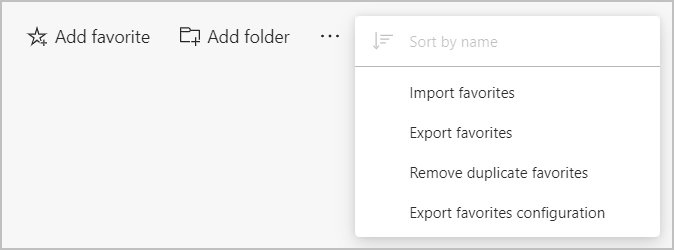
To sort a folder alphabetically, open Settings and more > Favorites, select More options > Open favorites page, then right-click the page and choose Sort by name. From the same page you can rename, move and delete Edge favorites and their folders.
Back up Edge favorites by copying the Bookmarks file
Copying the Bookmarks file is the quickest full backup of one profile's favorites. Close Edge first so the file is not in use.
- Close every Microsoft Edge window.
- Press Ctrl + Shift + Esc, and end any remaining msedge.exe process in Task Manager.
- Press Windows key + R, type
%LOCALAPPDATA%\Microsoft\Edge\User Data\Defaultand press Enter. - Right-click Bookmarks and select Copy.
- Paste the copy into a backup folder, a USB drive or OneDrive.
- Repeat for each extra profile folder you want to keep.
Restore Edge favorites from a Bookmarks file backup
Microsoft's own profile recovery steps use the same file: start a fresh profile folder, then copy Bookmarks back into it.
- Close Microsoft Edge completely.
- Open
%LOCALAPPDATA%\Microsoft\Edge\User Datain File Explorer. - Rename the profile folder, for example rename Default to Default.bak.
- Start Edge so it creates a fresh Default profile folder.
- Close Edge again.
- Copy your saved Bookmarks file into the new Default folder and replace the existing file.
- Start Edge and open
edge://favoritesto see the restored list.
Leave the Default.bak folder in place until you are sure nothing else is missing. You can copy other files across from it the same way.
Import favorites into Edge from another browser or an HTML file
Favorites exported from Chrome as HTML, Firefox or an older Edge install usually come as an HTML file. Edge imports that file, or pulls favorites straight from another installed browser.
- Select Settings and more > Settings.
- In Profiles, select Import browser data.
- For another browser, select Import next to that browser, for example Import data from Google Chrome.
- For a file, select Import next to Import browser data now under Other import locations.
- In the Import from list, choose Favorites or bookmarks HTML file, then select Choose file and open the file.
- Select Import, then Done when the notification appears.
Imported favorites land in a folder on the favorites bar, which may be named Imported.
Sync Edge favorites across devices
Turning on sync keeps a copy of your favorites with your Microsoft account or work account, so a new PC gets them back after you sign in.
- Sign in to Edge with your Microsoft account or work account.
- Select Settings and more > Settings.
- Select Profiles, then Sync.
- Turn on sync and make sure Favorites is one of the synced data types.
- Sign in with the same account on your other PC or phone to pull the favorites down.
Synced data types include favorites, passwords, form-fill addresses, settings, extensions, open tabs and history.
Confirm restored Edge favorites appear on the favorites page
- Open
edge://favoritesin the address bar. - Check that your folders and the Favorites bar folder show the expected sites.
- Press Ctrl + Shift + B and confirm the bar shows the same items.
- After an import, open the Imported folder and check the entries are there.
- On a second device with sync on, open Favorites and confirm the same list appears.
Edge favorites missing or empty fix
Favorites appear empty after Edge starts
Another Edge process holds the profile, or the User Data folder is read-only.
- Press Ctrl + Shift + Esc and end every msedge.exe process.
- Right-click
%LOCALAPPDATA%\Microsoft\Edge\User Dataand select Properties. - On the General tab, clear Read-only if it is ticked.
- On the Security tab, check your account has Modify permission.
- Restart Edge.
"Your profile cannot be opened correctly" banner
The profile folder is damaged or locked.
- Close Edge.
- Rename the profile folder, for example Default to Default.bak.
- Start Edge, close it, and copy Bookmarks from Default.bak into the new Default folder.
- If the problem continues, repair or reset Microsoft Edge.
Favorites bar missing under the address bar
The bar is hidden, not deleted.
- Press Ctrl + Shift + B.
- If the bar is still empty, open
edge://favoritesand check the Favorites bar folder.
Favorites do not appear on another device
Sync is off, favorites are excluded, or the sync data is stuck.
- Open Settings > Profiles > Sync and confirm sync is on with Favorites included.
- Go to
edge://settings/profiles, select the profile, select Sign out, then sign back in. - If it still fails, use Reset sync data from Microsoft servers > Reset sync on the Sync page.
Bookmarks file not visible in File Explorer
AppData is a hidden folder.
- Press Windows key + R.
- Type the full path
%LOCALAPPDATA%\Microsoft\Edge\User Data\Defaultand press Enter.
Edge favorites storage FAQ
Where are favorites stored in Edge on my computer?
Edge stores favorites in a file named Bookmarks at %LOCALAPPDATA%\Microsoft\Edge\User Data\Default for the main profile. Each extra profile has its own folder under User Data with its own Bookmarks file.
Where are favorites stored in File Explorer?
In File Explorer, Edge favorites sit in C:\Users\<your name>\AppData\Local\Microsoft\Edge\User Data\Default as a file called Bookmarks. AppData is hidden, so paste the path into the address bar to open it directly.
Where are favorites stored in Windows 10?
Windows 10 and Windows 11 use the same location for Microsoft Edge favorites: the Bookmarks file in %LOCALAPPDATA%\Microsoft\Edge\User Data\Default. The path does not change between the two versions.
How do I find my saved favorites in Edge?
Press Ctrl + Shift + O, or select Settings and more and choose Favorites. For the full-page list with every folder, type edge://favorites in the address bar and press Enter.
Where are my favorites bar items stored?
Favorites bar items are stored in the same Bookmarks file as all other Edge favorites. On the edge://favorites page they appear inside the Favorites bar folder.
How do I save favorites in Microsoft Edge?
Open the page, then select Add this page to favorites in the address bar or press Ctrl + D. Pick a folder, rename the favorite if you like and select Done.
Can I copy the Bookmarks file to another PC?
Yes. Close Edge on both PCs, then copy the Bookmarks file into the matching profile folder on the other PC. Microsoft uses this same file copy in its profile recovery steps.
Are Edge favorites saved online?
Only when sync is on. With sync enabled and Favorites included, Edge keeps a copy with your Microsoft account or work account and restores it on any device where you sign in.