To fix WhatsApp Desktop calls with no mic, a black camera or sound on the wrong device, let desktop apps use your camera and microphone in Windows privacy settings, choose the right input and output in Settings > System > Sound, and close any other app that is holding the camera.
This guide covers each of those checks on Windows 11 and Windows 10, then the WhatsApp repair, reset, update and reinstall steps for faults that remain.
Start with a quick call reset
WhatsApp's own first fix for a call with no audio or video is to restart the app and the call. Both you and the person you are calling should try it.
- Click End call in the WhatsApp call window.
- Close WhatsApp with the Close (X) button in the top-right corner.
- Right-click the taskbar and select Task Manager. If WhatsApp is still listed, right-click it and select End task.
- Open WhatsApp again from the Start menu.
- Call the contact again. During the call, turn the camera off and on, and turn mute off and on once.
If the mic, camera or speaker still fails on a fresh call, the cause is a Windows setting, another app or the WhatsApp install itself. The sections below check each one in order.
Can I WhatsApp call on a laptop? Windows requirements
Yes. WhatsApp for Windows makes voice and video calls with up to 32 people, but only when the PC meets every item below.
| Requirement | What WhatsApp needs | Fault if it is missing |
|---|---|---|
| Windows version | Windows 10 64-bit version 1903 or newer | The app will not install or calls fail |
| Internet | An active connection on the computer, and on the phone for voice calls | Calls stuck on reconnecting or dropping |
| Microphone and audio output | Both connected to the computer | No mic, or nothing heard in voice and video calls |
| Camera | A camera connected to the computer | Video calls are not supported at all |
| Permissions | Access to the microphone for calls and the camera for video calls | Silent mic or a black video tile |
| Audio setup | A headset is recommended | Echo from separate external mic and speakers |
Check your version under Settings > System > About. Look for Version under Windows specifications and System type under Device specifications.
Confirm Windows can use your microphone and camera
Windows has a master switch, a switch for Store apps and a separate switch for desktop apps. If any of them is off, WhatsApp gets a silent mic or a black camera with no error.
- Select Start > Settings > Privacy & security > Camera.
- Turn on Camera access. If it is greyed out, an administrator has to enable it.
- Turn on Let apps access your camera, and turn on WhatsApp if it appears under Choose which apps can access your camera.
- Turn on Let desktop apps access your camera.
- Go back and select Microphone.
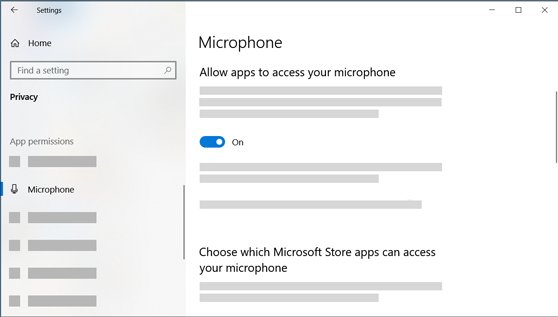
- Turn on Microphone access, Let apps access your microphone and Let desktop apps access your microphone.
- Restart WhatsApp and place a test call.
On Windows 10, open Start > Settings > Privacy > Camera. If Camera access for this device is off, select Change and turn it on, then turn on Allow apps to access your camera and Allow desktop apps to access your camera. Repeat on the Microphone page.
Already on? WhatsApp's own advice is to turn its permissions off and on again, which clears a stuck permission state.
Select and test the right microphone and speakers
Wrong audio usually means Windows, or WhatsApp itself, is sending sound to a monitor, a dock or an old headset. Set and test the devices in your Windows sound and microphone settings first.
- Select Start > Settings > System > Sound.
- Under Output, choose the speakers or headset you want to hear calls on.
- Under Input, go to Choose a device for speaking or recording and select your microphone.
- Select > next to the microphone, then select Start test and speak normally.
- Select Stop test, then Play to hear your sample. Raise the Input volume slider if it is quiet.
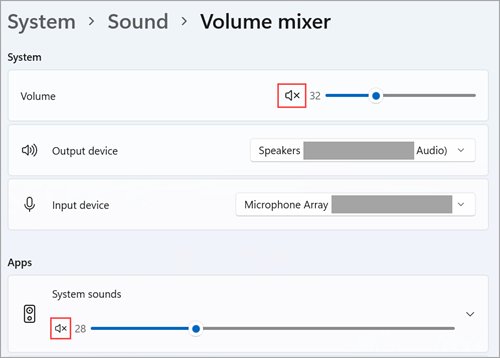
- Open Volume mixer on the Sound page. Under Apps, check that WhatsApp is not muted and that its Output device is the one you want.
- In your next WhatsApp call, open the call's microphone and video settings and pick the same microphone, speaker and camera.
Use a headset when you can. WhatsApp notes that a separate external microphone and speaker can cause mic echo for the other person.
Release hardware being used by another app
Many cameras can serve only one app at a time. If Teams, Zoom, the Camera app or a browser tab holds the webcam, WhatsApp shows a black screen or the video call fails to connect.
- End calls in other apps and close the Camera app and any meeting tabs in your browser.
- Look at the notification area of the taskbar. A microphone icon there means an app is still using the mic.
- Right-click the taskbar and select Task Manager.
- Right-click any app that uses the camera or mic, such as a meeting app, and select End task.
- Switch off virtual camera and virtual audio devices from streaming or effects software, because WhatsApp advises against them.
- Reopen WhatsApp and start the call again.
WhatsApp microphone not working on Windows
The other person cannot hear you at all
The headset mute button is on, or Windows is recording from a different device.
- Check that the mute button on your headset is off.
- Click the Microphone icon in the WhatsApp call window to make sure you are not muted.
- Set your mic under Settings > System > Sound > Input.
- Run Start test on that microphone to see whether Windows hears it.
The mic works in the Windows test but not in WhatsApp
Desktop app access to the microphone is off, or WhatsApp's permission is stuck.
- Open Settings > Privacy & security > Microphone.
- Turn Let desktop apps access your microphone off, then on again.
- Fully close WhatsApp, including through Task Manager, and reopen it.
A Bluetooth headset mic is silent
The headset is not paired and connected, or audio is going to another Bluetooth device.
- Pair the headset again under Settings > Bluetooth & devices.
- Pick the headset under Input on the Sound page.
- If it still fails, turn Bluetooth off and test with a wired headset or the built-in mic, as WhatsApp suggests.
Windows does not detect the microphone
The audio driver is missing or damaged.
- Right-click Start and select Device Manager.
- Expand Sound, video and game controllers.
- Right-click your audio device and select Uninstall device, tick Attempt to remove the driver for this device, then select Uninstall.
- Restart the PC so Windows reinstalls the device.
- If it does not return, right-click Sound, video and game controllers and select Scan for hardware changes.
WhatsApp Desktop camera black screen in video calls
The Camera app also shows black
A privacy shutter, a camera key or a webcam driver problem is blocking the camera for every app.
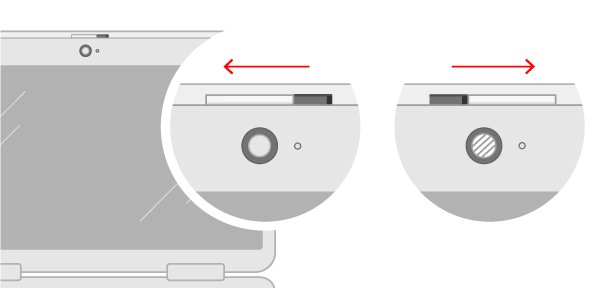
- Check for a shutter slider on the camera, a sliding switch on the side of the laptop or an Fn camera key, and set it to on.
- Select Settings > System > Troubleshoot > Other troubleshooters and select Run next to Camera.
- Select Settings > Windows Update > Check for updates, then look under Advanced options > Optional updates for a camera driver.
- Restart from Start > Power > Restart, because sleep does not count.
The Camera app works but WhatsApp stays black
Desktop app access is off, or another app took the camera first.
- Turn on Let desktop apps access your camera under Privacy & security > Camera.
- Close every other app that uses the camera, then end any leftovers in Task Manager.
- In the WhatsApp call, open the microphone and video settings and select the correct camera if more than one is listed.
Video is black only with a USB webcam
The maker's driver is not working with the app.
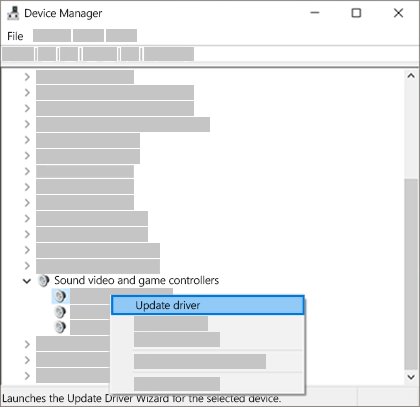
- Open Device Manager and find the webcam under Cameras, Imaging devices or Sound, video and game controllers.
- Right-click it, select Update driver > Browse my computer for drivers > Let me pick from a list of available drivers on my computer.
- Select USB Video Device and then Next, and restart the PC.
- On Windows 11 24H2 or later, the Basic camera option in Camera settings is another way to bypass maker plug-ins.
The camera worked until a recent update
A new camera driver does not suit the device.
- In Device Manager, right-click the camera and select Properties.
- On the Driver tab, select Roll Back Driver, then Yes.
- Restart the PC. Not every driver offers a rollback.
If your security suite has a webcam protection feature, add WhatsApp to its allowed apps rather than switching the protection off.
WhatsApp call no sound or wrong speaker on PC
System sounds play but the WhatsApp call is silent
WhatsApp is muted or turned down in Volume mixer.
- Select Start > Settings > System > Sound > Volume mixer.
- Under Apps, unmute WhatsApp and raise its slider.
- Call again while the mixer is open to watch the level move.
Call audio comes out of the monitor or the wrong headset
WhatsApp has its own output device that differs from the Windows default.
- In Volume mixer, set the Output device for WhatsApp to your headset or speakers.
- In the call's microphone and video settings, pick the same speaker.
- Unplug or turn off audio devices you do not use for calls.
The other person hears an echo
Your speakers feed back into a separate microphone.
- Switch to a headset, which WhatsApp recommends for the best audio.
- Lower the speaker volume if you cannot use a headset.
- End and restart the call.
No audio in any app after sound worked earlier
The Windows audio services or the driver stopped responding.
- Select Start, type
services.mscand press Enter. - Right-click Windows Audio and select Restart.
- Right-click Windows Audio Endpoint Builder and select Restart.
- If sound is still missing, update the driver from Device Manager > Sound, video and game controllers > Update driver, then restart.
Check the connection without changing Windows networking
A weak network can sound like a broken mic: calls stick on reconnecting, drop after connecting, or audio cuts out. Test the network before you reset any Windows network settings.
- Open WhatsApp Desktop and look for a yellow Computer not connected banner, which means the PC has no working internet.
- Move to a strong, stable Wi-Fi network, or join a phone hotspot to test a different connection.
- On office or campus Wi-Fi, try another network, because these networks often block calling.
- Ask the network administrator to allow WhatsApp calling on UDP and TCP ports 3478, 3480 and 3484.
- Turn off battery saver while you call, as WhatsApp lists it as a cause of failed calls.
- Ask the other person to check their own connection too, since a fault on either end breaks the call.
Repair WhatsApp Desktop before resetting it
Repair fixes the app files and keeps your data. Reset clears the app's local data, so expect to link WhatsApp to your phone again afterwards.
- Close WhatsApp.
- Select Start > Settings > Apps > Installed apps.
- Select the More icon next to WhatsApp, then select Advanced options.
- Select Repair and wait for the check mark, then test a call.
- If the fault remains, return to the same page and select Reset.
- Open WhatsApp and scan the QR code with your phone to sign in again.
If the QR code or phone link step fails after a reset, the phone side is usually why WhatsApp is not linking to Desktop.
Update or reinstall WhatsApp Desktop
WhatsApp asks both callers to run the latest version, because old builds miss call fixes. Update Windows at the same time, since camera and audio drivers often arrive through Windows Update.
- Open Microsoft Store, select Library, then select Get updates.
- Select Start > Settings > Windows Update > Check for updates, and select Install now if updates are listed.
- If calls still fail, uninstall WhatsApp from Settings > Apps > Installed apps > More > Uninstall.
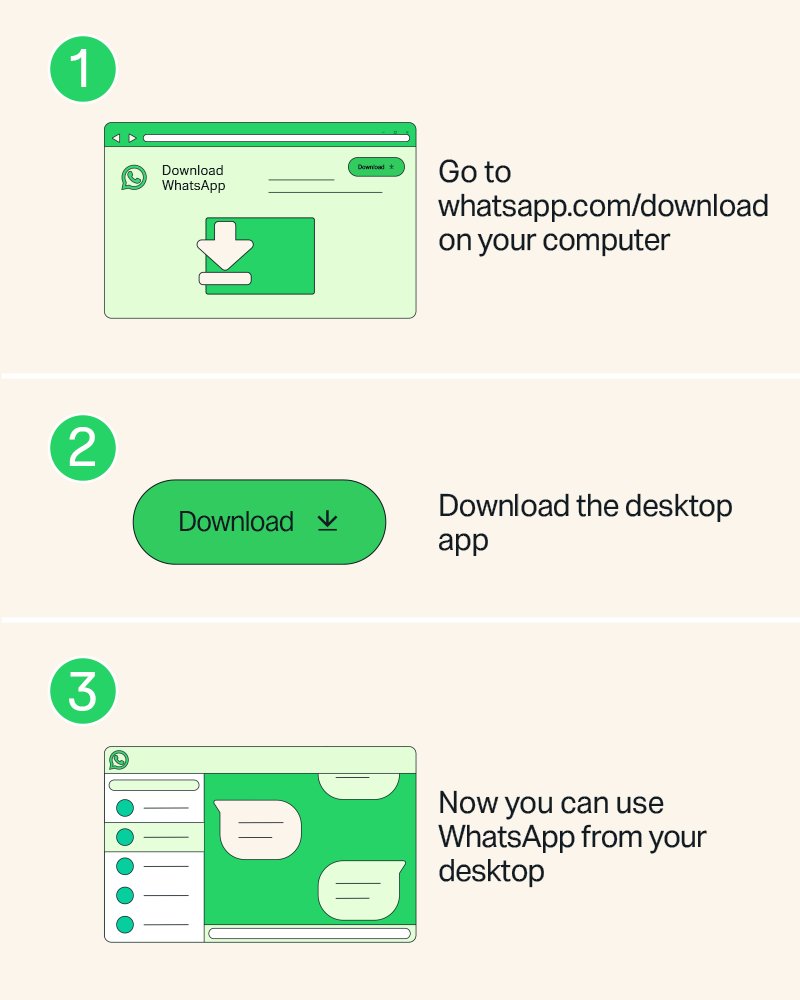
- Reinstall it from Library in Microsoft Store by selecting Install, or from the download page at whatsapp.com.
- Link the app to your phone again and place a test call.
If the reinstalled app will not start at all, you can fix WhatsApp Desktop not opening by working through crashes and blank windows.
Use the result to identify the remaining fault
Each test above narrows the cause. Match what you saw to a row and go straight to that fix.
| What you found | Likely cause | Do this |
|---|---|---|
| Mic and camera fail in every app, including the Camera app and Windows mic test | Hardware switch, privacy setting or driver | Check the shutter or key, then reinstall or roll back the driver |
| Devices work in Windows tests but not in WhatsApp | Desktop app access, a stuck permission or a damaged install | Toggle the desktop app switches, then Repair, then Reset |
| Camera works only after you close Teams or Zoom | Another app holds the camera | Close meeting apps before every WhatsApp call |
| Sound plays from the wrong speaker | WhatsApp's output device in Volume mixer | Set WhatsApp's Output device and the call's speaker setting |
| Calls drop or stay on reconnecting | Network or blocked ports | Change networks or ask for UDP and TCP 3478, 3480 and 3484 to be allowed |
| Everything works on your PC but not for one contact | A fault on the other person's device or connection | Ask them to run the same quick call reset and update WhatsApp |
WhatsApp Desktop calls FAQ
Can I make a WhatsApp call on my laptop?
Yes. WhatsApp for Windows makes voice and video calls on Windows 10 64-bit version 1903 or newer. The laptop needs an internet connection, a microphone, an audio output device and a camera for video, and WhatsApp needs permission to use them.
Why is my WhatsApp microphone not working on PC?
The usual cause is Windows privacy settings. Turn on Microphone access and Let desktop apps access your microphone under Settings, Privacy & security, Microphone. Then choose the right input device on the Sound page and check that a headset mute button is off.
Why does WhatsApp show a black screen on video calls?
A black video tile means WhatsApp cannot reach the camera. Another app may be using it, desktop app access may be off, or a shutter or camera key may be closed. Test the camera in the Windows Camera app to tell which one applies.
Why is my WhatsApp call not working on Windows?
Calls fail when the connection is weak, WhatsApp is out of date or a firewall blocks calling. Restart WhatsApp, update it from Microsoft Store, try another network, and ask your network administrator to allow UDP and TCP ports 3478, 3480 and 3484.
Why does my WhatsApp call keep ending?
Dropped calls usually come from an unstable network on either end, battery saver or Bluetooth problems. Move to a stronger Wi-Fi network, turn off battery saver, test without Bluetooth and ask the other person to do the same.
Does WhatsApp Web support video calls?
Yes. WhatsApp lets you make calls from your web browser through WhatsApp Web as well as from the Windows and Mac apps. The browser then asks for camera and microphone permission, which you must allow for that site.
Is a WhatsApp call free on PC?
Yes. WhatsApp voice and video calls are free and have no time limits, even to another country, because they use your internet connection. Your internet provider's data charges may still apply.
Are WhatsApp calls encrypted on desktop?
Yes. WhatsApp states that its calls are end-to-end encrypted on every device, including the Windows app. That covers one-to-one and group calls.