To turn off the screen rotation lock on iPhone, open Control Center and tap the Lock Rotation button while it is red, then turn your iPhone sideways.
This guide covers iPhones with Face ID and iPhone SE with a Home button, how to add the button when it is missing, how to tell whether the lock is on, and what to do when the screen still stays upright.
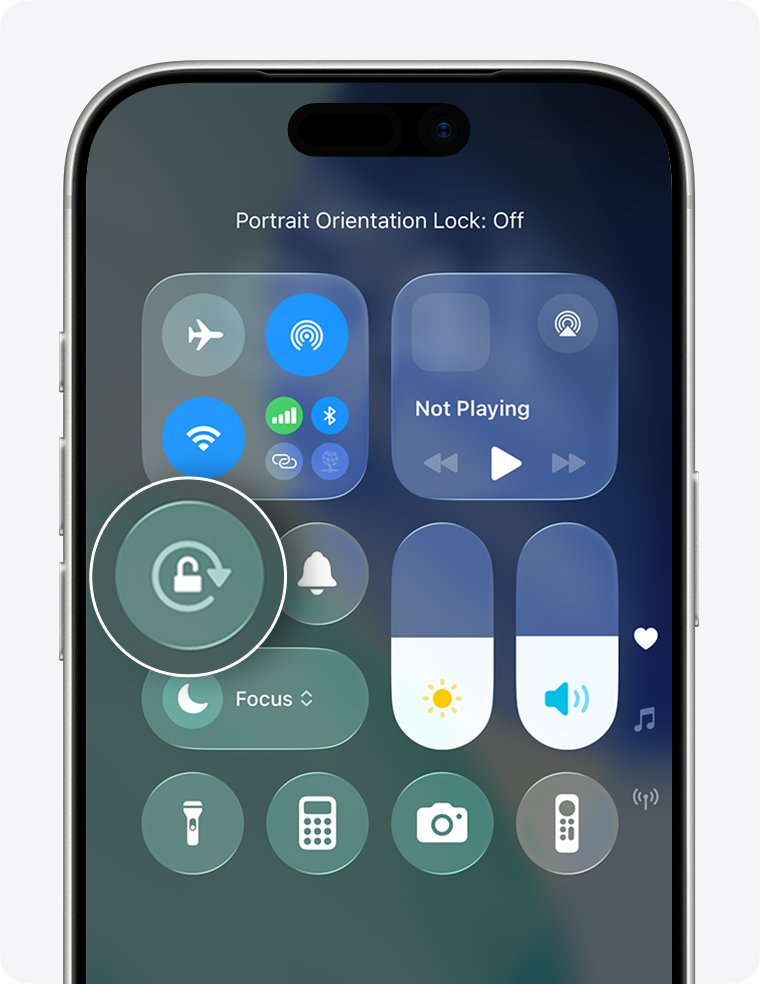
Step by step tutorial to turn off the screen rotation lock on iPhone
These steps work on every iPhone with Face ID, including iPhone 17, iPhone 16 and iPhone Duo. The button is red while the lock is on and gray once it is off.
- Swipe down from the top-right corner of the screen to open Control Center.
- Find the Lock Rotation button. Apple's older support pages call the same control Portrait Orientation Lock.
- Tap the button if it is red. It turns gray, which means the rotation lock is off.
- Swipe up from the bottom center of the screen to close Control Center.
- Turn your iPhone sideways in an app that works in landscape, such as Calculator or Safari.
The screen now follows the way you hold the phone in any app that supports rotation.
How to turn off rotation lock on iPhone with a Home button
On iPhone SE and other models with a Home button, Control Center opens from the bottom of the screen instead of the top-right corner.
- Swipe up from the bottom edge of the screen to open Control Center.
- Tap the Lock Rotation button if it is red.
- Check that the button is now gray.
- Press the Home button to close Control Center.
- Turn your iPhone sideways to rotate the screen.
Where the screen rotation lock is on iPhone in iOS 27, iOS 26 and iOS 18
The rotation lock has stayed in Control Center through the last three iOS releases, so it is in the same place before and after you upgrade your iPhone to iOS 27. There is no switch for it in the Settings app.
| iOS version | Where the control lives | How to open it | Locked state |
|---|---|---|---|
| iOS 27 | Control Center, Lock Rotation button | Swipe down from the top-right corner (Face ID, iPhone Duo) or swipe up from the bottom (iPhone SE) | Button is red, lock icon in the status bar on supported models |
| iOS 26 | Control Center, rotation lock button | Swipe down from the top-right corner (Face ID) or swipe up from the bottom (Home button) | Button is red, lock icon in the status bar on supported models |
| iOS 18 | Control Center, rotation lock button | Swipe down from the top-right corner (Face ID) or swipe up from the bottom (Home button) | Button is red, lock icon in the status bar on supported models |
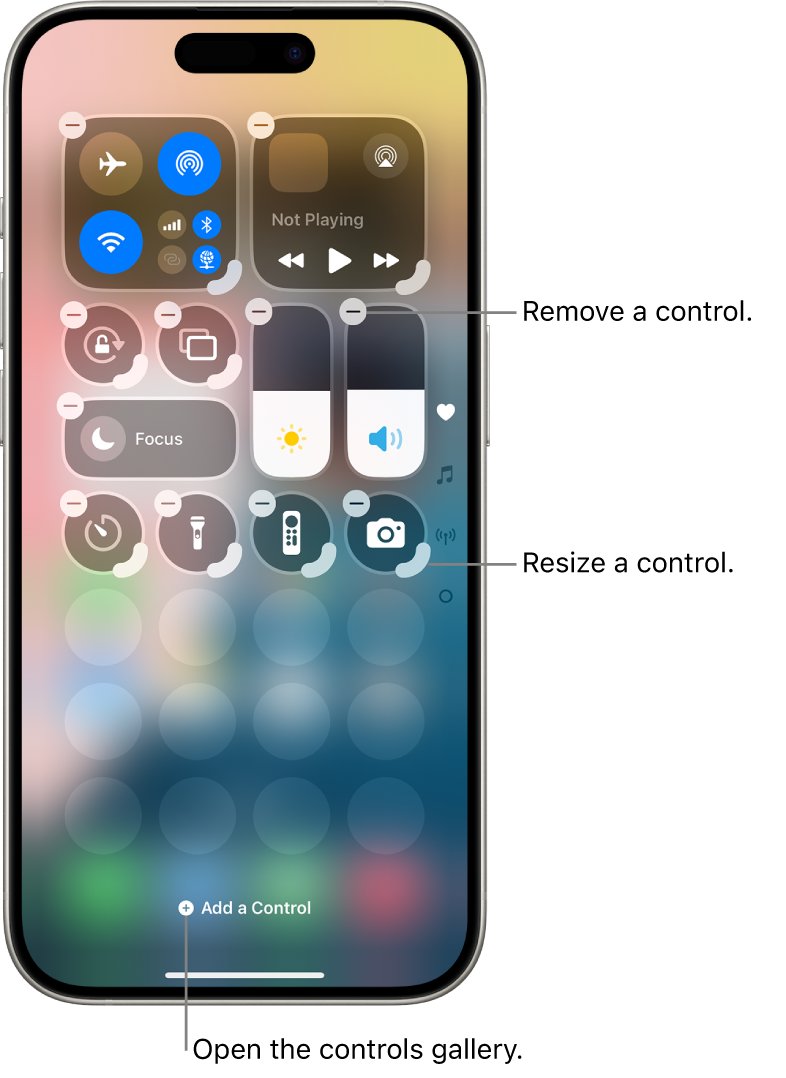
How to add the Lock Rotation button to Control Center on iPhone
If you cannot find the button, it was removed from Control Center. Add it back from the controls gallery.
- Open Control Center.
- Tap the + button at the top left of Control Center to start editing.
- Tap Add a Control at the bottom of the screen to open the controls gallery.
- Tap the Lock Rotation control to add it.
- Drag the button to the spot you want, then swipe up from the bottom center of the screen to close Control Center.
To move it later, open the editor again and drag the control to a new position. You can also resize it by dragging the handle at its lower right.
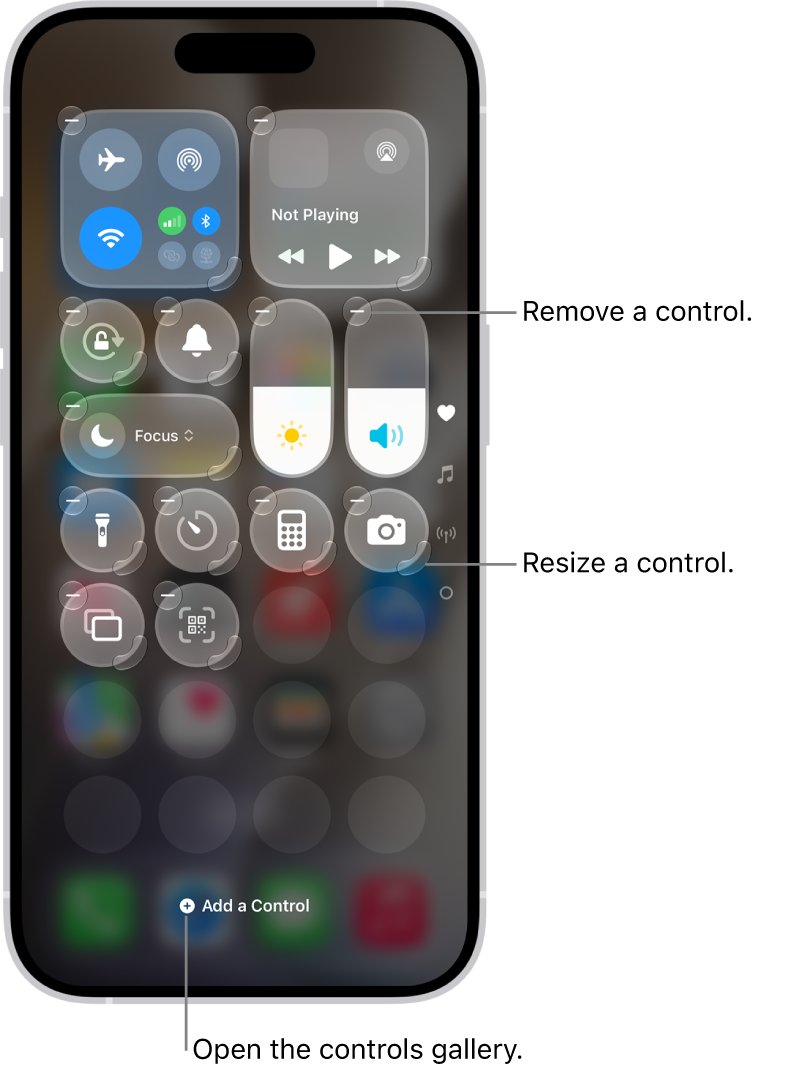
How to tell if rotation lock is on or off on iPhone
iPhone shows the lock state in two places, so you can check it without turning the phone.
- Look at the status bar at the top of the screen. The orientation lock icon there means Portrait orientation lock is on (on supported models).
- Open Control Center and look at the Lock Rotation button. Red means the orientation is locked, gray means it is not.
- Open Calculator or Safari and turn the iPhone sideways. The layout should switch to landscape.
Pros of turning off the screen rotation lock
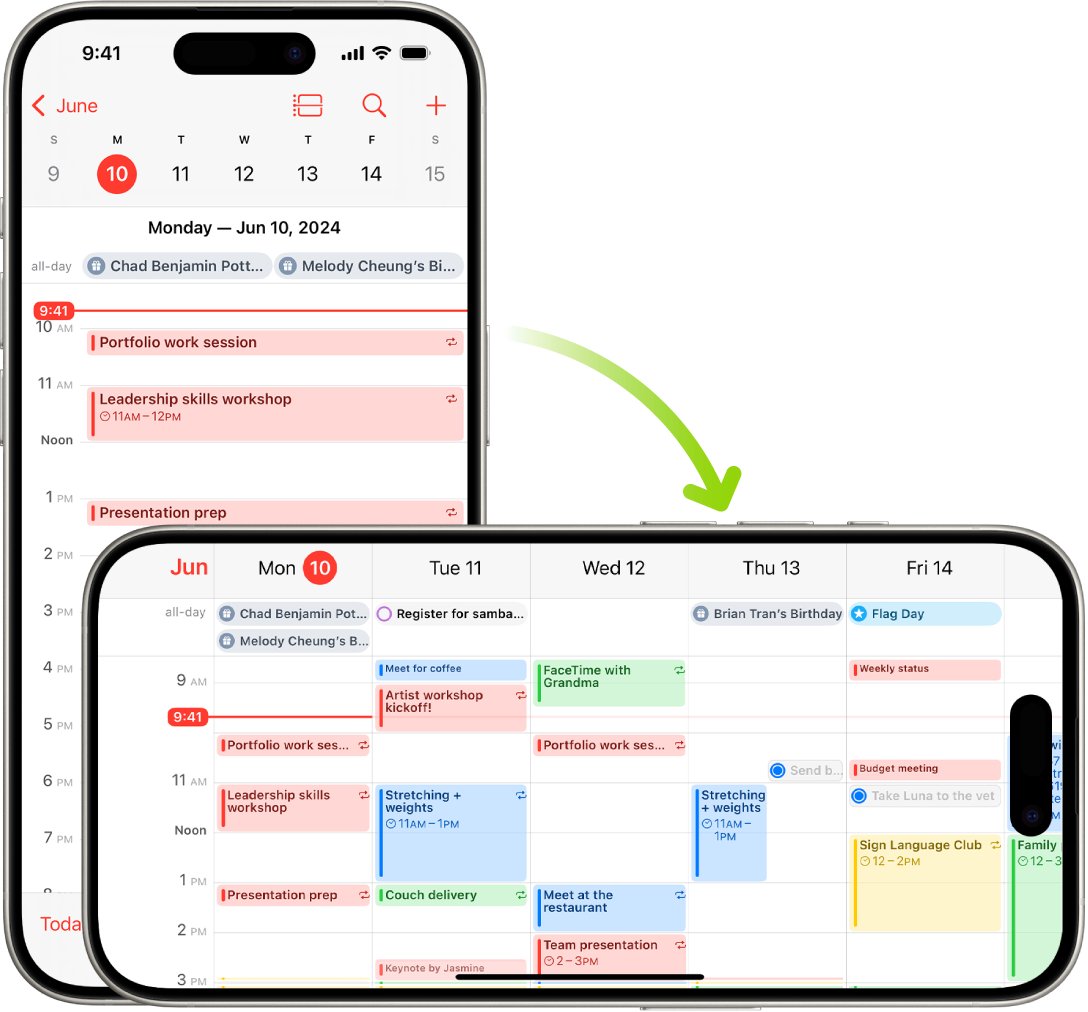
Many apps give you a different view when you rotate iPhone, and leaving the lock off lets those views appear on their own.
| Benefit | Where you notice it |
|---|---|
| Wider view in apps that support landscape | Videos, photos, maps and web pages fill the width of the screen |
| Different layouts in some apps | Calculator and other apps show a landscape view when you turn the phone |
| No trip to Control Center each time | The screen follows the phone as soon as you turn it |
| Easier use on a stand or in a car mount | A sideways phone shows a sideways screen |
Cons of turning off the screen rotation lock
The same sensor that turns the screen for a video also turns it when you did not mean it to.
| Drawback | When it happens | What to do |
|---|---|---|
| Screen flips while you lie on your side | Reading in bed or on a sofa | Turn the lock back on from Control Center |
| Layout jumps mid-task | Tilting the phone while typing or scrolling | Keep the lock on for text-heavy apps |
| Not every app follows | Apps that don't support rotation stay upright | Expect portrait in those apps whatever the setting |
| The lock only holds portrait | You want a fixed landscape view | Rotate first in an app that supports it, as there is no landscape lock |
How to lock screen rotation on iPhone again
Turning the lock back on keeps the screen in portrait however you hold the phone.
- Hold your iPhone upright.
- Open Control Center.
- Tap the Lock Rotation button so it turns red.
- Close Control Center and check for the orientation lock icon in the status bar.
iPhone screen not rotating after turning off rotation lock
Work through these in order. Most cases are an app that only runs in portrait.
The screen still won't rotate in one app
Some apps don't support rotation, so the screen stays in portrait even when the lock is off.
- Open Calculator or Safari.
- Turn the iPhone sideways.
- If those rotate, the first app is portrait-only and the lock is working correctly.
The Lock Rotation button is missing from Control Center
The control was removed while Control Center was being edited.
- Open Control Center and tap + at the top left.
- Tap Add a Control.
- Tap Lock Rotation, then close Control Center.
Control Center won't open inside an app
Access to Control Center inside apps is turned off.
- Open the Settings app.
- Tap Control Center.
- Turn on Access Within Apps.
No app rotates at all
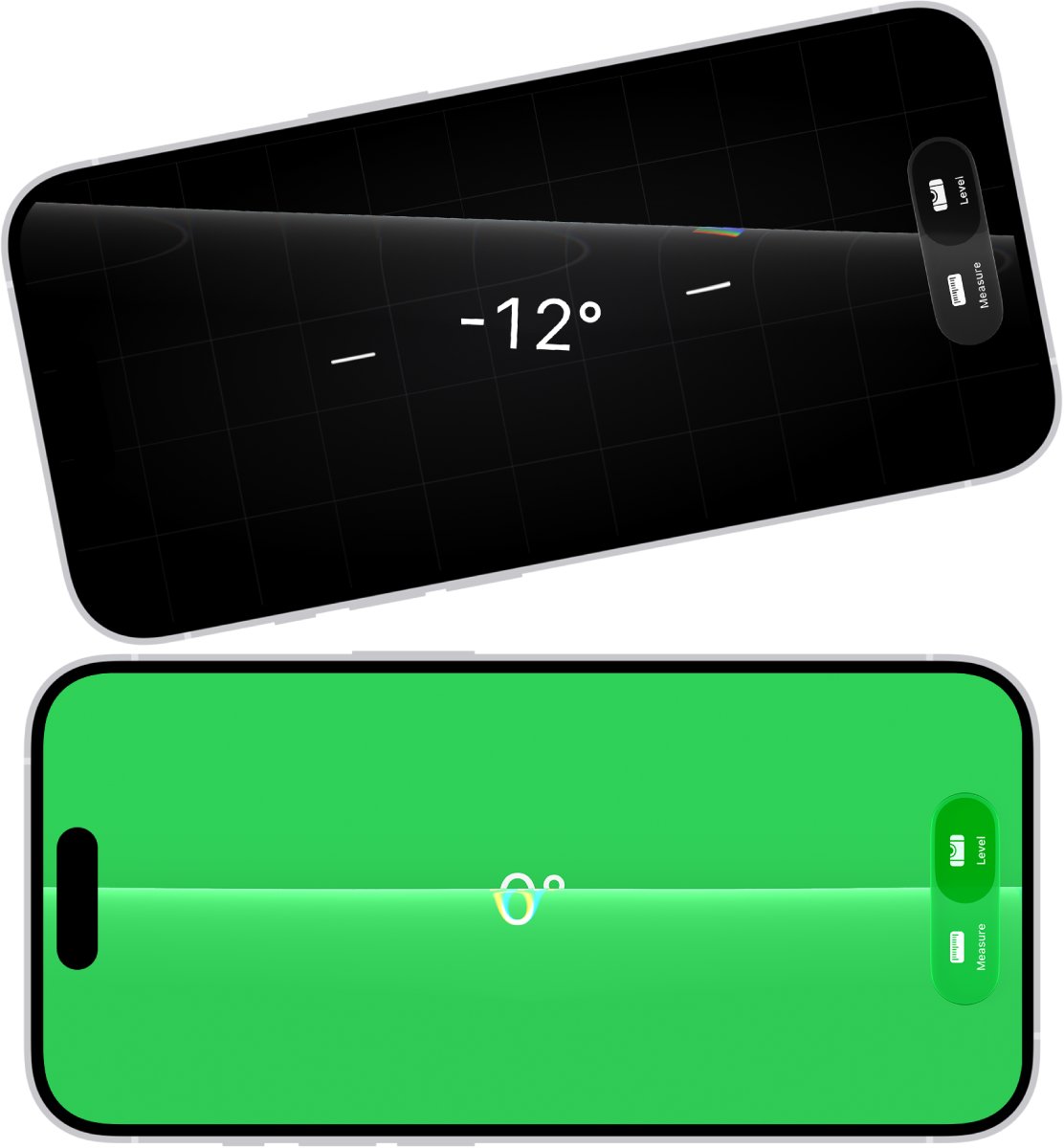
The iPhone may not be detecting orientation changes. The Measure app's level shows whether it does.
- Open the Measure app from the Utilities folder.
- Tap Level, then hold iPhone against an object such as a picture frame.
- Rotate the phone. The reading should change and turn green when the object is level.
- If the level is stuck or does not respond, restart the iPhone.
The screen is still stuck after every check
A restart clears a stuck orientation state.
- Press and hold either volume button and the side button until the power-off slider appears. On iPhone SE, press and hold the side button.
- Drag the slider, then wait 30 seconds for the iPhone to turn off.
- Press and hold the side button until you see the Apple logo.
- Turn the iPhone sideways in Calculator to test rotation again.
If the screen ignores your taps as well, fix the unresponsive touch screen before you test rotation again.
If the buttons or touchscreen still don't respond, you can turn off an iPhone without the screen before you contact Apple Support.
iPhone screen rotation lock FAQ
What if the screen rotation lock icon is missing from the Control Center?
Add it back. Open Control Center, tap the + button at the top left, tap Add a Control and choose Lock Rotation. The button then sits in Control Center with your other controls, where you can drag it to a new spot.
Can I lock the screen in landscape mode?
No. The iPhone rotation lock is a portrait orientation lock, and the status bar icon means the screen is locked in portrait. Apple offers no matching control that holds landscape, so landscape depends on each app and how you hold the phone.
Why won't my home screen rotate?
Check the Lock Rotation button in Control Center first and make sure it is gray. Then test Calculator or Safari. If those turn sideways but the Home Screen does not, the lock is off and the Home Screen layout is simply staying in portrait.
What should I do if my screen still won't rotate after turning off the lock?
Try an app that supports landscape, such as Calculator or Safari. If nothing rotates, open the Measure app, tap Level and tilt the phone to see whether it detects movement. If the level is stuck, restart the iPhone and test again.
How do I know if rotation lock is on?
Look for the orientation lock icon in the status bar, which appears on supported models while the screen is locked in portrait. In Control Center, the Lock Rotation button is red when the lock is on and gray when it is off.
Is the screen rotation lock the same as the screen lock?
No. The rotation lock only stops the screen turning between portrait and landscape. The Lock Screen is what you see when you wake the iPhone, and you can customize the iPhone Lock Screen separately without touching rotation.
Does the rotation lock affect every app on iPhone?
It affects every app that supports rotation. When the lock is on, those apps stay in portrait. When it is off, they follow the way you hold the phone. Apps that only support portrait stay upright either way.
How do I open Control Center on an iPhone with a Home button?
Swipe up from the bottom edge of the screen. On iPhones with Face ID, swipe down from the top-right corner instead. To close it, press the Home button on iPhone SE or swipe up from the bottom center on Face ID models.