Desktop WhatsApp usually opens again after you close it, restart the PC, and then update, repair or reset the app from Windows Settings.
This guide gives 11 fixes in the order Microsoft and WhatsApp recommend, from a quick restart to relinking your phone, plus how to keep chatting in a browser while you work on it.
Method 1: Restart the WhatsApp desktop application
A stuck WhatsApp window or a half-closed background copy is the most common reason the app will not open. Microsoft's first fix for any Store app is to close and reopen it.
- Select the Close (X) button in the upper-right corner of the WhatsApp window, if one is visible.
- Select Start > Power > Restart to clear any copy still running in the background.
- Sign in to Windows, then open WhatsApp from the Start menu.
- Wait for the chat list to load before clicking anything.
How to fix desktop WhatsApp not opening on PC: which fix to try first
First identify which WhatsApp you're using: the WhatsApp desktop app from the Microsoft Store, or WhatsApp Web in a browser tab. For the desktop app, match the symptom to a row in this quick checklist, then jump to that method. Work through the ordered checks from Method 1 if you are not sure.
| What happens | Likely cause | Start with |
|---|---|---|
| Nothing happens when you click the icon | A background copy is stuck | Method 1, then Method 7 |
| The app will not install or start on an older PC | Windows is below WhatsApp's minimum version | Method 2 |
| The window opens but chats never load | No internet, or the linked phone has been offline too long | Methods 3, 4 and 10 |
| It stopped opening after a Windows or app update | Out-of-date or damaged app files | Methods 5, 6 and 7 |
| It opens and closes straight away, or crashes immediately | Corrupted app data | Methods 8 and 9 |
| WhatsApp Web shows a QR code that will not scan, or a blank page | Expired session, unsupported browser or a browser extension | WhatsApp Web fixes below Method 11 |
| You need to send a message right now | Any of the above | Method 11 |
Method 2: Check your PC meets WhatsApp's Windows requirements
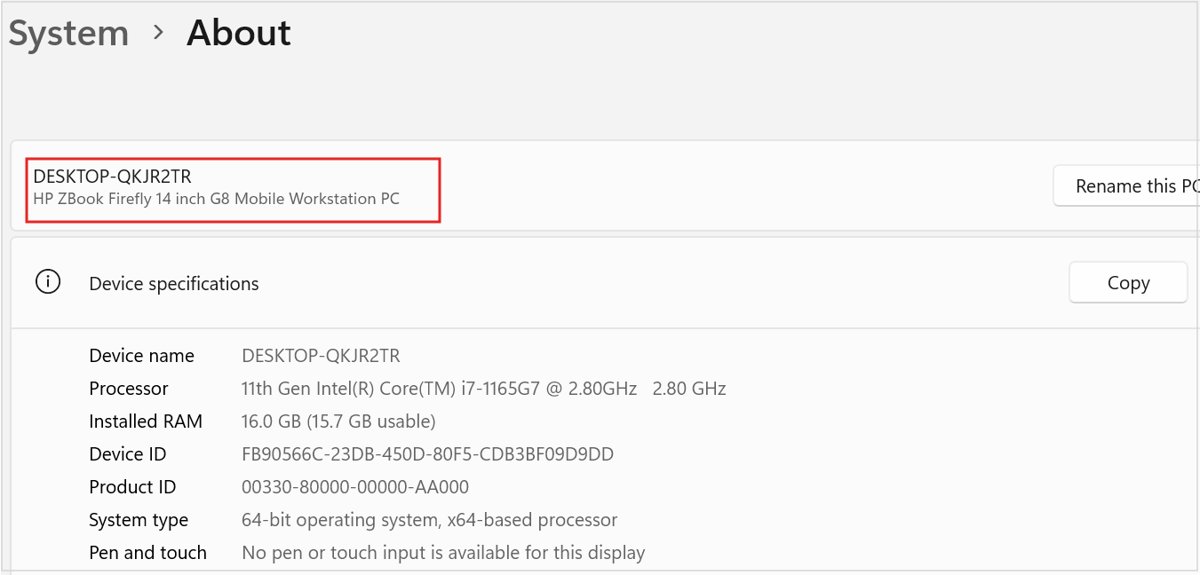
WhatsApp says its desktop app is available for Windows 10.1 64-bit, version 1903 or later. On anything older, or on 32-bit Windows, the app is not supported.
- Right-click Start and select Settings.
- Select System > About.
- Under Windows specifications, check the Edition and Version.
- Under Device specifications, check that System type says 64-bit.
- If your PC is older than Windows 10 version 1903 or runs 32-bit Windows, update Windows or use WhatsApp Web (Method 11).
Method 3: Troubleshoot network connection issues
WhatsApp can open but stay stuck on a loading screen when the PC is offline. A linked computer also logs out if your phone goes unused for more than 14 days.
- Open a website in your browser to confirm the PC is online.
- Turn Wi-Fi off and on from the network icon on the taskbar, or try a different network.
- Restart your modem and router if other devices are offline too.
- Check your phone's connection: open WhatsApp on your phone and confirm it sends and receives messages. If WhatsApp fails on the phone too, the problem is the service status or your connection, not the PC app.
- If you use a VPN, turn it off and reopen WhatsApp to rule it out.
- If your firewall or antivirus shows a blocked-connection alert for WhatsApp, allow WhatsApp in that app's settings instead of turning protection off.
- Check Windows date and time: select Start > Settings > Time & language > Date & time and make sure Set time automatically is On.
- Reopen WhatsApp on the PC.
Method 4: Run the Windows network and internet troubleshooter
If the PC itself cannot get online, the troubleshooter in the Get Help app checks the adapter and connection settings for you.
- Open the Get Help app from the Start menu.
- Type
connect to network and internetin the search bar. - Select Run network diagnostics.
- Complete the troubleshooting steps it gives until the PC connects.
- Reopen WhatsApp.
Method 5: Update Windows
Microsoft lists an up-to-date Windows as one of the first fixes for any Microsoft Store app that misbehaves.
- Select Start > Settings > Windows Update.
- Select Check for updates.
- Select Install now if an update is available.
- Restart the PC when prompted, then open WhatsApp.
If Windows 11 26H2 never appears in Windows Update, fix the missing 26H2 update before you move on.
Method 6: Update the WhatsApp desktop application
WhatsApp for Windows is installed and updated through the Microsoft Store. WhatsApp itself advises keeping the app on linked devices updated, because updates carry bug fixes.
- Select Start, then open Microsoft Store from the apps list.
- Select Library.
- Select Get updates (some versions label it Check for updates).
- Let the WhatsApp update finish installing.
- Open WhatsApp again.
Method 7: Repair the WhatsApp desktop application
Repair fixes app files without removing your data, so try it before Reset.
- Select Start > Settings > Apps > Installed apps.
- Find WhatsApp and select the More (three dots) icon next to it.
- Select Advanced options.
- Select Repair and wait for the check mark.
- Open WhatsApp.
Method 8: Reset the WhatsApp desktop application
Microsoft's next step when Repair is missing or does not help is Reset. It returns the app to a fresh state and is how you clear the WhatsApp desktop app cache and data on Windows, so expect to link it to your phone again afterwards.
- Select Start > Settings > Apps > Installed apps.
- Select the More icon next to WhatsApp, then Advanced options.
- Select Reset and confirm.
- Open WhatsApp and scan the QR code with your phone to link it again.
Method 9: Reinstall the WhatsApp desktop application
A clean reinstall replaces every app file. Your chats stay on your phone, which is the primary device for the account.
- Select Start > Settings > Apps > Installed apps.
- Select the More icon next to WhatsApp, then Uninstall, and confirm.
- Open Microsoft Store and select Library.
- Find WhatsApp and select Install, or open WhatsApp's Microsoft Store page from whatsapp.com/download.
- Open the app and link it to your phone.
Method 10: Relink WhatsApp desktop to your phone
WhatsApp disconnects a linked device after 30 days of inactivity, and a link can also break when the phone is unused for over 14 days. Logging the PC out and linking it again gives it a fresh session.
- Open WhatsApp on your phone and go to Linked devices from the main menu.
- Tap the Windows device in the list, then tap LOG OUT.
- Open WhatsApp on the PC so it shows a QR code.
- Link the PC from Linked devices on your phone by scanning the QR code, or link with your phone number instead.
- Wait for chats to sync on the PC.
Link only through the official WhatsApp app, WhatsApp Web or WhatsApp for Windows and Mac. WhatsApp warns that linking through unofficial apps or websites can get the account banned.
Method 11: Use WhatsApp on the web in your browser
WhatsApp Web runs in a browser and does not depend on the desktop app at all. It is also WhatsApp's own answer for PCs that do not meet the desktop requirements.
- Open your browser and go to
web.whatsapp.com. - Open Linked devices in WhatsApp on your phone.
- Scan the QR code shown in the browser.
- Use WhatsApp in the browser tab while you fix the desktop app.
WhatsApp Web not working: QR code, session expired and browser fixes
WhatsApp Web QR code not scanning or session expired
The code on screen has expired, or the linked session ended after 30 days of inactivity or after the phone went unused for over 14 days.
- Reload
web.whatsapp.comto get a fresh QR code. - On your phone, open Linked devices in WhatsApp and choose to link a device.
- Scan the new code while it is still on screen, or link with your phone number instead.
WhatsApp Web will not load: browser compatibility issues
The browser is older than WhatsApp's minimum supported version.
- Update your browser. WhatsApp Web needs Chrome 100+, Edge 100+, Firefox 115+, Safari 15+ or Opera 86+.
- Try a different supported browser if the page still fails.
- Reload
web.whatsapp.comand link again if asked.
WhatsApp Web loads but behaves oddly after you add browser extensions
An extension can change or block parts of the page.
- In Microsoft Edge, select Extensions to the right of the address bar, then Manage extensions.
- Select the toggle next to each extension to turn it off.
- Reload WhatsApp Web, then turn extensions back on one at a time to find the one that breaks it.
How to check WhatsApp desktop is working again
- Open WhatsApp from the Start menu and confirm the chat list appears.
- Send a test message to yourself or a contact and check it shows on your phone.
- On your phone, open Linked devices and confirm the Windows device is listed.
- Restart the PC once more and confirm WhatsApp still opens.
WhatsApp not opening on PC FAQ
Why is WhatsApp not opening on my laptop?
The usual causes are a stuck background copy, outdated or damaged app files, an unsupported Windows version, or a broken link to your phone. Restart the PC first, then update, repair or reset WhatsApp from Settings.
Can't open WhatsApp on laptop after an update. What should I do?
Update Windows and WhatsApp, then repair the app from Settings > Apps > Installed apps > WhatsApp > Advanced options. If Repair does not help, select Reset there, or reinstall WhatsApp from the Microsoft Store Library.
What Windows version does WhatsApp desktop need?
WhatsApp Desktop needs Windows 10.1 64-bit, version 1903 or later. On older or 32-bit Windows, WhatsApp says to update the operating system or use WhatsApp Web in a browser.
Does WhatsApp on my PC need my phone to be online?
No. Linked devices work without the phone online, but they log out if the phone is unused for over 14 days. WhatsApp also disconnects linked devices after 30 days of inactivity.
Will resetting or reinstalling WhatsApp on my PC delete my chats?
Your account and chats stay on your phone, the primary device. After a reset or reinstall you link the PC again, and the desktop app syncs from the phone.
Where do I download WhatsApp for Windows?
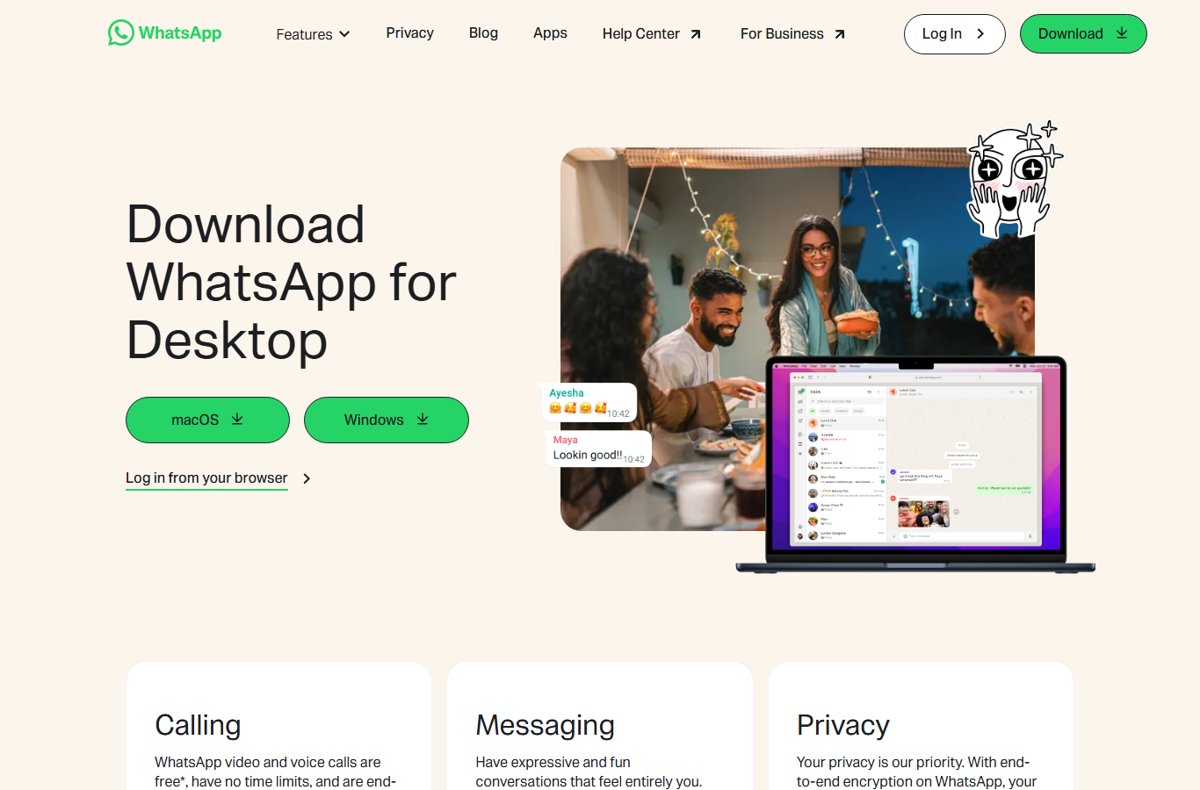
WhatsApp distributes its Windows app through the Microsoft Store. Open the Store, search for WhatsApp, and install it, or follow the link on whatsapp.com/download. Avoid third-party download sites.
Can I use WhatsApp on my laptop without the desktop app?
Yes. Go to web.whatsapp.com in your browser and scan the QR code from Linked devices on your phone. WhatsApp Web works on any supported browser while the desktop app is broken.
The bottom line on WhatsApp desktop not opening
Restart the PC, confirm Windows 10 64-bit version 1903 or later, then update, repair and reset WhatsApp in that order; reinstall and relink only if those fail. Most launch failures come from a stuck process or damaged app files, which the quick Windows fixes clear without touching your chats, and WhatsApp Web keeps you messaging in the meantime.