When FaceTime calls open Snapchat for one contact only, that contact card has Snapchat saved as its default video or call option: open the contact, touch and hold the video button below the name, and tap the FaceTime entry in the list.
This guide covers the contact card fix, the two default calling app settings on iPhone, ways to start FaceTime that never route through Snapchat, and what to do when FaceTime calls still fail.
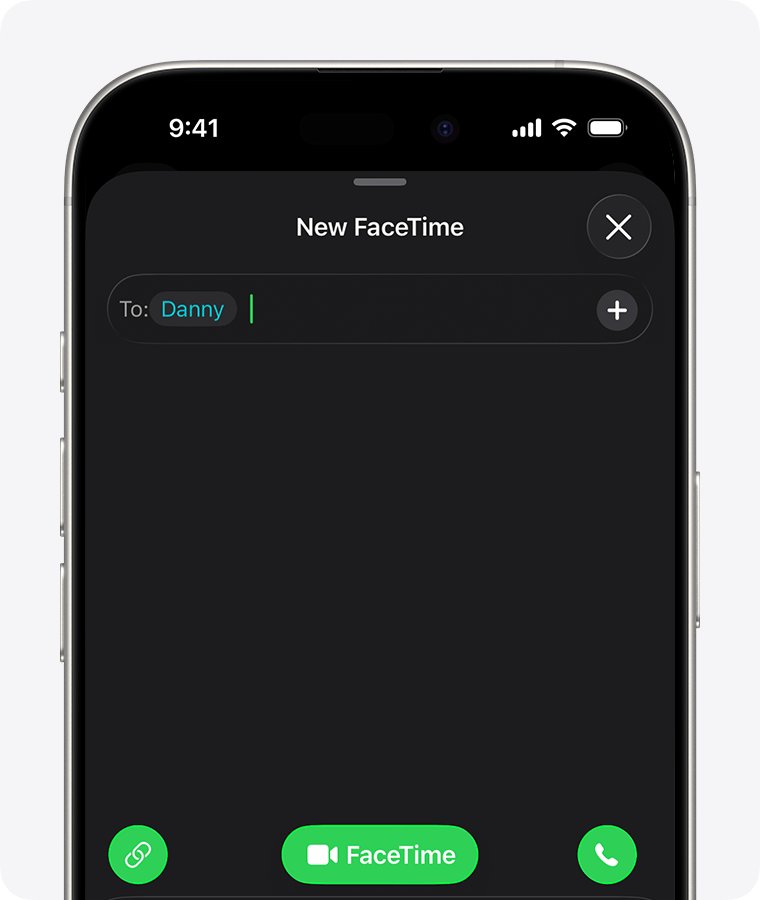
How to stop FaceTime calls opening Snapchat for one contact
The buttons under a contact's name remember which number, address or app you picked for that method. A choice made once for one person stays with that card, which is why only one contact is affected.
- Open the Contacts app on your iPhone.
- Tap the contact whose calls keep opening Snapchat.
- Touch and hold the video button below the contact's name until a list appears.
- Tap the FaceTime entry with the phone number or email address you want to call.
- Touch and hold the call button too, and pick the phone number or FaceTime Audio entry if audio calls also open Snapchat.
- Tap the video button once to test it. The FaceTime app should start the call.
The Settings change suggested on many forums, Default Calling App under FaceTime, only sets the option for audio calls. It does not change the saved choice on a single contact card, so it can be set correctly while one contact still opens Snapchat.
Why does FaceTime default to Snapchat for a specific contact?
Match where the call starts to the row below. Each place stores its own choice.
| Where you start the call | What decides the app | Fix |
|---|---|---|
| Video or call button on the contact card | The option saved for that contact method | Touch and hold the button and tap the FaceTime entry |
| The contact in the Phone app Favorites list | The entry created when the favorite was added | Remove the favorite and add it again from the contact card with FaceTime |
| Any contact, not just one | Calling in Settings > Apps > Default Apps | Select Apple's Phone app there |
| Audio calls only | Default Calling App in Settings > Apps > FaceTime | Choose the calling option you want for audio calls |
| The FaceTime app itself | Nothing else; FaceTime always places the call | Start the call from New Call in FaceTime |
FaceTime default calling app setting on iPhone
FaceTime has its own default calling option for audio calls. Check it first if both audio and video calls misbehave.
- Open the Settings app on your iPhone.
- Tap Apps, then tap FaceTime.
- Make sure the FaceTime switch is on.
- Tap Default Calling App.
- Choose the default calling option you want for audio calls, then go back.
This screen also sets whether people reach you by phone number, email address or both, under You can be reached by FaceTime at.
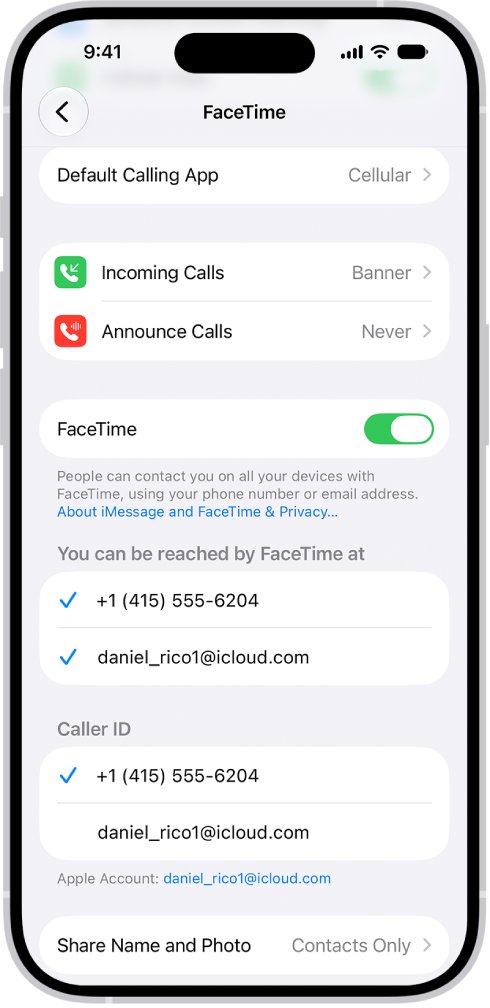
How to change the default calling app on iPhone
iPhone also has a system-wide default for making and receiving calls. If a third-party app is selected here, it can take over calls from every contact, not only one.
- Open the Settings app.
- Tap Apps, then tap Default Apps.
- Tap Calling.
- Select Apple's Phone app if another app is selected.
- Go back to the contact card and test the video button again.
The same Default Apps screen holds Messaging, Email and Browser App. Only apps that support the feature appear in each list.
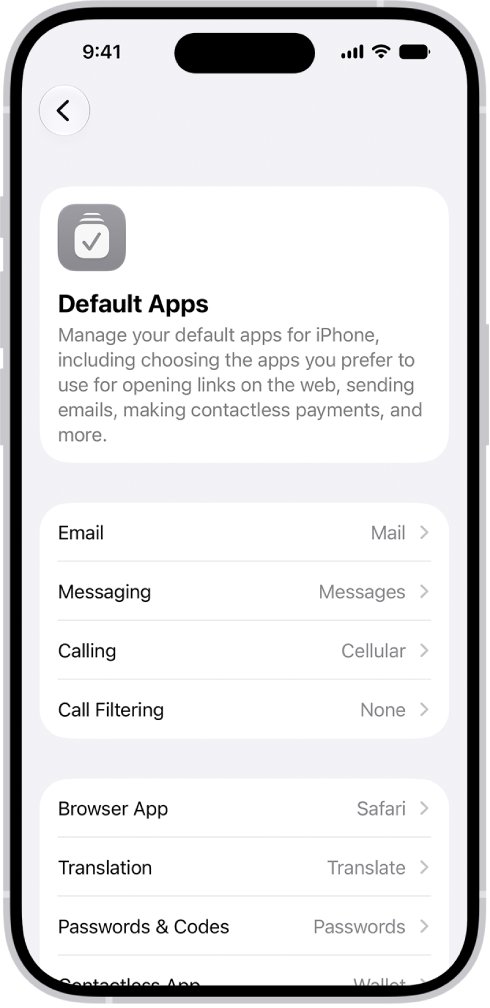
How to FaceTime a contact without opening Snapchat
Starting the call inside FaceTime or Messages skips the contact card buttons, so Snapchat cannot take over the call.
- Open the FaceTime app on your iPhone.
- Tap New Call.
- Type the contact's name, number or email address, or tap a suggested contact.
- Tap FaceTime for a video call, or the phone button for an audio call.
- From an iMessage conversation instead, tap the video button at the top right, then tap FaceTime Audio or FaceTime Video.
To call the same person again, tap their name in FaceTime's list of recent calls on your iPhone, then tap the Call or Video button.
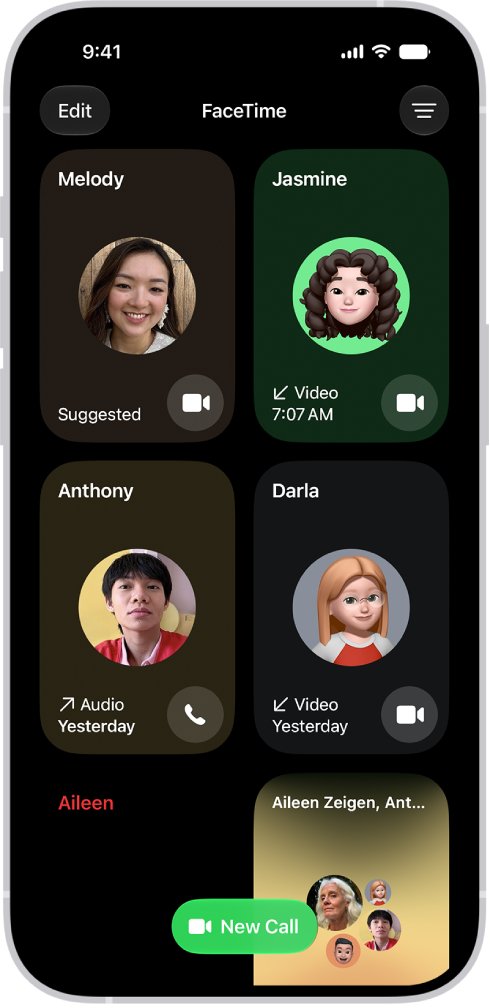
How to FaceTime with Android users
Snapchat is not a bridge to FaceTime. To reach a friend on Android or Windows through FaceTime, send a FaceTime link that opens in a web browser.
- Open the FaceTime app.
- Tap New Call, then tap the link button.
- Choose Messages or Mail and send the link.
- Ask your friend to open the link in the latest Google Chrome or Microsoft Edge.
People without an Apple device need no login to join, but the browser must support WebRTC, and sending video needs H.264 support. You can also use FaceTime on a Windows computer the same way.
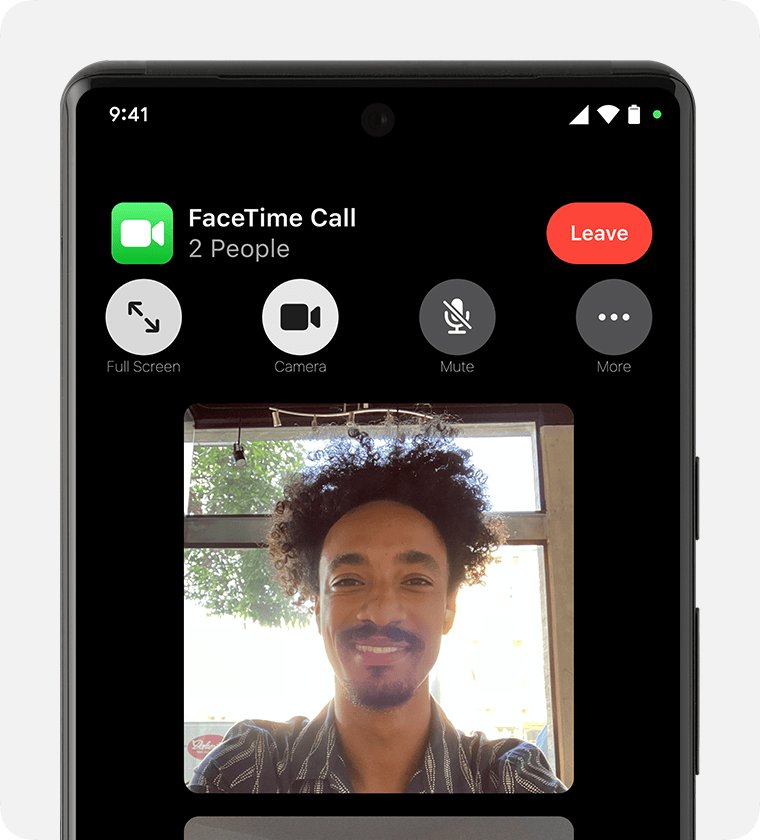
How to tell which app a contact's FaceTime button uses
Test from each place you call the person from, because each one keeps its own setting.
- Open the contact in Contacts and touch and hold the video button to see the list of options for that method.
- Tap FaceTime in that list if anything else is in use.
- Tap the video button and check that the FaceTime call screen opens with the contact's name.
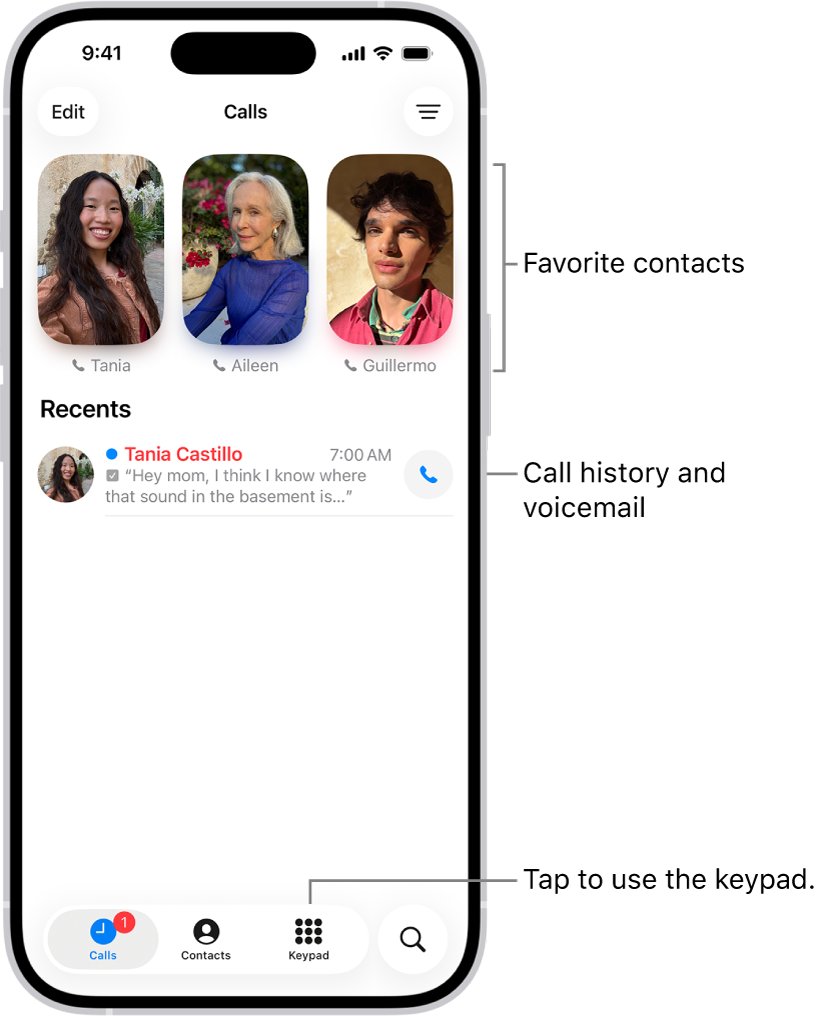
- Open the Phone app, tap Favorites, and tap the contact if they are there.
- If Favorites still opens Snapchat, remove that entry and add the contact to Favorites again from their contact card.
Can't make FaceTime calls on iPhone
Pick the symptom that matches what happens when you call.
FaceTime still opens Snapchat for that contact
The call starts from a Favorites entry or a second contact card that kept the old choice.
- Search Contacts for the person's number to find a duplicate card.
- Touch and hold the video button on each card and tap the FaceTime entry.
- Remove the contact from Favorites in the Phone app and add them again from the contact card.
- Start the next call from New Call in the FaceTime app to confirm FaceTime itself works.
FaceTime option is missing from the contact card
The FaceTime app was removed, so contact cards and Settings no longer show FaceTime options.
- Open the App Store and search for FaceTime.
- Download the app again.
- Open Settings > Apps > FaceTime and turn FaceTime on.
- Return to the contact card and check for the FaceTime entry under the video button.
FaceTime calls fail on cellular data
FaceTime is turned off for cellular data, so calls only work on Wi-Fi.
- Open Settings and tap Cellular.
- Scroll to the list below Cellular Data.
- Turn on FaceTime.
- Call the contact again from the FaceTime app.
FaceTime won't connect to anyone
FaceTime is off or not signed in, or the contact method you call is not registered.
- Go to Settings > Apps > FaceTime and turn FaceTime on.
- Sign in with your Apple Account if a sign-in screen appears, or use FaceTime with just your phone number.
- Check the numbers and addresses below You can be reached by FaceTime at.
- Try calling the contact's other number or email address from their contact card.
FaceTime and Snapchat calls FAQ
Can you FaceTime on Snapchat?
No. FaceTime is Apple's own calling app, and a Snapchat call is a separate call inside Snapchat. If a contact card opens Snapchat, touch and hold its video button and tap the FaceTime entry to switch back.
Does Snapchat have FaceTime?
No. Snapchat has its own voice and video calling, which is why it can appear in the options under a contact's call and video buttons. It does not use FaceTime in any way.
How to FaceTime with Android using Snapchat?
You cannot start FaceTime through Snapchat. In the FaceTime app, tap New Call, tap the link button and send the link by Messages or Mail. Your Android friend opens it in the latest Chrome or Edge and joins without logging in.
How to screen share Snapchat on FaceTime?
Start a FaceTime call, tap the screen to show the controls, tap the sharing button, then tap Screen Sharing and Share My Screen. After the 3-to-1 countdown, open Snapchat and the other person sees your screen.
Why can't I make FaceTime calls?
FaceTime is often turned off, signed out, or blocked from cellular data. Check Settings > Apps > FaceTime and Settings > Cellular > FaceTime. If FaceTime options vanished from contact cards, the FaceTime app was removed and you need to download FaceTime again.
Is there FaceTime or Snapchat for computers?
A Windows PC can join a FaceTime call through a FaceTime link opened in Chrome or Edge, with no Apple Account needed. Snapchat calls stay inside Snapchat and never connect to FaceTime.
How do I change the FaceTime default calling app?
Go to Settings > Apps > FaceTime, tap Default Calling App, and choose the option for audio calls. For the system-wide default, go to Settings > Apps > Default Apps > Calling instead.
Why is FaceTime defaulting to Teams?
The cause is the same as with Snapchat: the contact card's button or the Calling default has Teams selected. Touch and hold the contact's video button and tap FaceTime, then check Settings > Apps > Default Apps > Calling.