To fix a webcam that is not working in Windows 11 or Windows 10, first turn on Camera access and Let desktop apps access your camera in privacy settings, then reinstall the driver in Device Manager or reset the Camera app.
This guide covers each fix in order, the Windows 10 paths, app and browser permissions, a system file scan, and what the common Camera app error codes mean.
Check Windows privacy permissions (most common fix)
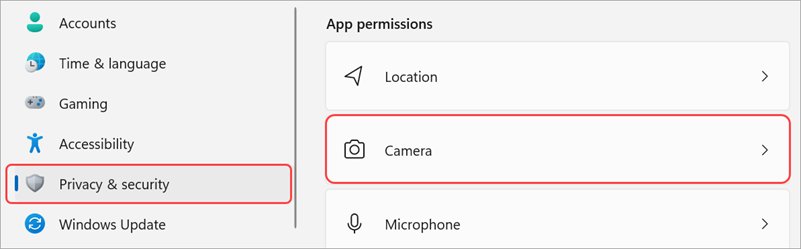
A camera switched off in privacy settings looks exactly like a broken webcam. Desktop apps such as Microsoft Edge, Zoom and Microsoft Teams need the desktop apps toggle on.
- Select Start > Settings > Privacy & security > Camera.
- Turn on Camera access. If the switch is greyed out, an administrator has to turn it on.
- Turn on Let apps access your camera, then switch on the Microsoft Store apps that should use it.
- Turn on Let desktop apps access your camera.
- Close and reopen the app that could not see the camera.
On Windows 10, the page is Start > Settings > Privacy > Camera. Select Change under Allow access to the camera on this device and turn on Camera access for this device, then turn on Allow apps to access your camera and Allow desktop apps to access your camera.
Prerequisites for fixing a webcam in Windows 10/11
| What you need | Why |
|---|---|
| An administrator account | Enabling a disabled camera, changing drivers and running DISM or SFC need admin rights |
| The camera's make and model | Driver downloads and legacy-driver checks depend on it |
| Windows 11 version 24H2 or later for basic camera mode | The Advanced camera options that hold it arrive in 24H2 |
| A second USB port or PC for external webcams | Separates a dead camera or cable from a Windows problem |
Windows 10 support ended on October 14, 2025, so camera driver and app fixes now target Windows 11 first.
Step-by-step: Fix the webcam in Windows 10/11
Work down the list in this order. Each fix takes a minute or two, and the cheap checks come first.
| What you see | Start with | Section |
|---|---|---|
| Black preview or no camera in any app | Physical switch, shutter or cable | 1 |
| Camera works in one app but not another | App-specific permissions | 6 |
| Error says the camera is in use | Close apps holding the webcam | 2 |
| Camera missing from Device Manager or after an update | Driver roll back or reinstall | 4 |
| Camera app itself crashes or freezes | Repair or reset the Camera app | 5 |
| Several devices misbehave at once | Troubleshooter, DISM and SFC | 7 |
1) Confirm the camera isn't blocked physically (fast check)
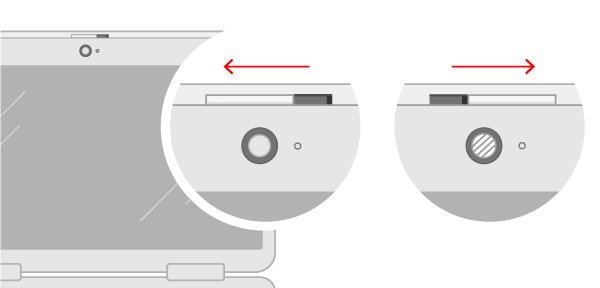
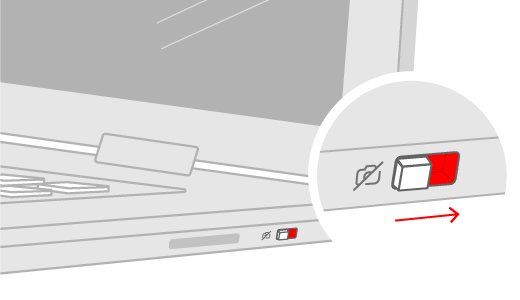
- Look for a slider shutter over the lens at the top of the screen and open it.
- Check the side of the laptop for a sliding camera switch.
- Look for a camera key or an Fn-key combination on the keyboard that turns the camera off and on.
- For an external webcam, push the USB plug in firmly and try a different USB port.
- Test the external webcam on another PC to rule out a hardware fault.
2) Close apps that might be "holding" the webcam
A webcam already in use by one app can refuse another. Errors 0xA00F4243, 0xA00F4289 and 0x80070005 usually mean another app already has it.
- Close video apps such as Teams, Zoom, Skype and browser tabs with video calls.
- Press Ctrl + Shift + Esc to open Task Manager.
- Right-click any remaining app that uses the camera and select End task.
- Open the app you need and test the camera again.
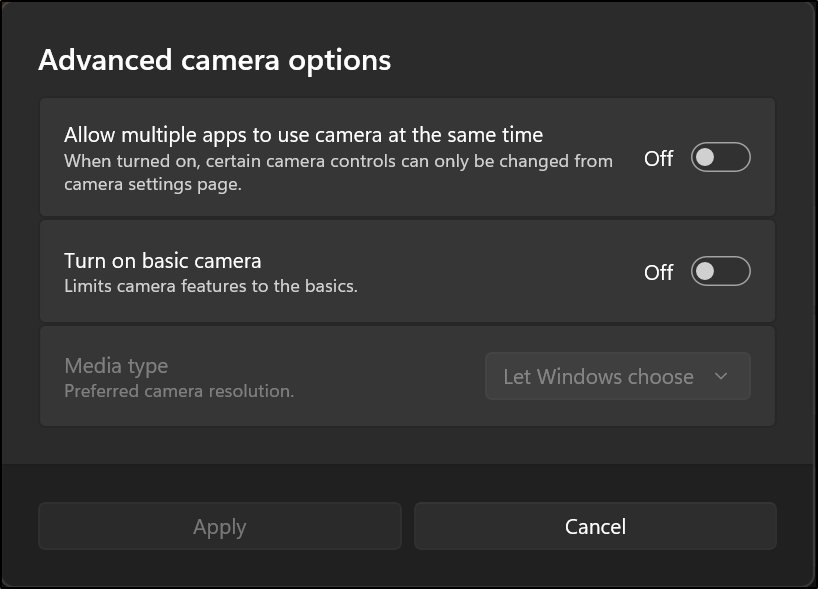
On Windows 11 24H2 or later, turning on basic camera mode also turns on multi-app camera mode, which lets more than one app share the camera.
3) Test the webcam using the built-in Camera app
- Select Start and open Camera.
- Check whether a live preview appears.
- If the preview works, the webcam and driver are fine, so fix the other app's settings (section 6).
- If the preview fails, note any error code and match it in the error code section below.
If the camera itself is switched off in Windows, you can turn on the camera in Windows 11 from Bluetooth & devices > Cameras.
4) Fix or reinstall the webcam driver in Device Manager
Driver problems are the usual cause after a Windows update. Roll back first, then reinstall.
- Select Start, type device manager and open it.
- Expand Cameras, Imaging devices or Sound, video and game controllers and find the webcam. If it is missing, select Action > Scan for hardware changes.
- If the camera shows Enable device on right-click, select it.
- To roll back, right-click the camera, select Properties > Driver > Roll Back Driver > Yes, then restart.
- If roll back is unavailable, right-click the camera, select Properties > Driver > Uninstall Device, tick Attempt to remove the driver for this device and select OK.
- Select Action > Scan for hardware changes, restart the PC and test again.
- Install camera drivers offered under Settings > Windows Update > Advanced options > Optional updates, or from the manufacturer's site.
For an external USB webcam, you can switch to the Windows UVC driver: right-click it, select Update driver > Browse my computer for drivers > Let me pick from a list of available drivers on my computer, choose USB Video Device and select Next. The in-box driver can disable features such as Windows Hello face recognition.
On Windows 10 the uninstall box reads Delete the driver software for this device. If Driver Details lists a file named stream.sys, the camera predates Windows 7 and needs replacing.
5) Reset or repair the Camera app (Windows 10/11)
Try Repair first and use Reset only when Repair is missing or does not help. Some apps show only one of the two buttons.
- On Windows 11, select Start > Settings > Apps > Installed apps.
- Find Camera, select the More (three dots) icon and select Advanced options.
- Select Repair and test the Camera app.
- If it still fails, return to the same page and select Reset.
- On Windows 10, select Start > Settings > Apps > Apps & features, select Camera, then Advanced options, and use Repair or Reset the same way.
6) Check app-specific camera permissions (Teams/Zoom/Browsers)
When the Camera app works but a meeting app does not, the block sits inside that app or browser.
- In Settings > Privacy & security > Camera, turn on the app by name, such as Microsoft Teams (work or school); if it is already on, turn it off and on.
- In Teams, open Settings > Devices and select Make a test call to check the camera.
- In Zoom and other desktop apps, pick the correct webcam in the app's video settings and confirm Let desktop apps access your camera is on.
- In Microsoft Edge, open Settings > Privacy, search, and services > Site permissions > All permissions > Camera and turn on Ask before accessing (recommended).
- In Google Chrome, open Settings > Privacy and security > Site settings > Permissions > Camera, select your webcam in the dropdown and choose Sites can ask to use your camera.
- Reload the meeting page and allow the camera prompt.
7) Run Windows troubleshoot checks (quick system integrity pass)
Run the camera troubleshooter first, then repair Windows system files if several devices or apps misbehave.
- On Windows 11, select Start > Settings > System > Troubleshoot > Other troubleshooters, then select Run next to Camera.
- On Windows 10, select Start > Settings > Update & Security > Troubleshoot, then Camera > Run the troubleshooter.
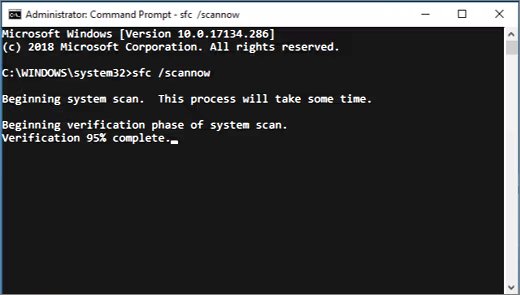
- Type cmd in Search, right-click Command Prompt and select Run as administrator.
- Run
DISM.exe /Online /Cleanup-image /Restorehealthand wait for it to finish. - Run
sfc /scannowand leave the window open until verification reaches 100%. - Restart with Start > Power > Restart; sleep is not a restart.
"Windows Resource Protection did not find any integrity violations" means system files are fine, so the cause is the camera, its driver or an app.
8) If it still doesn't work: isolate the cause
| Test result | Likely cause | Next move |
|---|---|---|
| Fails on this PC and on another PC | Webcam or cable hardware | Replace the webcam or contact the maker |
| Works on another PC, not on this one | Driver, policy or Windows setting | Driver reinstall, UVC driver, basic camera mode |
| Camera access greyed out | Group policy or work management | Ask your IT admin; error 0xA00F4292 points here too |
| Works in Camera app only | App or browser permission | Section 6 |
| Stopped after a Windows update | New driver | Roll back the driver in section 4 |
To try basic camera mode on Windows 11 24H2 or later, open Settings > Bluetooth & devices > Cameras, select the camera, select Edit under Advanced camera options and turn on basic camera. It turns off hardware acceleration and manufacturer plug-ins.
Webcam settings paths in Windows 11 and Windows 10
| Setting | Windows 11 | Windows 10 |
|---|---|---|
| Camera privacy | Settings > Privacy & security > Camera | Settings > Privacy > Camera |
| Repair or reset Camera app | Settings > Apps > Installed apps > Camera > Advanced options | Settings > Apps > Apps & features > Camera > Advanced options |
| Camera troubleshooter | Settings > System > Troubleshoot > Other troubleshooters | Settings > Update & Security > Troubleshoot |
| Optional driver updates | Settings > Windows Update > Advanced options > Optional updates | Settings > Update & Security > Windows Update > View optional updates |
| Enable, disable or basic mode | Settings > Bluetooth & devices > Cameras | Device Manager only |
Check the webcam works in Windows
- Open the Camera app and confirm a live preview with no error code.
- On Windows 11, open Settings > Bluetooth & devices > Cameras and confirm the webcam is under Connected cameras, not Disabled cameras.
- Start a test call in Teams or your meeting app and confirm your video shows.
- Open a browser video call and confirm the site can use the camera.
Windows Camera app error codes and fixes
0xA00F4244 NoCamerasAreAttached
Windows cannot see a camera, often because it is unplugged or disabled.
- Check the cable, switch and shutter.
- In Device Manager, right-click the camera and select Enable device if shown.
- Check the privacy settings in the first section.
0xA00F4243, 0xA00F4289 or 0x80070005
Another app is using the camera, or permissions block it.
- End competing apps in Task Manager with End task.
- Recheck Camera access and the app's own toggle.
- Check whether your security software has a webcam protection setting and allow the app there.
0xA00F4246
Security software is blocking camera access.
- Open your security app's webcam or privacy protection settings.
- Allow the Camera app or the app you need.
- Update the security software to its latest version.
0x800705AA
Resources are tied up or the driver needs updating.
- Close other apps and restart the PC.
- In Device Manager, right-click the camera and select Update driver > Search automatically for drivers.
0x80070490 or 0x80004005
The camera driver is damaged.
- Run the Camera troubleshooter.
- Uninstall the camera in Device Manager and remove its driver software.
- Restart and let Windows reinstall the driver, then update it.
Black screen or blurry video
An outdated driver, a dirty lens or the wrong resolution.
- Update the camera driver.
- Clean the lens.
- Change the video resolution in the app you use.
Webcam tips and troubleshooting notes
| Note | Why it matters |
|---|---|
| Only Microsoft Store apps appear in the per-app camera list | Desktop apps share one Let desktop apps access your camera switch |
| Disabling one camera can disable others on the same hardware | Check Disabled cameras on the Cameras page |
| Basic camera mode stops Windows Studio Effects | Turn it off again once the cause is found |
| The UVC driver can disable Windows Hello face recognition | Use the maker's driver if you sign in with your face |
| 0xC00D7167 | Restart the PC; it clears this error |
| 0xA00F4292 | A policy blocks the camera; contact your IT admin |
Windows webcam not working FAQ
Why is my webcam not working in Windows 11?
The most common cause is camera privacy settings. Open Settings, Privacy & security, Camera and turn on Camera access, Let apps access your camera and Let desktop apps access your camera, then reopen the app.
Why does my camera work in the Camera app but not in Teams or Zoom?
The webcam and driver are fine, so the block is in that app. Turn on Let desktop apps access your camera, pick the right camera in the app's settings, and close any other app holding the camera.
How do I reinstall a webcam driver in Windows?
In Device Manager, right-click the camera, select Properties, Driver, Uninstall Device, tick the remove driver box and select OK. Then select Action, Scan for hardware changes and restart so Windows reinstalls it.
How do I reset the Camera app in Windows 11?
Open Settings, Apps, Installed apps, select the three dots next to Camera and choose Advanced options. Select Repair first; if the app still fails, return to the same page and select Reset.
Why is Camera access greyed out in Windows?
An administrator or policy has turned the camera off for the device. On a work PC, contact your IT admin; error 0xA00F4292 also points to a group policy block.
What is basic camera mode in Windows 11?
It is a troubleshooting option in Windows 11 24H2 and later that turns off hardware acceleration and manufacturer plug-ins. Turn it on under Settings, Bluetooth & devices, Cameras, Advanced camera options.
My webcam stopped working after a Windows update. What should I do?
Roll back the camera driver in Device Manager from Properties, Driver, Roll Back Driver, then restart. If that option is unavailable, uninstall the device and scan for hardware changes.