To factory reset a Microsoft Surface, open Settings > System > Recovery, select Reset PC, choose Remove everything, then pick Cloud download.
This guide covers that route, the reset from the sign-in screen when you cannot log in, the USB recovery drive for a Surface that will not start, Surface Hub, and fixes when the reset fails.
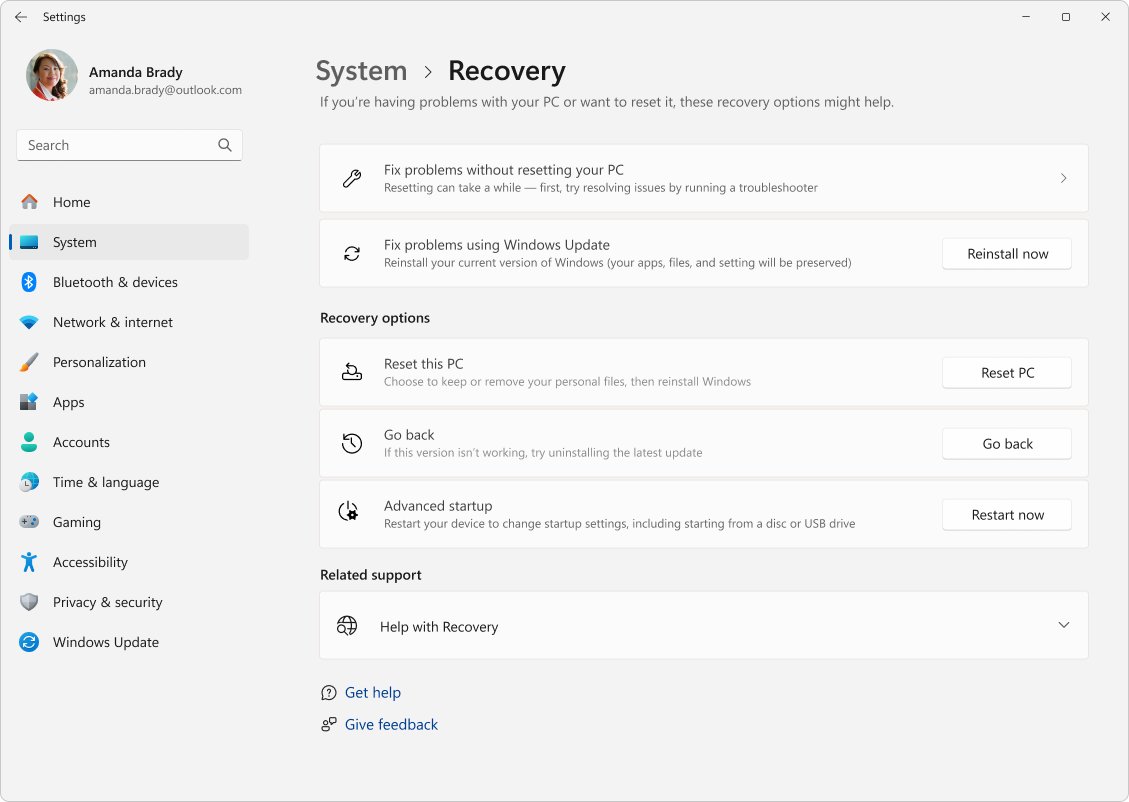
How to factory reset a Microsoft Surface via Windows Settings
These steps apply to Surface Pro, Surface Laptop, Surface Go, Surface Book and Surface Studio running Windows 11. Plug the Surface into power before you start.
- Select Start > Settings > System > Recovery.
- Next to Reset this PC, select Reset PC.
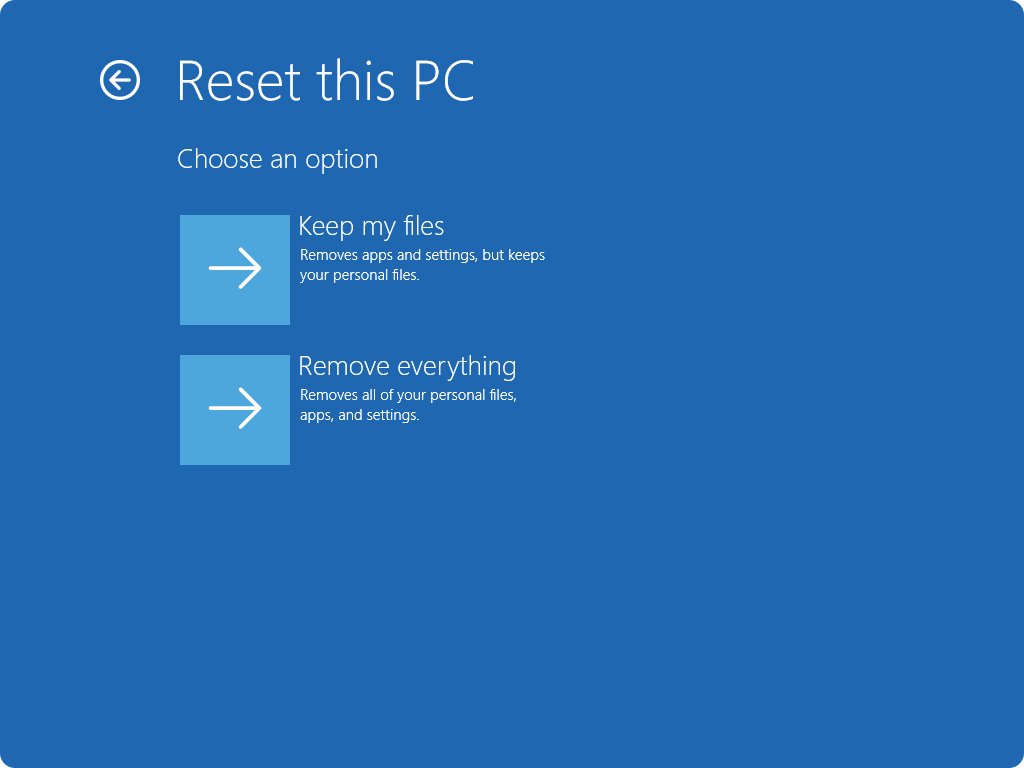
- Choose Keep my files to reinstall Windows but keep your documents, or Remove everything for a full factory reset.
- If you are selling or giving away the Surface, turn on the option to clean the drive when the wizard offers it.
- Select Cloud download (Microsoft's recommendation, needs internet) or Local reinstall.
- Confirm the summary and start the reset, then leave the Surface alone until it restarts into Windows setup.
On Windows 10, the same reset sits under Start > Settings > Update & Security > Recovery, where you select Get started under Reset this PC. The Windows 10 factory reset works the same way on a Surface as on any other PC.
Which reset method should you use?
| Your situation | Use this | Why |
|---|---|---|
| Surface works and you can sign in | Settings > System > Recovery > Reset PC | Fastest, keeps files if you want |
| You forgot the password or cannot get past the sign-in screen | Shift + Restart from the sign-in screen | Reaches Reset this PC without signing in |
| Surface keeps failing to start or boot-loops | Advanced startup through Automatic Repair | Windows RE opens after repeated failed starts |
| Windows is too damaged for any reset option | USB recovery drive | Reinstalls the factory image from Microsoft |
| Selling, donating or sending the Surface for replacement | Remove everything with the drive cleaned, or Fully clean the drive on USB recovery | Makes removed files harder to recover |
| Surface Hub 2S or Surface Hub 3 | Hub reset or Hub recovery image | Hub uses its own recovery images and steps |
What happens when you factory reset a Surface?
Every reset reinstalls Windows. What survives depends on the option you pick.
| Option | Personal files | Apps you installed | Settings | Apps that came with the Surface |
|---|---|---|---|---|
| Keep my files | Kept | Removed | Reset | Reinstalled |
| Remove everything | Removed | Removed | Reset | Reinstalled |
| Remove everything + clean the drive | Removed and harder to recover | Removed | Reset | Reinstalled |
| USB recovery drive | Removed | Removed | Reset | Factory image restored |
Microsoft notes that its data erasure is aimed at consumers and does not meet government and industry data erasure standards.
Before you reset: a quick checklist
| Item | Why you need it |
|---|---|
| A backup of your files | Remove everything and USB recovery delete personal files |
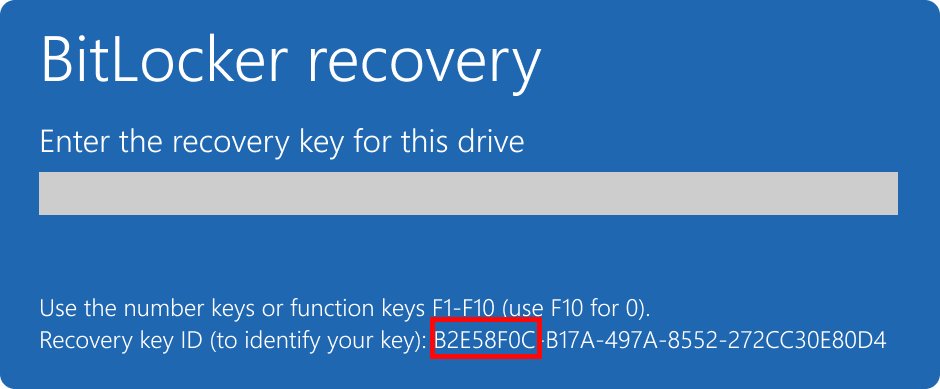
| Your BitLocker recovery key | A reset from Windows RE can ask for the 48-digit key; find it at aka.ms/myrecoverykey |
| Your Microsoft account password | You sign in again during Windows setup |
| Product keys and installers for desktop apps such as Microsoft Office | Apps you installed are removed |
| The charger plugged in | A clean reset can take an hour or two |
| Pending Windows updates installed | Microsoft says updating first can make the reset more reliable |
| Your Surface serial number and a 32 GB USB drive | Only for the USB recovery drive route |
How to factory reset a Surface from the sign-in screen
Use this route to factory reset a Microsoft Surface without login, for example after a forgotten password. The Surface may ask for the BitLocker recovery key once it restarts.
- Press Windows logo key + L to reach the sign-in screen, and dismiss the lock screen if needed.
- Hold down Shift while you select Power > Restart in the lower-right corner.
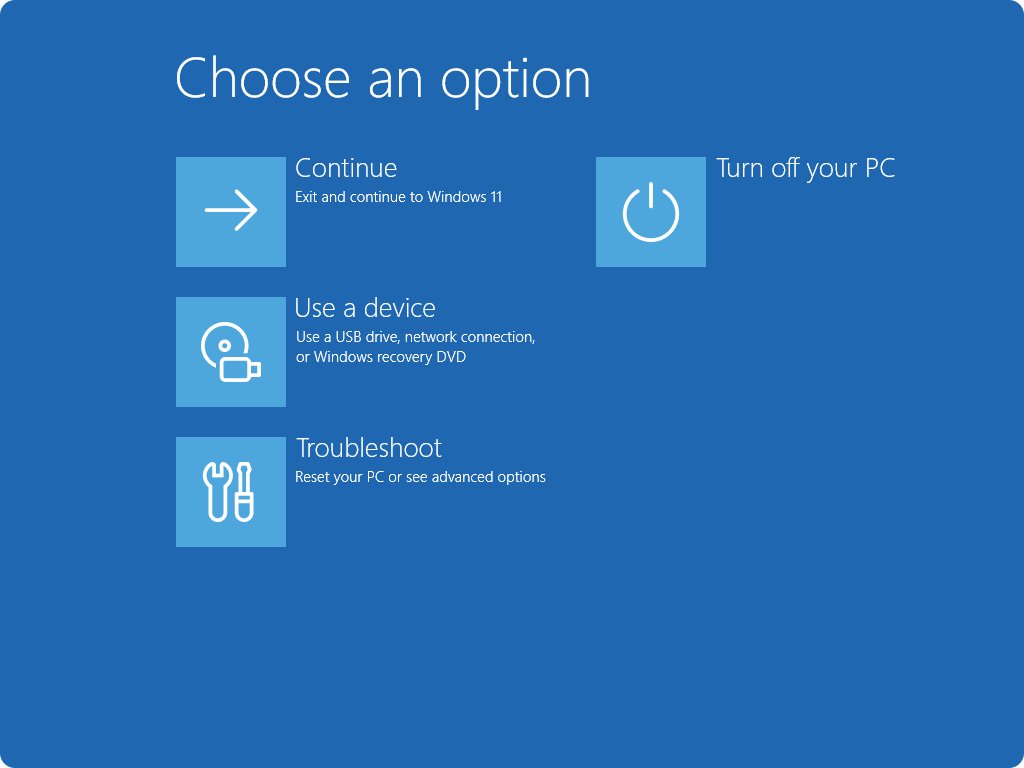
- Wait for the Surface to restart to the Choose an option screen.
- Select Troubleshoot > Reset this PC.
- Choose Keep my files or Remove everything.
- Enter the BitLocker recovery key if asked, then select Cloud download or Local reinstall and start the reset.
Reset via Advanced Startup when the Surface boot-loops
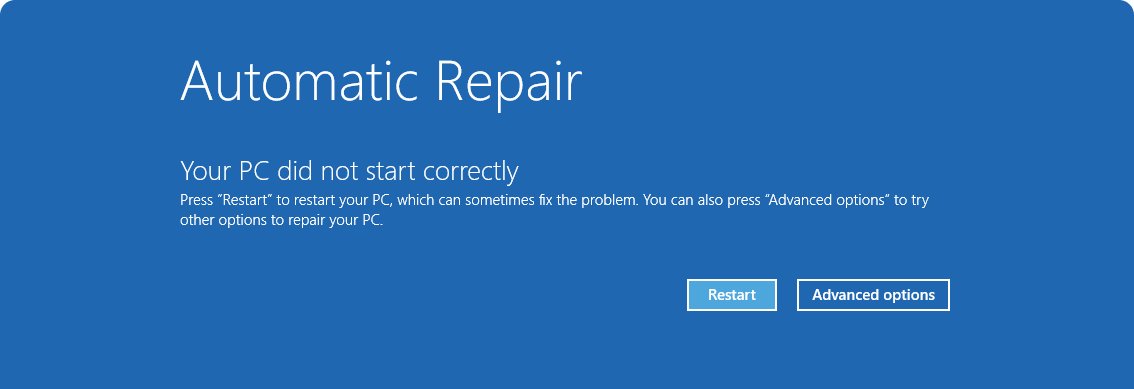
If Windows fails to start several times in a row, it opens Windows Recovery Environment on its own. You can force that when the Surface never reaches the sign-in screen.
- Turn on the Surface and wait for the Windows or Surface logo.
- As soon as the logo appears, press and hold the power button until the Surface shuts down.
- Turn it on and repeat the forced shutdown once more.
- Turn it on a third time and wait for the Automatic Repair screen.
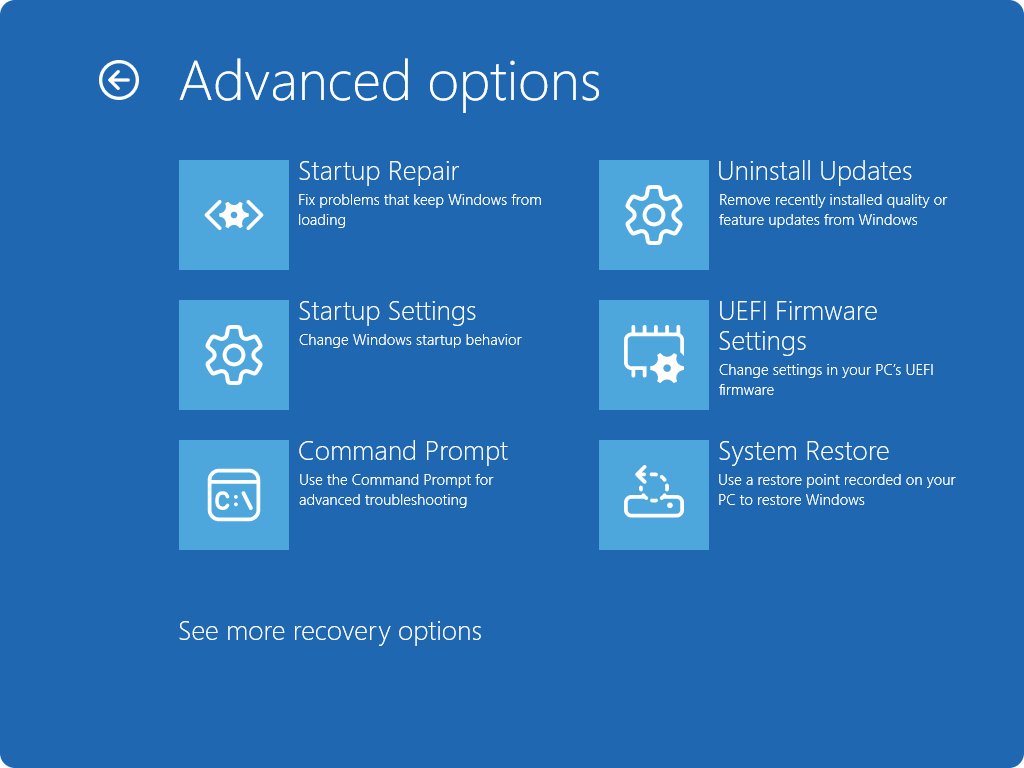
- Select Advanced options > Troubleshoot > Reset this PC.
- Choose Remove everything or Keep my files and follow the prompts.
If Reset this PC fails or is missing here, move on to the USB recovery drive.
How to create a Surface USB recovery drive
Create the drive on any working Windows PC. You need your Surface serial number, a Microsoft account sign-in on the Surface Recovery Image Download page, and a USB drive with at least 32 GB that you can erase.
- Download the recovery image .zip for your Surface model from the Surface Recovery Image Download page; pick the most recent version if several are listed.
- Insert the USB drive, select Start, type recovery drive, and select Create a recovery drive.
- Select Yes in the User Account Control box.
- Clear Back up system files to the recovery drive, then select Next.
- Select your USB drive, then Next > Create, and select Finish when it is ready.
- Open the downloaded .zip, copy all its files to the USB drive, and select Replace the files in the destination.
- Eject the drive with Safely Remove Hardware and Eject Media.
How to reset a Microsoft Surface using a USB recovery drive
This returns the Surface to factory settings even when Windows will not start. It deletes all personal files, settings and installed apps.
- Turn off the Surface, plug it in, and insert the USB recovery drive. Remove any other USB devices.
- Press and hold the volume-down button while you press and release the power button.
- Release volume-down when the Microsoft or Surface logo appears.
- Choose your language and keyboard layout.
- Select Recover from a drive (or Troubleshoot > Recover from a drive). If asked for a recovery key, select Skip this drive.
- Choose Just remove my files, or Fully clean the drive if you are recycling or selling the Surface.
- Select Recover and wait while the Surface restarts and shows its logo.
Alternative reset methods
| Method | When to use it | Where to start |
|---|---|---|
| Use a USB recovery drive | Windows will not start or the built-in reset fails | Surface Recovery Image Download page |
| Full data wipe for selling | The Surface is leaving your hands | Remove everything with drive cleaning, or Fully clean the drive from USB |
| Advanced startup from Settings | Windows runs but you want Windows RE | Settings > System > Recovery > Advanced startup > Restart now |
| Surface IT Toolkit | IT admins recovering business devices | Surface IT Toolkit on Microsoft Learn |
| System Restore | You want to undo a recent change, not wipe the Surface | Troubleshoot > Advanced options in Windows RE |
Microsoft Surface factory reset by model
Surface Pro, Surface Laptop, Surface Go, Surface Book, Surface Studio and Surface Ultra all use the same reset. The path changes only with the Windows version.
| Surface | Reset path | Notes |
|---|---|---|
| Surface Pro 7, Pro 8, Pro 10 and other Surface Pro models on Windows 11 | Settings > System > Recovery > Reset PC | Newer models need recovery images signed with the 2023 Secure Boot certificate for USB recovery |
| Surface Pro 4, Pro 6 or any other Surface still on Windows 10 | Settings > Update & Security > Recovery > Get started | Same Keep my files and Remove everything options |
| Surface Laptop and Surface Book | Same as Surface Pro for your Windows version | Use the keyboard's Shift key for the sign-in screen route |
| Surface Go 2 and other Surface Go tablets | Same as Surface Pro for your Windows version | Without a Type Cover, use Advanced startup > Restart now in Recovery settings |
| Surface Hub 2S | Settings > Update & security > Recovery > Get Started | Admin sign-in and the BitLocker key required |
| Surface Hub 3 | USB recovery image only | Use the Windows 11 IoT Enterprise with Teams Rooms image |
How to factory reset Microsoft Surface Hub
Surface Hub 2S can reset from Settings. Surface Hub 3, and any Hub you cannot sign in to, use a USB recovery drive instead.
- Sign in to the Surface Hub 2S with admin credentials and open Settings.
- Select Update & security > Recovery.
- Select Get Started, then Reset in the Ready to reset this device window.
- Enter the BitLocker key when the Hub reboots; skipping the prompt makes the reset fail.
- Wait up to an hour while the Hub reinstalls from its recovery partition.
- Run first-time setup, and re-enroll the Hub in Intune or your device management tool if you use one.
For USB recovery, Hub 2S on Windows 10 Team uses the Windows 10 Team 2022 Update image, while Hub 3 and migrated Hub 2S devices use the Windows 11 IoT Enterprise with Microsoft Teams Rooms on Windows image. Boot with Volume down + Power, select Recover from a drive and Fully clean the drive.
Back to normal: set up your Surface after a factory reset
- Complete Windows setup and sign in with your Microsoft account.
- Open Settings > Windows Update and install every available update.
- If you had upgraded to Windows 11 Pro and USB recovery put Windows 11 Home back, upgrade again with your digital license at no extra charge.
- Reinstall your desktop apps with their product keys, and restore your files from backup.
- If the recovery USB drive was larger than 32 GB, open Settings > System > Storage > Advanced storage settings > Disks & volumes, delete the RECOVERY volume and create a new simple volume on the unallocated space.
Tips for a smooth Surface reset
| Tip | Why |
|---|---|
| Try Keep my files first unless you are selling the Surface | Microsoft recommends it; it fixes most software problems without wiping documents |
| Choose Cloud download on a working connection | It pulls a fresh copy of Windows with current updates |
| Do not restart during the reset | The screen can stay black for 15 minutes or more, and a manual restart can make the reset fail |
| Note the first 8 digits of the BitLocker key ID | It tells you which saved key to use if you have several |
| Disconnect docks and extra USB devices before USB recovery | Surface tries to boot from any connected USB device |
| Pick the newest recovery image for your model | Microsoft recommends the most recent version when several are offered |
Still having problems after the reset?
Reset this PC fails or stops partway
Corrupted local recovery files or missing updates.
- Install pending Windows updates and try again.
- Choose Cloud download instead of Local reinstall.
- If it still fails, use the Surface USB recovery drive.
Surface asks for a BitLocker recovery key
The drive is encrypted and Windows RE cannot unlock it automatically.
- Note the first 8 digits of the key ID on screen.
- On another device, open aka.ms/myrecoverykey and sign in with the Microsoft account used on the Surface.
- For a work or school Surface, try aka.ms/aadrecoverykey or ask your IT team.
- Without the key, use USB recovery and select Skip this drive, which erases the drive.
Surface will not boot from the USB recovery drive or Recover from a drive is missing
The boot order puts the internal drive first, or the recovery image needs a newer Secure Boot certificate.
- Shut down, hold volume-up and press power to open Surface UEFI.
- Select Boot configuration and drag USB Storage to the top.
- Select Exit > Restart Now.
- Download the latest recovery image for your model and rebuild the drive.
Screen stays black for a long time during the reset
Normal during reinstall; it can last 15 minutes or longer.
- Leave the Surface plugged in and wait.
- Do not hold the power button while the reset runs.
Surface runs Windows 11 Home after USB recovery
The factory image installs the original edition.
- Sign in with the account that bought the Pro upgrade.
- Upgrade from Home to Pro using your existing digital license.
The Surface UEFI screen controls boot order only; the Surface BIOS has no factory reset of Windows itself.
Microsoft Surface factory reset: frequently asked questions
How do I factory reset a Microsoft Surface Pro?
Open Settings > System > Recovery, select Reset PC, choose Remove everything and pick Cloud download. On Windows 10, the path is Settings > Update & Security > Recovery > Get started. Surface Pro 7, Pro 8 and Pro 10 use the same steps.
How do I factory reset a Microsoft Surface Laptop?
A Surface Laptop resets exactly like a Surface Pro: Settings > System > Recovery > Reset PC on Windows 11. If you cannot sign in, hold Shift while you select Power > Restart on the sign-in screen, then choose Troubleshoot > Reset this PC.
Can I factory reset my Surface without a password?
Yes. On the sign-in screen, hold Shift and select Power > Restart, then choose Troubleshoot > Reset this PC and Remove everything. You may need the BitLocker recovery key, or you can use a USB recovery drive and select Skip this drive.
Can you factory reset a Microsoft Surface from BIOS?
No. Surface UEFI only changes firmware and boot settings. To reset from outside Windows, use the USB recovery drive: hold volume-down while pressing power, then select Recover from a drive.
How long does it take to factory reset a Microsoft Surface?
Plan for up to two hours. Microsoft says cleaning the drive for resale can take an hour or two, a Surface Hub recovery can take an hour or more, and the screen may stay black for 15 minutes or longer during any reset.
Will a factory reset remove my BitLocker encryption?
A reset from Windows RE may first ask for the 48-digit BitLocker recovery key so it can unlock the drive. USB recovery lets you select Skip this drive, which wipes the encrypted drive instead of unlocking it.
Does resetting my Surface delete Windows itself?
No. Every reset reinstalls Windows, so the Surface starts at Windows setup afterwards. Only your files, apps and settings are removed, depending on the option you choose.
Should I choose Cloud download or Local reinstall?
Choose Cloud download when the Surface has internet; Microsoft recommends it because it fetches a fresh, updated copy of Windows. Local reinstall uses files already on the Surface and suits a slow connection.
How do I factory reset a Microsoft Surface tablet like the Surface Go 2?
Use the same Settings > System > Recovery > Reset PC path. Without a keyboard, open Settings > System > Recovery and select Restart now next to Advanced startup, then choose Troubleshoot > Reset this PC.
How do I factory reset a Microsoft Surface Hub?
On Surface Hub 2S, sign in as an admin and open Settings > Update & security > Recovery > Get Started > Reset, with the BitLocker key ready. Surface Hub 3 uses a USB recovery drive with its Teams Rooms recovery image.
Quick summary
Reset a working Surface from Settings > System > Recovery > Reset PC, and keep a USB recovery drive as the fallback when Windows will not start. The Settings reset is fastest and can keep your files, while the USB drive restores Microsoft's factory image regardless of the state of Windows.